


 Video Converter Ultimate
 Enregistreur d'écran
 Réparation vidéo
 Téléchargement sécurisé
Meilleur photo resizer pour redimensionner l'image pour Twitter sans perte de qualité
"Tweet" est un son mélodique produit par les oiseaux, mais nous ne parlons pas des oiseaux car aujourd'hui, nous aborderons le problème le plus courant des utilisateurs de Twitter. Ce site Web de microblogging compte déjà plus de 217 millions d'utilisateurs qui ont aimé partager leurs pensées, leurs idées, leurs problèmes, leurs idées, etc. vous pouvez également accéder aux actualités ici.
D’autres entreprises tirent parti de ce site, car elles peuvent facilement toucher un public en y publiant une annonce pour leurs produits et services ou en les vendant directement. Pourtant, de nombreux utilisateurs et de nombreuses entreprises sur Twitter rencontrent un problème lorsqu’ils publient des images ici, car elles ne correspondent pas au format standard. Nous sommes donc là pour vous aider, en vous présentant différentes façons de redimensionner une image pour Twitter à l’aide d’outils gratuits accessibles sur internet et téléchargeables sur vos appareils mobiles.

Partie 1. Méthode ultime pour redimensionner des images en ligne pour Twitter [Choix de l'éditeur]
FVC Free Image Upscaler est un redimensionneur d’images idéal que vous pouvez utiliser pour modifier ou redimensionner une image pour Twitter. Sa capacité à ajuster la longueur et la hauteur pour rendre l’image adaptée à Twitter est la meilleure parmi les redimensionneurs que nous avons testés sur le marché. Grâce à ses performances et à l’IA qu’il intègre, vous obtiendrez un excellent résultat dès que vous utiliserez ce redimensionneur sur le web. Est-il disponible sur mon appareil ? Absolument ! Vous pouvez accéder à cet outil en ligne via n’importe quel moteur de recherche sur l’appareil que vous avez en poche. Vous êtes intéressé par cet outil ? Dans ce cas, suivez le tutoriel ci‑dessous pour voir comment faire et apprendre à l’utiliser ici.
Étapes pour redimensionner une image Twitter avec FVC Free Image Upscaler :
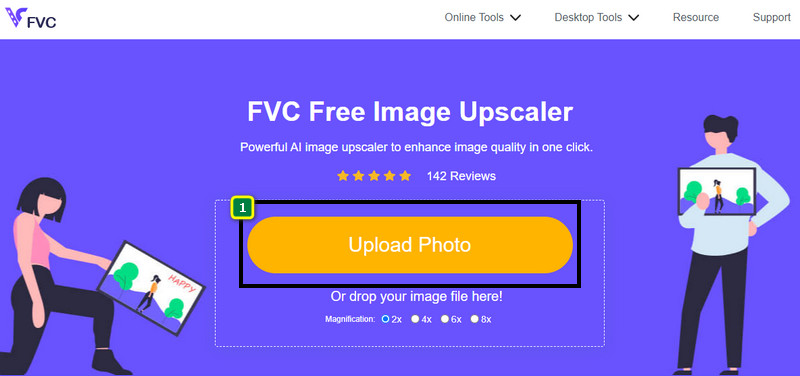
Étape 1. Ouvrez l’outil en ligne en cliquant sur ce lien, qui vous mènera directement sur le site officiel de cet outil — pas d’inquiétude, son site est sûr à visiter.
`Étape 2. Puis appuyez sur Add Image pour importer l’image Twitter que vous souhaitez redimensionner ici. Patientez pendant le chargement, le temps que l’IA détecte et analyse votre image.
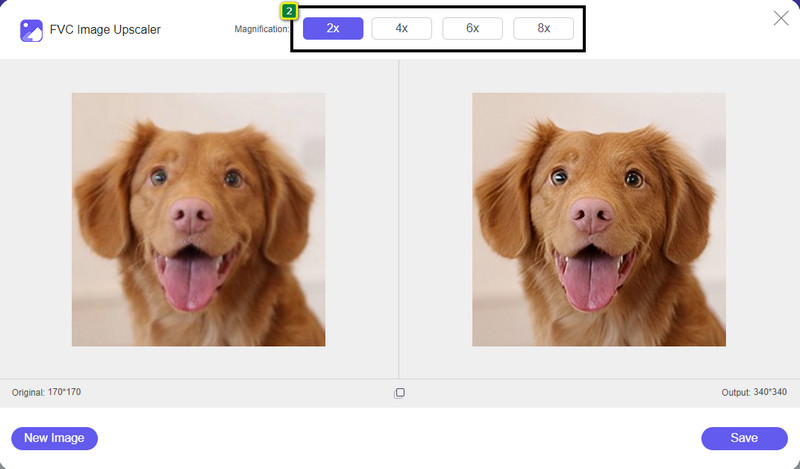
Étape 3. Pour redimensionner l’image que vous avez importée, appuyez sur l’option que vous souhaitez utiliser. Dans la partie centrale supérieure se trouvent les options dont nous parlons. Il est préférable de toutes les essayer afin de voir laquelle correspond le mieux à vos critères.
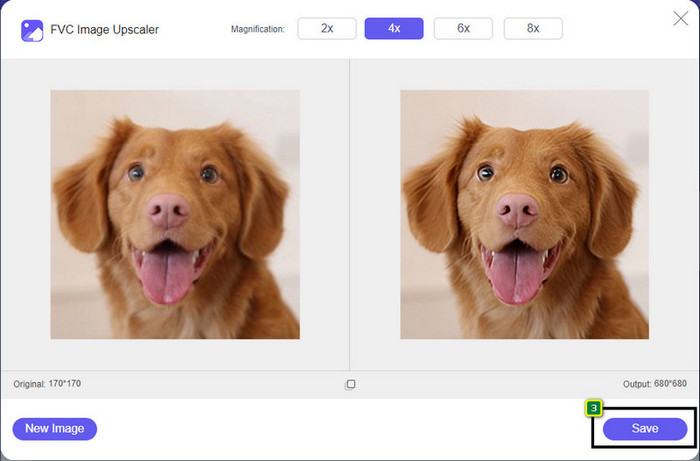
Étape 4. Pour enregistrer la version redimensionnée que vous avez créée ici, appuyez sur le bouton Save. Le fichier sera directement téléchargé sur votre disque local, et vous pourrez ouvrir le dossier pour voir le meilleur résultat.
Partie 2. Comment redimensionner une image sur Android pour Twitter [moyen le plus rapide]
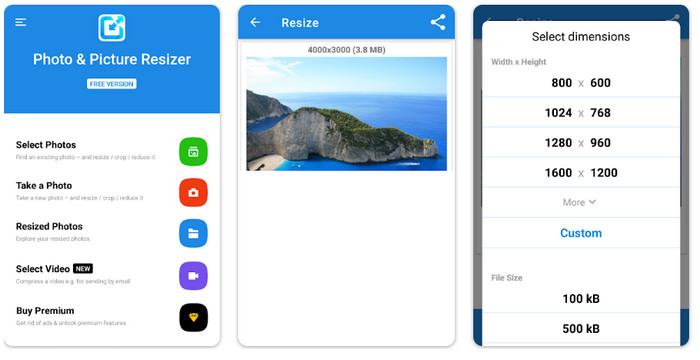
Photo & Picture Resizer est le moyen le plus rapide de redimensionner des images pour la photo de profil Twitter sur les appareils Android. Cet éditeur peut vous aider à redimensionner votre image en fonction de vos préférences, en utilisant les options disponibles ou en les personnalisant. Il propose également d’autres fonctions, comme la réduction d’une seule photo ou le traitement par lot. Une fois l’application téléchargée, vous ne devriez avoir aucune difficulté à la prendre en main, tant son interface est simple. Cependant, la version gratuite contient des publicités et certaines fonctions sont limitées. Malgré cela, cette application remplit très bien son rôle pour modifier la taille des images afin qu’elles respectent les exigences de Twitter.
Étapes pour redimensionner une image Twitter avec Photo & Picture Resizer :
Étape 1. Téléchargez l’application de redimensionnement sur votre appareil, puis lancez‑la ; touchez Select Photo, puis appuyez sur OK pour importer l’image que vous souhaitez redimensionner.
Étape 2. Une fois l’image importée, sélectionnez l’icône avec quatre flèches pour modifier la taille de l’image.
Étape 3. Une liste de dimensions s’affiche à l’écran ; choisissez celle que vous préférez, et la photo sera redimensionnée selon l’option choisie — ensuite, le redimensionnement démarrera automatiquement et sera enregistré dans votre galerie.
Partie 3. Comment redimensionner l'image sur iPhone pour Twitter [le moyen le plus simple]
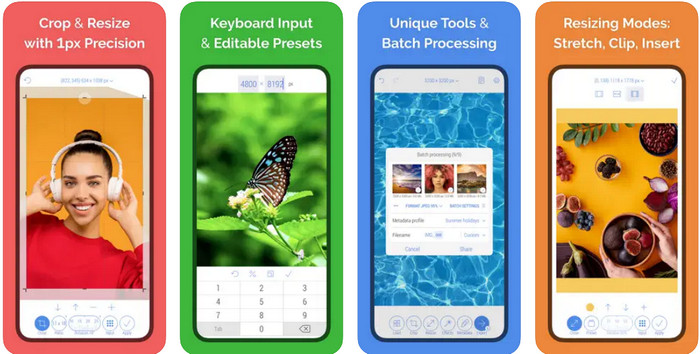
CropSize: Photo Resizer Editor est peut‑être l’application dont vous avez besoin pour recadrer et redimensionner votre image au format souhaité. Avec ce redimensionneur d’images, vous pouvez librement et précisément modifier les dimensions de l’image afin qu’elle corresponde au profil Twitter, aux publicités, aux publications, etc. Cette application offre également d’autres fonctions d’édition que vous pouvez utiliser pour une seule photo ou en traitement par lot. Donc, si vous devez augmenter la résolution d’une image sur votre iPhone ou que vous voulez savoir comment redimensionner une image pour Twitter, suivez les étapes indiquées ici.
Étapes pour redimensionner une image Twitter avec CropSize :
Étape 1. Rendez‑vous sur l’App Store pour trouver le redimensionneur, puis téléchargez l’application sur votre iPhone et ouvrez‑la sur votre appareil.
Étape 2. Une fois l’application lancée, choisissez l’image se trouvant dans votre album, puis touchez la coche.
Étape 3. Touchez l’option Resize pour contrôler les dimensions de l’image. Ici, vous pouvez choisir un préréglage, faire glisser le curseur de taille relative ou saisir un chiffre précis.
Étape 4. Touchez le bouton d’exportation pour enregistrer l’image redimensionnée sur votre iPhone.
Partie 4. FAQ sur le redimensionnement des images pour Twitter
Quelle est la dimension de la photo de profil de Twitter ?
Pour éviter de recadrer Twitter sur votre image, vous devez utiliser la dimension de profil par défaut de 400 x 400 pixels avec une taille de fichier inférieure à 2 Mo afin de ne pas recadrer l'image. La dimension peut être petite, mais vous devez optimiser tout ce que vous voulez sur ce contenu.
Quels sont les formats d'image pris en charge sur Twitter ?
Vous pouvez télécharger des images au format JPEG/JPG, PNG et GIF statiques ou en boucle sur Twitter. Si vos images ne sont pas au format que nous avons mentionné, vous devrez apprendre à convertir facilement des images dans un format populaire tel que JPG, PNG et GIF.
Quel est le pixel d'image recommandé pour l'en-tête Twitter ?
Pour les utilisateurs de Twitter qui souhaitent télécharger un en-tête sur leur compte, vous feriez mieux de définir l'image sur 1500 x 1500 pixels pour l'adapter. Vous pouvez télécharger des images avec une hauteur et une longueur plus importantes, mais vous devrez couper les bords pour que l'image corresponde à l'en-tête.
Conclusion
Pour résumer, vous savez maintenant pourquoi vous devez redimensionner l'image pour Twitter en l'adaptant à la norme établie par Twitter pour chaque objectif. Vous devrez couper l'image en utilisant le redimensionnement de Twitter pour qu'elle fonctionne et soit adaptée à votre publication. Par conséquent, il supprimera définitivement certains détails de l'image. Mais, si vous le redimensionnez, vous n'aurez pas à vous soucier de recadrer l'image de manière permanente comme l'exemple de redimensionnement que nous avons introduit. En outre, nous ajoutons des étapes sur la façon de les utiliser pour vous offrir un processus sans tracas de redimensionnement des images sur le Web, Android et iPhone. Vous pouvez les tester pour voir ce qui vous convient le mieux. Une suggestion sur ce sujet ? Mentionnez-le ci-dessous et discutez-en avec nous.
-
 Meilleure application Photo Resizer en ligne, hors ligne, Android et iPhone
 Quelles sont les meilleures applications de redimensionnement de photos ? Cliquez sur la page pour découvrir les cinq applications de redimensionnement de photos les plus puissantes que vous pouvez utiliser pour améliorer ou redimensionner votre fichier.
-
 Comment redimensionner l'image - Adobe Redimensionner l'image [en ligne et hors ligne]
 Si vous recherchez une image de redimensionnement Adobe, nous avons la solution pour vous. Lisez attentivement cet article pour savoir comment redimensionner des images à l'aide d'Adobe sur votre PC.
-
 Comment redimensionner une photo pour Facebook [Étapes rapides et faciles]
 Si vous rencontrez des difficultés pour télécharger une image de grande taille sur Facebook, nous avons une solution pour vous. Terminez cet article pour savoir comment redimensionner des photos pour Facebook.
