


 Video Converter Ultimate
 Enregistreur d'écran
 Réparation vidéo
 Téléchargement sécurisé
3 meilleures méthodes pour convertir PNG en MP4 [Solutions rapides]
Aujourd’hui, de plus en plus de personnes deviennent accro à la transformation de leurs photos en vidéos avec des effets, du texte, des transitions et des filtres. Bien que le PNG soit un excellent format d’image pour les photos, on peut aller plus loin en le convertissant en MP4. Cela peut paraître inhabituel pour certains, mais certaines personnes convertissent ces fichiers afin de créer un court métrage ou une vidéo amusante. Donc, si vous recherchez un outil de conversion qui transforme le PNG en MP4, vous êtes au bon endroit.
Nous avons donc préparé 3 outils que vous pouvez utiliser pour convertir facilement une image en format vidéo. Apprenez à connaître chacun d'eux et à les utiliser dès maintenant !

Partie 1 : Convertissez PNG en MP4 avec la meilleure qualité sur le bureau
L’une des meilleures façons de convertir un PNG en MP4 est d’utiliser FVC Video Converter Ultimate. Cet outil n’est pas un simple convertisseur : il intègre différentes fonctionnalités comme la création de MV, qui vous permet de transformer des fichiers PNG en vidéo MP4. Il propose divers thèmes prédéfinis que vous pouvez utiliser librement. Vous pouvez également ajouter votre propre musique de fond, appliquer des filtres et des effets, et même personnaliser le tout en ajoutant un filigrane à la vidéo. De plus, vous pouvez facilement faire pivoter, découper et rogner l’image en fonction de vos préférences et de votre vision créative. Ainsi, si vous aimez particulièrement la création et que vous souhaitez transformer vos images en un fichier MP4 dynamique, cet outil de conversion est fait pour vous.
Étape 1. Tout d’abord, sur votre Windows ou Mac, téléchargez le logiciel et installez-le.
Téléchargement gratuit pour Windows 7 ou version ultérieure Téléchargement sécurisé
Téléchargement gratuit pour macOS 10.7 ou version ultérieure - Téléchargement sécurisé
Étape 2. Ensuite, ouvrez l’outil et cliquez sur l’onglet MV.

Étape 3. Ajoutez maintenant les fichiers PNG que vous voulez convertir en MP4 en cliquant sur le bouton Add File.

Étape 4. Une fois que vous avez importé les fichiers PNG dans le créateur de MV, vous pouvez les ajouter, les modifier et les découper pour en faire une vidéo. Il suffit de cliquer sur le bouton situé au-dessus du bouton Add File. Vous pouvez également choisir un thème prédéfini en cliquant sur l’onglet Theme au-dessus.

Étape 5. Par ailleurs, pour ajouter des filtres et des effets, rogner et faire pivoter les images, il vous suffit de cliquer sur l’icône Edit en dessous. Vous pouvez aussi personnaliser votre vidéo MP4 en ajoutant un filigrane.

Étape 6. Lorsque tout est prêt, cliquez sur le bouton Export pour enregistrer la vidéo MP4. Avant l’exportation, n’oubliez pas de spécifier le dossier dans lequel vous voulez enregistrer le fichier de sortie et assurez-vous que le format de sortie est bien défini sur MP4.

Vous pouvez également modifier la fréquence d'images, la résolution et la qualité de la sortie vidéo.
Étape 7. Enfin, vous pouvez accéder à la vidéo exportée dans le dossier que vous avez sélectionné.
Lorsque vous convertissez un fichier PNG en MP4 à l'aide de FVC Video Converter Ultimate, vous pouvez vraiment garantir un résultat de sortie de qualité. Son interface intuitive facilite le traitement de la conversion et ses fonctions d'édition peuvent améliorer l'apparence visuelle de votre sortie vidéo. De plus, vous pouvez sélectionner votre résolution vidéo préférée jusqu'à 4K pour garantir la compatibilité avec votre appareil et divers lecteurs multimédias.
Partie 2 : Convertir PNG en MP4 avec FFmpeg
Une autre méthode pour convertir un PNG en MP4 consiste à utiliser FFmpeg. Cet outil gratuit et open source offre une suite complète de bibliothèques et de programmes pour gérer différents fichiers et flux multimédias. Avec FFmpeg, vous pouvez convertir sans difficulté une séquence d’images PNG ou de JPG en un fichier vidéo MP4 via sa fonction en ligne de commande. Il vous suffit d’exécuter une commande ou un code collé dans le terminal ou l’invite de commandes, et l’outil se chargera du traitement et créera le fichier de sortie en conséquence.
Étape 1. Téléchargez et installez FFmpeg sur votre ordinateur.
Étape 2. Ouvrez votre Terminal ou votre Invite de commandes.
Étape 3. Accédez au répertoire qui contient votre séquence d’images.
Étape 4. Utilisez la commande suivante pour créer la vidéo. Supposons que le nom de fichier de l’image soit happy : ffmpeg -framerate 1 -i happy%d.png -c:v libx264 -r 30 output.mp4

Étape 5. En option, vous pouvez spécifier le numéro de départ de votre séquence d’images en utilisant l’option -start_number. Par exemple, si votre séquence d’images commence à happy3.png, vous ajouterez -start_number 3 à la commande.
Étape 6. Appuyez sur Entrée pour exécuter la commande. FFmpeg commencera à traiter les images et à créer la vidéo.
Étape 7. Une fois le processus terminé, vous pouvez accéder à la vidéo dans le répertoire que vous avez indiqué.
Bien que cet outil semble avoir un processus de conversion et un résultat prometteurs, son inconvénient est la complexité de son interface, ce qui rend difficile pour les utilisateurs de naviguer dans le processus de conversion de PNG en MP4.
Avantages
- Gratuit et open source.
- Interface de ligne de commande puissante.
Les inconvénients
- Courbe d’apprentissage abrupte pour les débutants.
- Manque d'interface utilisateur graphique.
Partie 3 : Convertir PNG en MP4 en ligne
Une autre méthode pour transformer un PNG en MP4 consiste à utiliser un outil de conversion en ligne. Avec les convertisseurs en ligne, vous bénéficiez d’une grande compatibilité avec différents appareils, puisqu’ils ne nécessitent qu’un navigateur et une connexion Internet. L’un des meilleurs convertisseurs en ligne que nous pouvons recommander est FlexClip. C’est un outil en ligne polyvalent qui vous permet de convertir des images PNG en vidéos MP4. Il vous suffit d’importer vos fichiers PNG, puis de suivre une interface simple pour les transformer en fichier vidéo lors de l’exportation.
Étape 1. D’abord, allez dans l’onglet Media et cliquez sur Browse pour importer vos fichiers PNG.
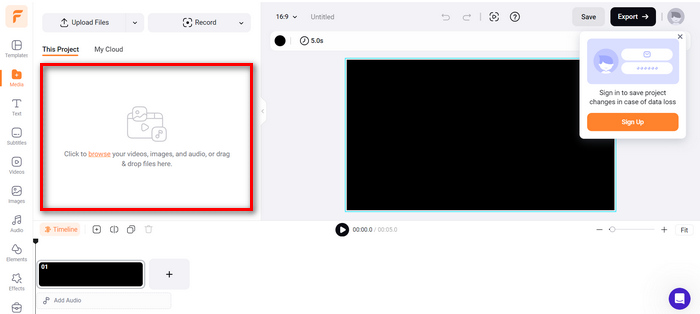
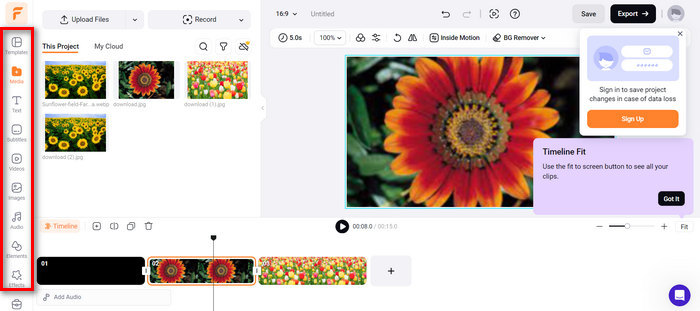
Étape 2. Ensuite, faites glisser les fichiers PNG dans la timeline afin de pouvoir les découper et ajouter des transitions au rendu. De plus, en utilisant l’onglet de gauche de l’interface du logiciel, vous pouvez encore améliorer la qualité visuelle de votre vidéo en ajoutant du texte, des sous-titres, de l’audio, des éléments et des effets.
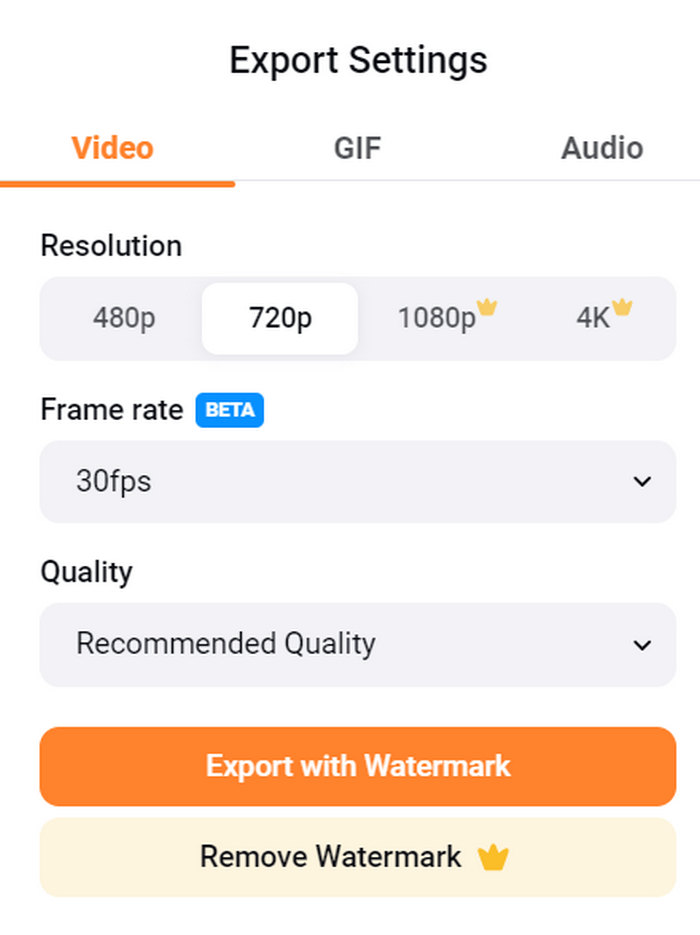
Étape 3. Vous pouvez maintenant télécharger votre MP4 en cliquant sur le bouton Export, mais n’oubliez pas de choisir d’abord la résolution, la fréquence d’images et la qualité vidéo de votre choix.
Avec FlexClip, vous pouvez facilement convertir des fichiers PNG en MP4 en ligne sans vous soucier de la consommation de stockage sur votre appareil. Cependant, si vous utilisez sa version gratuite, vous ne pourrez pas profiter de toutes ses fonctionnalités, ce qui vous empêchera de modifier votre sortie préférée.
Avantages
- Interface facile à utiliser.
- Fonctions d'édition polyvalentes.
- Options de sortie personnalisables.
- Processus de conversion rapide.
Les inconvénients
- Nécessite une connexion Internet.
- Fonctionnalités limitées dans la version gratuite.
- Les vidéos exportées ont des filigranes.
Partie 4 : FAQ sur la conversion de PNG en MP4
Pourquoi voudrais-je convertir PNG en MP4 ?
La conversion d’images PNG en MP4 permet de transformer des images statiques en vidéos dynamiques, ce qui peut être utile pour créer des diaporamas, des animations ou ajouter des éléments audio. Le format MP4 est également largement pris en charge et compatible avec de nombreux appareils et plateformes. Par conséquent, transformer un PNG en MP4 le rend plus adapté au partage et au streaming.
Quelle est la meilleure méthode pour convertir PNG en MP4 ?
La meilleure méthode dépend des préférences et des besoins des utilisateurs. S'ils préfèrent un logiciel de bureau avec des fonctions d'édition avancées, ils peuvent utiliser des outils comme FVC Video Converter Ultimate. S'ils veulent une solution open source avec une interface de ligne de commande, FFmpeg est une bonne option. S'ils préfèrent une solution en ligne simple, FlexClip est recommandé.
En quoi PNG et MP4 diffèrent-ils l’un de l’autre ?
PNG ou Portable Network Graphics est un format de fichier couramment utilisé pour les images fixes avec une compression sans perte, idéal pour les graphiques et les images avec transparence. D'autre part, MP4 ou MPEG-4 est un format de fichier vidéo connu pour ses capacités de compression, stockant à la fois des données vidéo et audio.
Conclusion
Convertir un fichier PNG en MP4, ce n’est pas seulement une histoire de conversion. C’est une question de créativité et de passion. Imaginez transformer des images fixes et statiques en vidéos dynamiques. Cela demande beaucoup de créativité et, bien sûr, un outil de conversion performant. Ne ratez donc pas cette occasion et essayez l’une de ces méthodes dès aujourd’hui !
-
 Moyens complets de convertir JPG en PNG en ligne et hors ligne
 Vous recherchez des méthodes utiles pour convertir le format de fichier JPG en PNG ? Ce guide a la réponse dont vous avez besoin. Pour découvrir ces méthodes, lisez l'article.
-
 Top 5 des principaux tutoriels pour convertir rapidement PNG en JPG
 Si vous avez besoin de convertir votre fichier PNG au format JPG, vous pouvez apprendre les meilleures façons ici. Vous apprendrez également la différence entre les formats de fichier PNG et JPG.
-
 Tutoriels étape par étape sur la conversion d'ICO en PNG
 Cliquez sur ce guide pour découvrir les méthodes les plus simples pour convertir ICO en PNG. Découvrons les convertisseurs ICO vers PNG pour les procédures en ligne et hors ligne.
