


 Video Converter Ultimate
 Enregistreur d'écran
 Réparation vidéo
 Téléchargement sécurisé
Comment convertir QuickTime en MP4 sur Windows / Mac / en ligne / iOS / Android
Dans la plupart des cas, le format de fichier QuickTime fait référence à MOV. QuickTime enregistre les vidéos au format MOV par défaut. Cependant, les fichiers QuickTime MOV ne sont pas compatibles avec tous les lecteurs multimédias. Comparé au MOV, MP4 est un meilleur choix. Vous pouvez obtenir le même contenu vidéo avec une taille de fichier plus petite et une meilleure compatibilité. C'est pourquoi de nombreuses personnes convertissent QuickTime au format MP4. Ensuite, voici la question, comment convertir une vidéo QuickTime en MP4 sur votre ordinateur? Voici 3 solutions que vous pouvez utiliser.

Partie 1: Comment convertir QuickTime en MP4 en ligne gratuitement
FVC Free Online Video Converter est un convertisseur vidéo gratuit vers MP4 pour les utilisateurs Windows et Mac. Vous pouvez convertir gratuitement en ligne les fichiers QuickTime MOV et d’autres formats en MP4. Contrairement aux convertisseurs vidéo en ligne classiques, il n’y a aucune limite de taille maximale de fichier. Vous pouvez convertir par lots de gros fichiers MOV en MP4 sans perte de qualité. Aucun filigrane ne sera ajouté à vos fichiers de sortie. Ainsi, vous pouvez exporter librement des films QuickTime en MP4 en ligne.
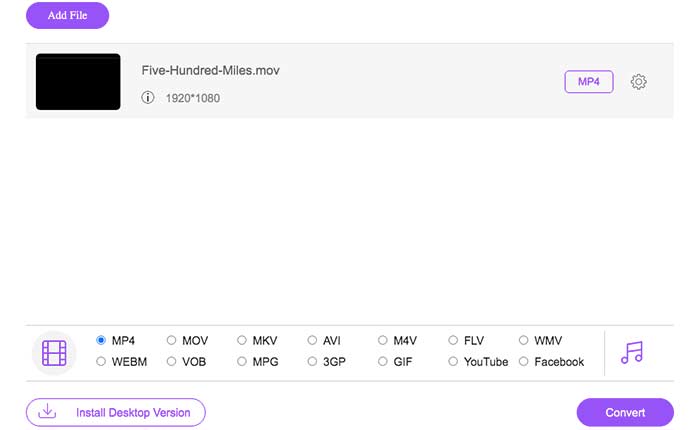
Étape 1 : Ouvrez le site officiel de FVC Free Online Video Converter. Cliquez sur l’option Add Files to Convert. Lors de votre première conversion de vidéo en MP4 en ligne, vous devez télécharger le lanceur FVC.
Étape 2 : Parcourez vos dossiers et importez votre vidéo QuickTime dans la fenêtre qui apparaît.
Étape 3 : MP4 est le format vidéo de sortie par défaut. Si ce n’est pas le cas, vous pouvez modifier manuellement le format de sortie en MP4 en bas de la fenêtre.
Étape 4 : Cliquez sur Convert pour convertir gratuitement QuickTime en MP4 en ligne.
Partie 2: Comment convertir QuickTime MOV en MP4 sous Windows
Si vous souhaitez convertir rapidement une vidéo MOV en MP4 sur PC, vous pouvez changer l’extension du fichier. QuickTime MOV est un format de conteneur vidéo MPEG-4, tandis que MP4 est également un format de fichier vidéo MPEG-4. MP4 est un sous-ensemble du format QuickTime MOV. Ainsi, vous pouvez convertir MOV en MP4 sous Windows en changeant simplement l’extension.
Étape 1 : Ouvrez le dossier qui contient votre fichier MOV.
Étape 2 : Assurez-vous que l’extension du fichier est visible. En d’autres termes, vous devez voir l’extension de fichier .mov. Sinon, vous devez afficher manuellement les extensions de noms de fichiers.
Étape 3 : Choisissez Rename dans le menu contextuel (clic droit).
Étape 4 : Remplacez l’extension du fichier de .mov par .mp4.
Étape 5 : Appuyez sur la touche Enter de votre clavier. Vous pouvez alors changer une vidéo QuickTime en MP4 sous Windows.
Partie 3: Comment convertir un film QuickTime en MP4 sur Mac
En ce qui concerne les utilisateurs de Mac, vous pouvez utiliser iMovie comme convertisseur gratuit de MOV en MP4. iMovie est disponible pour les appareils macOS et iOS. Vous pouvez facilement convertir et modifier des fichiers QuickTime MOV sur votre ordinateur Mac. Cette section vous montrera comment convertir QuickTime en MP4 sur Mac.
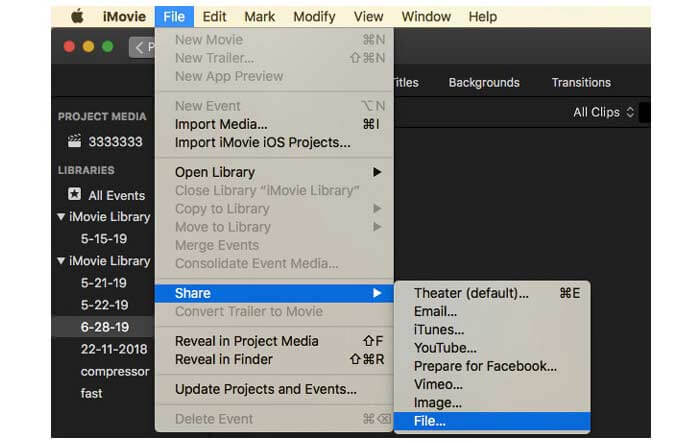
Étape 1 : Téléchargez, installez et ouvrez iMovie sur Mac. Choisissez New Movie dans le menu déroulant File.
Étape 2 : Cliquez sur Import Media pour ajouter un film QuickTime dans iMovie.
Étape 3 : Choisissez la vidéo QuickTime MOV importée. Sélectionnez ensuite Share dans la liste déroulante File. Choisissez File dans son sous-menu.
Étape 4 : Réglez les paramètres vidéo de sortie, notamment la destination, la résolution, la qualité, etc. Cliquez sur Next pour continuer.
Étape 5 : Définissez un nom de fichier et un dossier de sortie. Enfin, cliquez sur Save pour convertir QuickTime en MP4 sur Mac avec iMovie.
Partie 4: Comment convertir une vidéo de MOV en MP4 avec VLC
VLC est un convertisseur, lecteur et éditeur vidéo gratuit et open source pour multiplateforme. Les utilisateurs mobiles et de bureau peuvent convertir gratuitement des fichiers MOV en fichiers MP4 à l'aide de VLC. Ainsi, vous pouvez également convertir QuickTime en MP4 sur iPhone et Android avec VLC. Le téléchargement de VLC est gratuit et sécurisé. Vous pouvez vous rendre sur son site officiel pour obtenir le package de téléchargement propre.
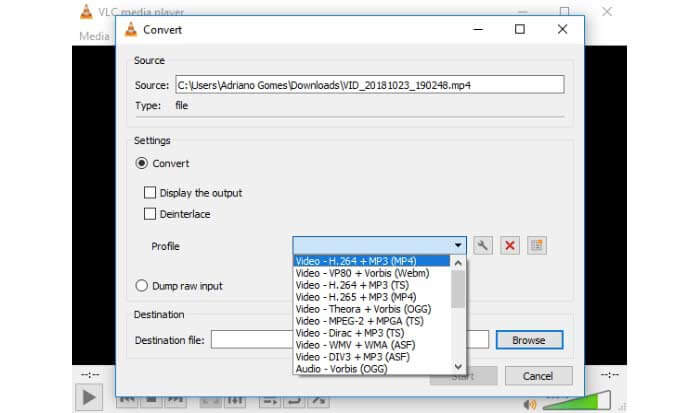
Étape 1 : Lancez VLC. Choisissez Convert/Save dans le menu Media.
Étape 2 : Dans la fenêtre Open Media, cliquez sur Add pour importer une vidéo QuickTime MOV. Cliquez ensuite sur Convert/Save pour continuer.
Étape 3 : Déroulez la liste Profile. Sélectionnez Video – H.264 + MP3 (MP4).
Étape 4 : Cliquez sur Start pour commencer à convertir QuickTime en MP4 avec VLC.
Partie 5: FAQ sur la conversion de QuickTime en MP4
Pouvez-vous convertir MOV en MP4 avec QuickTime?
Non. Vous pouvez ouvrir des vidéos MOV avec QuickTime Player. Mais il n'est pas pris en charge pour convertir une vidéo MOV en MP4 à l'aide de QuickTime.
QuickTime Pro est-il disponible?
Oui. La dernière version est QuickTime Player 7. Apple ne propose plus la mise à niveau QuickTime Pro. Vous pouvez toujours utiliser QuickTime Player Pro sur votre ordinateur Windows ou Mac. Mais Apple t'a plié le support de QuickTime.
Quels programmes peuvent ouvrir des vidéos MOV?
Vous pouvez lire des fichiers MOV avec QuickTime Player, iTunes, VLC, Windows Media Player, Adobe Flash et plus encore.
En utilisant les convertisseurs vidéo en ligne et hors ligne ci-dessus, vous pouvez convertir gratuitement QuickTime en MOV sur votre téléphone et votre ordinateur. Vous pouvez utiliser un convertisseur en ligne de MOV vers MP4, changer l’extension de fichier, iMovie et VLC pour convertir le format vidéo de QuickTime MOV vers MP4. Si vous souhaitez convertir par lots des fichiers QuickTime en MP4 sans applications tierces, FVC Free Online Video Converter peut être votre premier choix. Il est totalement sûr et gratuit à utiliser. Vous pouvez convertir par lots des vidéos QuickTime en MP4 et vers d’autres formats avec une haute qualité.
-
 MOV VS MP4 - Lequel est le meilleur
 MOV VS MP4, lequel est le meilleur? Cet article fait la différence entre MP4 et MOV, afin que vous puissiez obtenir le meilleur choix à utiliser pour vos fichiers vidéo.
-
 Top 4 des moyens gratuits pour convertir MTS en MOV
 Vous n'arrivez pas à lire le fichier MTS sur votre ordinateur ou votre téléphone iPhone / Android? Qu'est-ce qu'un fichier MTS et comment le lire? Quel est le meilleur convertisseur vidéo MTS? Cet article partage 4 moyens simples et gratuits pour vous aider à convertir MTS en MOV pour une meilleure lecture.
-
 6 façons simples de convertir TS en AVI / MKV / MOV / WMV sur Windows / Mac
 Vous voulez convertir rapidement des fichiers TS en AVI / MKV / MOV / WMV? Cet article présente les convertisseurs vidéo en ligne et hors ligne avec un guide complet. Peut-être que vous pouvez obtenir le meilleur convertisseur TS gratuit ici.
