


 Video Converter Ultimate
 Enregistreur d'écran
 Réparation vidéo
 Téléchargement sécurisé
Méthodes courantes pour convertir Xvid en MP4 en ligne et hors ligne
Rencontrez-vous des problèmes lorsque vous lisez vos vidéos Xvid ? Dans ce cas, nous vous proposons les meilleures solutions. La meilleure consiste à convertir vos fichiers Xvid vers d’autres excellents formats, comme le MP4. De cette manière, vous n’aurez plus de difficultés à lire ou diffuser vos vidéos. Cet article va vous présenter un convertisseur Xvid vers MP4 gratuit que vous pouvez utiliser. Cet outil vous aidera à convertir vos fichiers vidéo facilement et instantanément. Si ce type de sujet vous intéresse, lisez les sections suivantes et profitez de ce moment pour apprendre de nouvelles choses !

Partie 1 : Le moyen le plus simple de convertir Xvid en MP4 sur Mac et Windows
Utilisez Video Converter Ultimate pour convertir Xvid en MP4. Vous pouvez utiliser ce convertisseur aussi bien sur Mac que sur Windows. Il convertit les fichiers 30 fois plus rapidement que la plupart des autres convertisseurs. De plus, comme il prend en charge la conversion par lots, vous pouvez convertir de nombreux fichiers Xvid en un seul format MP4. Avec cette fonction, vous pouvez convertir vos fichiers facilement et rapidement. D’autres types de fichiers vidéo pris en charge par cet outil incluent AVI, FLV, MKV, MOV, VOB, WMV, M4V et plus de 100 autres. Il convient donc aux utilisateurs de Xvid comme de MP4. De plus, grâce à son interface conviviale et à ses méthodes de conversion simples, ce convertisseur peut être utilisé aussi bien par les débutants que par les utilisateurs avancés. Pour en savoir plus sur ce à quoi vous attendre avec Video Converter Ultimate, consultez les fonctionnalités supplémentaires ci-dessous.
Fonctionnalités
◆ Convertissez divers formats de fichiers vidéo, tels que Xvid, MP4, DIVX, M4V, FLV, AVI, MKV, WMV, SWF, etc.
◆ Convertir plusieurs fichiers vidéo simultanément.
◆ Il offre un processus de conversion ultra-rapide, qui est 30 fois plus rapide que les autres convertisseurs.
◆ Propose des outils de montage vidéo, notamment un optimiseur vidéo, un compresseur, un rogneur, un rogneur, un inverseur, etc.
Suivez les étapes détaillées ci-dessous pour convertir Xvid en MP4 sur votre Mac ou Windows à l'aide de FVC Video Converter Ultimate.
Étape 1 : Téléchargez Video Converter Ultimate sur votre Mac ou Windows en cliquant sur le bouton Download ci-dessous. Ensuite, une fois l’installation terminée, lancez l’application.
Téléchargement gratuit pour Windows 7 ou version ultérieure Téléchargement sécurisé
Téléchargement gratuit pour macOS 10.7 ou version ultérieure - Téléchargement sécurisé
Étape 2 : Lorsque l’interface apparaît à l’écran, sélectionnez l’option Converter et cliquez sur l’icône + pour ajouter le fichier Xvid. Une autre façon d’ajouter un fichier vidéo consiste à cliquer sur le bouton Add Files.
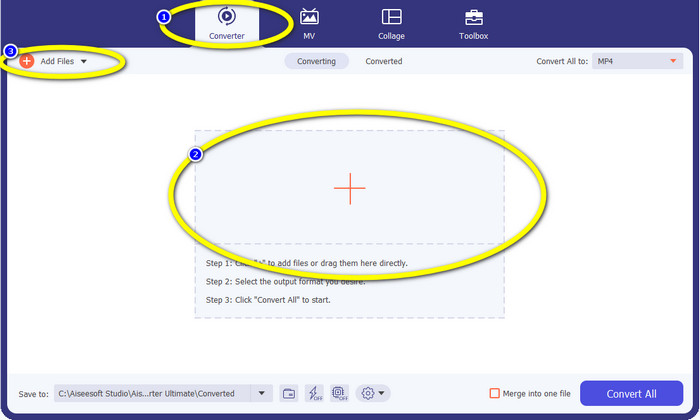
Étape 3 : Cette application vous permet de convertir plusieurs fichiers. Ainsi, pour ajouter une autre vidéo Xvid à convertir, cliquez sur le bouton Add Files en haut à gauche de l’interface.
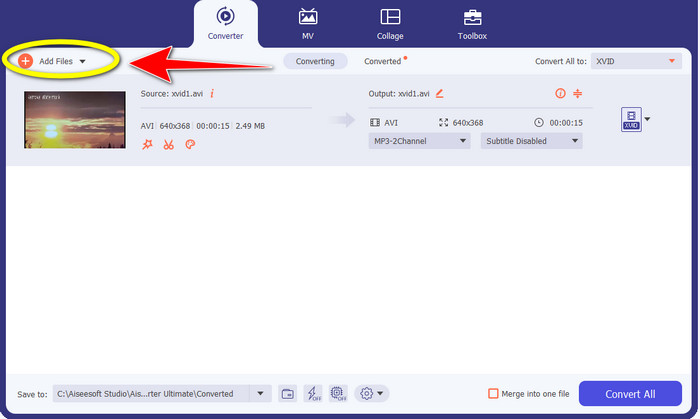
Étape 4 : Ensuite, pour les convertir en un seul fichier MP4, cliquez sur le bouton Convert All to. Sélectionnez le fichier MP4 dans les options de format et choisissez la qualité vidéo souhaitée.
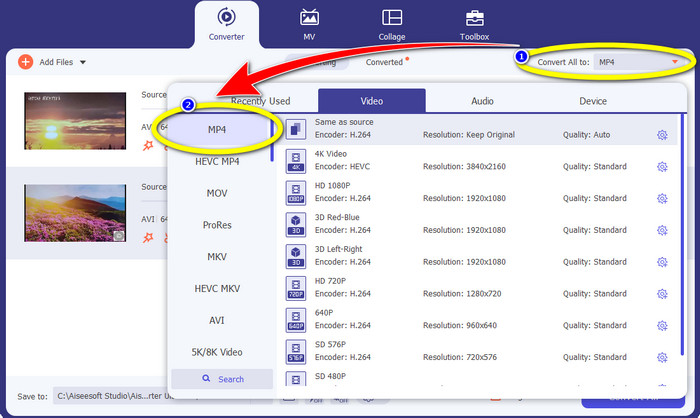
Étape 5 : Après avoir sélectionné le format de sortie souhaité, vous pouvez lancer le processus de conversion en cliquant sur le bouton Convert All. Ensuite, enregistrez votre vidéo MP4 sur votre appareil.
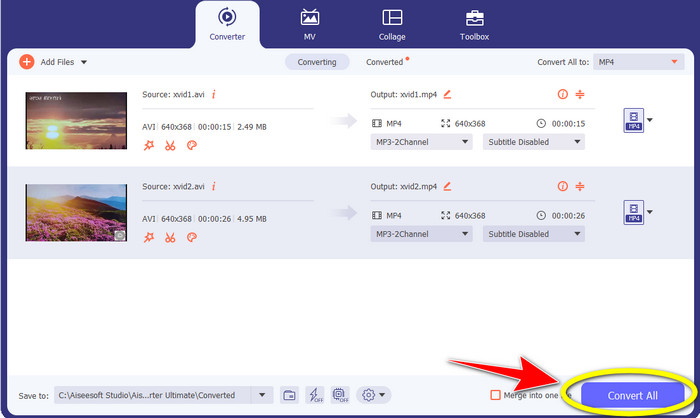
Partie 2 : Comment convertir Xvid en MP4 sur VLC
Dans cette partie, vous allez apprendre à convertir Xvid en MP4 avec VLC. Pour information complémentaire, le VLC Media Player peut convertir plusieurs fichiers vidéo en plus de lire des vidéos. Il prend en charge des formats vidéo tels que MP4, TS, WEM, OGG, et bien d’autres. En outre, il peut convertir des fichiers audio comme MP3, FLAC, etc. Ainsi, VLC est également une application fiable pour convertir divers fichiers. Toutefois, ce logiciel n’est pas idéal pour les débutants. Son interface est difficile à comprendre, ce qui le rend plus compliqué à utiliser. De plus, le téléchargement et l’installation sur votre ordinateur peuvent prendre beaucoup de temps.
Étape 1 : Téléchargez et installez le VLC Media Player sur votre ordinateur. Puis lancez l’application.
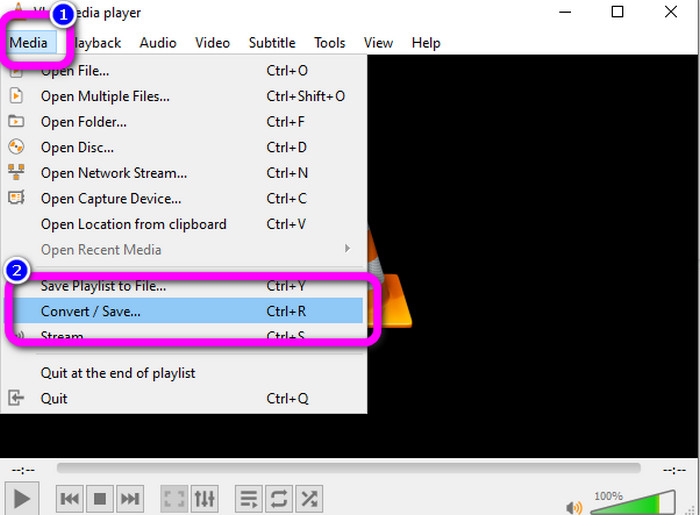
Étape 2 : Allez dans la partie supérieure de l’interface et sélectionnez l’option Media. Ensuite, cliquez sur le bouton Convert/Save.
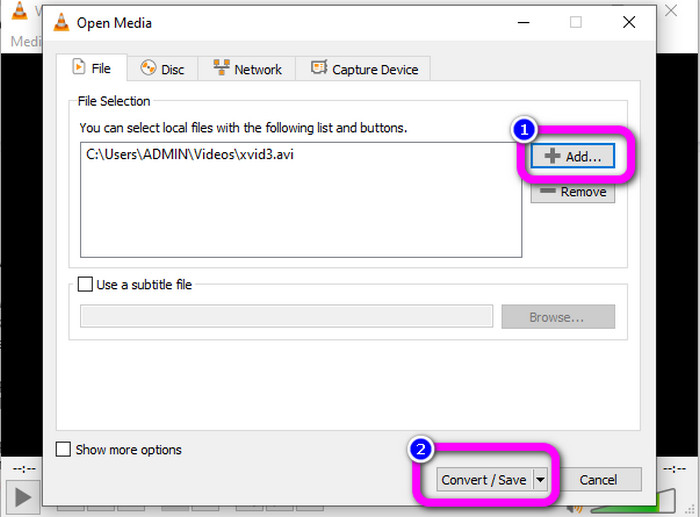
Étape 3 : Appuyez sur le bouton Add pour insérer le fichier vidéo Xvid. Une fois le fichier ajouté, cliquez sur le bouton Convert / Save.
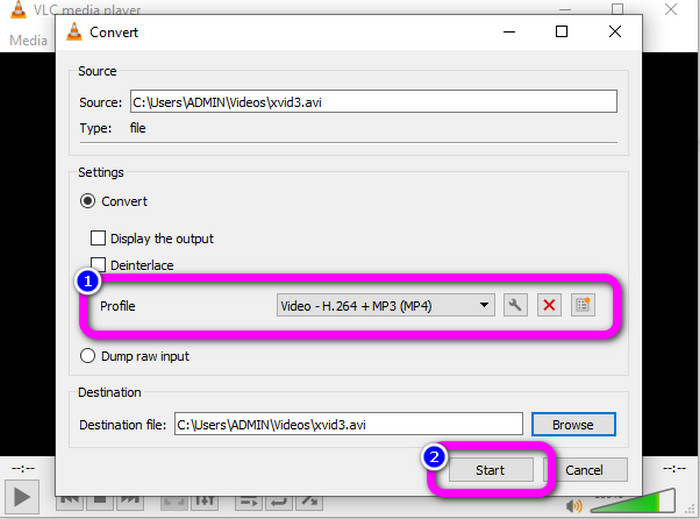
Étape 4 : Pour la dernière étape, cliquez sur Profile pour afficher les options de format et sélectionnez le format de fichier MP4. Définissez le fichier de destination et lancez la conversion en cliquant sur le bouton Start.
Partie 3 : Étapes faciles pour convertir Xvid en MP4 sur Handbrake
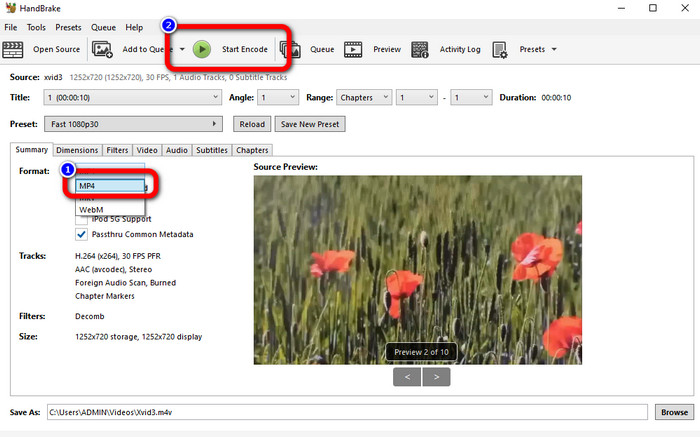
Handbrake est un autre outil hors ligne auquel vous pouvez faire confiance pour convertir votre fichier Xvid au format MP4. En outre, cet outil propose un processus de conversion par lots, dans lequel vous n'avez qu'à insérer un dossier composé de plusieurs vidéos et à les convertir en une seule fois. Cependant, il n'est pas facile à utiliser. De nombreuses options sont déroutantes pour les débutants. Suivez le guide simple ci-dessous pour convertir Xvid en MP4 à l'aide d'un frein à main.
Étape 1 : Téléchargez Handbrake sur votre ordinateur. Lancez-le après la fin de l’installation.
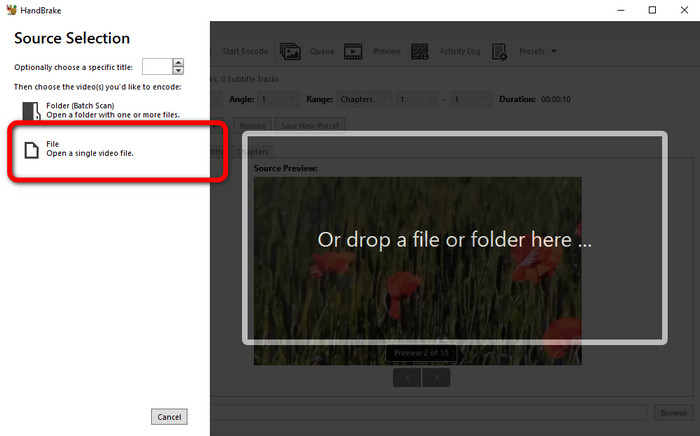
Étape 2 : Ouvrez le bouton File pour ajouter le fichier vidéo Xvid.
Étape 3 : Allez dans l’option Format et sélectionnez le format de fichier MP4. Puis cliquez sur le bouton Start Encode pour convertir votre fichier Xvid en format MP4.
Partie 4 : Processus de conversion de Xvid en MP4 en ligne
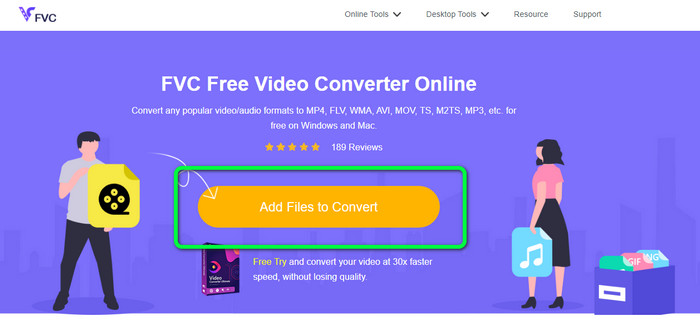
FVC Free Video Converter Online est un excellent outil pour convertir Xvid en MP4 en ligne. Il offre une interface conviviale, parfaite pour les débutants. Vous pouvez convertir vos fichiers en seulement trois étapes simples. De plus, vous pouvez aussi convertir plusieurs fichiers en une seule fois, car il permet la conversion par lots. Cet outil prend en charge divers formats vidéo, comme FLV, AVI, MKV, WMA, MOV, VOB, et bien d’autres. Si vous souhaitez utiliser FVC Free Video Converter Online, suivez les instructions simples ci-dessous.
Étape 1 : Rendez-vous sur le site FVC Free Video Converter Online. Sur la page principale, cliquez sur le bouton Add Files to Convert pour téléverser le fichier vidéo Xvid que vous voulez convertir.
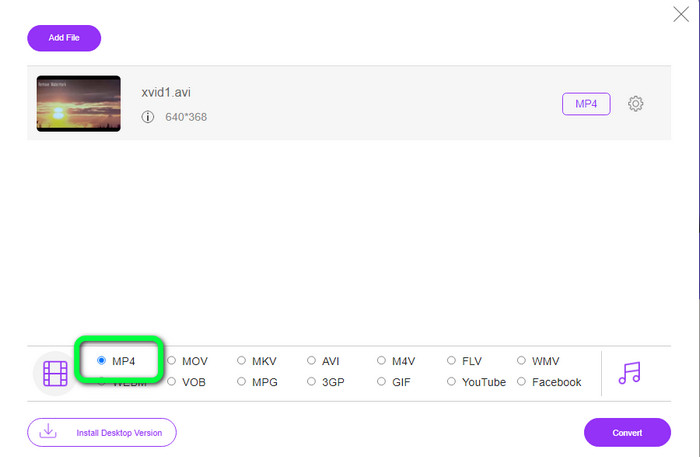
Étape 2 : Comme vous pouvez le voir dans la partie inférieure de l’interface, il existe plusieurs options de format. Sélectionnez MP4 comme format de fichier de sortie.
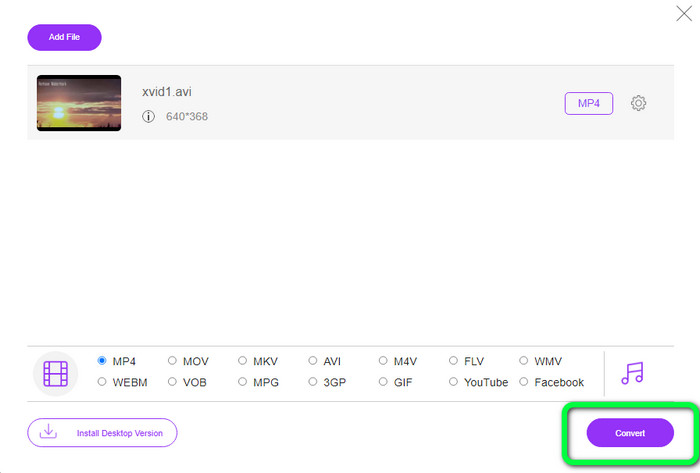
Étape 3 : Appuyez sur le bouton Convert pour convertir votre fichier Xvid au format MP4. Patientez pendant le processus de conversion, puis enregistrez votre vidéo finale.
Partie 5 : Excellente méthode pour convertir Xvid en MP4 à l'aide d'Android
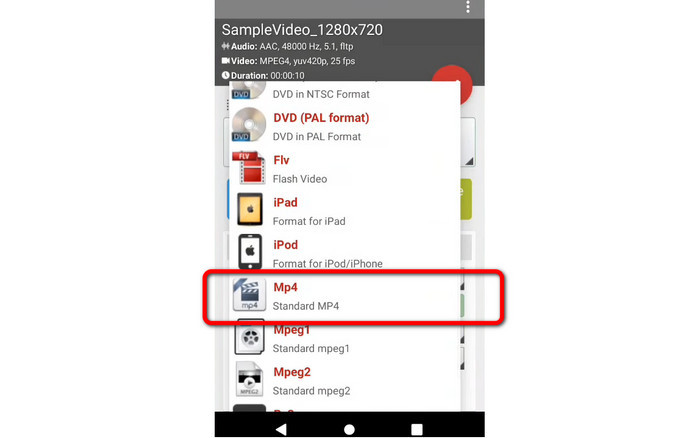
Si vous voulez un convertisseur Xvid vers MP4 pour Android, vous pouvez utiliser Video Format Factory. Vous pouvez facilement convertir un fichier vidéo vers d’autres formats à l’aide de cette application. Toutefois, la conversion de vos vidéos peut prendre du temps, car le processus de conversion est lent. Consultez les étapes ci-dessous pour convertir Xvid en MP4.
Étape 1 : Téléchargez et installez Video Format Factory sur votre appareil Android.
Étape 2 : Après avoir lancé l’application, sélectionnez le bouton Video pour insérer le fichier Xvid.
Étape 3 : Sélectionnez l’option Convert et choisissez le format MP4 parmi les options de format. Puis démarrez la conversion en cliquant sur le Checkmark.
Lectures complémentaires :
Méthodes faciles à apprendre pour convertir Xvid en DivX
Techniques efficaces pour convertir XviD en 3GP rapidement
Partie 6 : FAQ sur la conversion de Xvid en MP4
1. Qu'est-ce que le format de fichier Xvid ?
Le format de fichier Xvid est un codec vidéo suivant la norme de codage MPEG-4. Ce codec compresse les fichiers vidéo à l'aide du format MPEG-4 Part 2 A SP.
2. Xvid est-il de bonne qualité ?
Oui. Ce fichier est la suite du projet Mayo. Son objectif est de développer un codec MPEG-4 open-source de haute qualité.
3. Le MP4 est-il compressé ?
Oui c'est le cas. Un fichier MP4 compressé existe. Différents codecs de vidéo peuvent être inclus dans un fichier MP4. Parmi les codecs vidéo les plus appréciés pour MP4 figurent H.264, H.265 et MPEG-4. Avec la compression H.264, une vidéo d'une heure peut être compressée en environ 1 Go à l'aide du codec vidéo MP4.
Conclusion
Avec toutes les informations ci-dessus, vous savez désormais comment convertir Xvid en MP4 en ligne, hors ligne et à l’aide d’appareils Android. Cependant, les meilleurs convertisseurs que vous pouvez utiliser sont Video Converter Ultimate et FVC Free Video Converter Online. Ces deux convertisseurs vous offrent une interface intuitive, adaptée à tous les utilisateurs.
-
 Comment convertir MPG en M4V sur Mac et utiliser l'outil en ligne
 Êtes-vous un nouvel utilisateur Mac et ne savez-vous pas comment convertir MPG en M4V ? Ensuite, vous pouvez lire cet article pour en savoir plus et découvrir comment convertir des fichiers à l'aide de votre Mac
-
 Méthodes efficaces pour convertir DIVX en MP4 immédiatement
 Comment convertir DIVX en MP4 ? Si vous cherchez la meilleure solution, vous êtes dans le bon article. Nous allons vous montrer comment convertir facilement DIVX en MP4
-
 Comment convertir F4V en MP4 avec les méthodes les plus efficaces
 Vos vidéos F4V ne sont pas de bonne qualité ? Transformez-le ensuite en fichier MP4. Cet article offrira le meilleur moyen de convertir F4V en MP4 en ligne et hors ligne
