


 Video Converter Ultimate
 Enregistreur d'écran
 Réparation vidéo
 Téléchargement sécurisé
2 étapes pour diffuser un DVD d'un ordinateur portable à un téléviseur à l'aide de Chromecast
C’est un excellent moyen d’utiliser Chromecast pour diffuser vos contenus multimédia préférés vers un périphérique de sortie HD comme un téléviseur ou un moniteur. Si vous souhaitez profiter de vos DVD avec Chromecast, vous risquez d’être frustré, car il ne peut pas diffuser directement vos films DVD depuis le lecteur DVD ou le disque dur de votre ordinateur. Pour diffuser un DVD vers Chromecast, vous devez d’abord convertir le fichier DVD dans un format compatible, par exemple une vidéo H.264 dans un conteneur MP4. Après la conversion, vous pourrez utiliser Chromecast pour diffuser le contenu de votre DVD depuis votre PC ou votre Mac vers votre téléviseur.
Heureusement, il existe différents types d'outils d'extraction de DVD avec une variété d'options différentes qui peuvent faire des copies numériques à partir de DVD et les convertir dans un format reconnu par Chromecast. Pour en savoir plus, vous pouvez suivre le guide étape par étape pour diffuser et diffuser des films DVD de votre ordinateur vers la télévision via Google Chromecast.

Partie 1. Convertir des films DVD en formats de fichiers compatibles Chromecast
La première étape pour diffuser votre DVD consiste à utiliser un extracteur de DVD professionnel pour convertir vos films DVD aux formats de fichiers pris en charge par Chromecast. Aiseesoft Video Converter est un excellent convertisseur vidéo multifonctionnel et un convertisseur de DVD. Grâce aux dernières techniques de décodage avancées, il peut rapidement convertir presque tous les types de DVD que vous voyez sur le marché en formats de fichiers pris en charge par Chromecast.
En plus de cela, Aiseesoft Video Converter propose plus de 500 formats parmi lesquels vous pouvez choisir, notamment MP4, AVI, MKV, MPEG, VOB, MP3, AAC, ainsi que des formats d'appareils tels que iPhone, iPad, PS4, Xbox One, etc. . Téléchargez simplement le logiciel gratuitement, puis suivez les instructions ci-dessous pour démarrer le processus de conversion de DVD en Chromecast.
Téléchargement gratuit pour Windows 7 ou version ultérieure Téléchargement sécurisé
Téléchargement gratuit pour macOS 10.7 ou version ultérieure - Téléchargement sécurisé
Étape 1. Insérez votre DVD dans le lecteur de disque et lancez Aiseesoft Video Converter sur votre Mac ou PC. Sur l’interface principale, allez dans la fonction Ripper , puis cliquez sur Load DVD et choisissez le film que vous souhaitez extraire et convertir. Cliquez sur Open pour démarrer l’analyse.
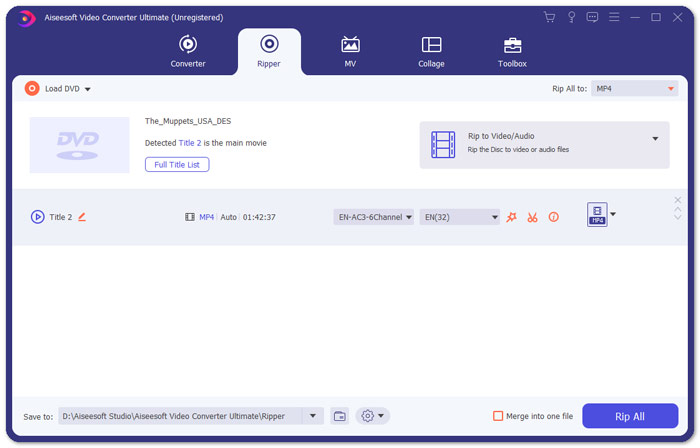
Étape 2. Une fois les fichiers ajoutés, convertissez-les dans un format compatible avec Chromecast, comme le MP4. Déroulez la liste de l’option Rip All to et sélectionnez MP4 dans l’onglet de la catégorie Video comme format de sortie.
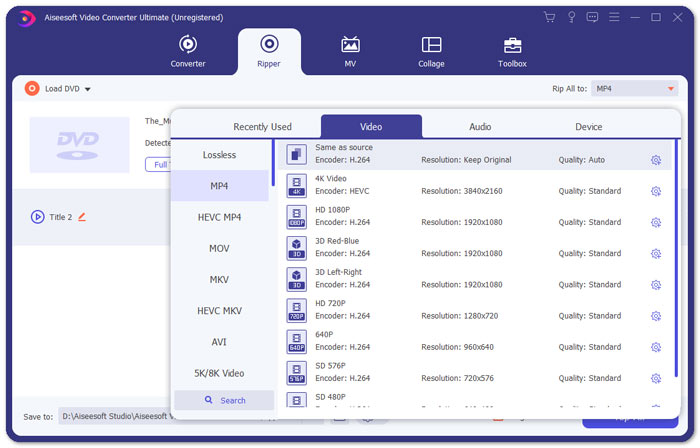
Étape 3. Ensuite, allez au champ Save to pour choisir le dossier dans lequel enregistrer votre fichier DVD converti, puis cliquez sur le bouton Rip All pour lancer le processus de conversion du DVD pour Chromecast.
Partie 2. Diffusez du contenu DVD converti sur un téléviseur via Chromecast
Vous avez maintenant un fichier vidéo pris en charge par Chromecast. La prochaine chose que vous devez faire est de diffuser la vidéo DVD sur le téléviseur à l'aide de Chromecast. Voici ce que vous devez faire :
Étape 1. Ouvrez votre navigateur Chrome et vérifiez si l’extension Chromecast est installée sur votre ordinateur. Si vous ne l’avez pas installée, vous pouvez l’obtenir depuis le Chrome Web Store.
Remarque : Assurez-vous d’utiliser la dernière version de Chrome en allant dans Paramètres, puis À propos de Chrome.
Étape 2. Connectez maintenant le Chromecast au téléviseur, puis connectez les deux appareils au même réseau Wi‑Fi.
Étape 3. Ensuite, installez l’extension Google Cast sur le navigateur Chrome. Vous verrez l’icône de diffusion dans Chrome. Vous pouvez ajuster la qualité de la diffusion en cliquant sur l’icône de diffusion correspondant à votre téléviseur.
Étape 4. Après cela, faites glisser votre film DVD converti dans la fenêtre du navigateur Chrome, ou appuyez sur Ctrl+O pour parcourir vos fichiers multimédias. Vous pouvez maintenant commencer à diffuser vos films DVD sur votre téléviseur grâce à Chromecast.
Partie 3. FAQ sur la diffusion de DVD sur Chromecast
Puis-je diffuser un DVD sur un téléviseur à l'aide de VLC ?
Oui. Google a ajouté la prise en charge de VLC dans le Chromecast 3 pour un streaming sans effort.
Existe-t-il une alternative au Chromecast ?
Si vous ne souhaitez pas utiliser Chromecast pour diffuser votre DVD, vous pouvez utiliser des alternatives Chromecast telles que Roku, Amazon Fire Stick, Apple TV et autres.
Quels formats le Chromecast prend-il en charge ?
Chromecast prend en charge les formats de médias audio, vidéo et graphiques tels que JPEG, GIF, PNG, BMP, WEBP, HE-AAC, LC-ACC, MP3, WAV et bien plus encore.
Conclusion
Nous espérons que vous avez réussi à diffuser le DVD vers Chromecast en suivant les étapes ci‑dessus. En plus de la diffusion de DVD vers Chromecast, il existe d’autres options, par exemple diffuser un DVD vers Apple TV ou diffuser un DVD vers Roku. Choisissez le service qui correspond le mieux à vos besoins pour simplifier la diffusion de vos DVD. Si vous préférez profiter de vos films DVD en ligne, essayez FVC Free Video Player
-
 6 solutions vérifiées pour corriger les vidéos qui ne sont pas lues sur Chrome
 Pour résoudre le problème que les vidéos ne sont pas lues sur Chrome, il vous suffit de lire notre dépannage et d'appliquer les solutions vérifiées une par une.
-
 Solutions de travail 100% pour réparer QuickTime Player ne fonctionne pas
 Il est possible de réparer QuickTime Player ne fonctionne pas si vous suivez nos solutions étape par étape une par une. Ensuite, vous pouvez lire des vidéos sur votre Mac en douceur.
-
 Lecteur DVD Android - Comment lire des vidéos DVD sur des mobiles Android
 Comment lire des fichiers DVD sur les mobiles Android ? Existe-t-il des lecteurs DVD Android ? Dans cet article, vous découvrirez 3 façons de lire des vidéos DVD sur des mobiles Android avec ou sans pilote externe.
