


 Video Converter Ultimate
 Enregistreur d'écran
 Réparation vidéo
 Téléchargement sécurisé
3 façons de lire des fichiers MKV dans Windows Media Player
Can't open MKV file in Windows Media Player?
MKV is one kind of popular video format. You may get many high-quality movies, TV shows or other videos that saved in MKV. However, as a Windows user, the default video player, Windows Media Player doesn't natively support the splitting (opening) MKV containers. Now we back to the question, how to play MKV files in Windows Media Center?

Même après avoir mis à niveau Windows Media Player vers la dernière version, rien ne garantit que vous ne rencontrerez pas de problèmes de lecture MKV. Considérant cela, cet article souhaite partager 3 façons efficaces de vous aider à lire des fichiers MKV sur votre PC Windows.
Partie 1. Comment ouvrir un fichier MKV dans Windows Media Player
Windows Media Player can't play MKV files mainly due to the mismatch of codec. You should know that, MKV is actually a media container for video streams, audio streams, subtitles, and more. You need to give WMP the correct splitter for MKV, and codecs and filters for the video and audio file. This part will guide you to play MKV file in Windows Media Player.
Step 1. Open Windows Media Player and open the MKV file with it. Here you can also right click on the MKV file and select open with WMP.
Step 2. Now you will see an error message saying that Windows Media Player cannot play the file. Click the Web Help option in the dialog box.
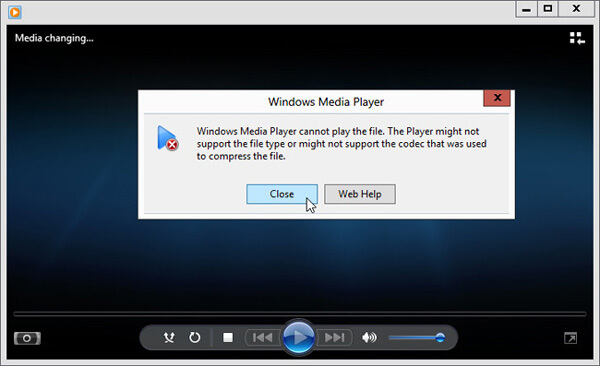
Step 3. Click the codec link under Codec is Missing. Copy and paste the link on your browser. This will guide you to get the right Windows Media Player MKV codec. After downloading, you should follow the instructions to complete the Windows Media Player MKV setup process.
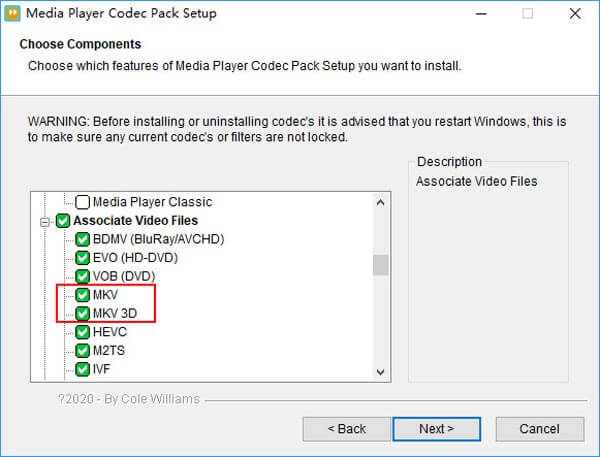
Step 4. Restart Windows Media Player and then try playing your MKV file again.

Partie 2. Meilleure façon de lire des fichiers MKV dans l'alternative de Windows Media Player
Avec le bon codec MKV, vous pouvez facilement ouvrir le fichier MKV dans Windows Media Player. Cependant, de nombreux utilisateurs ont signalé qu'il y avait encore d'autres problèmes de lecture lors de la lecture de MKV avec WMP. Dans ce cas, vous pouvez choisir une alternative à Windows Media Player pour vous aider à lire les fichiers MKV.
FVC Free MKV Player is a great alternative tool to Windows Media Player. It natively supports any frequently-used video and audio formats, such as MKV, MOV, MP4, FLV, AVI, RMVB, MPEG, AAC, MP3, M4A, WMA, and more. You can rely on it to watch MKV movies with high quality.

Step 1. Open your browser and navigate to this free MKV player site. Click on the Play Now button to install a small-size launcher file for the MKV playing. After that, the main MKV playing window will appear on the screen.

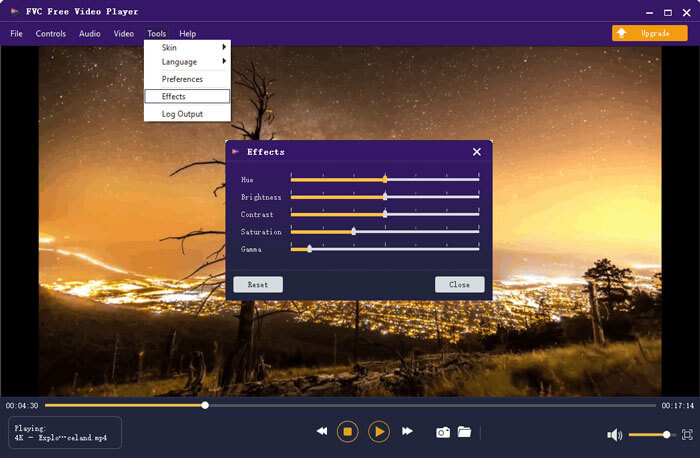
Step 2. Click on the Open File button to browse and import your MKV file to it. After that, the video will be automatically played. With the adoptions of the advanced video encoding technology, it can play MKV file smoothly with high quality. In addition, it supports DTS-HD and Dolby TrueHD.

Vous disposez de tous les contrôles de la lecture MKV. Outre les opérations de base telles que la lecture, la pause, l'arrière, l'avant, le réglage du volume, etc., il vous permet également d'ajuster les effets, de modifier la piste audio et les sous-titres et de personnaliser d'autres paramètres.
Partie 3. Convertir MKV pour la lecture sur Windows Media Player
To play MKV file in Windows Media Player, you can also choose to convert MKV to a supported video format like MP4. Here we introduce you with the Free Online Video Converter to help you convert MKV to MP4 without quality loss.
Step 1. Go to this free online MKV to MP4 converter page on your browser. It is compatible with any popular web browser including Chrome, IE, Safari and Firefox.
Step 2. When you get there, click the Add File to Convert button. During this step, you need to install a small launcher for the MKV conversion. After that, a pop-up window will appear on the screen for you to select your MKV file.
Step 3. You can see many popular video formats like MP4, MOV, AVI, MKV, FLV, etc. are listed there. Make sure the output format is MP4 and then click on the Convert button.
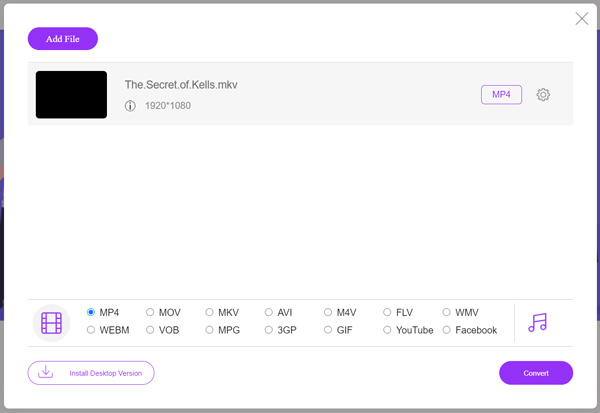
After the MKV to MP4 converting, you can play it with your Windows Media Player. There won't be any image or sound quality loss during the conversion.
Partie 4. FAQ sur la lecture de MKV dans Windows Media Player
Question 1. Comment changer le format d'une vidéo sur Windows Media Player?
Ouvrez Windows Media Player et chargez le fichier vidéo que vous souhaitez convertir. Cliquez sur la petite flèche sous l'onglet Extraire dans le menu supérieur. Sélectionnez Plus d'options, puis cliquez sur le menu déroulant intitulé Format. Ici, vous pouvez choisir un format de sortie approprié et démarrer la conversion.
Question 2. Quel est le format vidéo de Windows Media Player?
Le format de fichier par défaut de Windows Media Player est WMV, Windows Media Video et WMA, Windows Media Audio. En outre, il prend en charge le format Advanced Systems et son propre format de liste de lecture XML, la liste de lecture Windows.
Question 3. Windows 10 peut-il lire les fichiers MKV?
Non. Le Windows Media Player 12 intégré à Windows 10 ne peut pas lire les fichiers MKV. Vous devez installer le codec MKV pour obtenir la lecture.
Conclusion
When Windows Media Player could not understand the MKV codec, it simply shows an error. To play MKV file in Windows Media Player, you need to install right codec. Also, you can get a third-party player or convert MKV format for the playing. If you still have any questions about how to open MKV file in Windows Media Player, don't hesitate to leave us a message.
-
 Top 8 des lecteurs MKV pour lire des fichiers MKV avec le sous-titre souhaité
 Lorsque vous souhaitez lire la vidéo MKV avec le sous-titre souhaité, vous pouvez en savoir plus sur les 8 meilleurs lecteurs de fichiers MKV pour PC / Mac et choisir celui de votre choix en fonction de vos besoins.
-
 MKV en MOV - Comment convertir MKV en MOV
 Comment convertir MKV en MOV sur Mac? IMovie peut-il lire MKV? Que signifie le format MOV? Cet article explique 2 façons simples de vous aider à convertir MKV en MOV avec des convertisseurs vidéo gratuits en ligne et professionnels.
-
 AC3 Player - Examen des 10 meilleurs joueurs AC3 gratuits de 2021
 Quel est le meilleur lecteur AC3? MX Player peut-il ouvrir AC3? Cet article dresse une liste de 10 lecteurs AC3 gratuits pour les appareils Mac, Windows PC, iOS et Android.
