


 Video Converter Ultimate
 Enregistreur d'écran
 Réparation vidéo
 Téléchargement sécurisé
4 façons simples d'enregistrer des captures d'écran au format JPG [Guide 2025]
Les captures d’écran sont généralement enregistrées au format PNG. Par conséquent, les convertir dans le format de votre choix peut vous prendre un certain temps, surtout lorsqu’elles sont déjà enregistrées. Donc, si vous rencontrez ce problème et que vous souhaitez enregistrer vos captures d’écran en JPG, cet article est fait pour vous. Nous allons y présenter différentes méthodes et outils que vous pouvez utiliser, des logiciels tiers aux options intégrées à votre appareil. Ainsi, vous pourrez choisir la méthode qui vous convient le mieux. Commençons !

Partie 1 : Le moyen le plus simple d'enregistrer une capture d'écran au format JPG sous Windows et Mac
Si vous cherchez un moyen simple d’enregistrer des captures d’écran en JPG aussi bien sur Windows que sur Mac, FVC Screen Recorder est la solution idéale pour vous. Cet outil d’enregistrement d’écran est conçu pour simplifier le processus de capture et d’enregistrement des captures d’écran dans le format de votre choix. Grâce à son interface intuitive, vous pouvez facilement prendre des captures de tout l’écran de votre Mac ou de votre PC Windows, de fenêtres spécifiques ou de zones personnalisées, puis les enregistrer en JPG ou dans tout autre format souhaité en quelques clics seulement. De plus, si vous souhaitez améliorer ou personnaliser votre capture, il propose de nombreuses fonctions avancées qui vous permettent de modifier votre capture d’écran avant de l’enregistrer en JPG.
Étape 1. Commencez par télécharger et installer FVC Screen Recorder sur votre ordinateur Windows ou Mac.
Téléchargement gratuitPour Windows 7 ou version ultérieureTéléchargement sécurisé
Téléchargement gratuitPour macOS 10.7 ou version ultérieureTéléchargement sécurisé
Étape 2. Ensuite, après avoir lancé l’outil, cliquez sur l’icône Snapshot dans le coin droit.
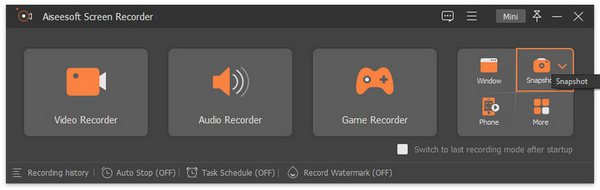
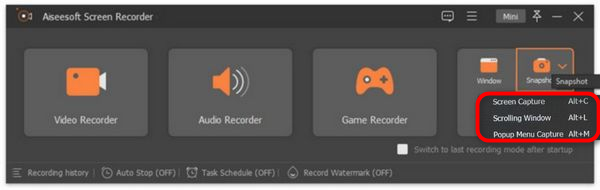
Étape 3. Après avoir cliqué sur l’icône Snapshot, trois options s’offrent à vous pour prendre une capture d’écran : vous pouvez choisir entre Screen Capture, Scrolling Window ou Pop-up Menu Capture.
Étape 4. Faites alors glisser le curseur sur la zone de l’écran de votre appareil Windows pour sélectionner la partie que vous souhaitez capturer.
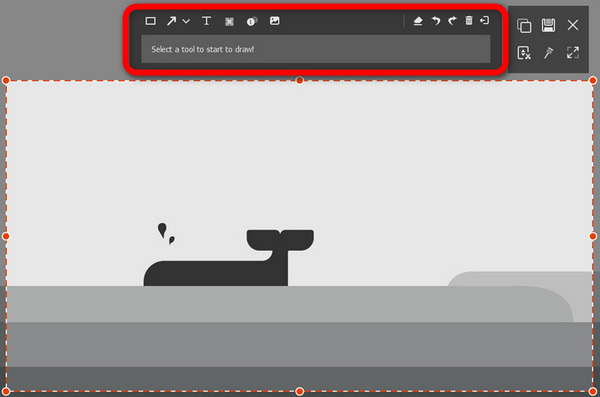
Étape 5. Ensuite, cliquez sur le bouton Save, allez dans Save as Type, puis, dans le menu déroulant, sélectionnez JPG.

Avec son interface conviviale pour prendre des captures d'écran et les enregistrer au format JPG ou dans tout autre format de fichier que vous préférez, FVC Screen Recorder est en effet le meilleur choix pour tous ceux qui recherchent un moyen sans tracas de capturer et d'enregistrer des captures d'écran au format JPG sous Windows et Plateformes Mac.
Partie 2 : Enregistrer la capture d'écran au format JPG sous Windows avec l'outil de capture
Snipping Tool est l'une des applications intégrées les plus courantes disponibles sur les systèmes d'exploitation Windows aujourd'hui, conçue pour prendre des captures d'écran. Grâce à l'outil Snipping Tool, les utilisateurs peuvent enregistrer leurs captures d'écran au format JPG après les avoir capturées.
Étape 1. D’abord, vous devez aller dans le menu Start de votre ordinateur Windows.
Étape 2. Ensuite, allez dans la barre de recherche et cherchez l’outil Snipping Tool. .
Étape 3. Vous verrez alors le bouton New. Cliquez dessus pour commencer à prendre une capture d’écran.
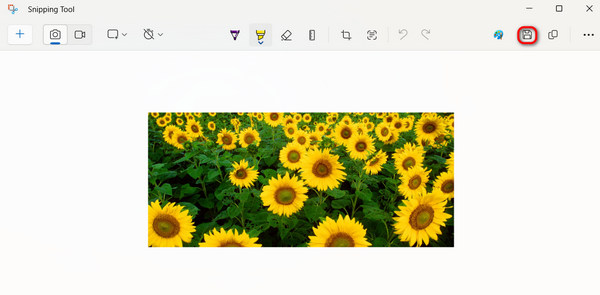
Étape 4. Enfin, pour enregistrer l’image de la capture d’écran et la convertir en JPG, cliquez sur le bouton Save et choisissez JPG dans le menu déroulant Save as Type.
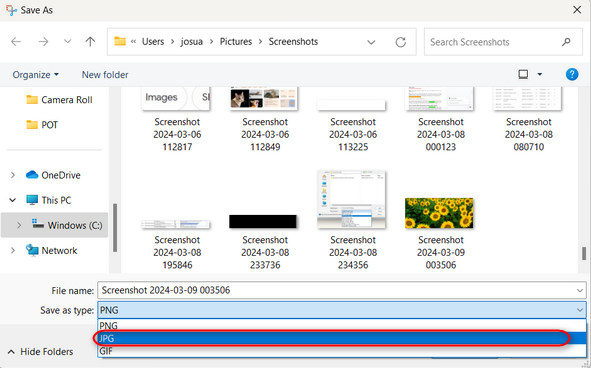
Ainsi, si vous êtes un utilisateur Windows et que vous souhaitez enregistrer des captures d'écran au format JPG, l'utilisation de l'outil Snipping est certainement une option pratique. Cependant, notez qu'il manque de fonctionnalités avancées dans les outils tiers et peut sembler obsolète pour certains utilisateurs.
Partie 3 : Enregistrer la capture d'écran au format JPG sur Mac à l'aide de l'aperçu
En revanche, si vous utilisez un Mac, vous pouvez utiliser l’outil Aperçu (Preview) pour enregistrer et prendre des captures d’écran sur Mac au format JPG. Cet outil est intégré à macOS, il n’a donc pas besoin d’être installé pour être utilisé. Il vous suffit d’ouvrir l’image de la capture d’écran avec l’application et de l’enregistrer au format JPG.
Étape 1. D’abord, vous devez prendre une capture d’écran en utilisant les raccourcis intégrés sur votre Mac.
Capturer tout l’écran : Appuyez sur Command + Shift + 3.
Capturer une zone sélectionnée de l’écran : Appuyez sur Command + Shift + 4.
Capturer une fenêtre spécifique : Appuyez sur Command + Shift + 4, puis sur la barre d’espace.
Étape 2. Une fois la capture effectuée, cliquez sur la vignette qui apparaît en bas à droite de votre écran pour l’ouvrir dans Preview (Aperçu).
Étape 3. Maintenant, dans Preview, allez dans le menu File.
Étape 4. Dans le menu File, sélectionnez Export ou appuyez sur Command + Shift + S.
Étape 5. Enfin, choisissez JPG comme format de fichier dans le menu déroulant, puis cliquez sur Save.
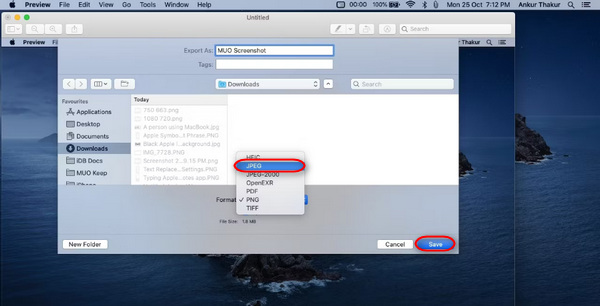
Bien que cela puisse sembler facile et rapide à faire, prendre une capture d'écran et changer manuellement son format en JPG dans Aperçu n'est toujours pas pratique et vous prendra un certain temps. Cependant, si cela ne vous pose pas de problème, vous pouvez utiliser cette méthode pour enregistrer des captures d'écran au format JPG sur votre Mac.
Partie 4 : Astuce : Comment convertir une capture d'écran en JPG en ligne
Si vous recherchez un outil de conversion en ligne pour convertir des captures d’écran en JPG, FVC Free Image Converter est la meilleure option pour vous. Cet outil vous permet de convertir des formats d’images comme JPG, JPEG, PNG, GIF, BMP, TIFF, WEBP, ICO et SVG en JPG, PNG et GIF. Il est également rapide et simple à utiliser, et son interface conviviale le rend accessible à tout type d’utilisateur.
Étape 1. Rendez-vous sur le site officiel de FVC Free Image Converter.
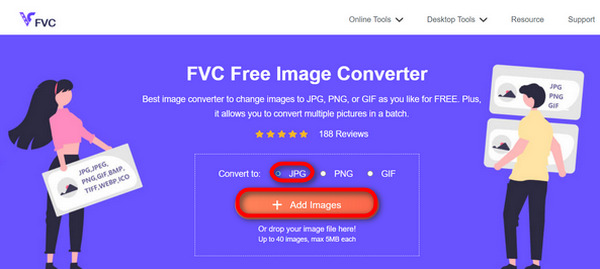
Étape 2. Cliquez sur Add Images, puis, dans l’option Convert To, choisissez JPG.
Étape 3. Une fois le processus terminé, cliquez simplement sur le bouton Download All pour enregistrer votre capture d’écran convertie en JPG.
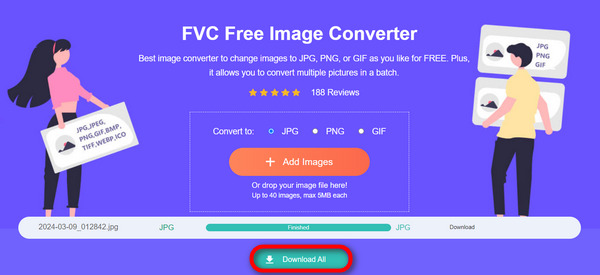
Avec FVC Free Image Converter, la conversion de captures d'écran en JPG est rapide et facile. C'est la meilleure alternative lorsque vous rencontrez des problèmes avec les autres méthodes mentionnées ci-dessus.
Partie 5 : FAQ sur la conversion d'une capture d'écran en JPG
Puis-je convertir plusieurs captures d'écran au format JPG simultanément ?
Oui. Vous pouvez convertir simultanément plusieurs captures d'écran au format JPG à l'aide d'outils de conversion dotés d'une fonction de conversion par lots comme FVC Free Image Converter. Cet outil vous permet de sélectionner plusieurs captures d'écran et de les convertir au format JPG en une seule fois, ce qui vous fait gagner du temps et des efforts.
La conversion des images de capture d'écran en JPG affecte-t-elle leur qualité ?
Oui, mais pas tant que ça. La conversion de captures d'écran en JPG n'entraînera qu'une dégradation minime de la qualité, mais c'est quelque chose de tolérable. Lorsque vous choisissez la compression JPG, veillez à équilibrer la taille du fichier et les paramètres de qualité d'image pour obtenir des résultats satisfaisants.
Puis-je ajuster la qualité de l’image lors de l’enregistrement de captures d’écran au format JPG ?
Oui. Il existe divers logiciels de retouche d'image et convertisseurs en ligne dotés de fonctionnalités permettant d'ajuster les paramètres de qualité d'image lors de l'enregistrement de captures d'écran au format JPG. Cela leur permet de contrôler le niveau de compression appliqué à l’image.
Conclusion
Voilà. Que vous utilisiez Windows ou Mac, il existe plusieurs moyens simples de les convertir au format JPG. Grâce à ces méthodes, vous pouvez désormais gérer et enregistrer facilement vos captures d’écran au format JPG. Ainsi, la prochaine fois que vous aurez besoin d’enregistrer une capture d’écran, gardez ces méthodes simples à l’esprit, surtout si vous souhaitez enregistrer votre capture d’écran en JPG.
-
 Top 5 des principaux tutoriels pour convertir rapidement PNG en JPG
 Si vous avez besoin de convertir votre fichier PNG au format JPG, vous pouvez apprendre les meilleures façons ici. Vous apprendrez également la différence entre les formats de fichier PNG et JPG.
-
 Comment résoudre le problème de capture d'écran qui ne fonctionne pas sur iPhone [2025]
 Vous rencontrez des difficultés pour prendre des captures d’écran sur votre iPhone ? Nous vous avons! Découvrez notre guide complet pour vous aider à corriger rapidement et facilement les captures d'écran qui ne fonctionnent pas sur les iPhones.
-
 Méthodes sans effort pour convertir le format SVG au format JPG
 Trouver le meilleur moyen de convertir SVG en JPG ? Cet article vous donnera quelques tutoriels infaillibles que vous pouvez essayer. Vous découvrirez également le convertisseur SVG en JPG pour vous.
