


 Video Converter Ultimate
 Enregistreur d'écran
 Réparation vidéo
Comment convertir facilement DivX en WMV : méthodes hors ligne et en ligne
DivX est un codec de compression vidéo qui compresse la vidéo jusqu’à la taille souhaitée par l’utilisateur. Un fichier WMV est un fichier Windows Media Video qui peut compresser les formats de compression vidéo de Microsoft. Gardez à l’esprit que DivX et WMV ne sont pas toujours compatibles. Même si la plupart des vidéos sont actuellement encodées en DivX et stockées au format WMV, il est parfois nécessaire de convertir DivX en format WMV selon la situation. Heureusement, nous proposons des convertisseurs DivX vers WMV dont vous aurez besoin pour effectuer cette tâche rapidement – en mode hors ligne ou en ligne.

Partie 1. Excellente méthode à utiliser pour convertir DivX en WMV [Hors ligne]
Video Converter Ultimate est sans doute la solution idéale si vous recherchez un logiciel capable de réaliser l’ensemble du processus en une seule fois et d’offrir des fonctions supplémentaires pour d’autres besoins de montage. Non seulement il prend en charge de nombreux formats de fichiers vidéo, mais il vous permet aussi de retoucher davantage la qualité de votre vidéo et de votre audio, sans parler de la personnalisation de vos clips en ajoutant des effets. Ce logiciel est un convertisseur tout-en-un. Voici les étapes à suivre pour utiliser ce programme :
Étape 1 : Installez le logiciel sur votre ordinateur de bureau en cliquant sur l’un des boutons Téléchargement gratuit ci‑dessous en fonction de votre système d’exploitation. Attendez la fin du téléchargement du fichier .exe, puis ouvrez‑le pour lancer l’installation. Une fois l’installation terminée, cliquez sur Démarrer maintenant et lancez le logiciel.
Téléchargement gratuit pour Windows 7 ou version ultérieure Téléchargement sécurisé
Téléchargement gratuit pour macOS 10.7 ou version ultérieure - Téléchargement sécurisé
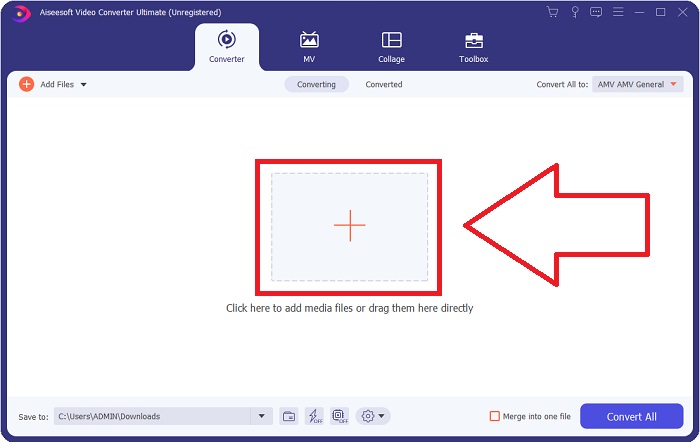
Étape 2 : Une fenêtre s’ouvrira avec une interface comportant un bouton + au centre. Cliquez dessus pour importer le fichier vidéo que vous souhaitez convertir, ou faites simplement glisser‑déposer les fichiers en toute simplicité.
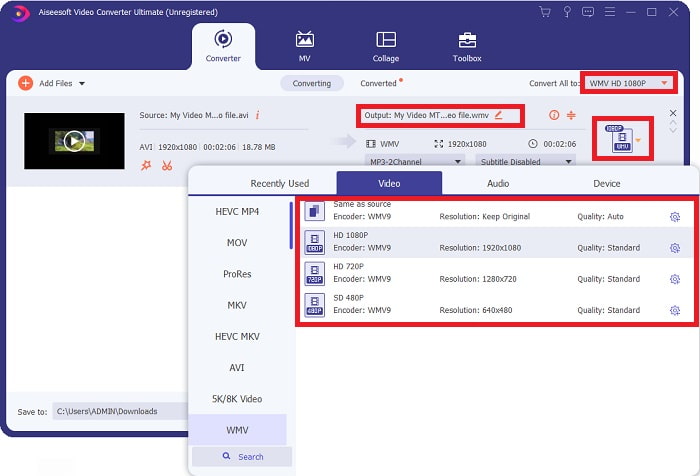
Étape 3 : Une fois les fichiers importés, le format actuel de votre fichier vidéo apparaîtra sur le côté droit du fichier. Cliquez dessus, et tous les formats disponibles s’afficheront. Vous pouvez faire défiler la liste ou taper WMV dans la barre de recherche pour le sélectionner. En outre, différentes qualités vidéo seront proposées sur le côté droit de l’onglet.
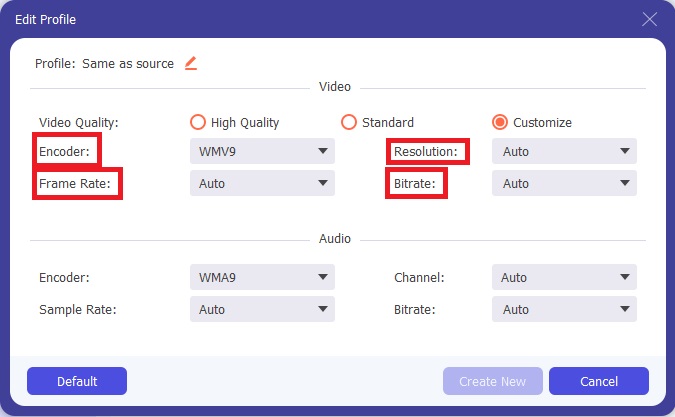
Étape 4 : Pour plus d’options, vous pouvez cliquer sur l’icône en forme de roue dentée à côté de la qualité vidéo que vous avez sélectionnée, et une autre interface apparaîtra. Vous pourrez y modifier la résolution, la fréquence d’images, le débit binaire, et bien d’autres paramètres afin qu’ils correspondent au mieux à vos préférences. Si vous êtes satisfait de tous les réglages, cliquez sur le bouton Créer un nouveau dans le coin inférieur droit pour conserver les modifications.
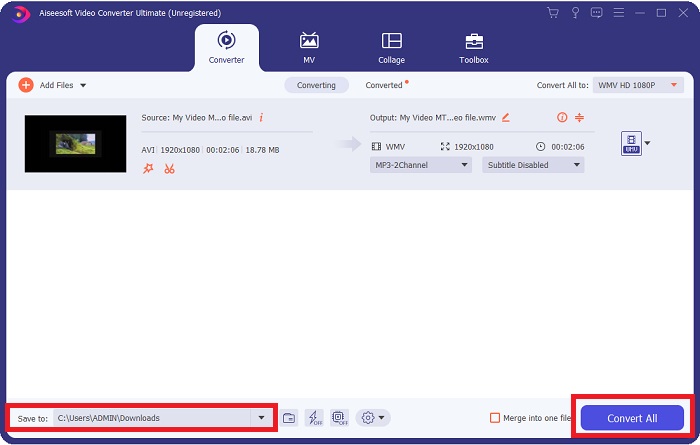
Étape 5 : Une fois les paramètres vidéo ajustés selon vos besoins, cliquez sur le bouton Tout convertir dans le coin inférieur droit pour lancer le processus de conversion et attendez qu’il se termine.
Partie 2. Autre méthode à utiliser pour convertir DivX en WMV [En ligne]
Il est possible de garder un convertisseur vidéo à portée de main à tout moment sans avoir à installer de logiciel. Pourtant, il est également possible de convertir une vidéo rapidement et facilement sans rien installer. Video Converter Ultimate a un équivalent en ligne que vous pouvez utiliser en un seul passage. Il offre toujours des options supplémentaires et prend en charge de nombreux formats. Pour utiliser cet outil Web, suivez ces étapes simples :
Étape 1 : Commencez par cliquer sur ce lien, qui vous redirigera vers l’outil en ligne. Là, vous trouverez un bouton Ajouter des fichiers à convertir au centre. Cliquez dessus pour télécharger le lanceur, dont vous aurez besoin pour importer facilement vos fichiers vidéo.
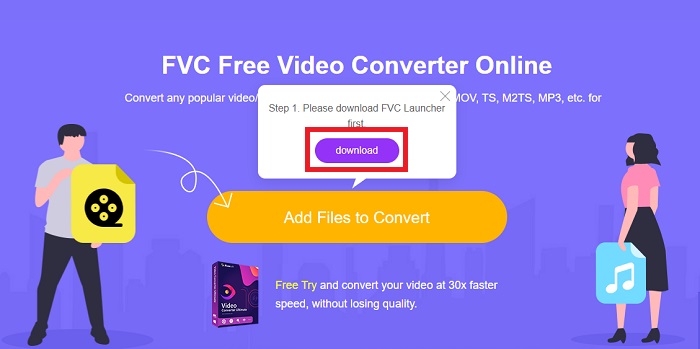
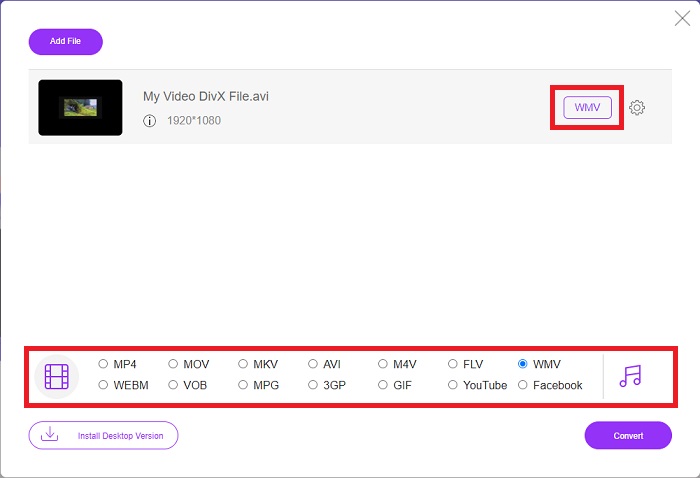
Étape 2 : Une fois le lanceur téléchargé, cliquez de nouveau sur le même bouton pour importer le fichier que vous souhaitez convertir. Vous pouvez désormais sélectionner WMV dans la liste des formats au bas de la fenêtre.
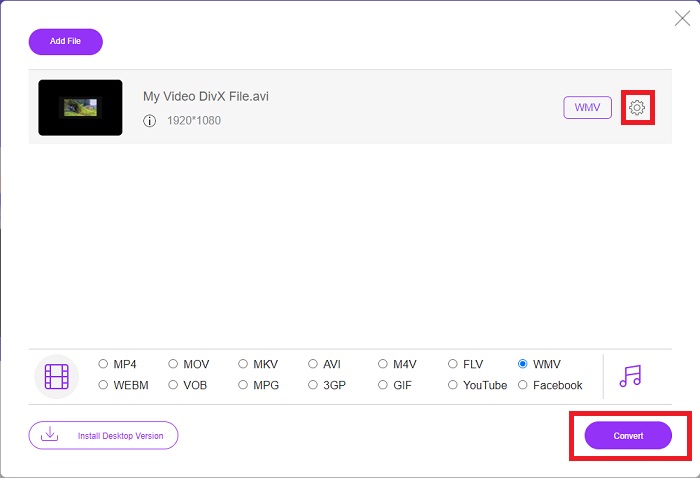
Étape 3 : Vous trouverez également une icône en forme de roue dentée sur la droite pour modifier la résolution, la fréquence d’images et d’autres paramètres, comme dans le logiciel lui‑même. Pour enregistrer les changements effectués, cliquez sur OK, puis vous pouvez lancer le processus de conversion. Cliquez sur le bouton Convertir dans le coin inférieur droit et attendez la fin de l’opération.
En rapport:
Partie 3. DivX contre. WMV : informations à connaître
Pour une comparaison entre les deux formats cités, vous pouvez lire au-delà de cette partie pour connaître toutes les informations essentielles :
DivX est une marque de codec vidéo créée par DivX, LLC. Ce codec vidéo fonctionne mieux avec les applications Windows, bien que les utilisateurs puissent également le trouver sur les consoles de jeu, les réveils, les autoradios et d'autres appareils. Les codecs vidéo MPEG-4 Part 2, HEVC Ultra HD et H.264/MPEG-4 AVC DivX Plus High Definition sont les trois principaux codecs DivX utilisés aujourd'hui.
D'autre part, WMV (Windows Media Video) est un ensemble de codecs vidéo et de formats de codage publiés par Microsoft dans le cadre de leur cadre Windows Media. Son but est de concurrencer le format RM sur les applications de streaming internet. Son but est de stocker des films compressés et même de livrer des Blu-ray/DVD.
| Vidéo numérique Express (DivX) | Vidéo Windows Media (WMV) | |
| Extension de fichier | .divx | .wmv |
| Développeur | Réseaux DivX Inc. | Microsoft |
| Programmes de soutien | ◆ Lecteurs DVD/Blu-ray ◆ Réveils ◆ Autoradio ◆ X-Box 360 | Lecteur multimédia VLC ◆ Lecteur MP ◆ Lecteur multimédia classique ◆ Lecteur Windows Media |
Partie 4. FAQ sur la conversion DivX en WMV
Le DivX est-il toujours utilisé ?
DIVX (Digital Video Express) est un format vidéo numérique abandonné qui a échoué aux États-Unis pour développer une alternative viable à la location de vidéos.
Quelles sont les limites du WMV ?
Étant donné que WMV est un format Windows, trouver des lecteurs multimédias Apple ou Linux peut lire des films WMV. WMV n'a pas été un format de streaming vidéo grand public pour cette raison.
Lequel a un enregistrement en haute définition ?
Bien que WMV et DivX puissent enregistrer en 1280x720, l'un doit être de meilleure qualité que l'autre. Ces codecs peuvent enregistrer à plusieurs niveaux de qualité à la résolution exacte, mais le débit binaire varie pour créer des fichiers plus petits. Bien que l'image WMV soit supérieure, DivX a créé un fichier cinq fois plus rapide et 50 % plus petit.
Conclusion
Tout bien considéré, il est recommandé d'avoir un convertisseur à vos côtés afin qu'en cas de besoin, vous n'ayez pas à vous soucier d'en trouver un décent en ligne. Video Converter Ultimate et son homologue d'outil en ligne sont recommandés pour un consommateur ou un créateur de vidéo car ils offrent beaucoup plus que les autres convertisseurs. De plus, il vous offre le plus pratique car il possède une interface dans laquelle les débutants peuvent facilement naviguer même.
-
 4 façons de convertir DivX en MOV gratuitement [en ligne et hors ligne]
 Avez-vous du mal avec les limitations d'un DivX, ou n'avez-vous pas les lecteurs multimédias pour accéder aux vidéos dans ce format ? Si vous souhaitez le convertir au format MOV, continuez à lire cet article pour combler les lacunes.
-
 2 convertisseurs certifiés utilisés pour convertir des fichiers DivX au format FLV [2022]
 Voulez-vous savoir comment convertir vos fichiers DivX en FLV ? Lisez ensuite cet article pour avoir une idée de la façon de procéder et des convertisseurs disponibles que vous pouvez utiliser.
-
 Un guide simple sur la façon de transformer votre GIF en WMV sur Windows/Mac
 Voulez-vous savoir comment convertir GIF au format WMV ? Suivez ensuite cet article car il présente différentes solutions parmi lesquelles vous pouvez choisir.
