


 Video Converter Ultimate
 Enregistreur d'écran
 Réparation vidéo
 Téléchargement sécurisé
Guide simplifié sur l'ajout d'un filigrane dans Photoshop
De nos jours, l'ajout d'un filigrane est devenu essentiel. Avec le partage et le téléchargement massif de contenu numérique en ligne, il est facile que votre travail soit republié sans mention de votre nom. Un filigrane permet de protéger votre contenu en indiquant qu'il est original et que vous en êtes le propriétaire.
Vous utilisez Photoshop et vous vous demandez s'il est possible d'ajouter un filigrane à une vidéo ? La réponse est oui ! Avec Photoshop, vous pouvez ajouter un filigrane à votre vidéo grâce au panneau Montage. Bien qu'il s'agisse principalement d'un outil de retouche d'images, il prend en charge les calques vidéo de base, ce qui vous permet de superposer votre filigrane sur l'ensemble de votre clip vidéo. Notez toutefois que cette fonctionnalité est idéale pour les montages courts et simples. Si vous travaillez sur des vidéos plus longues ou plus complexes, l'utilisation d'un logiciel de montage vidéo dédié sera probablement plus efficace.
Dans ce guide, nous vous expliquerons comment ajouter un filigrane dans Photoshop. Commençons !

Partie 1. Comment créer un filigrane dans Photoshop ?
Avec Photoshop, vous pouvez facilement créer le filigrane de votre choix. C'est un outil formidable pour les appliquer facilement à vos contenus numériques, quand vous le souhaitez. Voici un guide étape par étape pour créer un filigrane dans Photoshop :
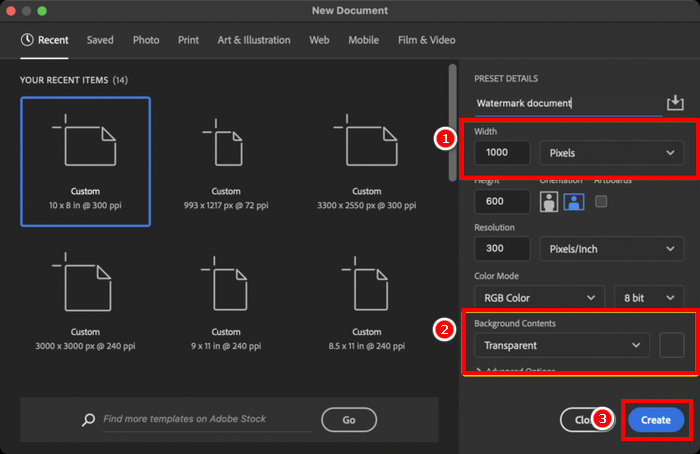
Étape 1. Ouvrez Photoshop et créez un nouveau document avec un arrière-plan transparent. Idéalement, définissez une largeur de 1000 px. Une fois les paramètres choisis, cliquez sur le bouton Créer en bas.
Étape 2. Utilisez l’Outil Texte pour saisir votre nom ou votre marque pour un filigrane textuel, ou utilisez l’Outil Pinceau pour dessiner votre signature. Définissez la couleur sur blanc.
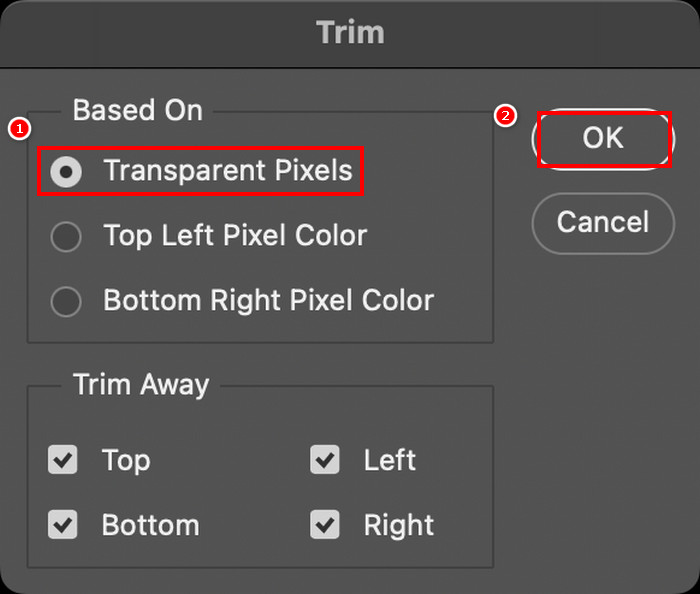
Étape 3. Allez dans l’onglet Image, sélectionnez Réduire, choisissez Pixels transparents, puis cliquez sur OK pour supprimer l’espace superflu.
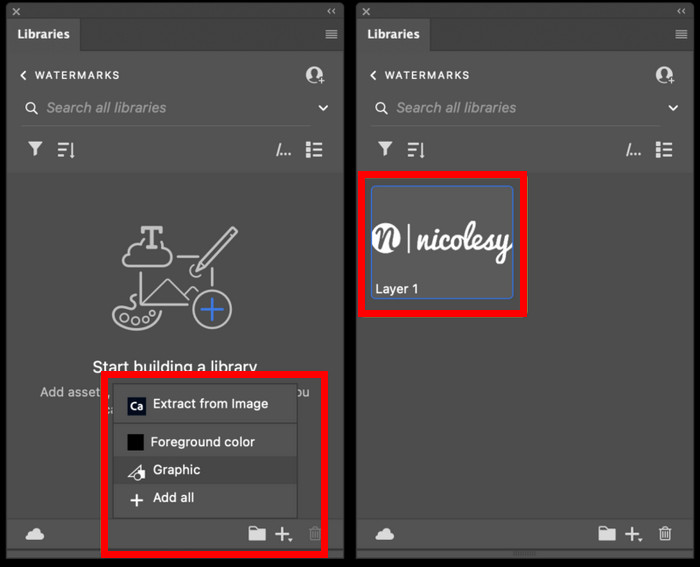
Étape 4. Ensuite, ouvrez le panneau Bibliothèques, cliquez sur Créer une nouvelle bibliothèque, donnez-lui un nom, puis cliquez sur Créer.
Étape 5. Cliquez sur l’icône + dans le panneau Bibliothèques et choisissez Graphique pour enregistrer votre filigrane et y accéder facilement à tout moment.
Voici une méthode parmi d'autres pour créer un filigrane dans Photoshop. Vous pouvez le personnaliser à votre guise : logo affirmé, signature discrète ou simple nom. L'important est de le rendre unique et prêt à l'emploi pour protéger votre contenu.
Partie 2. Comment ajouter un filigrane à une vidéo dans Photoshop ?
Maintenant que vous savez comment créer un filigrane dans Photoshop, il est temps de mettre cette compétence en pratique. Dans cette section, nous allons vous montrer comment ajouter votre filigrane à une vidéo à l'aide des outils de montage vidéo de base de Photoshop. Bien que Photoshop ne soit pas un logiciel de montage vidéo complet, il peut tout de même effectuer des tâches simples comme l'ajout d'un filigrane. Notez toutefois que Photoshop n'est pas adapté aux débutants en raison de son interface complexe qui peut dérouter les utilisateurs non familiarisés avec le logiciel. Pour vous guider correctement, suivez les étapes ci-dessous :
Étape 1. Si Photoshop n’est pas installé sur votre ordinateur, téléchargez-le et installez-le d’abord. Notez que ce logiciel est disponible à la fois sur Windows et macOS.
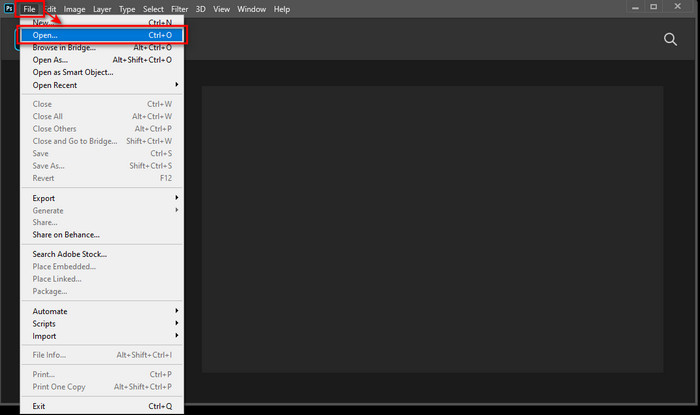
Étape 2. Toujours dans Photoshop, allez dans l’onglet Fichier et cliquez sur Ouvrir. Ensuite, localisez et choisissez la vidéo à laquelle vous souhaitez ajouter un filigrane. Une fois le fichier ajouté, une chronologie s’affichera.
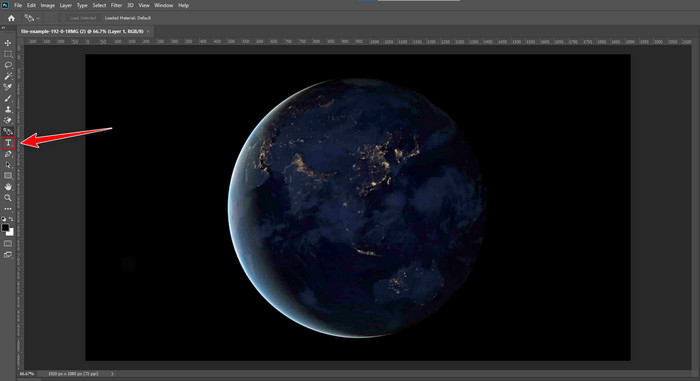
Étape 3. Ensuite, dans le panneau de gauche de l’interface, repérez l’icône T pour l’outil Texte. Cliquez n’importe où sur la vidéo pour commencer à taper le texte que vous souhaitez utiliser comme filigrane. Avant de continuer, n’hésitez pas à ajuster la police, la taille, la couleur et les autres paramètres pour personnaliser l’apparence de votre filigrane.
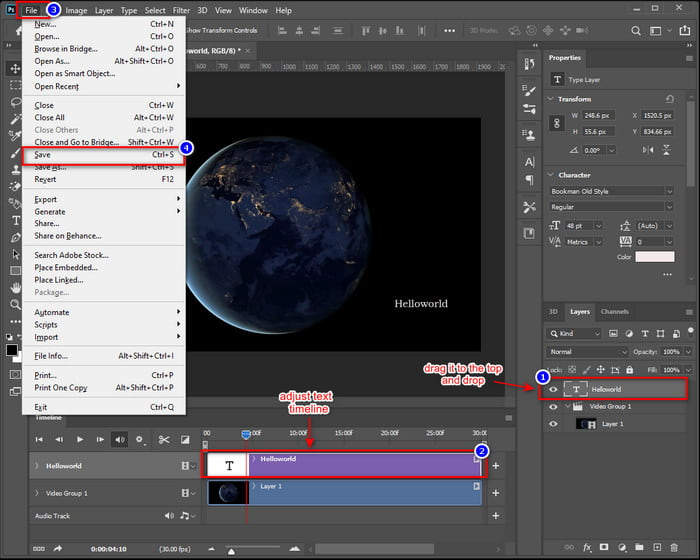
Étape 4. Dans le panneau des Calques, faites glisser le calque de texte au‑dessus du groupe Vidéo pour vous assurer qu’il apparaisse au‑dessus de la vidéo. Puis, retournez dans le panneau de la chronologie et ajustez la durée d’affichage du texte en faisant glisser son point de début ou de fin. Une fois terminé, allez dans le menu Fichier et cliquez sur Enregistrer pour conserver vos modifications.
Avec Photoshop, vous pouvez effectivement ajouter un filigrane à une vidéo. Cependant, ce n’est pas l’outil idéal pour tout le monde. La courbe d’apprentissage est si abrupte que les débutants peuvent trouver l’interface déroutante. Si vous ne connaissez pas bien le fonctionnement des calques, des lignes de temps et des outils de texte dans Photoshop, il vous faudra un certain temps pour vous y habituer.
Partie 3. Comment ajouter un filigrane image à une vidéo dans Photoshop [Méthode ultime]
Étant donné que Photoshop n’est pas particulièrement intuitif pour ajouter un filigrane à une vidéo, il existe des outils alternatifs que les utilisateurs peuvent essayer. FVC Video Converter Ultimate est une excellente option. Ce convertisseur ne se contente pas de convertir des vidéos et de l’audio ; il peut également être utilisé pour ajouter un filigrane image à une vidéo.
FVC dispose d'une boîte à outils regroupant diverses fonctionnalités utiles, dont l'ajout d'un filigrane vidéo. Cet outil vous permet d'importer facilement votre vidéo, d'y ajouter un filigrane image et de le positionner où vous le souhaitez à l'écran. Fini les calques et les chronologies complexes : une interface simple et intuitive vous permet de réaliser vos tâches rapidement. C'est la solution idéale pour ceux qui recherchent des résultats rapides sans avoir à maîtriser Photoshop. Vous trouverez ci-dessous un guide étape par étape pour ajouter un filigrane image à une vidéo dans Photoshop avec FVC.
Étape 1. Commencez par télécharger et installer FVC Video Converter Ultimate sur votre ordinateur. Veuillez noter qu’il est compatible à la fois avec Windows et macOS.
Téléchargement gratuit pour Windows 7 ou version ultérieure Téléchargement sécurisé
Téléchargement gratuit pour macOS 10.7 ou version ultérieure - Téléchargement sécurisé
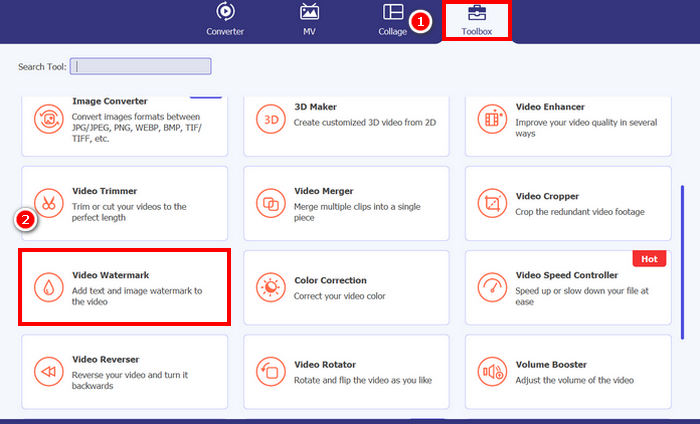
Étape 2. Lancez l’outil, cliquez sur l’onglet Boîte à outils, puis, à partir de là, sélectionnez Filigrane vidéo.
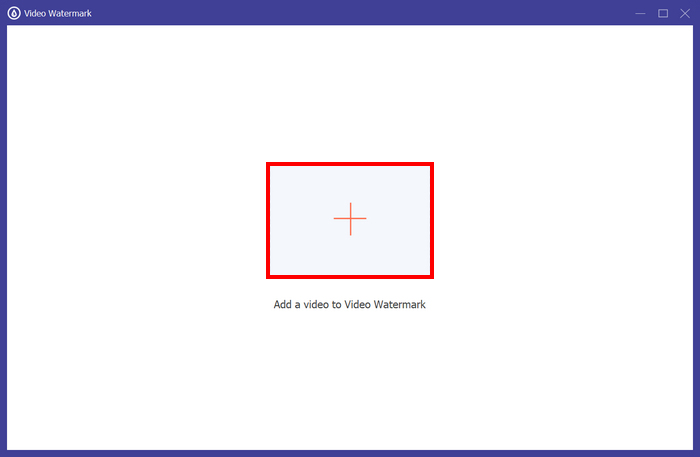
Étape 3. Ensuite, cliquez sur Ajouter une vidéo au filigrane vidéo et sélectionnez la vidéo à laquelle vous souhaitez ajouter un filigrane image.
Étape 4. Choisissez maintenant + Filigrane image pour ajouter l’image que vous voulez utiliser comme filigrane pour votre vidéo. À partir de là, vous pouvez l’ajuster. Une fois que tout est prêt, cliquez sur le bouton Exporter.
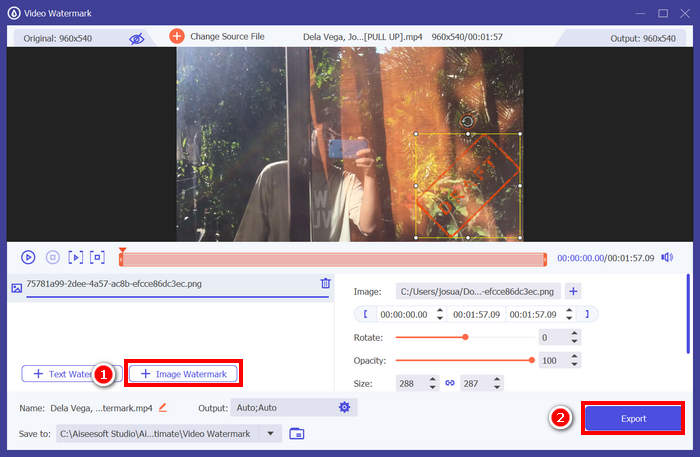
Avec l'outil Filigrane vidéo de FVC Video Converter Ultimate, ajouter un filigrane image à une vidéo est un jeu d'enfant. C'est vraiment accessible à tous, même aux débutants. La procédure est simple : il suffit d'importer votre vidéo, d'insérer votre filigrane, d'ajuster sa taille et sa position, et le tour est joué !
Cliquez ici pour en savoir plus sur la façon de supprimer le filigrane d’une vidéo si nécessaire.
Partie 4. FAQ sur l'ajout d'un filigrane dans Photoshop
Est-il acceptable d'ajouter un filigrane ?
Oui, l'ajout d'un filigrane est une méthode courante et acceptable pour protéger votre contenu. Cela permet d'identifier votre contenu numérique, particulièrement vulnérable au vol de contenu.
Photoshop est-il facile à utiliser pour les débutants afin d'ajouter des filigranes aux vidéos ?
Pas vraiment. Si Photoshop permet d'ajouter des filigranes aux vidéos, son interface et son flux de travail de montage peuvent s'avérer complexes pour les débutants. Il est plutôt destiné aux utilisateurs déjà familiarisés avec les calques et les chronologies.
Puis-je personnaliser l'apparence de mon filigrane dans Photoshop ?
Absolument. Photoshop vous offre un contrôle total sur la police, la taille, la couleur, l'opacité et l'emplacement de votre filigrane, qu'il soit textuel ou visuel.
Conclusion
Maintenant que vous savez comment ajouter un filigrane dans Photoshop, il est aussi important d’en comprendre l’intérêt. Ajouter un filigrane dans Photoshop est un moyen efficace de protéger vos contenus vidéo et d’en affirmer la propriété. Même si le processus peut sembler complexe au début, surtout pour les débutants, Photoshop offre la flexibilité nécessaire pour créer et appliquer des filigranes personnalisés avec précision. Et si vous recherchez une alternative plus simple, des outils comme FVC Video Converter Ultimate constituent une option beaucoup plus directe. Alors, qu’attendez-vous ? Lancez-vous !
-
 5 façons de supprimer un filigrane d'une vidéo de manière professionnelle
 Besoin de supprimer un filigrane d'une vidéo pour lui donner un aspect professionnel ? Eh bien, lisez cet article car nous ajoutons un tutoriel sur la façon de le faire !
-
 2 excellentes applications que vous pouvez utiliser pour supprimer le filigrane des vidéos MP4
 Cet article vous proposera des moyens simples et simples de supprimer le filigrane des vidéos MP4 à l'aide de vos appareils tels que Windows et Mac.
-
 Supprimer le filigrane Animotica sur les vidéos exportées avec 3 méthodes éprouvées
 Vous êtes-vous déjà demandé s'il était possible de supprimer le filigrane Animotica sur les vidéos que vous avez exportées ? Cet article propose une marche à suivre.
