


 Video Converter Ultimate
 Enregistreur d'écran
 Réparation vidéo
 Téléchargement sécurisé
De 50 Mo à 5 Mo - Comment compresser un fichier MP4 en quelques secondes
Après avoir pris quelques vidéos, vous voudrez peut-être les télécharger sur l'histoire Instagram ou les partager avec vos amis. Cependant, la plupart des plateformes de médias sociaux ont une limite de taille de fichier pour les téléchargements. Ainsi, lorsque vous envoyez une vidéo MP4 via WhatsApp ou ajoutez une pièce jointe MP4 dans votre e-mail, vous pouvez parfois les trouver trop volumineuses pour être téléchargées.
Par conséquent, pour résoudre ce problème, vous devez compresser des fichiers MP4, ou en d’autres termes, aider vos vidéos à « perdre du poids ».
L’article suivant va vous guider pour réduire la taille de vos vidéos MP4 sans compromettre la qualité d’affichage.

Partie 1. Comment compresser des vidéos MP4 en ligne et gratuitement
Si vous cherchez un compresseur MP4 en ligne gratuit, sans inscription ni frais cachés, vous pouvez essayer FVC Free Video Compressor, qui vous permet de réduire au minimum n’importe quelle vidéo 4K, HD ou SD en un fichier plus léger, sans filigrane. Et contrairement à d’autres compresseurs gratuits, vous pouvez compresser autant de vidéos MP4 que vous le souhaitez gratuitement, sans limite de taille de fichier ni de durée de vidéo.
De plus, comme ce compresseur est un produit basé sur le Web, il fonctionne parfaitement sous Windows, Mac et Linux. Vous pouvez l'utiliser facilement en ligne avec un navigateur, tant que vous êtes connecté à Internet.
Pour maîtriser rapidement cet outil de compression, veuillez suivre les étapes ci-dessous.
Étape 1. Accédez à FVC Free Video Compressor dans votre navigateur et cliquez sur Add Files to Compress pour lancer le programme. Mais si vous utilisez l’outil pour la première fois, veuillez d’abord télécharger le lanceur.
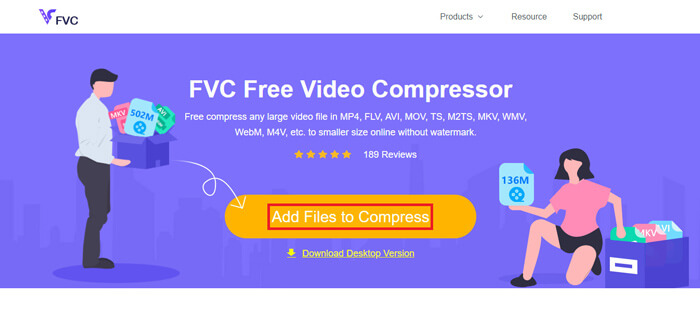
Étape 2. Après l’installation, choisissez le ou les fichiers MP4 que vous souhaitez compresser. Réglez la taille de la vidéo, le format, la résolution et le débit binaire en fonction de vos besoins.
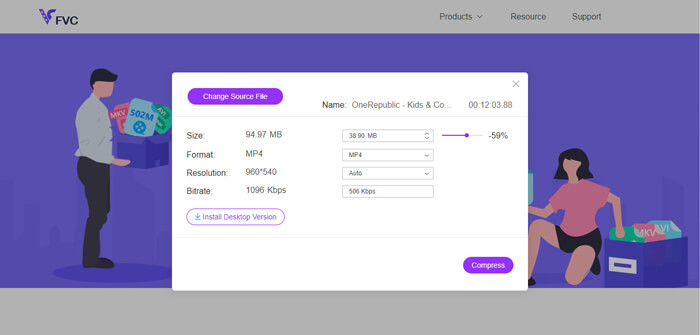
Étape 3. Cliquez sur Compress pour lancer la compression.
Partie 2. Comment compresser MP4 à l'aide d'un logiciel gratuit hors ligne
Si votre réseau n'est pas aussi stable, vous feriez mieux de choisir de compresser la vidéo hors ligne sur votre bureau, ce qui évite l'influence de l'état du réseau.
Video Converter Ultimate est un logiciel gratuit tout-en-un pour compresser, convertir et monter des fichiers vidéo/audio sur votre PC. Il prend en charge plus de 1 000 formats et vous propose 10 options de résolution de sortie. Vous pouvez renommer la vidéo avant la compression afin de la distinguer facilement des autres fichiers MP4. Le tout nouveau Video Converter Ultimate intègre de nombreuses fonctions de montage utiles et de multiples fonctionnalités intéressantes, comme un éditeur de métadonnées, un créateur de GIF, un créateur 3D, un optimiseur vidéo, etc.
Téléchargement gratuit pour Windows 7 ou version ultérieure Téléchargement sécurisé
Téléchargement gratuit pour macOS 10.7 ou version ultérieure - Téléchargement sécurisé
Étape 1. Lancez Video Converter Ultimate sur votre ordinateur.
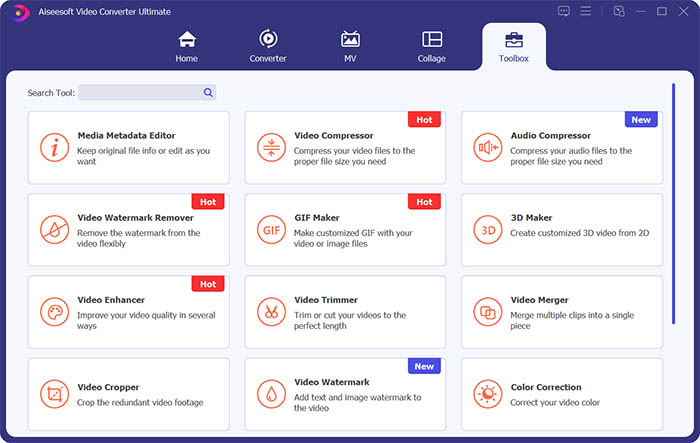
Étape 2. Cliquez sur Toolbox. Recherchez Video Compressor dans la Toolbox. Cliquez sur l’icône + pour ajouter une vidéo à compresser.
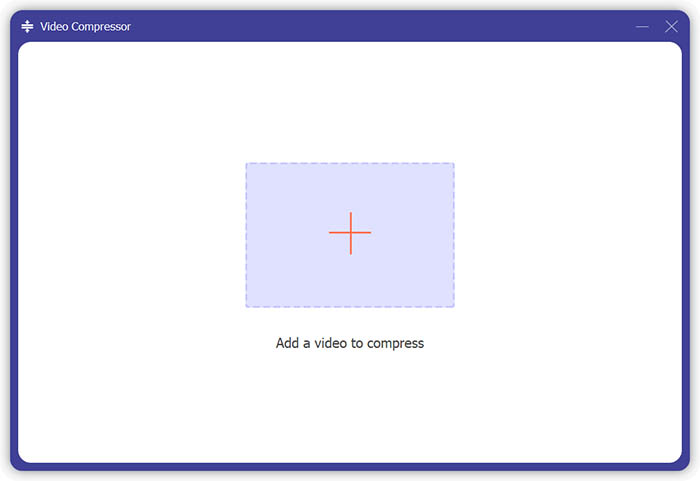
Étape 3. Vous pouvez ajuster la taille, le nom, le format, la résolution et le débit binaire du fichier de sortie.
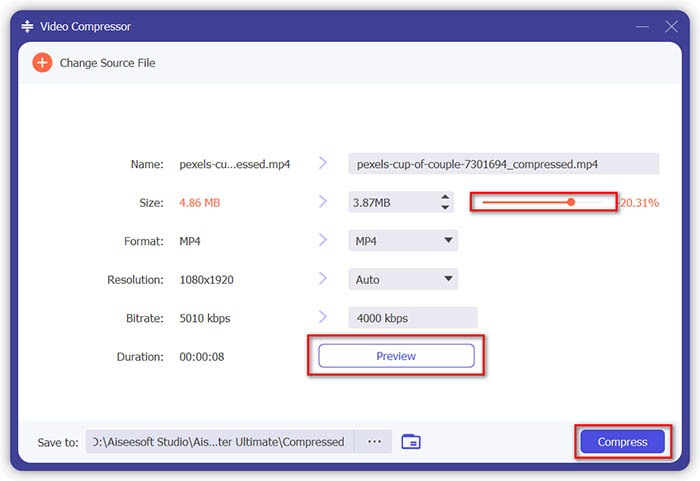
Étape 4. Cliquez sur le bouton Compress et patientez pour obtenir votre vidéo MP4.
Partie 3. Comment compresser des fichiers MP4 avec HandBrake
HandBrake est également un outil de compression vidéo gratuit qui peut vous aider à minimiser la taille du fichier MP4.
Étape 1. Téléchargez et installez HandBrake sur votre ordinateur. Ouvrez-le ensuite et cliquez sur File à gauche. Sélectionnez le fichier que vous souhaitez compresser.
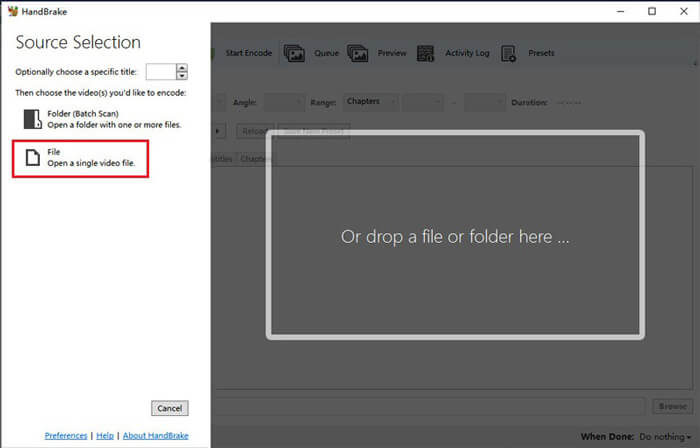
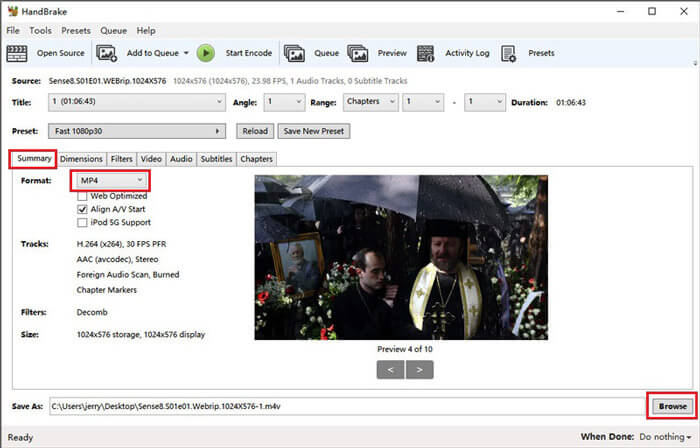
Étape 2. Modifiez l’emplacement d’enregistrement de la vidéo compressée en cliquant sur Browse. Vous pouvez également renommer la vidéo. Puis choisissez MP4 comme format de sortie.
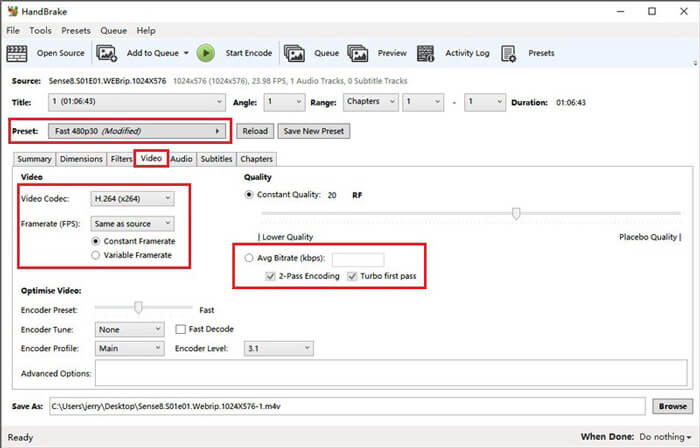
Étape 3. Pour le Preset en haut, Fast 480p30 conviendra. Allez dans l’onglet Video et vérifiez que le codec vidéo est H.264 (x264). Choisissez ensuite la fréquence d’images en fonction de votre vidéo source. Si vous ne savez pas quoi choisir, sélectionnez simplement Same as source. Cochez Constant Framerate pour garantir une meilleure compatibilité. Saisissez un Average Bitrate (kbps) pour la vidéo (entre 5 000 et 10 000).
Étape 4. Cliquez sur Dimensions et modifiez la taille ou la résolution de l’image vidéo. Modifiez Anamorphic en None, et Modulus en 2. Cochez ensuite Keep Aspect Ratio. Si nécessaire, vous pouvez utiliser la flèche vers le bas sur la Width pour réduire la largeur.
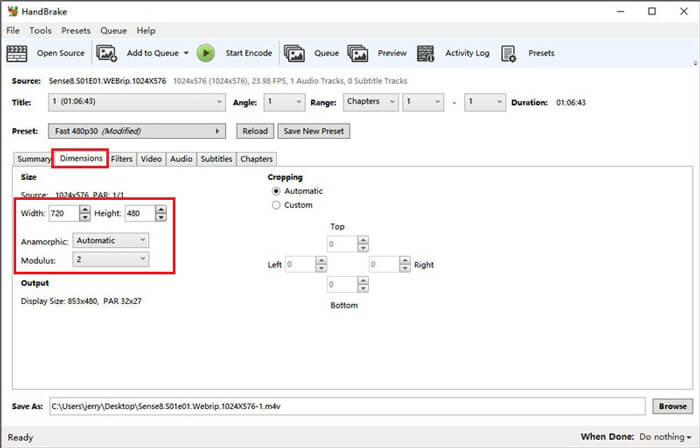
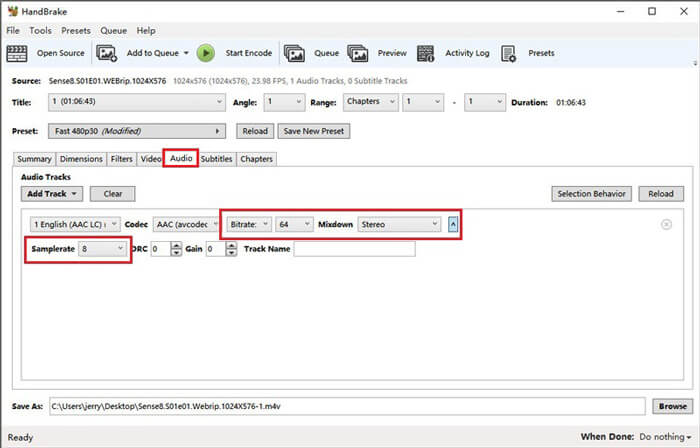
Étape 5. Sélectionnez l’onglet Audio et ouvrez le menu des paramètres cachés. Choisissez 8 pour la Samplerate et choisissez Stereo pour le Mixdown.
Étape 6. Cliquez sur le bouton Start Encode pour commencer la compression.
Pour les débutants, nous ne vous recommandons en fait pas d'utiliser HandBrake, car il est difficile de comprendre et d'ajuster les paramètres. Et il faut vraiment beaucoup de temps pour obtenir le fichier compressé.
Partie 4. FAQ sur la compression MP4
1. Ffmpeg peut-il compresser MP4?
Oui, vous pouvez utiliser la séquence de caractères suivante pour compresser un fichier MP4 :
$ ffmpeg -i input.mp4 -vcodec h264 -acodec mp2 output.mp4
Mais certains utilisateurs peuvent constater que la taille augmente au lieu de diminuer lorsque la vidéo est déjà très petite.
2. HandBrake peut-il exporter WMV, MOV et FLV?
HandBrake ne vous permet de compresser des vidéos qu’en MP4(.M4V) et MKV, ce qui signifie qu’il ne peut pas exporter de fichiers dans d’autres formats, comme WMV, MOV, FLV, AVI, etc. Si vous utilisez HandBrake pour obtenir des vidéos compressées, vous devrez ensuite convertir le MP4 en WMV ou en d’autres formats par vous-même.
3. La compression de vidéos MP4 perd-elle de la qualité?
La qualité sera forcément dégradée, un peu ou beaucoup, lorsque nous compressons un MP4 de sa taille d’origine vers une taille plus petite. Cependant, avec un compresseur vidéo professionnel comme FVC Free Video Compressor et Video Converter Ultimate, vous pouvez préserver au maximum la qualité d’image d’origine. Utiliser un bon lecteur MP4 pour lire vos fichiers MP4 peut également vous aider à obtenir un rendu de haute qualité.
Conclusion
Jusqu’ici, nous vous avons présenté 3 méthodes pour compresser un MP4 en un fichier plus léger. Si vous n’aimez pas installer trop de logiciels sur votre ordinateur, vous pouvez essayer FVC Free Video Compressor, qui est en ligne et gratuit. Mais si vous avez besoin d’un puissant processeur vidéo, Video Converter Ultimate est votre meilleur choix. Nous espérons que cet article vous sera utile et n’oubliez pas de nous laisser un message pour nous faire part de vos avis.
-
 Comment convertir MP4 en WMV pour Mac / Windows
 Cet article explique comment convertir une vidéo MP4 au format WMV sur Mac ou Windows. Nous vous proposerons également plusieurs options, notamment des logiciels de bureau et des convertisseurs en ligne basés sur le Web. Prêt à connaître les meilleurs outils de conversion MP4 en WMV?
-
 Comment convertir vos fichiers vidéo MP4 en images GIF animées sans perte de qualité
 Vous recherchez le meilleur moyen de convertir votre vidéo MP4 en GIF animés? Voici un guide détaillé pour le faire dans Photoshop, Windows Movie Maker, le convertisseur vidéo en ligne et plus encore.
-
 MOV VS MP4 - Lequel est le meilleur
 MOV VS MP4, lequel est le meilleur? Cet article fait la différence entre MP4 et MOV, afin que vous puissiez obtenir le meilleur choix à utiliser pour vos fichiers vidéo.
