


 Video Converter Ultimate
 Enregistreur d'écran
 Réparation vidéo
 Téléchargement sécurisé
Découvrez comment redimensionner une vidéo sur Android avec des méthodes efficaces
Que vous soyez un influenceur sur les réseaux sociaux ou que vous souhaitiez simplement partager votre dernière aventure de voyage avec vos amis et votre famille, redimensionner vos vidéos peut faire toute la différence. Non seulement cela permet d’optimiser la taille du fichier pour un partage plus facile, mais cela améliore aussi l’expérience de visionnage pour votre public. Dans cet article, nous allons vous montrer comment redimensionner des vidéos sur Android, de l’ajustement du format d’image au changement de la résolution. Grâce à notre guide simple et facile à suivre, vous pourrez redimensionner vos vidéos comme un pro et faire passer votre contenu au niveau supérieur.

Partie 1. Tutoriel Comment recadrer une vidéo sur Android avec Samsung Gallery
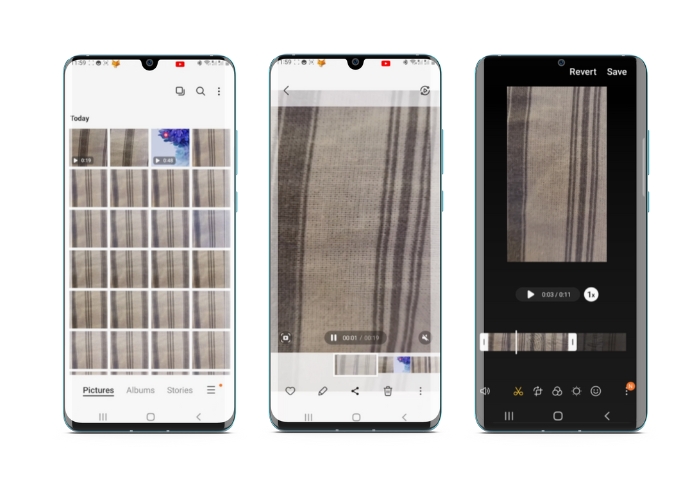
L'application Samsung Gallery est indispensable pour gérer et éditer votre contenu visuel si vous possédez un appareil Samsung. L'une des fonctionnalités utiles de l'application est la possibilité de recadrer des vidéos lors de vos déplacements. Il permet aux utilisateurs de supprimer les parties indésirables d'une vidéo ou d'ajuster le rapport d'aspect. La fonction de recadrage le rend facile et intuitif. Avec Samsung Gallery, vous pouvez facilement créer et partager des vidéos de haute qualité adaptées à vos besoins. Consultez les étapes ci-dessous pour vous aider à utiliser cet outil de recadrage de l'éditeur vidéo Android.
Étape 1. Ouvrez l’application Samsung Galerie sur votre appareil et trouvez la vidéo que vous souhaitez recadrer.
Étape 2. Touchez la vidéo pour l’ouvrir, puis appuyez sur le bouton Modifier (l’icône en forme de crayon) au bas de l’écran. Depuis l’écran Modifier, sélectionnez l’option Recadrer.
Étape 3. Un rectangle apparaît maintenant superposé à la vidéo, avec des poignées à chaque coin. Faites glisser les poignées pour redimensionner le rectangle comme nécessaire afin de recadrer la vidéo. Appuyez sur le bouton Lecture pour prévisualiser la vidéo recadrée.
Étape 4. Si le résultat vous convient, touchez le bouton Enregistrer pour sauvegarder la vidéo recadrée dans votre Galerie.
Partie 2. Procédure pas à pas pour recadrer une vidéo sur Android avec Google Photos
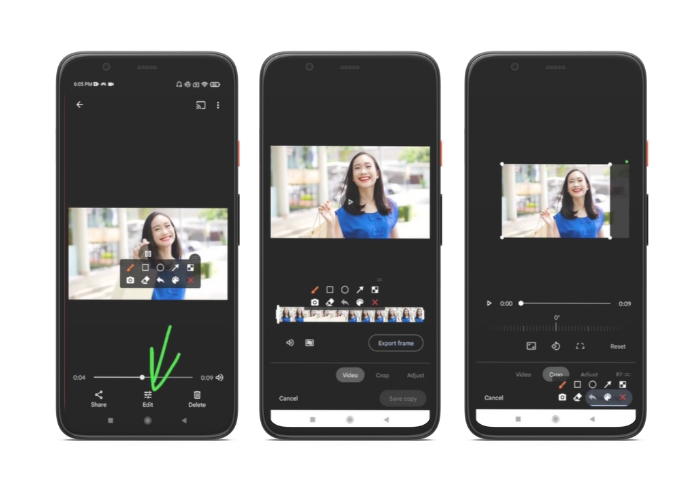
Google Photos est une application de gestion de photos et de vidéos populaire pour les utilisateurs d'Android. Elle est dotée d'un large éventail de fonctionnalités pour vous aider à modifier et à améliorer votre contenu visuel. Une grande caractéristique de cet outil est la possibilité de recadrer les vidéos, ce qui vous permet de supprimer les parties indésirables et de vous concentrer sur les moments les plus importants. Vous pouvez recadrer des vidéos en quelques clics, ce qui facilite et intuitif la création de contenu vidéo soigné et d'aspect professionnel sur votre appareil Android. Ici, nous allons vous montrer comment recadrer des vidéos avec Google Photos étape par étape.
Étape 1. Lancez l’application Google Photos sur votre appareil Android et trouvez la vidéo que vous souhaitez recadrer. Ensuite, appuyez sur le bouton Modifier situé au bas de l’écran.
Étape 2. Depuis l’écran de modification, sélectionnez l’option Recadrer et faire pivoter.
Étape 3. Un rectangle apparaît maintenant en surimpression sur la vidéo, avec des poignées à chaque coin. Utilisez ces poignées pour redimensionner le rectangle comme nécessaire afin de recadrer la vidéo.
Étape 4. Enfin, appuyez sur Enregistrer pour sauvegarder les modifications apportées à la vidéo.
Partie 3. Guide Comment recadrer une vidéo sur Android avec une application tierce
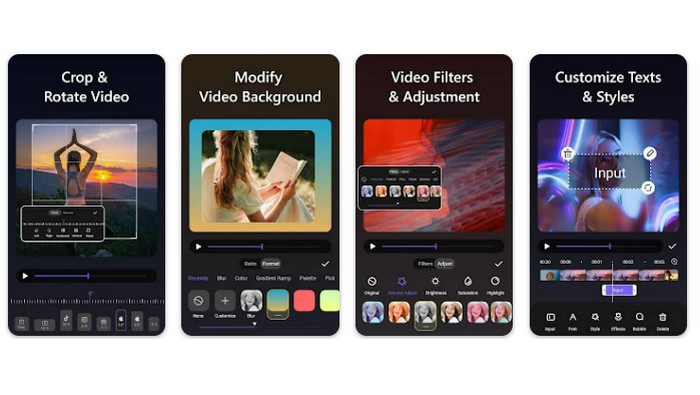
La création et le montage vidéo faciles sont désormais à la portée de tous les utilisateurs de smartphones Android grâce à Vid.fun. Ce programme permet de monter ses vidéos de nombreuses façons, notamment en ajoutant de la musique, du texte et des effets, en coupant et en fusionnant des segments, et bien plus encore. Vous pouvez apprendre à redimensionner une vidéo sur Android en suivant les étapes ci-dessous pour ce programme.
Étape 1. Téléchargez l’application Vid.fun depuis le Google Play Store, puis créez un nouveau projet.
Étape 2. Depuis la galerie ou le rouleau de votre appareil photo, choisissez le clip que vous souhaitez recadrer et faites‑le glisser sur la timeline.
Étape 3. Choisissez le segment vidéo souhaité dans la timeline en appuyant dessus, puis utilisez le bouton Recadrer en bas de l’écran pour le modifier.
Étape 4. Un rectangle est superposé à la vidéo, et vous pouvez en faire glisser les coins pour effectuer les ajustements. Pour recadrer la vidéo, il vous suffit de saisir les poignées des coins et de les tirer jusqu’à la position souhaitée. Lorsque vous avez terminé, vous pouvez envoyer la vidéo à vos proches ou la publier en ligne.
Partie 4. Recommandation d'application
Bien sûr, après les applications mobiles, nous avons aussi une recommandation pour ordinateur. Video Converter Ultimate de FVC est un logiciel complet pour convertir les formats vidéo, qui comprend de nombreux outils de montage. La possibilité d’ajuster le format d’image de la vidéo est l’une de ses fonctions phares.
Avec ce programme, vous pouvez facilement modifier la forme et la taille de la vidéo en changeant le format d'image. Si vous souhaitez partager une vidéo sur les réseaux sociaux avec un format d'image spécifique, ou si vous avez juste besoin d'adapter la vidéo à une taille d'écran spécifique, FVC Video Converter Ultimate est là pour vous. Découvrez comment recadrer des vidéos sur Android à l'aide de ce programme.
Étape 1. Télécharger et installer FVC Video Converter Ultimate
Vous pouvez télécharger l’application en cliquant sur l’un des boutons Téléchargement gratuit ci‑dessous. Une fois le programme téléchargé, installez‑le puis lancez‑le sur votre ordinateur.
Téléchargement gratuitPour Windows 7 ou version ultérieureTéléchargement sécurisé
Téléchargement gratuitPour macOS 10.7 ou version ultérieureTéléchargement sécurisé
Étape 2. Importer la vidéo à recadrer
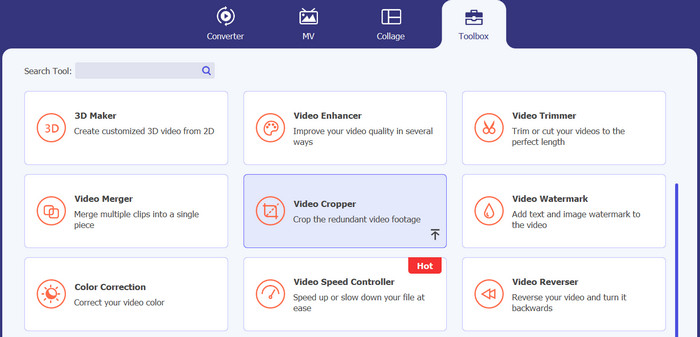
Ensuite, allez dans l’onglet Boîte à outils situé en haut de l’interface du programme. Puis choisissez l’option Recadrage vidéo et ajoutez un fichier en cliquant sur le bouton en forme de plus.
Étape 3. Recadrer le fichier vidéo
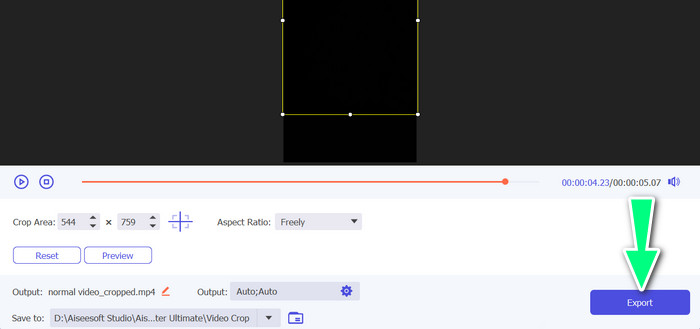
Vous pouvez maintenant recadrer la vidéo importée. À l'aide des curseurs de la zone de recadrage, ajustez la zone que vous souhaitez recadrer de la vidéo. Vous pouvez également sélectionner un format d'image spécifique dans le menu déroulant. Prévisualisez la vidéo recadrée pour vous assurer que la partie souhaitée de la vidéo a été recadrée.

Étape 4. Exporter la vidéo recadrée
Enfin, cliquez sur le bouton Exporter dans le coin inférieur droit pour terminer le processus de recadrage et enregistrer la vidéo recadrée.
Partie 5. FAQ sur le recadrage de vidéos sur Android
Comment recadrer des vidéos sans perdre en qualité ?
Une façon de recadrer des vidéos sans perte de qualité consiste à utiliser un outil de montage vidéo prenant en charge le recadrage non destructif. Cela signifie que le fichier vidéo d'origine n'est pas modifié et que seule la partie recadrée est enregistrée en tant que nouveau fichier.
Le recadrage d'une vidéo sur Android affectera-t-il sa qualité ou sa résolution ?
Oui, recadrer une vidéo sur Android peut affecter sa qualité ou sa résolution, car le processus implique de supprimer une partie de la vidéo originale. Cependant, la mesure dans laquelle la qualité ou la résolution est affectée dépend de divers facteurs, tels que la taille du recadrage, la qualité de la vidéo d'origine et la méthode utilisée pour recadrer la vidéo.
Est-il possible de recadrer une vidéo et d'ajouter des effets ou des filtres en même temps sur Android ?
Oui, il est possible de recadrer une vidéo et d’y ajouter des effets ou des filtres en même temps sur Android. Il existe diverses applications de montage vidéo sur le Google Play Store qui proposent à la fois des options de recadrage, d’effets vidéo et de filtres vidéo. Parmi les exemples populaires, on trouve FVC Video Converter Ultimate, Filmora, etc.
Conclusion
Apprendre comment recadrer une vidéo sur Android est un processus simple qui peut être réalisé à l’aide de différentes applications et logiciels. Samsung Galerie, Google Photos et FVC Video Converter Ultimate ne sont que quelques exemples d’outils qui peuvent vous aider à recadrer vos vidéos sur les appareils Android.
-
 Guide sur la façon de réparer les vidéos qui ne sont pas lues sur les téléphones Android
 Vous voulez savoir quelles sont les raisons pour lesquelles les vidéos sur votre appareil Android ne peuvent pas être lues ? Et si oui, existe-t-il des moyens de résoudre le problème par vous-même ? Continuez à lire pour en savoir plus.
-
 Les moyens les plus simples d'accélérer une vidéo sur vos appareils Android [2023]
 Saviez-vous que vous pouvez accélérer une vidéo sur votre Android ? Donc, si vous voulez savoir comment accélérer une vidéo sur votre téléphone Android, lisez cet article.
-
 3 excellentes méthodes pour découper une vidéo sur Android
 Voulez-vous utiliser votre appareil Android pour couper une vidéo ? Alors ce poste est pour vous. Nous discuterons de moyens précieux pour raccourcir une vidéo sur Android.
