


 Video Converter Ultimate
 Enregistreur d'écran
 Réparation vidéo
 Téléchargement sécurisé
Redimensionner la vidéo pour Instagram pour stimuler l'engagement et la présence sur Instagram
Vous en avez marre des vidéos mal recadrées sur votre flux Instagram ? Il est temps d'intensifier votre jeu de contenu et de faire ressortir vos vidéos ! Avec l'essor du contenu vidéo, s'assurer que vos visuels sont parfaitement optimisés pour Instagram est plus important que jamais. Mais ne vous inquiétez pas. Vous n'avez pas besoin d'être un éditeur professionnel pour recadrer vos vidéos comme un pro.
Dans cet article, nous allons vous présenter tout ce que vous devez savoir pour recadrer vos vidéos pour Instagram en respectant exactement les spécifications requises, afin de créer un contenu spectaculaire qui capte l’attention de vos abonnés. Commençons !

Partie 1. Norme de rapport d'aspect vidéo Instagram
La norme de format vidéo Instagram est de 1: 1, ce qui signifie que la largeur et la hauteur de la vidéo doivent être égales. Ce rapport d'aspect carré est le paramètre par défaut pour les vidéos Instagram et est le format le plus utilisé sur la plate-forme. Cependant, Instagram prend également en charge d'autres formats d'image, notamment 4:5, 16:9 et 9:16.
Ces différents rapports d'aspect permettent plus de flexibilité lors de la création de vidéos, mais il est important de noter que certains rapports peuvent entraîner le recadrage ou le redimensionnement de vos vidéos d'une manière qui peut avoir un impact négatif sur leur qualité. Par conséquent, cela pourrait être la meilleure réponse possible pour ceux qui ont des questions comme "pourquoi Instagram recadre-t-il ma vidéo?" En suivant la norme de rapport d'aspect vidéo d'Instagram, vous pouvez vous assurer que vos vidéos ont l'air soignées et professionnelles et sont optimisées pour être visionnées sur la plate-forme.
Partie 2. Redimensionner la vidéo pour Instagram hors ligne
FVC Video Converter Ultimate est un excellent choix pour recadrer vos vidéos pour Instagram. Il propose une gamme de fonctionnalités et d’outils qui facilitent la création d’un contenu impressionnant, parfaitement optimisé pour la plateforme. L’un des points forts de FVC Video Converter Ultimate est sa prise en charge de plusieurs formats d’image, notamment le 1:1, qui est le format standard d’Instagram.
Cela signifie que vous pouvez parfaitement recadrer vos vidéos pour Instagram sans vous soucier de la perte de qualité ou de résolution. Cet utilitaire est une excellente application pour recadrer des vidéos pour Instagram, en particulier pour les publications, les bobines et les histoires. De plus, vous pouvez profiter d'autres formats d'image comme 16:9, 4:3, 21:9, et bien plus encore. Suivez ces étapes simples pour apprendre à recadrer des vidéos pour Instagram :
Étape 1. Obtenir et installer le programme
Tout d’abord, téléchargez l’application sur votre ordinateur en cliquant sur le bouton Téléchargement gratuit en fonction du système d’exploitation de votre machine. Ensuite, installez et lancez le programme une fois l’installation terminée.
Téléchargement gratuitPour Windows 7 ou version ultérieureTéléchargement sécurisé
Téléchargement gratuitPour macOS 10.7 ou version ultérieureTéléchargement sécurisé
Étape 2. Accéder à la Boîte à outils et au Recadrage vidéo
Maintenant, rendez-vous dans la boîte à outils du programme en cliquant sur l’onglet Boîte à outils. Ce panneau affichera un ensemble d’options. Sélectionnez ensuite l’option Recadrage vidéo.
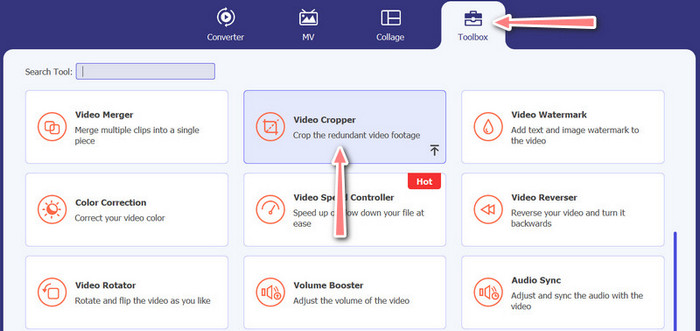
Étape 3. Importer une vidéo à recadrer
Ajoutez la vidéo que vous souhaitez recadrer en cliquant sur le bouton en forme de Plus dans la zone de téléversement de l’option Recadrage vidéo. Vous serez alors redirigé vers un autre panneau où vous pourrez recadrer la vidéo importée.
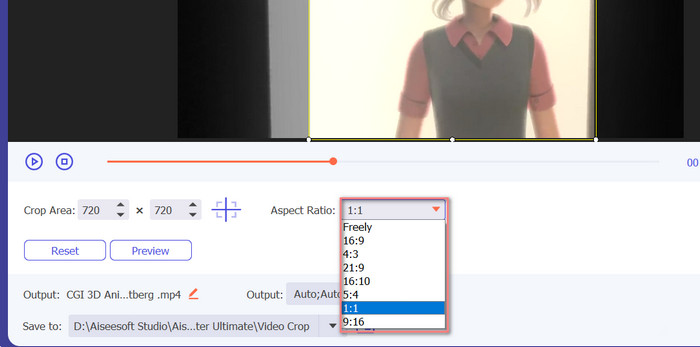
Étape 4. Recadrer la vidéo
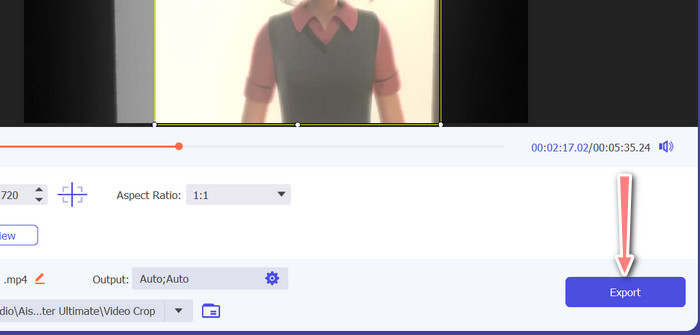
Sélectionnez le format d’image que vous souhaitez utiliser pour votre vidéo. Pour Instagram, les formats d’image standards sont 1:1 (carré) et 4:5 (vertical). Vous pouvez choisir le format souhaité en cliquant sur le menu déroulant situé sous l’aperçu de la vidéo. Pour exporter, cliquez sur le bouton Exporter dans le coin inférieur droit de l’interface. Vous pourrez ensuite la partager avec vos abonnés ou la publier sur votre compte Instagram.
Partie 3. Recadrer la vidéo pour Instagram en ligne
Kapwing est un éditeur vidéo en ligne populaire, parfait pour tous ceux qui souhaitent recadrer rapidement et facilement leurs vidéos pour Instagram sans avoir à gérer un logiciel compliqué. Sans oublier que Kapwing est conçu pour être convivial, donc même si vous n'êtes pas un éditeur vidéo expérimenté, vous pouvez toujours utiliser la plate-forme pour créer du contenu de haute qualité. Voici les étapes à suivre pour utiliser Kapwing pour recadrer gratuitement une vidéo pour Instagram :
Étape 1. Rendez-vous sur le site de Kapwing et cliquez sur le bouton Start Editing.
Étape 2. Importez la vidéo que vous souhaitez recadrer en la faisant glisser dans l’éditeur Kapwing ou en cliquant sur le bouton Upload et en sélectionnant le fichier depuis votre ordinateur.
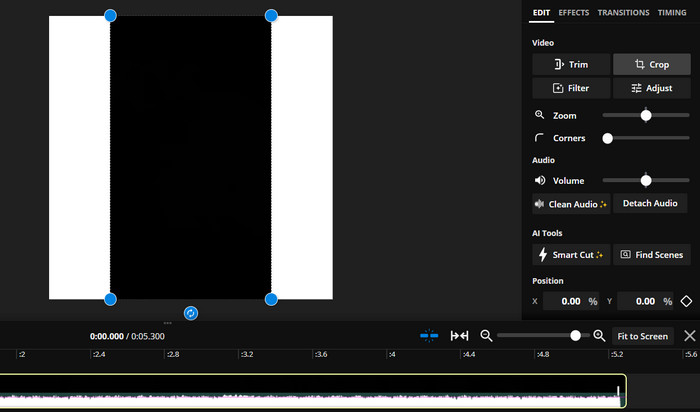
Étape 3. Cliquez sur l’outil Crop dans le menu de droite. Choisissez ensuite le format d’image dans lequel vous souhaitez recadrer votre vidéo en sélectionnant l’une des options prédéfinies ou en créant un format personnalisé. Utilisez les poignées sur l’aperçu vidéo pour recadrer la vidéo à la taille souhaitée. Notez que vous pouvez également utiliser cette procédure pour recadrer des vidéos destinées aux publications Instagram.
Partie 4. Recadrer des vidéos pour Instagram sur Android
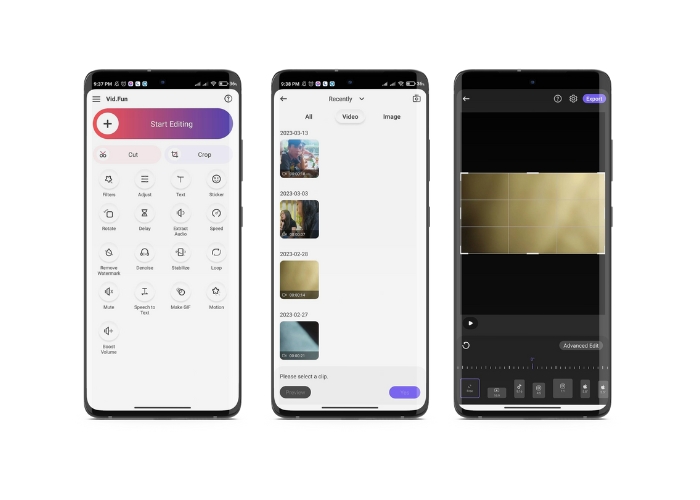
Vid.fun vous permet de recadrer vos vidéos au format idéal pour Instagram, que vous utilisiez un smartphone ou une tablette. L’application regorge de fonctionnalités pour vous aider à créer des vidéos de haute qualité, notamment un puissant outil de recadrage vidéo qui vous permet de recadrer vos vidéos en quelques pressions seulement. De plus, elle propose une large gamme de formats d’image, ce qui vous garantit que vos vidéos auront un excellent rendu sur Instagram. Voici un guide expliquant comment recadrer des vidéos pour les Reels Instagram avec cette application sur votre appareil Android.
Étape 1. Téléchargez et installez Vid.fun depuis le Google Play Store. Lancez-la immédiatement après l’installation. Touchez l’icône Recadrer située sur l’écran principal.
Étape 2. Ajoutez un fichier multimédia en le sélectionnant dans la galerie de votre appareil. Ensuite, choisissez le format d’image souhaité dans le menu au bas de l’écran. Vous pouvez aussi utiliser les poignées sur l’aperçu vidéo pour ajuster le recadrage et positionner la vidéo comme vous le souhaitez.
Étape 3. Prévisualisez votre vidéo recadrée pour vérifier qu’elle correspond bien à vos attentes. Une fois satisfait du recadrage, appuyez sur le bouton Export situé dans le coin supérieur droit.
Pour aller plus loin :
Tutoriel concret – 2 méthodes pour combiner des vidéos pour Instagram
Différentes manières de publier un GIF sur Instagram [Outils en ligne et logiciels]
Partie 5. FAQ sur le redimensionnement des vidéos pour Instagram
Que se passe-t-il si ma vidéo ne correspond pas au format d'image requis pour Instagram ?
Si votre vidéo ne correspond pas au format d'image requis pour Instagram, elle apparaîtra avec des barres noires sur les côtés ou en haut et en bas, ou elle sera automatiquement recadrée pour s'adapter au cadre.
Puis-je recadrer une vidéo qui a déjà été téléchargée sur Instagram ?
Non, vous ne pouvez pas recadrer une vidéo qui a déjà été téléchargée sur Instagram. Vous devrez recadrer la vidéo avant de la télécharger sur Instagram.
Puis-je recadrer une vidéo sans perdre en qualité ?
Oui, vous pouvez recadrer une vidéo sans perte de qualité tant que vous ne recadrez pas excessivement. Un recadrage trop important entraînera une baisse de qualité car il réduit la résolution de la vidéo.
Conclusion
Recadrer une vidéo pour une Story, une publication ou un Reel Instagram est essentiel pour garantir que votre vidéo soit bien présentée et respecte le format d’image requis. Avec les bons outils, comme FVC Video Converter Ultimate, Kapwing ou Vid.fun, vous pouvez facilement recadrer des vidéos pour Instagram au bon format d’image.
-
 Comment ajouter et créer un filtre Instagram avant de publier une image et
 Quels sont les filtres sur Instagram ? Comment l'appliquer ? Comment en fabriquer un ? Ces questions auront des réponses simples dans cet article, alors lisez-les.
-
 Meilleures techniques pour accélérer une vidéo sur Instagram comme un pro
 Voulez-vous télécharger une vidéo accélérée sur Instagram ? Dans ce cas, cet article fournira les meilleures techniques que vous pouvez utiliser pour accélérer facilement les vidéos.
-
 Redimensionner les photos pour Instagram sur ordinateur, iPhone ou Android
 Si vous souhaitez redimensionner vos photos pour Instagram, nous vous montrerons les étapes à suivre pour le faire. Lisez pour apprendre les étapes pour redimensionner des photos pour Instagram.
