


 Video Converter Ultimate
 Enregistreur d'écran
 Réparation vidéo
 Téléchargement sécurisé
Comment découper facilement des vidéos MP4 & #91Solution Mac et Windows
Nowadays, trimming or splitting a video is a very useful thing to do, especially when you want to remove unnecessary and boring parts from a lengthy video. If you’re someone who wants to trim MP4 videos but doesn’t know how and what tools to use, we've got you covered! In this article, learn 6 video cutter tools that can help you easily cut down the unwanted videos on Windows and Mac.

Partie 1 : Comment découper un MP4 sous Windows et macOS avec le trimmer MP4 complet
If you are a Windows or macOS user and want to cut a video using a full-featured MP4 trimmer video tool, FVC Video Converter Ultimate is the perfect for you. This is a video converter tool, but it comes with a lot of features, including a video trimmer. With this feature, users can split or cut any MP4 videos, especially those that are not practically lengthy and those that contain unwanted parts or segments. Moreover, you can manually select the part of the video that you want to cut or trim the segment automatically using its fast slip feature. Lastly, this powerful tool supports various video formats to ensure compatibility with video inputs like MP4, MKV, MOV, FLV, AVI, MP3, etc. Therefore, whether you're cutting out unnecessary footage, extracting specific segments, or refining timing, FVC Video Converter Ultimate is a perfect tool to seamlessly trim MP4 video on both Windows and macOS systems.
Étape 1. Téléchargez et installez FVC Video Converter Ultimate sur votre ordinateur Windows ou Mac.
Téléchargement gratuit pour Windows 7 ou version ultérieure Téléchargement sécurisé
Téléchargement gratuit pour macOS 10.7 ou version ultérieure - Téléchargement sécurisé
Step 2. Next, click on the Toolbox and look for the Video Trimmer.
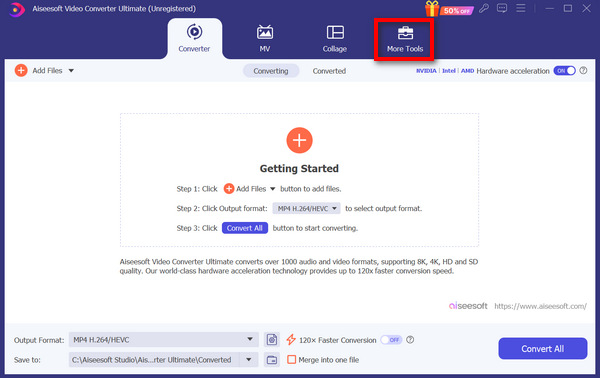
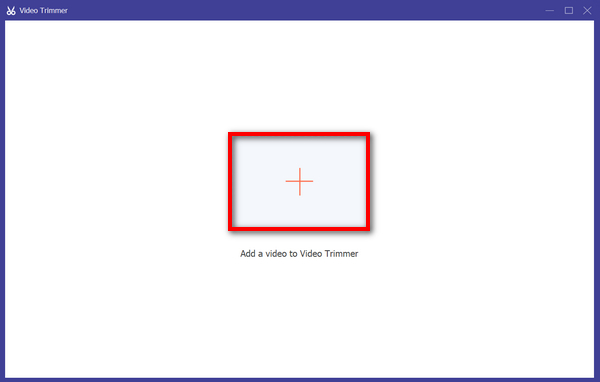
Step 3. Now, from there, click on the Add a Video to Video Trimmer button to add the MP4 file that you want to trim.
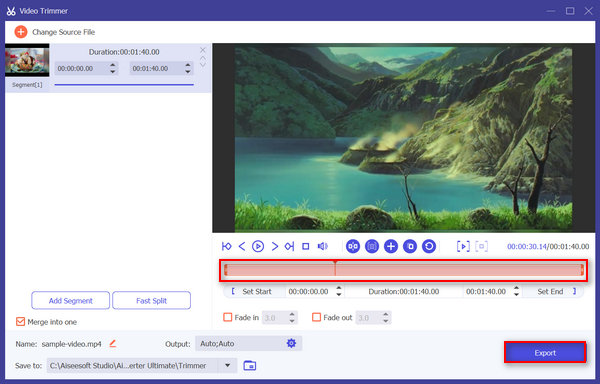
Step 4. To trim the video, you can do it manually by easily adjusting or moving the start and end bar on the clip by dragging, moving it from left to right, or typing in the start and end times of the part of the MP4 video that you want to trim.
Ce processus coupe automatiquement la partie de la vidéo en fonction de l'heure à laquelle vous souhaitez démarrer et terminer le découpage.
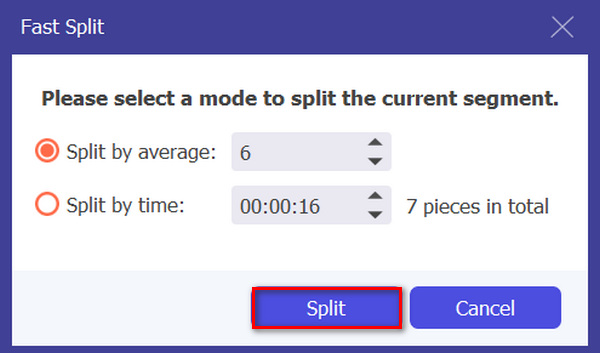
Meanwhile, if you want to cut it using the Fast slip trimmer feature. You just need to click on the Fast Slip button beside the Add Segment button. Next, select a mode in which you want to split the segment. If you choose to Split it by average, then just indicate the number, but if you want to split it by time, then indicate the time. After that, click the Split button.
Step 5. Lastly, to export the trimmed video, click on the Export button.
Lorsqu'il s'agit de découper des fichiers vidéo MP4, FVC Video Converter Ultimate est en effet une solution incontournable. Son interface intuitive vous permet de couper facilement et précisément vos vidéos MP4, et ses différentes options de découpage vous offrent une flexibilité sur la façon dont vous souhaitez couper facilement vos vidéos.
Avantages
- Prend en charge une large gamme de formats d'entrée vidéo.
- Coupe précise.
- Interface d'édition intuitive.
- Maintient la qualité de la vidéo découpée.
- A fusionné en une seule fonctionnalité.
Les inconvénients
- L'accès à toutes ses fonctionnalités peut être limité en utilisant sa version gratuite.
Partie 2 : Comment découper des MP4 en ligne gratuitement
Si vous cherchez un moyen de découper des vidéos MP4 en ligne, il existe des outils gratuits et accessibles. Un outil de découpage vidéo en ligne peut s'avérer extrêmement utile, surtout si vous avez besoin de monter rapidement vos vidéos sans logiciel ni téléchargement spécialisé. Sans plus attendre, voici cinq outils de découpage vidéo en ligne gratuits pour 2025 :
Ezgif
Ezgif is a free and simple toolset that allows users to trim GIF and MP4 online and for free. Also, it has a very simple and user-friendly interface. However, at some point the tool’s interface is sloppy and might be overwhelming for new users to use it. Nonetheless, this tool is still great when you want to trim short videos.
Step 1. First, go to their official website.
Step 2. Click on Video to GIF, select Cut Video, and upload the MP4 video that you want to trim from your device by clicking the Choose File button, or else paste the URL of the MP4 video in the space provided below.
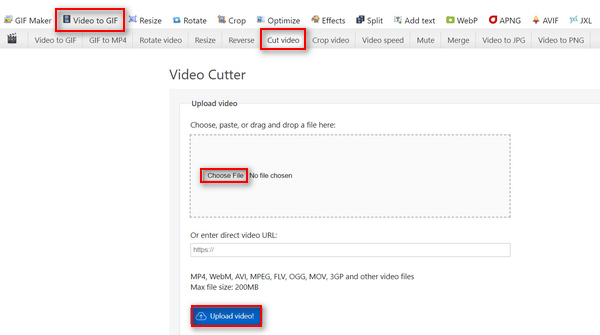
Step 3. Now, once the video is uploaded, trim your video. Ensure to set the start and end times of the video that you want to trim.
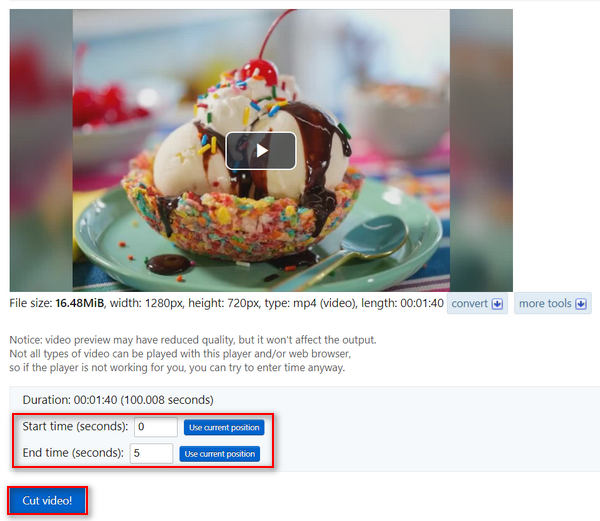
Step 4. Once you have set the time when you want to start and end the video that you want to trim, click the Cut the Video button.
Ezgif Video Cutter est un excellent outil lorsque vous souhaitez découper des vidéos MP4 qui ne nécessitent pas de découpage complexe. Donc, si vous avez besoin d’un trimmer MP4 plus avancé et complexe, ce n’est pas pour vous.
Avantages
- Simple à utiliser.
- Prend en charge plusieurs formats, comme MP4, WebM, AVI, MPEG, FLV, OGG, MOV et 3GP.
- Fonctionne sur les URL.
Les inconvénients
- Interface bâclée.
- La limite de taille n'est que de 200 Mo.
Fastreel
Fastreel est un outil de montage vidéo en ligne simple qui peut être utilisé pour découper facilement des vidéos MP4 grâce à son interface conviviale et intuitive. Les utilisateurs peuvent facilement naviguer dans l'outil, il leur suffit de glisser-déposer leurs fichiers, puis de supprimer facilement les parties dont ils ne veulent pas. De plus, cet outil prend en charge divers formats vidéo tels que les fichiers MP4, MOV, MKV, AVI et WMV. Enfin, avec cet outil, vous pouvez enregistrer et télécharger gratuitement vos vidéos éditées.
Étape 1. Rendez-vous sur leur site officiel.
Step 2. To upload the MP4 video that you want to trim, click on the Add Files button.
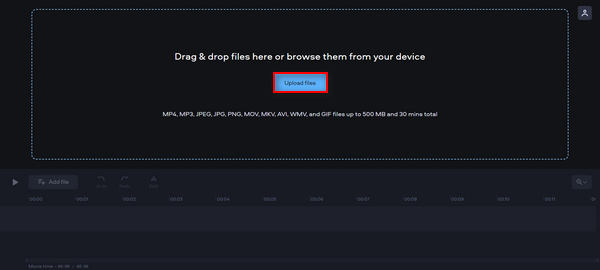
Step 3. Now, to trim the MP4 video, move the red marker to where you want to make a cut and click the Scissors icon.
Step 4. Lastly, after trimming the MP4 video, click on the Export button to save it.
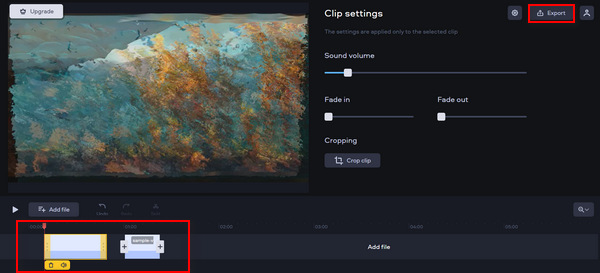
Cet outil peut incroyablement facilement découper des vidéos MP4. Cependant, parfois, le téléchargement de la vidéo que vous souhaitez découper prend du temps.
Avantages
- Interface conviviale et intuitive.
- Édition précise.
- Prend en charge plusieurs formats vidéo.
Les inconvénients
- Le téléchargement de la vidéo est lent.
- Les vidéos enregistrées auront un filigrane.
- La limite de taille n'est que de 500 Mo.
Découpeur vidéo en ligne
Online Video Cutter is an online video editing tool that you can use to trim MP4 videos online is the Online Video Cutter. With this tool, you can easily trim MP4 videos and further edit them using its other editing features. Moreover, compared to other free MP4 trimming tools, this free online MP4 trimmer can handle a much bigger video size, catering to a maximum of 4GB video file.
Étape 1. Rendez-vous sur leur site officiel.
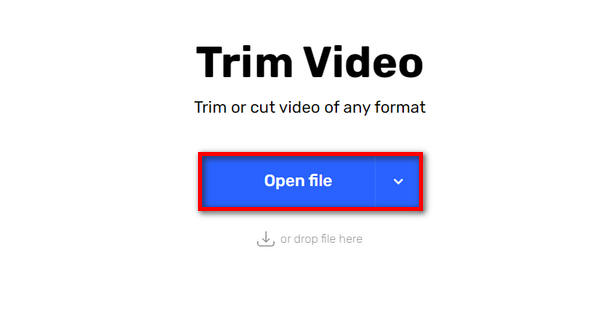
Step 2. To add the MP4 video that you want to trim, Click on the Open File button.
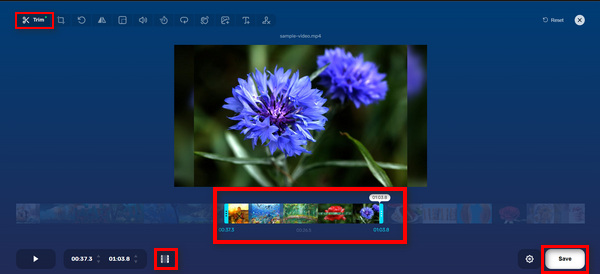
Step 3. Now, to trim MP4 video using this tool, click on the Trim or Cut menu above, then select the part of the video that you want to adjust by adjusting both the start and the end indicator. Once set, click on the Trim or Cut button below and click Save to save to export the video.
Avec sa grande limite de taille, son interface simple et ses autres fonctionnalités d'édition, Online Video Cutter est en effet un outil de découpe MP4 en ligne gratuit et prometteur.
Avantages
- Peut prévisualiser des vidéos pendant 5 secondes.
- Prend en charge au moins un maximum de fichiers vidéo de 4 Go.
- Possède d'autres fonctionnalités d'édition dans l'interface de découpage vidéo.
Les inconvénients
- Le téléchargement de la vidéo est lent.
- Les vidéos enregistrées auront un filigrane.
- La limite de taille n'est que de 500 Mo.
Kapwing
Kapwing est un outil de montage vidéo en ligne convivial qui peut facilement être utilisé pour découper des vidéos MP4. Une caractéristique exceptionnelle de cet outil est qu'il prend en charge les vidéos YouTube, permettant aux utilisateurs de découper directement une vidéo MP4 de YouTube en collant son URL dans le système.
Étape 1. Rendez-vous sur leur site officiel.
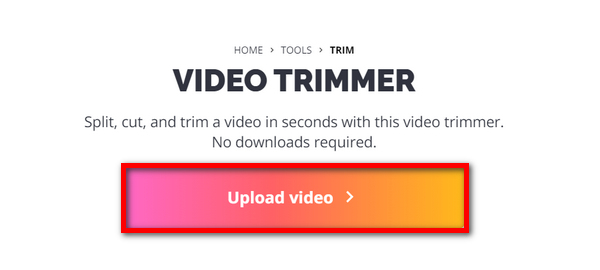
Step 2. Click on the Upload Video button to go to its main interface.
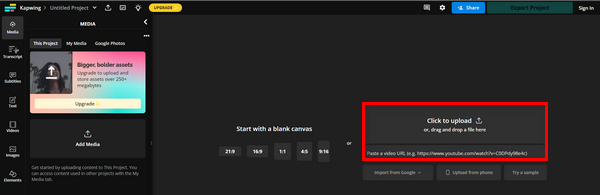
Step 3. From there, you have two options for how you can add your files. It’s either uploading the MP4 video by clicking the Click to Upload button or by pasting the YouTube URL if the video that you want to trim is from YouTube.
Step 4. Now, click on the Trim menu to be redirected to another Window where you can trim the video.
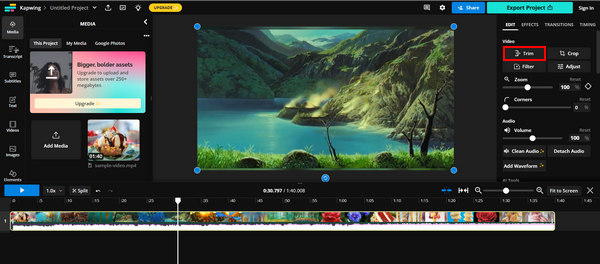
Step 5. To trim your video, just move on to the trim indicator, where you want to start the trim at where it ends, or else you can just type in the time where you want to start and end the trim. After that, click on the Trim button.
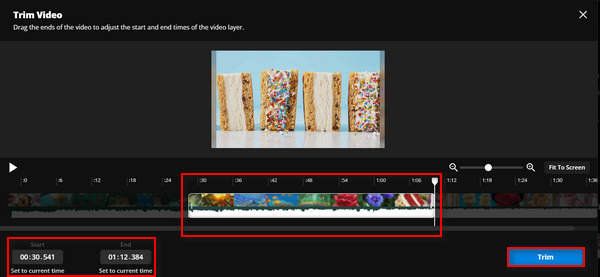
Step 6. To save the file, click on Export Project.
Assurez-vous d'avoir créé un compte pour pouvoir exporter votre vidéo découpée.
Avantages
- Facile à utiliser.
- Prend en charge les formats vidéo populaires tels que les fichiers MP4, les vidéos MOV, WMV, etc.
- Ajoutez gratuitement.
Les inconvénients
- Il faut s'inscrire.
- Autorise uniquement jusqu'à 250 Mo.
FreeConvert
FreeConvert.com is an online video editing platform that offers various multimedia conversion and editing tools. One of its prominent features is the video trimmer, which allows users to trim MP4 and other video formats up to 1GB in size. Moreover, with its intuitive interface, there's no doubt that users can easily navigate the trimming process of their videos.
Étape 1. Rendez-vous sur leur site officiel.
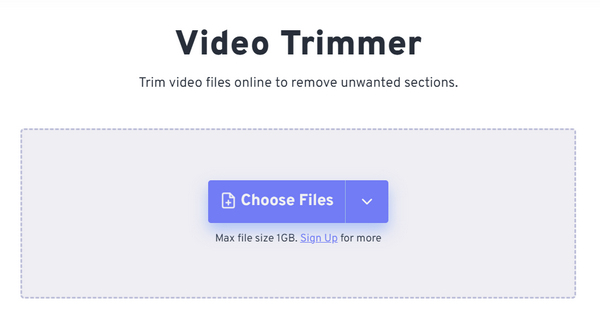
Step 2. Click on the Choose Files drop-down button and add the MP4 video that you want to trim from your Device, Dropbox, and Google Drive. You can also just paste the link of the video that you want to trim.
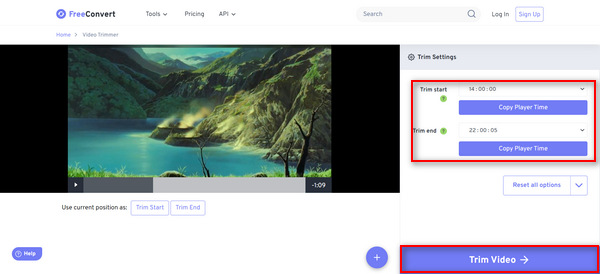
Step 3. Now, to trim the video, just indicate the time when you want to start the trim, as well as when you want the trim to end. After that, click the Trim Video button.
FreeConverter est un excellent outil MP4 en ligne gratuit disponible de nos jours. Bien que ce soit gratuit, les publicités sont difficiles à gérer dans cet outil. Donc, si vous ne voulez pas cela, alors cet outil n’est pas pour vous.
Avantages
- Pas de filigrane.
- Ne nécessite aucune inscription.
- Prend en charge plus de 40 formats vidéo, dont MP4, MOV, AVI et WebM.
Les inconvénients
- A trop de publicités.
Partie 3 : FAQ sur le trimmer MP4
Quelle est la différence entre découper une vidéo et diviser une vidéo ?
Le découpage d'une vidéo consiste à supprimer une partie du début ou de la fin d'une vidéo. D'un autre côté, diviser une vidéo consiste à couper un clip vidéo en deux morceaux distincts.
Dois-je payer pour un logiciel pour découper mes vidéos ?
Cela dépend vraiment de vos besoins et préférences spécifiques. Bien qu'il existe de nombreuses options de logiciels de montage vidéo payants dotés de fonctionnalités avancées, il existe également des outils en ligne gratuits qui offrent des fonctionnalités de découpage de base sans avoir besoin de paiement. Cependant, si vous souhaitez disposer d'une fonctionnalité d'édition plus avancée, investir dans un logiciel de découpage vidéo payant peut en valoir la peine.
Le découpage de la vidéo réduit-il la qualité ?
Cela dépend de l'outil de coupe utilisé. Le découpage d'une vidéo ne réduit pas significativement sa qualité tant que le processus de découpage est effectué correctement et que la vidéo est enregistrée au même format et dans la même résolution. Cependant, si la vidéo MP4 découpée est réencodée ou enregistrée dans une résolution inférieure, la qualité de la vidéo sera réduite.
Conclusion
Trimming MP4 videos is now a thing for most of us, especially in terms of editing and enhancing videos. So, whether you're a beginner or an experienced user, learning how you can benefit from trimming videos can greatly improve your video quality outputs, especially in this digital age. If you want to master this craft, don't hesitate and start trimming your videos today!
-
 5 outils de découpe MP3 pour couper facilement n'importe quel fichier audio [Mise à jour 2025]
 Avez-vous besoin d'un découpeur MP3 pour découper l'audio ? Dans ce cas, lisez cet article car nous fournissons les outils sur lesquels vous pouvez compter pour un découpage audio facile.
-
 Comment découper une vidéo avec TikTok [Instructions détaillées]
 Vous voulez savoir comment raccourcir une vidéo avec TikTok ? Ensuite, nous fournirons des moyens faciles. En outre, vous apprendrez d'autres méthodes utilisant des applications/programmes hors ligne.
-
 3 excellentes méthodes pour découper une vidéo sur Android
 Voulez-vous utiliser votre appareil Android pour couper une vidéo ? Alors ce poste est pour vous. Nous discuterons de moyens précieux pour raccourcir une vidéo sur Android.
