


 Video Converter Ultimate
 Enregistreur d'écran
 Réparation vidéo
Comment faire une vidéo au ralenti avec le meilleur concept fourni
Nous avons tous voulu créer des vidéos au ralenti, car grâce aux vidéos au ralenti, nous apprenons à apprécier détail après détail ce que nos appareils peuvent capturer en très peu de temps. Nous concevons le ralenti comme l’un des nombreux moyens d’enregistrer des souvenirs, en plus de filmer à vitesse normale. Cependant, sur certains appareils, il n’existe pas d’enregistrement instantané en mode ralenti. Il est donc très difficile de trouver la meilleure solution pour toutes les personnes dont les appareils ne disposent pas de cette fonctionnalité. Lisez cet article pour découvrir comment créer des vidéos au ralenti.

Partie 1. Comment créer une vidéo au ralenti sous Windows
Un logiciel comme Video Converter Ultimate est capable de réaliser tout ce qu’un monteur peut souhaiter d’un logiciel gratuit de ce type. Il est disponible sur Windows et Mac, mais il se démarque parmi tous les logiciels disponibles sous Windows. Il peut faire passer votre montage vidéo au niveau supérieur et possède une fonction appelée Video Speed Controller qui permet d’ajuster la vitesse de lecture de votre vidéo ou de convertir une vidéo en ralenti. Ce logiciel est accessible et compatible avec un grand nombre de formats. Voici les étapes à suivre pour bien l’utiliser :
Étape 1. Pour enregistrer le logiciel sur votre PC, cliquez sur Téléchargement gratuit. Après l’avoir téléchargé sur votre bureau, installez le logiciel et préparez-vous à le lancer.
Téléchargement gratuit pour Windows 7 ou version ultérieure Téléchargement sécurisé
Téléchargement gratuit pour macOS 10.7 ou version ultérieure - Téléchargement sécurisé
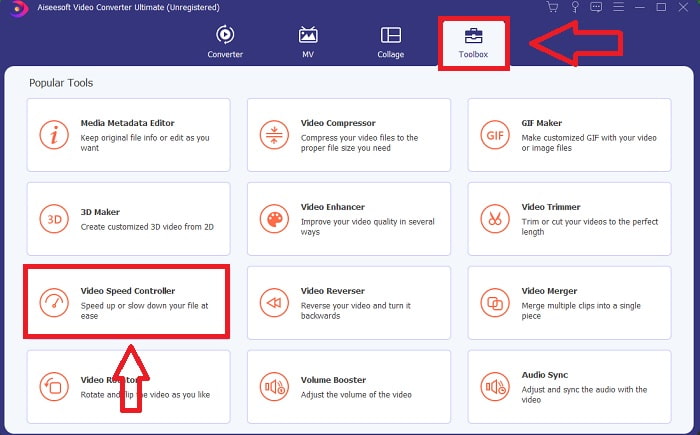
Étape 2. Après avoir installé le logiciel, lancez-le, sélectionnez l’option Boîte à outils, puis cliquez sur Video Speed Controller pour commencer à modifier la vitesse de lecture de la vidéo.
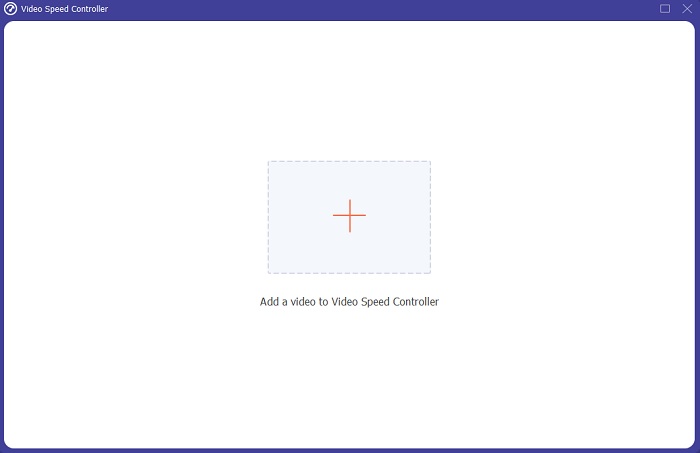
Étape 3. Ajoutez n’importe quel fichier en cliquant sur l’icône + à l’emplacement de votre choix, puis modifiez le clip vidéo.
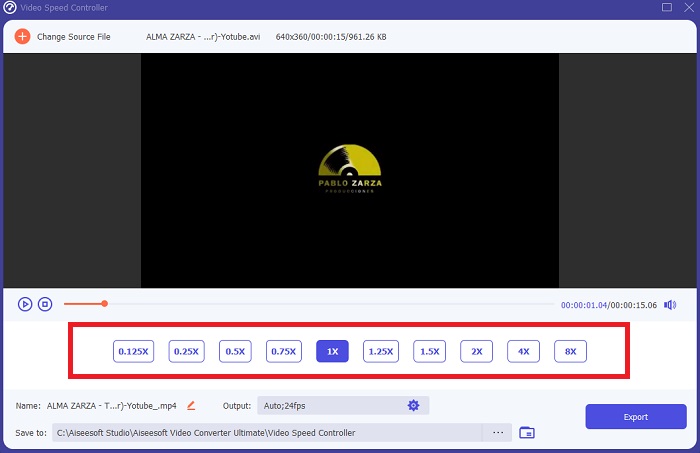
Étape 4. Modifiez la vitesse de lecture en indiquant combien de fois le nombre d’images par seconde de la vidéo doit augmenter ou diminuer.
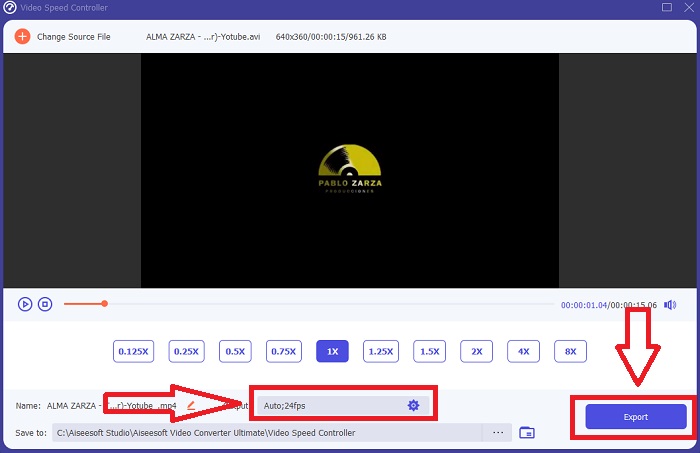
Étape 5. Une fois que vous avez terminé d’ajuster la vitesse de lecture de votre clip vidéo, vous pouvez choisir le rendu final en modifiant le format, la résolution et la qualité, entre autres paramètres. Lorsque vous êtes prêt, cliquez sur Exporter et sélectionnez l’emplacement où enregistrer votre travail.
Avantages
- Il s'agit d'un logiciel gratuit à télécharger disponible sous Windows et Mac.
- Il dispose de nombreux outils qui aident à éditer une vidéo, et ceux-ci peuvent être utilisés facilement.
Les inconvénients
- Il peut être acheté pour déverrouiller les fonctionnalités exclusives, mais ce n'est pas si cher.
Articles connexes :
Partie 2. Comment créer une vidéo au ralenti sur Mac
Créez des bandes-annonces dignes d’Hollywood avec iMovie sur votre Mac en résolution 4K. Après le montage de vos vidéos, peaufinez-les avec des titres animés, de la musique, des filtres et des effets. Réalisez une vidéo soignée et professionnelle avec le logiciel iMovie d’Apple et partagez-la avec votre famille et vos amis. Ce n’est pas difficile du tout. Si vous utilisez les différents modèles et outils de finition d’iMovie, votre vidéo n’en sera que meilleure. Avec cette nouvelle fonctionnalité, vous pouvez modifier la vitesse de lecture des vidéos sur votre Mac ou même créer des vidéos au ralenti, étant donné que la plupart des monteurs doivent hiérarchiser les problèmes présentés ; voici les étapes à suivre avec cet outil sur Mac pour atteindre la vitesse souhaitée.
Étape 1. Ouvrez l’app iMovie sur votre Mac et sélectionnez un clip vidéo avec lequel travailler dans le panneau Timeline.
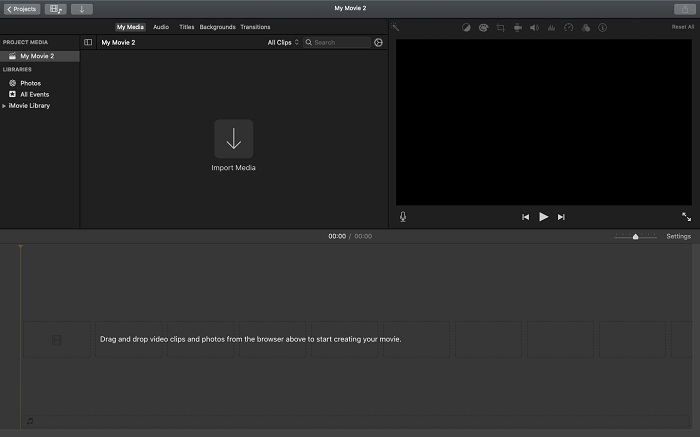
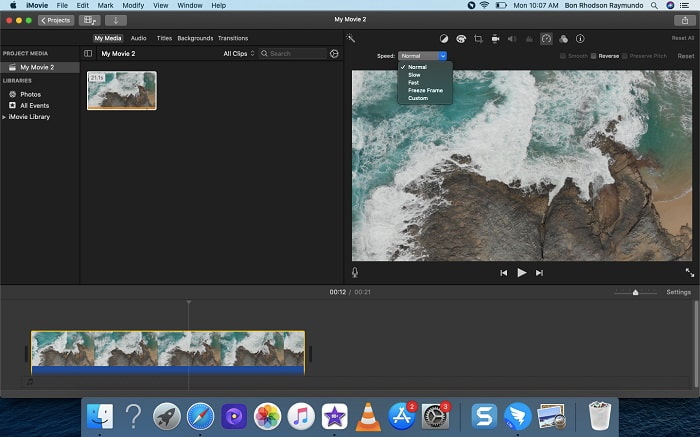
Étape 2. En cliquant sur le bouton Vitesse dans le coin supérieur gauche de l’interface, vous pouvez afficher les réglages de vitesse. Vous pouvez choisir entre des vitesses de lecture Lente et Rapide à partir de ce bouton pour affiner la lecture.
Étape 3. Cliquez sur l’icône Upload dans le coin supérieur droit de l’interface pour enregistrer le fichier sur le disque dur de votre ordinateur.
Avantages
- C'est un logiciel gratuit à télécharger sur Mac.
- Il peut afficher la piste du clip vidéo qui peut aider à éditer facilement.
Les inconvénients
- Certaines des fonctionnalités sont basées sur des professionnels; il manque des outils qui aident une vidéo à exploiter tout son potentiel.
- Vous ne pouvez pas personnaliser la vitesse de lecture de votre vidéo à l'aide de ce logiciel car vous ne choisirez que les options données.
Partie 3. Comment créer une vidéo au ralenti en ligne
Méthode 1. Utiliser VEED
Si vous cherchez l’outil en ligne le plus simple pour créer une vidéo au ralenti, VEED est un excellent choix. Mais pour qu’il fonctionne, vous aurez besoin d’une connexion Internet stable puisqu’il s’agit d’un outil web uniquement disponible en ligne. Grâce à son interface accessible et à ses outils conviviaux, vous pouvez réaliser des vidéos au ralenti en toute simplicité. L’une de ses principales fonctionnalités permet de ralentir la vitesse d’une vidéo : pour créer une vidéo au ralenti, vous devez réduire la vitesse normale de votre vidéo, et avec l’aide de VEED, vous n’avez plus à vous soucier de la procédure. Pour vous accompagner dans l’utilisation de cet outil en ligne, voici les étapes à suivre :
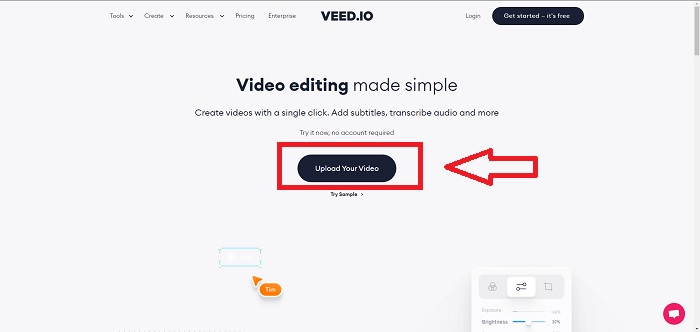
Étape 1. En cliquant sur le bouton Upload Your Video, vous pouvez envoyer un fichier vidéo depuis votre ordinateur vers l’espace de stockage du serveur.
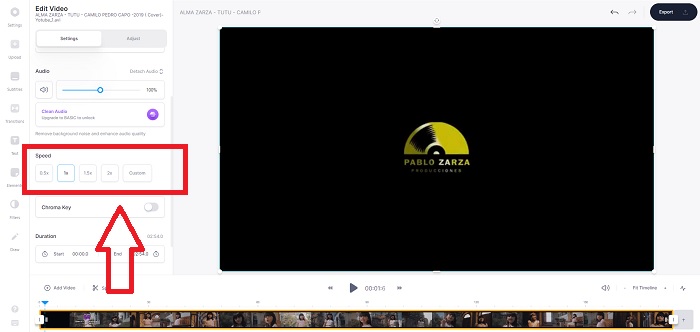
Étape 2. Une piste vidéo apparaît lorsque vous passez votre souris sur l’interface de montage de l’outil en ligne. Recherchez et cliquez sur l’option Vitesse pour modifier la vitesse de lecture. En sélectionnant Personnalisé, vous pouvez lire votre clip vidéo à une vitesse personnalisée, même si la vitesse que vous souhaitez n’est pas proposée par défaut.
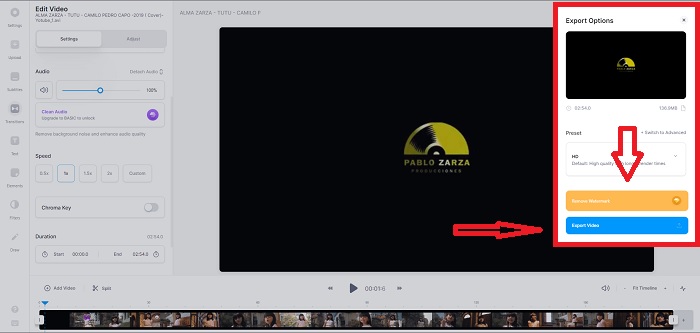
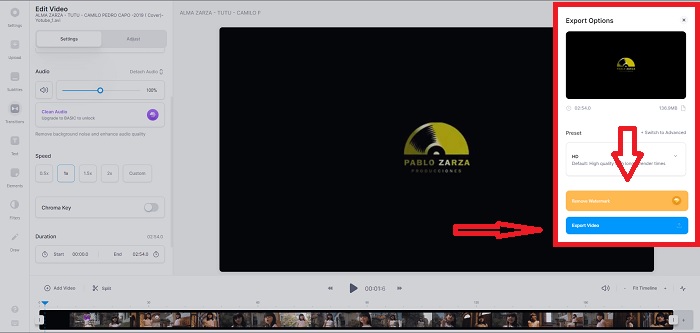
Étape 3. Une fois que vous avez réglé la vidéo à la vitesse souhaitée, cliquez sur Exporter pour passer à l’onglet d’exportation. Entre-temps, vous pouvez passer à la version Premium de l’outil en ligne, choisir la qualité vidéo que vous voulez et supprimer le filigrane. Vous pouvez ensuite exporter la vidéo vers votre ordinateur une fois que tout est réglé.
Avantages
- Il contient des tutoriels pour vous aider à utiliser l'outil Web.
- C'est un bon outil Web qui contient des informations sur les outils, les prix, les ressources et les entreprises.
Les inconvénients
- Il n'a qu'un petit nombre d'outils à utiliser.
Méthode 2. Utiliser InVideo
InVideo est un outil en ligne qui offre de meilleures performances vidéo que la plupart des autres outils en ligne grâce à ses modèles créatifs et à ses nombreux outils. Ce service web est considéré comme un convertisseur MP4 vers ralenti, l’une de ses fonctions clés étant le montage vidéo et sa capacité à convertir tout clip vidéo au format MP4. InVideo sert de point d’appui à de nombreux monteurs lorsqu’ils ont du mal à choisir le bon outil en ligne pour créer des vidéos au ralenti. Pour vous aider davantage à résoudre ce problème, voici les étapes à suivre :
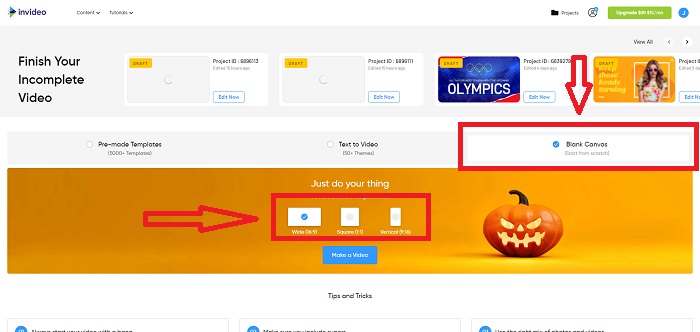
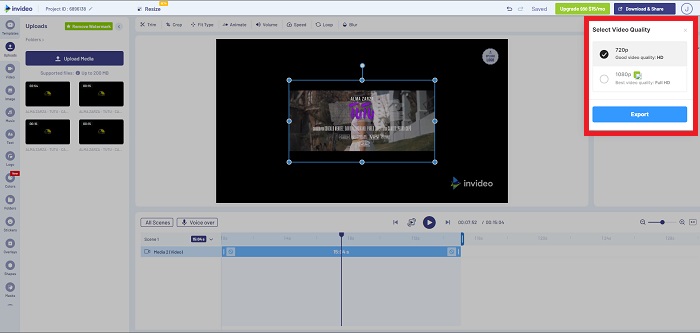
Étape 1. Pour utiliser l’outil en ligne, vous devez créer un compte. Le choix d’un modèle avec lequel travailler est l’étape suivante. Pour commencer le téléversement, cliquez sur le bouton Upload dans le coin supérieur gauche de l’interface. Le transfert démarre alors.
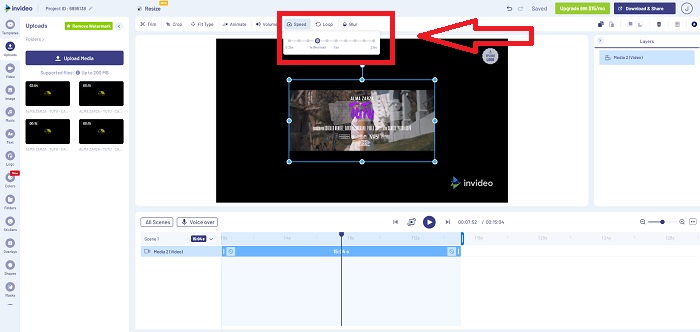
Étape 2. Cliquez sur l’onglet Vitesse dans le coin supérieur droit de l’interface et faites-le glisser sur la piste afin de modifier la vitesse de lecture de votre clip vidéo. Il vous suffit de cliquer et de faire glisser le Curseur pour changer la vitesse de lecture.
Étape 3. Téléchargez et partagez votre travail lorsque vous avez terminé le montage, puis passez à la version Premium pour obtenir des résultats encore meilleurs.
Avantages
- Il a des modèles personnalisés disponibles pour être utilisés gratuitement.
- Il contient des fonctionnalités professionnelles.
Les inconvénients
- Il doit être acheté pour débloquer toutes les fonctionnalités.
Méthode 3. Utiliser Typito
Si vous vous demandez quel éditeur en ligne peut résoudre le problème de la mise en ralenti d’une vidéo, essayez d’utiliser Typito. Typito permet de créer facilement des vidéos accrocheuses qui aideront votre vidéo à se démarquer des autres et de la foule. C’est un peu l’équivalent de Canva, mais pour le montage vidéo. Cette application web ne s’adresse pas uniquement aux professionnels. Utilisez-la pour des projets scolaires ou des projets multimédias semi-professionnels. Vous aurez également besoin d’une adresse e-mail pour utiliser l’outil et convertir votre clip vidéo avec les réglages souhaités.
Étape 1. Faites glisser et déposez les fichiers multimédias depuis le bureau de votre ordinateur ou cliquez sur l’icône de dossier pour les ajouter.
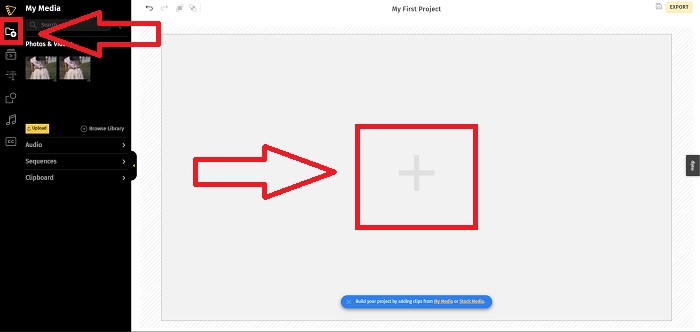
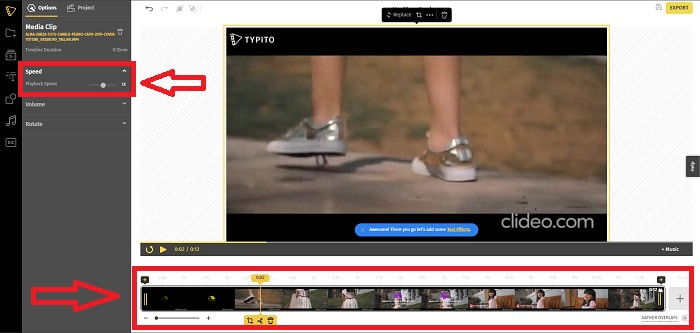
Étape 2. Pour commencer à monter votre vidéo, allez sur la piste vidéo et sélectionnez le fichier vidéo. Cliquez ensuite sur Add Projects. Pour modifier la vitesse de lecture d’une vidéo, repérez la fonction Vitesse dans le coin gauche de l’interface et utilisez le Curseur pour changer la vitesse de la vidéo.
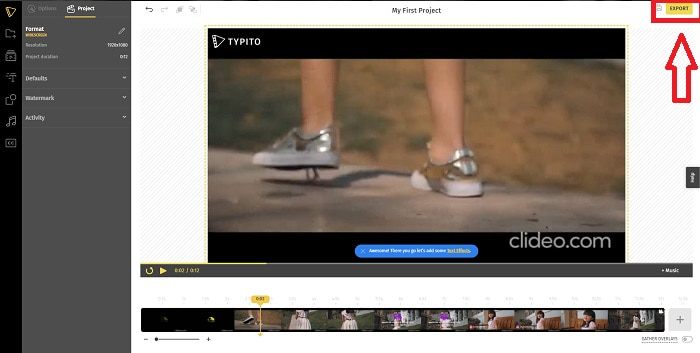
Étape 3. En cliquant sur Exporter dans le coin supérieur droit de l’interface, vous pouvez télécharger le fichier converti sur votre bureau. Téléchargez-le lorsque tout est prêt.
Avantages
- Il s'agit d'un outil Web en ligne facile à utiliser.
- Il contient des formats et des modèles à utiliser pour éditer votre vidéo.
Les inconvénients
- L'interface de l'outil web est trop simple.
- Il a peu d'outils disponibles.
Partie 4. FAQ sur la création de vidéos au ralenti
Est-ce que je perds la qualité de la vidéo si je ralentis ?
Non, même chose avec l'augmentation de la vitesse de lecture de votre vidéo ; ralentir votre vidéo ne perd pas la qualité de votre vidéo. Pour une raison quelconque, certaines des vidéos deviennent un peu problématiques après avoir réduit la vitesse de lecture de la vidéo, c'est que leur qualité vidéo est déjà terne et faible. De plus, si vous intensifiez pour réduire la vitesse de lecture de votre clip vidéo, la fréquence d'images sera divisée par deux, provoquant un retard et diminuant la qualité.
Quelle application est la meilleure pour la vidéo au ralenti ?
Video Converter Ultimate est le meilleur convertisseur ou éditeur gratuit à télécharger disponible sur Windows et Mac. Il dispose également de fonctions qui peuvent améliorer et optimiser vos vidéos, et il est accessible à tous les utilisateurs qui souhaitent l’utiliser comme convertisseur.
Google Photos est-il la meilleure application pour convertir les vidéos au ralenti en vitesse normale ?
Comme on peut l'imaginer, il y a quelques inconvénients à utiliser cette application gratuite. Tout d'abord, la vitesse de traitement vidéo est relativement lente, en particulier lors de l'édition d'un long clip vidéo. De plus, si vous divisez la vidéo avant de modifier la vitesse de lecture, l'audio d'arrière-plan ou la narration vocale seront coupés. Quoi qu'il en soit, c'est une excellente application Android gratuite. Vous pouvez toujours utiliser des applications tierces, mais la plupart de celles qui sont pratiques à utiliser ne sont pas gratuites.
Conclusion
Ainsi, pour conclure cet article en beauté, créer une vidéo au ralenti sera un véritable jeu d’enfant grâce aux solutions mentionnées ci-dessus. Video Converter Ultimate peut être considéré comme un éditeur de vidéos au ralenti qui rend cette tâche plus simple et plus facile à gérer que jamais. Le nombre de fonctionnalités disponibles dans ce logiciel lui permet d’être qualifié d’éditeur professionnel dont vous vous servirez au quotidien.
-
 [Résolu] Comment réparer les vidéos qui ne sont pas lues sur iPhone avec des étapes détaillées
 Les vidéos locales de la galerie ne peuvent pas être lues sur votre iPhone via le lecteur vidéo par défaut ? Les vidéos YouTube en ligne qui ne sont pas lues sur l'iPhone se produisent toujours ? Voici 5 solutions pour vous aider dans cet article.
-
 5 méthodes réalisables pour réparer QuickTime ne peut pas ouvrir les fichiers MOV
 Le format MOV est principalement créé pour la lecture dans QuickTime Player. Cependant, vous pouvez parfois constater qu'ils ne jouent pas dedans. Découvrez comment réparer QuickTime ne lira pas les fichiers MOV à partir de cet article.
-
 Comment convertir des fichiers MKV pour jouer sur PS3 en douceur [Résolu]
 Vous voulez lire des vidéos MKV sur votre PS3 ? Cependant, la PS3 ne peut pas lire directement les fichiers MKV. Cet article vous montrera comment convertir des vidéos MKV en formats vidéo pris en charge par PS3 pour les lire sur PS3 sans aucun problème.
