


 Video Converter Ultimate
 Enregistreur d'écran
 Réparation vidéo
 Téléchargement sécurisé
Top Watermark Remover pour supprimer facilement le filigrane Adobe Stock de la vidéo
Saviez-vous qu’Adobe possède une banque d’images et de vidéos pour la photographie ? Voici Adobe Stock, l’un des plus grands sites qui proposent toutes sortes de ressources graphiques dont vous pourriez avoir besoin, sans conséquences juridiques involontaires, grâce à sa licence libre de droits. Vous pouvez télécharger gratuitement des vidéos HD, mais elles comporteront un filigrane ou un tampon si vous n’avez pas acheté de crédit ou d’abonnement. Vous vous demandez peut‑être s’il est possible de supprimer le filigrane Adobe Stock d’une vidéo. C’est possible ! Utilisons dans la suite le meilleur outil de suppression de filigrane dont vous aurez jamais besoin ; lisez cet article pour mieux le découvrir !

Partie 1. Comment supprimer le filigrane Adobe Stock d'une vidéo en recadrant
FVC Video Converter Ultimate est un éditeur d’images complet et simple d’utilisation, disponible pour Windows et Mac. Ce logiciel propose une puissante fonction de recadrage qui vous permet d’enregistrer une vidéo Adobe Stock sans filigrane. Il peut également recadrer tout élément présent dans vos vidéos, comme un objet, un tampon, un filigrane, une date ou une heure.
Même si vous êtes inexpérimenté dans le recadrage, vous pouvez toujours réussir à le faire une fois que vous avez terminé en suivant le didacticiel que nous avons ajouté ci-dessous. Cependant, cette étape n'est pas idéale si le filigrane se trouve au milieu de la vidéo, car vous redimensionnez la dimension et coupez les images réelles inutiles.
Comment recadrer un filigrane vidéo avec FVC Video Converter Ultimate :
Étape 1. Cliquez sur le bouton de téléchargement approprié ci‑dessous pour obtenir la version correcte de cet éditeur vidéo sur votre ordinateur. Suivez le processus d’installation et de configuration, puis cliquez sur Start Now pour ouvrir l’éditeur sur votre système.
Téléchargement gratuit pour Windows 7 ou version ultérieure Téléchargement sécurisé
Téléchargement gratuit pour macOS 10.7 ou version ultérieure - Téléchargement sécurisé
Étape 2. Maintenant que l’outil est ouvert, allez dans la Boîte à outils et sélectionnez le Recadrage vidéo (Video Cropper).
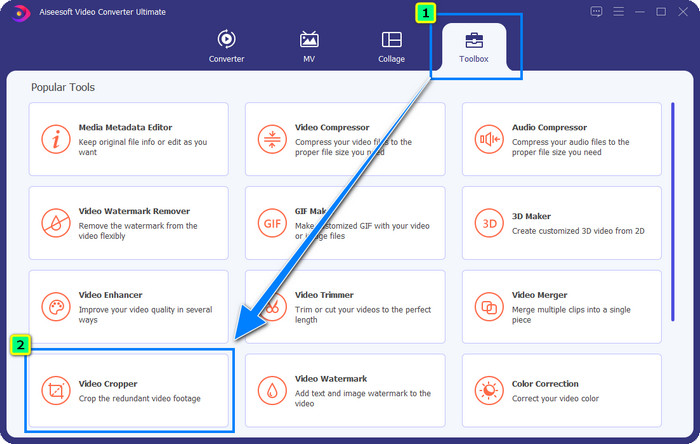
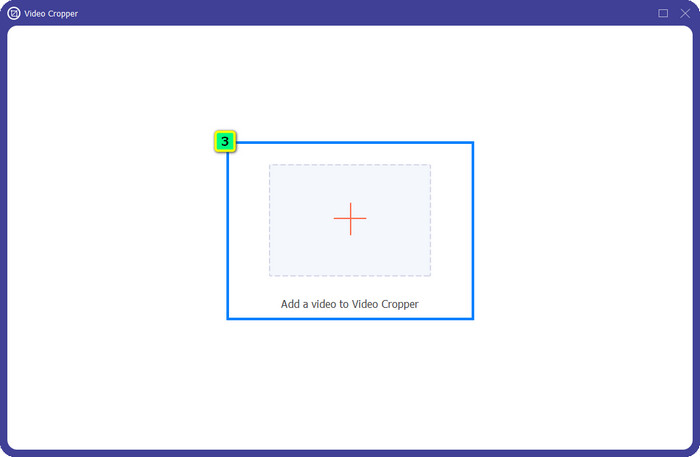
Étape 3. Une nouvelle fenêtre d’outil apparaît à l’écran ; touchez le bouton + pour importer la vidéo que vous souhaitez recadrer.
Étape 4. Ajustez la zone de recadrage selon vos préférences ; assurez‑vous que le filigrane ne se trouve pas dans le cadre afin qu’il ne soit plus présent lorsque vous enregistrez la vidéo.
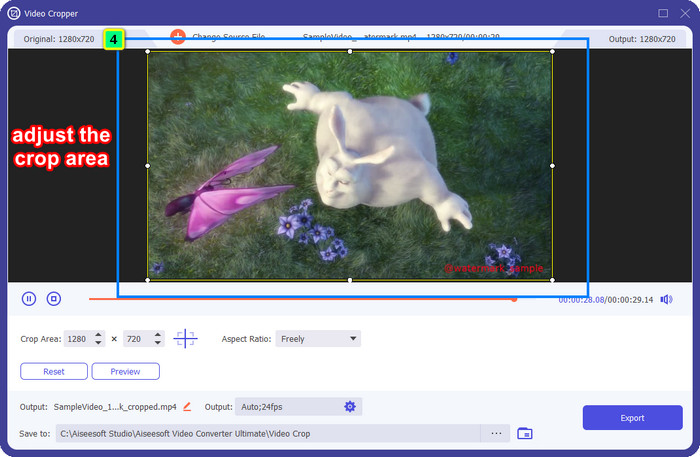
Étape 5. Une fois l’édition terminée, il est temps d’exporter le résultat final. Appuyez sur Enregistrer dans (Save to) et choisissez le dossier de destination où le fichier sera sauvegardé, puis cliquez sur Exporter pour télécharger le résultat final sur votre disque local.
Partie 2. Comment supprimer le filigrane Adobe Stock d'une vidéo sans recadrage
Vous n’aimez pas l’idée de supprimer le filigrane Adobe Stock en utilisant la fonction de recadrage ? Vous pouvez alors utiliser le module de suppression de filigrane de ce convertisseur tout‑en‑un ; il est puissant et ne laisse aucune trace du filigrane une fois le traitement terminé. FVC Video Converter Ultimate est une application fiable qui prend en charge de nombreuses fonctions que vous pouvez utiliser librement, sans installer d’extensions supplémentaires. Sa dernière mise à jour inclut un outil de suppression de filigrane vidéo, permettant à toute personne confrontée à un filigrane sur une vidéo de résoudre ce problème facilement et efficacement.
Contrairement à la fonction de recadrage, la fonction de suppression du filigrane supprime le filigrane sur votre vidéo sans laisser de traces sur la sortie finale. Cela ne change rien à l'apparence, car cela ne coupe pas et ne modifie pas la dimension et la qualité de la vidéo. Ainsi, si vous souhaitez savoir comment supprimer le filigrane Adobe Stock d'une vidéo, vous pouvez suivre les étapes que nous incluons ensuite.
Étape 1. Si vous avez déjà téléchargé le logiciel, vous pouvez passer à l’étape suivante ; sinon, cliquez sur ce bouton de téléchargement, installez‑le, puis lancez l’éditeur.
Téléchargement gratuit pour Windows 7 ou version ultérieure Téléchargement sécurisé
Téléchargement gratuit pour macOS 10.7 ou version ultérieure - Téléchargement sécurisé
Étape 2. Maintenant que l’outil fonctionne sur votre ordinateur, cliquez sur la Boîte à outils et sélectionnez la fonction Suppression de filigrane vidéo (Video Watermark Remover) proposée par ce logiciel.
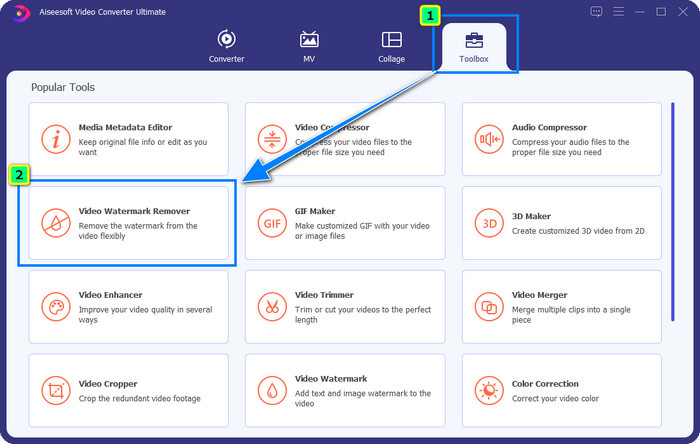
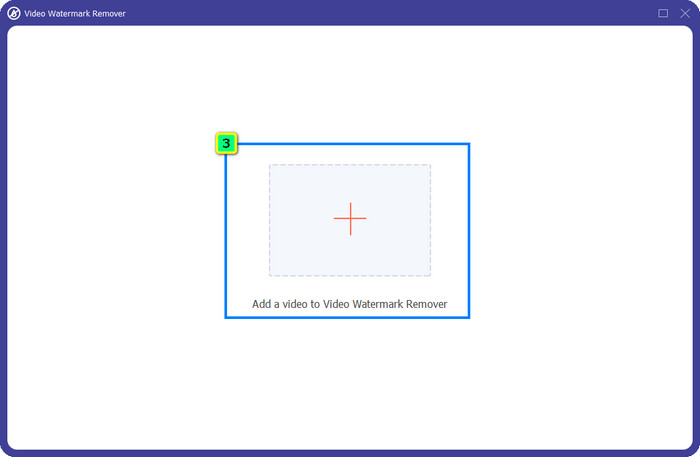
Étape 3. Cliquez sur le bouton plus ; un dossier s’ouvrira alors à l’écran. Importez la vidéo Adobe Stock que vous avez téléchargée, puis appuyez sur Ouvrir.
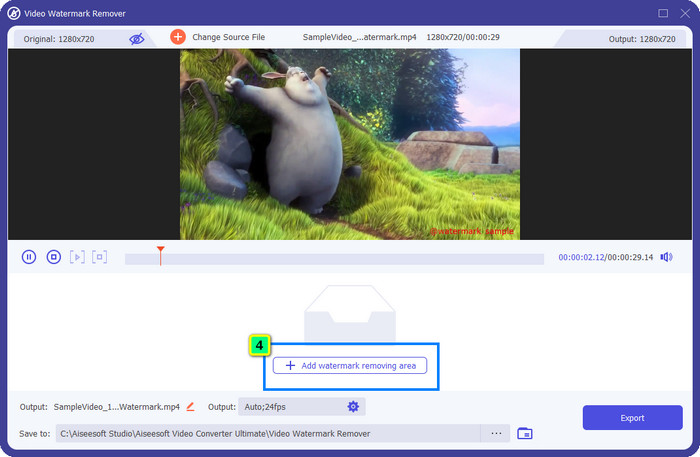
Étape 4. Appuyez sur Ajouter une zone de suppression de filigrane afin de supprimer le filigrane présent dans votre vidéo.
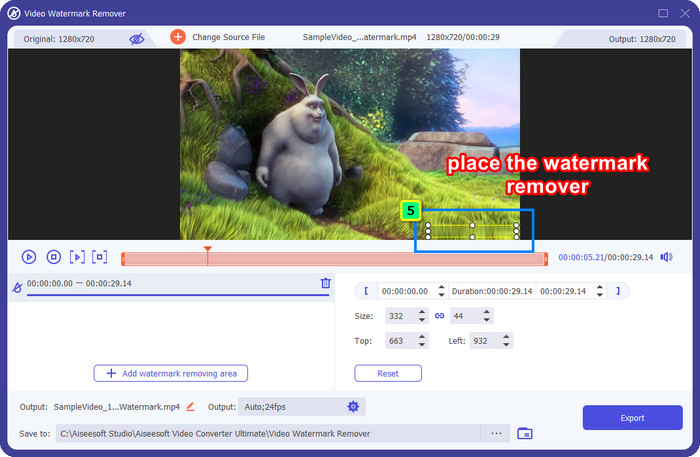
Étape 5. Placez le cadre sur la zone où se trouve le filigrane, et ajustez‑le librement pour qu’il s’adapte exactement au filigrane appliqué à votre vidéo.
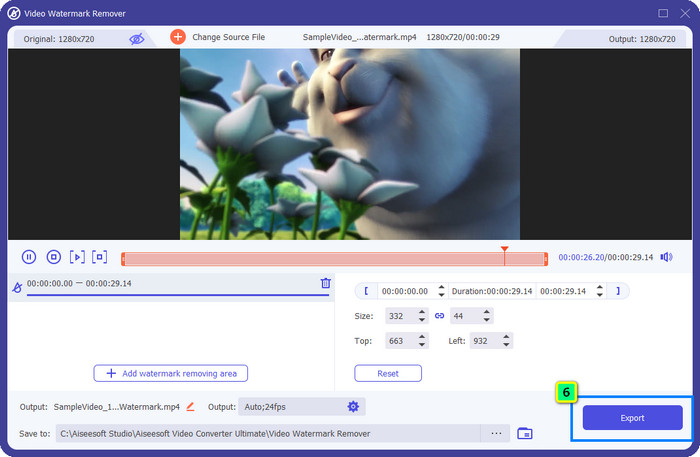
Étape 6. Pour finir, cliquez sur Exporter, et vous pourrez utiliser la vidéo sans filigrane, aussi simplement que cela.
Bonus : comment supprimer gratuitement le filigrane Adobe Stock sur les images en ligne
FVC Free Watermark Remover est un puissant outil de suppression de filigrane pour les images, accessible en ligne. Ainsi, si vous avez un problème de filigrane sur une image que vous avez téléchargée ou enregistrée sur votre appareil, vous pouvez commencer à utiliser ce logiciel. Ensuite, suivez le tutoriel ci‑dessous pour supprimer en ligne le filigrane Adobe Stock des images.
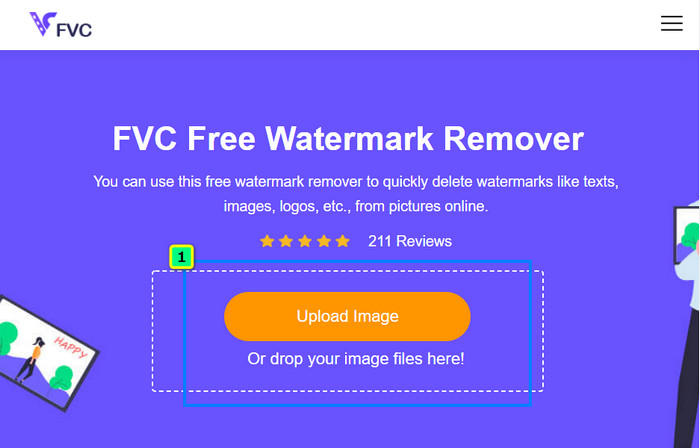
Étape 1. Pour ouvrir ce supprimeur de filigrane en ligne, cliquez sur ce lien.
Étape 2. Appuyez sur Upload Image pour ajouter l’image contenant le filigrane que vous souhaitez modifier ici.
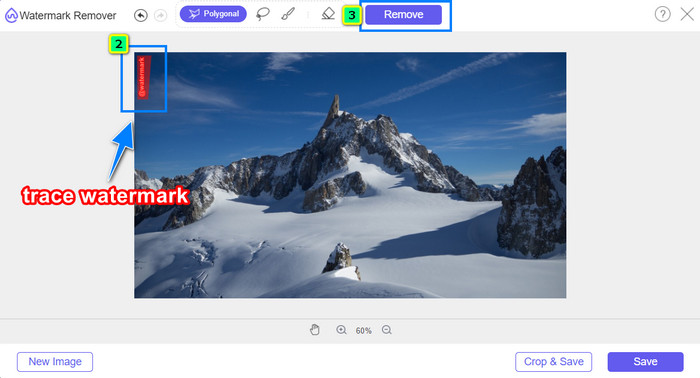
Étape 3. À l’aide de l’outil polygonal, tracez le contour du filigrane point par point en cliquant avec le bouton gauche de votre souris. Puis appuyez sur Remove après l’avoir délimité : l’IA traitera alors la suppression du filigrane pour vous.
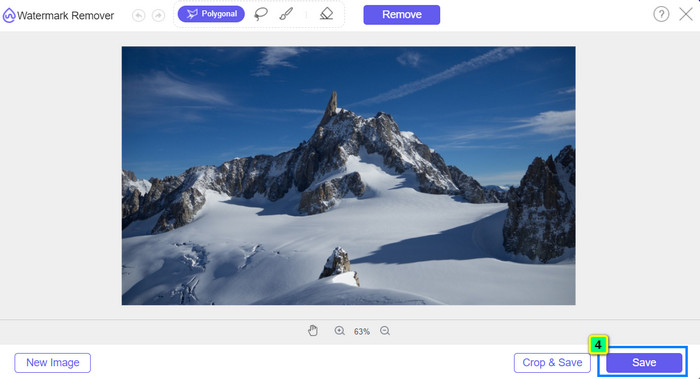
Étape 4. Lorsque vous êtes satisfait du résultat et prêt à télécharger l’image, cliquez sur le bouton Save pour l’enregistrer directement sur votre ordinateur.
Pour aller plus loin :
Dernière méthode pour supprimer un objet d’une photo [6 méthodes]
Comment accentuer la netteté d’une image dans une photo en 3 méthodes [Tutoriel rapide]
Partie 3. FAQ sur la suppression du filigrane Adobe Stock d'une vidéo
La suppression du filigrane Adobe Stock de la vidéo aggrave-t-elle la qualité ?
Parfois, lorsque vous avez supprimé le filigrane sur la vidéo, l'outil que vous utilisez aggrave la sortie vidéo. Mais, si vous utilisez FVC Video Converter Ultimate, vous ne rencontrerez pas ce problème. En fait, vous pouvez ajuster le paramètre de qualité vidéo à un niveau beaucoup plus élevé pour augmenter la qualité.
Où puis-je acheter des crédits Adobe Stock ?
Ouvrez le site officiel d'Adobe Stock, puis accédez à Tarification. Sous Plans et tarification, vous verrez différents packs de crédits que vous pouvez acheter. Plus il y a de crédit, plus cela peut coûter cher. Cliquez sur le nombre que vous souhaitez avoir, appuyez sur Acheter maintenant, ajoutez les informations de paiement, puis cliquez sur Passer une commande sécurisée.
Pourquoi les plans sur Adobe Stock sont-ils super chers ?
Cela peut sembler super cher à cause du prix de chaque produit disponible sur Adobe Stock. Outre le prix, c'est l'augmentation qui fait la réputation du développeur Adobe. Vous achetez le produit avec le nom de celui-ci.
Conclusion
Avec le puissant outil de suppression de filigrane présenté dans cet article, vous pouvez désormais terminer la suppression du filigrane Adobe Stock de la vidéo que vous avez téléchargée depuis son site officiel. Mais selon vous, quelle méthode est la plus efficace ? Le recadrage ou la suppression de filigrane ? Les deux sont fonctionnelles et offrent d’excellents résultats. Cependant, si les dimensions de votre vidéo sont coupées ou redimensionnées, il est préférable d’utiliser la fonction Video Watermark Remover de FVC Video Converter Ultimate. De plus, FVC propose également la suppression de filigrane sur les images que vous possédez, grâce à un outil en ligne accessible depuis n’importe quel navigateur sur votre ordinateur. Nous espérons que les informations que nous vous avons fournies vous ont été utiles. Pour en savoir davantage, consultez les autres articles ci‑dessous.
-
 Comment supprimer un filigrane d'une vidéo à l'aide de Final Cut Pro [Guide complet]
 Vous avez un problème avec le filigrane sur les vidéos ? N'en dites pas plus, car nous avons fourni un didacticiel sur la façon de supprimer le filigrane de la vidéo à l'aide de Final Cut Pro.
-
 Supprimer le filigrane DaVinci Resolve sur les vidéos exportées avec un didacticiel complet
 Pour supprimer le filigrane Davinci Resolve, vous devrez utiliser un outil ou en acheter la version officielle, continuez à lire ceci pour en savoir plus.
-
 Comment supprimer le filigrane dans Lunapic avec les étapes incluses [3 façons]
 Sachez comment supprimer le filigrane sur Lunapic avec les moyens que nous ajoutons dans ce blog. Continuez à lire les informations pour mieux les connaître.
