


 Video Converter Ultimate
 Enregistreur d'écran
 Réparation vidéo
 Téléchargement sécurisé
Comment supprimer le filigrane mordant de vos vidéos sans effort
Si vous recherchez des moyens efficaces et simples de supprimer les filigranes Biteable de vos vidéos, vous n’avez plus besoin de vous tracasser. Honnêtement, regarder une vidéo avec des filigranes est irritant et frustrant. Vous ne pouvez pas profiter pleinement de la vidéo que vous regardez. De plus, ces filigranes perturbent les spectateurs. Il est compréhensible que les filigranes servent à protéger le propriétaire de la vidéo. Mais placer un grand filigrane n’est pas une bonne chose. Cela donne uniquement une impression négative aux personnes qui aiment regarder leurs vidéos préférées. Un exemple est celui des filigranes Biteable. Ces filigranes Biteable proviennent de l’application Biteable, dans laquelle les filigranes sont automatiquement ajoutés après la création ou l’enregistrement d’une vidéo. Heureusement, vous pouvez utiliser des applications pour supprimer ces filigranes de vos vidéos. Vous pourrez alors regarder vos vidéos préférées sans vous sentir irrité ou frustré. Si vous voulez connaître les meilleures et les plus fiables applications à utiliser pour supprimer ces filigranes, poursuivez la lecture de cet article.

Partie 1 : Meilleur moyen de supprimer le filigrane mordant des vidéos
Video Converter Ultimate est la meilleure application que vous puissiez utiliser pour supprimer les filigranes Biteable de vos vidéos. De plus, cet excellent logiciel est capable de supprimer d’autres éléments gênants et inutiles, comme les logos, textes, signatures, etc. Le processus de suppression et d’enregistrement est également très rapide, ce qui vous évite de perdre du temps. En outre, Video Converter Ultimate propose deux méthodes simples pour enlever les filigranes de vos vidéos : le recadrage vidéo et le module de suppression de filigrane vidéo. Il dispose aussi de nombreux autres outils de montage, comme un contrôleur de vitesse vidéo, un convertisseur vidéo, un compresseur vidéo, un outil de correction des couleurs, un créateur de collages, un créateur de GIF, un recadrage vidéo, un convertisseur d’images, et bien plus encore. Le meilleur atout de cet outil est sa grande simplicité d’utilisation, grâce à une interface claire, parfaite pour les débutants. Il prend également en charge de nombreux formats de fichiers, comme MP4, MOV, FLV, MKV, OGV, DIVX, et bien d’autres. Enfin, Video Converter Ultimate est disponible à la fois sur Windows et Mac, ce qui est très pratique pour les utilisateurs. Si vous souhaitez supprimer un filigrane d’une vidéo, suivez les étapes simples ci-dessous.
Utilisation de l'outil de suppression de filigrane vidéo
Étape 1 : Rendez-vous sur le site de Video Converter Ultimate et téléchargez l’application. Puis procédez à l’installation. Après l’installation, lancez l’application.
Téléchargement gratuit pour Windows 7 ou version ultérieure Téléchargement sécurisé
Téléchargement gratuit pour macOS 10.7 ou version ultérieure - Téléchargement sécurisé
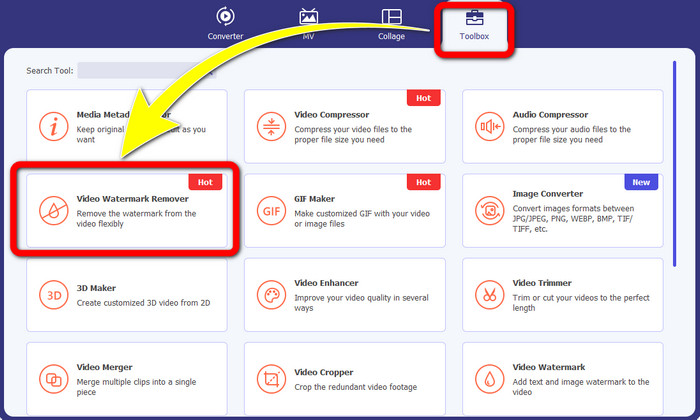
Étape 2 : Après avoir ouvert Video Converter Ultimate, cliquez sur le bouton Boîte à outils > Suppresseur de filigrane vidéo. Une nouvelle interface apparaîtra alors à l’écran.
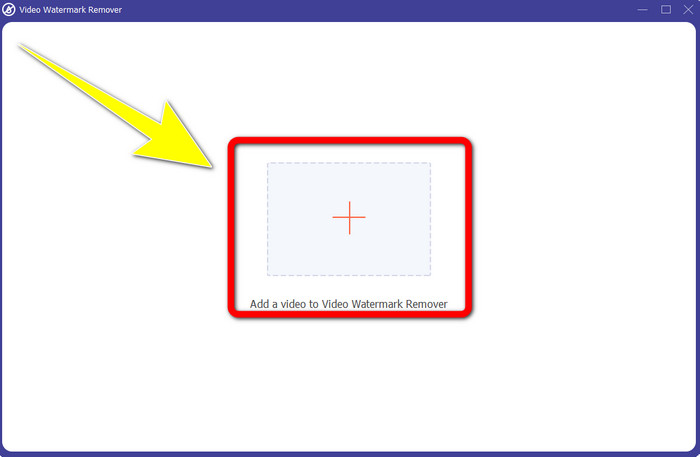
Étape 3 : Lorsque la nouvelle interface apparaît sur votre écran, cliquez sur le bouton avec le signe Plus pour ajouter votre vidéo comportant un filigrane Biteable.
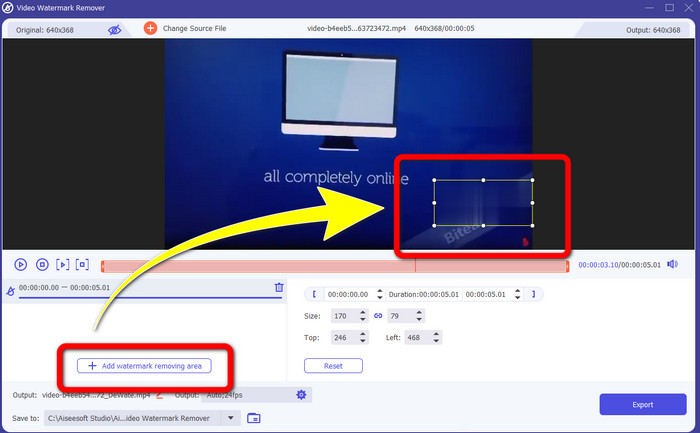
Étape 4 : Après avoir ajouté votre vidéo, cliquez sur Ajouter une zone de suppression de filigrane. Une mini‑boîte apparaîtra alors sur votre vidéo. Faites-la glisser pour couvrir les filigranes.
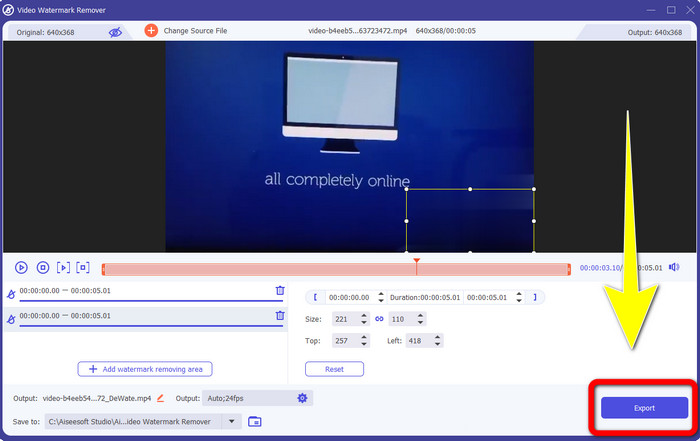
Étape 5 : Une fois que vous avez supprimé le filigrane Biteable de votre vidéo, cliquez sur le bouton Exporter pour enregistrer votre résultat final.
Utilisation de l'outil de recadrage vidéo
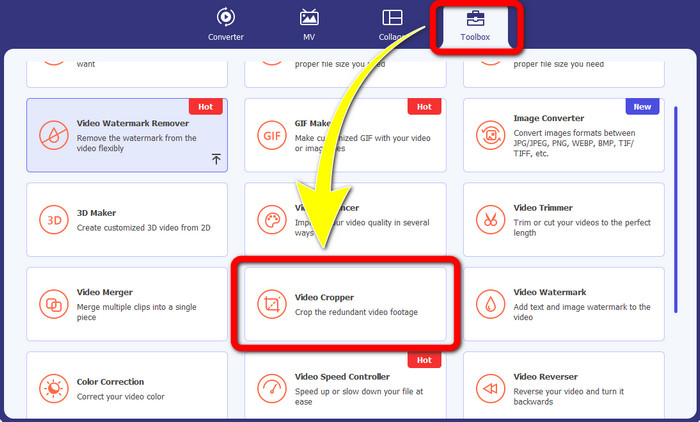
Étape 1 : Lancez Video Converter Ultimate. Cliquez sur le bouton Boîte à outils > Recadrage vidéo.
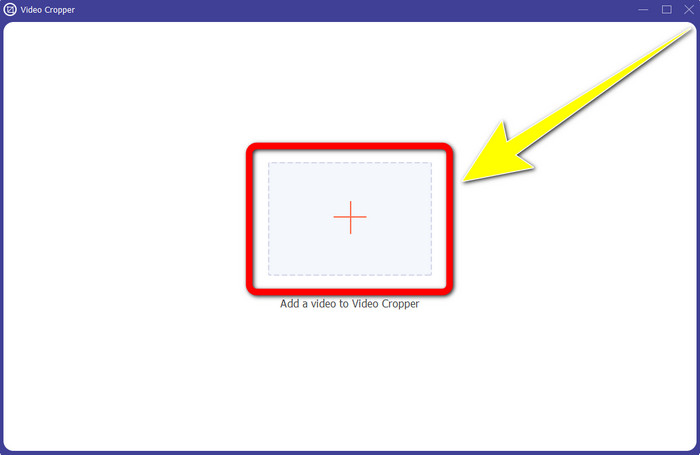
Étape 2 : Après avoir cliqué sur Recadrage vidéo, une nouvelle interface s’affichera sur votre écran. Cliquez sur l’icône Plus et ajoutez votre vidéo avec un filigrane Biteable.
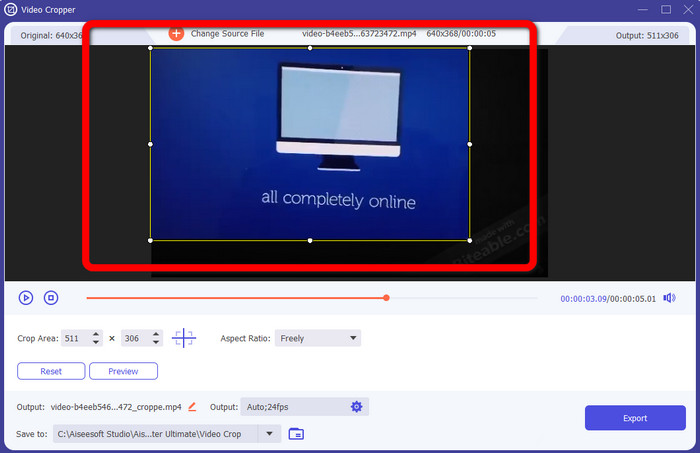
Étape 3 : Une fois votre vidéo ajoutée, vous pouvez maintenant la Recadrer pour supprimer les filigranes.
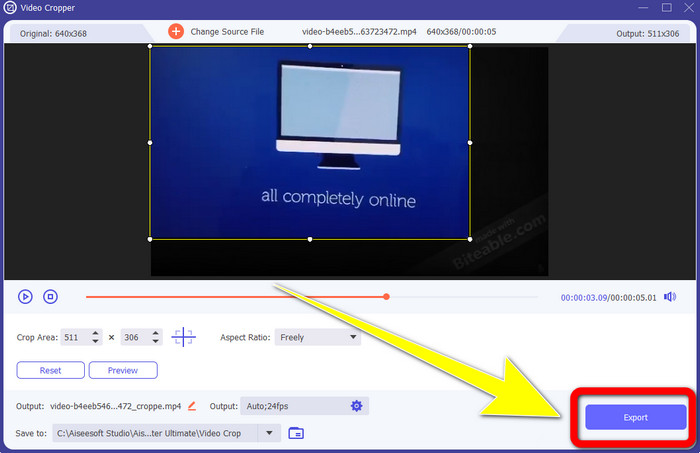
Étape 4 : Lorsque vous avez terminé de recadrer votre vidéo, cliquez sur le bouton Exporter et enregistrez votre vidéo sans filigrane Biteable.
Partie 2 : Comment supprimer le filigrane mordant des vidéos en ligne
1. Utilisation de BeeCut
Si vous souhaitez supprimer le filigrane mordant gratuitement en ligne, BeeCut est la meilleure application en ligne que vous pouvez utiliser. Il est capable de supprimer les filigranes de vos vidéos. C'est un outil en ligne simple que vous pouvez utiliser, parfait pour les débutants. Vous pouvez supprimer les filigranes mordants de quatre vidéos en quelques étapes seulement.
De plus, BeeCut dispose de nombreux outils d'édition, comme le rognage, le découpage, le fractionnement et la combinaison de vidéos. De plus, si vous souhaitez faire une vidéo, vous pouvez ajouter des sous-titres à votre vidéo ci-dessous, ce qui est pratique pour les téléspectateurs. Cependant, il est lent à télécharger des fichiers et à enregistrer des processus à l'aide de cet outil. De plus, vous ne pouvez pas utiliser cet outil si vous n'avez pas de connexion Internet. Si vous souhaitez supprimer les filigranes mordants de votre vidéo à l'aide de cet outil en ligne, suivez les quelques étapes ci-dessous.
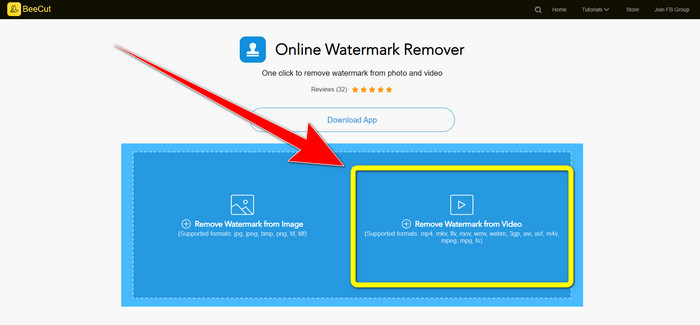
Étape 1 : Visitez le site web de BeeCut. Puis cliquez sur le bouton Remove Watermark from Video et ajoutez votre vidéo avec un filigrane Biteable.
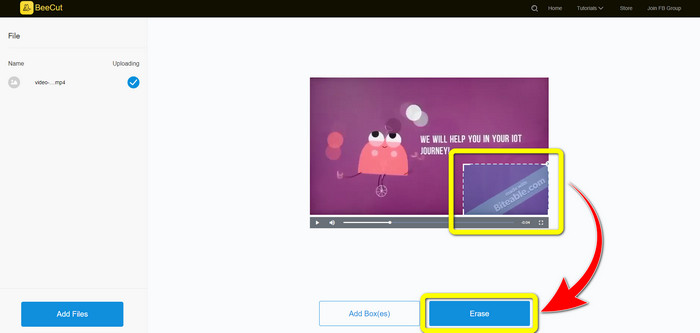
Étape 2 : Après avoir ajouté votre fichier, une petite boîte apparaîtra sur votre vidéo. Faites-la glisser et couvrez le filigrane Biteable. Lorsque vous avez fini de couvrir les filigranes, cliquez sur le bouton Erase.
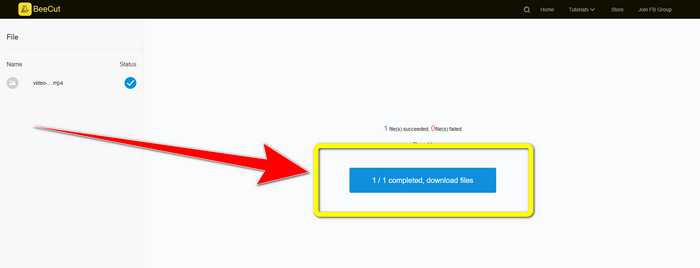
Étape 3 : Après avoir cliqué sur le bouton Erase, attendez la fin du processus de suppression. Vous pourrez ensuite télécharger le fichier et profiter de la vidéo sans le filigrane Biteable.
2. Utilisation de la vidéo floue en ligne
Si vous êtes toujours à la recherche d'une autre application que vous pouvez utiliser pour supprimer le filigrane mordant de votre vidéo en ligne, Blur Video Online est un excellent outil pour vous. Et Blur Video Online est disponible pour presque tous les appareils et navigateurs, tels que Google Chrome, Opera, IE, Mozilla Firefox, etc. Cependant, cette application dépendante du Web est trop lente pour importer des fichiers vidéo et le processus de suppression des filigranes prend du temps. C'est également un outil dépendant d'Internet, ce qui signifie qu'il ne fonctionne que si vous disposez d'une connexion Internet. Suivez les étapes simples ci-dessous pour supprimer/brouiller un filigrane Biteable de votre vidéo.
Étape 1 : Allez sur le site de Blur Video Online. Puis cliquez sur le bouton Click to Add File et ajoutez votre vidéo avec un filigrane.

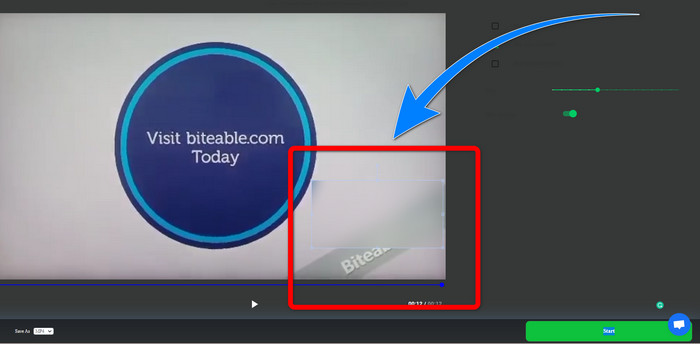
Étape 2 : Une fois votre vidéo insérée, une boîte apparaîtra sur celle‑ci. Faites-la glisser pour couvrir les filigranes, puis enregistrez votre résultat final.
En relation avec :
Meilleure façon de supprimer le filigrane de Camtasia 9 sur Windows
Comment supprimer rapidement la bannière de filigrane d’AVS Video Editor
Partie 3 : FAQ sur la suppression des filigranes mordants des vidéos
Puis-je supprimer un horodatage à l'aide de Video Converter Ultimate ?
Oui, vous pouvez! Video Converter Ultimate peut vous aider à éliminer les objets gênants de vos vidéos, comme les horodatages, les filigranes, le texte, etc.
La suppression des filigranes de mes vidéos prend-elle du temps ?
Cela dépend des applications que vous utilisez. Certaines applications peuvent supprimer instantanément les filigranes de vos vidéos, et certaines applications prennent du temps pour supprimer les filigranes.
Existe-t-il un éliminateur de filigrane que je peux utiliser sans perdre la qualité de mes vidéos ?
Oui, il y en a une ! Vous pouvez utiliser Video Converter Ultimate. Il n’est pas seulement performant pour supprimer les filigranes et monter des vidéos. Cette application vous permet aussi de retirer les filigranes de vos vidéos sans perte de qualité.
Conclusion
Supprimer le filigrane de vos vidéos est une excellente chose, surtout si vous voulez regarder vos vidéos préférées sans éléments superflus. Cet article vous a présenté des applications pratiques que vous pouvez utiliser pour supprimer les filigranes Biteable de vos vidéos. Enfin, si vous recherchez l’application la plus performante et remarquable pour enlever les filigranes de vos vidéos, l’utilisation de Video Converter Ultimate est la meilleure option.
-
 Comment supprimer le filigrane Powtoon en utilisant 4 méthodes efficaces
 Lisez cet article pour savoir comment supprimer le filigrane Powtoon à l'aide des meilleurs outils que nous avons inclus ici et d'un didacticiel.
-
 Apowersoft Watermark Remover Review - Caractéristiques, avantages et inconvénients et prix
 Apowersoft Watermark Remover est l'un des meilleurs suppressions de filigranes qui prend en charge en ligne et hors ligne, cliquez ici pour en savoir plus !
-
 3 des derniers suppresseurs de filigrane Shutterstock dont vous aurez besoin
 Vous n'aimez pas le filigrane Shutterstock attaché à la vidéo exportée ? Vous pouvez utiliser un dissolvant de filigrane Shutterstock pour l'effacer efficacement.
