


 Video Converter Ultimate
 Enregistreur d'écran
 Réparation vidéo
 Téléchargement sécurisé
3 outils de suppression de filigrane Shutterstock pour utiliser et supprimer le filigrane sur les vidéos
Avez-vous besoin de vidéos Shutterstock de haute qualité et sous licence pour votre projet, mais elles comportent un filigrane Shutterstock ? Avec l’aide du suppresseur de filigrane Shutterstock, vous pouvez facilement effacer le filigrane sur la vidéo téléchargée. Sur le plan professionnel comme personnel, nous n’aimons pas que nos vidéos portent un filigrane, car cela gâche tout le concept de la vidéo. Donc, si vous voulez vous débarrasser du filigrane Shutterstock, vous pouvez continuer à lire les informations et le bref tutoriel que nous présentons dans cet article.

Partie 1. Comment supprimer le filigrane Shutterstock avec l'outil de suppression de filigrane ultime sur le marché [Choix de l'éditeur]
FVC Video Converter Ultimate peut précisément vous aider et vous guider sur la façon de supprimer le filigrane Shutterstock de la vidéo que vous avez enregistrée. C’est une solution tout-en-un que vous pouvez télécharger sur Windows et Mac pour ajuster votre vidéo, notamment en supprimant les filigranes. Bien qu’il s’agisse d’un logiciel polyvalent, l’éditeur de ce programme a conservé une interface très simple afin que toute personne souhaitant l’utiliser puisse le faire sans disposer de connaissances approfondies.
Même avec des compétences de bas niveau, vous pouvez avoir une sortie haut de gamme à la fin une fois que vous utilisez cet éditeur. Vous n'êtes toujours pas convaincu par les informations que nous avons ajoutées ? Pour le prouver, nous vous apprendrons comment supprimer gratuitement le filigrane Shutterstock avec cet éditeur vidéo.
Étape 1. Pour supprimer le filigrane de la vidéo que vous avez téléchargée, vous devrez d’abord télécharger cet éditeur en cliquant sur le bouton de téléchargement correspondant à votre système d’exploitation. Une courte procédure d’installation sera nécessaire ; après cela, vous pourrez commencer à utiliser le logiciel.
Téléchargement gratuit pour Windows 7 ou version ultérieure Téléchargement sécurisé
Téléchargement gratuit pour macOS 10.7 ou version ultérieure - Téléchargement sécurisé
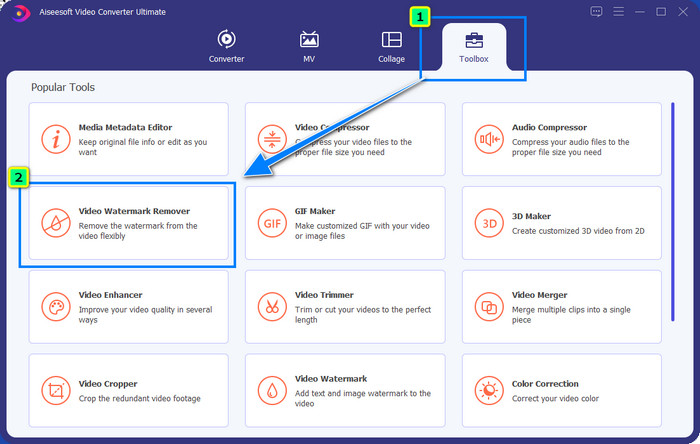
Étape 2. Utilisez ensuite le Video Watermark Remover, que vous trouverez dans la section Toolbox. Comme vous pouvez le voir, vous pouvez utiliser plusieurs fonctions et outils de montage pour ajuster votre image selon le rendu souhaité.
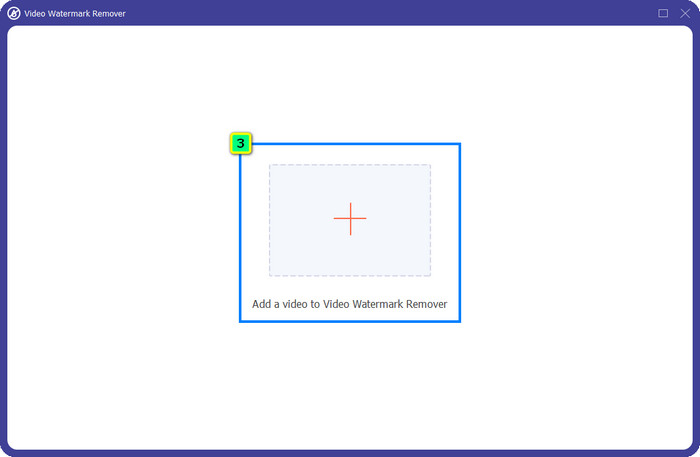
Étape 3. Cliquez sur l’icône plus ; un gestionnaire de fichiers apparaîtra sur votre écran. Choisissez le fichier vidéo avec un filigrane, puis cliquez sur Ouvrir pour le téléverser.
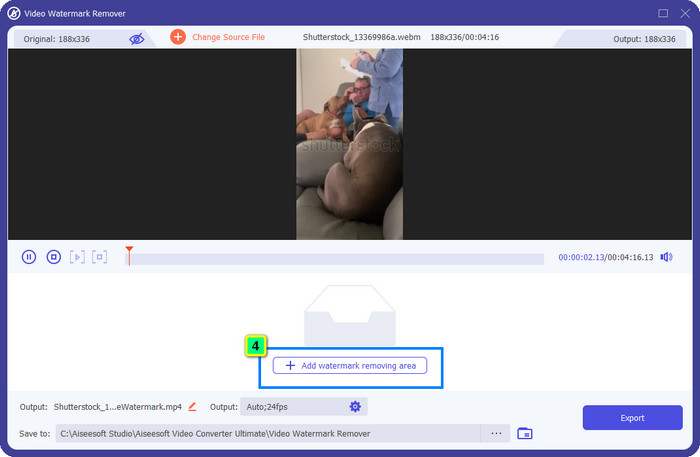
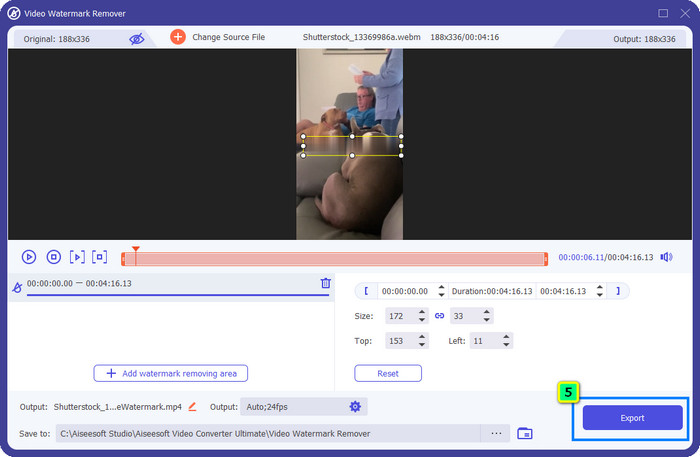
Étape 4. Pour effacer le filigrane sur la vidéo que vous avez importée, appuyez sur Add Watermark Removing Area ; une nouvelle fenêtre va s’ouvrir.
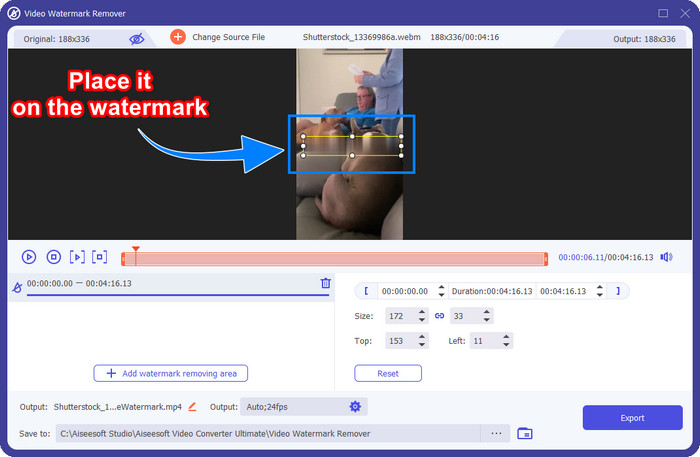
Étape 5. À ce stade, un carré apparaîtra sur votre vidéo ; placez-le sur le filigrane. Vous pouvez le redimensionner, le faire glisser, le réduire ou l’agrandir afin qu’il s’ajuste parfaitement au filigrane que vous souhaitez supprimer.
Étape 6. Enfin, cliquez sur le bouton Export pour télécharger le résultat final de la vidéo Shutterstock que vous avez téléchargée sur votre appareil. Vous pouvez maintenant en profiter sans vous soucier du filigrane, puisqu’il a été supprimé.
Partie 2. Comment supprimer gratuitement le filigrane Shutterstock en ligne
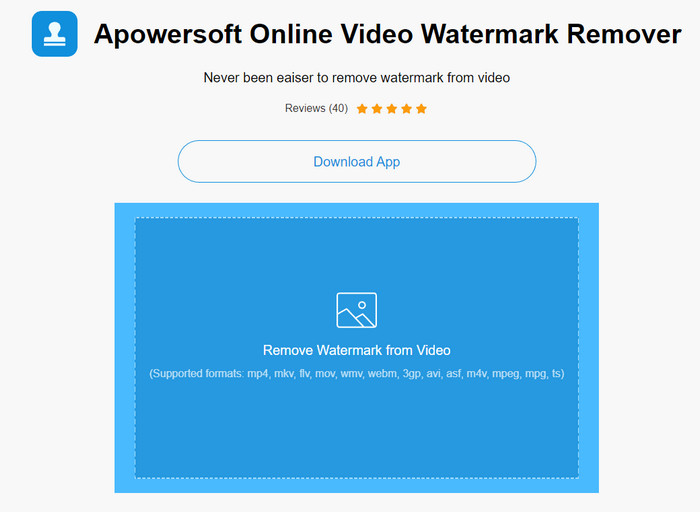
Vous n’aimez pas l’idée de télécharger un outil de suppression de filigrane sur votre ordinateur ? Dans ce cas, vous pouvez utiliser le Apowersoft Online Watermark Remover, et nous allons vous montrer comment supprimer le filigrane Shutterstock en ligne. C’est une excellente option pour tous ceux qui ont besoin de retirer un filigrane sur la vidéo ou l’image qu’ils possèdent. La raison pour laquelle nous l’ajoutons ici est que ce logiciel est accessible et compatible avec les différents systèmes d’exploitation que vous utilisez.
Contrairement aux outils hors ligne, vous aurez besoin d'une connexion Internet stable et robuste pour les utiliser. Comme nous le promettons, vous trouverez ci-dessous le didacticiel sur l'utilisation de ce dissolvant de filigrane pour supprimer le filigrane que Shutterstock y laisse.
Étape 1. Ouvrez le site officiel d’Apowersoft Online Watermark Remover avec votre moteur de recherche préféré, puis cliquez sur le bouton + sur la droite pour téléverser le fichier vidéo.
Étape 2. Placez la zone de sélection sur le filigrane Shutterstock présent sur la vidéo.
Étape 3. Ensuite, cliquez sur Erase pour supprimer le filigrane et voir le résultat.
Étape 4. Appuyez sur Download File pour obtenir la vidéo Shutterstock sans filigrane.
Partie 3. Comment supprimer le filigrane Shutterstock à l'aide de Photoshop [Payant]
De nombreux utilisateurs se demandent comment supprimer le filigrane Shutterstock avec Photoshop, et nous sommes là pour vous aider ! Adobe Photoshop propose une fonction professionnelle de suppression de filigrane que vous allez adorer utiliser. Comme les logiciels présentés dans cet article, il fait le travail ; toutefois, son approche pour retirer les filigranes est image par image. Cela signifie que vous devrez passer du temps à éliminer le filigrane sur chaque image de la vidéo ; plus la vidéo est longue, plus il y aura d’images. Si vous voulez savoir comment l’outil fonctionne, lisez les étapes explicatives ci-dessous.
Étape 1. Téléchargez l’application sur votre ordinateur, puis cliquez sur File. Dans ce menu, appuyez sur Open pour importer la vidéo enregistrée sur votre ordinateur.
Étape 2. Sur la partie gauche, choisissez l’outil Magic Wand Tool, puis cliquez sur le filigrane que vous souhaitez retirer. Cette fonction va automatiquement tracer le filigrane sur l’image.
Étape 3. Allez dans Edit et appuyez sur Content-Aware Fill après avoir tracé le filigrane.
Étape 4. Une fois Content-Aware Fill ouvert, le filigrane que vous avez sélectionné sera automatiquement supprimé ; appuyez ensuite sur OK.
Pour aller plus loin :
Méthodes simples pour supprimer le filigrane Shootproof
Comment supprimer facilement le filigrane Bandicam [3 méthodes efficaces]
Partie 4. FAQ sur la suppression du filigrane Shutterstock
Comment supprimer le filigrane Shutterstock sans Photoshop ?
Vous pouvez utiliser FVC Video Converter Ultimate pour supprimer le Shutterphoto lié à votre vidéo. Il a un puissant effaceur de filigrane que vous aimeriez essayer. Suivez les étapes que nous ajoutons dans cet article pour le faire aussi efficacement que Photoshop.
Le recadrage du filigrane Shutterstock fonctionnera-t-il sur la vidéo ?
Si vous souhaitez redimensionner la vidéo en modifiant la dimension, vous pouvez recadrer la vidéo à l'aide de plusieurs éditeurs vidéo en ligne et hors ligne. Étant donné que le filigrane de Shutterstock est au milieu, il est préférable de ne pas utiliser les fonctions de recadrage. De nombreux décapants de filigrane sont là pour vous aider ; vous pouvez lire et copier le didacticiel que nous ajoutons afin de pouvoir l'effacer efficacement sans laisser de traces dessus.
Est-il légal de supprimer le filigrane Shutterstock ?
La suppression du filigrane de Shutterstock n'est pas légale, mais si vous souhaitez l'utiliser à des fins non commerciales, vous pouvez le faire à l'aide d'un nettoyeur de filigrane. Il est préférable d'acheter la photo que vous voulez sur Shutterstock si vous comptez l'utiliser à des fins commerciales ; bien que cela vous coûterait, cela vous laissera au moins le droit légal de l'utiliser.
Conclusion
Vous savez maintenant comment supprimer le filigrane Shutterstock avec les logiciels présentés dans cet article. Alors, lequel préférez-vous : le logiciel payant, l’outil en ligne gratuit ou la solution ultime ? Quel que soit votre choix, vous pouvez obtenir une photo Shutterstock sans logo de produit. Mais si vous nous demandez quoi utiliser, sans hésitation, nous choisirons le FVC Video Converter Ultimate, car il offre le meilleur résultat pour accomplir cette tâche. Tout en étant un puissant outil de suppression de filigrane, il reste facile à utiliser. Donc, si vous voulez essayer ce logiciel, vous pouvez cliquer sur le bouton de téléchargement pour l’installer sur votre ordinateur.
-
 Outils ultimes pour supprimer le filigrane des vidéos exportées par Renderforest
 Pour supprimer le filigrane de Renderforest, vous aurez besoin d'un dissolvant de filigrane sur votre appareil, tous les outils que vous pouvez utiliser sont ici.
-
 Étapes faciles pour supprimer le filigrane du curseur WOW [Résolu]
 WOW Slider est une application pour créer un diaporama fantastique. Cependant, il intègre des filigranes sur sa sortie. Lisez ci-dessous pour savoir comment supprimer le filigrane WOW Slider.
-
 Comment se débarrasser gratuitement du filigrane Power Director [Terminé]
 Comment se débarrasser gratuitement du filigrane Power Director ? Les meilleurs outils pour éliminer le filigrane sont ici, alors apprenez-les en lisant ceci.
