


 Video Converter Ultimate
 Enregistreur d'écran
 Réparation vidéo
 Téléchargement sécurisé
Meilleures méthodes pour supprimer le logo VideoScribe d'une vidéo
Souhaitez-vous apprendre à retirer le logo VideoScribe de vos vidéos ? Il arrive que vous tombiez sur un logo dans vos vidéos. Vous ne pouvez pas toujours l’éviter, surtout lorsque le propriétaire de la vidéo veut protéger son contenu et promouvoir sa marque. Vous pouvez aussi voir un logo lorsque vous utilisez la version gratuite d’une application donnée. Le meilleur exemple est l’application VideoScribe. Si vous utilisez la version gratuite de cette application, votre vidéo comportera un logo VideoScribe, à moins d’acheter la version payante. Mais avant cela, vous pouvez utiliser d’autres applications gratuites pour supprimer le logo de vos vidéos. Lisez attentivement cet article pour découvrir comment enlever un logo sans rien acheter.

Partie 1 : Comment supprimer le logo VideScribe de la vidéo hors ligne
Si vous voulez supprimer un logo VideoScribe de vos vidéos hors ligne, vous pouvez utiliser Video Converter Ultimate. Cette application peut vous aider à retirer facilement et rapidement le logo VideoScribe de vos vidéos. Vous pouvez également utiliser ce logiciel pour monter vos vidéos sans perte de qualité. De plus, il dispose d’une interface simple offrant un rendu de haute qualité. Video Converter Ultimate est disponible à la fois sur Mac et Windows. Bien qu’il propose de nombreuses fonctionnalités, il reste adapté aux débutants. Cette application prend en charge de nombreux formats de fichiers, comme FLV, MOV, MP4, MTS, DivX, XviD et bien d’autres. En outre, elle intègre de nombreux outils d’édition que vous pouvez utiliser pour améliorer vos vidéos : amélioration, découpage, recadrage, correction des couleurs, rotation des vidéos, et plus encore. Video Converter Ultimate vous propose également deux façons de supprimer le logo VideoScribe de vos vidéos.
Utilisation de la suppression de filigrane vidéo
Étape 1 : Cliquez sur le bouton de téléchargement ci‑dessous pour télécharger Video Converter Ultimate sur votre Windows ou votre Mac. Ensuite, installez le logiciel sur votre appareil et lancez l’application.
Téléchargement gratuit pour Windows 7 ou version ultérieure Téléchargement sécurisé
Téléchargement gratuit pour macOS 10.7 ou version ultérieure - Téléchargement sécurisé
Étape 2 : Ensuite, allez dans l’onglet Boîte à outils et cliquez sur le bouton Suppresseur de filigrane vidéo. Une nouvelle interface s’affichera sur votre écran.
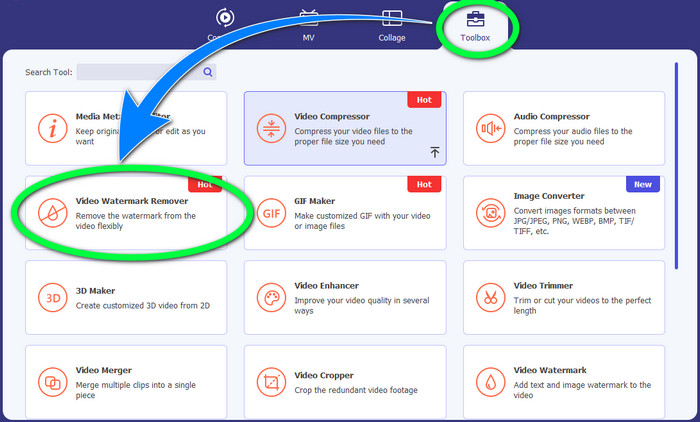
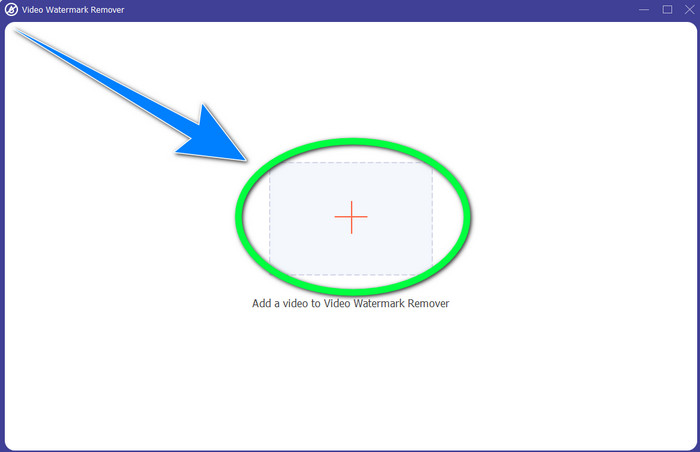
Étape 3 : Cliquez sur le bouton + pour importer la vidéo contenant le logo VideoScribe que vous souhaitez enlever.
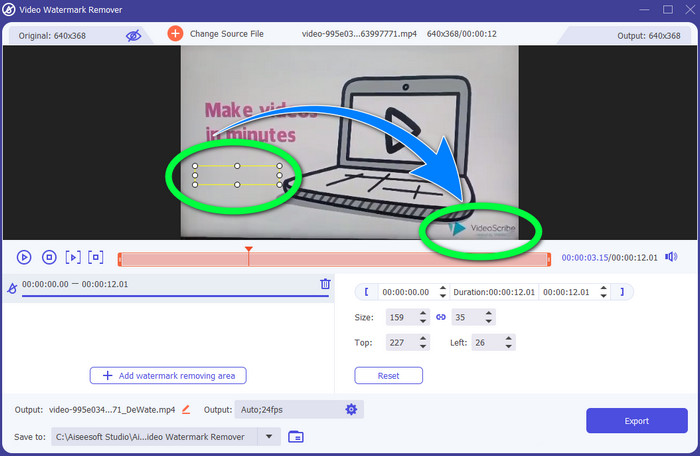
Étape 4 : Une fois la vidéo importée, cliquez sur Ajouter une zone de suppression de filigrane et placez la petite zone de sélection sur le logo. Vous pouvez ajuster la taille de cette zone.
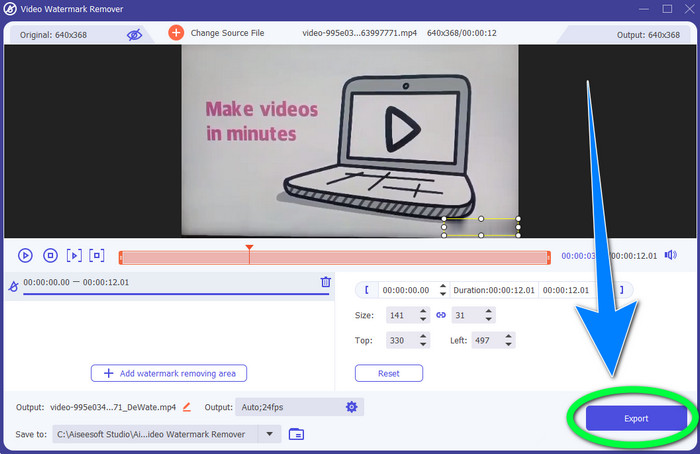
Étape 5 : Pour finir, cliquez sur le bouton Exporter afin d’enregistrer la vidéo sans le logo.
Utilisation de la fonction de recadrage vidéo
Étape 1 : L’outil de recadrage est une autre façon de retirer le logo VideoScribe. Dans la Boîte à outils, cliquez sur le bouton Recadrage vidéo.
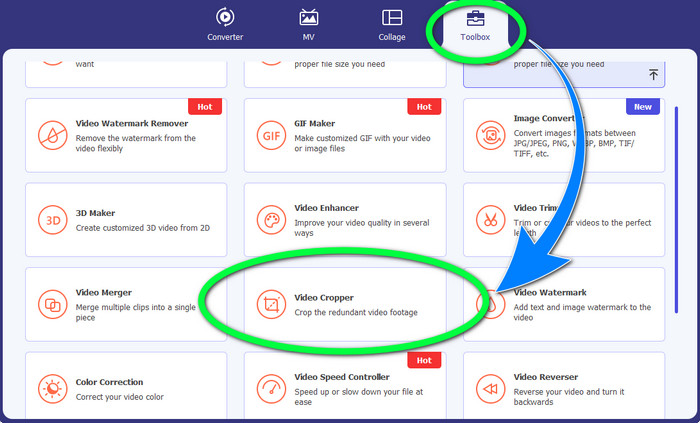
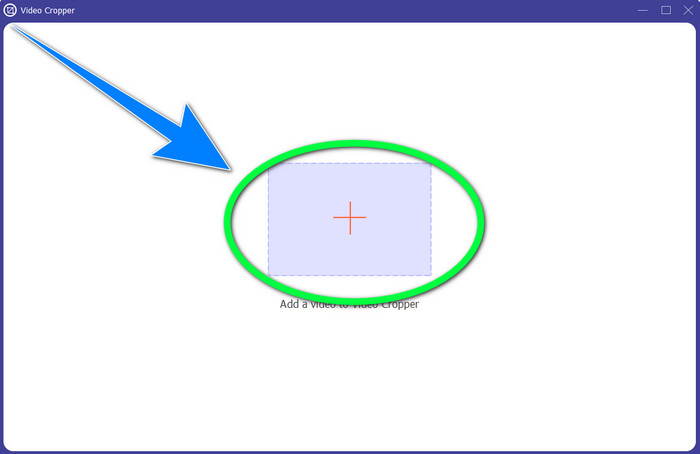
Étape 2 : Une nouvelle interface va apparaître sur votre écran. Sélectionnez le signe + et importez votre vidéo avec le logo VideoScribe.
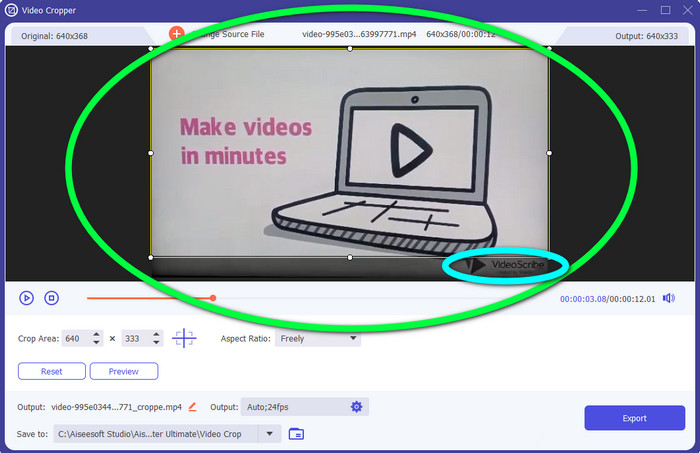
Étape 3 : L’outil de recadrage vous permet de recadrer les bords de votre vidéo. Si le logo se trouve sur le bord de votre vidéo, vous pouvez couper cette partie pour supprimer le logo.
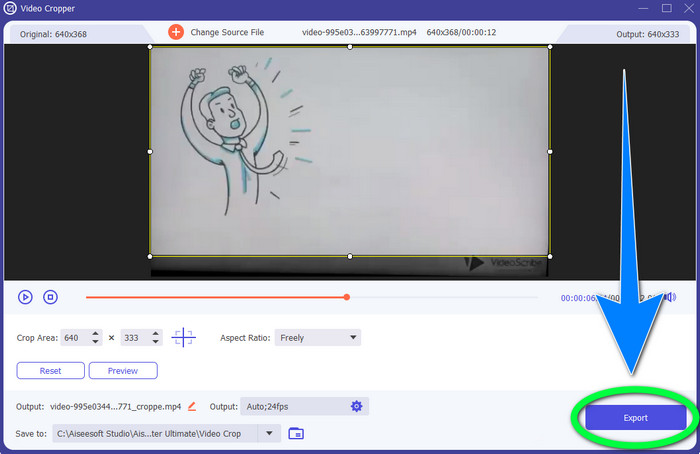
Étape 4 : Ensuite, si vous estimez avoir déjà retiré le logo VideoScribe, vous pouvez cliquer sur le bouton Exporter et enregistrer la version finale de votre vidéo sur votre appareil.
Partie 2 : Comment supprimer le logo VideoScribe de la vidéo en ligne
Utilisation de BeeCut-Online Watermark Remover
Vous voulez retirer le logo VideoScribe de vos vidéos en ligne ? BeeCut – Suppresseur de filigrane en ligne est l’un des outils en ligne remarquables et utiles que vous pouvez utiliser. Cet outil en ligne peut vous aider à supprimer des éléments gênants de vos vidéos, comme des logos, filigranes, textes, dates, et bien plus encore. Ainsi, vous pouvez retirer le logo VideoScribe de vos vidéos sans difficulté grâce à son interface simple. En outre, BeeCut – Suppresseur de filigrane en ligne prend en charge de nombreux formats de fichiers, tels que FLV, MOV, MP4, WebM, ASF, AVI, 3GP, MPG, et d’autres. De plus, vous pouvez aussi enlever des éléments indésirables de vos images avec cet outil. Malheureusement, cette application dépend d’Internet : vous ne pouvez donc pas l’utiliser si vous n’avez pas d’accès ou de connexion à Internet. En ce qui concerne le processus de suppression, il peut parfois être long, selon que votre connexion est rapide ou lente. Nous vous avons indiqué ci‑dessous les étapes à suivre dans l’ordre.
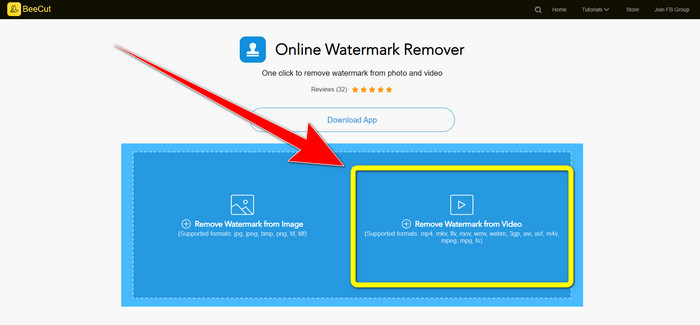
Étape 1 : Rendez‑vous sur le site de BeeCut – Suppresseur de filigrane en ligne. Cliquez sur le bouton Remove Watermark from Video et joignez votre vidéo avec un logo VideoScribe.
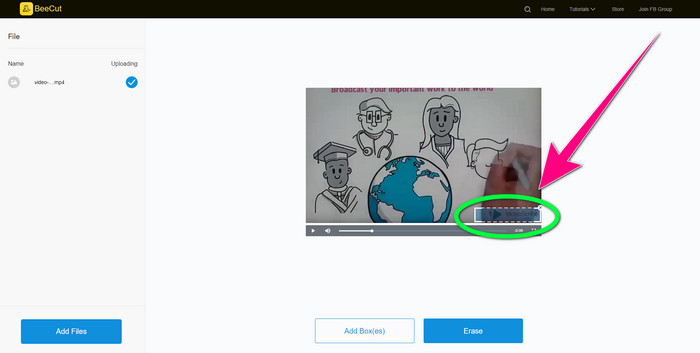
Étape 2 : Après avoir ajouté votre vidéo, utilisez la petite zone visible sur votre vidéo et faites‑la glisser pour couvrir le logo.
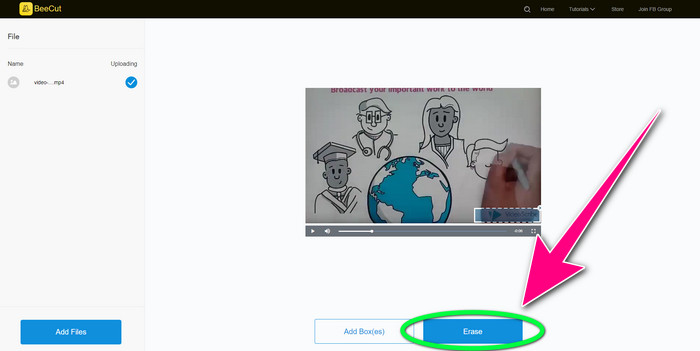
Étape 3 : Quand vous avez terminé de couvrir le logo avec la petite zone, cliquez sur le bouton Erase pour enregistrer et télécharger votre vidéo sans le logo VideoScribe.
Utilisation de Video Watermark Remover en ligne
Video Watermark Remover Online est un autre outil en ligne que vous pouvez utiliser pour enlever le logo VideoScribe de vos vidéos. Son interface est simple et adaptée aux débutants. De plus, vous pouvez supprimer les logos de vos vidéos sans perte de qualité, ce qui est excellent. Toutefois, cet outil en ligne offre des fonctionnalités limitées dans sa version gratuite. Vous ne pouvez retirer le logo que sur 5 vidéos et vous ne pouvez pas les exporter vers d’autres formats de fichiers. Et comme il s’agit d’une application en ligne, vous ne pouvez pas l’utiliser sans connexion Internet. De plus, il arrive que l’outil ne fonctionne pas correctement. Si vous voulez apprendre à enlever les logos de vos vidéos, suivez les étapes simples ci‑dessous.
Étape 1 : Rendez‑vous sur le site de Video Watermark Remover Online. Cliquez sur le bouton Click or Drag Videos Here pour insérer votre vidéo avec un logo VideoScribe.

Étape 2 : Cliquez sur le bouton Remove Watermark et patientez le temps du processus de suppression. Vous pouvez ensuite enregistrer votre vidéo.
Partie 3 : FAQ sur la suppression du logo VideoScribe de la vidéo
Puis-je faire confiance aux outils en ligne pour supprimer les logos de mes vidéos ?
Oui, vous pouvez. Les outils en ligne sont sûrs et peuvent sécuriser votre fichier vidéo. Certains outils peuvent supprimer automatiquement vos fichiers après le processus, vous n'avez donc pas à vous inquiéter. Cependant, tous les outils en ligne ne sont pas identiques, vous devez donc toujours rechercher des avis pour savoir si vous pouvez faire confiance à un outil particulier.
Comment supprimer les logos d'une vidéo ?
Si vous souhaitez vous débarrasser du logo, téléchargez Video Converter Ultimate sur votre ordinateur ou votre Mac. Vous pouvez utiliser le suppresseur de filigrane vidéo ou l'outil de recadrage vidéo. Ces deux méthodes peuvent vous aider à vous débarrasser du logo de votre vidéo.
Puis-je supprimer le logo VideoScribe sans abonnement ?
Oui bien sûr! Vous pouvez supprimer le logo VideoScribe à l'aide de Video Converter Ultimate. Vous n'avez pas besoin d'acheter cette application pour supprimer le logo car elle est gratuite.
Conclusion
Cet article vous a fourni des informations sur la façon de retirer le logo VideoScribe d’une vidéo à l’aide d’un outil téléchargeable et d’outils en ligne. Cependant, si vous souhaitez supprimer un logo de vos vidéos rapidement et sans effort, vous pouvez utiliser Video Converter Ultimate.
-
 3 des derniers suppresseurs de filigrane Shutterstock dont vous aurez besoin
 Vous n'aimez pas le filigrane Shutterstock attaché à la vidéo exportée ? Vous pouvez utiliser un dissolvant de filigrane Shutterstock pour l'effacer efficacement.
-
 Comment supprimer le filigrane Powtoon en utilisant 4 méthodes efficaces
 Lisez cet article pour savoir comment supprimer le filigrane Powtoon à l'aide des meilleurs outils que nous avons inclus ici et d'un didacticiel.
-
 Apowersoft Watermark Remover Review - Caractéristiques, avantages et inconvénients et prix
 Apowersoft Watermark Remover est l'un des meilleurs suppressions de filigranes qui prend en charge en ligne et hors ligne, cliquez ici pour en savoir plus !
