


 Video Converter Ultimate
 Enregistreur d'écran
 Réparation vidéo
 Téléchargement sécurisé
Meilleures techniques pour supprimer définitivement le filigrane Animoto sur les vidéos
Animoto est un créateur de vidéos basé sur le cloud que tout le monde peut utiliser pour créer une excellente vidéo afin d'impressionner le public qui verra la vidéo. Avec des millions d'utilisateurs, Animoto est devenu célèbre pour l'édition et la création de vidéos sans avoir de connaissances approfondies sur la post-production. En raison de l'utilisation quotidienne qui visite le site Web, de nombreux utilisateurs aiment l'utiliser et créent plusieurs courtes vidéos étonnantes pour leurs présentations.
Cependant, la version gratuite de l’outil laisse son logo à la fin de la vidéo. Cela peut être agaçant pour certains, et bien sûr, nous devons le supprimer pour présenter la vidéo proprement, sans aucun filigrane. Pour vous fournir l’outil qui vous permettra de supprimer gratuitement le filigrane Animoto, poursuivez la lecture de cet article, dans lequel nous récapitulons tous les outils à utiliser qui pourront vous aider.

Partie 1. Comment supprimer le filigrane de la vidéo Animoto [Dissolvant de filigrane le plus utilisé en 2022]
FVC Video Converter Ultimate - Suppresseur de filigrane ultime sur Windows et Mac
Si vous souhaitez supprimer le filigrane Animotica, vous pouvez utiliser et exploiter les fonctions et fonctionnalités que FVC Video Converter Ultimate met à votre disposition. Cet outil offre la méthode la plus efficace pour éliminer le filigrane sur votre vidéo, à savoir en le supprimant. Avec cet outil, vous pouvez masquer le logo d’Animoto avec le logo personnalisé que vous avez créé, de sorte que le logo de l’outil n’apparaisse pas sur la vidéo que vous avez réalisée. En ce qui concerne les performances globales pour retirer le filigrane, nous pouvons dire sans hésiter que c’est le meilleur que nous ayons trouvé sur le marché.
De plus, outre la suppression et l'ajout du filigrane, vous pouvez également profiter d'autres fonctionnalités et fonctions telles que l'édition, la conversion, la création de MV, etc. Dans toutes ses caractéristiques et fonctions, on peut admettre qu'il sert la bonne assiette sur la table dans un but ultime. Donc, si vous voulez savoir comment supprimer un filigrane d'une vidéo Animoto, vous pouvez lire les informations ci-dessous.
Étape 1. Veuillez cliquer sur le bouton de téléchargement ci‑dessous pour l’installer sur votre Windows ou votre Mac. Choisissez le bouton approprié pour télécharger la bonne version pour votre système d’exploitation. Ensuite, cliquez sur le fichier téléchargé pour lancer l’installation, suivez le processus d’installation, puis ouvrez le programme.
Téléchargement gratuit pour Windows 7 ou version ultérieure Téléchargement sécurisé
Téléchargement gratuit pour macOS 10.7 ou version ultérieure - Téléchargement sécurisé
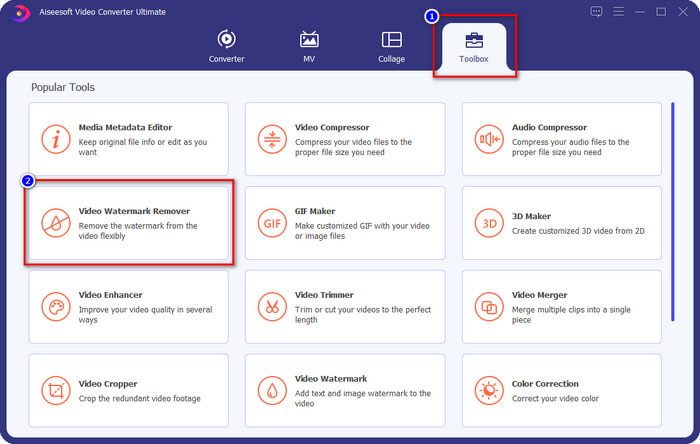
Étape 2. Allez dans la Boîte à outils pour ouvrir le Video Watermark Remover intégré à l’outil.
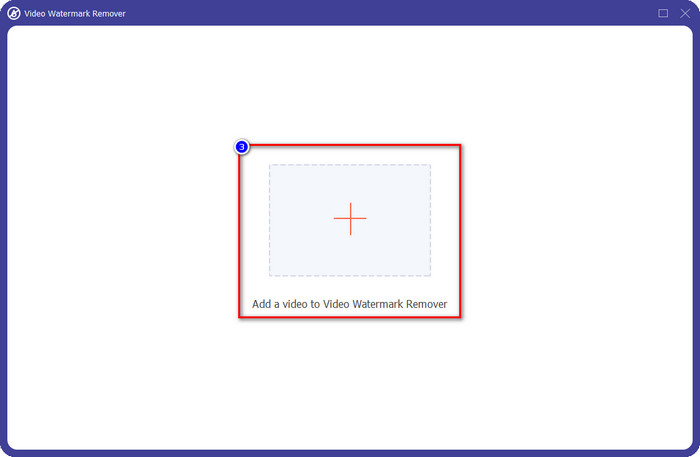
Étape 3. Ensuite, cliquez sur le bouton + qui s’affiche à l’écran pour importer la vidéo que vous avez montée sur Animoto et qui contient un filigrane.
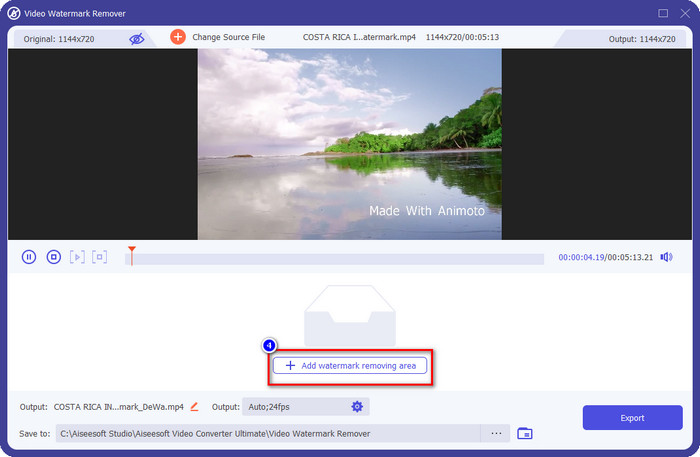
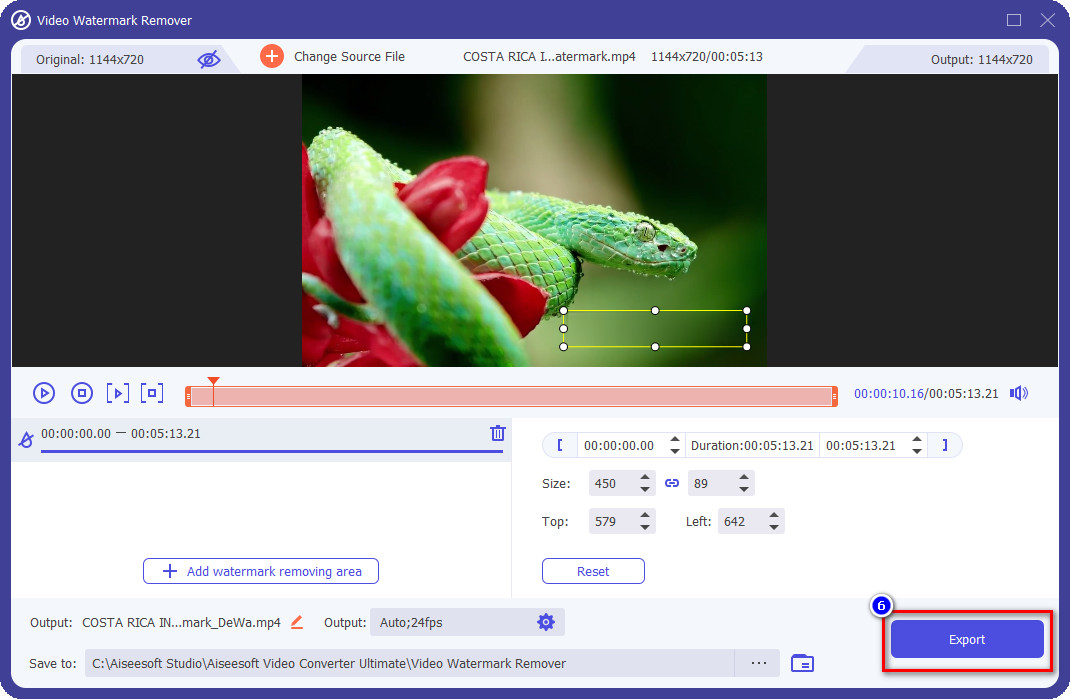
Étape 4. Une nouvelle fenêtre comme celle‑ci apparaîtra sur votre écran une fois la vidéo importée. Cliquez sur Add Watermark Removing Area au milieu de la partie inférieure de l’interface.
Étape 5. Ajustez la zone de sélection pour qu’elle corresponde au filigrane et positionnez‑la correctement.
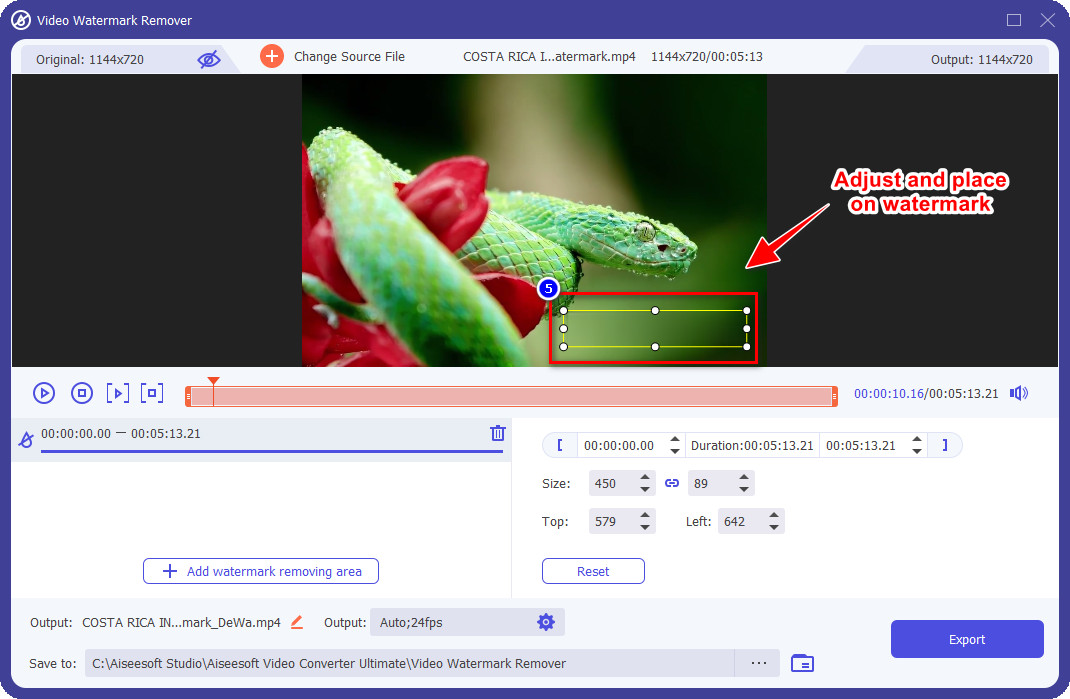
Étape 6. Après avoir placé la zone de sélection sur le filigrane, vous pouvez cliquer sur le bouton Exporter pour enregistrer la version finale de la vidéo sans le filigrane.
iMovie sur Mac
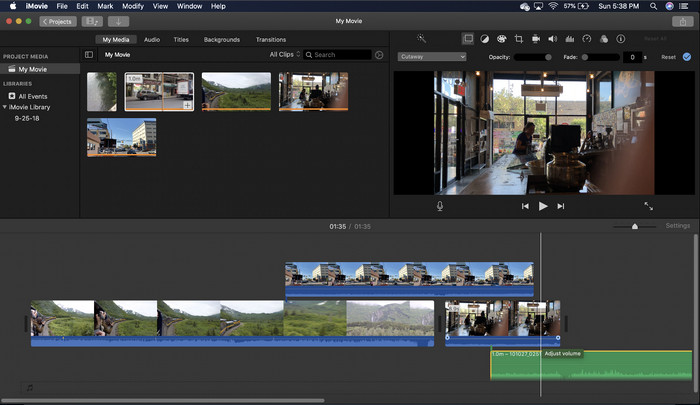
iMovie est un éditeur vidéo populaire que vous pouvez utiliser pour supprimer le filigrane de votre vidéo en le recadrant. Chaque utilisateur de Mac peut utiliser son potentiel sans télécharger le logiciel sur son appareil car il est déjà préinstallé, ce qui vous fait gagner du temps lors du téléchargement et de l'installation, même sur le stockage. Bien que l'outil soit excellent pour le montage vidéo, la fonction de suppression de filigrane qu'il prend en charge n'est pas comme celle fournie par le premier outil. Il recadre l'image vidéo pour supprimer le filigrane dans la vidéo, donc si le filigrane est placé au milieu, vous devrez recadrer près de la moitié de la présentation visuelle de la vidéo.
Ce n'est pas toujours le meilleur choix pour supprimer le filigrane, mais si le logo se trouve à la fin de la vidéo, vous pouvez suivre les étapes ci-dessous pour savoir comment supprimer le filigrane Animoto de la vidéo en le recadrant.
Étape 1. Ouvrez l’éditeur vidéo sur votre Mac en allant dans le Finder, puis Applications ; à l’intérieur, recherchez iMovie et double‑cliquez dessus.
Étape 2. Importez la vidéo souhaitée en cliquant sur le bouton importer et en recherchant le fichier vidéo sur votre disque local.
Étape 3. Maintenant que la vidéo est importée, vous devez la faire glisser vers la timeline.
Étape 4. Sur la partie droite de l’interface de l’outil, vous verrez de nombreuses icônes de fonctions de montage ; cliquez sur l’icône rogner dans la liste.
Étape 5. Modifiez le cadre pour exclure le filigrane Animoto de votre vidéo.
Étape 6. Cliquez sur le bouton partager en haut à gauche, puis sur Exporter en tant que vidéo pour lancer le téléchargement de la vidéo.
Partie 2. Autre moyen d'enregistrer des vidéos Animoto sans filigrane
Puis-je enregistrer des vidéos éditées sur Animoto sans filigrane ? Tu peux. Au lieu d'utiliser le logiciel que nous avons mentionné ci-dessus, vous achetez les frais d'abonnement sur cet outil Web pour enregistrer la vidéo que vous avez éditée ici, mais cette fois sans le filigrane. Pour vous aider à le faire, vous pouvez suivre les étapes ci-dessous.
Étape 1. Ouvrez votre navigateur, recherchez Animoto Video Editor, puis ouvrez son site officiel.
Étape 2. Sur le site officiel, cliquez sur Tarifs.
Étape 3. Vous verrez ensuite que vous pouvez choisir entre deux types d’abonnements : mensuel et annuel. Ne vous laissez pas tromper par le prix annuel apparemment plus bas, car il vous coûtera plus cher que l’abonnement mensuel, étant donné que l’annuel est facturé à l’année.
Étape 4. Créez un compte ici, puis ajoutez votre adresse de facturation et le mode de paiement que vous souhaitez utiliser. Après cela, vous pourrez utiliser la version Pro de cet outil en ligne.
En rapport:
Comment supprimer les filigranes Photobucket
Comment supprimer un filigrane sur un GIF
Partie 3. FAQ sur la suppression du filigrane Animoto
Animoto et Animotica sont-ils identiques ?
Ces deux éditeurs vidéo ne sont pas liés l'un à l'autre, mais les articles les concernant parlent le plus souvent de comparer chaque outil. Et ils sont tous les deux la meilleure alternative l'un pour l'autre en soi.
Quel est le meilleur, flouter ou recadrer le filigrane Animoto ?
Le flou peut avoir un bon et un mauvais effet sur votre vidéo ; le bon côté du floutage du filigrane est qu'il peut être imperceptible à l'œil nu, surtout s'il se mélange ou se fond bien avec la couleur. Mais le mauvais côté est que vous voyez une marque traçable après l'avoir exporté si cela ne s'est pas bien passé. Au recadrage, c'est pareil ; lorsque vous recadrez la vidéo, il n'y aura pas de flou après effet sur la vidéo, mais la taille de l'image devient étroite.
Animoto a-t-il un paiement unique ?
Malheureusement, il ne prend pas en charge les paiements uniques. Mais si vous voulez aller moins cher et l'utiliser pendant une longue période, nous vous suggérons de choisir l'abonnement annuel pour utiliser l'outil Web pendant un an, puis de vous réabonner pour l'année suivante et au-delà.
Conclusion
Alors, selon vous, quelle méthode utiliserez-vous pour supprimer le filigrane Animoto ? Quelle que soit votre décision, nous espérons vous avoir aidé à résoudre le problème de suppression du filigrane sur la vidéo que vous avez éditée sur Animoto.
-
 4 meilleures façons d'ajouter rapidement un filigrane sur n'importe quelle vidéo
 Apprenons à ajouter un filigrane à n'importe quelle vidéo sur Windows, Mac, Online, iOS et Android avec des étapes détaillées si vous lisez cet article.
-
 4 façons efficaces de supprimer les filigranes Tiktok des vidéos Tiktok
 Avez-vous besoin de supprimer le filigrane Tiktok de vos vidéos Tiktok exportées ? Vous pouvez le faire ici à l'aide des outils que nous présentons ; vous pouvez facilement le faire.
-
 Comment ajouter un filigrane à une vidéo dans iMovie sur Mac [All Embracing]
 Voulez-vous connaître les secrets de l'ajout d'un filigrane à une vidéo dans iMovie ? Ne renversez le thé sur personne et apprenez-le en lisant cet article.
