


 Video Converter Ultimate
 Enregistreur d'écran
 Réparation vidéo
 Téléchargement sécurisé
Comment couper une vidéo sur Android à l'aide des meilleures applications de découpe vidéo
Il est très simple d’enregistrer des vidéos spectaculaires, ou simplement votre écran, lorsque vous avez toujours un smartphone sur vous. Modifier ces vidéos sur votre téléphone Android était autrefois difficile, mais ce n’est plus le cas. Ce sujet va présenter des méthodes simples pour couper des vidéos sur Android. Nous utiliserons plusieurs applications/programmes de montage vidéo qui seront efficaces pour vous. De plus, si vous souhaitez couper une vidéo à l’aide de votre ordinateur, vous pouvez le faire. Dans ce guide, vous apprendrez les méthodes les plus simples pour raccourcir la durée d’une vidéo à l’aide d’un ordinateur. Ainsi, si vous voulez connaître toutes les méthodes pour couper une partie d’une vidéo sur Android et sur ordinateur, lisez cet article dès maintenant.

Partie 1. Comment découper des vidéos sur Android
Dans cette partie, nous vous donnerons deux méthodes efficaces pour couper votre vidéo en utilisant Android. La première application est une application pré-construite, et l'autre est une application téléchargeable. Ainsi, vous donnerez une option sur ce qu'il faut utiliser lors du découpage d'une vidéo. Sans plus tarder, commençons à découvrir ces méthodes.
Utilisation de la Galerie
Si vous ne souhaitez pas télécharger d'applications depuis le Play Store, utilisez l'application Galerie. Cette application pré-construite n'est pas seulement capable d'afficher des images et des vidéos. Il a plus de fonctionnalités à offrir que vous ne l'imaginez. Si vous envisagez de couper votre vidéo à l'aide de cette application, vous pouvez le faire. Gallery dispose d'un outil de découpe qui vous permet de couper/découper une vidéo facilement et instantanément. Il possède également une interface intuitive, ce qui le rend plus adapté à tous les utilisateurs d'Android. De plus, en plus de couper des vidéos, l'application peut faire plus. Vous pouvez également régler la vitesse de la vidéo à l'aide du réglage de la vitesse de la vidéo. Cependant, l'application Galerie ne convient que pour l'édition de base. Ce n'est pas l'application dont vous avez besoin si vous souhaitez améliorer votre vidéo et combiner toutes les vidéos découpées. Vous devez rechercher un logiciel de montage vidéo plus avancé pour obtenir le résultat souhaité. Si vous voulez savoir comment couper un clip vidéo sur Android à l'aide de cette application, suivez les étapes ci-dessous.
Étape 1. Ouvrez votre appareil Android et lancez l’application Galerie. Ensuite, recherchez la vidéo que vous voulez couper/rogner.
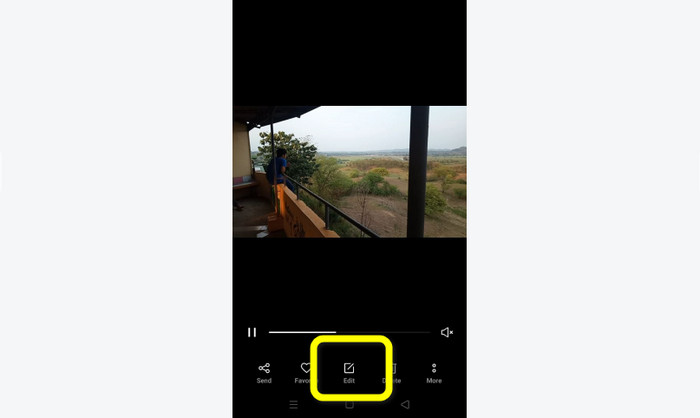
Étape 2. Après avoir ouvert la vidéo que vous voulez couper/rogner, allez dans les options en bas de l’écran. Cliquez sur l’option Modifier pour passer à l’étape suivante.
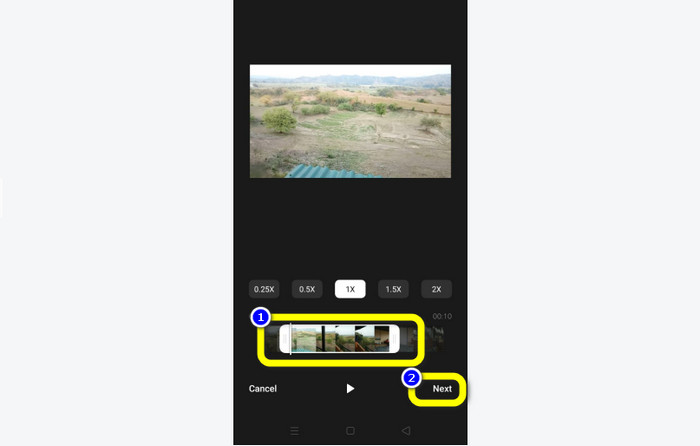
Étape 3. Ensuite, vous pouvez commencer à couper la vidéo sur votre Android. Faites glisser le bord de la vidéo ou la barre. Faites glisser chaque côté pour couper la vidéo. Puis, après le rognage, cliquez sur l’option Suivant dans le coin inférieur gauche de l’interface.
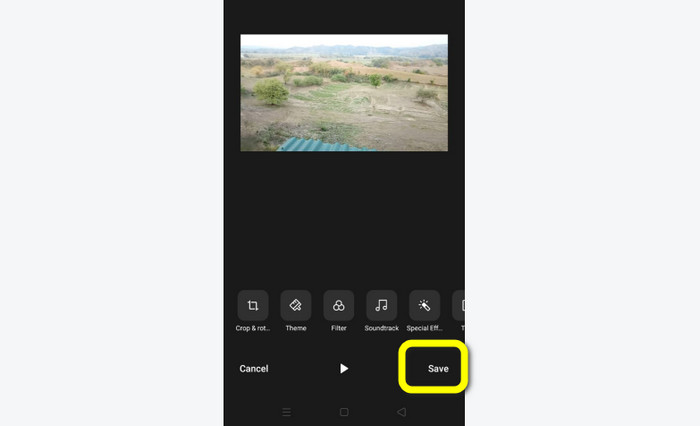
Étape 4. Vous pouvez ensuite cliquer sur le bouton Enregistrer pour sauvegarder la vidéo modifiée sur votre téléphone. De plus, si vous souhaitez éditer davantage votre vidéo, vous pouvez la recadrer, la faire pivoter, ajouter des filtres, et bien plus encore.
Utilisation de Vid.Fun
En plus de l’application Galerie, vous pouvez également utiliser une application téléchargeable pour couper des vidéos sur Android. Vous pouvez télécharger l’application Vid.Fun pour couper des vidéos sur votre Android. Vid.Fun est une application gratuite à télécharger. De plus, elle possède une interface simple avec un processus de montage de base. Ainsi, même un utilisateur non professionnel peut l’exploiter. Par ailleurs, Vid.Fun offre davantage de fonctionnalités en plus de la découpe vidéo. Vous pouvez aussi utiliser cette application si vous souhaitez ajouter du texte à vos vidéos. En outre, vous pouvez utiliser un outil d’amplification du volume pour ajuster le volume de la vidéo. De plus, vous pouvez supprimer un filigrane, ajuster la vitesse de la vidéo, ajouter des autocollants, faire pivoter une vidéo, et bien plus encore. Cependant, Vid.Fun présente certains inconvénients. Vid.Fun a un processus d’exportation lent, ce qui fait perdre du temps aux utilisateurs. De plus, il arrive que l’application ne fonctionne pas correctement. Consultez les méthodes ci-dessous pour couper des vidéos à l’aide de l’application Vid.Fun.
Étape 1. Rendez-vous sur le Google Play Store et recherchez l’application Vid.Fun. Ensuite, installez l’application sur votre téléphone Android. Ouvrez l’application après le processus d’installation.
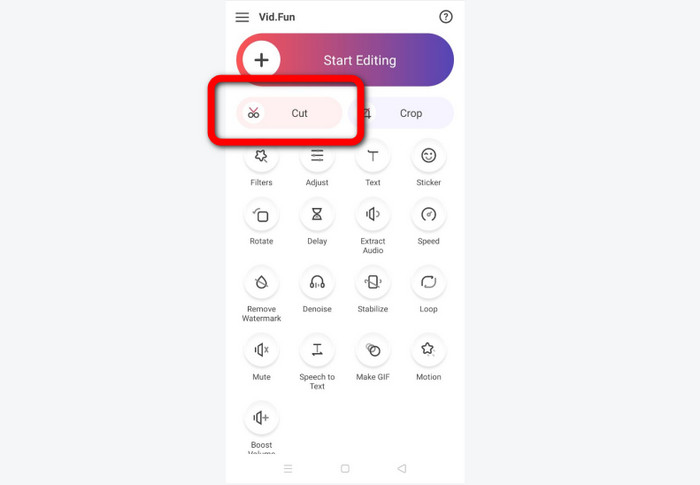
Étape 2. Lorsque l’interface de l’application apparaît, sélectionnez l’option Cut. Vos fichiers s’afficheront alors à l’écran. Cliquez sur la vidéo que vous voulez couper et appuyez sur le bouton Yes.
Étape 3. Ensuite, vous pouvez déjà passer au processus de rognage. Faites glisser le bord de la vidéo. Vous pouvez également utiliser les options Start et End pour couper.
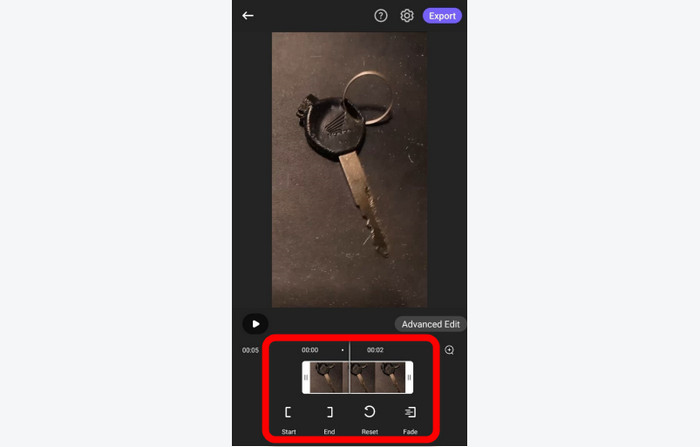
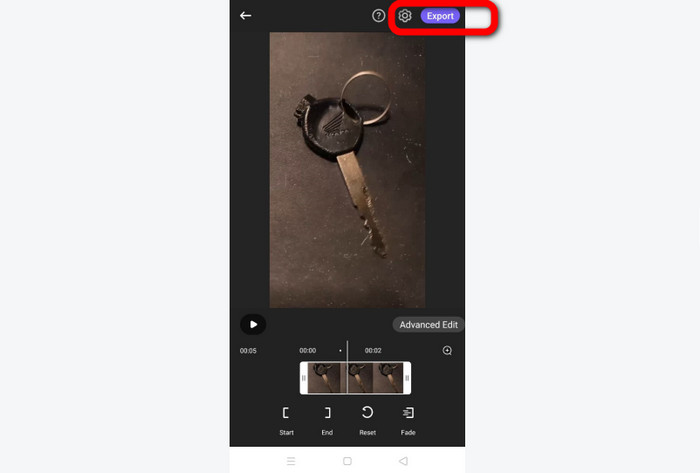
Étape 4. Lorsque vous avez fini de couper/rogner la vidéo, vous pouvez cliquer sur le bouton Export. Attendez la fin du processus d’exportation et conservez la vidéo sur votre appareil Android.
Partie 2. Comment couper des vidéos Android sur PC
Vous avez appris dans la partie précédente comment couper des vidéos à l’aide d’un appareil Android. Dans cette partie, vous allez découvrir comment couper des vidéos à l’aide d’ordinateurs. Si vous voulez utiliser votre ordinateur de bureau pour monter une vidéo, en particulier pour la couper ou la rogner, utilisez Video Converter Ultimate. Ce programme hors ligne dispose d’une interface intuitive vous permettant de comprendre rapidement toutes les options. De plus, la procédure de rognage est simple. Vous pouvez couper/rogner la vidéo en seulement quelques clics. En outre, il possède un processus d’exportation rapide, ce qui le rend pratique pour tous les utilisateurs. Comme il s’agit d’un programme facile à utiliser, les professionnels comme les débutants peuvent s’en servir. De plus, vous pouvez enregistrer votre résultat final dans divers formats, notamment AVI, FLV, MOV, MP4, et bien d’autres. Par ailleurs, Video Converter Ultimate est gratuit au téléchargement et disponible à la fois sur les ordinateurs Mac et Windows. En outre, le programme vous permet de modifier la résolution, la qualité, la fréquence d’images et l’encodeur de la vidéo. Vous pouvez également changer la fréquence d’échantillonnage et le débit binaire de l’audio. De cette manière, vous êtes sûr d’obtenir le meilleur résultat avec ce programme hors ligne. Suivez les instructions simples ci-dessous pour savoir comment couper une vidéo Android sur PC.
Étape 1. Téléchargez Video Converter Ultimate sur votre ordinateur Mac ou Windows. Cliquez sur le bouton Télécharger ci-dessous pour accéder au programme. Les versions Windows et Mac sont toutes deux disponibles. Ensuite, exécutez le programme après le processus d’installation.
Téléchargement gratuit pour Windows 7 ou version ultérieure Téléchargement sécurisé
Téléchargement gratuit pour macOS 10.7 ou version ultérieure - Téléchargement sécurisé
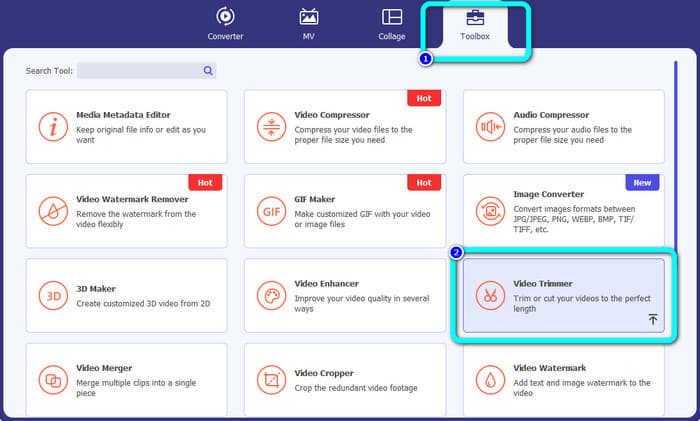
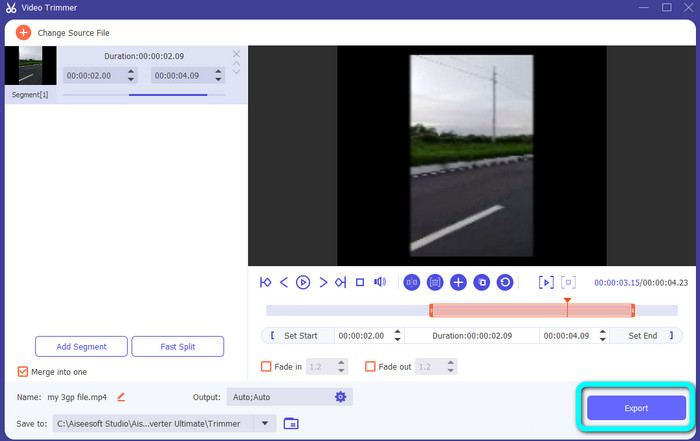
Étape 2. Lorsque l’interface du programme s’affiche, accédez à la section Boîte à outils dans la partie supérieure de l’interface et sélectionnez l’outil Découpeur vidéo.
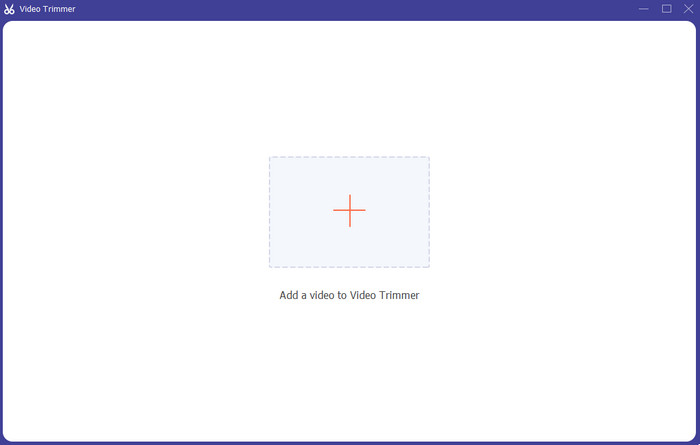
Étape 3. Une autre interface apparaîtra après avoir cliqué sur l’outil Découpeur vidéo. Cliquez sur le symbole Plus pour insérer la vidéo Android. Notez que la vidéo Android doit déjà être transférée sur l’ordinateur avant d’utiliser le programme.
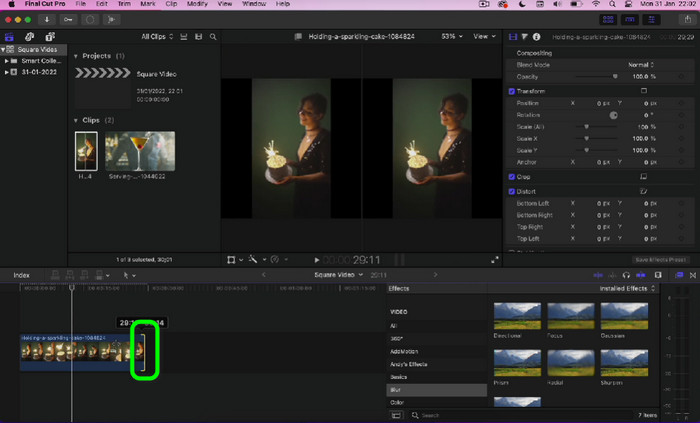
Étape 4. Vous êtes alors dans le processus de rognage. Pour couper la vidéo, vous devez ajuster les bords de la vidéo. Vous pouvez ajuster le bord de début et le bord de fin.
Étape 5. Après le processus, vous pouvez enregistrer votre vidéo modifiée en cliquant sur le bouton Exporter. Une fois l’exportation terminée, vous pouvez lire la vidéo éditée.
Partie 3. FAQ sur la façon de découper des vidéos sur Android
Comment couper le milieu d'une vidéo sur Android ?
Si vous souhaitez découper la partie centrale de votre vidéo à l'aide d'un appareil Android, vous pouvez toujours utiliser les applications présentées ci-dessus. Vous pouvez suivre la même procédure et couper la partie centrale de la vidéo.
Comment récupérer des vidéos coupées sur Android ?
Accédez à votre application Galerie. Ensuite, cliquez sur les options de l'album. Après cela, cliquez sur l'option Corbeille. Vous verrez les vidéos supprimées et cliquez sur le bouton Récupérer.
Puis-je découper une vidéo sur Android à l'aide d'iMovie ?
Absolument pas. iMovie est uniquement compatible avec les appareils Apple, tels que les iPhones, iPad et Mac.
Conclusion
Et voilà ! Vous savez maintenant comment couper des vidéos sur Android et sur ordinateur. Donc, si vous êtes utilisateur Android, vous pouvez suivre les étapes mentionnées ci-dessus. De plus, si vous souhaitez utiliser votre ordinateur pour couper ou rogner une vidéo Android, utilisez Video Converter Ultimate. Ce programme hors ligne vous permet de couper et rogner facilement et rapidement votre vidéo Android.
-
 Excellentes façons de couper une vidéo en ligne de manière pratique
 Couper une vidéo est le meilleur moyen de créer des extraits vidéo. Ainsi, cet article vous donnera les méthodes pour découper facilement des vidéos en ligne. Lisez pour en savoir plus.
-
 Comment raccourcir une vidéo sur iPhone [Tutoriels détaillés]
 Êtes-vous un utilisateur d'iPhone et souhaitez-vous couper vos vidéos ? Ne vous inquiétez plus. Ce guide fournira tous les détails sur la façon de couper une vidéo sur iPhone et iPad.
-
 Les moyens les plus simples d'accélérer une vidéo sur vos appareils Android [2023]
 Saviez-vous que vous pouvez accélérer une vidéo sur votre Android ? Donc, si vous voulez savoir comment accélérer une vidéo sur votre téléphone Android, lisez cet article.
