


 Video Converter Ultimate
 Enregistreur d'écran
 Réparation vidéo
 Téléchargement sécurisé
Comment couper des vidéos avec TikTok : inclure des programmes hors ligne pour couper des vidéos pour TikTok
Avez-vous une vidéo sur votre téléphone que vous souhaitez publier sur TikTok, mais qui est trop longue ? Dans ce cas, ce guide vous proposera les procédures les plus simples pour raccourcir une vidéo pour TikTok. De plus, vous apprendrez des méthodes faciles pour couper des vidéos avec TikTok. En outre, nous vous fournirons un programme hors ligne pour découper votre vidéo. Donc, si vous êtes impatient de découvrir tous ces sujets, veuillez lire cet article.

Partie 1. Comment couper une vidéo pour TikTok sur le bureau
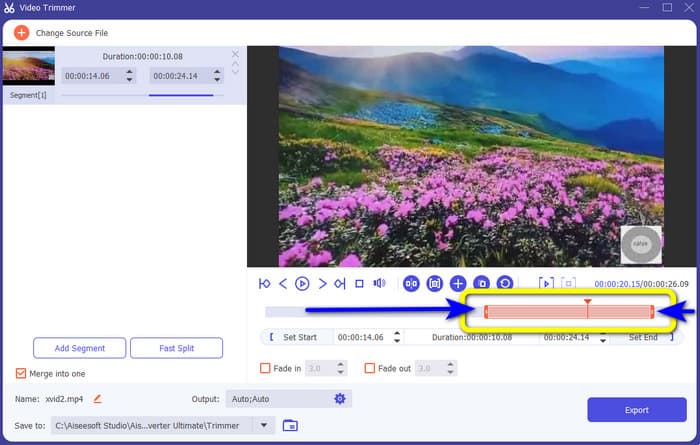
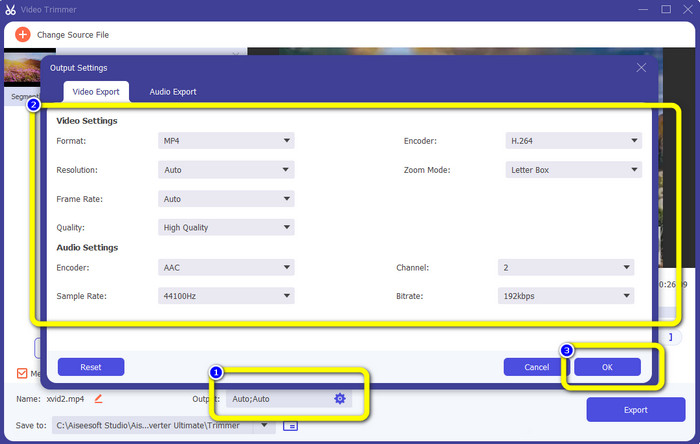
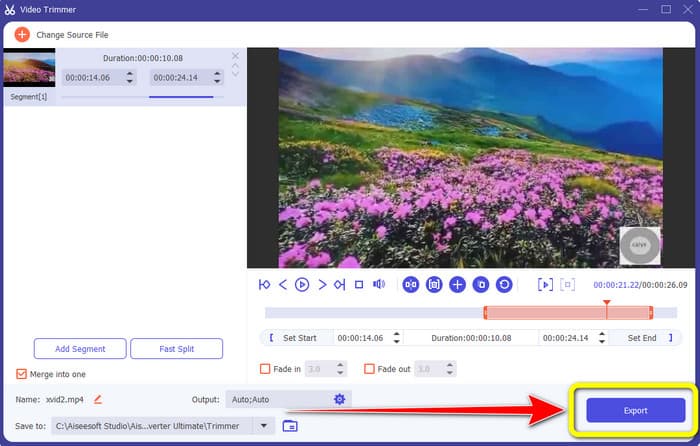
Si vous utilisez votre ordinateur pour couper une vidéo destinée à TikTok, il existe un excellent programme pour vous. Pour couper une vidéo sur votre ordinateur, utilisez Video Converter Ultimate. En matière de découpage vidéo, il vous offre une méthode simple et directe. Il vous permet de couper des vidéos en quelques clics seulement, ce qui le rend pratique pour tous les utilisateurs. Vous pouvez également ajuster les extrémités de votre vidéo pour la découper ou la rogner. Une autre façon consiste à utiliser les options Définir le début (Set Start) et Définir la fin (Set End). De plus, vous pouvez cliquer sur les options Fondu d’entrée (Fade In) et Fondu de sortie (Fade Out) pour donner un autre impact à votre vidéo. Vous pouvez toujours aller dans les options Paramètres ou Sortie pendant le découpage pour effectuer certains réglages. Le programme vous permet de modifier la résolution, la fréquence d’images, le mode de zoom et la qualité de la vidéo. Vous pouvez même changer la fréquence d’échantillonnage et le débit binaire de l’audio de la vidéo.
De plus, les utilisateurs Mac et Windows peuvent accéder à ce logiciel téléchargeable. Video Converter Ultimate est disponible sur les ordinateurs Windows et Mac, ce qui le rend pratique pour les utilisateurs. Il existe d'autres fonctionnalités que vous pouvez rencontrer lorsque vous utilisez ce programme hors ligne. Si vous voulez découvrir ses fonctionnalités, essayez-le vous-même. Consultez les étapes simples ci-dessous pour raccourcir une vidéo pour TikTok à l'aide de Video Converter Ultimate.
Étape 1. Vous pouvez cliquer sur le bouton Télécharger ci-dessous pour accéder à Video Converter Ultimate. Les boutons ci-dessous sont disponibles pour les ordinateurs Windows et Mac. Après avoir installé le programme, lancez-le sur votre ordinateur.
Téléchargement gratuit pour Windows 7 ou version ultérieure Téléchargement sécurisé
Téléchargement gratuit pour macOS 10.7 ou version ultérieure - Téléchargement sécurisé
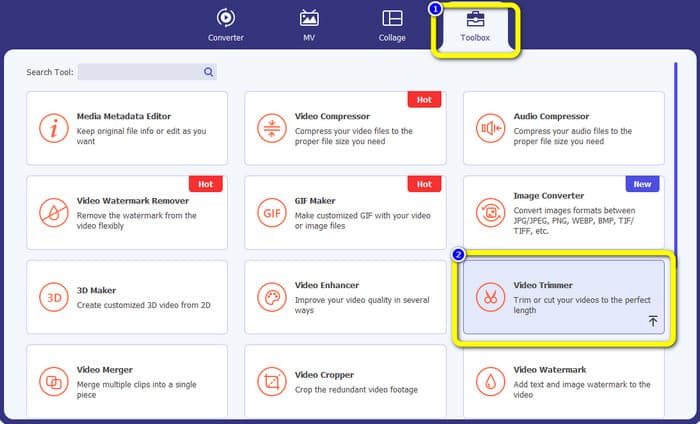
Étape 2. Lorsque l’interface apparaît à l’écran, regardez la partie supérieure et cliquez sur l’onglet Boîte à outils. Ensuite, sélectionnez l’outil Rogneur vidéo pour procéder au découpage. Assurez-vous que la vidéo se trouve déjà sur votre ordinateur avant d’utiliser le programme hors ligne.
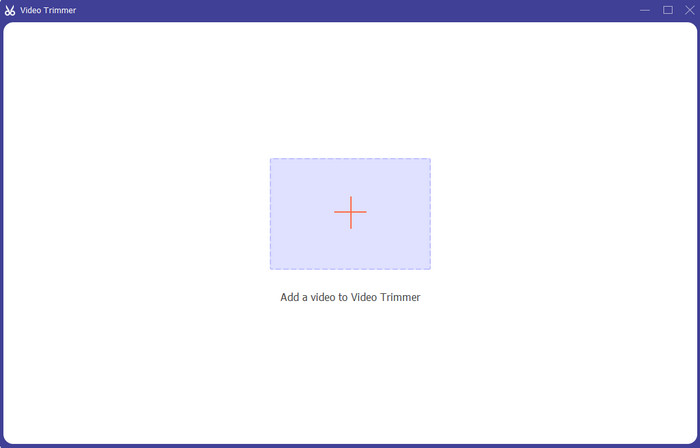
Étape 3. Cliquez sur l’icône Plus au centre de l’interface et ajoutez la vidéo depuis votre dossier de fichiers.
Étape 4. Ensuite, vous pouvez commencer le découpage. Placez la tête de lecture sur la vidéo. Après cela, vous pouvez faire glisser chaque extrémité de la vidéo pour lancer le processus de découpe.
Étape 5. Vous pouvez également accéder à l’option Paramètres de sortie, où vous pouvez modifier la résolution, le format de sortie, la qualité et la fréquence d’images de la vidéo. En plus de cela, vous pouvez aussi changer le débit binaire, la fréquence d’échantillonnage et d’autres paramètres de l’audio.
Étape 6. Une fois le découpage terminé, cliquez sur l’option Exporter pour enregistrer la vidéo modifiée. Ensuite, attendez la fin du processus d’exportation, et c’est terminé.
Partie 2. Comment découper une vidéo pour TikTok à l'aide d'une application mobile
Si vous souhaitez utiliser votre téléphone mobile pour couper votre vidéo, utilisez Easy Video Cutter. Cette application mobile est capable de raccourcir votre clip vidéo facilement et rapidement. Elle propose également une procédure simple à comprendre, ce qui la rend parfaite pour tous les utilisateurs. De plus, pour les utilisateurs Android, c’est une application disponible sur le Play Store. Il s’agit plutôt d’une solution tout-en-un pour le montage vidéo. Pourtant, l’outil de découpe vidéo de cette application se distingue par sa grande simplicité d’utilisation. De plus, les vidéos traitées après découpe ne comportent aucun filigrane. Avec ce programme, vous pouvez aussi combiner plusieurs vidéos en une seule. Trouver la vidéo que vous souhaitez modifier est simple, et vous pouvez même trier les vidéos par heure, date, album, artiste, durée et d’autres critères. Cela évite les recherches inutiles pour retrouver une vidéo supposée se trouver au bas de la liste.
Cependant, Easy Video Cutter présente des inconvénients. Cette application mobile n'est accessible qu'à Android. Si vous êtes un utilisateur d'iPhone, vous ne pouvez pas utiliser l'application. De plus, l'application affiche des publicités gênantes lors de l'édition d'une vidéo. Suivez les étapes ci-dessous pour couper la vidéo à l'aide de cette application mobile.
Étape 1. Allez sur le Google Play Store et téléchargez l’application Easy Video Cutter. Après l’installation, lancez l’application sur votre téléphone.
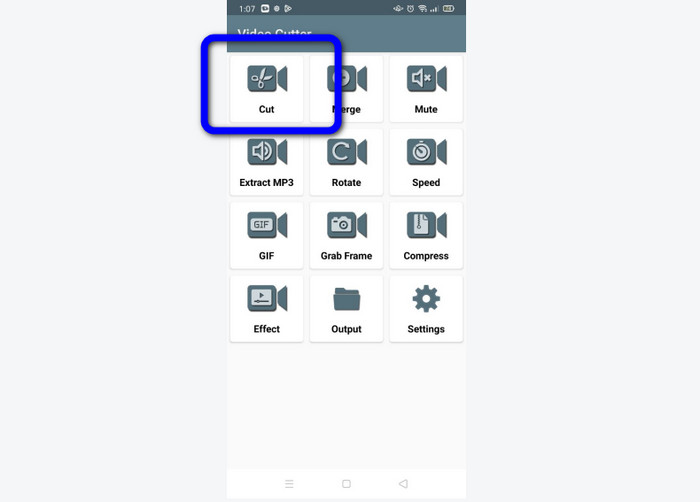
Étape 2. Une fois l’application lancée, l’interface principale apparaîtra sur l’écran de votre téléphone. Vous verrez de nombreux outils sur l’interface. Cliquez sur l’option Cut (Couper). Puis ouvrez la vidéo depuis vos fichiers.
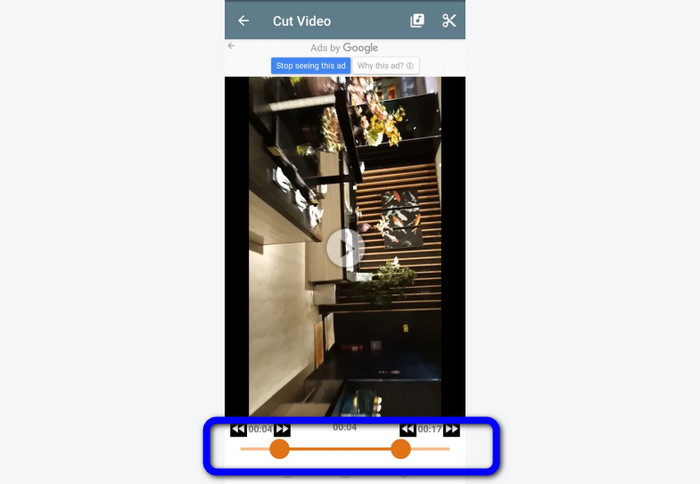
Étape 3. À cette étape, vous pouvez rogner votre vidéo en ajustant le curseur vidéo dans la partie inférieure de l’interface. Vous pouvez régler le point de départ et le point de fin.
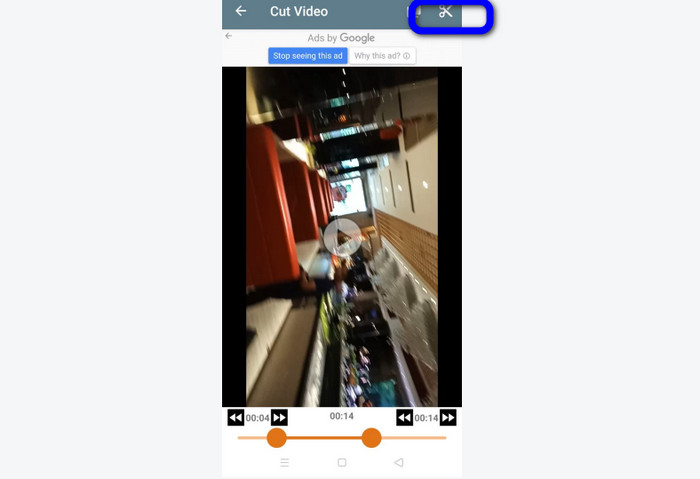
Étape 4. Cliquez sur l’icône Ciseaux dans le coin supérieur droit de l’écran pour couper la vidéo. Ensuite, enregistrez la vidéo modifiée sur votre téléphone. Voilà tout ce qu’il faut savoir pour rogner des vidéos sur Android.
Partie 3. Comment découper une vidéo à l'aide de TikTok
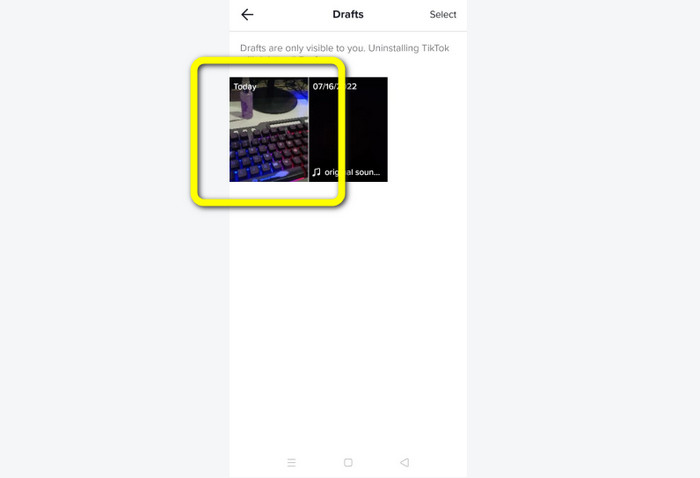
Vous voulez apprendre comment couper des vidéos sur TikTok ? Vous trouverez la réponse dans cette partie. Suivez les étapes ci-dessous pour connaître la méthode de découpe d'une vidéo dans les brouillons de TikTok.
Étape 1. Lancez TikTok sur votre téléphone mobile. Ensuite, allez dans votre Profil et ouvrez la vidéo dans les Brouillons.
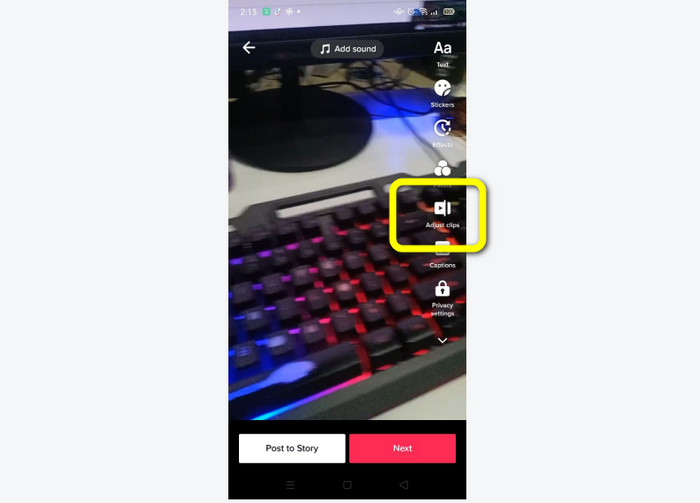
Étape 2. Après avoir ouvert la vidéo, allez sur le côté droit de l’écran et cliquez sur l’option Ajuster le clip.
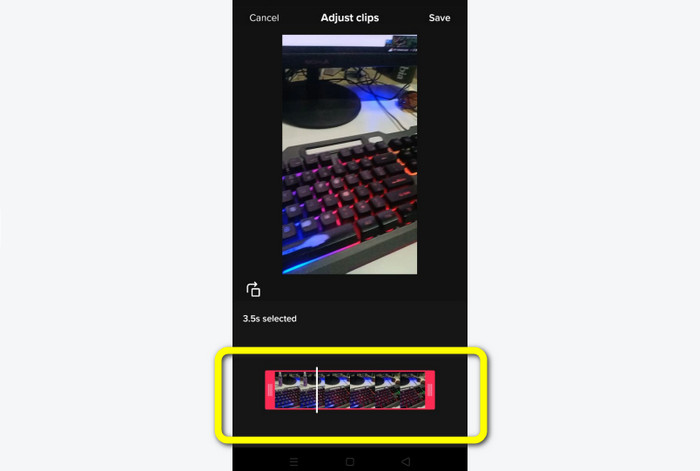
Étape 3. Vous pouvez ensuite découper la vidéo en ajustant les extrémités de la tête de lecture. Vous pouvez déplacer aussi bien le bord droit que le bord gauche de la vidéo.
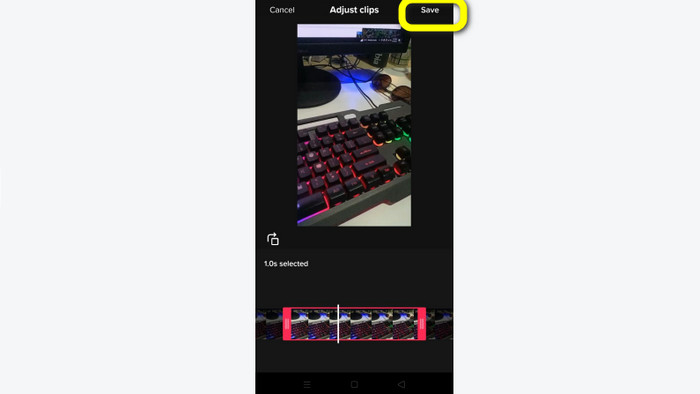
Étape 4. Après avoir découpé la vidéo, cliquez sur le bouton Enregistrer dans le coin supérieur droit de l’écran du téléphone. De cette façon, vous pouvez enregistrer la vidéo modifiée et la publier sur TikTok.
Partie 4. FAQ sur la façon de découper une vidéo avec TikTok
1. Pourquoi TikTok ne me laisse-t-il pas couper ma vidéo ?
L'une des raisons est que vous ne pouvez pas voir le bouton par défaut ou que vous avez déjà publié la vidéo.
2. Pourquoi TikTok raccourcit-il mes clips ?
TikTok a une durée de vidéo maximale. Si votre vidéo ne répond pas aux exigences, TikTok coupera vos clips. Cela signifie que TikTok garantit que les vidéos ont une longueur appropriée.
3. Quelle doit être la durée de mes vidéos TikTok ?
Vous pouvez poster jusqu'à 3 minutes de vidéo avant. Mais maintenant, TikTok vous permet de télécharger une vidéo jusqu'à 10 minutes de plus.
Conclusion
Voilà ! Vous êtes maintenant en mesure de découper vos vidéos avec TikTok. Donc, si vous souhaitez savoir comment découper une vidéo avec TikTok, lisez les informations détaillées ci-dessus. De plus, si vous voulez raccourcir votre vidéo pour TikTok, le meilleur logiciel de montage vidéo que nous puissions vous proposer est Video Converter Ultimate. Ce programme offre des méthodes plus simples et une interface facile à utiliser, ce qui le rend parfait pour tous les utilisateurs.
-
 2 façons simples d'accélérer une vidéo sur TikTok
 Voulez-vous connaître le secret pour accélérer la vidéo sur TikTok ? Alors lisez cet article pour avoir une idée sur la façon de le faire et savoir quels sont les 2 autres outils qui vous aideront
-
 4 façons efficaces de supprimer les filigranes Tiktok des vidéos Tiktok
 Avez-vous besoin de supprimer le filigrane Tiktok de vos vidéos Tiktok exportées ? Vous pouvez le faire ici à l'aide des outils que nous présentons ; vous pouvez facilement le faire.
-
 3 façons efficaces d'ajouter des vidéos et des images ensemble sur Tiktok
 Vous voulez savoir comment ajouter des images sur les vidéos Tiktok ? Dans ce cas, cliquez et lisez cet article pour savoir comment ajouter facilement les images à votre vidéo Tiktok.
