


 ממיר וידאו אולטימטיבי
 מקליט מסך
 תיקון וידאו
הנחיות שאתה צריך לעקוב אחר המרת MXF ל-MOV באיכות גבוהה
פורמט החלפת חומרים הוא מה שמייצג MXF. פורמט קובץ פתוח זה מאפשר החלפה של חומר אודיו‑ויזואלי ושל הנתונים והמטא‑דאטה הנלווים אליו, ונקרא OMF. העיצוב הראשוני של MXF נעשה על‑ידי קבוצת חברות מובילות בתחום השידור וההפקה הדיגיטלית. מטרת MXF היא לקבוע סטנדרט לפורמטי קבצים, להקל על תאימות בין ספקי חומרה ותוכנה שונים, ולבסוף לבטל את הצורך בקלטות. אם אתה מחפש ממיר מתאים לשימוש בהמרת MXF ל‑MOV, להלן האפשרויות שמאפשרות לך לבחור את המתאימה ביותר עבורך.
חלק 1. סקירה כללית: MXF & MOV
MXF היא בחירה מצוינת הן לרכישה (Capture) והן למסירה. שימוש בדחיסה בין‑פריימים (inter‑frame) אינו מיטבי לשימוש בהפקת סרטים. פירוק (decompress) של דחיסה בין‑פריימים לוקח זמן רב יותר, משום שרבות מהשיטות דורשות מידע תת‑פיקסלי (sub‑pixel) עבור דיוק פריים‑אחר‑פריים ב‑AE. בעת שימוש בדחיסה בין‑פריימים, המשתמשים נדרשים לשחזר חלק מהפריימים במהלך הפענוח, וכאן After Effects נתקל בקשיים.
עם זאת, סיומת הקובץ MOV מייצגת את פורמט הווידאו QuickTime של אפל. מכולת מולטימדיה זו יכולה גם לאחסן מספר רצועות עם נתונים שונים (אודיו, וידאו, כתוביות). תכונות כמו הפרדת נתוני מדיה מההפניות שלהן בקובץ, הפניות נתונים אבסטרקטיות, ורשימות עריכה של רצועות (track edit lists) הופכות אותו לאידיאלי לעריכת וידאו. מכולת הווידאו MOV משמשת גם בשכיחות גבוהה להפצת וידאו אונליין.
חלק 2. שיטות מצוינות לשימוש בהמרת MXF ל-MOV
באמצעות התוכנה החדשה והיעילה הנקראת Video Converter Ultimate, ניתן כעת להמיר MXF ל‑MOV באופן לא מקוון (אוףליין) במגוון רחב של פורמטים שניתנים לשחזור. עם תוכנה זו, אפשר כעת להמיר MXF ל‑MOV מהר יותר מאשר בעזרת ממירים אחרים. ניתן גם לשנות את איכות הווידאו לפני ההמרה. באפשרותך לשפר את קובץ הווידאו שלך באמצעות מגוון הפונקציות של הממיר. בשימוש באפליקציה הזו, לא תצטרך לדאוג לגבי המרת פורמטי וידאו שאינם תואמים לפורמט שאתה מעדיף. לאחר שלמדת על הממיר הטוב ביותר, אלה השלבים שעליך לבצע:
שלב 1. לחץ על כפתור Free Download למטה כדי להתחיל בהורדות שלך! לאחר שההורדה הושלמה, באפשרותך לבחור להוריד את התוכנה ל‑Windows או ל‑Mac. עליך קודם להתקין את התוכנה על שולחן העבודה של המחשב, ואז ללחוץ על Start Now כדי להתחיל להשתמש בה.
הורדה חינמיתל-Windows 7 ומעלההורדה מאובטחת
הורדה חינמיתל-MacOS 10.7 ומעלההורדה מאובטחת
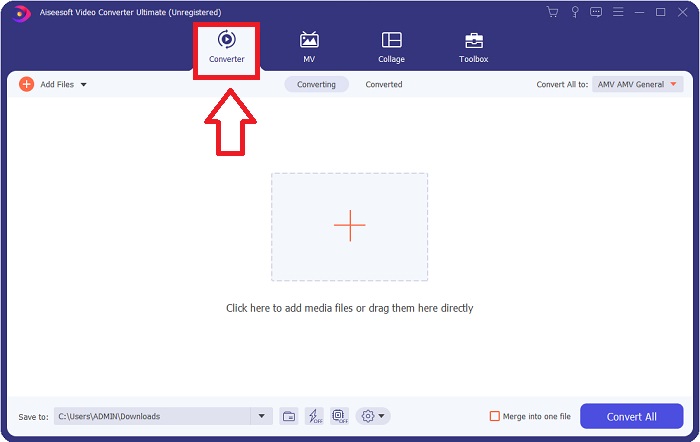
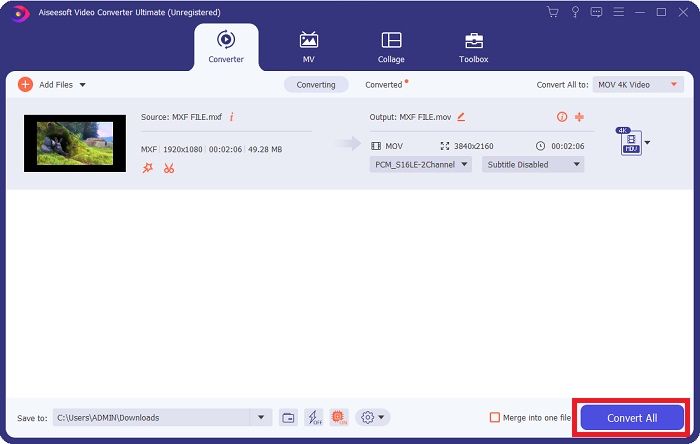
שלב 2. הפעל את התוכנה שהורדת על‑ידי לחיצה על הכפתור. ממשק ה‑Converter יוצג ברגע שתפעיל את התוכנה בפעם הראשונה. כאן תתחיל בתהליך טרנסקוד הווידאו שלך.
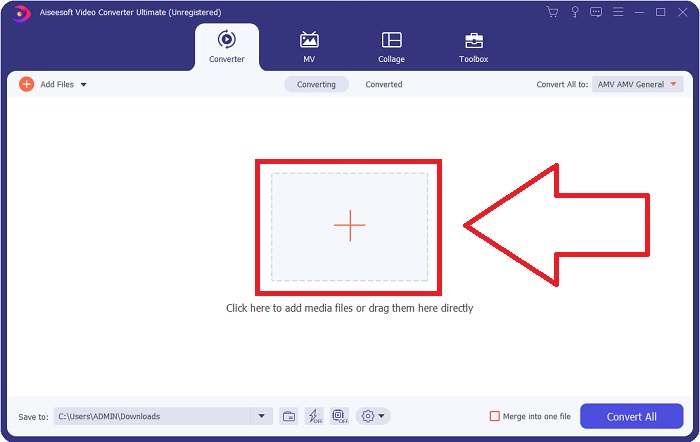
שלב 3. התחל את תהליך ההמרה על־ידי ייבוא הקבצים לממיר. ניתן לגרור ולשחרר את קובץ הווידאו שברצונך להמיר על גבי סמל ה‑+.
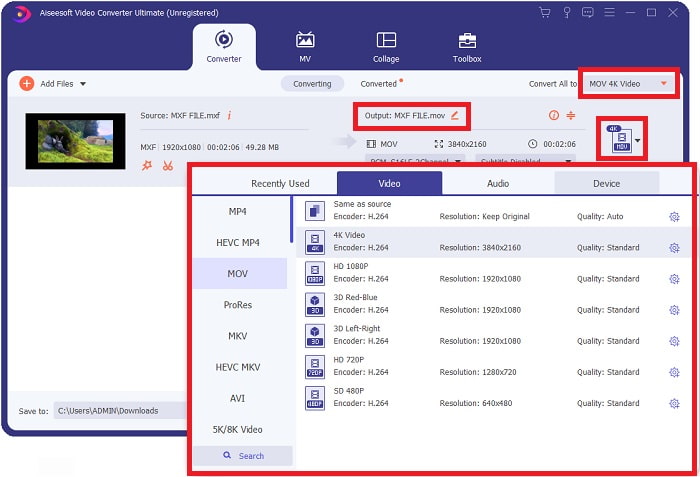
שלב 4. לאחר מכן, בחר את פורמט MOV מתפריט הבחירה הנפתח של Convert All to. לאחר שבחרת בקובץ MOV, תהיה לך גישה למגוון אפשרויות איכות וידאו. אך אם פלט הווידאו שבחרת אינו מופיע ברשימה, תוכל לשנות את הגדרות האיכות כך שיתאימו לצרכיך. באמצעות לחיצה על סמל גלגל‑השיניים, תוכל להתאים את הרזולוציה של התצוגה, קצב הפריימים ואפילו את איכות האודיו. לחץ על הכפתור Create New כדי לשמור את השינויים.
שלב 5. המרת הווידאו שלך פשוטה כמו לחיצה על Convert All לאחר שסיימת לערוך את איכותו, רזולוצייתו, קצב הפריימים וכו'.
חלק 3. טיפ נוסף בהמרת MXF ל-MOV [מקוון]
שימוש ב‑Free Video Converter Online הוא הדרך הטובה ביותר להמיר מגוון רחב של פורמטי וידאו בפרק זמן קצר. ממיר זה, בשונה מממירים מקוונים אחרים, אינו מוגבל בפורמטים שהוא יכול לקבל. לכן הוא אפשרות טובה עבור מתחילים מסוימים. להלן השלבים שעליך לבצע כדי ללמוד עוד על כלי האינטרנט הזה.
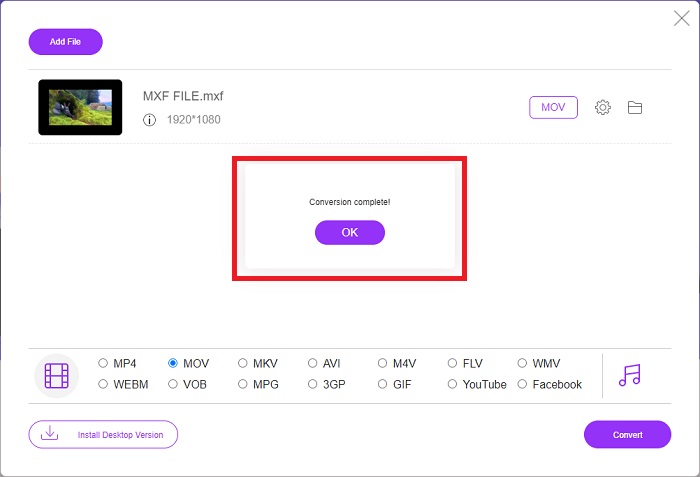
שלב 1. היכנס לדף הבית של ממיר FVC על‑ידי לחיצה על קישור זה.
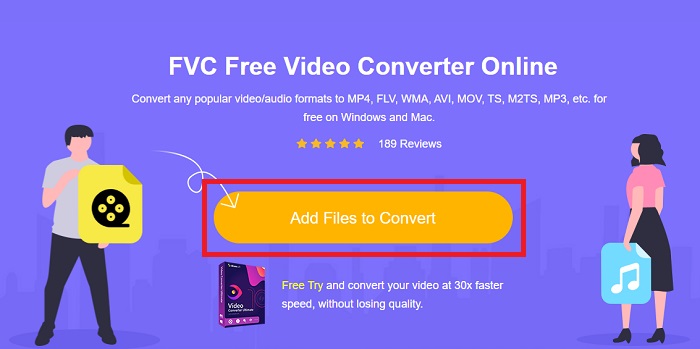
שלב 2. כדי לקבל את המשגר (Launcher) למחשב שלך, לחץ על כפתור Add Files to Convert אם זו הפעם הראשונה שאתה משתמש בכלי. ברגע שיורד מחדש, הוא ירוץ שוב באופן אוטומטי. פתח את הקובץ מתיקיית ההורדות שלך על‑ידי בחירתו ולחיצה על Open.
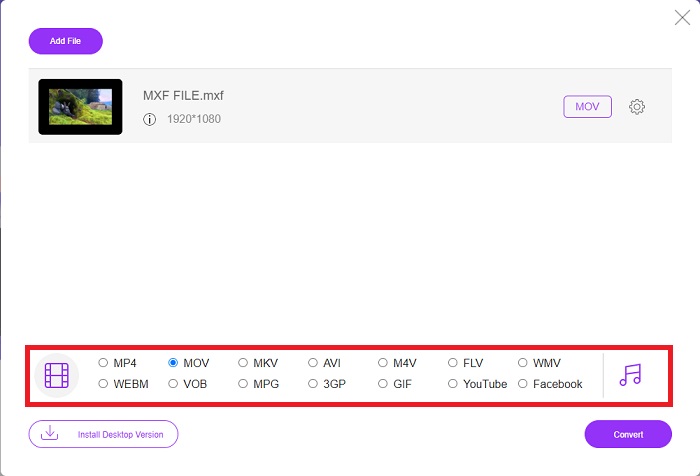
שלב 3. לאחר שבחרת את פורמט MOV שבו ברצונך להשתמש, לחץ עליו כדי להתחיל את תהליך ההמרה.
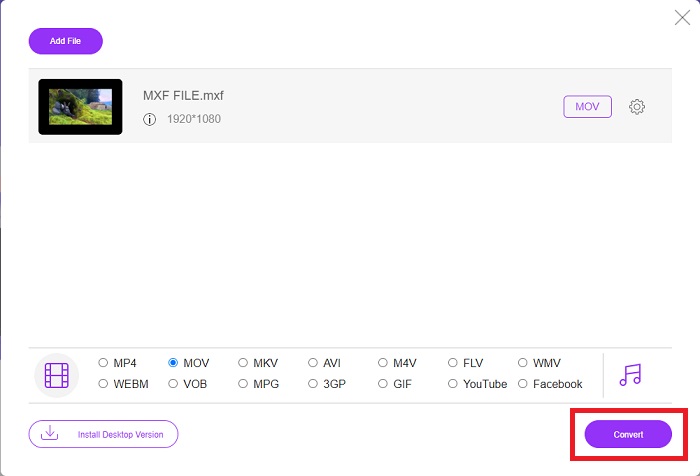
שלב 4. תוכל להתחיל את תהליך ההמרה על‑ידי לחיצה על כפתור Convert לאחר שבחרת את פורמט MOV.
שלב 5. כעבור כמה דקות, כשתופיע בתיקייה שעל שולחן העבודה של המחשב שלך, תוכל להתחיל לצפות בקובץ המומר על‑ידי לחיצה עליו.
חלק 4. שאלות נפוצות לגבי המרת MXF ל-MOV
האם MXF זהה ל-MOV?
גם בעולם הדיגיטלי זו בעיה. פורמט להחלפת חומרים ופורמט וידאו QuickTime שניהם נופלים תחת מונח המטריה 'פורמטים של מיכל'. כאשר תוכנת וידאו תומכת בפורמט קונטיינר נתון, היא יכולה להשתמש בכלים סטנדרטיים כדי לתפעל את הקונטיינרים, כגון פתיחת הקובץ, חיפוש נקודת זמן מסוימת והפעלה או העברה מהירה קדימה או אחורה, תוך שימוש בתקנים וספריות זמינים בדרך כלל. אין צורך בפורמט קובץ חדש או ספריות חדשות לטיפול במדיה.
האם MOV גולמי?
כאשר עובדים עם וידאו RAW, סוגי הקבצים הנפוצים ביותר הם AVI (.avi) ו-MOV (.mov); מכיוון שהם וידאו לא דחוסים, גדלי הקבצים שלהם יכולים להיות גדולים במיוחד - עד גיגה-בייט או יותר, תלוי באורך ואיכות הסרטון.
מה זה MXF file Pro Tools?
באמצעות יכולות Quicktime של Pro Tools, SoundCode Exchange MXF יכול להחליף קבצי MXF. Pro Tools יכול להמחיש קבצי MXF כסרטי Quicktime הודות לרכיב Quicktime וכלי עזר לגרירה ושחרור. ניתן ליצור רצועת וידאו תוך שניות באמצעות תכונת Quicktime Import של Pro Tools, שיכולה להפעיל קובצי MXF בחדות גבוהה או בהגדרה סטנדרטית. באמצעות כרטיס מסך של Blackmagic, כעת תוכל לראות את הצילומים כחלון ב-Pro Tools או פלט לתצוגה חיצונית. במקביל, ניתן לייבא רצועות שמע MXF כקובצי WAV לעריכה ומיקס ב-Pro Tools.
סיכום
לסיכום, עומד לרשותך מגוון רחב של אפשרויות, בין אם אתה משתמש בתוכנה ובין אם בשירות אינטרנטי, כדי להמיר את הווידאו שלך מפורמט אחד לאחר. עם זאת, מבחינת האפשרויות או הנוחות שהם מספקים, הם עדיין משלימים זה את זה. יש כאלה שפשוט מבצעים את ההמרה, ואחרים מציעים מגוון פונקציות. מאמר זה מתמקד בכך, כדי לסייע לך להחליט באיזה מהם להשתמש בהתאם למצבך. מאחר שלא ניתן לדעת מתי תזדקק לחלק מהפונקציות הנוספות הללו – היפוך (reversing), שיפור, מיזוג וכדומה – אנו ממליצים בעיקר על Video Converter Ultimate. במקום לחפש כל הזמן ממיר באינטרנט, תוכל לשמור את התוכנה הזו על המחשב שלך באופן קבוע.
-
 4 דרכים חינם להמרת מצלמת וידאו MXF ל MP4 להשמעה אוניברסלית
 פוסט זה הוא המדריך המפורט להמרת MXF ל MP4 במחשב. אתה יכול לקבל 4 ממירי MXF ל- MP4 בחינם כדי להמיר מצלמת וידאו MXF ל- MP4 בשלבים פשוטים.
-
 4 ממירי ה-MXF המובילים ביותר להמרת MXF ל-AVI [בחינם ובתשלום]
 מהו קובץ MXF? כיצד להמיר MXF ל-AVI? אלו השאלות המועטות שאנו עונים עליהן. אז, אם יש לך את אותה שאלה, קרא את המאמר הזה.
-
 כיצד להמיר AVI ל- MOV בעזרת צעדים וכלים פשוטים
 האם אתה רוצה לדעת איך להמיר AVI ל-MOV שניתן לשחק? עליך לעקוב אחר מאמר זה כדי לדעת כיצד לעשות זאת וטיפים לביצוע המרה מוצלחת.
