מדריך למשתמש

פתרונות המרת וידאו / אודיו

להתחיל

ממיר אודיו FLV חינם ל- FVC הוא ממיר הווידיאו לאודיו החינמי הטוב ביותר. זה יכול לחלץ רצועות שמע מקובץ הווידאו FLV. יתרה מכך, הוא תומך בהמרת קבצי שמע בין פורמטי שמע שונים.
ממשק ראשי

הורד והתקן

הורד את חבילת ההתקנה על בסיס מערכת ההפעלה של המחשב שלך. לאחר מכן, לחץ פעמיים על קובץ ההתקנה ופעל לפי הוראות המסך להתקנת התוכנית.

העדפות

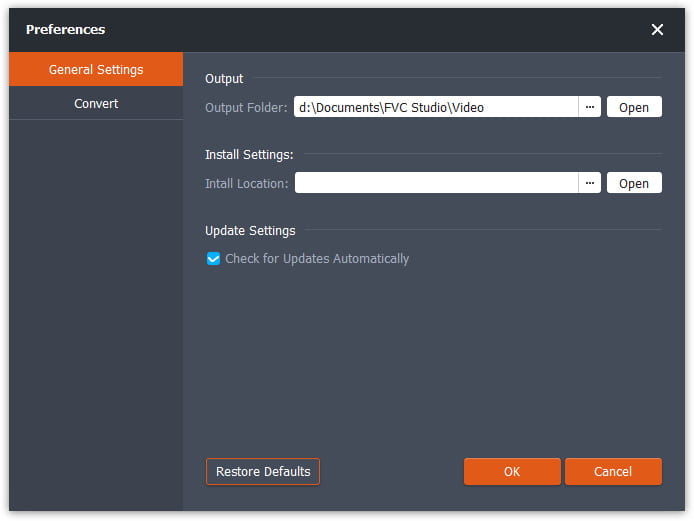
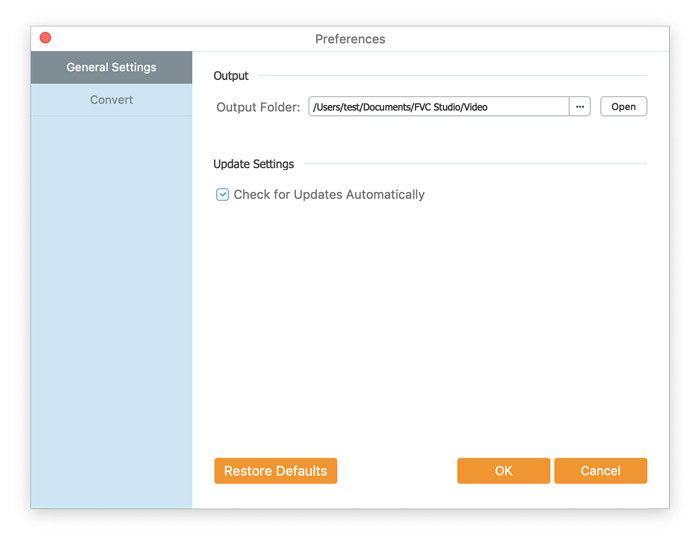
Before you start the conversion, it’s recommended to tweak the default settings. You can click the Menu icon and click on Preferences… to configure the specific settings. For example, you are free to choose the output folder to store your converted files.

העדפות

המר FLV לאודיו

עכשיו אתה יכול לבצע את השלבים הבאים כדי להמיר קבצי FLV לפורמטים שמע.

Step 1. Launch FVC Free FLV to Audio Converter

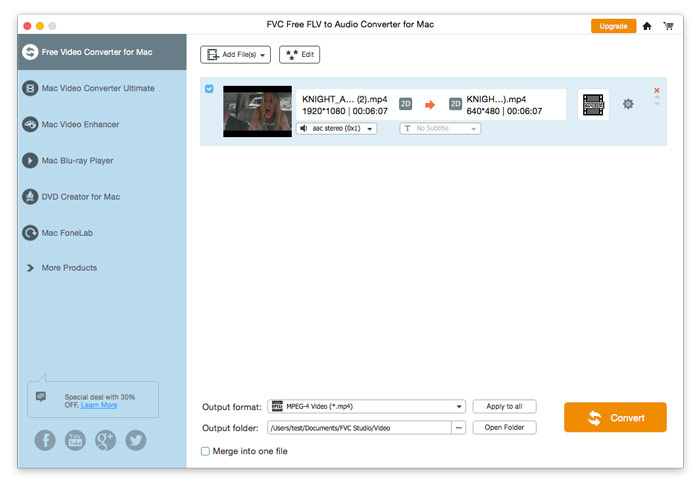
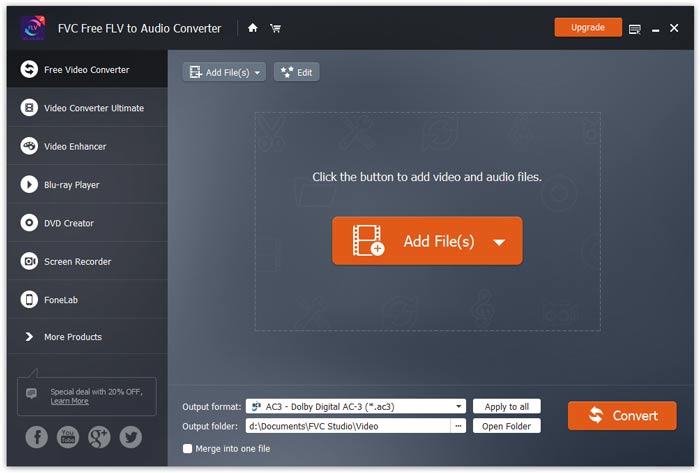
הפעל את FVC Free FLV ל- Audio Converter, ותראה את הממשק הנקי שלו.

ממשק ראשי

Step 2. Add an FLV file into the program

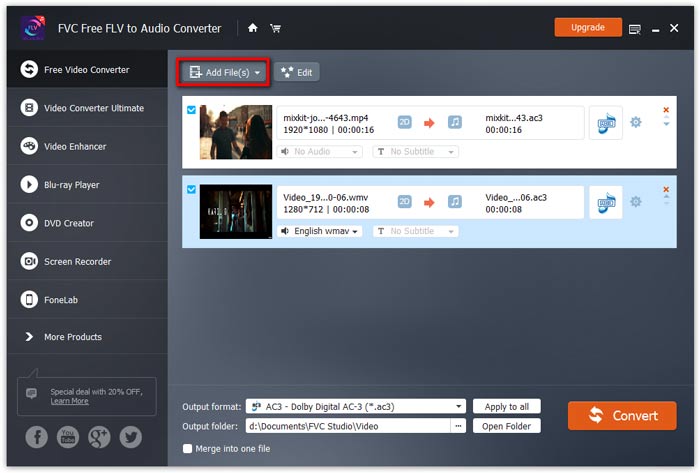
Click the Add File(s) button and choose FLV files you want to process in the dialogue opening subsequently. After the files are added to the program, they will be displayed on the file list.

הוסף קבצי FLV

Step 3. Select the output format

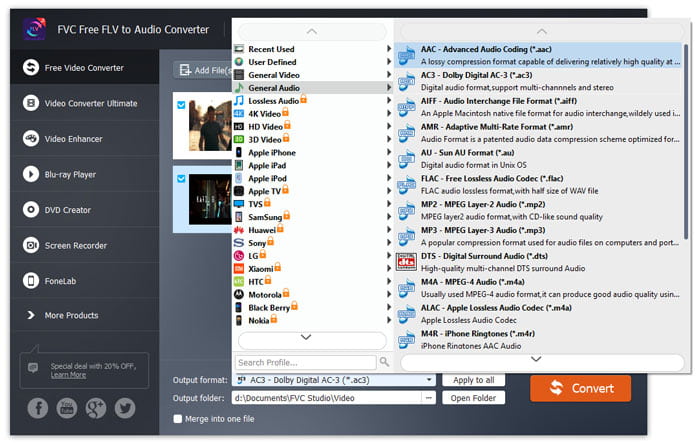
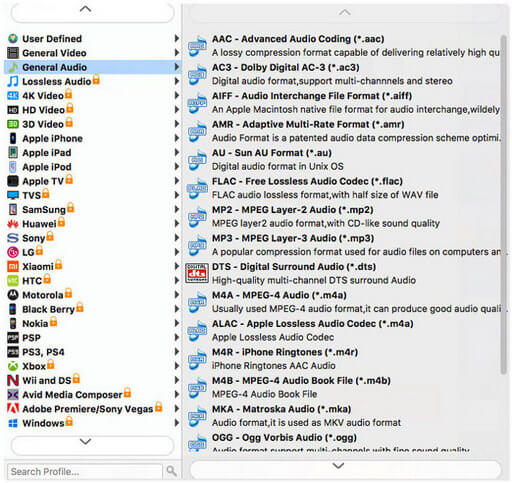
Click to open Output format drop-down list, then choose the audio format from the General Audio profile list. It can convert your FLV files to MP3, WMA, AAC, M4A, and so on.

בחר פורמט שמע

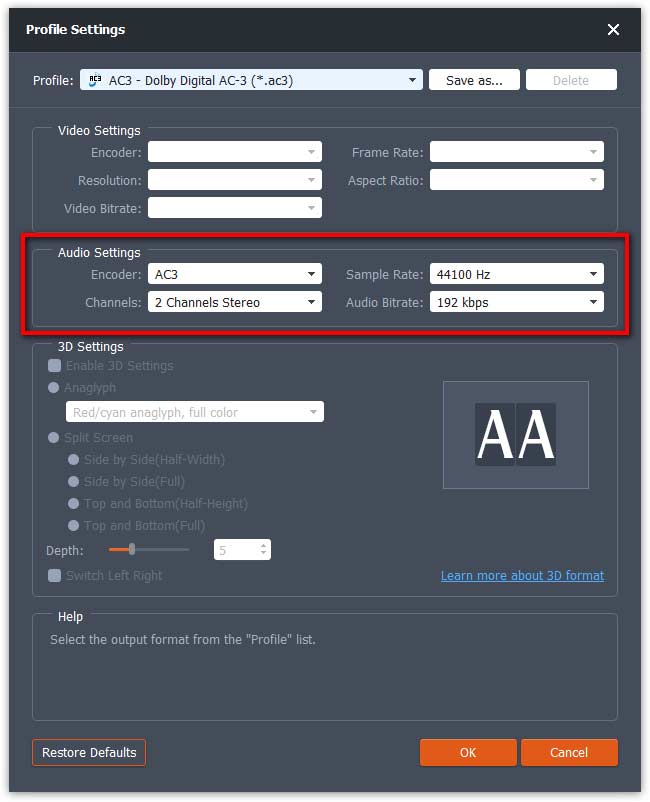
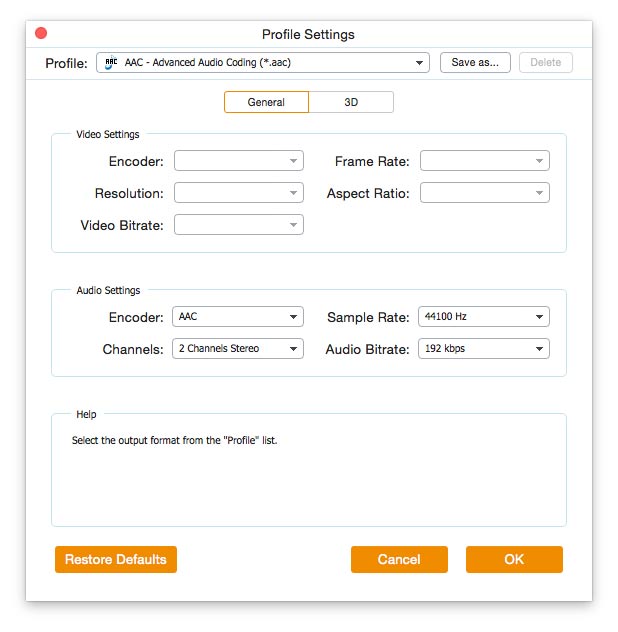
If you’re not satisfied with the original profile parameter settings, you can click the Cogwheel icon and adjust the encoder, channel, sample rate, and audio bitrate in the Profile settings window.

הגדרות פרופיל

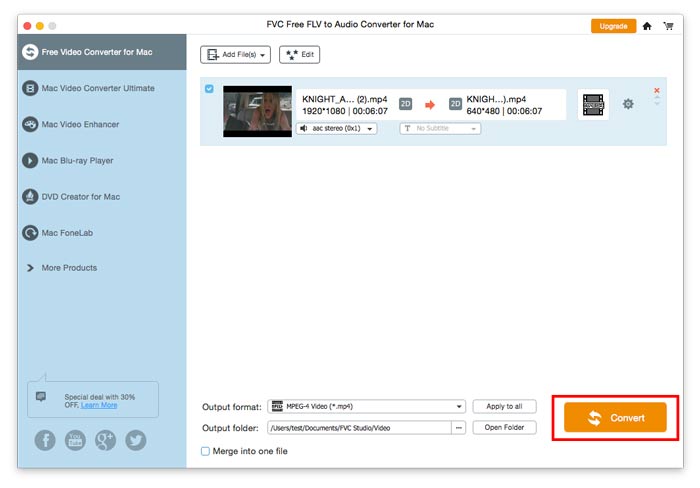
Step 4. Start converting FLV to Audio

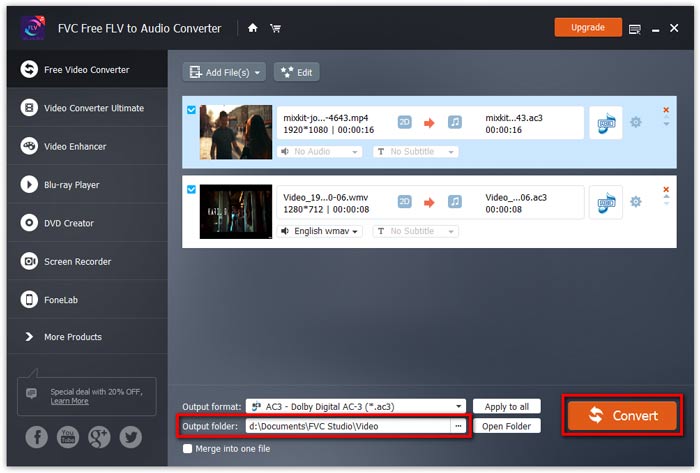
Go to Output folder to choose the destination folder for saving output files, and then click OK button to return to the main window. Finally, click the Convert button to start the conversion.

התחל המרה

מדריך למשתמש

פתרונות המרת וידאו / אודיו

להתחיל

ממיר אודיו FLV חינם ל- FVC הוא ממיר הווידיאו לאודיו החינמי הטוב ביותר. זה יכול לחלץ רצועות שמע מקובץ הווידאו FLV. יתרה מכך, הוא תומך בהמרת קבצי שמע בין פורמטי שמע שונים.
ממשק ראשי

הורד והתקן

הורד את חבילת ההתקנה על בסיס מערכת ההפעלה של המחשב שלך. לאחר מכן, לחץ פעמיים על קובץ ההתקנה ופעל לפי הוראות המסך להתקנת התוכנית.

העדפות

Before you start the conversion, it’s recommended to tweak the default settings. You can click the Menu icon and click on Preferences… to configure the specific settings. For example, you are free to choose the output folder to store your converted files.

העדפות

המר FLV לאודיו

עכשיו אתה יכול לבצע את השלבים הבאים כדי להמיר קבצי FLV לפורמטים שמע.

Step 1. Launch FVC Free FLV to Audio Converter

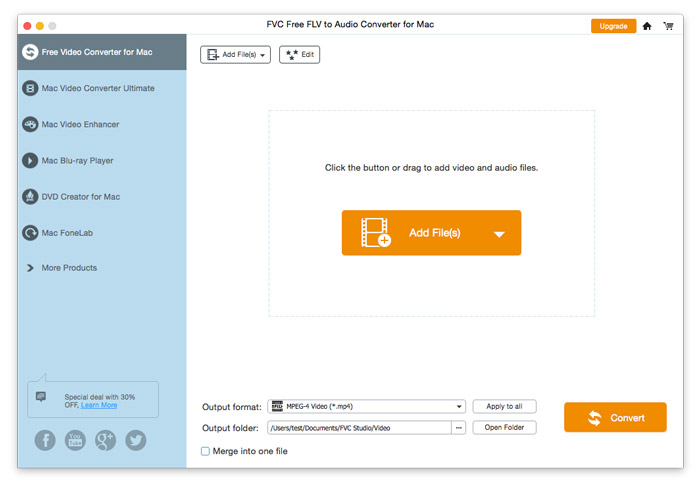
הפעל את FVC Free FLV ל- Audio Converter, ותראה את הממשק הנקי שלו.

ממשק ראשי

Step 2. Add an FLV file into the program

Click the Add File(s) button and choose FLV files you want to process in the dialogue opening subsequently. After the files are added to the program, they will be displayed on the file list.

הוסף קבצי FLV

Step 3. Select the output format

Click to open Output format drop-down list, then choose the audio format from the General Audio profile list. It can convert your FLV files to MP3, WMA, AAC, M4A, and so on.

בחר פלט שמע

If you’re not satisfied with the original profile parameter settings, you can click the Cogwheel icon and adjust the encoder, channel, sample rate, and audio bitrate in the Profile settings window.

הגדרות פרופיל

Step 4. Start converting FLV to Audio

Go to Output folder to choose the destination folder for saving output files, and then click OK button to return to the main window. Finally, click the Convert button to start the conversion.

התחל המרה