


 ממיר וידאו אולטימטיבי
 מקליט מסך
 תיקון וידאו
 הורדה מאובטחת
כיצד לשנות גודל של תמונה או תמונה ב-Word [2 דרכים]
כשאנחנו מייבאים תמונות ב‑Microsoft Word, לפעמים הן נשארות בגודל המקורי שממנו הגיעו. לעיתים קרובות איננו זקוקים לגודל המקורי במסמך, משום שהוא פוגע בזרימה של מה שאנחנו עובדים עליו. נוסף על כך, כאשר יש תמונה גדולה במסמך, בדרך כלל גם גודל הקובץ גדול, ואיננו רוצים זאת לקובץ שלנו. לכן, במאמר זה נלמד אתכם שתי שיטות לאיך לשנות גודל של תמונה או איור ב‑Word. ניתן גם לשנות גודל של תמונה באמצעות FVC Free Image Upscaler. אז התרווחו וקחו כוס קפה בזמן שאתם קוראים דף זה.

חלק 1. כיצד לשנות גודל תמונה ב-Word
Microsoft Word הוא מעבד תמלילים מסחרי פופולרי שמיקרוסופט מפתחת. עם Microsoft Word, אתה יכול ליצור מסמכים שאתה יכול לשתף עם אחרים או לפרסם בפלטפורמות שונות. אנשי מקצוע רבים משתמשים בתוכנית זו בתחום עבודתם. ויש פעמים שאתה צריך לשנות את גודל התמונה שייבאת לאפליקציה. לכן, קרא חלק זה ללא הרף אם ברצונך לשנות את גודל התמונה שלך ב- Microsoft Word.
שיטה 1
לעתים קרובות, הטעות שלנו בעבודה עם התמונות ב-Word היא שאנו משנים רק את גודל הגובה או הרוחב של התמונה, לא את שניהם. כאשר אנו משנים את גודל התמונות, אסור לנו לעוות את התמונה. לכן, כאשר אנו משנים את גודל התמונה, עלינו לוודא שהרוחב והגובה של הגודל המנוגד יתאימו אוטומטית. זה מדבר על יחס הגובה-רוחב של התמונה.
שלב 1. אם Microsoft Word עדיין לא מותקן במחשב השולחני שלכם, הורידו אותו כעת. לאחר מכן פתחו מסמך קיים שמכיל תמונה, או צרו מסמך חדש והוסיפו בו תמונה. כדי להוסיף תמונה, עברו אל Insert > Pictures, ואז פתחו תמונה מתיקיות המחשב שלכם.
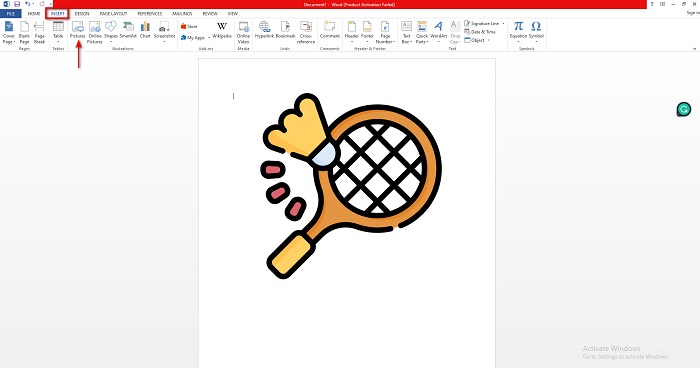
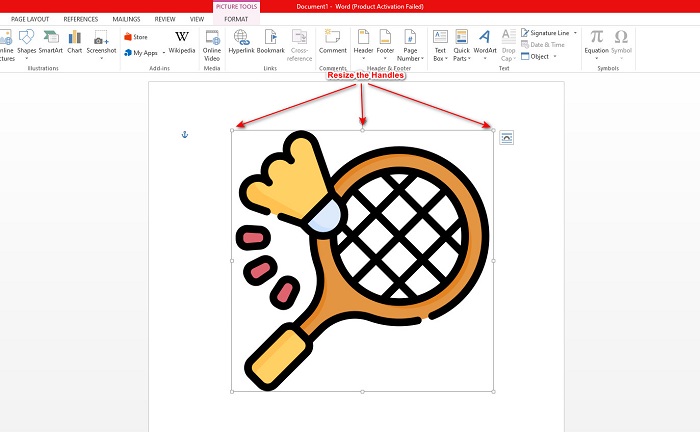
שלב 2. לאחר מכן, לחצו על התמונה כך שיופיעו ידיות שינוי הגודל. כעת תראו שהלשונית Picture Tools > Format מופיעה בRibbon. לחצו עליה כדי להציג את האפשרויות הזמינות.
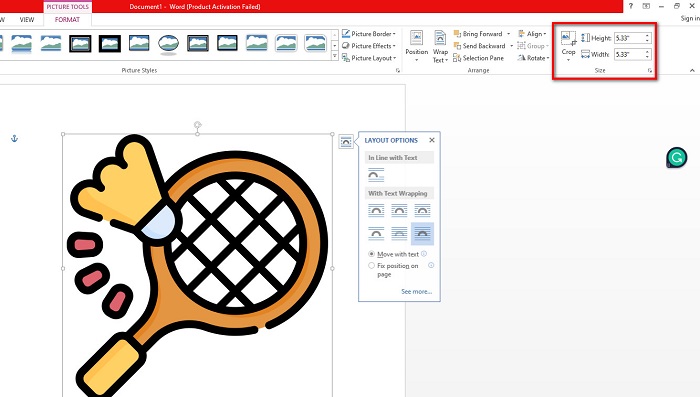
שלב 3. לאחר מכן, ברגע שלחצתם על Format, תוכלו להשתמש בפונקציות שבקבוצת Size כדי להזין את הגודל המדויק של הגובה או הרוחב של התמונה. תוכלו לסמן את החצים up ו‑down הצמודים לheight ולwidth כדי לכוונן את הגודל בהתאם להעדפתכם.
שלב 4. אולם אם ברצונכם להתאים את גודל התמונה באופן ידני, תוכלו להשתמש בעכבר ולהחזיק ולגרור ידיות שינוי הגודל. גררו את הידיות לכיוון מרכז התמונה אם ברצונכם להקטין או לצמצם את הגודל. גררו את הידיות לכיוון קצה המסך אם ברצונכם להגדיל את התמונה או להגדיל את הגודל.
שלב 5. זכרו תמיד שכאשר אתם משנים ידנית את גודל התמונה ב‑Word, עדיף להשתמש בידיות שבפינות. כך תבטיחו שגם הגובה וגם הרוחב של התמונה ישתנו בו‑זמנית וישמר יחס הגובה‑רוחב של התמונה שלכם.
שיטה 2
אפשרות נוספת שבה אתה יכול להשתמש כדי לשנות את גודל התמונה באמצעות Microsoft Word היא באמצעות אחוזים. אם אתה רוצה לשנות את גודל התמונה שלך עם הפרופורציה המדויקת באמצעות אחוזים, אתה יכול להשתמש בשיטה זו.
שלב 1. בחרו את התמונה שברצונכם לשנות את גודלה באמצעות לחיצה שמאלית על התמונה.
שלב 2. לאחר מכן עברו ללשונית Picture Format, ואז סמנו את Position ולאחר מכן More Layout Options.
שלב 3. לאחר מכן לחצו על לשונית Size. ובחלונית Scale, סמן את התיבה Lock Aspect Ratio. כעת תוכלו להזין את האחוזים הרצויים לגובה ולרוחב התמונה שלכם.
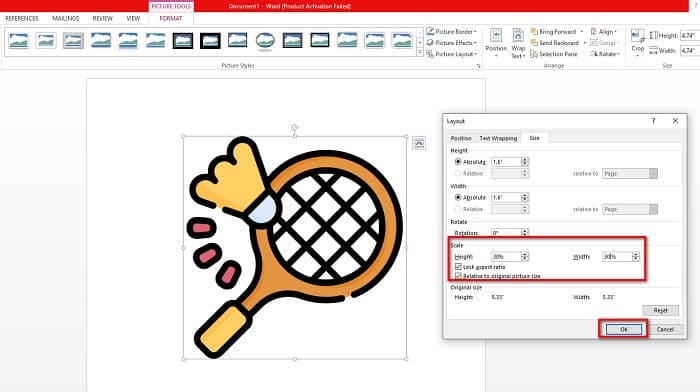
שלב 4. לבסוף, לחצו על OK כדי לשמור את השינויים שביצעתם בגודל התמונה.
חלק 2. כיצד לשנות גודל תמונה באינטרנט
אנחנו מכוסים את הגב שלך אם אתה רוצה להשתמש ביישום מקוון כדי לשנות את גודל התמונה. בחלק זה, נראה לך את סרייזר התמונות המקוון הטוב ביותר וכיצד תוכל להשתמש בו כדי לשנות את גודל התמונה שלך.
FVC Free Image Upscaler הוא כלי מקוון לשינוי גודל תמונות, שאפשר להשתמש בו כדי להתאים את גדלי התמונות. תוכלו לשנות את גודל התמונה בעזרת כלי זה באמצעות שינוי או העלאת ההגדלה (magnification) של התמונה. לדוגמה, אם יש לכם תמונה מטושטשת, תוכלו להשתמש ב‑FVC Free Image Upscaler כדי לשפר אותה. בנוסף, טכנולוגיית ה‑AI (בינה מלאכותית) שלו מזהה את החלקים באיכות נמוכה בתמונה ולאחר מכן משפרת אותם. כמו כן, כלי מקוון זה תומך בפורמטי התמונה הנפוצים ביותר, כגון PNG, JPG, JPEG ו‑WebP. זהו גם יישום ידידותי למתחילים משום שממשק המשתמש שלו פשוט ונוח לשימוש.
יתר על כן, אתה יכול לשפר את התמונה שלך על ידי הגדלה של 2x, 4x, 6x ו-8x. ואם אתה רוצה לבדוק את התוצאה לפני שמירת הפלט, הכלי הזה מאפשר לך לקבל את התצוגה המקדימה של הפלט שלך. מה שאפילו מצוין ב-FVC Free Image Upscaler הוא שהוא בטוח לשימוש ולא ידרוש ממך להיכנס לחשבון.
כיצד לשנות גודל תמונה באינטרנט באמצעות FVC Free Image Upscaler
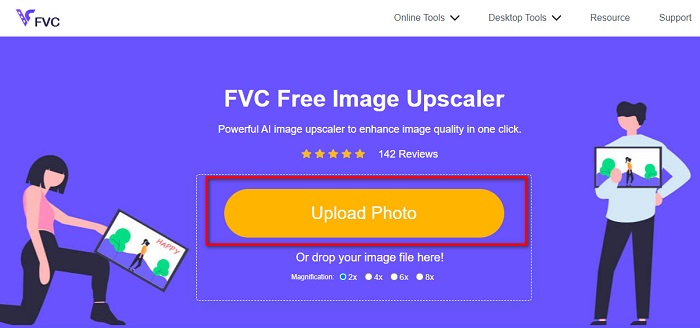
שלב 1. פתחו את הדפדפן שלכם וחפשו את FVC Free Image Upscaler בתיבת החיפוש. תוכלו גם ללחוץ על קישור זה כדי להגיע ישירות לדף הראשי שלהם. לאחר מכן לחצו על הכפתור Upload Photo כדי להפעיל את התוכנית במכשיר שלכם.
שלב 2. לאחר מכן, לחצו שוב על הכפתור Upload Photo כדי לייבא את התמונה שברצונכם לשנות את גודלה. בקבצי המחשב שלכם, מצאו את התמונה ואז לחצו על Open כדי להעלות אותה.
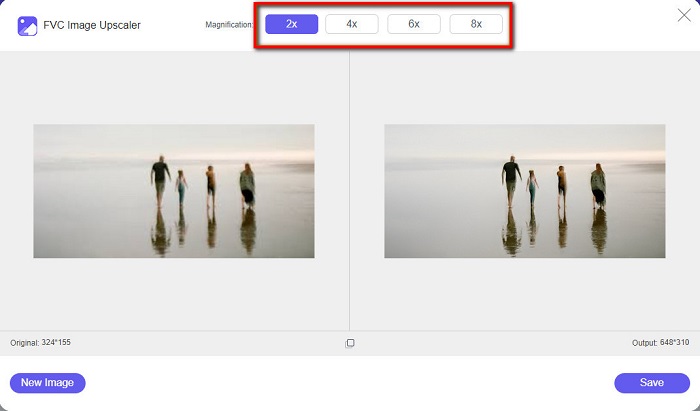
שלב 3. לאחר מכן, בחרו את רמת ההגדלה הרצויה לתמונה שלכם. ניתן לבחור בין 2x, 4x, 6x ו‑8x. זכרו תמיד: ככל שרמת ההגדלה גבוהה יותר, כך גודל הקובץ יהיה גדול יותר.
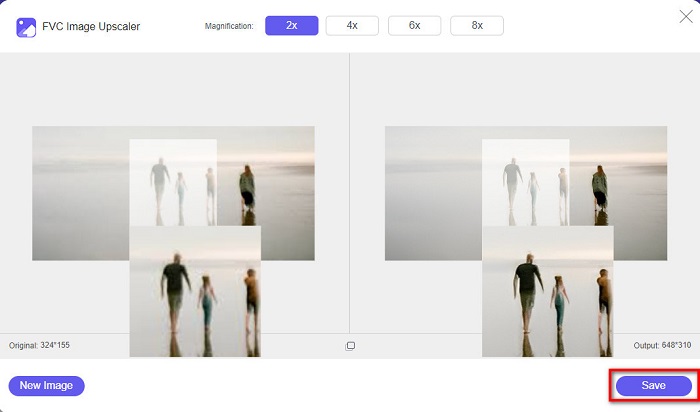
שלב 4. כדי להציג תצוגה מקדימה של הפלט, גררו את הסמן בצד הימני של התמונה כדי לראות את השינויים והשיפורים. לחצו על הכפתור Save כשתהיו מרוצים מהתוצאה של מקטין התמונות (photo resizer) הזה.
חלק 3. שאלות נפוצות לגבי איך לשנות גודל תמונה ב-Word
האם התמונה תהיה מטושטשת לאחר שאשנה את גודלה ב-Microsoft Word?
לא. כאשר אתם משנים את גודל התמונה שלכם ב‑Microsoft Word, איכות התמונה אינה נפגעת. אבל אם אתם נתקלים בבעיה כזו, ייתכן שהתמונה מטושטשת בגלל בעיית דחיסה.
האם גודל הקובץ יקטן אם אכווץ את התמונה שלי ב-Word?
כן. גודל קובץ המסמך שלך עשוי להקטין אם תכווץ את התמונה שבו. תמונות המיובאות למסמך עשויות להיות ברזולוציה גבוהה. לכן, כאשר תשנה גודל תמונה, גודל המסמך כולו יושפע.
האם אוכל לשנות גודל תמונה באקסל?
כמובן. ניתן לשנות גודל של תמונה או אובייקט שיובאו באקסל על ידי לחיצה על התמונה והתאמת הכידון.
סיכום
מאוד קל לשנות גודל של תמונה ב‑Word, במיוחד אם אתם עוקבים אחר השלבים לעיל. בפעם הבאה שתייבאו תמונה ל‑Word ותרצו להתאים את הגודל, תדעו מה לעשות. אך אם אתם מעדיפים להשתמש ביישום מקוון כדי לשנות גודל של תמונה עבור Word, תוכלו להשתמש ב‑FVC Free Image Upscaler.
-
 5 ממכוני ה-GIF הטובים ביותר הזמינים בכל הפלטפורמות #91;2022]
 רוצה לדעת את מכשירי שינוי ה-GIF שבהם אתה יכול להשתמש? במקרה כזה, המידע שסופק להלן ידבר על השינויים שבהם אתה יכול להשתמש ב-GIF שלך בכל הפלטפורמות.
-
 אפליקציית Photo Resizer הטובה ביותר באינטרנט, לא מקוון, אנדרואיד ואייפון
 מהן האפליקציות הטובות ביותר לשינוי גודל התמונות? לחץ על הדף כדי ללמוד את חמשת האפליקציות העוצמתיות ביותר לשינוי גודל התמונות שבהן תוכל להשתמש כדי לשפר או לשנות את גודל הקובץ שלך.
-
 כיצד לשנות גודל תמונה ב-PowerPoint [הדרך המהירה ביותר לשנות גודל]
 ללמוד כיצד לשנות את גודל התמונות ב-PowerPoint הוא חיוני במיוחד אם אתה רוצה להשתמש בו במצגת שלך. קרא את המאמר הזה כדי לדעת איך לעשות את זה.
