


 ממיר וידאו אולטימטיבי
 מקליט מסך
 תיקון וידאו
 הורדה מאובטחת
מדריך מקיף לייצוא iMovie ל-MP4
iMovie is one of the most used and popular video editing tools developed by Apple for Mac, iPhone, and iPad users. This tool has a good set of editing features that any editor would love to have. But on the other side, there’s one thing that users are kind of struggling with. Videos from this tool are being exported to MOV format. This default format can impose limitations when it comes to compatibility with other devices and platforms. With this, most users have to convert MOV files to another globally recognized format like MP4 to be able to play it on other video players. So, if you’re also looking for ways to export iMovie to MP4, then read this entire article.

חלק 1: כיצד לייצא iMovie ל-MP4 ב-Mac
כשזה מגיע לייצוא סרטונים מ-iMovie, יש הרבה פורמטי פלט לבחירה. רק שהתרגלנו לפורמט MOV המוגדר כברירת מחדל. עם זה, אנחנו בדרך כלל נתקלים בבעיות תאימות בעת הפעלת סרטון שיוצא ממנו. אז, ללמוד כיצד לייצא iMovie ל-MP4 הופך להיות דבר מכיוון שהפורמט הזה נמצא בשימוש נרחב ונתמך בעיקר על ידי כל המכשירים הדיגיטליים ונגני המדיה. כדי לייצא iMovie ל-MP4 ב-Mac, בצע את השלבים הבאים:
Step 1. First, launch the iMovie on your Mac.
Step 2. Next, import your video into the software by clicking the Import Media button.
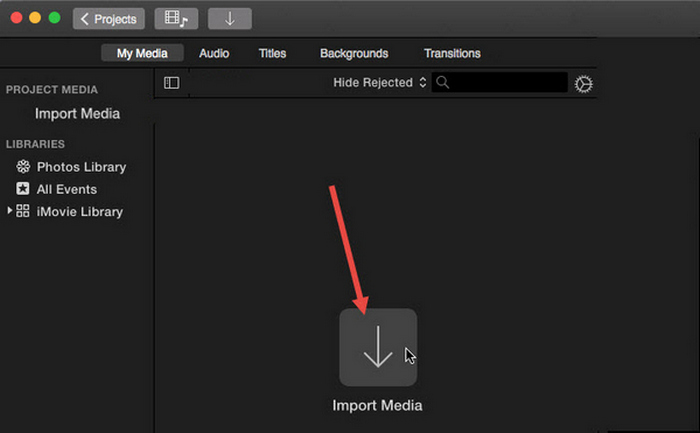
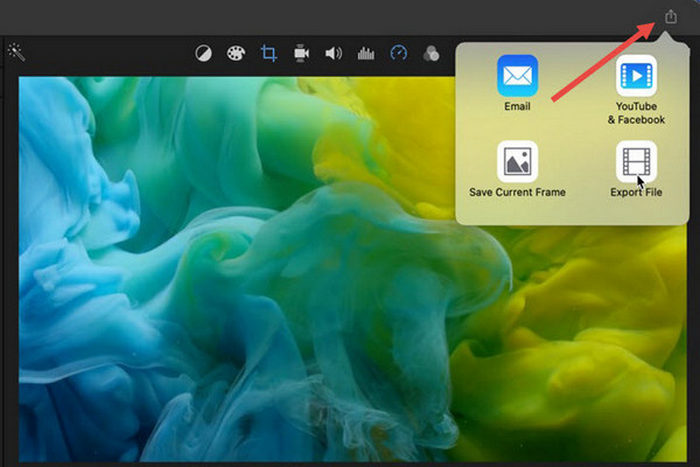
Step 3. Now, at the top toolbar, click on the File button, go to Share, then to File, or at the preview window, click the Share icon and then choose the File option in the pop-up dialog.
Step 4. Choose Video and Audio in the new pop-up file window as the output format, and adjust resolution, quality, and other parameters based on your needs.
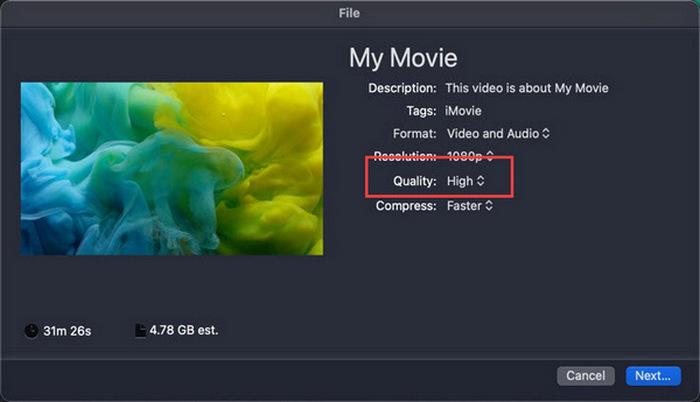
Note: Don’t select the ProRes quality option if you desire to export the video file in MP4 format because it will be saved in MOV format.
Step 5. Lastly, click the Next button and name the iMovie MP4 file you are going to export. Don’t forget to select an output directory and click Next to save it as MP4.
יש באמת דרך לייצא iMovie ל-MP4 ישירות מ-Mac. עם זאת, התהליך עשוי להיראות מעט מסובך, במיוחד כאשר עוסקים בפורמט הקובץ המוגדר כברירת מחדל בעת שמירת הסרטון.
If you want to use iMovie on Windows, do not miss this post here.
חלק 2: כיצד לתקן את ייצוא iMovie לא עובד [פתרון נפוץ]
יכולות להיות מספר סיבות לכך שיצוא iMovie אינו פועל כראוי. להלן כמה פתרונות וחלופות לטיפול בבעיית הייצוא של iMovie לא עובד:
פתרון 1: בדיקת שטח האחסון
אחת הסיבות השכיחות לבעיות ייצוא של iMovie היא חוסר שטח דיסק ב-Mac שלך. אם אתה נתקל בבעיות בייצוא סרטונים, התחל בבדיקת זמינות האחסון שלך.
For macOS Ventura or later: Navigate to the Apple menu logo, choose System Preferences, click General, and then select Storage on the right-hand side.
For earlier macOS versions: Access the Apple menu logo, then click on About This Mac and go to Storage.
לאחר מכן, אם האחסון ב-Mac שלך אוזל, שקול למחוק קבצים או אפליקציות מיותרות כדי לפנות מקום. לאחר שעשית זאת, חזור אל iMovie ונסה לייצא שוב.
פתרון 2: בדוק פעמיים את שם הקובץ
אם iMovie נכשל לייצא סרטון לאחר ניסיון לייצא מספר פעמים, חיוני לסקור את שם הקובץ בהגדרות הפלט כדי לוודא שהוא אינו כולל תווים מיוחדים כמו מקפים, קווים נטוייים, פסיקים וכו'. בדרך כלל, iMovie עושה זאת. לא תומך בתווים מיוחדים במתן שם לקובץ.
פתרון 3: הפעל מחדש את iMovie
Now, if the problem persists, try restarting the app and exporting the video again. But don’t forget to save your current project first. Now, to close iMovie completely, click the app icon and choose the Quit option. After that, launch the iMovie again, open a project, and check if it can now export videos. Also, try to restart the Mac to fix the problem.
פתרון 4: עדכן את iMovie
An outdated version of iMovie usually causes export failure due to some bugs and system issues that weren’t updated. To update iMovie, open the App Store, click on Updates on the left side, and check for updates available for iMovie, then click on it.
פתרון 5: התקן מחדש את iMovie
If other solutions fail to resolve the export problem, consider reinstalling iMovie. To uninstall iMovie from a Mac, open Launchpad and press the Option key, click and hold iMovie, then click the X button next to the app, and click Delete to confirm. Then, go to the App Store to download and install iMovie.
בונוס: כיצד לתקן את ייצוא iMovie לא עובד [דרך חלופית]
If none of the solutions work on your end, then it’s time for you to try this alternative way to fix the iMovie export not working problem. FVC Video Converter Ultimate is known for its comprehensive conversion capabilities, which give users the ability to convert videos into any format they prefer. But more than that, it has other features like the MV that was designed for users who wanted to edit videos. Like the iMovie, you just need to simply import the files that you want to edit, then utilize the editing features, like cropping and rotating the clips, adding effects and filters, as well as placing a music background to make it engaging, and more. After that, export the file to MP4.
יתר על כן, כלי זה תומך ברזולוציות HD/4K/8K, מה שמבטיח איכות פלט מהשורה הראשונה. והחלק הכי טוב? הוא פועל במהירות הבזק, ומשלים המרות מהר פי 120 משיטות אחרות.
Step 1. First, on your Windows or Mac computer, download and Install the FVC Video Converter Ultimate.
הורדה חינמיתל-Windows 7 ומעלההורדה מאובטחת
הורדה חינמיתל-MacOS 10.7 ומעלההורדה מאובטחת
Step 2. After that, when you’re on the tool’s interface, go to the MV tab.

Step 3. Now, click the Add File button to add the files that you want to convert to MP4.

Step 4. To add, edit, and trim your MP4 video, click the button at the upper part of the Add File button. Moreover, you can add a theme for your video by choosing from the list of pre-set themes from the Theme tab above.

Step 5. To further enhance the MP4 file that you are editing, you can add filters and effects to it by clicking the Edit icon below. Also, you can add a watermark to make the file personalized.

Step 6. Once done, click the Export button, where you can change the format to MP4 and change the frame rate, resolution, and quality.

Step 7. Lastly, to save your file, click on the Start Export button.
עם FVC Video Converter Ultimate, אינך צריך לדאוג כיצד להמיר את ה-iMovie שלך לקבצי MP4 כאשר הוא מיוצא בפורמט MOV. כמו כן, זוהי אלטרנטיבה מצוינת בכל פעם שאתה נתקל בבעיית ייצוא עם iMovie, מכיוון שזהו כלי עם כל התכונות. אתה יכול לקבל את כל מה שאתה צריך, במיוחד לגבי המרת קבצים מפורמט אחד לאחר.
חלק 3: כיצד לייצא iMovie ל-MP4 באייפד/אייפון
לאלו המשתמשים ב-iOS או ב-iPadOS ורוצים לייצא ולהמיר iMovie ל-MP4 באייפון או ב-iPad שלהם, הנה איך לייצא את iMovie ל-MP4 ב-iPad/iPhone.
Step 1. First, on your iPhone or iPad, open the iMovie app.
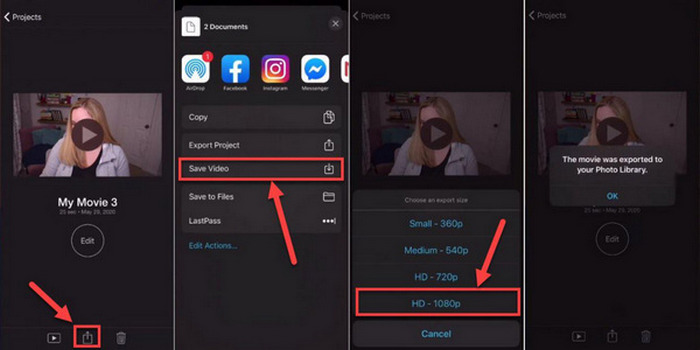
Step 2. After that, from the Projects tab, choose the project you want to export to MP4.
Step 3. Next, tap the Share button and select Export Project.
Step 4. Lastly, choose Save Video, then choose an export size and convert and save iMovie to MP4 on your iPhone or iPad.
בעת ייצוא והמרה של iMovie ל-MP4 ישירות באייפון או אייפד, זכור לוודא שיש לך מספיק שטח אחסון זמין במכשיר שלך כדי להכיל את קובץ ה-MP4 המיוצא, מכיוון שהדבר מוביל לבעיות ובעיות ייצוא.
חלק 4: שאלות נפוצות לגבי ייצוא iMovie ל-MP4
מדוע קובץ הווידאו iMovie שלי אינו תואם ל-QuickTime?
ייתכן שקובצי iMovie לא יהיו תואמים ל-QuickTime עקב הבדלים ב-codec או בפורמטים של קבצים. QuickTime תומך במגוון מצומצם של רכיבי codec וסוגי קבצים, כך שאם קובץ iMovie שלך משתמש ב-codec או פורמט שאינו נתמך על ידי QuickTime, עלולות להתעורר בעיות תאימות. כדי לפתור זאת, נסה לייצא את פרויקט ה-iMovie שלך בפורמט אחר או ב-Codec אחר התואם ל-QuickTime.
כמה זמן לוקח לייצא iMovie?
בדרך כלל לוקח פי 1.5 עד 2 מזמן ההשמעה של הפרויקט כדי לרנדר ולקודד במהלך תהליך הייצוא. גורמים כגון מורכבות הפרויקט, רזולוציית וידאו וכוח העיבוד של המכשיר שלך יכולים להשפיע על זמני הייצוא. בנוסף, ייצוא פרויקטים גדולים או מורכבים יותר עשוי להימשך זמן רב יותר מאשר פרויקטים קטנים או פשוטים יותר.
ייצוא iMovie ל-MP4 משפיע על איכות הסרטונים שלי?
ייצוא iMovie ל-MP4 לא אמור להשפיע באופן משמעותי על איכות הסרטונים שלך כל עוד תבחר בהגדרות הייצוא המתאימות. עם זאת, חיוני לוודא שתבחר את הגדרות הרזולוציה, קצב הסיביות והדחיסה הרצויות כדי לשמור על איכות הסרטונים שברצונך לייצא.
סיכום
Learning how to export iMovie to MP4 is important in ensuring compatibility and versatility in sharing your video projects across various devices and platforms. So, if you encounter any issues during the export process on your iMovie, be sure to explore the common solutions outlined here. Start exporting your iMovie projects to MP4 today with this guide.
-
 הדרכים הטובות ביותר להשתמש ב-iMovie ביצירת סרטוני וידאו בהילוך איטי [פתורה]
 האם אי פעם השתמשת ב-iMovie כדי להמיר את הווידאו במהירות הרגילה שלך להילוך איטי? זו ההזדמנות לדעת יותר על זה.
-
 כיצד לסנכרן אודיו ווידאו ב-iMovie באייפון וב-Mac
 נתקלת בבעיה בגלל שהאודיו והווידאו אינם מסונכרנים באייפון וב-Mac? אז עכשיו, בואו נמשיך כיצד להשתמש ב-iMovie על ידי קריאת מאמר זה.
-
 כיצד להוסיף סימן מים לסרטון ב-iMovie ב-Mac [הכל מחבק]
 האם אתה רוצה לדעת את הסודות של הוספת סימן מים לסרטון ב-iMovie? אל תשפוך את התה על אף אחד, ולמד אותו על ידי קריאת מאמר זה.
