


 ממיר וידאו אולטימטיבי
 מקליט מסך
 תיקון וידאו
 הורדה מאובטחת
מדריך פשוט כיצד ליצור חלק מסרטון בהילוך איטי ביעילות
רוב יוצרי הסרטים משתמשים בצילום במהירות גבוהה (overcranking) כדי שהווידאו יתנגן בהילוך איטי, אך בעיקר משתמשים בו בספורט לצורך הילוך חוזר מיידי. בשל האפקט האמנותי שהוא יוצר, כולם משנים את מהירות הווידאו לקצב הרצוי להם. במילים אחרות, הביקוש לעורך הילוך איטי התפשט מאוד בכל עולם האינטרנט, והצורך בבקר מהירות וידאו מושלם הלך וגבר. כדי לענות על הצורך שלך בבקר המהירות הטוב ביותר, נסקור את 3 בקרי המהירות המובילים שמצאנו בשוק, שמספקים אפשרויות משובחות לעריכת מהירות הווידאו. בנוסף לכך נכלול גם מדריך על איך להפוך חלק מהווידאו להילוך איטי בכל אחד מהכלים שבחרנו במיוחד עבורך.

חלק 1. הדרך הטובה ביותר לעשות חלק מסרטון בהילוך איטי [מומלץ מאוד]
עם הביקוש לבקר המהירות הטוב ביותר כדי להאט קליפ, FVC Video Converter Ultimate מספק את העזרה שתצטרך כדי להשלים את המשימה. ממיר אולטימטיבי זה מציע אפשרות ייחודית להאט את הווידאו שלך או לנגן אותו במהירות גבוהה, ואז ליישם זאת בפחות מכמה קליקים. אי־אפשר לטעות בשימוש בתוכנה, משום שהיא אחת התוכנות הקלות ביותר להבנה שתוכל להשתמש בהן, ויש לה ממשק משתמש נקי שמקל על ההבנה והארגון של הכול.
בנוסף לבקר המהירות שלו, אתה יכול גם להשתמש בתוכנה זו כדי לפצל ולמזג מספר סרטונים בו-זמנית. משתמשים רבים התמוגגו מהתוכנה הזו בגלל התכונות והפונקציות הרב-תכליתיות שהיא מעניקה לך. אז נניח שאתה רוצה להיות חלק מהקהילה המאושרת ולהתרשם מהתוכנה הזו. במקרה כזה, תוכל לקרוא את המדריך שלהלן כיצד להאט חלק מסרטון, אך ראשית, תצטרך להוריד ולהתקין את התוכנה ולאחר מכן לפתוח אותה כדי להתחיל.
הורדה חינמיתל-Windows 7 ומעלההורדה מאובטחת
הורדה חינמיתל-MacOS 10.7 ומעלההורדה מאובטחת
1. חתוך את החלק של הסרטון שברצונך להעביר לאט
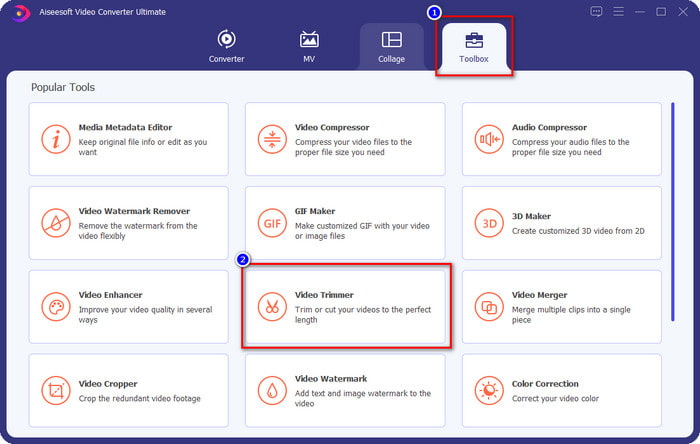
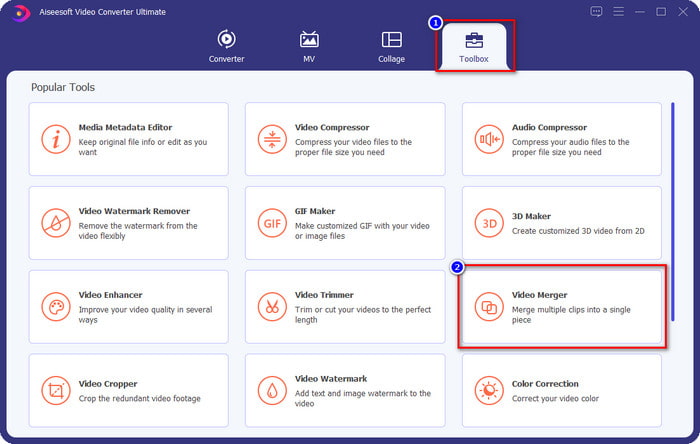
שלב 1. לאחר שתפעיל את התוכנה, עבור אל Toolbox ואתר שם את Video Trimmer.
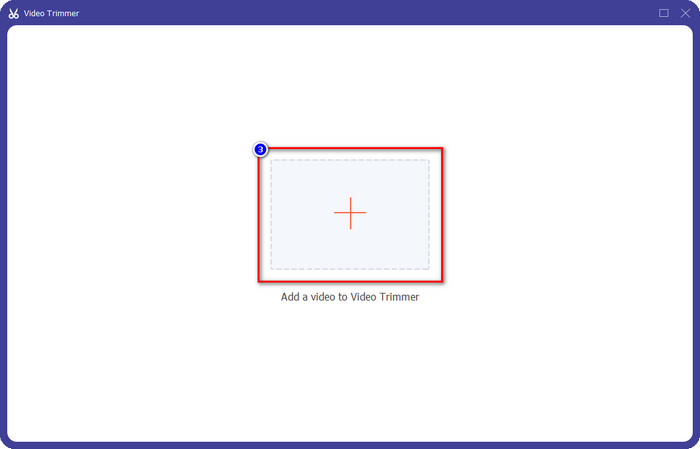
שלב 2. לחץ על סמל ה+ כדי להוסיף את הווידאו שברצונך לחתוך, אתר אותו בתיקייה שלך ולחץ על Open.
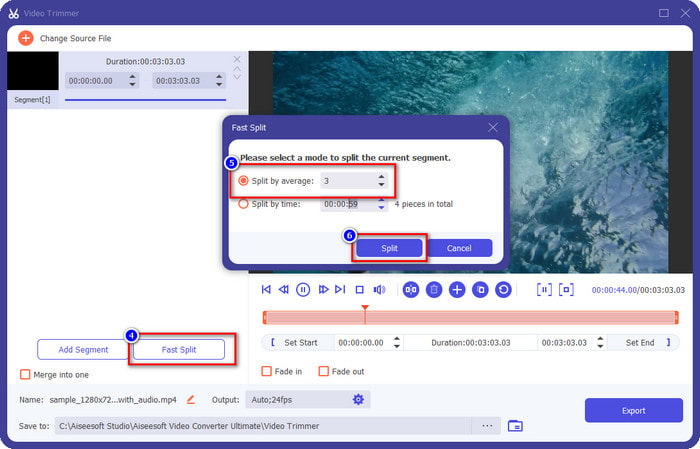
שלב 3. בחותך הווידאו, לחץ על Fast Split כדי לחלק את הווידאו שהוספת לקטעים, ושנה את מספר החלוקות לפי הווידאו הרצוי לך. אחרי שתקבע את מספר הקטעים של הווידאו, לחץ על Split.
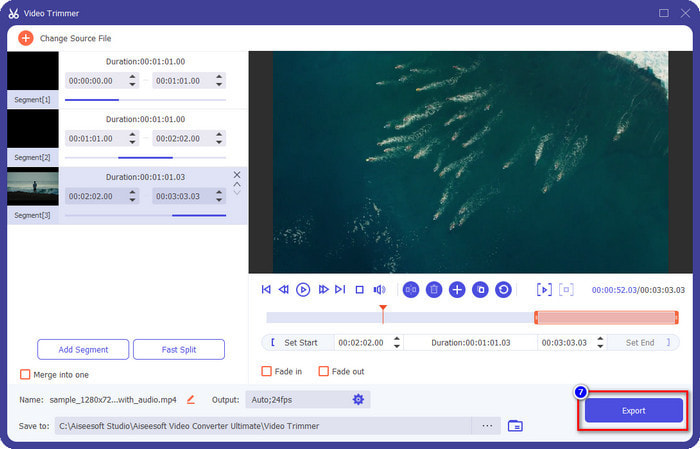
שלב 4. לחץ על כל אחד מהווידאוים כדי לבדוק אם אלו הם הקטעים הנכונים שאתה רוצה בהילוך איטי, ולאחר מכן לחץ על Export כדי לשמור את הווידאו בכונן שלך.
2. שנה את המהירות של הפלח שייצאת
שלב 1. חפש את Video Speed Controller כדי להאט את הקטע שחתכת קודם מתוך הToolbox.
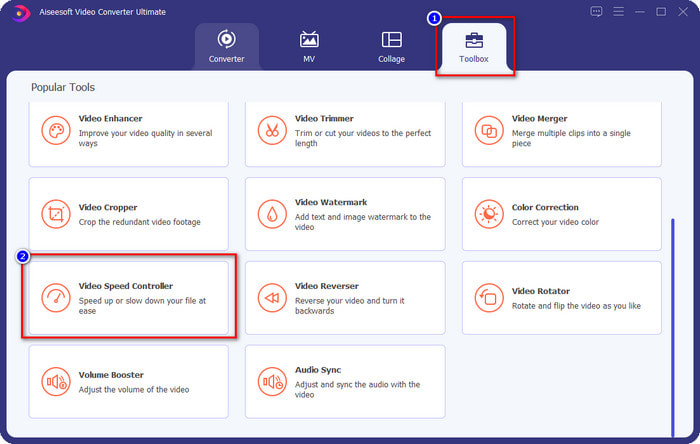
שלב 2. לחץ על כפתור ה+ כדי להוסיף קובץ וידאו, אתר את קובץ הווידאו שחתכת וברצונך להאט, ולחץ על Open כדי להעלות אותו.
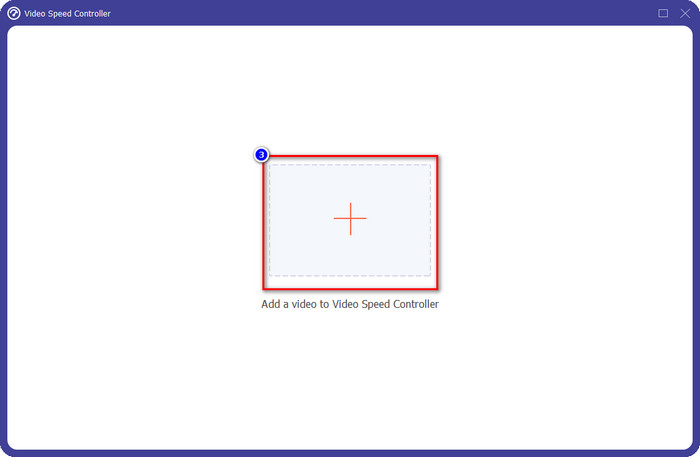
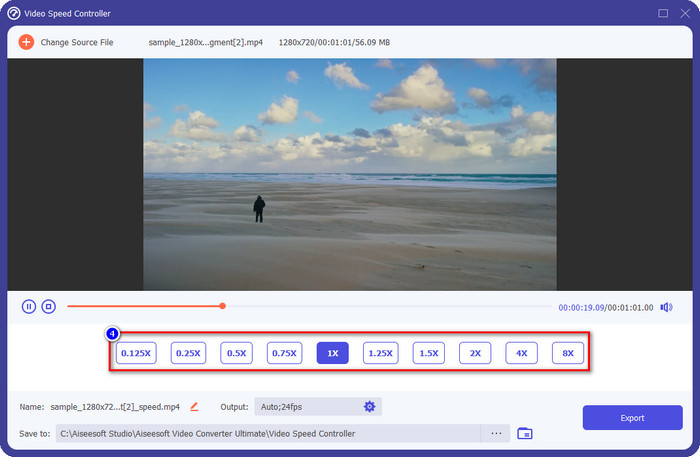
שלב 3. לאחר הכנסת הווידאו, בחר את אפקט ההילוך האיטי שברצונך להחיל על הווידאו שחתכת. מספר אפשרויות מהירות יופיעו על המסך. נסה את כולן כדי לראות איזו מהן משיגה את ההילוך האיטי הרצוי לך.
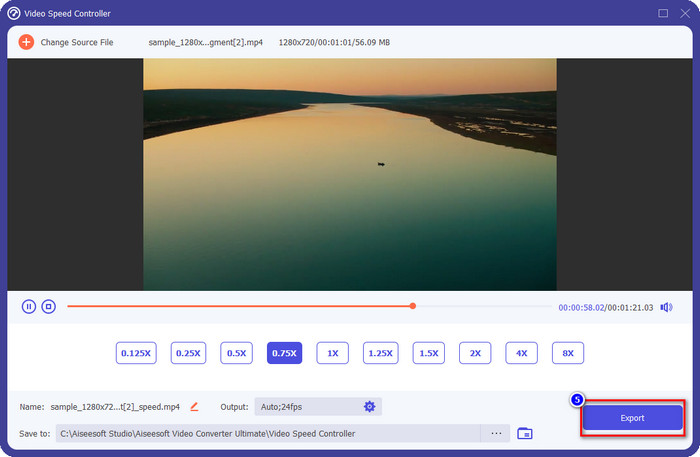
שלב 4. כדי לשמור את הווידאו שהאטת, לחץ על Export.
3. מיזוג את הסרטון שגזרת קודם עם ה-Slow-mo
שלב 1. לאחר שחתכת והוספת אפקט הילוך איטי לווידאו, לחץ על Video Merger כדי למזג את כל הווידאוים; ניתן למצוא אותו בToolbox.
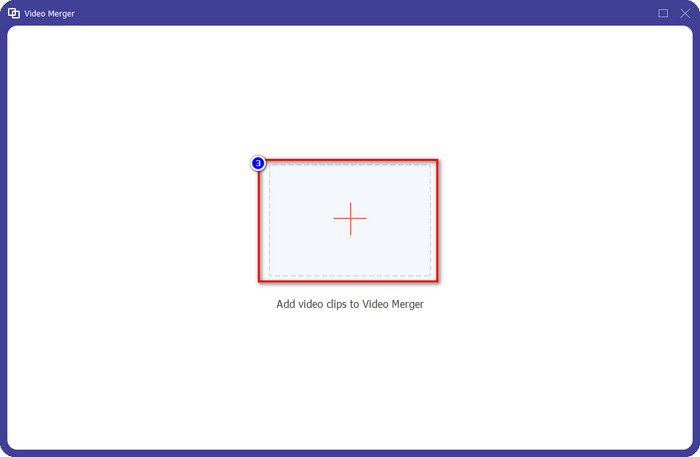
שלב 2. על ידי לחיצה על כפתור ה+ תיקייה תופיע על המסך; לחץ על הקובץ שברצונך להוסיף ואז לחץ על Open.
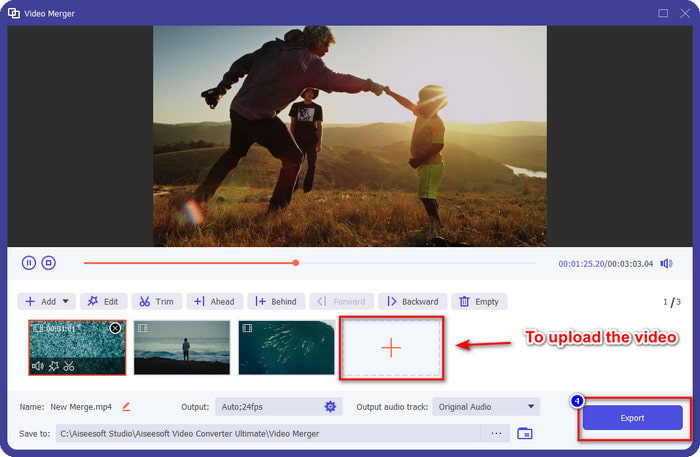
שלב 3. כדי להוסיף את שאר הקטעים שחתכת, לחץ שוב על כפתור ה-+ כדי להוסיף את כולם. סדר אותם כראוי על ידי גרירה של כל קטע, ואם הכול מוכן, לחץ על Export כדי לשמור את הווידאו עם החלק שבהילוך איטי.
חלק 2. תוכנות מקוונות ולא מקוונות אחרות בהן תוכל להשתמש כדי לשנות את מהירות הווידאו ל-Slow-mo
חותך וידאו מקוון - בקר מהירות
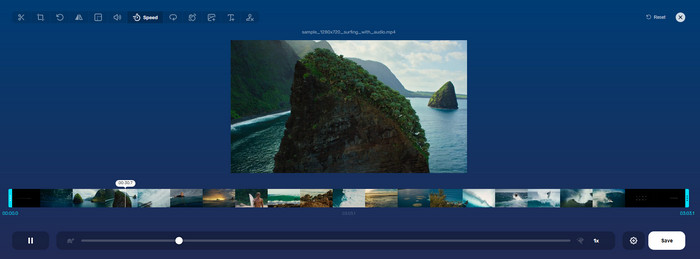
Online Video Cutter – Speed Controller איננו כלי שעליך להוריד, כיוון שהוא מבוסס רשת. עם בקר מהירות וידאו מקוון כזה, תוכל להשתמש בכלי מיד, גם בלי להוריד משאבים או קבצים נוספים להפעלת התוכנה. בנוסף, כלי הרשת תומך בפעולות עריכה בסיסיות שתזדקק להן מעת לעת. למרות שהכלי הזה אינו מקצועי כמו העורך שהזכרנו קודם, עדיין נוח להשתמש בו כדי להאט וידאו. כדי ללמוד איך להפוך חלק מהווידאו להילוך איטי, תוכל להעתיק את השלבים שלהלן.
שלב 1. כדי להיכנס לכלי הרשת, תוכל לחפש אותו בדפדפן לפי בחירתך.
שלב 2. לחץ על Open File והעלה את קובץ הווידאו או הקטע שברצונך להפוך להילוך איטי.
שלב 3. גרור את המחוון לצד שמאל כדי להאט את הווידאו ולחץ על Save.
סרטון מהיר בחינם
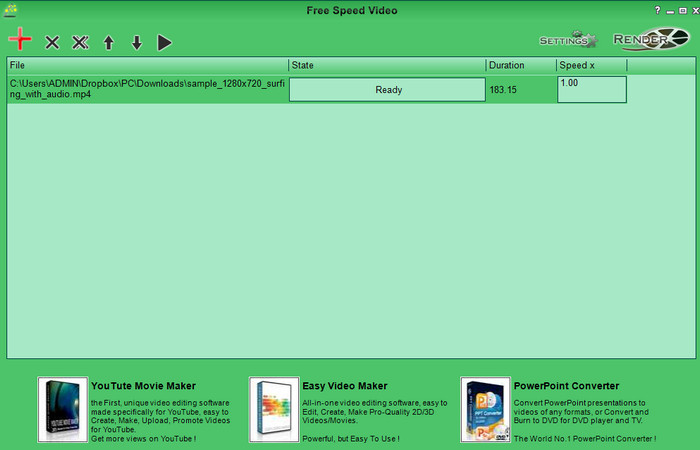
בקר מהירות נוסף שניתן להוריד למחשב השולחני הוא Free Speed Video. הכלי הזה פשוט מאוד, ולכן הלמידה כיצד להשתמש בו נטולת מאמץ. אף על פי שיש לו ממשק משתמש פשוט, הוא זקוק לעדכון לעיצוב טוב יותר שיעזור למשתמש לזהות את האפשרויות הקיימות. אם עיצוב הממשק אינו מפריע לך, תוכל להשתמש בתוכנה זו כדי להתאים את מהירות הווידאו בהתאם לצרכים שלך – בחינם. כדי לעזור לך להאט את הווידאו, השלבים שלהלן ינחו אותך כיצד להאט חלק מווידאו.
שלב 1. הורד את התוכנה ופעל לפי תהליך ההתקנה כדי שיהיה לך אותה על המחשב.
שלב 2. לחץ על כפתור ה+ כדי להוסיף את הווידאו שברצונך להאט.
שלב 3. תחת Speed x, הקלד את ערך המהירות הרצוי לך.
שלב 4. לחץ על Render כדי לשמור את הפלט הסופי על שולחן העבודה שלך.
חלק 3. שאלות נפוצות על איך לעשות חלק מסרטון בהילוך איטי
למה החלק של הסרטון עם איטי-mo קופא?
המעבר בין ההאטה לסרטון המהירות הרגיל קופא בגלל המהירויות השונות של שני הסרטונים. אסור לך לחוות מעבר קפוא ומפוגג למרות ההבדלים אם אתה משתמש בכלי האולטימטיבי במקום זאת.
מה הופך את מעבר הווידאו ממהירות אטית למהירות רגילה לחלקה יותר?
אין תשובה ספציפית, אבל עדיף להפעיל סרט וידאו בקצב איטי אם הכלי שברשותך יכול להגביר את המהירות. למעבר חלק יותר בין הסרטון במהירות רגילה והאטה, עליכם לנסות למזג את הסרטון כמו מה שעשינו עם התוכנה האולטימטיבית.
האם קשה להחיל אפקט האטה על חלק הווידאו?
זה יכול להיות במיוחד שלא כל התוכנות שאתה יכול להשתמש בהן יכולה לשנות חלק מסוים ממהירות הווידאו. רוב בקרי המהירות מכוונים את המהירות של הסרטון כולו במקום החלק הספציפי. אז, אם אתה רוצה לשנות את החלק של מהירות ההשמעה של הקליפים, קרא את חלק 1 כדי לדעת הכל.
סיכום
לבסוף, יש לנו מספיק הבנה לגבי איך להפוך חלק מווידאו להילוך איטי בעזרת השלבים וההתמדה שלך עד סוף המאמר. למרות שהתוכנות יכולות לשנות את מהירות הווידאו, עדיין קיימת בעיה כאשר רוצים לשנות רק חלק ממנו. לכן, כדי להפוך חלק מהקליפ לגרסת הילוך איטי כדי להוסיף עניין לווידאו שלך, עליך להשתמש ב-FVC Video Converter Ultimate. תוכל לקבל את התוכנה הזו על ידי הורדה והתקנה במחשב השולחני, ואז לעקוב אחר השלבים שהוספנו קודם כדי לשנות רק חלק מהקליפ ולא את מהירות הווידאו כולה.
-
 הוכחות מוצקות לביצוע סרטונים בהילוך איטי באמצעות After Effects
 ניתן ליצור או לשפר כל מחשבה או רגשות על ידי צפייה במשהו בהילוך איטי. קרא את המאמר הזה כדי לדעת איך ליצור הילוך איטי ב-After Effects.
-
 גישות מוכחות ליצירת סרטוני וידאו בהילוך איטי ב-Adobe Premiere
 אחת התוכנות הטובות ביותר של אדובי היא Premiere; זה מתפקד יותר על שיפור סרטונים לשלב הבא, כמו יצירת סרטונים בהילוך איטי. קרא מאמר זה כדי לדעת יותר על Adobe Premiere והתכונות המועילות שלה.
-
 דרך קלה ליצור סרטון וידאו בהילוך איטי ב-Windows Movie Maker
 האם אתה רוצה לזרוק אפקט דרמטי על הסרטון שלך כדי להדגיש או לפחות לגרום לקליפ לבלוט מהשאר בהילוך איטי, ואתה לא יודע איך? המשך לקרוא מאמר זה כדי לדעת יותר.
