


 वीडियो कनवर्टर अंतिम
 स्क्रीन अभिलेखी
 वीडियो मरम्मत
 सुरक्षित डाउनलोड
4 सर्वश्रेष्ठ मुफ्त MP4 टू MKV कन्वर्टर्स क्लिक के भीतर MKV में MP4 फ़ाइलों को चालू करने के लिए
यदि आप किसी MP4 वीडियो में उपशीर्षक जोड़ना चाहते हैं, तो आप इसके बजाय MP4 को MKV में बेहतर रूप से परिवर्तित करेंगे। MKV एक Matroska वीडियो फ़ाइल है जो असीमित संख्या में ऑडियो, चित्रों और उपशीर्षक पटरियों का समर्थन करती है। MP4 को MKV फ़ाइलों में बदलना मुश्किल नहीं है। आप लेख से 4 सर्वश्रेष्ठ तरीकों के बारे में अधिक जानकारी जान सकते हैं। इसके अलावा, यहां उपशीर्षक जोड़ने और वीडियो को आसानी से संपादित करने की एक अंतिम विधि है जिसे आपको जानना चाहिए।

भाग 1: 3 MP4 को MKV में परिवर्तित करने के सर्वोत्तम तरीके
शीर्ष 1: मुफ्त में MP4 को MKV ऑनलाइन में कैसे परिवर्तित करें
जब आप MP4 फ़ाइलों को ऑनलाइन MKV में बदलना चाहें, तो FVC Free Online Video Converter एक बहुउपयोगी वीडियो कनवर्टर है, जो MP4, MKV आदि सहित ज़्यादातर वीडियो फ़ॉर्मैट को मुफ़्त में कनवर्ट कर सकता है। यह आउटपुट के लिए वीडियो और ऑडियो सेटिंग्स को समायोजित करने की सुविधा भी देता है। इसके अलावा, यह बैच कन्वर्ज़न को भी सपोर्ट करता है, ताकि आप आसानी से कई वीडियो या ऑडियो फ़ाइलों को एक साथ कनवर्ट कर सकें।.
- 1. MP4 को MKV, AVI, FLV और अन्य मीडिया प्रारूपों / प्रीसेट में कनवर्ट करें।
- 2. वीडियो कोडेक, फ्रेम दर, वीडियो प्रारूप, साथ ही वीडियो प्रारूप को ट्वीक करें।
- 3. वॉटरमार्क, या अन्य प्रतिबंध के बिना रूपांतरण सीधा है।
- 4. MP4 को MKV फ़ाइलों में 3 चरणों में कनवर्ट करने के लिए एक आसान इंटरफ़ेस प्रदान करें।
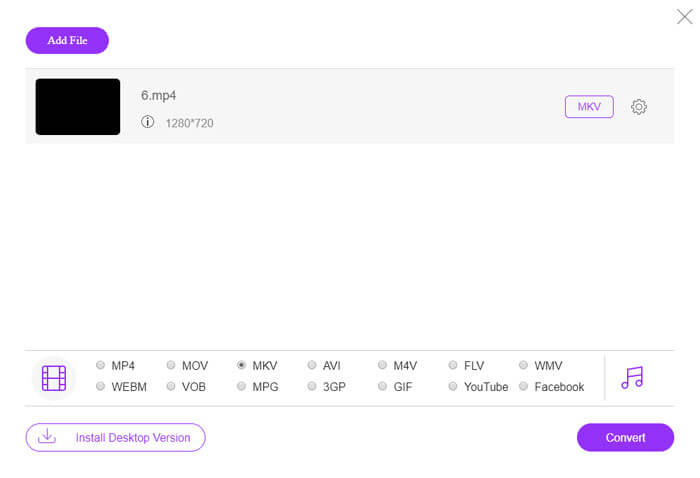
चरण 1. FVC Free Online Video Converter पर जाएँ, आप Add Files to Convert बटन पर क्लिक करके MP4 फ़ाइल को प्रोग्राम में जोड़ सकते हैं। यदि आप पहली बार इस ऑनलाइन MP4 से MKV कनवर्टर का उपयोग कर रहे हैं, तो आपको पहले इंस्टॉलर डाउनलोड करना होगा।.
फ़ाइलों को बैच में कनवर्ट करने के लिए डेस्कटॉप संस्करण डाउनलोड करें।.

चरण 2. जब आप MP4 वीडियो आयात कर लें, तो आप आउटपुट फ़ॉर्मैट के रूप में MKV विकल्प चुन सकते हैं। आप Gear आइकन पर क्लिक करके वीडियो और ऑडियो सेटिंग्स, जैसे वीडियो एन्कोडर, फ़्रेम रेट, रेज़ोल्यूशन और अन्य सेटिंग्स को समायोजित कर सकते हैं।.

चरण 3. इसके बाद, आप मनचाही गुणवत्ता के साथ MP4 को MKV में बदलने के लिए Convert बटन पर क्लिक कर सकते हैं। कुछ ही सेकंड में आपको अपने कंप्यूटर पर इच्छित MKV फ़ाइल मिल जाएगी। आप इसे अपने कंप्यूटर में सेव करने से पहले आउटपुट वीडियो का प्रीव्यू देख सकते हैं।.
शीर्ष 2: VLC मीडिया प्लेयर के साथ MP4 को MKV में कैसे परिवर्तित करें
VLC Media Player केवल MKV फ़ाइलों के लिए एक मीडिया प्लेयर ही नहीं है, बल्कि इसमें ज़्यादातर वीडियो और ऑडियो फ़ॉर्मैट के लिए अपने स्वयं के कोडेक भी मौजूद हैं। यदि आपके पास MKV आउटपुट फ़ॉर्मैट के रूप में नहीं है, तो आप नीचे दिए अनुसार VLC के ज़रिए MP4 को MKV फ़ाइलों में बदलने के लिए कुछ प्लग‑इन्स भी खोज सकते हैं।.
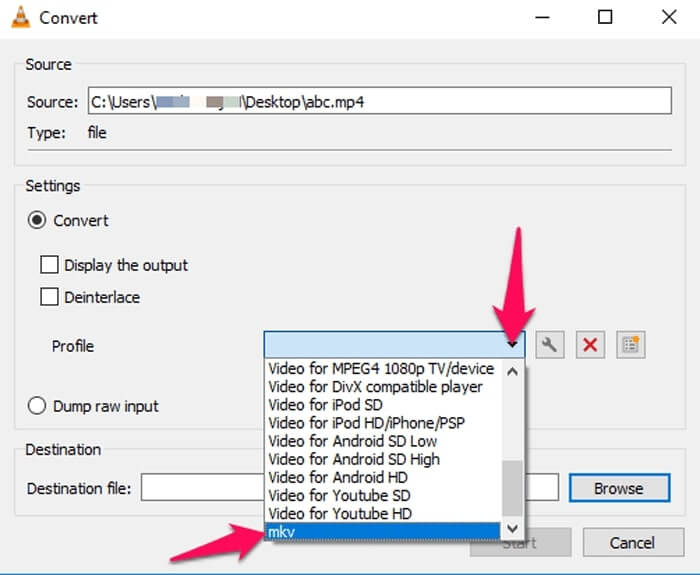
चरण 1. VLC Media Player को लॉन्च करें और अपने कंप्यूटर पर प्रोग्राम खोलें। Media मेनू पर क्लिक करें और Convert/Save... विकल्प चुनकर वह MP4 फ़ाइल आयात करें जिसे आप कनवर्ट करना चाहते हैं।.
चरण 2. Open Media विंडो में, File विकल्प पर क्लिक करें और फिर Add आइकन पर। अपने फ़ोल्डर से MP4 फ़ाइल चुनें। उसके बाद, Convert/Save ड्रॉपडाउन मेनू से Convert बटन चुनें।.
चरण 3. इसके बाद, आप आउटपुट फ़ॉर्मैट के रूप में MKV चुन सकते हैं। कनवर्ट की गई फ़ाइल के लिए गंतव्य तय करने के लिए Browse विकल्प पर क्लिक करें। फिर MP4 को MKV में बदलने के लिए Start विकल्प चुनें।.
शीर्ष 3: एक URL से MP4 को MKV में कैसे परिवर्तित करें
क्या सीधे ऑनलाइन MP4 को MKV में बदलना संभव है? AConvert में एमकेवी ऑनलाइन कनवर्टर के लिए वीडियो की एक श्रृंखला है, जिसे आप वांछित प्रारूप में परिवर्तित करने के लिए वीडियो का URL दर्ज कर सकते हैं। बेशक, यह आपको वीडियो सेटिंग्स को ट्विक करने में भी सक्षम बनाता है।
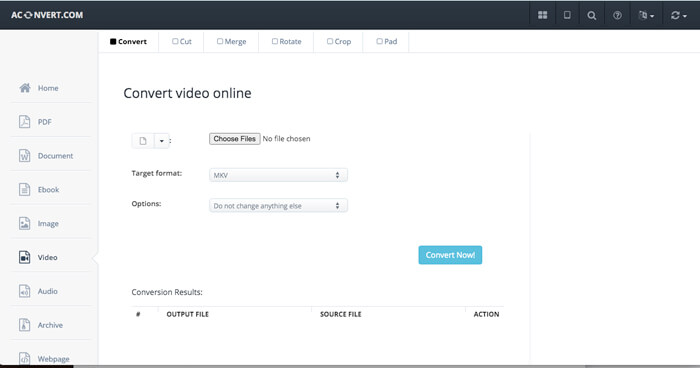
चरण 1. किसी भी ब्राउज़र में aconvert.com पर जाएँ, आप ऊपर बाएँ कोने में स्थित Convert मेनू को चुन सकते हैं। ड्रॉपडाउन सूची से Online File विकल्प चुनने के लिए तीर पर क्लिक करें।.
चरण 2. Target format के रूप में MKV फ़ॉर्मैट चुनें। फिर MP4 को MKV में कनवर्ट करने के लिए वीडियो साइज, वीडियो बिटरेट, फ़्रेम रेट, वीडियो आस्पेक्ट रेशियो और अन्य सेटिंग्स को समायोजित करने हेतु Options पर क्लिक करें।.
चरण 3. इसके बाद, बैच कन्वर्ज़न शुरू करने के लिए Convert Now! बटन पर क्लिक करें। आउटपुट फ़ाइलें Conversion Results सेक्शन में सूचीबद्ध होंगी, जहाँ से आप उन्हें अपने कंप्यूटर पर डाउनलोड कर सकते हैं।.
भाग 2: MP4 को MKV में कनवर्ट करने की अंतिम विधि
वहाँ सीधे उपशीर्षक के साथ MP4 को MKV में परिवर्तित करने के लिए एक विधि है? FVC वीडियो कन्वर्टर अल्टीमेट MP4 to MKV कन्वर्टर है जो आपको वीडियो / ऑडियो सेटिंग्स को ट्वीक करने में सक्षम बनाता है, वीडियो फाइलों को एडिट करता है, एक सबटाइटल / ऑडियो ट्रैक जोड़ता है और यहां तक कि आसानी से डीवीडी से फाइलें रिप करता है।
- 1. मूल गुणवत्ता के साथ एक बैच प्रक्रिया में MP4 को MKV में कनवर्ट करें।
- 2. फ्रेम दर, वीडियो की गुणवत्ता, वीडियो कोड और अन्य लोगों को घुमाएं।
- 3. क्लिप, घुमाएं, ट्रिम, कट, सेक, वीडियो फिल्टर आदि के साथ वीडियो संपादित करें।
- 4. किसी भी 4K / 1080p HD वीडियो प्रारूप और डीवीडी फ़ाइलों के लिए अंतर्निहित मीडिया प्लेयर।
फ्री डाउनलोडWindows 7 या बाद के संस्करण के लिएसुरक्षित डाउनलोड
फ्री डाउनलोडMacOS 10.7 या बाद के संस्करण के लिएसुरक्षित डाउनलोड
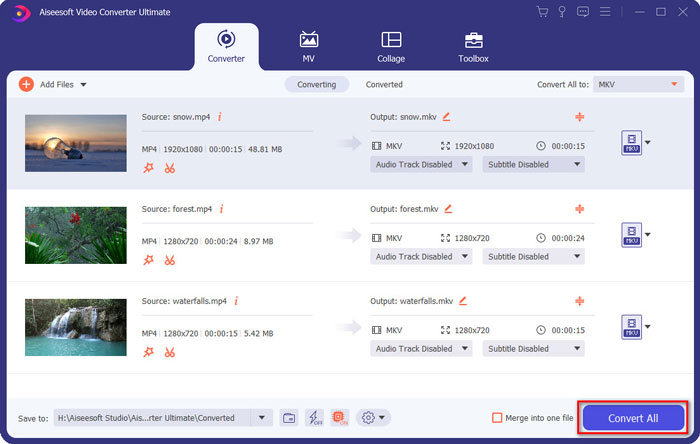
चरण 1. प्रोग्राम को अपने कंप्यूटर पर डाउनलोड और इंस्टॉल करें, फिर Add File पर क्लिक करें और Add File या Add Folders चुनें या सीधे कई वीडियो और ऑडियो फ़ाइलों को इस प्रोग्राम में खींच कर छोड़ें।.

चरण 2. इसके बाद, आप आउटपुट के रूप में MKV फ़ाइल चुन सकते हैं और अपनी ज़रूरत के अनुसार प्रोफ़ाइल सेटिंग्स, जैसे रेज़ोल्यूशन, फ़्रेम रेट, ऑडियो कोडेक और अन्य सेटिंग्स को समायोजित कर सकते हैं।.

चरण 3. जब आपको सबटाइटल्स या ऑडियो ट्रैक्स जोड़ने की ज़रूरत हो, तो आप ऑडियो चैनल या सबटाइटल पर क्लिक करके मनचाहा विकल्प चुन सकते हैं, और फिर MP4 को MKV में कनवर्ट करने के लिए Convert All बटन पर क्लिक करें।.
MP4 बनाम MKV
2001 में मूविंग पिक्चर एक्सपर्ट्स ग्रुप (MPEG) द्वारा जारी, MP4 प्रारूप आपको वीडियो, ऑडियो, उपशीर्षक और छवि डेटा को अलग-अलग ट्रैक में सहेजने में मदद कर सकता है। यह एमपीईजी -4 भाग 14 के लिए छोटा है। साथ ही, यह वीडियो स्ट्रीमिंग और साझा करने के लिए उपयोग किए जाने वाले सबसे लोकप्रिय प्रारूपों में से एक है।
2002 में जारी किया गया Matroska मल्टीमीडिया कंटेनर प्रारूप, एक ओपन-सोर्स प्रारूप है जिसमें कई वीडियो, ऑडियो, छवि और उपशीर्षक ट्रैक शामिल हो सकते हैं। तो, आप इसका उपयोग लघु वीडियो क्लिप, टीवी शो और फिल्मों को आसानी से स्टोर करने के लिए कर सकते हैं। यह एनीमे फैन-सबबिंग के लिए काफी लोकप्रिय है।
भाग 3: MP4 को MKV में कनवर्ट करने के तरीके के बारे में अक्सर पूछे जाने वाले प्रश्न
1. एमकेवी का लाभ क्या है?
MP4 फ़ाइल प्रारूप के समान, MKV एक और सामान्य कंटेनर प्रारूप है। यह कई अलग-अलग ट्रैक पकड़ सकता है जो प्रत्येक अलग संपीड़न प्रारूप का उपयोग करता है। आप SRT, PGS / SUP, VobSub और SSA जैसे उपशीर्षक संपादित कर सकते हैं। जब आप MP4 को MKV में परिवर्तित करते हैं, तो आप हमेशा वीडियो को वांछित उपशीर्षक और ऑडियो ट्रैक के अनुसार अनुकूलित कर सकते हैं।
2. एमकेवी फाइलों को आसानी से कैसे संपादित करें?
बेशक, आप केवल वीडियो / ऑडियो सेटिंग्स को संपादित करने के लिए एक पेशेवर MP4 से MKV कनवर्टर का उपयोग कर सकते हैं, या यहां तक कि FVC वीडियो कन्वर्टर अल्टीमेट जैसे ऑडियो ट्रैक और उपशीर्षक भी संपादित कर सकते हैं। इसके अलावा, आप आसानी से विंडोज, मैक और लिनक्स पर उपशीर्षक को संपादित और प्रबंधित करने के लिए नि: शुल्क प्रवेश-स्तर MKVToolNix का उपयोग कर सकते हैं।
3. MP4 को MKV में कनवर्ट करने के लिए क्या महत्वपूर्ण है?
यदि आपको MP4 को MKV में बदलने की आवश्यकता है, तो आपको आउटपुट वीडियो के आकार पर ध्यान देना चाहिए। आमतौर पर MKV फ़ाइल MP4 से बहुत बड़ी होती है, खासकर जब आपको उपशीर्षक और ऑडियो ट्रैक जोड़ने की आवश्यकता होती है। जब आप ऑनलाइन वीडियो कन्वर्टर्स का उपयोग करते हैं, तो हो सकता है कि आप पूरे MKV वीडियो को सही तरीके से परिवर्तित न कर सकें।
निष्कर्ष
जब आप ऑनलाइन स्ट्रीमिंग वीडियो को स्थानीय बनाना चाहते हैं, तो आप MP4 को MKV में आसानी से परिवर्तित करने के सर्वोत्तम तरीकों के बारे में अधिक जानकारी जान सकते हैं। बस 3 सबसे अधिक बार उपयोग किए जाने वाले ऑनलाइन तरीकों की जांच करें, साथ ही लेख से अंतिम समाधान भी। यदि आपके पास विंडोज़ और मैक पर एमकेवी में MP4 फ़ाइलों को परिवर्तित करने के बारे में कोई प्रश्न है, तो आप लेख में एक टिप्पणी छोड़ने के लिए स्वतंत्र महसूस कर सकते हैं।
-
 कैसे खो गुणवत्ता के बिना MKTS के लिए M2TS कन्वर्ट करने के लिए
 मूल गुणवत्ता को बनाए रखते हुए M2TS को MKV में बदलना चाहते हैं? यह पोस्ट आपको M2TS को MKV में दोषरहित रूप से बदलने के लिए स्वतंत्र और ऑनलाइन तरीके दिखाता है।
-
 MKV बनाम MP4: क्या अंतर हैं और कैसे परिवर्तित करें
 MKV और MP4 के बीच चयन कैसे करें? वीडियो की गुणवत्ता के लिए कौन सा प्रारूप बेहतर प्रारूप है? इस लेख में, हम आपको एक विकल्प बनाने में मदद करने के लिए MKV बनाम MP4 की एक विस्तृत तुलना करेंगे।
-
 मैक / विंडोज के लिए MP4 को WMV में कैसे बदलें
 यह पोस्ट मैक या विंडोज पर MP4 वीडियो को WMV प्रारूप में बदलने का तरीका साझा करता है। हम आपको कई विकल्प भी प्रदान करेंगे, जिसमें डेस्कटॉप सॉफ्टवेयर और वेब-आधारित ऑनलाइन कन्वर्टर्स दोनों शामिल हैं। WMV कन्वर्ट करने वाले टूल के लिए सबसे अच्छा MP4 जानने के लिए तैयार हैं?

