


 वीडियो कनवर्टर अंतिम
 स्क्रीन अभिलेखी
 वीडियो मरम्मत
 सुरक्षित डाउनलोड
ऑफ़लाइन और ऑनलाइन टूल का उपयोग करके आसानी से F4V को MP4 में कैसे बदलें
FLV फ़ाइल फ़ॉर्मेट Adobe Flash द्वारा इस्तेमाल किए जाने वाले मानक फ़ॉर्मेट्स में से एक है, लेकिन अगर आप उच्च गुणवत्ता वाला वीडियो चलाना चाहते हैं, तो आपको अपनी F4V फ़ाइल को MP4 जैसे अन्य फ़ॉर्मेट में बदलना होगा। MP4 फ़ॉर्मेट लगभग सभी डिवाइसों पर चलाया जा सकता है, जैसे iPhone, iPad, Android और कंप्यूटर। इसलिए, अगर आप उच्च गुणवत्ता वाला वीडियो पसंद करते हैं, तो हम आपको ऑफ़लाइन और ऑनलाइन टूल्स की मदद से F4V को MP4 में बदलने के सबसे प्रभावी तरीक़े बताएँगे।.

भाग 1: मैक और विंडोज पर F4V को MP4 में बदलने की मूल विधि
अगर आप Mac उपयोगकर्ता हैं और वीडियो फ़ाइलों को कन्वर्ट करना पसंद करते हैं, तो आप Video Converter Ultimate का उपयोग कर सकते हैं। यह ऑफ़लाइन कन्वर्टर Mac और Windows पर F4V को MP4 में बदलने में बेहतरीन है, जिससे यह सभी उपयोगकर्ताओं के लिए सुविधाजनक हो जाता है। इसके अलावा, यह लगभग सभी वीडियो फ़ाइलों को कन्वर्ट कर सकता है क्योंकि यह AVI, MP4, MOV, FLV, VOB, MTS, SWF, MKV, WMV और अन्य कई फ़ॉर्मेट्स को सपोर्ट करता है। साथ ही, इस एप्लिकेशन में F4V फ़ाइलों को कन्वर्ट करना आसान है क्योंकि इसका इंटरफ़ेस सरल है और इसमें बुनियादी कन्वर्ज़न तरीक़े मौजूद हैं। इस तरह आप सुनिश्चित कर सकते हैं कि यह विशेष रूप से शुरुआती उपयोगकर्ताओं के लिए भी उपयुक्त है। इसके अतिरिक्त, कन्वर्ज़न स्पीड के मामले में भी आप हमेशा संतुष्ट रहेंगे। Video Converter Ultimate अल्ट्रा-स्पीड कन्वर्ज़न प्रोसेस प्रदान करता है, जो अन्य कन्वर्टर्स से 30 गुना तेज़ है। आप एक साथ कई वीडियो फ़ाइलों को भी कन्वर्ट कर सकते हैं क्योंकि यह बैच कन्वर्ज़न सक्षम करता है। इसके अलावा, आप इस एप्लिकेशन में केवल वीडियो कन्वर्ट ही नहीं, और भी बहुत कुछ कर सकते हैं। अगर आप चाहें तो इस टूल की मदद से म्यूज़िक वीडियो भी बना सकते हैं। यह एप्लिकेशन Music Video Creator प्रदान करता है और विभिन्न थीम्स उपलब्ध कराता है, जैसे simple, happy, snowy night, neat, आदि। इसके अलावा, इस वीडियो कन्वर्टर में Collage Maker फीचर भी है, जिसके ज़रिए आप अलग-अलग टेम्पलेट्स और फ़िल्टर्स के साथ कोलाज बना सकते हैं। जब आप FVC Video Converter Ultimate का उपयोग करेंगे, तो आपको और भी बेहतरीन सुविधाओं का अनुभव होगा।.
विशेषताएँ
MP4, F4V, MOV, AVI, MKV, WMV, VOB, आदि जैसे 100+ वीडियो फ़ाइल स्वरूपों को कनवर्ट करें।
◆ फ्री टेम्प्लेट और फिल्टर के साथ कोलाज बनाएं।
◆ विभिन्न विषयों के साथ एक शानदार संगीत वीडियो बनाएं।
◆ एक वीडियो को वांछित फ़ाइल आकार में संपीड़ित करें।
◆ औसत वीडियो गति की तुलना में वीडियो की गति को 0.125x से 8x तेज समायोजित करें।
◆ वीडियो से वॉटरमार्क जोड़ें और निकालें।
◆ बीएमपी, पीएनजी, जेपीजी, टीआईएफ आदि जैसे छवि फ़ाइल स्वरूपों को परिवर्तित करें।
FVC वीडियो कन्वर्टर अल्टीमेट का उपयोग करके F4V को तुरंत MP4 में बदलने के लिए नीचे दिए गए सरल तरीकों का पालन करें।
स्टेप 1: नीचे दिए गए Download बटन पर क्लिक करके अपने डेस्कटॉप पर Video Converter Ultimate डाउनलोड करें। फिर इंस्टॉलेशन प्रक्रिया पूरी करें और एप्लिकेशन लॉन्च करें।.
फ्री डाउनलोडWindows 7 या बाद के संस्करण के लिएसुरक्षित डाउनलोड
फ्री डाउनलोडMacOS 10.7 या बाद के संस्करण के लिएसुरक्षित डाउनलोड
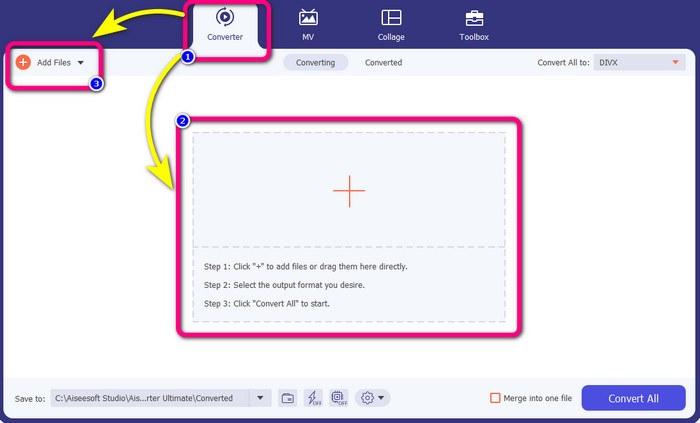
स्टेप 2: अपनी F4V वीडियो को कन्वर्ट करने के लिए Converter विकल्प पर जाएँ और Plus आइकन या Add File बटन चुनकर अपनी F4V फ़ॉर्मेट वाली वीडियो जोड़ें।.
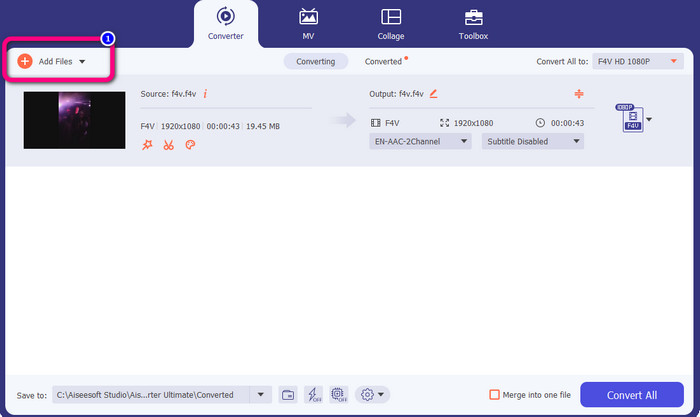
स्टेप 3: अगर आप एक साथ और F4V फ़ाइलों को कन्वर्ट करना चाहते हैं, तो Add Files बटन दबाएँ और एक और F4V फ़ाइल जोड़ें।.
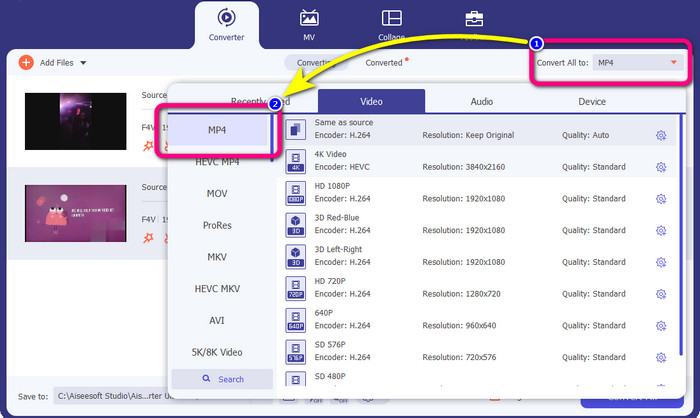
स्टेप 4: आउटपुट फ़ॉर्मेट बदलने के लिए Convert All to बटन पर जाएँ। आपको फ़ॉर्मेट विकल्प दिखाई देंगे और वहाँ से MP4 फ़ॉर्मेट चुनें। आप अपनी पसंद के अनुसार वीडियो क्वालिटी भी चुन सकते हैं।.
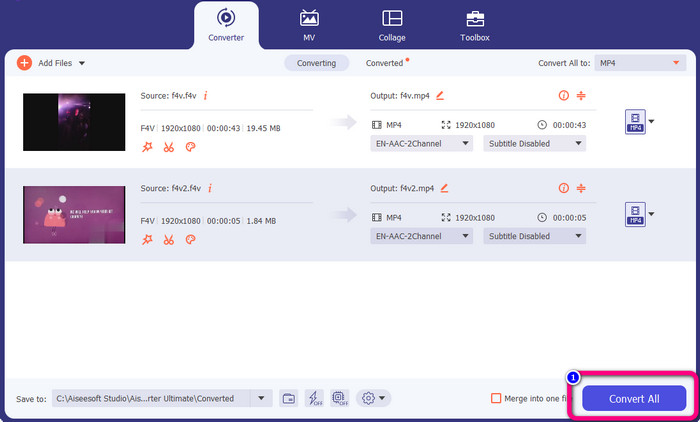
स्टेप 5: जब आप आउटपुट फ़ॉर्मेट बदलना पूरा कर लें, तो Convert All बटन पर क्लिक करके फ़ाइलों को कन्वर्ट कर सकते हैं। कन्वर्ज़न प्रक्रिया शुरू होगी और कुछ ही सेकंड में आपकी F4V वीडियो MP4 फ़ाइल में बदल जाएगी।.
भाग 2: VLC का उपयोग करके F4V को MP4 में बदलने के सरल उपाय
इस भाग में, आप सीखेंगे कि VLC Media Player का उपयोग करके F4V को MP4 में कैसे बदलें। हाँ! आपने सही पढ़ा! वीडियो चलाने के अलावा, वीएलसी एक और उपकरण है जिसका उपयोग आप फ़ाइलों को परिवर्तित करने के लिए कर सकते हैं। इसके अलावा, यह MP4, WEBM, OGG, TS, ASF और अन्य जैसे विभिन्न फ़ाइल स्वरूपों का समर्थन करता है। हालाँकि, आपको इस टूल के बारे में पर्याप्त जानकारी होनी चाहिए क्योंकि इसमें एक भ्रमित करने वाला इंटरफ़ेस है। ट्यूटोरियल देखें या कुछ उन्नत उपयोगकर्ताओं से VLC का उपयोग करके फ़ाइलों को परिवर्तित करने के बारे में एक विचार प्राप्त करने के लिए कहें। साथ ही, इस कन्वर्टर को डाउनलोड करने में समय लगता है। VLC Media Player का उपयोग करके F4V को MP4 में बदलने के लिए नीचे दी गई प्रक्रियाओं का पालन करें।
स्टेप 1: अपने कंप्यूटर पर VLC Media Player डाउनलोड करें। इंस्टॉलेशन प्रक्रिया पूरी होने के बाद एप्लिकेशन लॉन्च करें।.
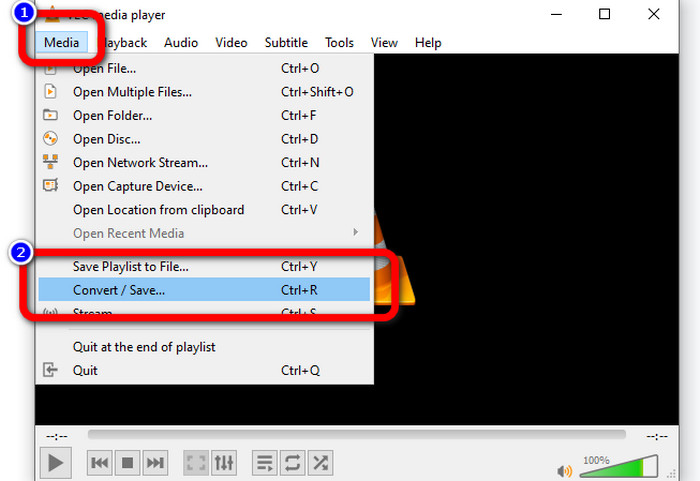
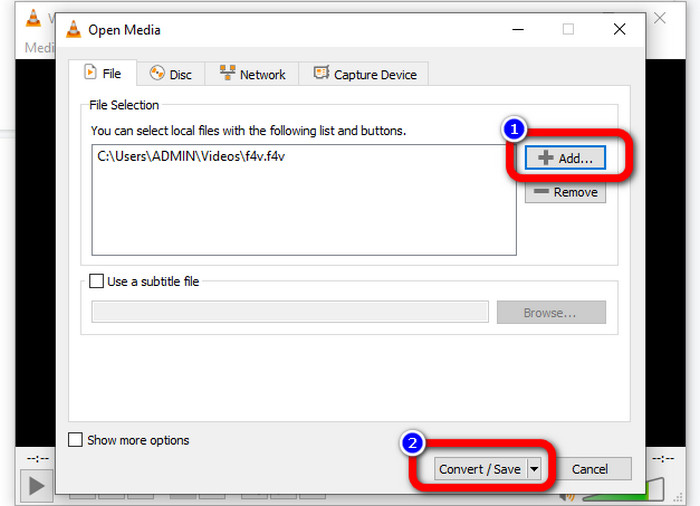
स्टेप 2: Media > Convert/Save बटन पर जाएँ। फिर अपनी F4V वीडियो जोड़ने के लिए Add बटन पर क्लिक करें।.
स्टेप 3: F4V वीडियो जोड़ने के बाद, इंटरफ़ेस के निचले हिस्से में फिर से Convert/Save बटन पर क्लिक करें।.
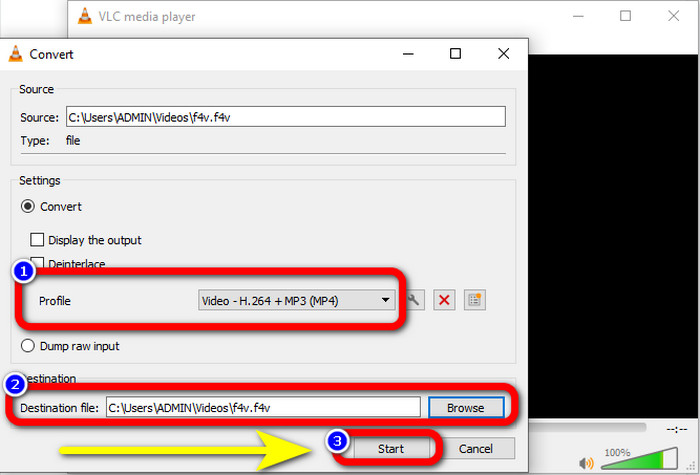
स्टेप 4: प्रोफ़ाइल पर जाएँ और MP4 फ़ाइल फ़ॉर्मेट चुनें। फिर Browse पर जाएँ और वह लोकेशन सेट करें जहाँ आप अपनी वीडियो सेव करना चाहते हैं। कन्वर्ज़न प्रक्रिया आगे बढ़ाने के लिए Start बटन दबाएँ।.
भाग 3: हैंडब्रेक का उपयोग करके F4V को MP4 में बदलने का आसान तरीका
अगर आप अभी भी Windows पर F4V से MP4 कन्वर्टर तलाश रहे हैं, तो आप Handbrake का उपयोग कर सकते हैं। यह एक ऑफ़लाइन टूल है जो कई वीडियो फ़ॉर्मेट्स को सपोर्ट करता है, जैसे MP4, MKV, WEBM आदि। हालांकि, यह टूल थोड़ा जटिल है क्योंकि इसमें बहुत सारे विकल्प हैं, जो भ्रमित कर सकते हैं। नीचे दिए गए चरणों का उपयोग करके अपनी F4V फ़ाइल को MP4 फ़ॉर्मेट में कन्वर्ट करें।.
स्टेप 1: अपने Windows कंप्यूटर पर Handbrake डाउनलोड करें। इंस्टॉलेशन पूरा करने के बाद एप्लिकेशन लॉन्च करें।.
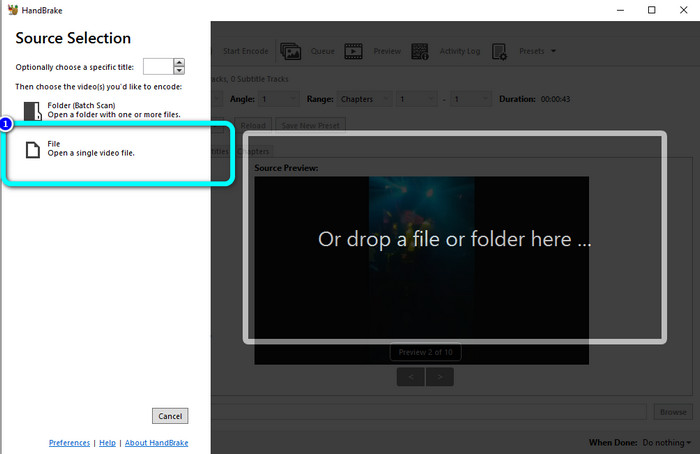
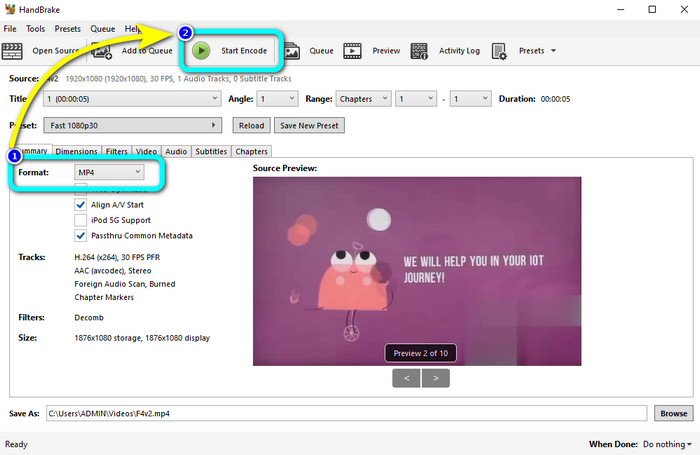
स्टेप 2: अपनी F4V फ़ाइल जोड़ने के लिए File बटन पर क्लिक करें।.
स्टेप 3: फ़ॉर्मेट विकल्पों पर जाएँ और MP4 फ़ाइल फ़ॉर्मेट चुनें। फिर Start Encode बटन दबाएँ। कन्वर्ज़न प्रक्रिया पूरी होने का इंतज़ार करें और अपनी अंतिम वीडियो सेव करें।.
भाग 4: F4V को मुफ्त ऑनलाइन MP4 में बदलने के लिए विस्तृत कदम
क्या आप F4V को MP4 में मुफ्त में कन्वर्ट करने के लिए ऑनलाइन एप्लिकेशन उपयोग करना चाहते हैं? FVC Free Video Converter Online का उपयोग करें। आप अपनी F4V फ़ाइल को बिना एक भी पैसा खर्च किए कन्वर्ट कर सकते हैं। इसके अलावा, इस कन्वर्टर का इंटरफ़ेस बहुत सरल है, जो गैर-प्रोफेशनल उपयोगकर्ताओं के लिए भी उपयुक्त है। यह विभिन्न वीडियो फ़ॉर्मेट्स को सपोर्ट करता है, जैसे FLV, WMA, MOV, AVI, WMV और अन्य। सबसे अच्छी बात यह है कि आप बिना क्वालिटी खोए वीडियो फ़ाइलों को कन्वर्ट कर सकते हैं। F4V को MP4 में आसानी से कन्वर्ट करने के लिए नीचे दिए गए विस्तृत चरणों का पालन करें।.
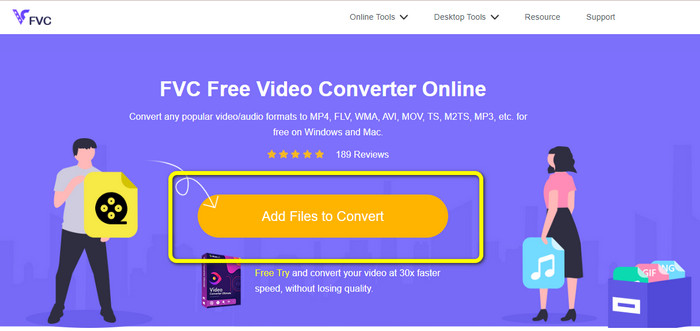
स्टेप 1: FVC Free Video Converter Online की वेबसाइट पर जाएँ। अपनी F4V वीडियो फ़ाइल अपलोड करने के लिए Add Files to Convert बटन दबाएँ।.
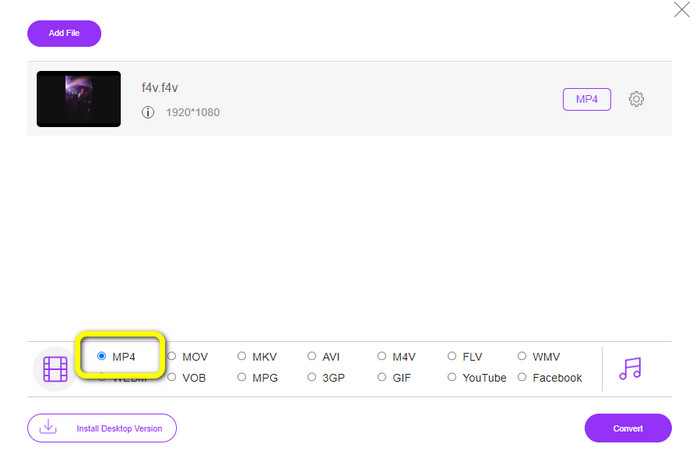
स्टेप 2: वीडियो अपलोड करने के बाद, इंटरफ़ेस के निचले हिस्से में जाएँ और MP4 फ़ाइल फ़ॉर्मेट पर क्लिक करें।
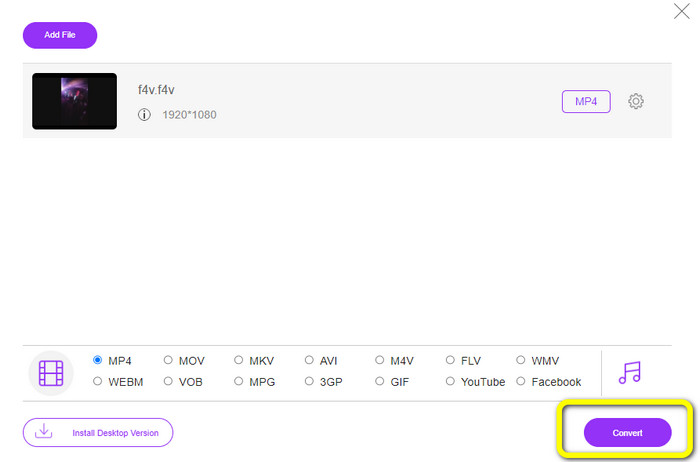
स्टेप 3: अंत में, Convert बटन दबाएँ। कन्वर्ज़न प्रक्रिया पूरी होने का इंतज़ार करें और अपनी फ़ाइल को मनचाही लोकेशन पर सेव करें।
भाग 5: F4V बनाम MP4
इन दो फ़ाइल स्वरूपों के बारे में अतिरिक्त जानकारी नीचे देखें।
| F4V | MP4 | |
| दस्तावेज़ विस्तारण | .f4v | .mp4 |
| द्वारा विकसित | सेब | चल चित्र विशेषज्ञ समूह |
| विवरण | यह मूल फ़्लैश फ़ाइल स्वरूप है। यह ISO बेस मीडिया फाइल फॉर्मेट पर भी आधारित है जो फ्लैश प्लेयर 9 को सपोर्ट करता है। इसके अलावा, F4V फाइलें iOS उपकरणों पर नहीं चलाई जा सकती हैं, लेकिन फ्लैश का समर्थन करने वाले ब्राउज़र पर आप उन्हें चला सकते हैं। | यह एक मल्टीमीडिया फाइल है। कंटेनर उपशीर्षक डेटा, ऑडियो और वीडियो स्टोर कर सकता है। साथ ही, अन्य कंटेनर प्रारूपों की तरह, MP4 इंटरनेट पर स्ट्रीमिंग की अनुमति देता है। |
| संबद्ध कार्यक्रम | एक्सवीएलसी मीडिया प्लेयर वीडियो लैन विंडोज मीडिया प्लेयर एफएफडीशो माइक्रोसॉफ़्ट विंडोज़ फोटो गैलरी दर्शक | ऐप्पल क्विकटाइम प्लेयर वीडियो लैन VLC मीडिया प्लेयर एप्पल आईट्यून माइक्रोसॉफ्ट विंडोज मीडिया प्लेयर |
अग्रिम पठन:
F4V को WMV में बदलने के लिए 2 पसंदीदा कन्वर्टर विकल्प [2023]
F4V को FLV में कन्वर्ट करने के 2 सबसे तेज़ तरीके [ऑनलाइन और ऑफ़लाइन]
भाग 6: F4V को MP4 में बदलने के बारे में अक्सर पूछे जाने वाले प्रश्न
1. क्या मैं MP4 को F4V में बदल सकता हूँ?
हाँ तुम कर सकते हो! आप वीडियो कन्वर्टर अल्टीमेट का उपयोग कर सकते हैं। यह एप्लिकेशन आपकी MP4 फाइल को तुरंत F4V फॉर्मेट में बदल सकता है।
2. F4V और FLV में क्या अंतर है?
इन दो प्रारूपों के बीच मुख्य अंतर यह है कि F4V H.264 द्वारा एन्कोड किए गए उच्च-गुणवत्ता वाले वीडियो का समर्थन करता है, लेकिन FLV प्रारूप आमतौर पर H.263 का उपयोग करता है।
3. F4V को MP4 में बदलने के लिए FFmpeg का उपयोग कैसे करें?
अपने कंप्यूटर पर FFmpeg डाउनलोड करें। कमांड प्रॉम्प्ट खोलें। कमांड लाइन स्विच करने के लिए डेस्कटॉप टाइप करें। रूपांतरण आदेश FFmpeg-i से शुरू होता है, फिर वीडियो का नाम और उसका फ़ाइल स्वरूप टाइप करें। साथ ही, आउटपुट फ़ाइल का प्रकार। एंटर दबाएं और रूपांतरण प्रक्रिया की प्रतीक्षा करें। उसके बाद, आप अपनी फाइल को अपने डेस्कटॉप पर देख सकते हैं
निष्कर्ष
यह गाइडपोस्ट आपको ऑनलाइन और ऑफ़लाइन F4V को MP4 में कन्वर्ट करने के विस्तृत निर्देश दिखाता है। उपयोगकर्ता आम तौर पर वीडियो कन्वर्ट करने का अधिक सरल और तेज़ तरीक़ा पसंद करते हैं। तब आप Video Converter Ultimate का उपयोग करके अपनी वीडियो फ़ाइलों को तुरंत कन्वर्ट कर सकते हैं, क्योंकि इसकी कन्वर्ज़न स्पीड अन्य कन्वर्टर्स से 30 गुना तेज़ है। आप FVC Free Video Converter Online का उपयोग करके भी बहुत सरल तरीक़े से वीडियो कन्वर्ट कर सकते हैं, जिसमें आपको सिर्फ कुछ ही क्लिक करने होते हैं।.
-
 F4V को AVI फॉर्मेट में बदलने के लिए 4 नवीनतम ऑनलाइन और ऑफलाइन कन्वर्टर्स
 क्या आपको पता नहीं है कि F4V को AVI या किसी अन्य वीडियो प्रारूप में बदलने के लिए आपको किस कनवर्टर का उपयोग करना चाहिए? फिर इस लेख को पढ़ें क्योंकि हम सीखते हैं कि उपलब्ध टूल से कैसे कन्वर्ट किया जाए।
-
 गुणवत्ता खोए बिना F4V को MOV में कैसे बदलें [हल]
 यदि आप F4V जैसे कुछ वीडियो प्रारूपों को स्वीकार करने के लिए संघर्ष कर रहे हैं। F4V और MOV वीडियो प्रारूप के बारे में अधिक जानने के लिए इस लेख को पढ़ें और विभिन्न तरीकों का उपयोग करके F4V को MOV में बदलने का तरीका जानें।
-
 DIVX को तुरंत MP4 में बदलने की सफल विधियाँ
 मैं DIVX को MP4 में कैसे बदलूं? यदि आप सबसे अच्छे समाधान की तलाश कर रहे हैं, तो आप सही लेख में हैं। हम आपको दिखाएंगे कि DIVX को MP4 में आसानी से कैसे बदला जाए
