


 वीडियो कनवर्टर अंतिम
 स्क्रीन अभिलेखी
 वीडियो मरम्मत
 सुरक्षित डाउनलोड
MOV को GIF में कैसे बदलें: ऑनलाइन उपस्थिति बढ़ाने के लिए एक व्यापक गाइड
आज की तेजी से बदलती डिजिटल दुनिया में अपने दर्शकों का ध्यान बनाए रखने के लिए आकर्षक दृश्य सामग्री के निर्माण की आवश्यकता है। मज़ेदार और यादगार तरीके से जटिल अवधारणाओं, भावनाओं और ब्रांड संदेशों को व्यक्त करने की उनकी क्षमता के कारण एनिमेटेड जीआईएफ का व्यापक रूप से उपयोग किया जाता है। लेकिन सभी वीडियो प्रारूपों को कई प्लेटफार्मों और उपकरणों के माध्यम से एक्सेस नहीं किया जा सकता है। ऐसा करने के लिए, आप MOV से GIF कन्वर्टर का उपयोग कर सकते हैं।
आप अपनी MOV फ़ाइलों को एनिमेटेड GIF में बदलकर एक हल्का, उच्च‑गुणवत्ता वाला एनीमेशन बना सकते हैं, जिसे आसानी से अपनी वेबसाइट, सोशल मीडिया और मैसेजिंग ऐप्स पर साझा किया जा सकता है। आप अपने GIF पर टेक्स्ट, फ़िल्टर और ब्रांडिंग जोड़कर उनके प्रचार‑प्रभाव को और भी बढ़ा सकते हैं। MOV से GIF में कनवर्ट करना जटिल लग सकता है, लेकिन ऑनलाइन और ऑफ़लाइन कई तरह के कनवर्टर सॉफ़्टवेयर उपलब्ध हैं जो इस प्रक्रिया को आसान बना देते हैं। यह लेख आपको MOV को GIF में बदलना सिखाएगा और ऐसा करने के फ़ायदों को विस्तार से समझाएगा।.

भाग 1। MOV को GIF ऑफ़लाइन में बदलें
जबकि ऑफ़लाइन उपकरणों के लिए एक बार की स्थापना की आवश्यकता होती है, वे फ़ाइल रूपांतरण प्रक्रियाओं पर अधिक लचीलापन और नियंत्रण प्रदान करते हैं। इष्टतम प्रदर्शन और सुरक्षा सुनिश्चित करने के लिए एक प्रतिष्ठित सॉफ़्टवेयर प्रदाता चुनना और सॉफ़्टवेयर को अद्यतन रखना महत्वपूर्ण है। उस ने कहा, हमने मैक, विंडोज और आईफोन पर एमओवी को जीआईएफ में बदलने में आपकी सहायता के लिए यहां कार्यक्रमों की एक सूची प्रदान की है। अधिक जानने के लिए उन्हें देखें।
FVC Free Video Converter में MOV वीडियो फ़ाइलों को GIF इमेज फ़ाइलों में बदलने की क्षमता है। यह एक सरल और सहज इंटरफ़ेस प्रदान करके इस प्रक्रिया को आसान बनाता है, जहाँ आप अपनी MOV फ़ाइल चुन सकते हैं और GIF फ़ाइल के लिए आउटपुट सेटिंग्स तय कर सकते हैं। FVC Free Video Converter से MOV को GIF में बदलते समय, आप GIF की आउटपुट साइज और क्वालिटी के साथ‑साथ फ़्रेम रेट और अन्य सेटिंग्स भी निर्धारित कर सकते हैं। सॉफ़्टवेयर में प्रीव्यू फ़ंक्शन भी है, जो आपको GIF को सेव करने से पहले उसका पूर्वावलोकन देखने देता है। कुल मिलाकर, FVC Free Video Converter उन सभी के लिए एक उपयोगी टूल है जो अलग‑अलग उद्देश्यों के लिए MOV वीडियो को GIF इमेज में बदलना चाहते हैं। इसके प्रमुख फीचर्स देखकर इस प्रोग्राम के बारे में और जानें।.
मुख्य विशेषताएँ:
◆ एक साथ कई वीडियो कन्वर्ट करें।
◆ त्वरण प्रौद्योगिकियों के साथ उच्च गति रूपांतरण।
◆ उपयोगकर्ताओं द्वारा उपयोग में आसान होने के लिए डिज़ाइन किया गया।
चरण 1. प्रोग्राम अपने कंप्यूटर पर प्राप्त करें
MOV को GIF में बदलना सीखने के लिए, कृपया FVC Free Video Converter को अपने कंप्यूटर पर डाउनलोड और इंस्टॉल करें। आप नीचे दिए गए Free Download बटन पर क्लिक करके यह प्रोग्राम प्राप्त कर सकते हैं। आप Mac और Windows इंस्टॉलर में से चुन सकते हैं।.
Free DownloadWindows 7 या बाद के वर्ज़न के लिएसिक्योर डाउनलोड
Free DownloadMacOS 10.7 या बाद के वर्ज़न के लिएसिक्योर डाउनलोड
चरण 2. लक्ष्य MOV फ़ाइल(फ़ाइलों) को जोड़ें
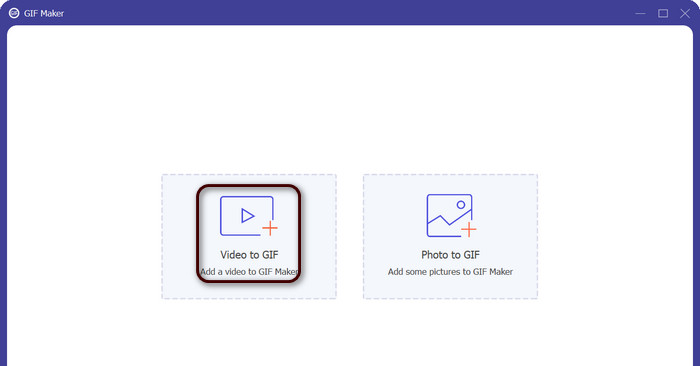
प्रोग्राम लॉन्च करें ताकि आप इसका मुख्य इंटरफ़ेस देख सकें। यहाँ से, Toolbox टैब पर जाएँ और GIF Maker टूल पर क्लिक करें। फिर, अपने लक्ष्य MOV फ़ाइलें जोड़ने के लिए Video to GIF बटन दबाएँ।.
चरण 3. वीडियो संपादित करें
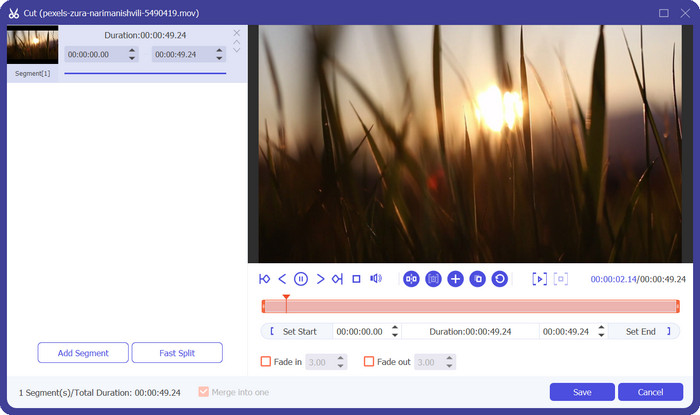
यदि आप वीडियो के कुछ हिस्से काटना चाहते हैं, तो Cut बटन पर क्लिक करें। अब स्लाइड बार का उपयोग करें या विशेष प्रारंभ और समाप्ति समय दर्ज करें, ताकि आप उस हिस्से का चयन कर सकें जिसे आप GIF के लिए उपयोग करना चाहते हैं। अगला, GIF की सेटिंग्स अनुकूलित करें, जिनमें आउटपुट साइज, फ़्रेम रेट और क्वालिटी शामिल हैं। आप Edit बटन पर क्लिक करके GIF में टेक्स्ट या स्टिकर भी जोड़ सकते हैं।.
चरण 4. MOV को GIF में बदलें
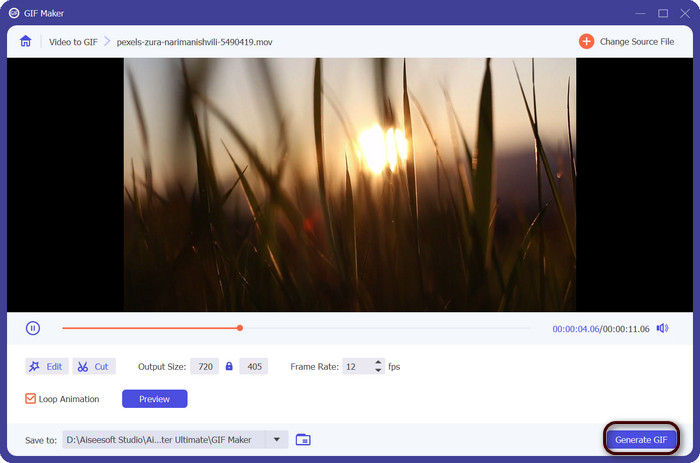
GIF का प्रीव्यू देखें ताकि सुनिश्चित कर सकें कि यह वैसा ही दिख रहा है जैसा आप चाहते हैं। अपनी GIF बनाने के लिए Generate GIF बटन पर क्लिक करें। GIF आपके कंप्यूटर पर उसी लोकेशन पर सेव हो जाएगी, जिसे आपने आउटपुट सेटिंग्स में निर्धारित किया था।.
2. एफएफएमपीईजी
FFmpeg एक बहुमुखी और शक्तिशाली सॉफ्टवेयर टूल है जो डेवलपर्स, मीडिया पेशेवरों और शौकियों को ऑडियो और वीडियो फ़ाइलों के साथ काम करने के लिए कई प्रकार की सुविधाएँ प्रदान करता है। इसकी क्रॉस-प्लेटफ़ॉर्म संगतता के साथ, आप विभिन्न ऑपरेटिंग सिस्टम पर FFmpeg का उपयोग कर सकते हैं, जिससे यह उन परियोजनाओं के लिए एक आदर्श समाधान बन जाता है जिनमें लचीलेपन और बहुमुखी प्रतिभा की आवश्यकता होती है। FFmpeg की असाधारण विशेषताओं में से एक इसकी विभिन्न ऑडियो और वीडियो फ़ाइल स्वरूपों से निपटने की क्षमता है, जिसमें MP4, MOV, AVI, और अधिक जैसे लोकप्रिय प्रारूप शामिल हैं। निम्नलिखित निर्देशों का उपयोग करके MOV को GIF में बनाना सीखें।
मुख्य विशेषताएँ:
◆ रूपांतरण और ट्रांसकोडिंग।
◆ वीडियो और ऑडियो प्रारूपों की एक विस्तृत श्रृंखला के लिए समर्थन।
◆ स्ट्रीमिंग और प्रसारण।
◆ कमांड-लाइन इंटरफ़ेस।
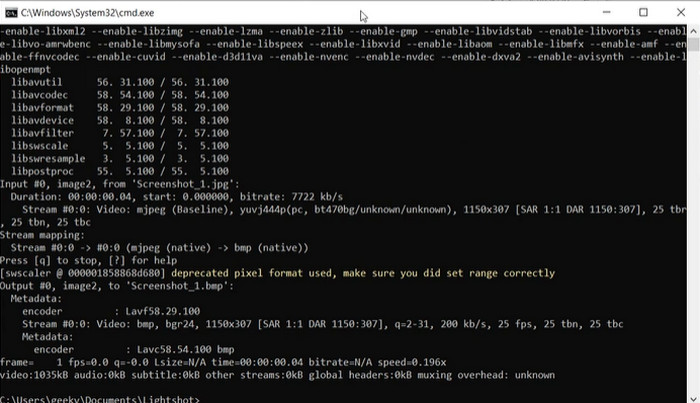
चरण 1. अपने कंप्यूटर पर कमांड प्रॉम्प्ट या टर्मिनल विंडो शुरू करें। फिर FFmpeg से MOV को GIF में कनवर्ट करने की प्रक्रिया शुरू करने के लिए उस डायरेक्टरी में जाएँ जहाँ आपकी MOV फ़ाइल मौजूद है।.
चरण 2. निम्न कमांड दर्ज करें: ffmpeg -i input.mov output.gif। यहाँ input.mov को अपनी MOV फ़ाइल के नाम से और output.gif को अपनी इच्छित GIF फ़ाइल के नाम से बदलें। वैकल्पिक रूप से, आप कमांड में अतिरिक्त फ़्लैग जोड़कर आउटपुट को कस्टमाइज़ कर सकते हैं। उदाहरण के लिए, आप आउटपुट GIF का फ़्रेम रेट सेट करने के लिए -r फ़्लैग जोड़ सकते हैं, इस तरह: ffmpeg -i input.mov -r 10 output.gif। यह फ़्रेम रेट को 10 फ़्रेम प्रति सेकंड पर सेट कर देगा।.
चरण 3. कमांड चलाने के लिए Enter दबाएँ। FFmpeg आपकी MOV फ़ाइल को GIF में कनवर्ट कर देगा, और तैयार हुई फ़ाइल आपके इनपुट फ़ाइल वाली ही डायरेक्टरी में सेव हो जाएगी। इस प्रकार आप MOV को GIF में बदल सकते हैं।.
3. फोटोशॉप
एडोब सिस्टम्स का फोटोशॉप डिजिटल छवियों के संपादन और डिजाइन के लिए उद्योग-मानक सॉफ्टवेयर है। फोटोग्राफी, ग्राफिक डिजाइन और कला के क्षेत्र में कई पेशेवर डिजिटल फोटो, ग्राफिक्स और आर्टवर्क बनाने और संशोधित करने के लिए इस पर भरोसा करते हैं। सौभाग्य से, फोटोशॉप के कई टूल MOV वीडियो को GIF में बदलना आसान बनाते हैं। कुछ हाइलाइट्स में निम्नलिखित शामिल हैं:
मुख्य विशेषताएँ:
◆ वीडियो फ़ाइलों को आयात करने के लिए वीडियो समयरेखा सुविधा।
◆ विभिन्न आकारों और संकल्पों पर जीआईएफ निर्यात करें।
◆ एक एनीमेशन पैनल के साथ फ्रेम-बाय-फ्रेम एनिमेशन बनाएं।
चरण 1. अपने कंप्यूटर पर Photoshop खोलें और File > Import > Video Frames to Layers पर जाएँ। Import Video to Layers डायलॉग बॉक्स में, अपनी MOV फ़ाइल चुनें और Open पर क्लिक करें।.
चरण 2. Video Layer डायलॉग बॉक्स में, यदि आप पूरा वीडियो उपयोग करना चाहते हैं तो From Beginning to End चुनें, और यदि केवल वीडियो का कोई हिस्सा उपयोग करना चाहते हैं तो Selected Range Only चुनें। फिर OK पर क्लिक करें।.
चरण 3. Photoshop वीडियो फ़्रेमों को लेयर्स के रूप में इम्पोर्ट कर देगा। एनीमेशन पैनल खोलने के लिए Window > Timeline पर जाएँ। एनीमेशन पैनल में Create Frame Animation बटन पर क्लिक करें।.
चरण 4. एनीमेशन पैनल के दाहिने ऊपर कोने में स्थित मेनू आइकन पर क्लिक करें और Make Frames From Layers चुनें। एनीमेशन पैनल में, हर फ़्रेम के नीचे दिए गए समय पर क्लिक करके और नया मान दर्ज करके आप प्रत्येक फ़्रेम की अवधि समायोजित कर सकते हैं।.
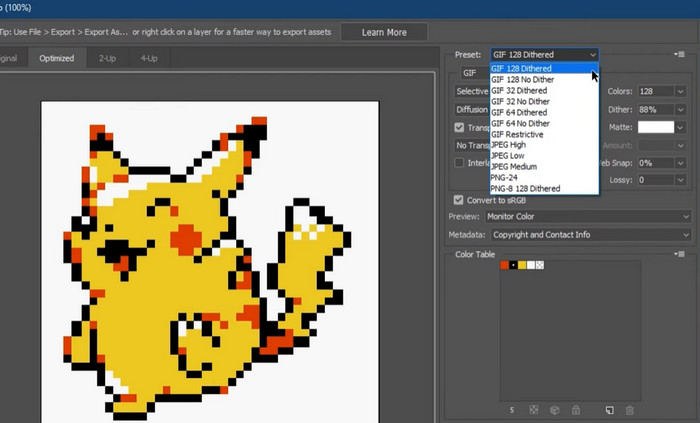
चरण 5. जब आप अपने GIF से संतुष्ट हों, तो File > Export > Save for Web (Legacy) पर जाएँ। Save for Web डायलॉग बॉक्स में, फ़ाइल टाइप के रूप में GIF चुनें। आकार, कलर पैलेट और ऑप्टिमाइज़ेशन विकल्प आदि जैसी सेटिंग्स अपनी पसंद के अनुसार समायोजित करें। GIF को सेव करने के लिए Save पर क्लिक करें। इस तरह आप Photoshop में MOV को GIF के रूप में एक्सपोर्ट कर सकते हैं।.
भाग 2। ऑनलाइन MOV को GIF में बदलें
फ़ाइलों को परिवर्तित करने के लिए ऑनलाइन प्रोग्राम का उपयोग करना किसी सॉफ़्टवेयर को स्थापित किए बिना या जटिल इंटरफेस को नेविगेट किए बिना फ़ाइलों को परिवर्तित करने का एक सुविधाजनक और सुलभ तरीका प्रदान करता है। यदि आप उत्सुक हैं कि किस प्रोग्राम का उपयोग करना है, तो आप नीचे दिए गए सर्वश्रेष्ठ MOV से GIF ऑनलाइन कन्वर्टर्स पर एक नज़र डाल सकते हैं।
1. मुफ्त वीडियो कन्वर्टर ऑनलाइन
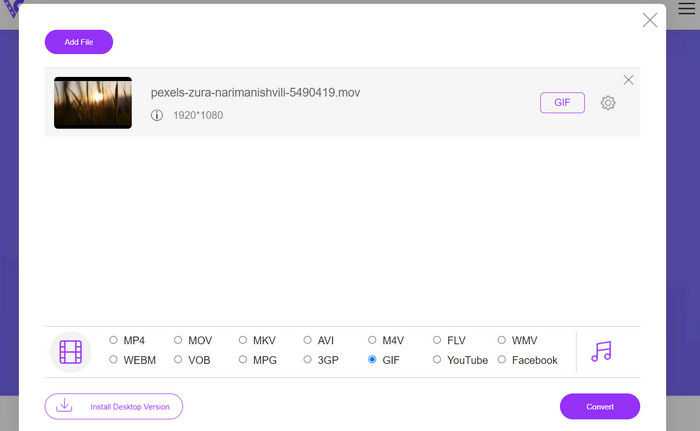
FVC का Free Video Converter Online एक सरल और उपयोगकर्ता‑अनुकूल इंटरफ़ेस प्रदान करता है, जो यूज़र्स को अपनी वीडियो फ़ाइलों को जल्दी और आसानी से कनवर्ट करने देता है। उपयोगकर्ता इनपुट फ़ाइल चुन सकते हैं और अपनी इच्छित आउटपुट फ़ॉर्मैट और क्वालिटी तय कर सकते हैं। यह टूल वीडियो रेज़ोल्यूशन, बिटरेट और फ़्रेम रेट समेत कई सेटिंग्स को कस्टमाइज़ करने की सुविधा भी देता है।.
चरण 1. सबसे पहले वेब ब्राउज़र खोलें और FVC Free Video Converter Online वेबसाइट पर जाएँ।.
फ़ाइलों को बैच में कनवर्ट करने के लिए डेस्कटॉप संस्करण डाउनलोड करें।.
चरण 2. अब, Add Files to Convert बटन पर क्लिक करके वह MOV वीडियो फ़ाइल अपलोड करें जिसे आप कनवर्ट करना चाहते हैं। आप फ़ाइल को निर्धारित क्षेत्र में ड्रैग और ड्रॉप भी कर सकते हैं।.
चरण 3. आउटपुट फ़ॉर्मैट चुनने के लिए GIF रेडियो बटन पर क्लिक करें। कन्वर्ज़न प्रक्रिया शुरू करने के लिए Convert बटन दबाएँ।.
2. CloudConvert
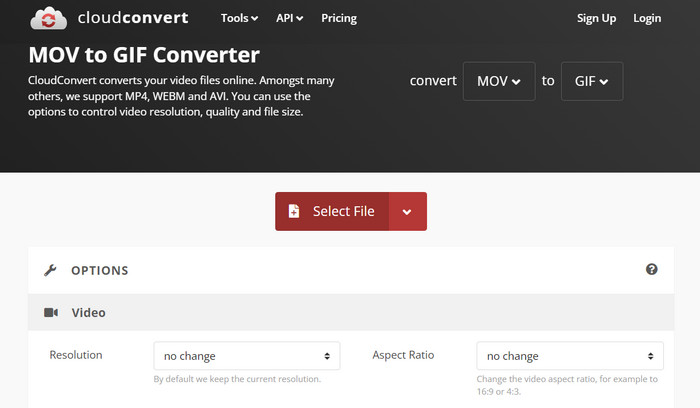
CloudConvert एक ऑनलाइन फ़ाइल रूपांतरण वेब एप्लिकेशन है जो उपयोगकर्ताओं को विभिन्न प्रकार की फ़ाइलों को परिवर्तित करने की अनुमति देता है, जिसमें वीडियो, चित्र, दस्तावेज़ और बहुत कुछ शामिल हैं। यह 200 से अधिक फ़ाइल स्वरूपों का समर्थन करते हुए रूपांतरण विकल्पों की एक विस्तृत श्रृंखला प्रदान करता है, जिसमें MP4, MOV, GIF और अन्य जैसे लोकप्रिय प्रारूप शामिल हैं।
चरण 1. CloudConvert का उपयोग करके MOV को GIF में कनवर्ट करने के लिए, वेब ब्राउज़र खोलें और CloudConvert वेबसाइट पर जाएँ। अपनी MOV फ़ाइल अपलोड करने के लिए Select Files बटन पर क्लिक करें।.
चरण 2. फ़ाइल अपलोड हो जाने के बाद, ड्रॉप‑डाउन मेनू से आउटपुट फ़ॉर्मैट के रूप में GIF चुनें। वैकल्पिक रूप से, आप फ़्रेम रेट और इमेज साइज जैसी आउटपुट सेटिंग्स को भी कस्टमाइज़ कर सकते हैं।.
चरण 3. कन्वर्ज़न प्रक्रिया शुरू करने के लिए Convert बटन पर क्लिक करें। प्रक्रिया पूरी होने पर, आप कनवर्ट की गई GIF फ़ाइल को अपने कंप्यूटर पर डाउनलोड कर सकते हैं। यह है कि यह MOV से GIF कनवर्टर ऑनलाइन फ़्री टूल कैसे काम करता है।.
3. ईजीजीआईएफ
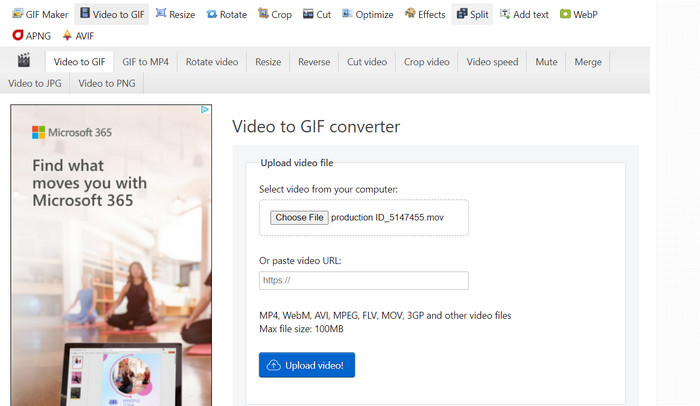
EZGIF एक लचीला वेब ऐप है जो GIFs के साथ काम करने के लिए कई तरह के विकल्प प्रदान करता है। वीडियो फ़ाइलों, स्टिल फोटो और यहां तक कि अन्य जीआईएफ से जीआईएफ बनाने, संपादित करने और अनुकूलित करने के लिए यह प्रोग्राम एक मुफ्त संसाधन है। EZGIF की वीडियो फ़ाइलों को तेजी से GIFs में बदलने की क्षमता इसके सबसे आकर्षक विक्रय बिंदुओं में से एक है। उपयोगकर्ता MP4, AVI, या MOV जैसे प्रारूपों में वीडियो अपलोड कर सकते हैं और उन्हें फ्रेम दर और छवि आकार जैसी सेटिंग्स के साथ GIF में परिवर्तित कर सकते हैं, जिसे वे अपनी पसंद के अनुसार बदल सकते हैं। नीचे दिए गए चरणों का पालन करके MOV से GIF रूपांतरण के लिए EZGIF का उपयोग करें।
चरण 1. अपना वेब ब्राउज़र लॉन्च करें और अपना वीडियो एनिमेटेड GIF में बदलने के लिए EZGIF पर जाएँ।.
चरण 2. MOV को GIF में बदलने के लिए, बस Choose File पर क्लिक करें और वह फ़ाइल चुनें जिसे आप बदलना चाहते हैं।.
चरण 3. फ़ाइल सबमिट होने के बाद, दिए गए स्लाइडर का उपयोग करके GIF के लिए प्रारंभ और समाप्ति समय सेट करें। आप GIF का आकार और कैप्शन भी बदल सकते हैं। रूपांतरण शुरू करने के लिए Convert to GIF विकल्प चुनें।.
और पढ़ें
[फ़्री और ऑनलाइन] MOV को MP4 में बदलने के 4 तरीके
Windows और Mac पर सर्वश्रेष्ठ Animated GIF Looper से GIF को लूप करें
MOV बनाम GIF
MOV प्रारूप का उपयोग मूवी, टीवी शो, लघु वीडियो क्लिप या होम मूवी को संग्रहीत करने के लिए किया जा सकता है। यह वास्तव में QuickTime फ़ाइल स्वरूप (QTFF) में सहेजा जाता है, जिसे Apple द्वारा 1991 में पेश किया गया था। MOV फ़ाइलों का उपयोग अक्सर तब किया जाता है जब लोग उच्च गुणवत्ता वाले वीडियो को सहेजना चाहते हैं।
जीआईएफ वेब ग्राफिक्स के लिए एक सामान्य छवि प्रारूप है। टेक्स्ट वाली छोटी छवियों और छवियों को सहेजने के अलावा, जीआईएफ वेबसाइटों पर बुनियादी एनिमेशन भी शामिल और प्रदर्शित कर सकता है। यह एक दोषरहित प्रारूप है, और जीआईएफ संपीड़न छवि स्पष्टता को कम नहीं करता है।
भाग 3. MOV से GIF के बारे में अक्सर पूछे जाने वाले प्रश्न
MOV को GIF में कनवर्ट करते समय मुझे किन सेटिंग्स का उपयोग करना चाहिए?
MOV को GIF में कनवर्ट करते समय आपको जिन सेटिंग्स का उपयोग करना चाहिए, वे आपकी विशिष्ट आवश्यकताओं पर निर्भर करेंगी। आम तौर पर, आप अपने इच्छित उपयोग के लिए जीआईएफ को अनुकूलित करने के लिए फ्रेम दर, छवि आकार और रंग की गहराई को समायोजित करना चाहेंगे।
क्या मैं MOV फ़ाइल के एक हिस्से को GIF में बदल सकता हूँ?
हां, अधिकांश उपकरण आपको GIF में बदलने के लिए MOV फ़ाइल के एक विशिष्ट भाग का चयन करने की अनुमति देते हैं। यदि आप चाहें तो यह उपयोगी हो सकता है
MOV फ़ाइलों से बनाए गए GIF के कुछ सामान्य उपयोग क्या हैं?
MOV फ़ाइलों से बनाए गए GIF का उपयोग सोशल मीडिया पोस्ट, वेबसाइट एनिमेशन और ईमेल मार्केटिंग अभियानों सहित कई उद्देश्यों के लिए किया जा सकता है।
निष्कर्ष
MOV से GIF में कनवर्ट करना कई उद्देश्यों के लिए उपयोगी हो सकता है—रोचक सोशल मीडिया कंटेंट बनाने से लेकर प्रोडक्ट फीचर्स दिखाने या ट्यूटोरियल तैयार करने तक। इस कन्वर्ज़न के लिए बहुत से टूल उपलब्ध हैं, जो EZGIF और CloudConvert जैसे ऑनलाइन टूल से लेकर Photoshop और Adobe After Effects जैसे उन्नत डेस्कटॉप एप्लिकेशन तक फैले हुए हैं।.
-
 इमेज को एनिमेटेड GIF में बदलने के 5 बेहतरीन तरीके [2023 को अपडेट किया गया]
 GIF में कन्वर्टर इमेज चाहिए? यह लेख पांच सर्वश्रेष्ठ कन्वर्टर्स प्रदान करेगा जो हम बाजार में पा सकते हैं। तो, आइए इस लेख को पढ़कर इन उपकरणों के बारे में जानें।
-
 इन अद्भुत कन्वर्टर्स का उपयोग करके आसानी से MOV को WMV में बदलें
 अपनी MOV फ़ाइल को WMV फ़ाइल में बदलना चाहते हैं? इन ऑनलाइन और ऑफलाइन कन्वर्टर्स का उपयोग करके MOV को WMV में आसानी से बदलने के सरल तरीके यहां दिए गए हैं जिनका हम उपयोग करने की सलाह देते हैं।
-
 अपनी सामग्री को मसाला देने के लिए जीआईएफ को कैसे काटें, इस पर सर्वश्रेष्ठ गाइड
 ' इस अवश्य पढ़ें मार्गदर्शिका को देखना न भूलें। ऑनलाइन और ऑफलाइन शानदार GIF कटर से अपने दर्शकों का ध्यान आकर्षित करने के लिए GIF को ट्रिम और कट करना सीखें।
