


 वीडियो कनवर्टर अंतिम
 स्क्रीन अभिलेखी
 वीडियो मरम्मत
बेस्ट जीआईएफ क्रॉपर्स की मदद से जीआईएफ कैसे क्रॉप करें
आप जो संदेश भेज रहे हैं, उसके लिए सही GIF चुनना ज़रूरी है, ताकि वही लहजा और भाव सामने आए जो आप व्यक्त करना चाहते हैं। लेकिन कुछ GIF को उसकी असली मंशा दिखाने के लिए क्रॉप करना पड़ता है। साथ ही, अगर आप कभी अपने GIF को क्रॉप करें तो उनकी गुणवत्ता पर कोई असर नहीं पड़ना चाहिए और वही fps बरकरार रहना चाहिए। कई बार सही GIF क्रॉपर चुनना थोड़ा मुश्किल हो सकता है, क्योंकि हर टूल क्रॉप करने की सुविधा नहीं देता। और जिन टूल्स में क्रॉप करने की सुविधा है, वे कई बार GIF की गुणवत्ता और fps कम कर देते हैं। इस लेख में आप अपना सबसे अच्छा GIF क्रॉपर चुन सकते हैं; यहाँ बताए गए सभी टूल्स को हमने पहले ही टेस्ट किया है, ताकि आपको सही सबूत मिल सके। साथ ही, हम आपको हर प्लेटफ़ॉर्म पर उपलब्ध सबसे अच्छा GIF क्रॉपर और उसे इस्तेमाल करने का तरीका भी बताते हैं। इसके बारे में और जानने के लिए यह लेख पढ़ते रहें।.

भाग 1. सर्वश्रेष्ठ जीआईएफ क्रॉपर जो विंडोज और मैक ऑपरेटिंग सिस्टम का समर्थन करता है
1. जीआईएफ मेकर के लिए एफवीसी फ्री वीडियो
यह टूल Windows और Mac जैसे सभी प्लेटफ़ॉर्म पर उपलब्ध है। यह FVC द्वारा विकसित किया गया सबसे अच्छा एनिमेटेड GIF क्रॉपर है, जिसका नाम FVC Free Video to GIF Maker है। यह सॉफ़्टवेयर अपने यूज़र्स को उनके पहले से बने GIF को एक्सप्लोर और बेहतर करने या नए GIF बनाने की सुविधा देता है। अगर आप अपना GIF क्रॉप करना चाहते हैं, तो यह टूल आपको बिना इंटरनेट कनेक्शन के भी यह काम करने में मदद करता है। तो अपने GIF को और स्पष्ट व अलग दिखने वाला बनाने के लिए आसानी और प्रभावी तरीके से क्रॉप करें। अपना GIF कैसे क्रॉप करें, यह जानने के लिए नीचे दिए गए चरणों का पालन करें।.
स्टेप 1. टूल को अपने ड्राइव में इंस्टॉल करें और अपनी ज़रूरत के अनुसार प्रेफरेंस सेट करें।.
फ्री डाउनलोडWindows 7 या उससे आगे के लिएसुरक्षित डाउनलोड
फ्री डाउनलोडMacOS 10.7 या उससे आगे के लिएसुरक्षित डाउनलोड
स्टेप 2. टूल लॉन्च करने के बाद आपकी स्क्रीन पर ऐसा एक छोटा इंटरफ़ेस दिखाई देगा।.
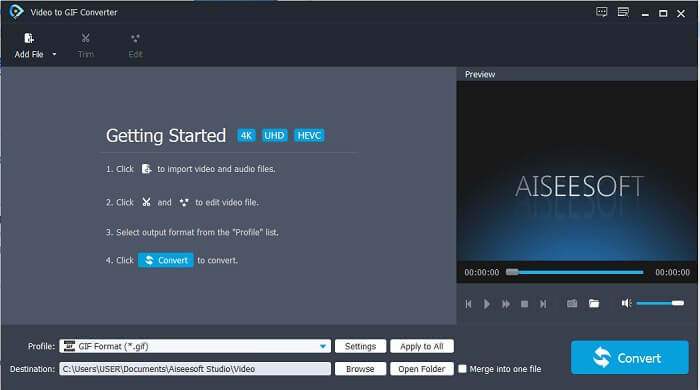
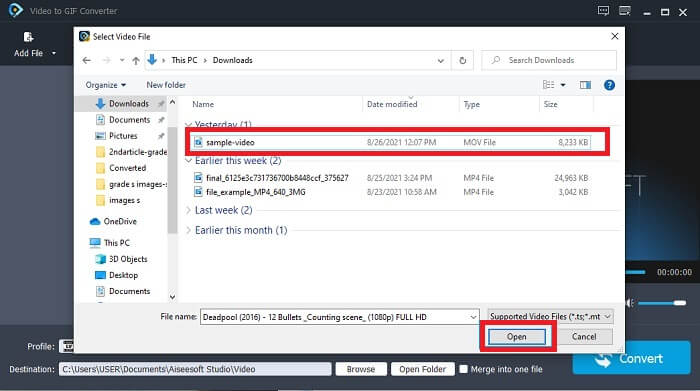
स्टेप 3. Add File पर क्लिक करें या फिर वीडियो फ़ाइल को drag and drop करके टूल के इंटरफ़ेस में लाएँ।.
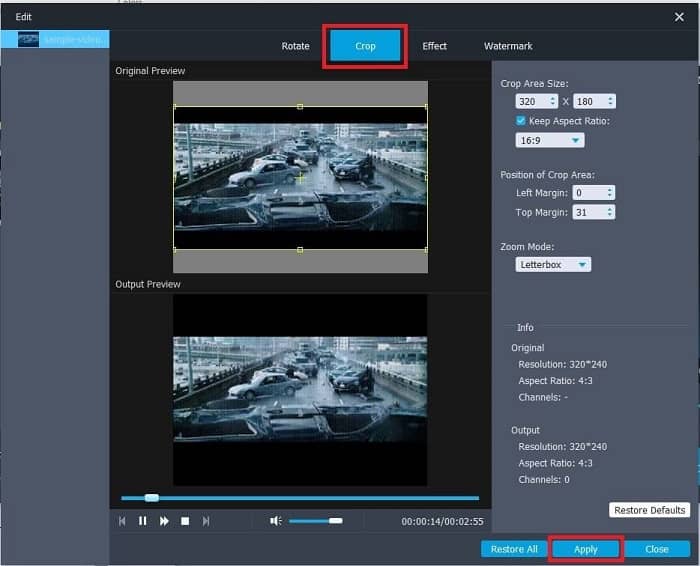
स्टेप 4. अपने GIF को बेहतर करने के लिए Edit पर क्लिक करें। Crop सेक्शन में जाएँ और अपने GIF का साइज़ एडजस्ट करें। आप Aspect Ratio और Zoom Mode भी बदल सकते हैं। जो भी बदलाव आपने किए हैं, उन्हें सेव करने के लिए Apply पर क्लिक करें।.
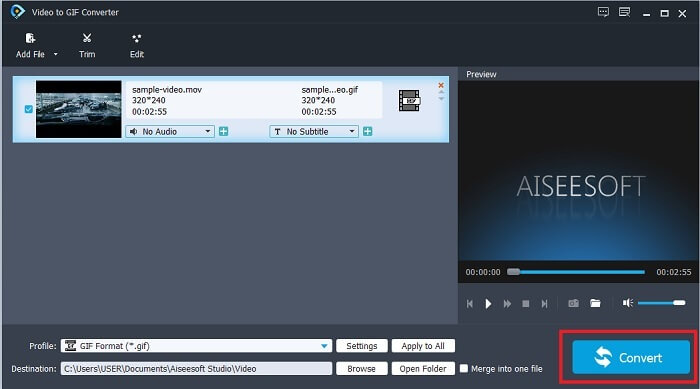
स्टेप 5. अपने वीडियो को GIF में बदलने की प्रक्रिया शुरू करने के लिए Convert पर क्लिक करें। कन्वर्ज़न पूरा हो जाने के बाद, फ़ाइल एक्सप्लोरर में वीडियो का नाम लिखकर अंतिम आउटपुट चेक कर सकते हैं।.
पेशेवरों
- सभी छोटी सुविधाएँ यहाँ उपलब्ध हैं।
- यह ऑनलाइन टूल और कुछ डाउनलोड करने योग्य टूल से भी काफी बेहतर है।
- इस टूल से आसानी से अपना GIF बनाएं।
विपक्ष
- आप प्रमुख सुविधाओं का उपयोग नहीं कर सकते जो अल्टीमेट संस्करण प्रदान करता है।
- यह प्रीमियम संस्करण के बजाय कम प्रारूप वाले वीडियो का समर्थन करता है।
2. वीडियो कनवर्टर अल्टीमेट
इस टूल का फ्री वर्जन साधारण काम कर सकता है लेकिन इसका प्रीमियम वर्जन बेस्ट जीआईएफ क्रॉपर है। वीडियो कन्वर्टर अल्टीमेट न केवल नाम में है बल्कि यह भी है कि यह टूल किसी भी वीडियो को जीआईएफ फाइल में बदलने में सबसे अच्छा है। इसके मुफ़्त संस्करण और नीचे दिए गए टूल के विपरीत, यह टूल आपके साधारण GIF को और भी शानदार बना सकता है। यह टूल केवल प्रदान कर सकने वाले प्रभावों को जोड़कर अपने GIF को एक उत्कृष्ट में रूपांतरित करें। यह वीडियो को जीआईएफ में बदलने की सुविधा भी देता है, जैसे एमपी4 से जीआईएफ, वीडियो को एक में मर्ज करना, 3डी मेकर, और भी बहुत कुछ। तो, इस उपकरण को अपने व्यक्तिगत क्रॉपर के रूप में उपयोग करें और यह आपको कभी निराश नहीं करेगा। इसके अलावा, अपने रिसीवर को अधिक विशिष्ट संदेश देने के लिए अपने जीआईएफ को क्रॉप करने का तरीका जानने के लिए नीचे दिए गए चरणों को पढ़ना जारी रखें।
स्टेप 1. इस टूल का इस्तेमाल करने से पहले आपको इसे डाउनलोड करना होगा। टूल को अपने ड्राइव में इंस्टॉल करें, अपनी ज़रूरत के अनुसार प्रेफरेंस बदलें, और finish पर क्लिक करके टूल को अपनी स्क्रीन पर रन करना शुरू करें।.
फ्री डाउनलोडWindows 7 या बाद के संस्करण के लिएसुरक्षित डाउनलोड
फ्री डाउनलोडMacOS 10.7 या बाद के संस्करण के लिएसुरक्षित डाउनलोड
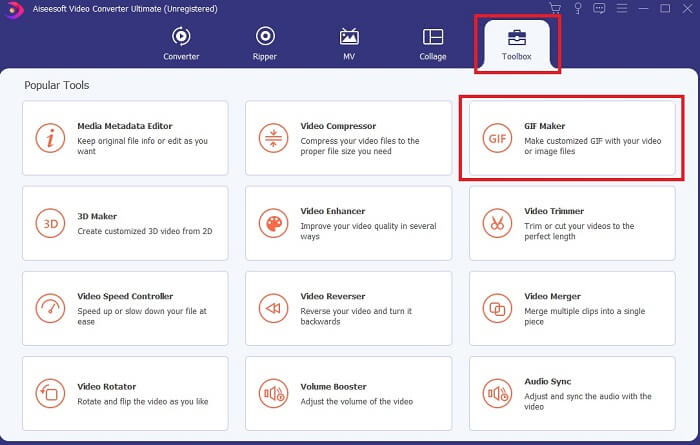
स्टेप 2. जब टूल पूरी तरह आपके ड्राइव में डाउनलोड हो जाए, तो इस तरह का एक आसान-सा इंटरफ़ेस आपकी स्क्रीन पर दिखाई देगा। Toolbar पर क्लिक करें और toolbar में GIF Maker पर क्लिक करें।.
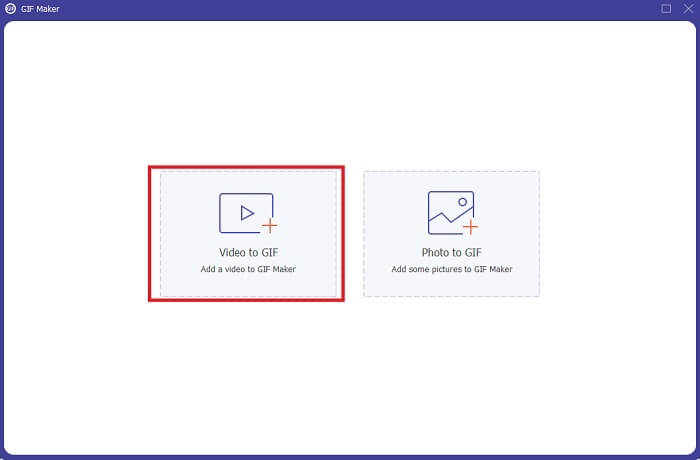
स्टेप 3. वीडियो जोड़ने के लिए Video to GIF पर क्लिक करें और वह GIF ढूँढें जिसे आप क्रॉप या एडिट करना चाहते हैं। वीडियो चुनने के बाद, GIF Maker शुरू करने के लिए Open पर क्लिक करें।.
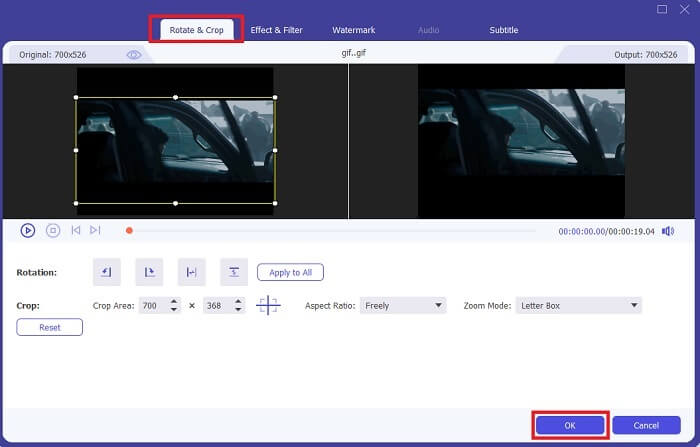
स्टेप 4. एडिटिंग शुरू करने के लिए star वाली इमेज वाला बटन क्लिक करें। GIF को क्रॉप करना शुरू करने के लिए Rotate & Crop पर क्लिक करें। आप इसमें इफेक्ट्स और फ़िल्टर, वॉटरमार्क और सबटाइटल भी जोड़ सकते हैं। अगर सभी एडजस्टमेंट पूरे हो जाएँ, तो बदलाव सेव करने के लिए OK पर क्लिक करें।.
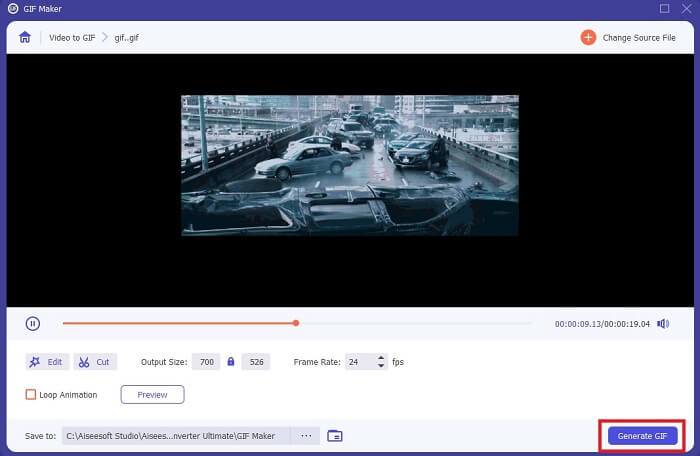
स्टेप 5. अंतिम आउटपुट को जहाँ सेव करना चाहते हैं, वह लोकेशन बदल दें ताकि बाद में उसे आसानी से ढूँढ सकें। कन्वर्ज़न शुरू करने के लिए Generate GIF पर क्लिक करें। जब कन्वर्ज़न 100% पूरा हो जाए, तो अंतिम आउटपुट को वहीं ढूँढें जहाँ आपने उसे सेव किया था या फ़ाइल मैनेजर में।.
पेशेवरों
- यदि आप अपने जीआईएफ को और अधिक इंटरैक्टिव बनाना चाहते हैं तो आपका उपयोग करने योग्य टूल। चीजों को अपने जीआईएफ में मसाला देने के लिए अपनी कल्पना का प्रयोग करें।
- यह आपके द्वारा प्रदान की जाने वाली प्रमुख विशेषताओं का उपयोग करके आपके GIF को एक प्रभावशाली आउटपुट में बना सकता है जो अन्य प्रीमियम संस्करण प्रदान नहीं कर सकता है।
- एक मिलियन से अधिक उपयोगकर्ता इस टूल को अपनी पहली पसंद के प्रीमियम संस्करण टूल के रूप में चुनते हैं।
विपक्ष
- उपकरण का उपयोग करने के लिए, आपको पहले भुगतान प्रदान करना होगा लेकिन यह निश्चित रूप से इतना महंगा नहीं है। इसलिए, यदि आपने यह उपकरण खरीदा है तो आपको कुछ कम की उम्मीद नहीं करनी चाहिए।
- इसे लॉन्च करने से पहले टूल को डाउनलोड करें। यहां तक कि अगर आपके पास इंटरनेट नहीं है, तब भी आप इस टूल का उपयोग कर सकते हैं क्योंकि यह इंटरनेट पर निर्भर नहीं है।
भाग २. शीर्ष ५ सर्वश्रेष्ठ GIF क्रॉपर जिन्हें आप इंटरनेट पर एक्सेस कर सकते हैं
1. iLoveIMG
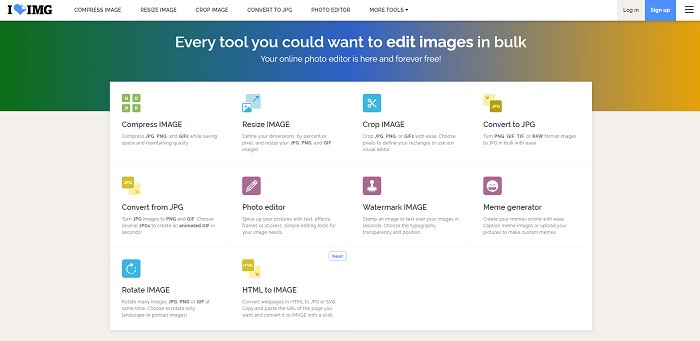
इस GIF क्रॉपर ऑनलाइन की मदद से आप अपने GIF क्रॉप कर सकते हैं। iLoveIMG को सबसे अच्छा ऑनलाइन GIF, JPG और PNG क्रॉपर माना जाता है। हालाँकि यह टूल वीडियो को GIF फ़ॉर्मेट में कन्वर्ट नहीं कर सकता, क्योंकि यह सिर्फ GIF, JPG और PNG को बेहतर बनाने पर ही फोकस करता है। लेकिन इस वेबसाइट का इंटरफ़ेस उम्मीद से बेहतर है, यह सिर्फ साधारण नहीं बल्कि काफ़ी इंटरऐक्टिव है। इसलिए वेबसाइट इस्तेमाल करते समय बोर होने की उम्मीद मत कीजिए। रेटिंग के तौर पर इसे 10 में से 7 दिया जा सकता है, जो किसी ऑनलाइन वेब-बेस्ड एप्लिकेशन के लिए काफ़ी अच्छा है।.
पेशेवरों
- अपने GIF, JPG और PNG को बेहतर बनाने के लिए सर्वश्रेष्ठ।
- वेबसाइट का इंटरफ़ेस आश्चर्यजनक रूप से सुंदर है।
- डाउनलोड करने की आवश्यकता नहीं है।
विपक्ष
- यदि कनेक्शन बाधित हो गया है तो डेटा हानि की संभावना हो सकती है।
- आप वीडियो प्रारूप को GIF प्रारूप में नहीं बदल सकते।
2. रेडकेचप
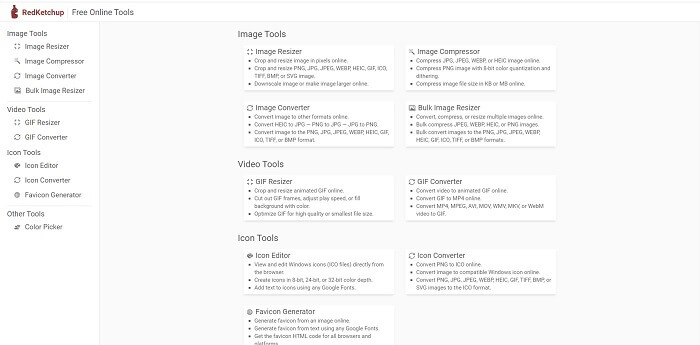
अगर iLoveIMG आपको पसंद नहीं आता, तो आप यह ऑनलाइन GIF क्रॉपर ज़रूर आज़मा सकते हैं। RedKetchup हर एडिटिंग टूल के बारे में दी गई जानकारी के कारण काफ़ी जानकारीपूर्ण है। इसलिए अगर आपको किसी फ़ीचर के बारे में अंदाज़ा नहीं है, तो यह समझना आसान हो जाता है कि वह कैसे काम करता है। इसके अलावा, आप अपनी इमेज को GIF, PNG, JPG, WEBP आदि में कन्वर्ट भी कर सकते हैं। यह iLoveIMG से ज़्यादा फ़ॉर्मेट सपोर्ट करता है, लेकिन इस टूल की कमी यह है कि वेबपेज का इंटरफ़ेस काफ़ी बोरिंग है। पूरी वेबसाइट की बैकग्राउंड सिर्फ सफ़ेद रंग की है और सिर्फ RedKetchup का नाम और आइकॉन ही रंगीन है।.
पेशेवरों
- यह iLoveIMG की तुलना में अधिक छवि स्वरूपों का समर्थन करता है।
- प्रत्येक उपकरण सुविधा का एक संक्षिप्त विवरण होता है ताकि उपयोगकर्ता इसके कार्यों को समझ सके।
- यह एक फ्री ऑनलाइन टूल है।
विपक्ष
- इस टूल का वेबपेज देखने में इतना उबाऊ है क्योंकि इसका मोनोटोन कलर है।
- एक मौका है कि अगर आपका इंटरनेट अस्थिर है तो फ़ाइल ठीक से सहेजी नहीं जाएगी।
3. कपविंग
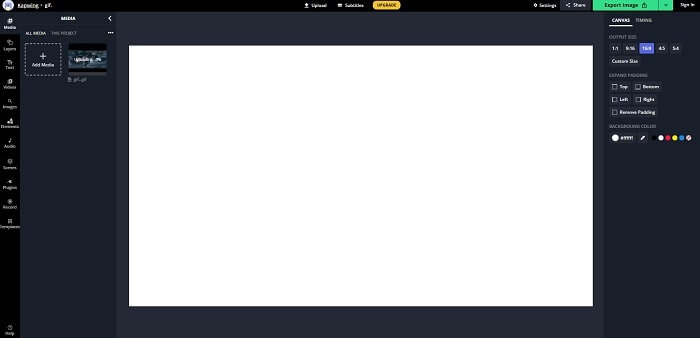
इस टूल में लगभग वही सुविधाएँ हैं जो Photoshop में होती हैं, बस यह ऑनलाइन है। यह सबसे अच्छा GIF फ़्रेम क्रॉपर ऑनलाइन है। Kapwing आपके दोस्तों के साथ शेयर करने के लिए बेहतरीन GIF बनाने के लिए जाना जाता है। ऊपर बताए गए पहले दो टूल्स के उलट, यह टूल कुछ वीडियो फ़ॉर्मेट को भी सपोर्ट करता है, जिन्हें आप GIF फ़ॉर्मेट में कन्वर्ट कर सकते हैं। हालाँकि, इस टूल का इस्तेमाल करना सीखने में आपका थोड़ा समय लग सकता है, लेकिन यह मेहनत सार्थक होगी। और अगर आप सिर्फ़ एक साधारण GIF बनाना चाहते हैं, तो यह टूल उस काम में भी बेहतरीन है। इस टूल में लगभग वही सुविधाएँ हैं जो Photoshop में होती हैं, बस यह ऑनलाइन है। यह सबसे अच्छा GIF फ़्रेम क्रॉपर ऑनलाइन है। Kapwing आपके दोस्तों के साथ शेयर करने के लिए बेहतरीन GIF बनाने के लिए जाना जाता है। ऊपर बताए गए पहले दो टूल्स के उलट, यह टूल कुछ वीडियो फ़ॉर्मेट को भी सपोर्ट करता है, जिन्हें आप GIF फ़ॉर्मेट में कन्वर्ट कर सकते हैं। हालाँकि, इस टूल का इस्तेमाल करना सीखने में आपका थोड़ा समय लग सकता है, लेकिन यह मेहनत सार्थक होगी। और अगर आप सिर्फ़ एक साधारण GIF बनाना चाहते हैं, तो यह टूल उस काम में भी बेहतरीन है।.
पेशेवरों
- टूल वेबसाइट का इंटरफेस आपको फोटोशॉप के साथ लगभग वैसा ही वाइब देगा।
- अपने वीडियो को GIF फॉर्मेट में बदलें।
- बुनियादी संपादन सुविधाएँ प्रदान की जाती हैं।
विपक्ष
- वीडियो के अंतिम आउटपुट की प्रोसेसिंग हमेशा इस बात पर निर्भर करेगी कि आपका इंटरनेट कितना तेज़ है। इसलिए अंतिम आउटपुट तैयार करने के लिए बहुत धैर्य रखने की आवश्यकता है।
- आपको अपने आउटपुट से वॉटरमार्क हटाने के लिए साइन अप करना होगा। इसलिए, हर अपडेट पर एक मेल और कुछ कष्टप्रद घोषणाओं की अपेक्षा करें। क्योंकि आपने उन्हें अपने खाते तक पहुंचने दिया।
4. जीआईएफजीआईएफ
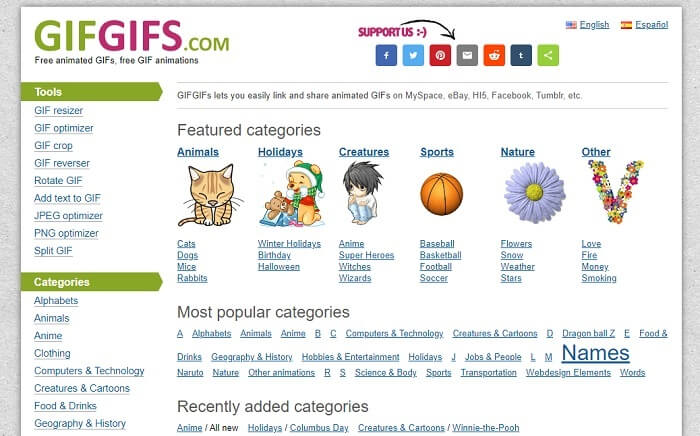
आप इस बिना गुणवत्ता घटाए GIF क्रॉपर की मदद से अपने GIF क्रॉप कर सकते हैं। GIFGIFs आपको इंटरनेट पर पहले से बने बेहतरीन GIF उपलब्ध कराता है। आप इसके दिए गए कैटेगरी जैसे alphabet, sports, anime, clothing आदि में से चुन सकते हैं। साथ ही, यह टूल सिर्फ़ GIF को बेहतर बनाने की बेहतरीन सुविधा ही नहीं देता, बल्कि आप JPG और PNG को भी ऑप्टिमाइज़ कर सकते हैं।.
पेशेवरों
- अपने GIF को बेहतर बनाने के लिए यह एक अच्छा विकल्प है।
- यह जेपीईजी, पीएनजी और जीआईएफ को अनुकूलित करने का समर्थन करता है।
- इसके श्रेणी अनुभागों पर पहले से हो चुके GIF चुनें।
विपक्ष
- यह एक खोज बार प्रदान नहीं करता है इसलिए आप जिस सही जीआईएफ का उपयोग करना चाहते हैं उसे ढूंढना मुश्किल है।
- इंटरफ़ेस ठीक है। यह कुछ खास नहीं है या हम कहें कि यह अच्छा नहीं है लेकिन बुरा नहीं है।
5. वीईईडी.आईओ
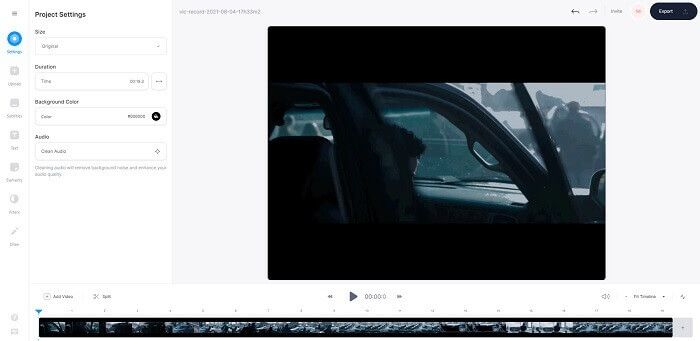
इसे अपनी पहली पसंद मुफ्त जीआईएफ क्रॉपर ऑनलाइन के रूप में चुनें, लेकिन यदि आप चाहें तो इसे प्रीमियम संस्करण में भी अपग्रेड किया जा सकता है। VEED.IO आपके GIF को बेहतर बनाने के लिए सबसे अच्छे ऑनलाइन टूल में से एक है। लेकिन टूल का मुफ्त संस्करण केवल 50 एमबी जीआईएफ फ़ाइल आकार का समर्थन करता है और अधिक फ़ाइल आकार जोड़ने के लिए आपको टूल का प्रीमियम संस्करण खरीदना होगा।
पेशेवरों
- यह आपके GIF को बेहतर बनाने के लिए एक बेहतरीन एडिटिंग फीचर प्रदान करता है।
- सरल यूजर इंटरफेस।
- आप चाहें तो उपशीर्षक भी जोड़ सकते हैं।
विपक्ष
- यह आपकी 2D छवियों को बेहतर बनाने के लिए एक 3D निर्माता प्रदान नहीं करता है।
- जब आप टाइमलाइन पर ज़ूम इन करने का प्रयास करते हैं तो कुछ अवसरों पर सॉफ़्टवेयर क्रैश हो जाता है।
भाग 3. जीआईएफ क्रॉपर के बारे में अक्सर पूछे जाने वाले प्रश्न
क्या जीआईएफ प्रारूप से बेहतर कोई प्रारूप है?
हालांकि यह सर्वविदित है कि जीआईएफ वेब पर सबसे अच्छा मोशन इमेज फॉर्मेट है। लेकिन क्या आप जानते हैं कि GIF से बेहतर फॉर्मेट भी होता है। यह एपीएनजी है। यह प्रारूप GIF की तुलना में अधिक रंग का पैलेट प्रदान करता है और यह संपीड़न में भी बेहतर है। लेकिन आप WEBP, MNG, FLIF और AVIF का भी उपयोग कर सकते हैं।
GIF बनाने का क्या कारण है?
साल 1987 के अंत में, Steve Wilhite नाम के व्यक्ति ने खुद से पूछा कि क्या ऐसी कोई संभावना है कि कंप्यूटर डिस्प्ले पर दिखाई जाने वाली इमेज का फ़ाइल साइज़ छोटा किया जा सके, और उसी समय GIF का जन्म हुआ। GIF के बारे में और जानने के लिए आप यहाँ क्लिक कर सकते हैं।.
इनमे से कौन बेहतर है? जेपीजी या जीआईएफ?
जेपीजी प्रारूप आपको अधिक विस्तृत छवि प्रदान करता है क्योंकि यह रंग की एक विस्तृत श्रृंखला का समर्थन करता है इसलिए यह तस्वीरें लेने में सबसे अच्छा है। GIF थोड़ी मात्रा में रंग पैलेट प्रदान करता है लेकिन यह एक स्थिर छवि बनाने में अच्छा है।
निष्कर्ष
अंत में, निष्कर्ष यह है कि आपको ऐसा GIF क्रॉपर चुनना चाहिए जो आपकी ज़रूरत के अनुसार क्रॉपिंग की सुविधा दे, बिना इस बात के कि GIF की गुणवत्ता पर कोई असर पड़े, भले ही आप उसे जितना भी क्रॉप करें। लेकिन यह बात साफ़ है कि आपको FVC द्वारा विकसित अल्टीमेट टूल ही चुनना चाहिए, क्योंकि यह आपको वे सभी बेहतरीन GIF फ़ीचर्स देता है, जिन्हें जोड़कर आप अपने GIF को दूसरे GIF की तुलना में और भी आकर्षक बना सकते हैं। इसलिए, अगर आप Video Converter Ultimate का इस्तेमाल करते हैं, तो अपना GIF क्रॉप करना पहले से कहीं ज़्यादा आसान हो जाता है।.
-
 GIF को संपीड़ित करने के लिए ट्यूटोरियल और उच्च गुणवत्ता के साथ इसकी फ़ाइल का आकार कम करें
 अपने कंप्यूटर या मोबाइल फोन पर GIF को कंप्रेस करने के 2 आसान तरीके यहां दिए गए हैं। आप एफवीसी फ्री ऑनलाइन वीडियो कंप्रेसर का उपयोग कर सकते हैं और फोटोशॉप विभिन्न पहलुओं में जीआईएफ फ़ाइल का आकार कम कर सकते हैं।
-
 जीआईएफ प्लेयर - विंडोज पीसी, मैक, एंड्रॉइड और आईफोन के लिए 5 सर्वश्रेष्ठ जीआईएफ प्लेयर
 जीआईएफ फ़ाइलें क्या प्रोग्राम खोलता है? मैं एंड्रॉइड पर जीआईएफ कैसे देख सकता हूं? क्या iPhone में GIF खोलने के लिए GIF प्लेयर है? यह पोस्ट आपके लिए 5 सर्वश्रेष्ठ GIF खिलाड़ियों को साझा करता है।
-
 विंडोज़/मैक पर एवीआई वीडियो को एनिमेटेड जीआईएफ फाइलों में कैसे बदलें
 जीआईएफ मेम बनाने के लिए दिलचस्प एवीआई सेगमेंट चुनना चाहते हैं? यह लेख आपको एवीआई वीडियो को क्लिप करने और एवीआई को एनिमेटेड जीआईएफ फाइलों में मुफ्त में बदलने के लिए 2 सर्वोत्तम तरीके बताएगा।
