


 वीडियो कनवर्टर अंतिम
 स्क्रीन अभिलेखी
 वीडियो मरम्मत
 सुरक्षित डाउनलोड
शीर्ष 4 तरीके मुफ्त MP4 कन्वर्ट करने के लिए MOV
MP4 सबसे लोकप्रिय वीडियो फॉर्मैट्स में से एक है, जिसे ज़्यादातर प्लेयर, एडिटर और डिवाइस अच्छी तरह सपोर्ट करते हैं। लेकिन कुछ स्थितियों में आपको MP4 को MOV में कनवर्ट करने की ज़रूरत पड़ सकती है। क्या आप जानते हैं कि MP4 को MOV में कैसे बदलें?

जब आप इंटरनेट पर Google पर देखते हैं कि MP4 को MOV में कैसे कनवर्ट करें, तो आपको कई वीडियो कनवर्टर दिखाई देंगे जो इस वीडियो कन्वर्ज़न में मदद कर सकते हैं, जिनमें कुछ मुफ़्त ऑनलाइन कन्वर्टिंग टूल भी शामिल हैं। इस पोस्ट में हम आपको 4 मुफ़्त तरीके बताएंगे, जिनसे आप आसानी से MP4 को MOV में कनवर्ट कर सकते हैं।.
भाग 1. मैक / पीसी पर गुणवत्ता के नुकसान के बिना MOV करने के लिए MP4 कन्वर्ट करने के लिए कैसे
हालाँकि मार्केट में MP4 से MOV में कनवर्ट करने वाले बहुत से सॉफ़्टवेयर उपलब्ध हैं, लेकिन उनमें से कई कन्वर्ज़न के दौरान तस्वीर और आवाज़ की गुणवत्ता में कुछ कमी कर देते हैं। अगर आप बिना गुणवत्ता घटाए MP4 को MOV में कनवर्ट करना चाहते हैं, तो आपको Free Video Converter चुनना चाहिए।.
मुफ्त वीडियो कन्वर्टर विशेष रूप से सभी प्रकार के वीडियो और ऑडियो रूपांतरणों से निपटने के लिए डिज़ाइन किया गया है। यह MP4, MOV, MKV, FLV, AVI, WMV, MP3, AAC, FLAC, और अधिक सहित लगभग सभी वीडियो / ऑडियो प्रारूपों का समर्थन करता है। यह आपको मूल गुणवत्ता रखते हुए मैक या विंडोज पीसी पर MP4 को एमओवी में परिवर्तित करने में सक्षम बनाता है।
फ्री डाउनलोडWindows 7 या बाद के वर्ज़न के लिएसुरक्षित डाउनलोड
फ्री डाउनलोडMacOS 10.7 या बाद के वर्ज़न के लिएसुरक्षित डाउनलोड
स्टेप 1. ऊपर दिए गए डाउनलोड बटन पर डबल‑क्लिक करें और निर्देशों का पालन करते हुए इस फ्री MP4 से MOV कनवर्टर को अपने Mac/PC पर इंस्टॉल और रन करें। ध्यान रखें कि अपने सिस्टम के अनुसार सही वर्ज़न ही डाउनलोड करें।.
स्टेप 2. मुख्य विंडो में आने के बाद, आप Add File(s) पर क्लिक करके वे MP4 फ़ाइलें इम्पोर्ट कर सकते हैं जिन्हें आप कनवर्ट करना चाहते हैं। यह फ्री MP4 से MOV कनवर्टर बैच कन्वर्ज़न फीचर से लैस है, जिसकी मदद से आप एक साथ एक या अधिक MP4 फ़ाइलों को कनवर्ट कर सकते हैं।.
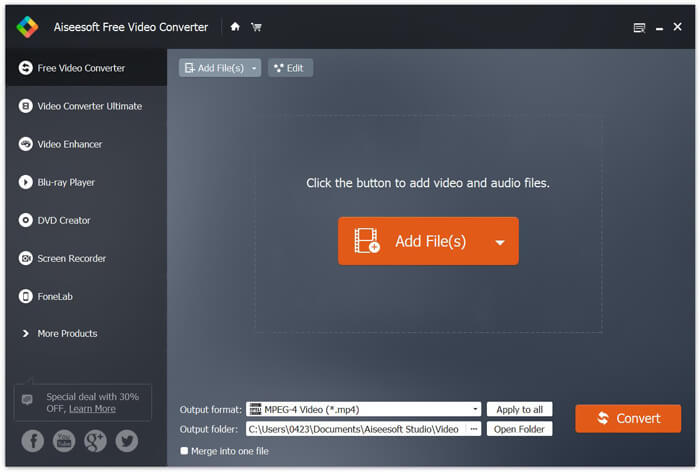
स्टेप 3. Output format पर क्लिक करें और ड्रॉप‑डाउन सूची से MOV को लक्ष्य फॉर्मैट के रूप में चुनें। अब आप Convert बटन पर सिर्फ़ क्लिक करके MP4 से MOV में कन्वर्ज़न शुरू कर सकते हैं।.
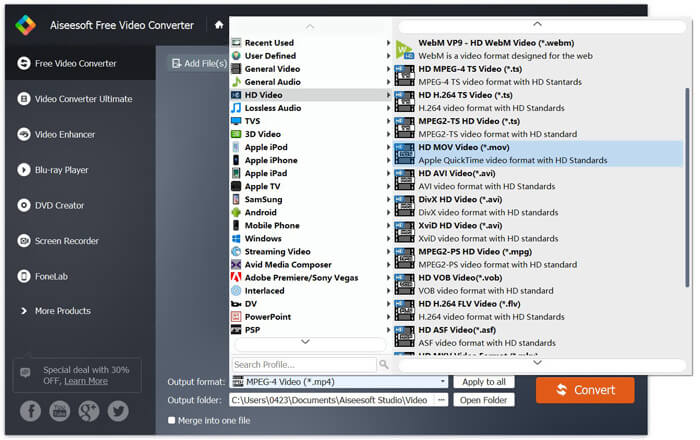
कुछ सेकंड बाद, मूल MP4 MOV प्रारूप में परिवर्तित हो जाएगा। MOV के अलावा, आप उच्च गुणवत्ता के साथ MP4 को MKV, FLV, AVI, आदि में भी परिवर्तित कर सकते हैं। यह मुफ्त वीडियो कनवर्टर कुछ बुनियादी संपादन सुविधाओं को भी वहन करता है। MOV में अंतिम MP4 कन्वर्ट करने से पहले, आप अपने MP4 वीडियो (ओं) को संपादित करने के लिए उनका उपयोग कर सकते हैं।
भाग 2. ऑनलाइन वीडियो कन्वर्टर के साथ MOV फ्री में MP4 कैसे बदलें
जैसा कि ऊपर उल्लेख किया गया है, बाजार पर कई मुफ्त ऑनलाइन वीडियो कन्वर्टर्स पेश किए गए हैं जो आपको MOV करने के लिए MP4 चालू करने में मदद कर सकते हैं। इस पोस्ट में, हम 2 तरीकों को शुरू करेंगे कि कैसे MP4 को MOV ऑनलाइन में परिवर्तित करें।
1. FVC मुफ्त ऑनलाइन वीडियो कनवर्टर
यदि आप MP4 को ऑनलाइन और मुफ़्त में MOV में कनवर्ट करना चाहते हैं, तो FVC Free Online Video Converter आपके लिए सबसे अच्छा विकल्प होगा। सिर्फ़ 3 आसान चरणों में आप कन्वर्ज़न पूरा कर सकते हैं और कुछ ही सेकंड में उच्च गुणवत्ता वाली कनवर्ट की गई फ़ाइल प्राप्त कर सकते हैं।.
स्टेप 1. ऊपर दिए गए लिंक पर क्लिक करें और FVC Free Online Video Converter पर जाएँ। फिर बैनर के बीच में मौजूद Add Files to Convert पर क्लिक करें। इसके बाद अपने कंप्यूटर पर FVC launcher को डाउनलोड और इंस्टॉल करें।.
फ़ाइलों को बैच में कनवर्ट करने के लिए डेस्कटॉप संस्करण डाउनलोड करें।.

स्टेप 2. जिस वीडियो को आप कनवर्ट करना चाहते हैं, उसे चुनने और अपलोड करने के बाद, आपको कनवर्ट की जाने वाली वीडियो फ़ाइल के आउटपुट फॉर्मैट के रूप में MOV चुनना होगा।.
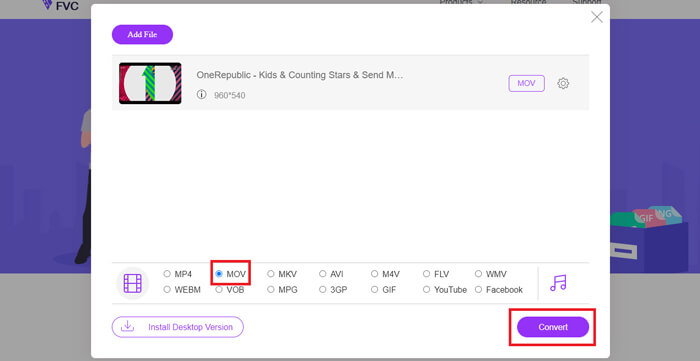
स्टेप 3. Convert पर क्लिक करें। और आप कनवर्ट की गई फ़ाइल को अपने डेस्कटॉप पर सेव करने का विकल्प चुन सकते हैं। इसके बाद, बस कुछ देर इंतज़ार करें और अपनी MOV वीडियो प्राप्त करें।.
2. CloudConvert
CloudConvert एक बहुत लोकप्रिय और उपयोग में आसान ऑनलाइन वीडियो परिवर्तित उपकरण है। इसमें ऑडियो, वीडियो, डॉक्यूमेंट, ईबुक, आर्काइव, इमेज, स्प्रेडशीट या प्रेजेंटेशन फॉर्मेट सहित 200 से अधिक फॉर्मेट को बदलने की क्षमता है। इसके अलावा, यह भरोसेमंद ऑनलाइन कन्वर्टर आपके डेटा और गोपनीयता की रक्षा करेगा।
स्टेप 1. अपना ब्राउज़र खोलें और CloudConvert की आधिकारिक वेबसाइट पर जाएँ। इसका इंटरफ़ेस काफी सरल रखा गया है, जो आपको सहज कन्वर्ज़न अनुभव प्रदान करता है।.
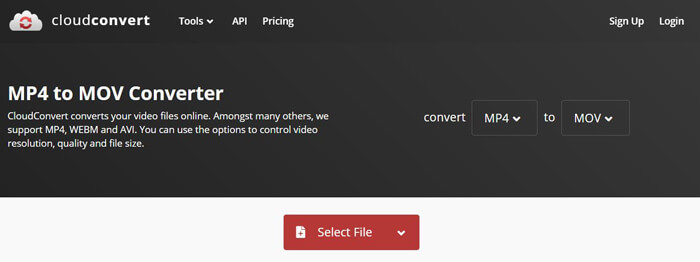
स्टेप 2. Select File बटन पर क्लिक करके वह MP4 फ़ाइल अपलोड करें जिसे आप कनवर्ट करना चाहते हैं। यहाँ आप कंप्यूटर, URL, Google Drive, OneDrive या Dropbox से फ़ाइल जोड़ सकते हैं। इसी चरण में आप और फ़ाइलें भी कन्वर्ज़न के लिए जोड़ सकते हैं।.
आपको चिंता करने वाली एक बात यह है कि, यह मुफ्त MP4 से MOV कनवर्टर केवल आपको 1GB से कम वीडियो परिवर्तित करने की अनुमति देता है। बड़ी फ़ाइलों को कनवर्ट करने के लिए आपको एक पैकेज खरीदना होगा।
स्टेप 3. अपनी MP4 फ़ाइल को अपलोड और कनवर्ट करने के लिए Convert बटन पर क्लिक करें। फिर कनवर्ट की गई MOV वीडियो को अपने कंप्यूटर पर सेव करने के लिए Download बटन पर क्लिक करें।.

MP4 को MOV ऑनलाइन में कनवर्ट करने के लिए CloudConvert का उपयोग करते हुए, आपको वीडियो अपलोड करने, परिवर्तित करने और डाउनलोड करने की प्रक्रिया पर अधिक समय बिताने की आवश्यकता है, खासकर जब आप एक बड़ी फ़ाइल को परिवर्तित कर रहे हों।
भाग 3. VLC मीडिया प्लेयर के साथ MOV में MP4 कन्वर्ट करने के लिए कैसे
VLC Media Player एक लोकप्रिय और ओपन‑सोर्स मल्टीमीडिया प्लेयर है। सिर्फ़ मीडिया प्लेयर ही नहीं, VLC एक वीडियो कन्वर्टिंग टूल की तरह भी काम कर सकता है और आपको अलग‑अलग तरह के वीडियो कन्वर्ज़न करने में मदद करता है। अगर आपके कंप्यूटर पर VLC इंस्टॉल है, तो आप इसकी मदद से अपनी MP4 फ़ाइल को MOV वीडियो में कनवर्ट कर सकते हैं।.
स्टेप 1. अपने कंप्यूटर पर VLC Media Player खोलें। यदि आपके पास VLC नहीं है, तो आप इसकी आधिकारिक वेबसाइट पर जाकर इसे मुफ़्त में डाउनलोड कर सकते हैं।.
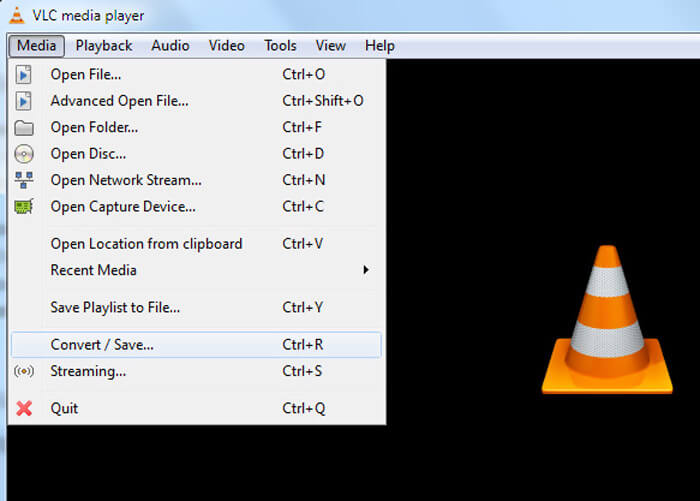
स्टेप 2. मेन्यू बार पर Media बटन पर क्लिक करें और फिर ड्रॉप‑डाउन सूची से Convert/Save विकल्प चुनें।.
स्टेप 3. एक नया Open Media विंडो खुलेगा। यहाँ आप MP4 फ़ाइल इम्पोर्ट करने के लिए File > Add पर क्लिक कर सकते हैं, जिसे आप कनवर्ट करना चाहते हैं।.
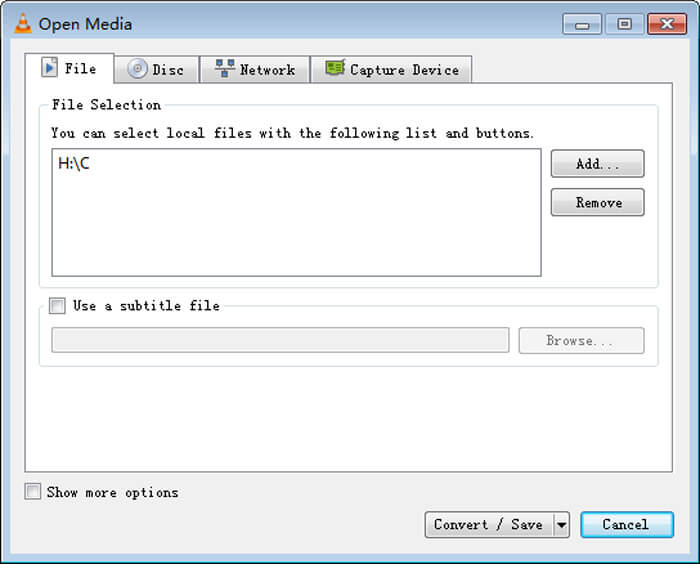
स्टेप 4. ऑपरेशन की पुष्टि करने के लिए नीचे दिए गए Convert/Save बटन पर क्लिक करें। फिर आप एक Convert विंडो पर पहुँचेंगे, जहाँ आप कनवर्ट की गई वीडियो के लिए गंतव्य फ़ोल्डर और आउटपुट फॉर्मैट चुन सकते हैं।.
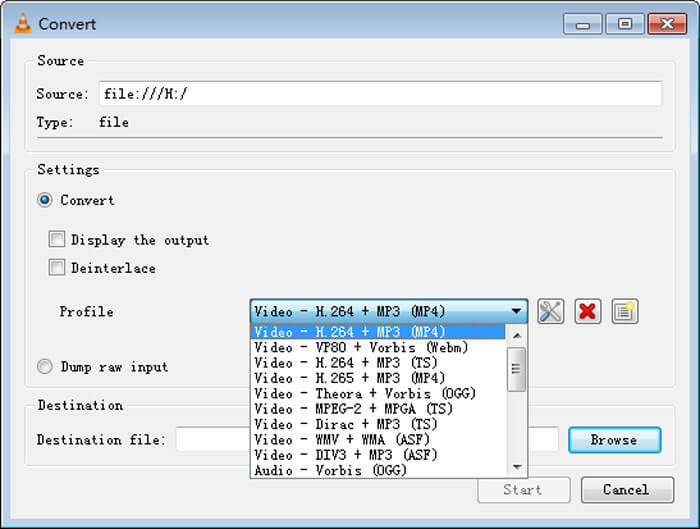
स्टेप 5. Profile ड्रॉप‑डाउन सूची से आउटपुट फॉर्मैट के रूप में MOV चुनें। फिर VLC में MP4 से MOV में वीडियो कन्वर्ज़न शुरू करने के लिए Start पर क्लिक करें।.
MP4 बनाम MOV
2001 में मूविंग पिक्चर एक्सपर्ट्स ग्रुप (MPEG) द्वारा जारी, MP4 प्रारूप आपको वीडियो, ऑडियो, उपशीर्षक और छवि डेटा को अलग-अलग ट्रैक में सहेजने में मदद कर सकता है। यह एमपीईजी -4 भाग 14 के लिए छोटा है। साथ ही, यह वीडियो स्ट्रीमिंग और साझा करने के लिए उपयोग किए जाने वाले सबसे लोकप्रिय प्रारूपों में से एक है।
MOV प्रारूप का उपयोग मूवी, टीवी शो, लघु वीडियो क्लिप या होम मूवी को संग्रहीत करने के लिए किया जा सकता है। यह वास्तव में QuickTime फ़ाइल स्वरूप (QTFF) में सहेजा जाता है, जिसे Apple द्वारा 1991 में पेश किया गया था। MOV फ़ाइलों का उपयोग अक्सर तब किया जाता है जब लोग उच्च गुणवत्ता वाले वीडियो को सहेजना चाहते हैं।
भाग 4। MOV को MP4 परिवर्तित करने के अक्सर पूछे जाने वाले प्रश्न
प्रश्न 1. क्या MP4 MP4 को MOV में बदल सकता है?
जब आपको मैक पर MP4 को MOV में बदलने की आवश्यकता होती है, तो आप QuickTime को एक कोशिश दे सकते हैं। आप QuickTime प्लेयर के साथ MP4 वीडियो खोल सकते हैं। फिर एक्सपोर्ट बटन पर क्लिक करें और MOV फॉर्मेट चुनें। आप फ़ाइल का नाम बदल सकते हैं, स्थान और वीडियो रिज़ॉल्यूशन का चयन कर सकते हैं। तब आप मैक पर MOV को MP4 कन्वर्ट करने के लिए एक्सपोर्ट बटन पर क्लिक कर सकते हैं।
प्रश्न 2. कौन सा बेहतर है, MOV या MP4?
MP4 सबसे लोकप्रिय मल्टीमीडिया फ़ाइल स्टोरेज फॉर्मैट्स में से एक है। यह एक डिजिटल कंटेनर फ़ाइल है, जो असल वीडियो नहीं बल्कि केवल वीडियो के चारों ओर एक रैपर की तरह काम करती है। MP4 की तरह ही MOV भी एक डिजिटल कंटेनर फ़ाइल है। MOV को MPEG-4 कोडेक से एन्कोड किया जाता है।MP4 और MOV के बीच मुख्य अंतर यह है कि MOV ज़्यादातर Mac वातावरण में उपयोग किया जाता है। MOV खास तौर पर QuickTime के लिए डिज़ाइन किया गया है। MP4 एक अंतरराष्ट्रीय मानक है, जिसे ज़्यादातर मीडिया प्लेयर और सिस्टम सपोर्ट करते हैं। आम तौर पर, MOV वीडियो की गुणवत्ता ज़्यादा होती है और आकार बड़ा होता है। MP4 फ़ाइल आमतौर पर ज़्यादा कंप्रेस्ड और आकार में छोटी होती है। इसलिए आप यह नहीं कह सकते कि MOV MP4 से बेहतर है या MP4 ही बेहतर है।.
प्रश्न 3. क्या MOV को MP4 में परिवर्तित करने से गुणवत्ता खो जाती है?
जब आप MOV को MP4 में परिवर्तित करना चाहते हैं, या MP4 को MOV में बदलना चाहते हैं, तो आपको कुछ पेशेवर वीडियो कनवर्टर चुनना चाहिए। ज्यादातर मामलों में, रूपांतरण के बाद आपको कोई गुणवत्ता हानि नहीं होगी।
प्रश्न 4. क्या MOV कनवर्टर करने के लिए कोई मुफ्त MP4 है?
इंटरनेट पर बहुत सारे मुफ्त वीडियो कन्वर्टर्स दिए गए हैं जो आपको MP4 को MOV में बदलने में मदद कर सकते हैं। अनुशंसित CloudConvert के अलावा, आप FFmpeg, HandBrake, ZAMZAR, Convert Files और अधिक पर भी रूपांतरण संस्करण बना सकते हैं।
-
 गुणवत्ता हानि के बिना एनिमेटेड GIF छवियों के लिए अपने MP4 वीडियो फ़ाइलों को परिवर्तित करने के लिए कैसे
 अपने MP4 वीडियो को एनिमेटेड GIF में बदलने का सबसे अच्छा तरीका खोज रहे हैं? फ़ोटोशॉप, विंडोज मूवी मेकर, ऑनलाइन वीडियो कनवर्टर और बहुत कुछ करने के लिए यहां एक विस्तृत मार्गदर्शिका दी गई है।
-
 MOV VS MP4 - कौन सा बेहतर है
 MOV VS MP4, कौन सा बेहतर है? यह पोस्ट MP4 और MOV के बीच के अंतर को बताता है, ताकि आप अपनी वीडियो फ़ाइलों के लिए उपयोग करने के लिए बेहतर विकल्प पा सकें।
-
 खोये हुए क्वालिटी के बिना MOV को MP4 में कैसे कन्वर्ट करें
 MOV (Apple QuickTime मूवी) फ़ाइलों को MP4 में कनवर्ट करना चाहते हैं? यह पोस्ट विंडोज 10/8/7 / XP और मैक ओएस एक्स पर अपने MOV वीडियो फ़ाइलों को MP4 प्रारूप में बदलने के लिए 4 मुक्त तरीके साझा करता है।

