


 वीडियो कनवर्टर अंतिम
 स्क्रीन अभिलेखी
 वीडियो मरम्मत
 सुरक्षित डाउनलोड
FLV को MP4 में निःशुल्क रूपांतरित करें - विंडोज या मैक के लिए 5 टूल
FLV ऑनलाइन वीडियो को समायोजित करने के लिए सबसे अधिक उपयोग किए जाने वाले मानक वीडियो फ़ॉर्मैट्स में से एक है और यह कई वेब ब्राउज़रों के साथ संगत भी है। हालाँकि, यह वर्तमान में मोबाइल ब्राउज़रों के लिए उपलब्ध नहीं है और वीडियो एडिटिंग सॉफ़्टवेयर में अपलोड करने के लिए उपयुक्त नहीं है। इसकी तुलना में, MP4 फ़ॉर्मैट छोटी फ़ाइल साइज और बेहतर अनुकूलता प्रदान करता है। जब हम वीडियो को YouTube, TikTok और अन्य साइटों पर अपलोड करना चाहते हैं, तब अब भी MP4 कंटेनर चुनने की सलाह दी जाती है। यह समझना ज़रूरी है कि FLV वीडियो चलाने के लिए आपको Adobe Flash Player की ज़रूरत होती है, लेकिन यह टूल अब निष्क्रिय कर दिया गया है। इसलिए, अगर आपके पास FLV वीडियो मौजूद हैं, तो किसी भी दृष्टि से देखें, हम आपको सुझाव देंगे कि आप FLV को MP4 में कनवर्ट करें। आगे की सामग्री में, हम कुल पाँच टूल्स का परिचय देंगे, और हमें विश्वास है कि इनमें से एक न एक आपके लिए उपयुक्त ज़रूर होगा।.

भाग 1. विंडोज/मैक पर FLV को MP4 में बैच कन्वर्ट कैसे करें
FVC वीडियो कन्वर्टर अंतिम
हम सबसे पहले FLV को MP4 में बदलने के लिए FVC Video Converter Ultimate का उपयोग करने की सलाह देते हैं। सबसे पहले, इस प्लेटफ़ॉर्म में समर्थित इनपुट और आउटपुट फ़ॉर्मेट 1000+ तक हैं, और रूपांतरण कार्य 30X तेज़ दक्षता के साथ बैच में किया जा सकता है। हालाँकि इस सॉफ़्टवेयर का मुख्य कार्य फ़ॉर्मेट को बदलना है, लेकिन यह यहीं नहीं रुकता। हम वीडियो की लंबाई को कम करने, फ़ाइल का आकार कम करने, बैकग्राउंड शोर को हटाने आदि के लिए इसके द्वारा प्रदान किए गए वीडियो संपादन टूल के पूरे सेट का भी उपयोग कर सकते हैं। ध्यान दें कि FVC Video Converter Ultimate आपको पाँच मुफ़्त रूपांतरण देता है, जिसके बाद आपको सभी सुविधाओं को अनलॉक करने के लिए एक अतिरिक्त मासिक शुल्क देना होगा। हालाँकि, यह बहुत किफ़ायती है, और प्रोग्राम के मालिक होने के बाद, हम कोई भी ऑडियो, चित्र और वीडियो प्रोसेसिंग कार्य इस पर छोड़ सकते हैं।
Free DownloadWindows 7 या बाद के वर्ज़न के लिएसिक्योर डाउनलोड
Free DownloadMacOS 10.7 या बाद के वर्ज़न के लिएसिक्योर डाउनलोड
FVC वीडियो कनवर्टर अल्टीमेट का उपयोग करके गुणवत्ता खोए बिना FLV को MP4 में परिवर्तित करने का तरीका यहां बताया गया है।
स्टेप 1: अपने कंप्यूटर पर FVC Video Converter Ultimate डाउनलोड और इंस्टॉल करें। जब आप यह सॉफ़्टवेयर खोलेंगे, तो आप सीधे Converter इंटरफ़ेस पर पहुँचेंगे। Add Files पर क्लिक करें और अपना FLV फ़ाइल चुनें।.

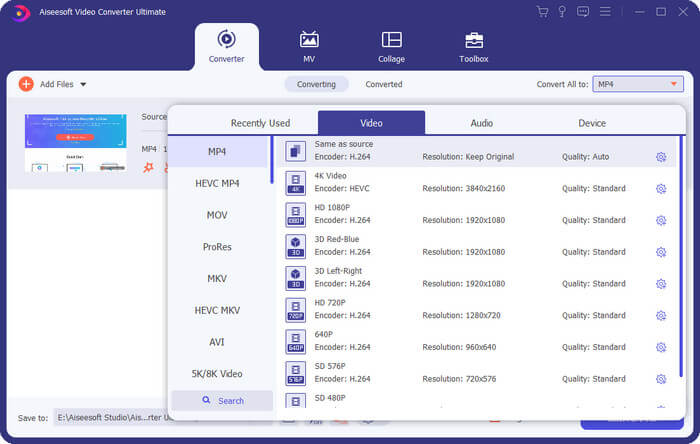
स्टेप 2: वीडियो लोड होने के बाद, आप Convert All to पर क्लिक करें और फिर Video > MP4 चुनें। यहाँ अलग‑अलग रिज़ॉल्यूशन और बिटरेट वाले कई विकल्प मिलेंगे। अपनी ज़रूरत के अनुसार सही विकल्प चुनें।.
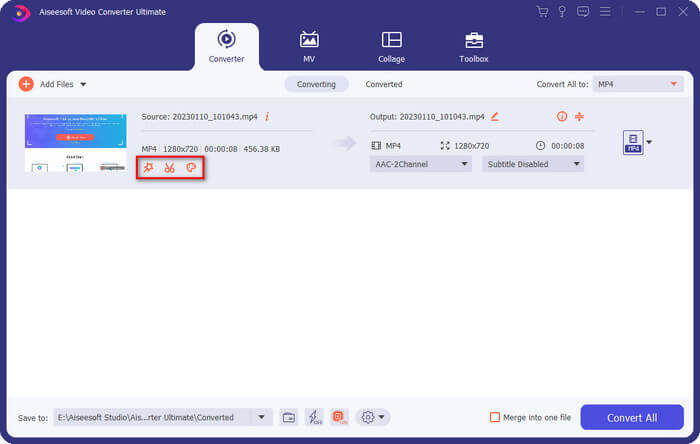
रिज़ल्ट एक्सपोर्ट करने से पहले, आप Cut पर क्लिक करके वीडियो को एडिट कर सकते हैं।.
स्टेप 3: जब आप एडिटिंग पूरी कर लें, तो FLV फ़ॉर्मैट को MP4 में कनवर्ट करना शुरू करने के लिए Convert All पर क्लिक करें।.
भाग 2. VLC का उपयोग करके FLV को MP4 में निःशुल्क रूपांतरित कैसे करें
चाहे आप विंडोज, मैक या लिनक्स उपयोगकर्ता हों, VLC मीडिया प्लेयर एक उपयोगी FLV से MP4 कनवर्टर है। यह बिल्कुल मुफ़्त है और लंबे समय से बाज़ार में है। यह 100% सुरक्षित होने की भी गारंटी है।
यहां बताया गया है कि VLC मीडिया प्लेयर का उपयोग करके FLV को MP4 में कैसे परिवर्तित किया जाए।
स्टेप 1: अपने कंप्यूटर पर VLC Media Player का नवीनतम वर्ज़न डाउनलोड और इंस्टॉल करें।.
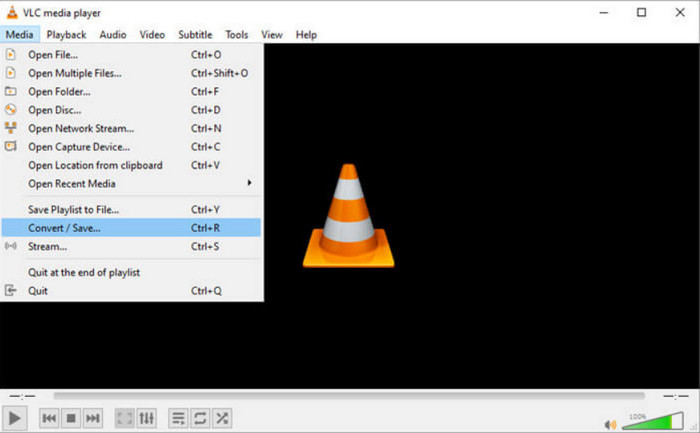
मुख्य इंटरफ़ेस खोलें और Media > Convert/Save पर क्लिक करें।.
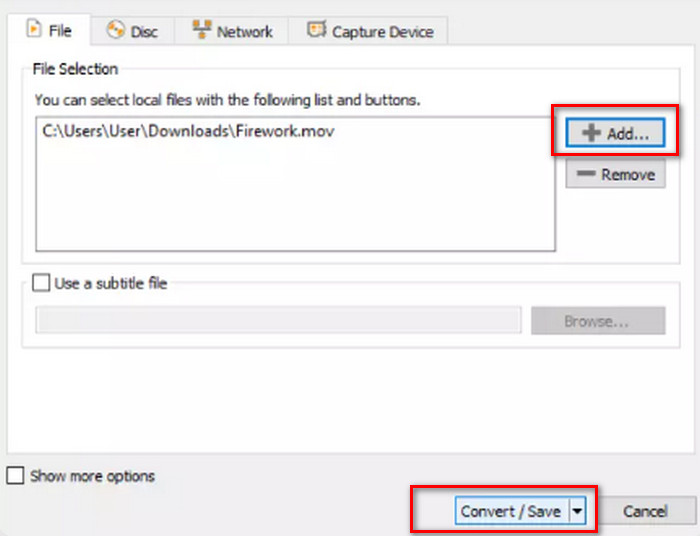
स्टेप 2: नई विंडो खुलने पर, File चुनें और +Add पर क्लिक करके अपनी FLV फ़ाइल अपलोड करें। फिर दाएँ नीचे कोने में मौजूद Convert/Save बटन पर क्लिक करें।.
स्टेप 3: अब आप एक और विंडो पर जाएँगे। Profile पर जाएँ और आउटपुट वर्ज़न के रूप में Video - H.264 + MP3 (MP4) चुनें।.
स्टेप 4: Start पर क्लिक करें।.
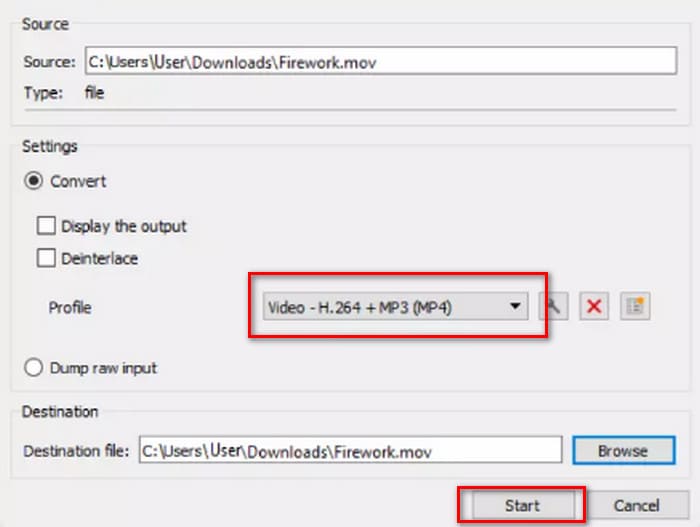
हालाँकि VLC मीडिया प्लेयर मुफ़्त और ओपन सोर्स है, लेकिन इसका इंटरफ़ेस बहुत साफ़ नहीं है। पेशेवर कन्वर्टर्स की तुलना में, इसके अपलोड फ़ाइल और कन्वर्ट बटन बहुत स्पष्ट नहीं हैं। और चूँकि यह सिर्फ़ एक मल्टीमीडिया प्लेयर है, इसलिए इसमें वीडियो एडिटिंग सुविधाएँ कम हैं।
भाग 3. FFepeg के माध्यम से गुणवत्ता खोए बिना FLV को MP4 में कैसे परिवर्तित करें
FFmpeg ऑडियो और वीडियो फ़ाइलों को संपादित करने और परिवर्तित करने के लिए मुफ़्त डेस्कटॉप सॉफ़्टवेयर है। इसमें अपलोड करने, पूर्वावलोकन करने और आउटपुट फ़ॉर्मेट सेट करने के लिए सामान्य बटन या विकल्प नहीं हैं, बल्कि यह पूरी तरह से कोड पर चलता है। हम वेब पर प्रत्येक ऑपरेशन के लिए कोड टेम्प्लेट पा सकते हैं। हमें स्रोत फ़ाइल का संग्रहण पथ और परिवर्तित फ़ाइल का संग्रहण पथ तैयार करना होगा और फिर उन्हें टेम्प्लेट में भरना होगा।
यहां बताया गया है कि FFmpeg के साथ FLV को MP4 में कैसे परिवर्तित किया जाए।
स्टेप 1: अपने कंप्यूटर पर FFmpeg डाउनलोड और इंस्टॉल करें। Command Prompt का उपयोग करके इस टूल को लॉन्च करें।.
स्टेप 2: cd और cd FFmpegTool टाइप करें। फिर cd bin दर्ज करें और ffmpeg.exe चलाएँ।.
स्टेप 3: वह कमांड तैयार करें जिसका उपयोग आप FLV को MP4 में ट्रांसफर करने के लिए करेंगे। टेम्पलेट नीचे दिया गया है।.
ffmpeg -i video.flv -c:v libx264 outputfilename.mp4
i video.flv वाले हिस्से में अपने सोर्स फ़ाइल का स्टोरेज पाथ भरें, और फिर outputfilename.mp4 वाले हिस्से में एक्सपोर्ट फ़ाइल का नाम दर्ज करें।.
स्टेप 4: कमांड को FFmpeg में टाइप करें और कीबोर्ड पर Enter कुंजी दबाएँ। कनवर्ज़न प्रक्रिया शुरू हो जाएगी।.
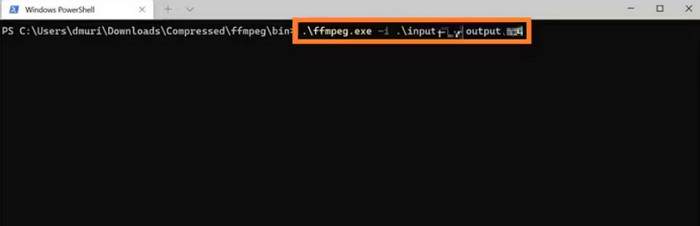
FFmpeg अनुकूलनीय है, और यह सेवा मुफ़्त है, लेकिन इंटरफ़ेस वास्तव में असामान्य है। इसे अपने कंप्यूटर पर इंस्टॉल करना पहले से ही एक परेशानी है, और इसे फिट करने के लिए कोड तैयार करना और भी मुश्किल है। जो उपयोगकर्ता कोड का उपयोग करने में बहुत अनुभवी नहीं हैं, वे इसका उपयोग करने के बारे में अनभिज्ञ महसूस करेंगे।
भाग 4. FLV को MP4 में ऑनलाइन कैसे बदलें
इन तीनों उपकरणों को डाउनलोड करके इंस्टॉल करना होगा। अगर हमारे पास तत्काल रूपांतरण कार्य हैं या हम अपने लिए अधिक संग्रहण स्थान बचाना चाहते हैं, तो ऑनलाइन प्लेटफ़ॉर्म सबसे अच्छा विकल्प है। इस भाग में, हम दो ऑनलाइन FLV से MP4 कन्वर्टर्स चुनेंगे, और उन्हें उपयोग करने के चरणों को दिखाने के अलावा, हम आपको ईमानदारी से यह भी बताएंगे कि उनमें क्या समस्याएँ हो सकती हैं।
FVC फ्री वीडियो कन्वर्टर ऑनलाइन
इन तीनों उपकरणों को डाउनलोड और इंस्टॉल करना आवश्यक है। यदि हमारे पास तत्काल रूपांतरण कार्य हैं या अधिक संग्रहण स्थान बचाना चाहते हैं, तो ऑनलाइन प्लेटफ़ॉर्म सबसे अच्छा विकल्प है। इस भाग में, हम दो ऑनलाइन FLV से MP4 कन्वर्टर्स चुनेंगे, और उन्हें उपयोग करने के चरणों को दिखाने के अलावा, हम आपको ईमानदारी से उन समस्याओं के बारे में भी बताएंगे जो उनमें हो सकती हैं।
वीडियो कनवर्टर ऑनलाइन.
यहां बताया गया है कि FVC फ्री वीडियो कन्वर्टर ऑनलाइन के साथ FLV को MP4 में कैसे बदला जाए।
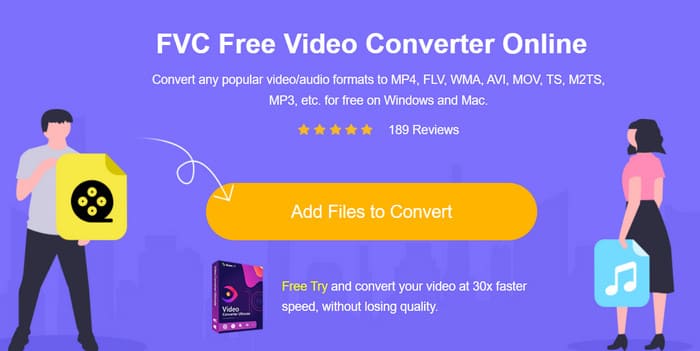
स्टेप 1: अपने ब्राउज़र में FVC Free Video Converter Online खोलें। Add Files to Convert पर क्लिक करें और अपना लक्षित FLV फ़ाइल चुनें।.
स्टेप 2: पेज की निचली लाइन में, आउटपुट फ़ॉर्मैट के रूप में MP4 सेट करें। यदि आप अपलोड किए गए वीडियो को एडजस्ट करना चाहते हैं, तो Settings आइकन पर क्लिक करें।.
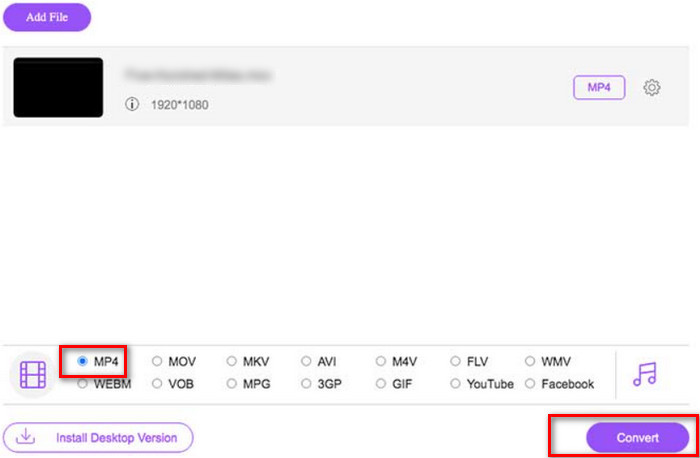
स्टेप 3: अंत में, Convert पर क्लिक करें। प्रक्रिया पूरी होने पर आप MP4 वीडियो अपने कंप्यूटर पर डाउनलोड कर सकते हैं।.
FVC Free Video Converter Online पहले से ही पारंपरिक ऑनलाइन कन्वर्टर्स की तुलना में एकदम सही है, लेकिन यह आउटपुट फ़ाइलों के बीच परिणामों का पूर्वावलोकन करने का समर्थन नहीं करता है। डेस्कटॉप सॉफ़्टवेयर FVC Video Converter Ultimate की तुलना में, इसकी संपादन सुविधाएँ अभी भी थोड़ी कम हैं, लेकिन यह ऑनलाइन कन्वर्टर्स की एक आम समस्या है, इसलिए हम बहुत ज़्यादा मांग नहीं कर सकते।
Cloudconvert
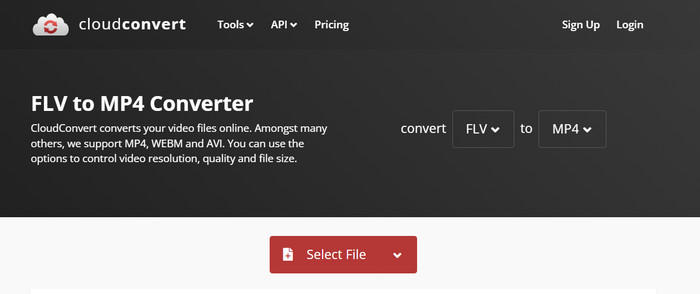
एक और ऑनलाइन कनवर्टर जिसे हम सुझाव देना चाहेंगे, वह है Cloudconvert। इसका सरल इंटरफ़ेस इसे काफ़ी पसंदीदा बनाता है। Convert बटन के नीचे हमें कई बटन मिलते हैं जिनसे हम वीडियो के पैरामीटर्स को समायोजित कर सकते हैं। अपलोड की गई फ़ाइलों के ऑडियो और सबटाइटल्स को भी मनचाहे तरीके से एडिट किया जा सकता है। यदि आप अपने वीडियो पर पर्सनल लोगो लगाना चाहते हैं, तो आप एक तस्वीर भी अपलोड कर सकते हैं, जिसे संदर्भ के रूप में उपयोग करके आप वीडियो में वॉटरमार्क जोड़ सकते हैं।.
यहां बताया गया है कि क्लाउडकन्वर्ट का उपयोग करके FLV को MP4 में कैसे बदला जाए।
स्टेप 1: अपने ब्राउज़र में Cloudconvert FLV to MP4 कनवर्टर खोलें।.
अपना FLV फ़ाइल अपलोड करने के लिए Select File पर क्लिक करें।.
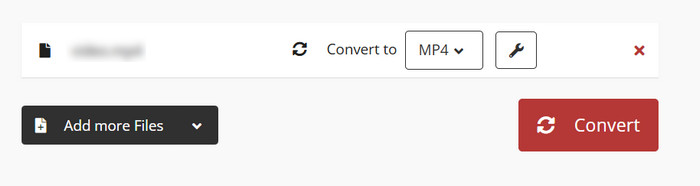
स्टेप 2: पेज को नीचे स्क्रोल करके वीडियो के पैरामीटर्स, ऑडियो, सबटाइटल या वॉटरमार्क को एडिट करें। फिर Convert पर क्लिक करें।.
चाहे आप दोनों में से किसी भी फ़ॉर्मेट में कनवर्ट करना चाहें, Cloudconvert वेब पेज पर दोनों फ़ॉर्मेट का विस्तृत विवरण प्रदर्शित करता है, जो अतिरिक्त शोध किए बिना उन्हें पूरी तरह से समझने के लिए पर्याप्त है। हालाँकि, यह कहा जाना चाहिए कि Cloudconvert लंबे वीडियो के लिए उपयोग करने के लिए उपयुक्त नहीं है और यह प्रक्रिया में अटक सकता है।
भाग 5. FLV को MP4 में बदलने के बारे में अक्सर पूछे जाने वाले प्रश्न
मैं .FLV फ़ाइल कैसे खोलूँ?
हम VLC Media Player और Adobe Animate की सलाह देते हैं। दोनों ही FLV वीडियो प्लेयर्स अच्छी तरह काम करते हैं। यदि आप जो प्लेयर इस्तेमाल कर रहे हैं वह FLV को सपोर्ट नहीं करता, तो आप इसे किसी दूसरे फ़ॉर्मैट में कनवर्ट करने पर भी विचार कर सकते हैं।.
क्या FLV पुराना हो गया है?
जब एडोब फ्लैश प्लेयर लोकप्रिय था, तब FLV का व्यापक रूप से उपयोग किया जाता था। लेकिन फ्लैश के बंद हो जाने के बाद, FLV की स्थिति अन्य प्रारूपों की तुलना में कमतर हो गई है।
क्या FLV, MP4 से बेहतर है?
नहीं, MP4 बेहतर विकल्प है। इसमें ज़्यादा कुशल संपीड़न और व्यापक संगतता है। MP4 भी खराब चित्र गुणवत्ता नहीं देता है क्योंकि यह हमेशा गुणवत्ता और आकार के बीच एक अच्छा संतुलन बनाए रखता है।
भाग 6. निष्कर्ष
इस लेख में, आप पाँच ऐसे टूल्स के बारे में जानेंगे जो FLV को MP4 में कनवर्ट कर सकते हैं। VLC Media Player मुफ़्त है, लेकिन इसमें वीडियो एडिटिंग की सुविधाएँ बहुत कम हैं; FFmpeg का इस्तेमाल आसान नहीं है, और आपको कोड तैयार रखना होता है; ऑनलाइन टूल जल्दी शुरू हो जाता है, लेकिन यह इंटरनेट की स्पीड पर बहुत निर्भर करता है और लंबे वीडियो के साथ काम करते समय आसानी से लैग हो सकता है। इन सभी तत्वों को मिलाकर देखें, तो FVC Video Converter Ultimate एक आदर्श असिस्टेंट साबित होता है।.
-
 4 100% एमपीवी प्रारूप में FLV वीडियो फ़ाइलों को परिवर्तित करने के लिए काम करने के तरीके
 FLV को MP3 फ़ाइल में कैसे बदलें? यह लेख आपके लिए यहाँ है. अपना पसंदीदा तरीका ढूंढें और जो आप चाहते हैं उसे पाने के लिए गाइड का पालन करें।
-
 MP4 से FLV | शीर्ष 3 नि: शुल्क कन्वर्टर (ऑनलाइन / मैक / विंडोज)
 यह पोस्ट MP4 से FLV रूपांतरण के लिए एक विस्तृत मार्गदर्शिका है। विंडोज़ या मैक कंप्यूटर पर MP4 को FLV में ऑनलाइन आसानी से बदलने के लिए शीर्ष 3 निःशुल्क कन्वर्टर्स लें।
-
 2025 में विंडोज, मैक, आईओएस और एंड्रॉइड के लिए शीर्ष 10 एफएलवी प्लेयर
 एफएलवी प्लेयर आपको अपने विंडोज, मैक, एंड्रॉइड, आईओएस डिवाइस पर अपनी एफएलवी फाइलों तक आसानी से पहुंचने में मदद करता है। सबसे अच्छे FLV फ़ाइल प्लेयर देखें जिन्हें आप अभी डाउनलोड कर सकते हैं।

