


 वीडियो कनवर्टर अंतिम
 स्क्रीन अभिलेखी
 वीडियो मरम्मत
 सुरक्षित डाउनलोड
विंडोज / मैक पर MP4 में MKV कन्वर्ट करने के लिए कैसे
जब आप एक फिल्म चलाते हैं, तो आप पाते हैं कि इसे खोला नहीं जा सकता क्योंकि कुछ प्रोग्राम MKV प्रारूप का समर्थन नहीं करते हैं। तब आपको आश्चर्य हो सकता है कि ऐसा क्यों हो रहा है और इसे कैसे हल किया जाए।
आपके डिवाइस पर कुछ कोडेक्स की कमी के कारण आप एमकेवी नहीं खेल सकते हैं। उसके कारण, भले ही आप आजकल हर जगह एमकेवी देख सकते हैं, कुछ डिवाइस या प्रोग्राम अभी भी एमकेवी प्रारूप का समर्थन नहीं करते हैं। तो, आपको इसे और अधिक सामान्य प्रारूप में बदलने की आवश्यकता है, जैसे कि MP4, बहुत अधिक उपयोग करने योग्य प्रारूप जिसे लगभग हर डिवाइस पर ठीक से लोड किया जा सकता है।
आज हम आपको 2 मुफ़्त कन्वर्टर से परिचित करवाने जा रहे हैं, जो आपकी मदद करेंगे MKV फाइलों को MP4 में कन्वर्ट करने में।.

भाग 1. MKV को MP4 ऑनलाइन और फ्री में कैसे बदलें
यदि आप मेरी तरह अपने कंप्यूटर पर बहुत सारे सॉफ़्टवेयर स्थापित नहीं कर सकते हैं, तो मेरा सुझाव है कि आप वेब-आधारित ऑनलाइन कनवर्टर का प्रयास करें।
बाजार पर बहुत सारे मुफ्त ऑनलाइन वीडियो कन्वर्टर्स हैं, लेकिन ईमानदार होने के लिए, इनमें से अधिकांश तथाकथित 'मुफ्त' कन्वर्टर्स की एक सीमा है। बेहतर योजना पाने के लिए आपको उन्हें भुगतान करना होगा। केवल इस तरह से आप बिना वॉटरमार्क वाली बैचों में बड़ी फ़ाइलों को जल्दी से बदल सकते हैं।
तो, क्या वास्तव में मुफ्त, तेज़ और शक्तिशाली वीडियो कनवर्टर है? इसका जवाब है हाँ।
FVC Free Online Video Converter, एक प्रभावी MKV से MP4 वीडियो कन्वर्टर है, जो आपको बिना किसी सीमा के वीडियो कन्वर्ट करने में सक्षम बनाता है। यह लगभग सभी मुख्यधारा के वीडियो को कुछ ही सेकंड में MP4, MOV, WMV, AVI और FLV जैसे लोकप्रिय फॉर्मेट्स में कन्वर्ट करने का समर्थन करता है। यह बैच कन्वर्ज़न को भी सपोर्ट करता है, जिसका मतलब है कि आप एक साथ कई वीडियो कन्वर्ट कर सकते हैं और उनकी मूल गुणवत्ता को बरकरार रख सकते हैं।.
क्योंकि FVC Free Online Video Converter एक वेब‑आधारित टूल है, इसलिए आप इसे Windows और Mac दोनों पर आसानी से उपयोग कर सकते हैं, बस आपके पास स्थिर इंटरनेट कनेक्शन और एक ब्राउज़र होना चाहिए। उपयोग की बात करें तो, आप कुछ ही चरणों में इस MKV से MP4 कन्वर्टर को अच्छी तरह से सीख सकते हैं।.
चरण 1. अपने ब्राउज़र में FVC Free Online Video Converter की वेबसाइट पर जाएँ। फिर Add Files to Convert बटन पर क्लिक करें। यदि आपने पहले अपने कंप्यूटर पर FVC Launcher डाउनलोड नहीं किया है, तो यह आपको पहले लॉन्चर डाउनलोड करने की याद दिलाएगा। बस निर्देशों का पालन करें और लॉन्चर इंस्टॉल कर लें।.
फ़ाइलों को बैच में कनवर्ट करने के लिए डेस्कटॉप संस्करण डाउनलोड करें।.

चरण 2. इंस्टॉल करने के बाद, Open File विंडो अपने‑आप दिखाई देगी। अब वह MKV फाइल चुनें जिसे आप कन्वर्ट करना चाहते हैं। वैसे, यदि आप एक ही बार में कई MKV वीडियो कन्वर्ट करना चाहते हैं, तो उन सभी MKV फाइलों को चुनें जिनकी आपको ज़रूरत है।.
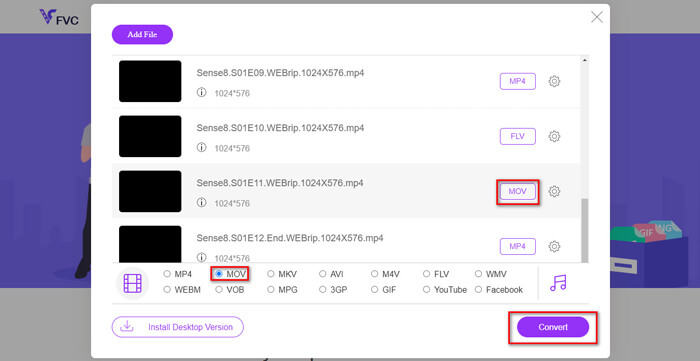
चरण 3. फिर Open पर क्लिक करें और आपको चुनी गई फाइलों की एक सूची दिखाई देगी। उस सूची के नीचे आउटपुट फॉर्मेट के रूप में MP4 चुनें।.
आप Setting आइकन के पास दिए गए फॉर्मेट पर क्लिक करके और नीचे आउटपुट फॉर्मेट बदलकर अलग‑अलग फाइलों के लिए अलग‑अलग फॉर्मेट भी चुन सकते हैं। लेकिन आप इसे छोड़ भी सकते हैं और सीधे Convert बटन पर क्लिक कर सकते हैं। उसके बाद, कन्वर्ट की गई वीडियो को सेव करने के लिए कोई गंतव्य फ़ोल्डर चुनें।.
भाग 2. VLC मीडिया प्लेयर के साथ MKV को MP4 में कैसे परिवर्तित करें
आप VLC को एक मल्टीमीडिया प्लेयर के रूप में जानते होंगे, जो ज़्यादातर डेस्कटॉप ऑपरेटिंग सिस्टम के लिए उपलब्ध है। लेकिन वास्तव में, यह एक छुपा हुआ वीडियो कन्वर्टर भी है। यह आपको MKV फाइलों को MP4 फॉर्मेट में कन्वर्ट करने की सुविधा देता है। यदि आपके कंप्यूटर में पहले से VLC मौजूद है, तो आप इसे आज़मा सकते हैं।.
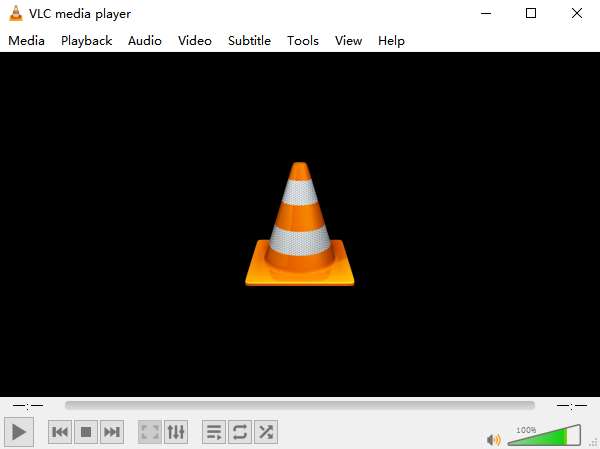
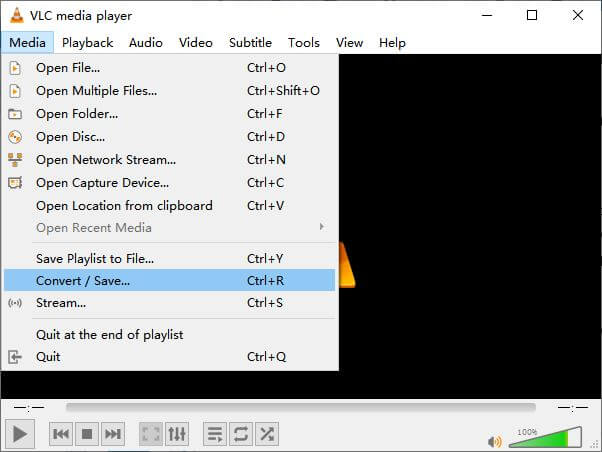
चरण 1. सबसे पहले अपने कंप्यूटर पर VLC Media Player लॉन्च करें। Media मेन्यू पर क्लिक करें। ड्रॉप‑डाउन सूची में Convert / Save खोजें।.
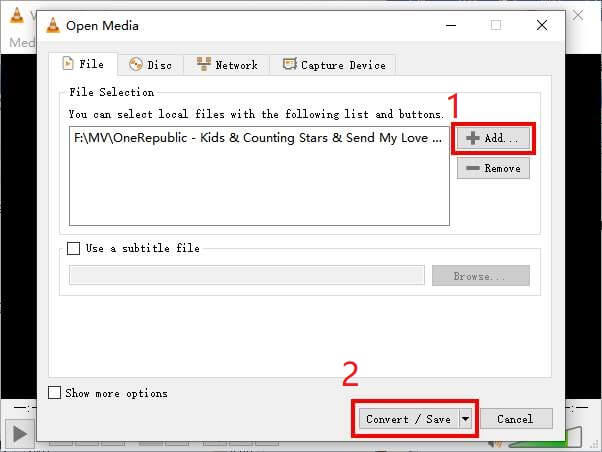
चरण 2. + Add पर क्लिक करें और वह MKV वीडियो ढूँढें जिसे आप कन्वर्ट करना चाहते हैं। फिर नीचे दिए गए Convert / Save बटन पर क्लिक करें।.
चरण 3. Convert विंडो में MP4 फॉर्मेट चुनें।.
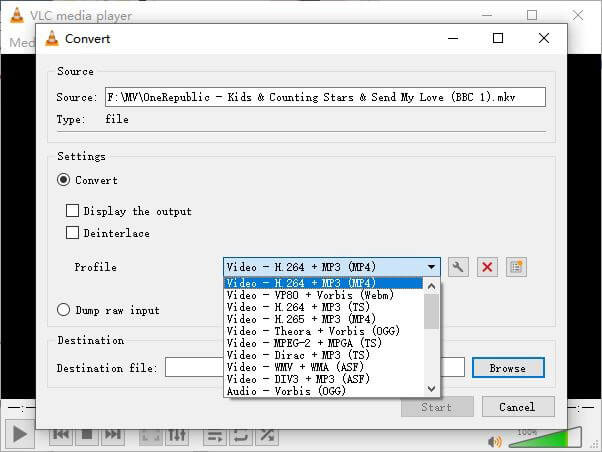
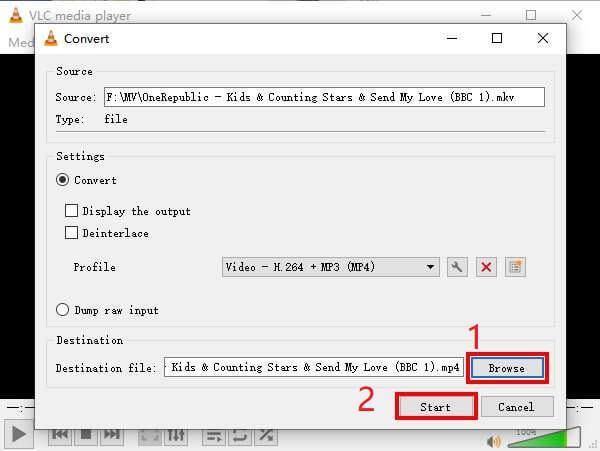
चरण 4. सेव करने के लिए गंतव्य तय करने हेतु Browse बटन पर क्लिक करें। अंत में अपनी कन्वर्ज़न को Start करें और अपना MP4 वीडियो मिलने तक इंतज़ार करें।.
एमकेवी बनाम एमपी4
2002 में जारी किया गया Matroska मल्टीमीडिया कंटेनर प्रारूप, एक ओपन-सोर्स प्रारूप है जिसमें कई वीडियो, ऑडियो, छवि और उपशीर्षक ट्रैक शामिल हो सकते हैं। तो, आप इसका उपयोग लघु वीडियो क्लिप, टीवी शो और फिल्मों को आसानी से स्टोर करने के लिए कर सकते हैं। यह एनीमे फैन-सबबिंग के लिए काफी लोकप्रिय है।
2001 में मूविंग पिक्चर एक्सपर्ट्स ग्रुप (MPEG) द्वारा जारी, MP4 प्रारूप आपको वीडियो, ऑडियो, उपशीर्षक और छवि डेटा को अलग-अलग ट्रैक में सहेजने में मदद कर सकता है। यह एमपीईजी -4 भाग 14 के लिए छोटा है। साथ ही, यह वीडियो स्ट्रीमिंग और साझा करने के लिए उपयोग किए जाने वाले सबसे लोकप्रिय प्रारूपों में से एक है।
भाग 3. MP4 को MKV परिवर्तित करने के प्रश्न
1. क्या ffmpeg MKV को MP4 में बदल सकता है?
हाँ, आप ffmpeg की मदद से MKV को MP4 में कन्वर्ट कर सकते हैं। लेकिन यह समझना आपके लिए थोड़ा जटिल हो सकता है कि यह कैसे काम करता है, भले ही सबसे प्रभावी कदम सिर्फ अक्षरों का एक अनुक्रम है: ffmpeg -i my_movie.mkv -vcodec copy -acodec copy my_movie.mp4
2. हैंडब्रेक MP4 को MKV से निर्यात कर सकते हैं?
यदि आप कन्वर्ट करने के बाद केवल MP4 फाइल ही चाहते हैं, तो HandBrake वाकई में आपकी इसमें मदद कर सकता है। हालांकि, यह आपकी फाइलों को अन्य फॉर्मेट्स जैसे WMV, MOV, FLV में कन्वर्ट नहीं कर सकता। HandBrake ज़्यादातर सामान्य मल्टीमीडिया फाइलों को सपोर्ट करता है, लेकिन वह इसके सपोर्टेड input sources हैं। आउटपुट फॉर्मेट के लिए, आपके विकल्प हैं MP4(.M4V) और MKV।.
3. MP4 करने के लिए MKV परिवर्तित गुणवत्ता खो देता है?
जब आप MKV फ़ाइलों को MP4, शायद 1% या 5% में कनवर्ट करते हैं, तो अधिकांश वीडियो कन्वर्टर्स गुणवत्ता खो देते हैं। MP4 को MKV फ़ाइलों को फिर से एन्कोडिंग करते समय, डेटा हानि से पूरी तरह से बचना मुश्किल है। लेकिन आप निर्यात किए गए MP4 वीडियो की गुणवत्ता को मूल वीडियो के करीब बनाने के लिए छवियों के रिज़ॉल्यूशन को बढ़ा सकते हैं।
निष्कर्ष
आपके द्वारा चुनने के लिए अनगिनत वीडियो कन्वर्टर्स हैं। अपने आप से सभी के लिए एक स्वतंत्र और कुशल कनवर्टर खोजना मुश्किल है। इस पोस्ट ने आपको MKV को MP4 में बदलने के लिए 2 तरीके पेश किए हैं। एक वीएलसी मीडिया प्लेयर है, और दूसरा एफवीसी फ्री ऑनलाइन वीडियो कन्वर्टर है।
यदि आप केवल एक MP4 फ़ाइल चाहते हैं, तो VLC पर्याप्त है। हालाँकि, VLC केवल एक सीमित संख्या में स्वरूपों का समर्थन करता है। इसलिए, यदि आप अधिक पेशेवर कनवर्टर चाहते हैं, तो एफवीसी मुफ्त ऑनलाइन वीडियो कनवर्टर एक बेहतर विकल्प लगता है।
आशा है आपको यह पोस्ट उपयोगी लगी होगी। और हमें अपनी राय बताने में संकोच न करें।
-
 गुणवत्ता हानि के बिना एनिमेटेड GIF छवियों के लिए अपने MP4 वीडियो फ़ाइलों को परिवर्तित करने के लिए कैसे
 अपने MP4 वीडियो को एनिमेटेड GIF में बदलने का सबसे अच्छा तरीका खोज रहे हैं? फ़ोटोशॉप, विंडोज मूवी मेकर, ऑनलाइन वीडियो कनवर्टर और बहुत कुछ करने के लिए यहां एक विस्तृत मार्गदर्शिका दी गई है।
-
 खोये हुए क्वालिटी के बिना MOV को MP4 में कैसे कन्वर्ट करें
 MOV (Apple QuickTime मूवी) फ़ाइलों को MP4 में कनवर्ट करना चाहते हैं? यह पोस्ट विंडोज 10/8/7 / XP और मैक ओएस एक्स पर अपने MOV वीडियो फ़ाइलों को MP4 प्रारूप में बदलने के लिए 4 मुक्त तरीके साझा करता है।
-
 मैक और विंडोज पर WMV को MP4 में कनवर्ट करने के 4 आसान तरीके
 WMV फ़ाइलों को MP4 में कैसे बदलें? यहाँ WMV को मैक और विंडोज पर सरल चरणों के साथ WMV में परिवर्तित करने के 4 आसान तरीके दिए गए हैं।

