


 वीडियो कनवर्टर अंतिम
 स्क्रीन अभिलेखी
 वीडियो मरम्मत
 सुरक्षित डाउनलोड
मैं MP4 को WAV ऑनलाइन में मुफ्त में कैसे बदल सकता हूं
MP4 एक काफी आम वीडियो फॉर्मैट है जिसका लोग रोज़मर्रा की ज़िंदगी में इस्तेमाल करते हैं। वहीं दूसरी ओर, WAV भी लॉसलेस ऑडियो रखने के लिए एक बेहतरीन विकल्प है। लेकिन कभी‑कभी आप अपने डिवाइसेज़ पर सुनने के लिए MP4 को WAV में कनवर्ट करना चाह सकते हैं। ऐसी स्थिति में, आपको एक प्रोफेशनल कनवर्टर की ज़रूरत होती है जो वीडियो से ऑडियो हिस्से को निकाले और साउंड क्वालिटी में कोई कमी न आए।.
तो आज हम MP4 और WAV की विस्तार से तुलना करने जा रहे हैं और आपको बेहतरीन MP4 से WAV कनवर्टर्स (ऑनलाइन और ऑफलाइन दोनों) से परिचित कराएँगे।.

भाग 1. MP4 बनाम WAV
ईमानदार होने के लिए, MP4 और WAV के बीच तुलना करने के लिए बहुत कुछ नहीं है। आखिरकार, वे अलग-अलग स्थितियों में उपयोग किए जाने वाले दो अलग-अलग प्रारूप हैं, एक वीडियो भंडारण के लिए और दूसरा ऑडियो बचाने के लिए। लेकिन ये दोनों ही फाइल टाइप हैं और इनमें डिजिटल साउंड हो सकता है। उसके आधार पर, नीचे दी गई तालिका उनके कुछ अंतरों को सूचीबद्ध करती है।
| MP4 | WAV | |
| शामिल | वीडियो, ऑडियो और उपशीर्षक | सिर्फ़ ध्वनि |
| फ़ाइल नाम विस्तार | .mp4, .m4a, .m4p, .m4b, .m4r और .m4v | .wav और .wave |
| द्वारा विकसित | अंतरराष्ट्रीय मानकीकरण संगठन | आईबीएम और माइक्रोसॉफ्ट |
| गुण | संपीड़ित और नुकसानदेह (ज्यादातर समय के लिए) | असम्बद्ध और दोषरहित |
भाग 2. WAV कन्वर्टर ऑनलाइन के लिए सबसे अच्छा MP4
अब आप इन 2 प्रारूपों के गुण सीख गए हैं। यह आपको WAV कनवर्टर करने के लिए एक उपयोगी MP4 खोजने का समय है जो आपके सभी रूपांतरण आवश्यकताओं को पूरा कर सकता है।
यहाँ हम आपको एक वेब‑आधारित कनवर्टिंग टूल सुझाते हैं जिसका नाम है FVC Free Audio Converter, जो आपको आसानी से MP4 वीडियो फाइल्स को WAV में बदलने में मदद कर सकता है, वह भी ऑनलाइन और मुफ्त में। इस ऑनलाइन कनवर्टर की सबसे अच्छी बात यह है कि आप इसे किसी भी ऑपरेटिंग सिस्टम, जैसे Windows और Mac OS, पर बिना बड़ा सॉफ्टवेयर पैकेज डाउनलोड किए चला सकते हैं। आपको बस एक ब्राउज़र और स्थिर इंटरनेट कनेक्शन की ज़रूरत है। इसके बाद आप MVs और टॉक शो जैसी MP4 वीडियोज़ को बिना किसी झंझट के WAV फाइल्स में बदल सकते हैं।.
फ्री डाउनलोडWindows 7 या बाद के संस्करण के लिएसुरक्षित डाउनलोड
फ्री डाउनलोडMacOS 10.7 या बाद के संस्करण के लिएसुरक्षित डाउनलोड
नीचे इन चरणों का पालन करें, और आप एक समर्थक की तरह रूपांतरण भी संचालित कर सकते हैं।
स्टेप 1. ऊपर दिए गए लिंक पर क्लिक करके FVC Free Audio Converter की आधिकारिक वेबसाइट पर जाएँ। Add Files to Convert बटन पर क्लिक करें। इसके बाद आपको एक साधारण लॉन्चर डाउनलोड और इंस्टॉल करना होगा।.
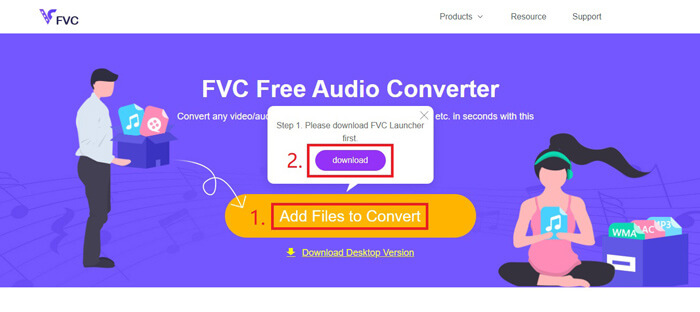
स्टेप 2. इंस्टॉलेशन पूरा होने के बाद Open विंडो अपने आप खुल जाएगी। अब आप वह MP4 वीडियो चुन सकते हैं जिसे आप कनवर्ट करना चाहते हैं।.
स्टेप 3. चूँकि आपको आउटपुट में WAV फाइल चाहिए, इसलिए आउटपुट फॉर्मैट को WAV में बदलें। Convert पर क्लिक करें और अपनी WAV फाइल के लिए एक सेविंग डेस्टिनेशन चुनें।.
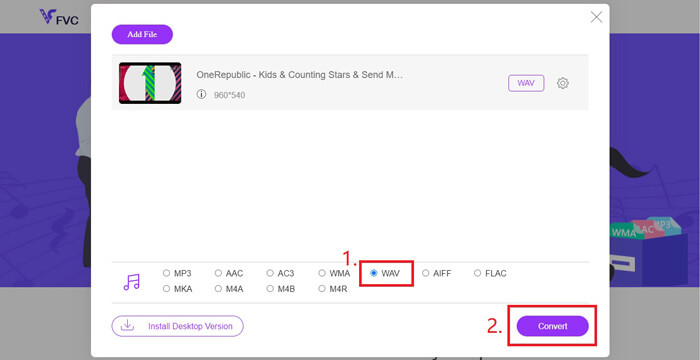
स्टेप 4. कुछ समय इंतज़ार करें, और कनवर्ट की गई फाइल अपने आप आपके कंप्यूटर में सेव हो जाएगी।.
भाग 3. MP4 को ऑडेसिटी के साथ WAV में बदलें
बहुत से लोग पूछते हैं कि Audacity के ज़रिए MP4 को WAV में कैसे बदला जाए। इसीलिए हमने रिसर्च की और पाया कि यह तरीका थोड़ा जटिल हो सकता है, क्योंकि वैकल्पिक FFmpeg लाइब्रेरी के बिना Audacity सीधे MP4 फाइल नहीं खोल सकता। लेकिन सौभाग्य से, हमने Audacity की रिकॉर्डिंग सुविधा का इस्तेमाल करके इस समस्या का हल निकाल लिया।.
जो लोग ऑडेसिटी से परिचित नहीं हैं, उनके लिए यह एक खुला स्रोत है और स्वयंसेवकों द्वारा विकसित क्रॉस-प्लेटफॉर्म ऑडियो फ्रीवेयर है। आम तौर पर, इसका उपयोग मल्टी-ट्रैक ऑडियो को संपादित करने और रिकॉर्ड करने के लिए किया जाता है। MP4 से ऑडेसिटी के साथ WAV फ़ाइल निर्यात करने के लिए, आपको नीचे दिए गए चरणों का पालन करना होगा।
स्टेप 1. वह MP4 वीडियो फाइल ढूँढें जिसे आप कनवर्ट करना चाहते हैं और उसे अपने कंप्यूटर के मीडिया प्लेयर से प्ले करें। यह सुनिश्चित करने के लिए कि कोई भी कंटेंट छूट न जाए, वीडियो खुलते ही उसे पॉज़ करें और फिर शुरुआत पर वापस ले जाएँ।.
स्टेप 2. अब आप Audacity लॉन्च कर सकते हैं। सबसे पहले, रिकॉर्डिंग वॉल्यूम को स्लाइड करके माइक्रोफ़ोन को 0 पर म्यूट करें। फिर सिस्टम साउंड का वॉल्यूम अपनी पसंद के अनुसार सेट करें। Record बटन पर क्लिक करें।.
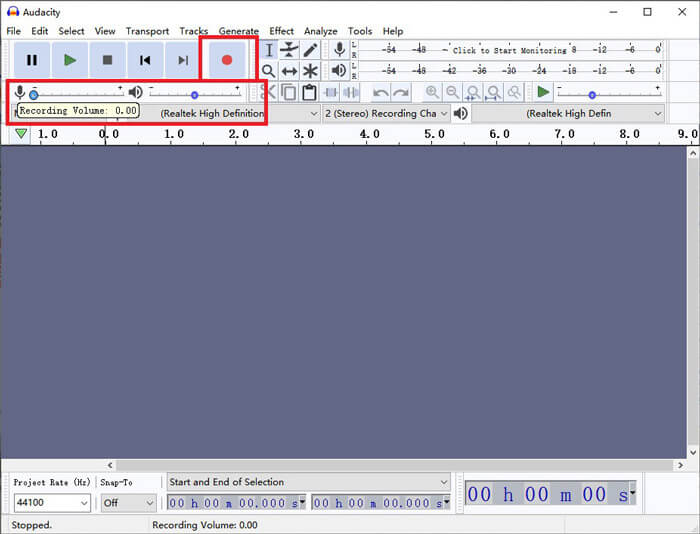
स्टेप 3. वापस मीडिया प्लेयर पर जाएँ और MP4 वीडियो प्ले करें। Audacity वीडियो के ऑडियो हिस्से को रिकॉर्ड करेगा। जैसे ही MP4 वीडियो खत्म हो जाए, आप मीडिया प्लेयर बंद कर सकते हैं।.
סטेप 4. वापस Audacity पर जाएँ और Stop आइकन पर क्लिक करें। इसके बाद, ऊपर मेन्यू बार में File पर जाएँ। Export ढूँढें और फिर Export as WAV चुनें।.
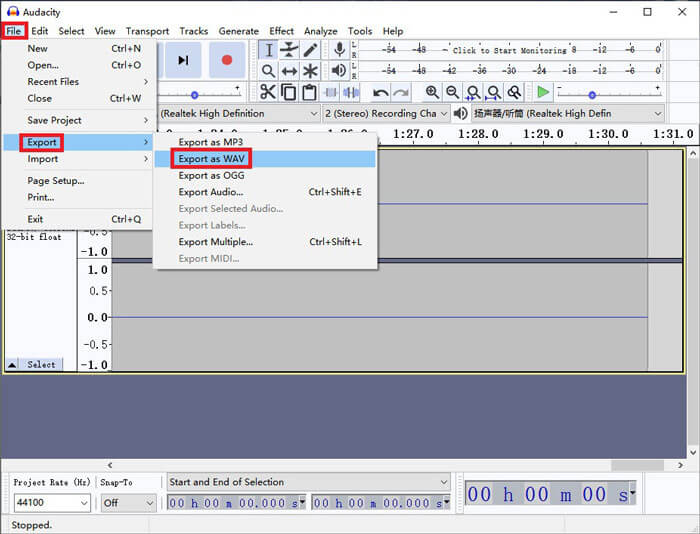
स्टेप 5. इस ऑडियो फाइल को अपने कंप्यूटर में सेव करने से पहले इसका नाम दे दें।.
भाग 4. MP4 को WAV में परिवर्तित करने के अक्सर पूछे जाने वाले प्रश्न
1. मैं iTunes में MP4 को WAV में कैसे परिवर्तित करूं?
iTunes खोलें और ऊपर मेन्यू बार से Edit पर जाएँ। फिर Preferences चुनें। General Preferences विंडो में Import Settings ढूँढें। इसके बाद Import Using को AAC Encoder से बदलकर WAV Encoder कर दें। OK पर क्लिक करें। जिस वीडियो फाइल को आप कनवर्ट करना चाहते हैं उस पर राइट‑क्लिक करें और Create WAV Version चुनें।.
2. विंडोज मीडिया प्लेयर में MP4 को WAV में कैसे बदलें?
MP4 फाइल को Windows Media Player से खोलें। Windows Media Player के होमपेज पर जाने के लिए Menu आइकन पर क्लिक करें। Organize पर क्लिक करके Options चुनें। फिर Rip Music टैब ढूँढें और आउटपुट फॉर्मैट को WAV में बदल दें। यहाँ आप अपने ऑडियो फाइल की सेविंग डेस्टिनेशन भी बदल सकते हैं। MP4 से WAV कनवर्ज़न शुरू करने के लिए OK बटन पर क्लिक करें।.
3. कौन सा बेहतर है, MP4 या WAV?
अगर आप सिर्फ साउंड क्वालिटी की तुलना करना चाहते हैं, तो WAV स्पष्ट रूप से MP4 से बेहतर है, क्योंकि WAV फॉर्मैट में ऑडियो अनकम्प्रेस्ड और लॉसलेस होता है। हालाँकि, इसी वजह से, समान ऑडियो रखते हुए WAV फाइल का साइज MP4 फाइल से बड़ा हो सकता है। अगर आप MP4 वीडियो के बारे में और जानकारी चाहते हैं, तो आपको कम से कम इसकी तुलना अन्य वीडियो फॉर्मैट्स से करनी चाहिए, जैसे AVI बनाम MP4 या MOV बनाम MP4।.
निष्कर्ष
FAQs में बताए गए तरीकों सहित, अब आपके पास MP4 को WAV में बदलने के 4 तरीके हैं। अगर आप सिर्फ समय बचाने वाला कनवर्टिंग टूल इस्तेमाल करके ऑडियो कनवर्ट करना चाहते हैं, तो FVC Free Audio Converter बिना किसी अतिरिक्त झंझट के बेहतरीन काम करेगा।.
यदि आपको यह लेख सहायक लगता है, तो आप इसे अपने दोस्तों के साथ साझा कर सकते हैं। हमें अपनी राय देने के लिए स्वतंत्र महसूस करें।
-
 मैक / विंडोज के लिए MP4 को WMV में कैसे बदलें
 यह पोस्ट मैक या विंडोज पर MP4 वीडियो को WMV प्रारूप में बदलने का तरीका साझा करता है। हम आपको कई विकल्प भी प्रदान करेंगे, जिसमें डेस्कटॉप सॉफ्टवेयर और वेब-आधारित ऑनलाइन कन्वर्टर्स दोनों शामिल हैं। WMV कन्वर्ट करने वाले टूल के लिए सबसे अच्छा MP4 जानने के लिए तैयार हैं?
-
 विंडोज / मैक / iPhone / Android / ऑनलाइन पर एमपी 3 के लिए MP4 कन्वर्ट करने के लिए कैसे
 यदि आप MP4 वीडियो से एमपी 3 ऑडियो निकालना चाहते हैं, तो आप इस लेख की जांच कर सकते हैं और 8 समाधान प्राप्त कर सकते हैं। वहाँ आसानी से अपने फोन या कंप्यूटर पर एमपी 3 के लिए MP4 कन्वर्ट करने के लिए ऑनलाइन और ऑफलाइन तरीके हैं।
-
 WMV को MP3 को डेस्कटॉप और ऑनलाइन में कैसे बदलें
 आप एफवीसी स्टूडियो से कोई भी मुफ्त वीडियो कनवर्टर सॉफ्टवेयर पा सकते हैं। किसी भी वीडियो / ऑडियो प्रारूप का समर्थन किया जाता है, जिसमें MP4, MOV, TS, AVI, WMV, FLAC, MP3, आदि शामिल हैं।
