


 वीडियो कनवर्टर अंतिम
 स्क्रीन अभिलेखी
 वीडियो मरम्मत
 सुरक्षित डाउनलोड
डेस्कटॉप, वेब और फोन पर वीडियो स्पीड प्लेबैक बदलने के 4 सबसे आसान तरीके
अधिकांश उपयोगकर्ता एक घंटे लंबे वीडियो को एक घंटे से कम समय में देखने का प्रभावी तरीका ढूंढ लेते हैं। इस समस्या का एकमात्र समाधान यह है कि आप जिस वीडियो को देख रहे हैं उसकी प्लेबैक स्पीड बदलें। बाज़ार में उपलब्ध ज्यादातर वीडियो एडिटर इस काम में आपकी मदद कर सकते हैं, लेकिन सवाल यह है कि क्या वे भरोसेमंद हैं? जब हमने इन सभी पर शोध किया, तो हमें पता चला कि आप डेस्कटॉप, ऑनलाइन, iOS और Android डिवाइस पर वीडियो की स्पीड बदल सकते हैं। अगर आप जानना चाहते हैं कि यह कैसे करना है, तो आपको यह ब्लॉग पढ़ते रहना चाहिए, क्योंकि इसमें हमने ऐसे टूल और ऐप शामिल किए हैं जो आपकी मदद कर सकते हैं।.

भाग 1। विंडोज और मैक पर वीडियो स्पीड को आसानी से बदलने का सबसे अच्छा अनुशंसित तरीका
वीडियो की स्पीड को आसानी से बदलने के लिए, आपको ऐसा बेहतरीन टूल चुनना होगा जो कुछ साधारण क्लिक में ही शानदार नतीजे दे—पेश है FVC Video Converter Ultimate। यह टूल आपके किसी भी वीडियो की स्पीड को कभी भी और कहीं भी प्रभावी तरीके से बदल सकता है। साथ ही आप MP4, MOV, AVI, FLV, TS, RMVB और 1000+ अन्य फॉर्मैट वाले वीडियो की स्पीड बदल सकते हैं; यहाँ फ़ाइल अपलोड करना तेज़ और आसान है। चाहे आप Windows उपयोगकर्ता हों या Mac, इस सॉफ्टवेयर को उस OS पर डाउनलोड करना आपको कुछ ही क्लिक में प्लेबैक स्पीड बदलने का काम पूरा करने में मदद करेगा।.
इसके वीडियो स्पीड कंट्रोलर फ़ंक्शन के अलावा, टूल में एक गर्व से बहुक्रियाशील टूलबॉक्स भी है जो अन्य कार्यों में मदद कर सकता है। जैसे मेटाडेटा जोड़ना, GIF बनाना, वॉटरमार्क हटाना और भी बहुत कुछ। यद्यपि उपकरण डाउनलोड करने योग्य है, आप इसका उपयोग करते समय देखेंगे कि आपको संपादन में बहुत अधिक अनुभव की आवश्यकता नहीं होगी, क्योंकि यह उपयोगकर्ता के अनुकूल है। ऐसे कार्य और विशेषताएं हैं जिन्हें हमने अभी तक नहीं लिखा है जो इस उत्पाद को उजागर करेंगे। लेकिन अगर आप सीखना चाहते हैं कि वीडियो की गति कैसे बदलें, तो जानने के लिए विवरण पढ़ें।
वीडियो स्पीड चेंजर के रूप में अल्टीमेट सॉफ्टवेयर का उपयोग करने के लाभ:
सहज ज्ञान युक्त इंटरफ़ेस, इसलिए वे कुछ ही मिनटों में इसका उपयोग करना सीखेंगे।
इसके प्लेबैक में तेजी लाने के लिए 1000+ वीडियो अपलोड करें।
उपयोगकर्ता के अनुकूल उपयोगकर्ताओं को इसका अधिक से अधिक अनुभव करने में मदद करने के लिए।
अन्य कार्य टूलबॉक्स पर हैं, जैसे कि बुनियादी और उन्नत वीडियो संपादन।
इसे डाउनलोड करने वाले लगभग दस लाख उपयोगकर्ताओं की यह पहली पसंद है।
आसानी से टूल डाउनलोड करने के लिए विंडोज और मैक पर उपलब्ध है।
अल्टीमेट सॉफ्टवेयर का उपयोग करके वीडियो स्पीड कैसे बदलें, इस पर कदम:
चरण 1. नीचे दिए गए डाउनलोड बटन पर क्लिक करके आप Windows और Mac दोनों सिस्टम पर यह अल्टीमेट सॉफ्टवेयर प्राप्त कर सकते हैं। डाउनलोड की गई फ़ाइल पर क्लिक करने के बाद इंस्टॉलेशन प्रक्रिया पूरी करें, फिर आगे बढ़ने के लिए सॉफ्टवेयर लॉन्च करें।.
फ्री डाउनलोडWindows 7 या बाद के संस्करण के लिएसुरक्षित डाउनलोड
फ्री डाउनलोडMacOS 10.7 या बाद के संस्करण के लिएसुरक्षित डाउनलोड
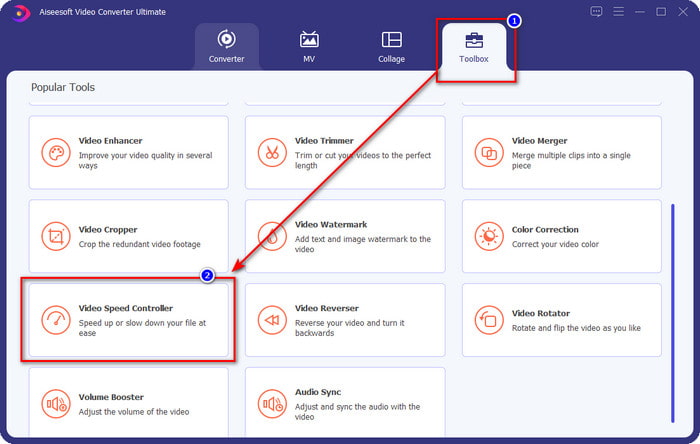
चरण 2. सॉफ्टवेयर खोलने के बाद, आपको Toolbox सेक्शन में जाना होगा; इसके अंदर Video Speed Controller खोलें। चिंता न करें, इस टूल का उपयोग करने के लिए आपको कोई अतिरिक्त रिसोर्स या फाइल डाउनलोड करने की ज़रूरत नहीं पड़ेगी।.
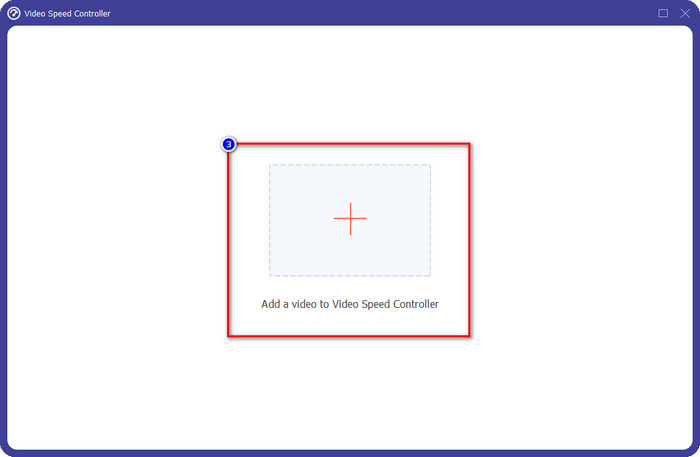
चरण 3. + आइकन दबाएँ, फ़ोल्डर से अपनी फ़ाइल जोड़ें, उस पर क्लिक करें और Open दबाएँ ताकि आपका वीडियो फ़ाइल अपलोड हो जाए।.
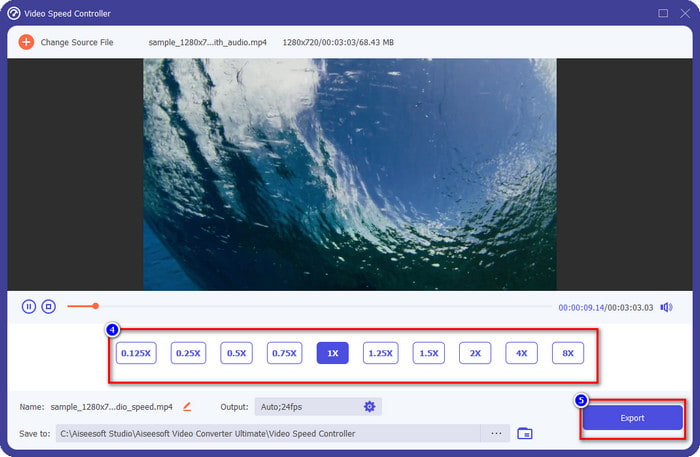
चरण 4. सूची में से वह प्लेबैक स्पीड चुनें जिसे आप हासिल करना चाहते हैं, और हम सबकी अलग‑अलग प्लेबैक ज़रूरतें होती हैं। जिस स्पीड पर आप संतुष्ट हों, उसे चुनने के बाद Export पर क्लिक करें ताकि बदली हुई स्पीड वाला वीडियो सेव हो जाए। एक मिनट से भी कम समय में आपके वीडियो की स्पीड बदल जाएगी। अब आप इसे कम समय में देखकर आनंद ले सकते हैं।.
भाग 2। वेब पर वीडियो की गति को बदलने का सबसे अच्छा मुफ्त तरीका
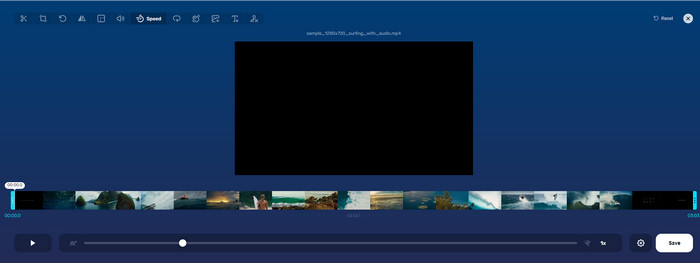
Online Video Cutter की मदद से आप ऑनलाइन ही फ्री में वीडियो स्पीड बदल सकते हैं। पहले टूल के विपरीत, इस वेब टूल को इस्तेमाल करने के लिए आपको अपने डेस्कटॉप पर कोई अतिरिक्त रिसोर्स या इंस्टॉलर डाउनलोड करने की आवश्यकता नहीं है। स्पीड बदलने के अलावा, आप इससे कुछ बेसिक एडिटिंग भी कर सकते हैं। हालांकि यह टूल अच्छा है, लेकिन आप इसमें अपनी सभी फाइल फॉर्मैट अपलोड नहीं कर पाएँगे क्योंकि यह सीमित फॉर्मैट को ही सपोर्ट करता है। इसका उपयोग करने के लिए नीचे दिए गए चरणों का पालन करें।.
चरण 1. वह ब्राउज़र खोलें जिसे आप उपयोग करना चाहते हैं और इस वेब टूल को सर्च करें।.
चरण 2. वेब टूल खोलें, Open File पर क्लिक करें, अपनी वीडियो फ़ाइल ढूँढें और उसे अपलोड करें।.
चरण 3. स्पीड बदलने के लिए sliders को बाएँ या दाएँ खींचें; जब आप चुनी गई स्पीड से संतुष्ट हों, तो Save बटन पर क्लिक करें।.
भाग 3. मुफ्त में वीडियो की गति बदलने के लिए आईओएस पर सर्वश्रेष्ठ वीडियो संपादक
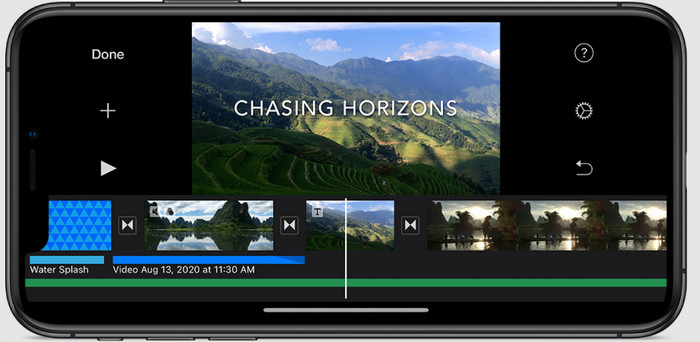
IOS उपयोगकर्ताओं के लिए, आप iPhone पर वीडियो की गति को मुफ्त में बदलने का तरीका जानने के लिए iMovie का उपयोग कर सकते हैं। भले ही टूल मैक पर एक देशी वीडियो एडिटर है, फिर भी आपके पास अपने डिवाइस पर ऐप डाउनलोड करने का विकल्प है या नहीं। यह विकल्प साबित करता है कि आईओएस उपयोगकर्ता अपने भंडारण पर कुछ जगह बचाने के लिए संपादक रख सकते हैं या नहीं। लेकिन अगर आपके आईफोन में ऐप है, तो आप यह जानने के लिए नीचे दिए गए चरणों का पालन कर सकते हैं कि यह टूल कैसे काम करता है।
चरण 1. अपने iPhone पर ऐप डाउनलोड करें, फिर इसे खोलें और Project पर जाएँ, + चिन्ह पर क्लिक करें, फिर Movie पर क्लिक करें।.
चरण 2. जिस वीडियो को आप तेज़ करना चाहते हैं, उस पर टैप करें, फिर स्क्रीन के निचले हिस्से में Create Movie पर टैप करें ताकि वह टाइमलाइन पर अपलोड हो जाए।.
चरण 3. अपलोड किए गए फुटेज पर टैप करके speed controller आइकन पर क्लिक करें, और अपने iPhone पर sliders को खींचकर वीडियो की स्पीड एडजस्ट करें। इसे सेव करने के लिए Done पर क्लिक करें, फिर चाहें तो इसे एक्सपोर्ट कर लें।.
भाग 4. बिल्ट-इन एडिटर का उपयोग करके एंड्रॉइड डिवाइस पर वीडियो स्पीड प्लेबैक को बदलने का सबसे अच्छा तरीका

यदि आप एक Android उपयोगकर्ता हैं तो ऐप डाउनलोड करने की कोई बात नहीं है; बिल्ट-इन वीडियो एडिटर के साथ अपने फोन पर वीडियो की गति बदलें। इस संपादक के साथ, आप अपने वीडियो को पहले से बेहतर दिखाने के लिए आवश्यक बुनियादी संपादन कर सकते हैं। आप इस संपादक को अपने Android पर गैलरी या एल्बम पर पा सकते हैं। यदि आप जानना चाहते हैं कि इसका उपयोग कैसे करना है, तो निम्नलिखित जानकारी आपकी सहायता करेगी।
चरण 1. अपनी Gallery या Album खोलें, फिर उस वीडियो पर टैप करें जिसकी स्पीड आप बदलना चाहते हैं।.
चरण 2. आगे बढ़ने के लिए Edit पर क्लिक करें।.
चरण 3. Playback Speed सेक्शन पर टैप करें, फिर अपनी ज़रूरत के अनुसार स्पीड बदलें।.
भाग 5. वीडियो की गति बदलने के बारे में अक्सर पूछे जाने वाले प्रश्न
क्या मैं YouTube पर गति बदल सकता हूँ?
बिल्कुल हाँ, आप YouTube पर वीडियो के प्लेबैक को बदल सकते हैं, भले ही आप इसे करने के लिए सॉफ़्टवेयर डाउनलोड न करें। YouTube पर वीडियो की गति कैसे बदलें, यह जानने के लिए चरणों का पालन करें। सबसे पहले YouTube खोलें, वह वीडियो ढूंढें जिसे आप संशोधित गति में देखना चाहते हैं, कॉग आइकन पर क्लिक करें, और इसके तहत, प्लेबैक स्पीड, वह गति चुनें जिसे आप प्राप्त करना चाहते हैं, और आनंद लें।
क्या गति बदलने से वीडियो की अवधि कम हो जाती है?
यह इस बात पर निर्भर करता है कि आप गति को कैसे बदलते हैं; यदि आप वीडियो को धीमा करते हैं, तो उम्मीद करें कि इसकी अवधि बढ़ जाएगी क्योंकि आप इसे धीमे मोड में चलाते हैं। लेकिन यदि आप गति को उच्च में बदलते हैं, तो आपके द्वारा चलाए जा रहे वीडियो की अवधि मूल से कम होगी। वीडियो की गति बदलने के बारे में अधिक जानने के लिए, आपको निम्नलिखित विवरण पढ़ना चाहिए जो हम ऊपर जोड़ते हैं।
स्पीड बदलने के बाद क्या क्वालिटी पर असर पड़ेगा?
आपके द्वारा सेट की गई वीडियो गति के आधार पर, गुणवत्ता घट सकती है या बनी रह सकती है। यदि आप आठ बार या उससे अधिक वीडियो चलाते हैं, तो उस वीडियो की अपेक्षा करें जिसे आप चलाएंगे। हालाँकि, आपको प्लेबैक के अलावा बहुत अधिक अंतर दिखाई नहीं देगा, गुणवत्ता के अनुसार, यह वही रहेगा।
निष्कर्ष
अब जब हमें यह अंदाज़ा हो गया है कि डेस्कटॉप, ऑनलाइन और फोन पर वीडियो स्पीड कैसे बदलें, तो यह तय करने का समय है कि हमें कौन‑सा तरीका इस्तेमाल करना चाहिए। मान लीजिए कि आप अपने डेस्कटॉप पर जगह बचाने और इंस्टॉलेशन के झंझट से बचने के लिए कोई सॉफ्टवेयर डाउनलोड नहीं करना चाहते, तो आपको इस लेख के दूसरे भाग को पढ़ना चाहिए। लेकिन अगर आप iOS या Android उपयोगकर्ता हैं, तो आपके लिए तीसरा और चौथा भाग है। अगर आप Windows और Mac पर सबसे अच्छा वीडियो एडिटर इस्तेमाल करना चाहते हैं, तो आपको FVC Video Converter Ultimate डाउनलोड करना होगा। यह आपके डेस्कटॉप पर वीडियो प्लेबैक को आसानी से बदलने के लिए सबसे अच्छा वीडियो स्पीड कंट्रोलर है। तो फिर देर किस बात की? अभी इसे डाउनलोड करें और सिर्फ आपके लिए उपलब्ध हमारे विशेष ऑफर का लाभ उठाएँ!
-
 प्रीमियर प्रो में और इसके विकल्पों के साथ वीडियो को कैसे गति दें
 क्या आप जानना चाहते हैं कि वीडियो को गति देने के लिए प्रीमियर प्रो का उपयोग कैसे करें? फिर आप सही लेख में हैं क्योंकि हम कदम और अन्य किफायती विकल्प प्रदान करते हैं।
-
 टिक टॉक पर वीडियो की स्पीड बढ़ाने के 2 आसान तरीके
 क्या आप जानना चाहते हैं कि टिकटॉक पर वीडियो की स्पीड कैसे बढ़ाई जाए? फिर इस लेख को पढ़ें कि यह कैसे करना है और यह जानने के लिए कि अन्य 2 उपकरण कौन से हैं जो आपकी मदद करेंगे।
-
 2021 के बेहतरीन टिप्स: iMovie पर वीडियो की स्पीड कैसे बढ़ाएं
 आपका मित्र आईओएस ऑपरेटिंग सिस्टम का उपयोग करके वीडियो को गति देने की आपकी समस्या में आपकी मदद करने के लिए iMovie का सुझाव देता है, लेकिन आप नहीं जानते कि क्या करना है? इसके बारे में और देखें क्योंकि आप इस लेख के माध्यम से और अधिक पढ़ रहे हैं।
