


 Video Converter Ultimate
 Snimač zaslona
 Video popravak
Kako ukloniti vodeni žig s GIF-a online [korak po korak]
Dodavanje vodenog žiga na GIF postalo je jedan od načina da osigurate GIF, ali što ako trebate ukloniti vodeni žig koji ste dodali na svoj GIF? Što tada učiniti? Ima li vaš GIF Maker ovu funkciju? Nema uklanjanje vodenog žiga? Znamo da je neugodno suočavati se s ovim problemom, zar ne? No ne morate brinuti, jer ćemo kasnije odgovoriti na sva ta pitanja: pronašli smo četiri alata za uklanjanje vodenog žiga koje možete koristiti izvan mreže i na mreži. Ovi su alati pomno odabrani s tržišta kako bi vam pružili najbolje mogućnosti za uklanjanje vodenog žiga s GIF-a.

Kratak pregled ovih aplikacija
| Video Converter Ultimate | Mrežni GIF alati | WatermarkRemover.io | Pixlr | PhotoShop | |
| Razlučivost | 8K | 1080P | 5 tisuća | 8K | 300 tisuća |
| Brzina procesa | Brzo | Srednji | Srednji | Brzo | Ovisi o vašem hardveru |
| Zahtjevi za hardver | Niska | N/A | Srednji | visoko | Vrlo visoko |
Dio 1. Najlakši način za brzo uklanjanje vodenog žiga iz GIF-a na Windows i Mac
Video Converter Ultimate može vam uspješno pomoći ukloniti vodeni žig s GIF-a, ako to želite. Ovaj vam alat može pomoći i dodati i ukloniti vodeni žig; u osnovi, to je višenamjenski alat koji će vam trebati na vašem Windows ili Mac računalu. Ne samo to, s ovim alatom možete izraditi vlastiti GIF i dodati vodeni žig kojim ćete zaštititi GIF koji ste napravili. Da biste ga isprobali, možete slijediti jednostavne korake koje smo naveli i to je to. Nakon toga možete koristiti GIF bez vodenog žiga za manje od minute.
Prednosti Video Converter Ultimatea:
◆ Najbolji je izbor ukloniti i dodati vodeni žig na svoj GIF.
◆ GUI jednostavan za korištenje može vam brzo pomoći da shvatite što se događa sa sučeljem alata.
◆ Ugrađeni ultrabrzi proces pretvorbe i hardversko ubrzanje mogu vam pomoći s brzim uvozom i izvozom.
◆ Dostupno na svim platformama kao što su Windows i Mac za preuzimanje.
◆ Ima najbolje napredne značajke GIF makera koje možete koristiti na radnoj površini za stvaranje personaliziranog GIF-a.
Koraci za uklanjanje vodenog žiga s GIF-a pomoću Ultimate Watermark Removera
Korak 1. Preuzmite softver na disk računala klikom na donji gumb. Zatim ga pokrenite i učitajte GIF ili videozapis.
Besplatno preuzimanjeZa Windows 7 ili novijiSigurno preuzimanje
Besplatno preuzimanjeZa MacOS 10.7 ili novijiSigurno preuzimanje
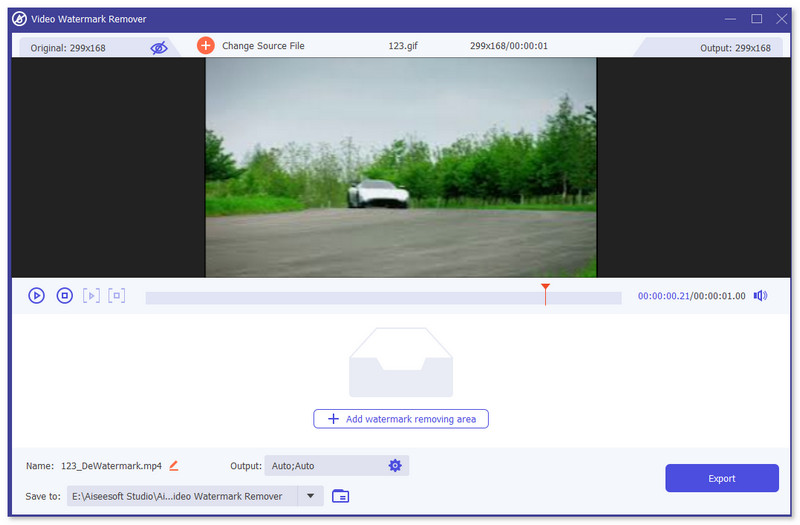
Korak 2. Otvorite alat za uklanjanje vodenog žiga, idite na Toolbox i potražite Video Watermark Remover.

Korak 3. Učitajte GIF ili videozapis i kliknite Export.
Povezano:
Uklonite vodeni žig s GIF-a pomoću Adobe Photoshopa
Ako na računalu imate instaliran Adobe PhotoShop, možete se osloniti na njega i za uklanjanje vodenih žigova ili sjena sa slike. PhotoShop se može prepoznati kao jedan od najpopularnijih i najmoćnijih alata za uređivanje fotografija koji vam omogućuje dodavanje efekata, filtriranje, brisanje objekata itd. Iako nije besplatni uređivač fotografija, nudi vam 30-dnevnu besplatnu probnu verziju. Sada možete slijediti donji vodič za uklanjanje neželjenih objekata s fotografije.
Korak 1. Pokrenite PhotoShop na svom računalu. Na službenom Adobeovu web-mjestu možete besplatno preuzeti PhotoShop i isprobati ga u probnom razdoblju.
Korak 2. Možete izravno povući i ispustiti slikovnu datoteku koju želite urediti. Također možete kliknuti File na traci izbornika, a zatim kliknuti Open za odabir lokalne fotografije na računalu.
Korak 3. Možete upotrijebiti alat Select and Mask kako biste odabrali neželjene objekte. Tijekom ovog koraka možete slobodno odabrati prikladan alat za označavanje područja koje želite ukloniti.
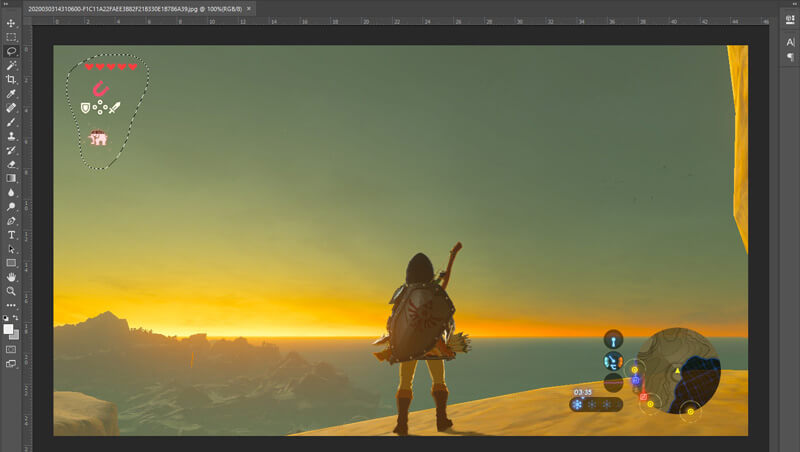
Korak 4. Sada se možete osloniti na Photoshopov alat Content-Aware Fill kako biste uklonili objekt s fotografije i zamijenili taj dio odgovarajućim sadržajem. Relativno gledano, ako ne želite samo jednostavno izbrisati neke objekte na fotografiji, značajka Content-Aware Fill može vam dati bolji izlazni rezultat.
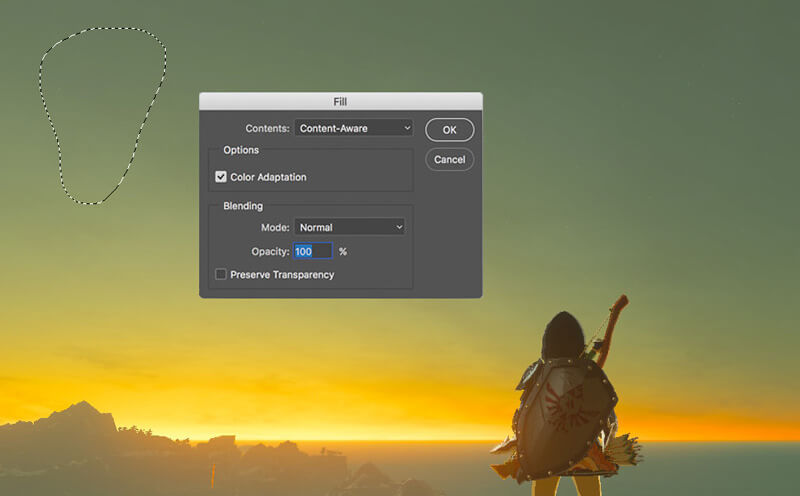
Korak 5. Nakon što PhotoShop ukloni objekt, možete kliknuti File, a zatim Save kako biste spremili uređenu sliku na računalo. Kao izlazni format možete odabrati bilo koji popularni format slike, poput JPG, PNG, GIF i drugih. Ovdje također možete pritisnuti Ctrl + S da biste spremili i izvezli slikovnu datoteku iz PhotoShopa.
Dio 2. Kako ukloniti vodeni žig s GIF-a online
Pomoću ovih besplatnih online alata možete ukloniti vodene žigove na GIF-ovima. Ali morate imati na umu da ovi alati neće raditi ako nemate internetsku vezu jer svi alati ovise o mreži. Također, njihova upotreba može potrajati jer se sprema dok koristite ove web alate. Dakle, ako želite saznati besplatni alat za uklanjanje GIF-ova na mreži, pročitajte detalje u nastavku.
Uklonite vodeni žig s GIF-a pomoću online GIF alata
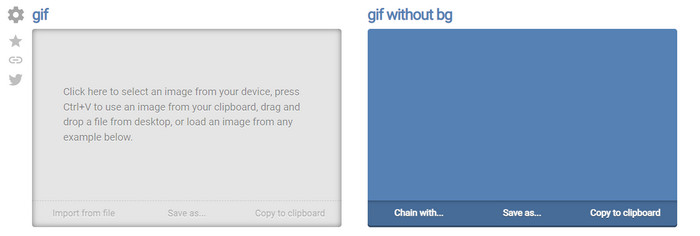
Online GIF Tools je besplatan alat koji možete koristiti za uklanjanje vodenih žigova s GIF-ova. Ovaj alat korisnicima pruža napredne mogućnosti uklanjanja, poput uklanjanja pozadinskog vodenog žiga s GIF-a. Iako je alat impresivan, uklanjanje vodenog žiga može biti komplicirano jer uklanja po pikselima određene boje u svakom okviru.
Korak 1. Otvorite Online GIF Tools u svom web-pregledniku.
Korak 2. Kliknite Import File da biste učitali GIF. Pod Background color kliknite options color coder kako biste pronašli boju vodenog žiga.
Korak 3. Kliknite Save As i Download nakon toga kako biste spremili GIF na svoj disk.
Uklonite vodeni žig s GIF-a pomoću programa Watermark Remover Online
Uz WatermarkRemover.io vaš će se vodeni žig automatski ukloniti s GIF-a. Ovaj je alat izvrstan za besplatno uklanjanje vodenih žigova. Korisnicima omogućuje manje muke pri uklanjanju vodenog žiga jer to ne morate sami raditi – alat to obavlja umjesto vas. Međutim, neka područja nisu dostupna s ovim alatom; u biti, ne možete preuzeti GIF s uklonjenim vodenim žigom.
Korak 1. Pokrenite WatermarkRemover.io i dodajte GIF datoteku klikom na donji dio logotipa.
Korak 2. Nakon što dodate datoteku, postupak će automatski započeti i pričekajte da završi.
Korak 3. Kliknite gumb za preuzimanje kako biste ga spremili na svoje računalo.
Uklonite vodeni žig s GIF-a pomoću Pixlr-a

Ako želite najbolji web-alat za uklanjanje vodenog žiga s GIF-a, upotrijebite Pixlr. Za razliku od dva spomenuta web-alata, ovaj je alat sasvim drukčiji jer ima mnogo funkcija koje biste mogli poželjeti koristiti za uklanjanje vodenog žiga. Iako je alat sličan Photoshopu, neki njegovi dijelovi nisu toliko učinkoviti kao ono što vam Photoshop može pružiti, osobito pri uklanjanju vodenog žiga s GIF-a, a na kraju izvoza dodaje i vlastiti vodeni žig.
Korak 1. Potražite Pixlr i otvorite ga.
Korak 2. Pritisnite Advance Editor, dodajte GIF, kliknite Open Image. Nakon dodavanja GIF-a, kliknite ikonu droplet kako biste zamaglili vodeni žig, više puta kliknite na vodeni žig i pobrinite se da ga uklonite.
Korak 3. Kliknite File pa Save.
Dio 3. Često postavljana pitanja o uklanjanju vodenog žiga iz GIF-a
Da li uklanjanje vodenog žiga smanjuje veličinu datoteke?
Veličina datoteke će se promijeniti, ali to neće imati značajan utjecaj jer samo uklonite malo vodenog žiga na svom videozapisu. Dakle, ako izvorna veličina datoteke i izvučeni vodeni žig nisu gotovo isti, problem je u tome što ste upotrijebili.
Zašto je moj videozapis zamućen nakon uklanjanja vodenog žiga?
Nakon uklanjanja vodenog žiga na vašem videozapisu postoji zamućenje jer je to način na koji alat uklanja vodeni žig. To je jedna od metoda koje alati pružaju za uklanjanje vodenog žiga na bilo kojem videozapisu ili slici zamućenjem.
Hoće li se kvaliteta GIF-a promijeniti nakon uklanjanja vodenog žiga?
Nakon uklanjanja vodenog žiga na GIF-u nećete primijetiti promjenu u kvaliteti. No neki alati smanjuju kvalitetu vašeg GIF-a jer ne podržavaju visokokvalitetne GIF-ove. Dakle, ne zaboravite odabrati pravi alat koji podržava izvoz visokokvalitetnog izlaza iako ste s njega uklonili vodeni žig.
Zaključak
U konačnici, ovaj nam blog daje priliku da učinkovito uklonimo vodeni žig s GIF-a ili videa koji koristimo. Alati koje smo predstavili učinkoviti su i savršeni za uklanjanje vodenog žiga s našeg GIF-a. Ipak, Video Converter Ultimate i dalje ima najjače strane kada je riječ o uklanjanju ili dodavanju vodenog žiga na vaš GIF. Dakle, ako se slažete s nama oko ovog alata, onda ga svakako trebate koristiti, a ako se ne slažete, svakako ga isprobajte: preuzmite ga i uklonite vodeni žig s GIF-a. Nakon toga će vam alat olakšati posao i promijenit ćete mišljenje o njegovim mogućnostima.
-
 Najbolji način kako dodati vodeni žig videu u Photoshopu na Windows i Mac
 Želite li znati kako dodati vodeni žig videu u Photoshopu? U tom slučaju, ovaj će vam članak pružiti nešto što trebate znati.
-
 3 najbolja rješenja o tome kako jednostavno ukloniti vodeni žig s videozapisa
 Želite ukloniti dosadni vodeni žig na videu? Uz ovaj blog možete naučiti različite ideje o uklanjanju vodenog žiga na videozapisu.
-
 5 najboljih načina za promjenu slike u animirani GIF [Ažurirano 2022.]
 Trebate sliku za pretvaranje u GIF? Ovaj članak će pružiti pet najboljih pretvarača koje možemo pronaći na tržištu. Dakle, otkrijmo ove alate čitajući ovaj članak.
