


 Video Converter Ultimate
 Snimač zaslona
 Video popravak
6 besplatnih alata za uklanjanje pozadine sa slike: brzo i precizno
Uklanjanje pozadina sa slika s takvom lakoćom postalo je revolucionarno u industriji uređivanja fotografija. Osim toga, pronalazak pravog alata koji odgovara tvojim potrebama i prilagođen je upravo tebi treba biti prioritet korisnika poput tebe; samo zamisli inovativan alat koji korisnicima omogućuje da bez napora uklone pozadinu slike i zatim je pretvore u vizualno upečatljiva remek-djela. U ovom članku ulazimo u umijeće uklanjanja pozadine, istražujući šest najboljih alata za uklanjanje pozadine, od popularnih do podcijenjenih. Nadalje, proći ćemo kroz njihove značajke i pojednostavljene korake kako bi učinkovito naučio kako se snalaziti i odabrati pravi alat za sebe. Što još čekaš? Počni čitati ovaj članak već danas i otkrij transformativnu moć uklanjanja pozadina sa slika za besprijekoran i vremenski učinkovit proces.

Dio 1. Kako ukloniti pozadinu sa slike
FVC besplatno uklanjanje pozadine
FVC Free Background Remover je web‑alat osmišljen za korisnike koji traže isplativo rješenje za uklanjanje pozadine. Ovaj alat prilagođen korisniku namijenjen je osobama s ograničenim budžetom, a nudi značajke usporedive, pa čak i bolje od onih u plaćenim alternativama. FVC je poznat po svom jednostavnom sučelju, koje jamči ugodno korištenje za sve. Alat daje prednost dostupnosti, čineći ga dostupnim korisnicima na raznim uređajima i platformama. Dodatno, FVC Free Background Remover stavlja snažan naglasak na sigurnost, pružajući pouzdano i sigurno okruženje u kojem korisnici mogu s povjerenjem poboljšavati svoje slike. U nastavku su navedene značajke FVC Free Background Removera i koraci za njegovo korištenje.
◆ Automatsko AI uklanjanje pozadine. Koristi umjetnu inteligenciju za uklanjanje pozadine sa slika, čineći ga alatom koji automatski obrađuje i inteligentno prepoznaje koji dio slike treba ukloniti. AI prolazi kroz opsežno testiranje kako bi se osiguralo da su rezultati što je moguće savršeniji.
◆ Uklanjanje i promjena pozadine. Osim uklanjanja pozadine sa slika, može promijeniti i pozadinu u jednobojnu. Time postaje svestran alat za korištenje.
◆ Podrška za uređivanje. Ovaj alat prilagođen korisniku omogućuje jednostavno uređivanje slika, primjerice obrezivanje, rotiranje i okretanje. Te jednostavne detaljne funkcije doprinose konačnom rezultatu obrađenih slika, omogućujući korisnicima pregled i dodatno uređivanje svojih slika.
◆ Kvalitetno preuzimanje. Iskusi visoku izlaznu kvalitetu pri korištenju našeg alata za uklanjanje pozadine. Nakon što se pozadina ukloni, zadrži izvornu kvalitetu slike prilikom spremanja uređene verzije.
◆ Podrška za više formata. Podržava ulazne slike u formatima JPG, JPEG i PNG, uz izlaz u PNG formatu za beskompresijsko (lossless) spremanje slika na računalo.
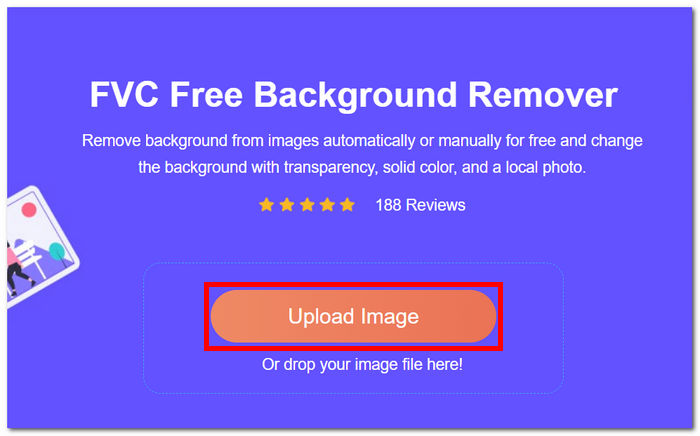
Korak 1. Započni tako da otvoríš web‑stranicu FVC Free Background Remover i učitaš željenu sliku u predviđeno polje označeno s Upload Image.
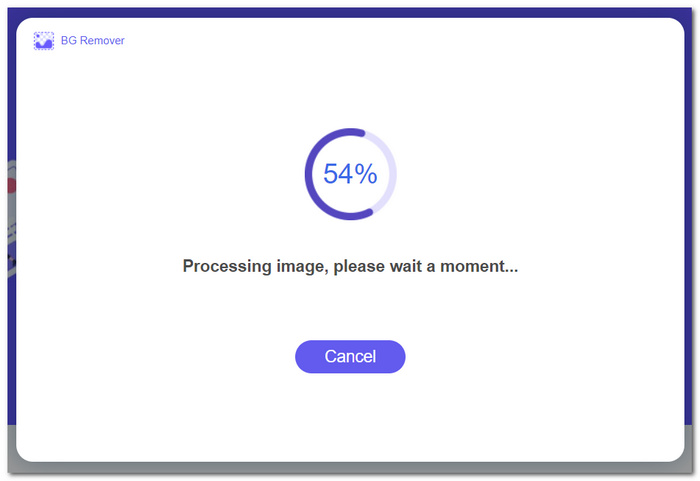
Korak 2. Iskoristi snagu umjetne inteligencije i pričekaj da alat samostalno prepozna i ukloni pozadinu s učitane slike.
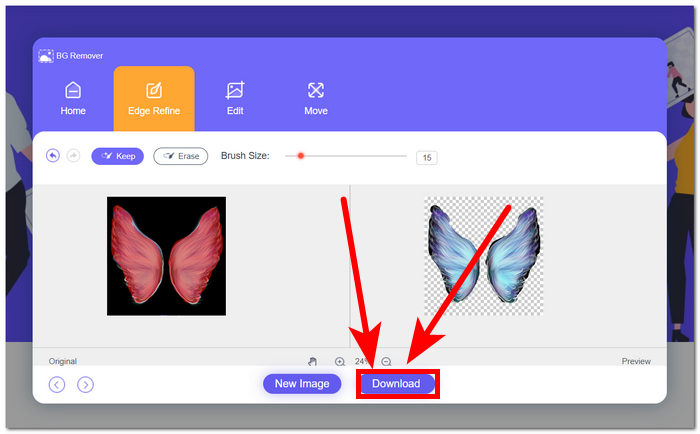
Korak 3. Nakon dovršetka procesa uklanjanja pozadine, spremi sliku s uklonjenom pozadinom klikom na gumb Download.
FVC Free Background Remover ističe se kao podcijenjen alat, koji mnogi korisnici često zanemaruju. Unatoč svom manje poznatom statusu, ovaj skriveni dragulj pruža vrijednu i besplatnu uslugu, pridonoseći kreativnim nastojanjima korisnika koji otkrivaju njegove mogućnosti. Prihvaćajući jednostavnost i učinkovitost, ostaje predan saveznik u procesu uređivanja slika.
Canva
Canva, gdje kreativnost ne poznaje granice! Njegova intuitivna platforma omogućuje korisnicima da bez napora uklone pozadinu sa svojih slika, otključavajući svijet mogućnosti dizajna. Uklanjanje pozadine sa slika u Canvi može biti izazov za korisnike koji nisu upoznati sa sučeljem; to je zbog toga što je Canva softver za uređivanje, što znači da je u softveru za uklanjanje pozadine slike prisutno mnogo alata koji mogu preopteretiti korisnike. Stoga se njegov alat za uklanjanje pozadine smatra najvišom razinom u kategoriji softvera jer AI pokreće i pokreće alat. Ispod su neke od njegovih značajki za uklanjanje pozadine i koraci pomoću Canve.
◆ Uklanjanje pozadine. Uklanjanje pozadine odvija se trenutačno, uz dodatne alate poput čarobne gumice (magic eraser) i čarobne zamjene (magic replacement) za učinkovito dorađivanje slika unutar samog alata.
◆ Integrirana AI tehnologija. Njegova umjetna inteligencija dovoljno je snažna da prepozna smetnje na slici i trenutačno ih ukloni.
◆ Višenamjenski uređivač. Riječ je o alatu u kojem možeš učiniti gotovo sve: pripremati prezentacije, uređivati fotografije i videozapise, izrađivati dokumente te uklanjati pozadinu.
Korak 1. Preuzmi i instaliraj Canvu na svoje računalo ili posjeti web‑verziju softvera.
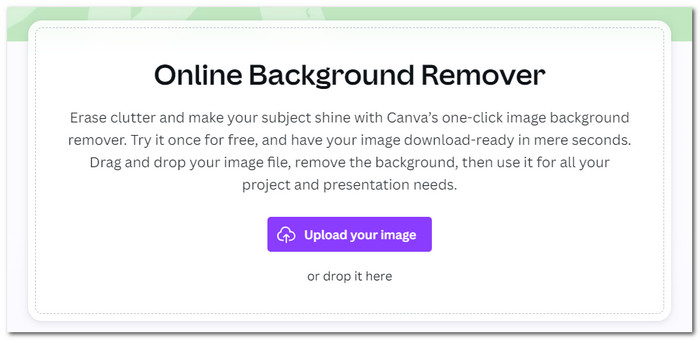
Korak 2. Na glavnom sučelju učitaj svoju sliku u polje prikazano na zaslonu.
Korak 3. Kada se slika učita u Canvu, klikni na BG Remover kako bi pozadina bila trenutačno uklonjena.
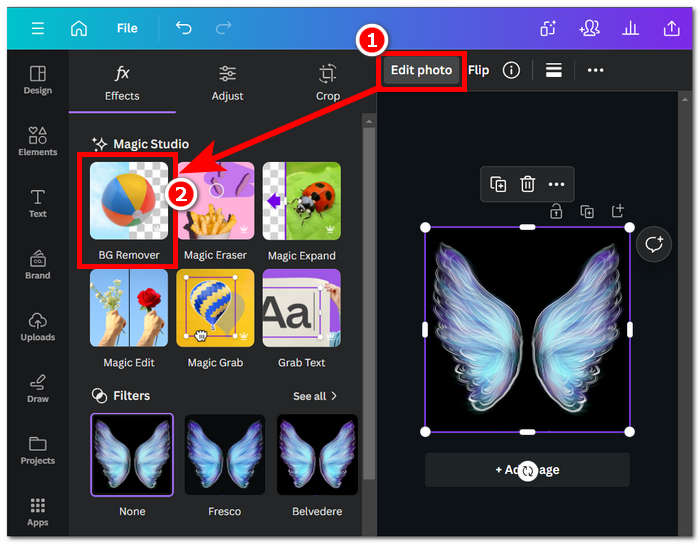
Korak 4. Kada je proces gotov, klikni na ikonu dijeljenja u gornjem desnom kutu zaslona i potom na Download kako bi sliku spremio na računalo.
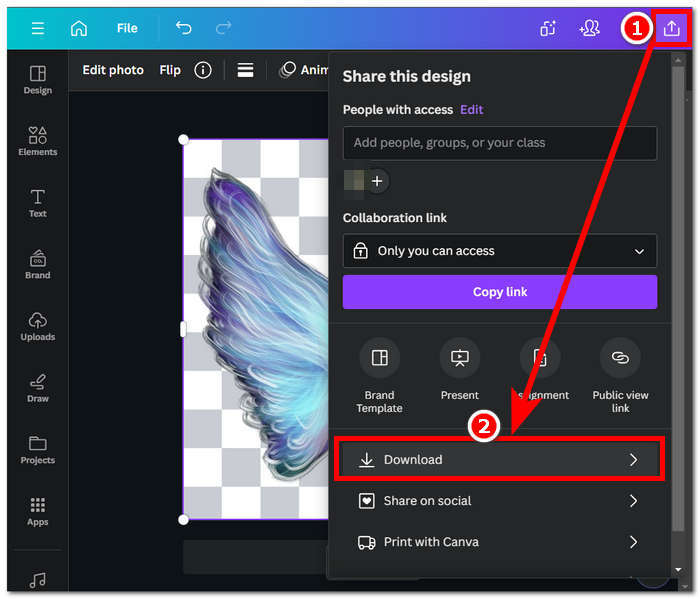
Istraživanje sučelja Canve može vam oduzeti vrijeme za uklanjanje pozadine, ali vrijedi pokušati iskusiti tu impresivnu softversku mogućnost. Međutim, besplatni korisnici možda neće maksimalno iskoristiti potencijal Canve u uklanjanju pozadine budući da softver nudi plaćene pretplate i ima ograničeni vodeni žig na besplatnu upotrebu softvera.
Adobe Express
Adobe Express, dinamička značajka unutar paketa Adobe Creative Cloud, redefinira uređivanje slika svojim snažnim mogućnostima uklanjanja pozadine. Dizajniran za pristupačnost prilagođenu korisniku, ovaj alat pruža besprijekorno iskustvo za jednostavno uklanjanje pozadine s vaših slika.
◆ Profesionalno uklanjanje pozadine. Ovaj alat uklanja pozadinu sa slike na profesionalan, brz i besprijekoran način.
◆ Jednostavno, pregledno sučelje. Jednostavnost sučelja čini ovaj alat izrazito laganim za korištenje. Nije potrebno prethodno iskustvo s Adobe softverom.
◆ Izrezivanje pozadine. Ističe glavni motiv na slici, što rezultira precizno izrezanom pozadinom slike.
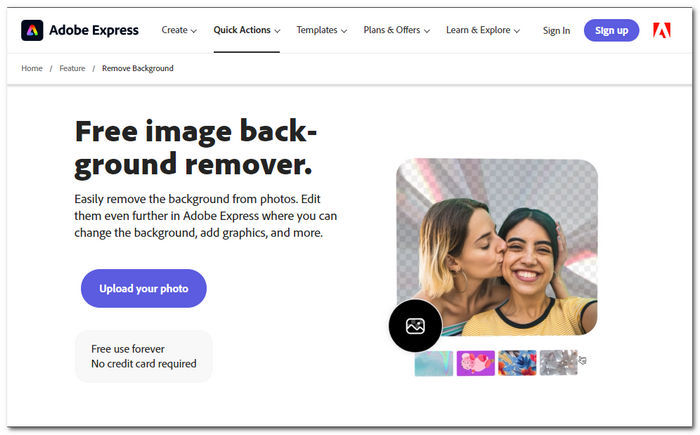
Korak 1. Otvori web‑stranicu Adobe Express Background Remover u svom pregledniku i klikni na „Upload your photo” na sučelju stranice.
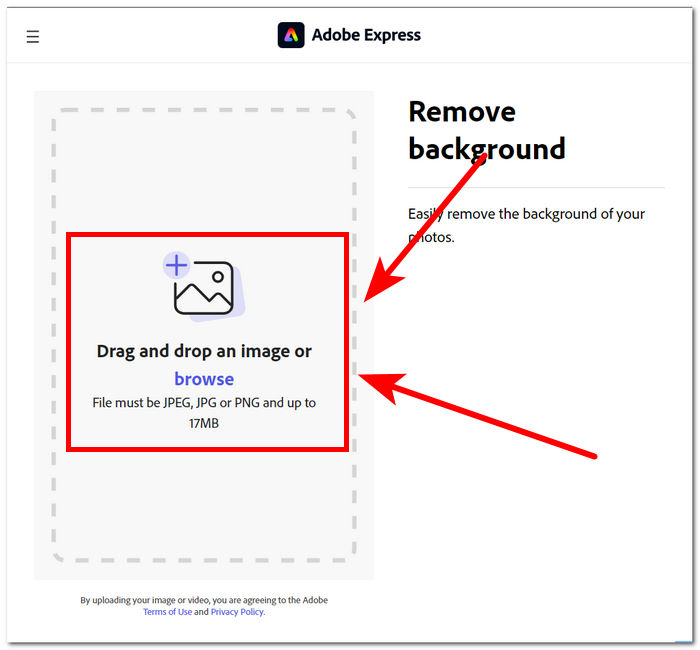
Korak 2. Nakon što klikneš „Upload your photo”, trebaš kliknuti na polje za pregledavanje (browse image) kako bi učitao sliku u alat.
Korak 3. Kada se slika učita, pozadina će biti automatski uklonjena.
Korak 4. Klikni na Download, koji se nalazi odmah pokraj slike, kako bi je spremio na svoje računalo.
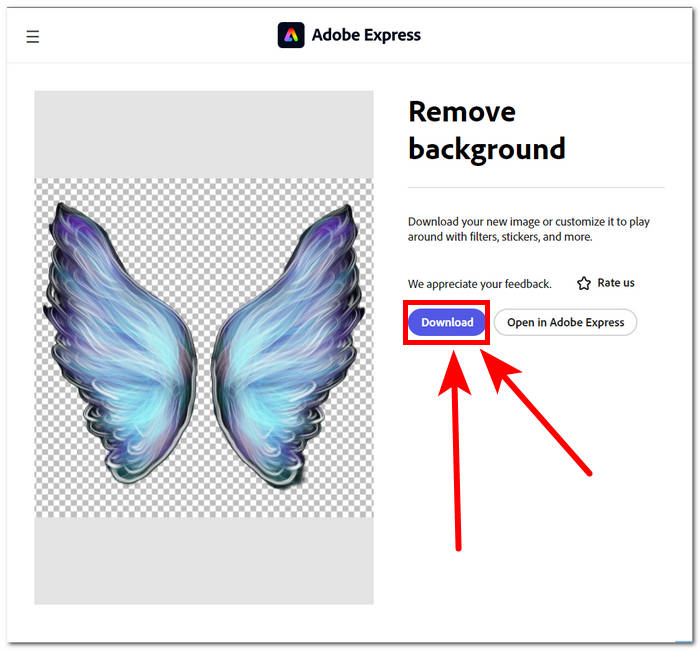
U zaključku, Adobe Express pojavljuje se kao alat profesionalne razine dovoljno moćan da ukloni najsitnije detalje u pozadini vaših slika. Ovaj alat možda ima jednostavan pristup u svom sučelju za postupak uklanjanja pozadine, ali svejedno zahtijeva da se prijavite da biste mogli spremiti svoju sliku na radnu površinu.
Dio 2. Kako ukloniti pozadinu sa slika na radnoj površini
Adobe Photoshop
Adobe Photoshop izdvaja se kao jedan od najučinkovitijih softvera u području manipulacije slikama, pa tako i u uklanjanju pozadine sa slika. Korisnicima pruža širok raspon snažnih alata i funkcija za gotovo svaki zadatak unutar jednog programa. Besprijekorno uklanjanje pozadine počinje dobrim odabirom rubova između motiva i pozadine, stoga se pobrini da se upoznaš s korištenjem izrezivanja (cutouts) u Photoshopu kako bi maksimalno iskoristio njegove mogućnosti pri uklanjanju pozadine.
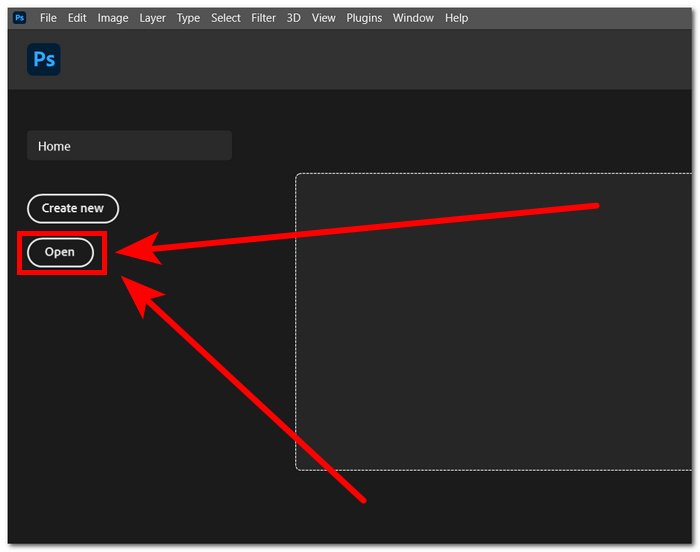
Korak 1. Otvori Adobe Photoshop na računalu i učitaj fotografiju klikom na gumb Open u sučelju programa.
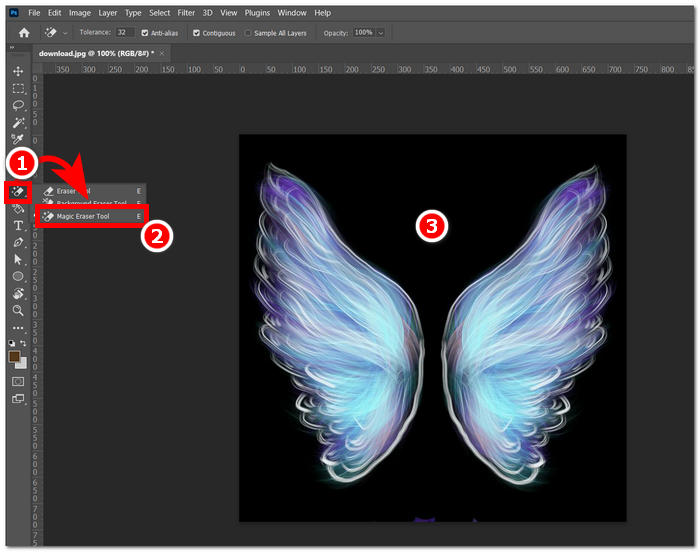
Korak 2. Kada se slika učita u program, pronađi Eraser Tool u lijevoj navigacijskoj traci i odaberi Magic Eraser Tool.
Korak 3. Kada je Magic Eraser Tool odabran, klikni na pozadinu svoje slike kako bi se ona automatski uklonila.
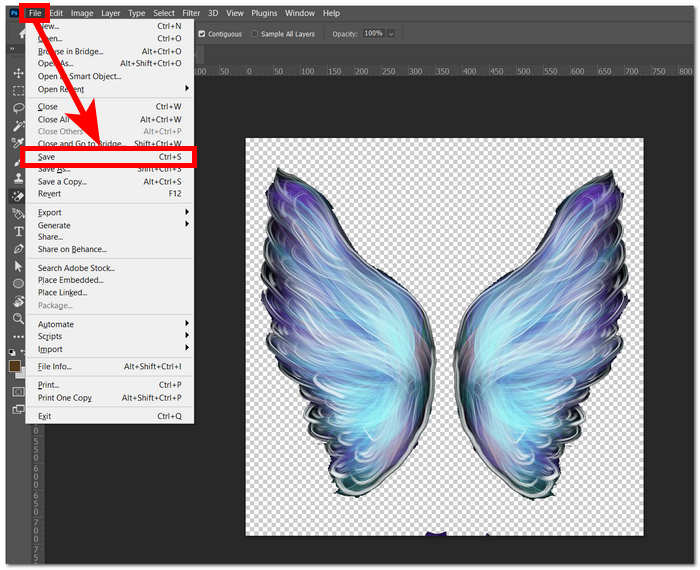
Korak 4. Kada je pozadina uklonjena, klikni na izbornik File u gornjem lijevom kutu i odaberi Save ili Export kako bi sliku preuzeo na svoje računalo.
Kroz kombinaciju napredne tehnologije i značajki, Photoshops osnažuje i oslobađa unutarnjeg kreatora u svakom korisniku. Adobe uklanja pozadinu sa slika svojim intuitivnim sučeljem, osiguravajući da u Adobe softveru nisu mogući teški zadaci.
GIMP
GIMP je aplikacija otvorenog koda koja korisnicima omogućuje uklanjanje bijele pozadine sa slika ili bilo koje neželjene pozadine, što je čini idealnim izborom za grafičke entuzijaste i početnike u uređivanju slika. Osim svojih značajki uklanjanja pozadine, GIMP se može pohvaliti raznovrsnim skupom alata i funkcionalnosti, a zadubljivanje u GIMP-ove mogućnosti GIMP-a može pomoći da se maksimizira i nadmaši uklanjanje pozadine te također olakšava širi spektar vizualnog poboljšanja i manipulacije.
Korak 1. Otvori GIMP i uvezi svoju sliku putem izbornika File u gornjem lijevom kutu, zatim klikni na Open kako bi je učitao.
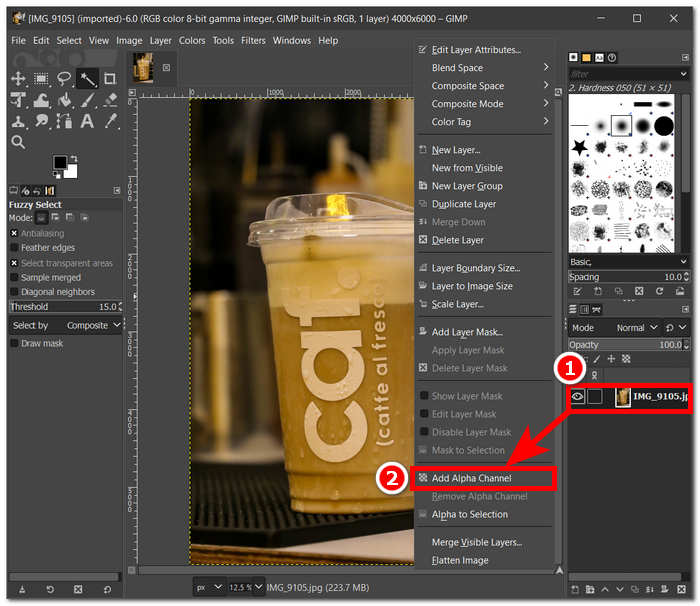
Korak 2. Nakon što se slika pojavi u programu, u donjem desnom dijelu odaberi sloj, klikni desnom tipkom miša na sloj i u postavkama izaberi Add Alpha Channel.
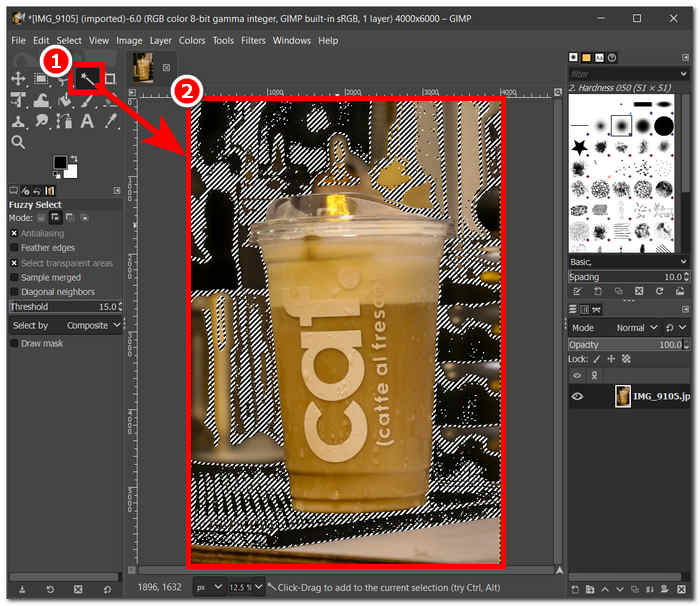
Korak 3. Klikni na alat Fuzzy Select u gornjem lijevom kutu. Kada ga odabereš, povuci preko područja koje želiš ukloniti sa slike.
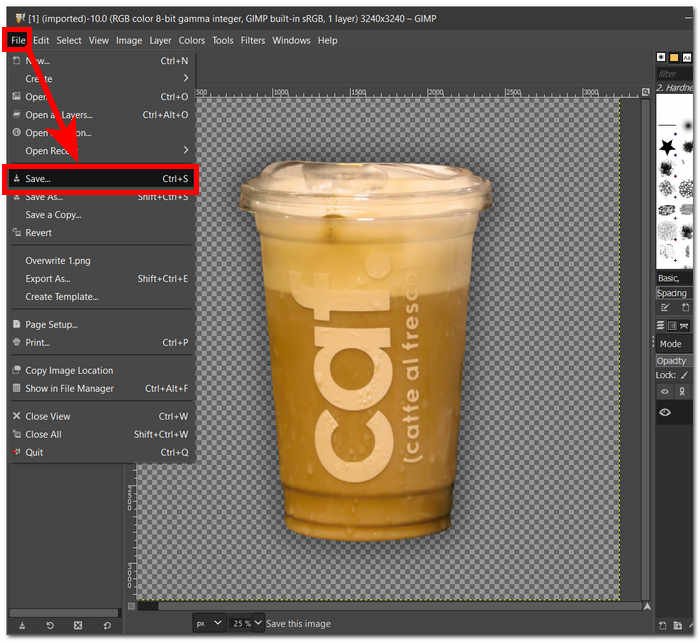
Korak 4. Na odabranom području pojavit će se isprekidani obrub; za uklanjanje pozadine jednostavno pritisni tipku Del na tipkovnici. Kad si zadovoljan, pronađi opciju Save u izborniku File u gornjem lijevom kutu i preuzmi sliku na računalo.
GIMP se pokazao kao idealan alat i za iskusne profesionalce i za korisnike koji tek žele započeti, zahvaljujući svom pristupačnom sučelju. Sadrži više mogućnosti za uklanjanje pozadine, ovisno o tvojim željama. Nudi praktične alate poput alata za boju, alata za putanje (paths), maskiranja slojeva i fuzzy alata, što ga čini vrlo svestranim softverom.
Picsart
Picsart je alat za početnike koji je popularan zbog svoje verzije aplikacije na mobilnim uređajima. Njegov alat za uklanjanje ima jednostavan i trenutni rezultat. Njegova preciznost u uklanjanju pozadine i brzi, učinkoviti načini uklanjanja potječu od umjetne inteligencije koju koristi. Jedna od njegovih značajki, osim uklanjanja pozadine, jest da može zamijeniti ili dodati pozadinu s vaših slika, što ovaj alat čini simpatičnim. Kako izbrisati pozadinu slike? Ne brinite više i samo slijedite jednostavne korake navedene u nastavku.
Korak 1. Otvori alat Picsart Background Remover u svom pregledniku i klikni na Browse Files kako bi učitao sliku u alat.
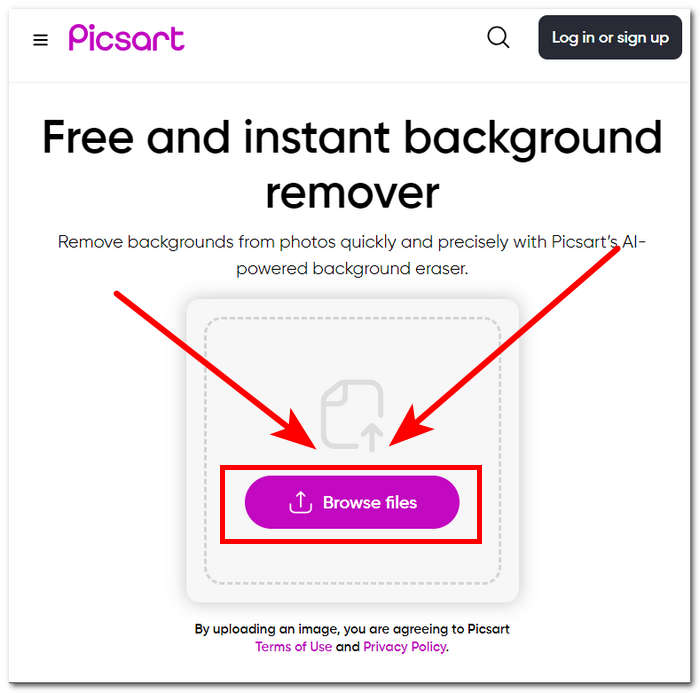
Korak 2. Kada započne učitavanje, alat će automatski prepoznati i analizirati tvoju sliku te u tom procesu ukloniti pozadinu.
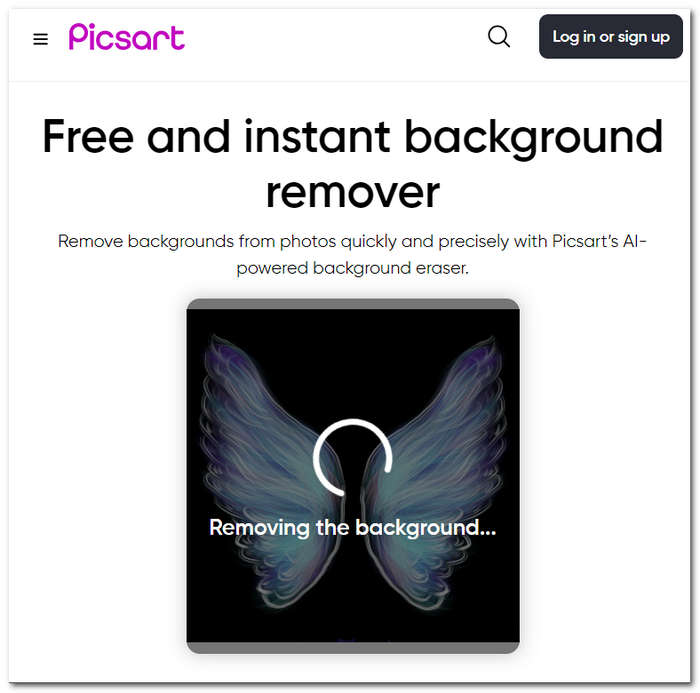
Korak 3. Kada je proces završen, moći ćeš pregledati i dodatno urediti sliku; kada si zadovoljan rezultatom, spremi je klikom na gumb Download.
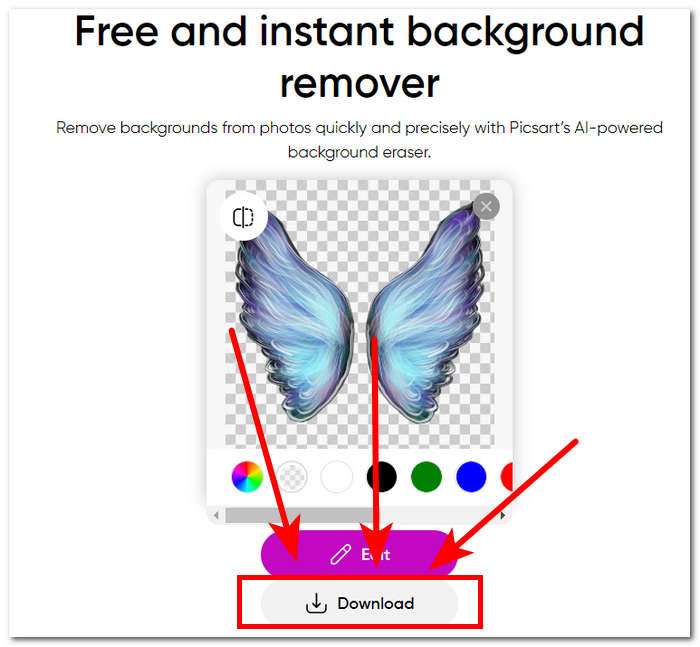
Zaključno, popularnost Picsarta kao aplikacije za uređivanje slika prilagođena je i uložena u to da alat zadovolji sve vrste potreba za vizualnim uređivanjem. Njegov alat za uklanjanje pozadine sigurno obavlja svoj posao u trenu i s preciznošću. Stoga ćete se i dalje morati prijaviti da biste mogli u potpunosti preuzeti svoju sliku visoke rezolucije. U suprotnom ćete zapeti s rezultatima niske razlučivosti.
Dio 3. Često postavljana pitanja o tome kako ukloniti pozadinu sa slike
Možete li automatski ukloniti pozadinu slike?
Da, mnogi napredni alati za uređivanje slika, uključujući FVC Free Background Remover, Adobe Express i Canva, koriste algoritme umjetne inteligencije za automatsko otkrivanje i uklanjanje pozadine sa slika. Ova značajka pojednostavljuje proces uređivanja, čineći ga bržim i učinkovitijim za korisnike.
Možete li automatski ukloniti pozadinu slike?
Da, mnogi napredni alati za uređivanje slika, uključujući FVC Free Background Remover, Adobe Express i Canva, koriste algoritme umjetne inteligencije za automatsko otkrivanje i uklanjanje pozadine sa slika. Ova značajka pojednostavljuje proces uređivanja, čineći ga bržim i učinkovitijim za korisnike.
Možete li ukloniti pozadinu JPG slika?
Apsolutno, alati za uklanjanje pozadine podržavaju JPG formate slika. Svestranost alata proteže se na različite formate slika, osiguravajući da korisnici mogu jednostavno uređivati i poboljšavati svoje JPEG datoteke. Stoga još uvijek ovisi o tome koje alate ili softver koristite jer neki zahtijevaju pretplatu da biste mogli ukloniti pozadinu u formatima poput JPG i slično.
Je li PNG jedini format slike koji podržava prozirnu pozadinu?
Dok je PNG format koji se često koristi za slike s prozirnom pozadinom, drugi formati poput GIF i TIFF također podržavaju prozirnost. Međutim, gore spomenuti slični alati često daju optimalne rezultate s PNG-om zbog široko prihvaćene kompatibilnosti s postavkama prozirnosti.
Što mogu koristiti za uklanjanje pozadine slike?
Možete koristiti namjenski softver za uređivanje slika kao što su Adobe Express i Photoshop ili specijalizirane online alate kao što je FVC Free Background Remover. Ovi alati obično nude korisničko sučelje i napredne značajke, omogućujući vam postizanje preciznih rezultata profesionalnog izgleda.
Zaključak
Ukratko, proces uklanjanja pozadine sa slike ne ovisi o određenim aplikacijama, softveru ili alatima. Umjesto toga, njegova učinkovitost proizlazi iz korisnikove sposobnosti da koristi i maksimalno iskoristi dostupne funkcije alata. U konačnici, uspjeh uklanjanja pozadine ogleda se u dovršenom projektu, pri čemu je najvažnije da odabrani alat odgovara korisnikovim preferencijama, neovisno o tome koji se konkretan alat koristi.
-
 Pregled PicWish Photo Enhancer i alternativni alat za isprobati
 Otkrijte magiju koju PicWish pojačivač slike donosi u svijet uređivanja fotografija. Detaljan pregled i istraživanje održivih alternativa koje možete isprobati.
-
 Kako ukloniti tekst sa slike na Windows/Mac/Online
 Recite zbogom ometajućem tekstu na svojim slikama! Istražite kako izbrisati tekst sa slika s ovim glatkim rješenjima koja su besprijekorno dizajnirana za uklanjanje teksta.
-
 Fotor recenzija za Remover za pozadinu i Photo Enhancer
 Sve što trebate znati o Fotor Background Remover i Photo Enhancer. Pogledajte neke od njegovih značajki i pogledajte predloženu alternativu koja odgovara vašim potrebama.
