


 Video Converter Ultimate
 Snimač zaslona
 Video popravak
Ojačajte svoje znanje korištenjem različitih praksi o tome kako usporiti MP4 video
Montaža je tehnika filmske montaže koja spaja fragmente tematski povezanog filma kako bi se stvorio jedan, neprekinuti kadar. Montaža omogućuje redateljima, filmskim montažerima te vizualnim i tonskim tehničarima da dio po dio slože dijelove filma, režući ih i uklapajući jedan u drugi. Neke montaže koriste usporene videoisječke kako bi se izveo proces stvaranja montaže. No da biste postigli ovakvu filmsku scenu, morate naučiti kako usporiti MP4 videozapise ili druge formate poput MOV, AVI itd. U vezi s tim problemom, ovaj članak donosi razne teme za raspravu i učenje o stvaranju montaže, ukratko, o usporavanju videozapisa.

Dio 1. Zašto trebate usporiti video?
Jeste li se ikad zapitali zašto neki filmovi koje gledate imaju usporene snimke – prikaze radnji koje su uvijek istaknute, pogotovo ako je u filmu – sceni implementirana radnja i prijelaz? A budući da ste ljubitelj akcijskih filmova, želite ponovno odigrati svoj omiljeni akcijski film, ali da biste postigli akcijski dojam filma, trebate usporiti brzinu reprodukcije nekih scena, ali ne znate kako to postići ovaj zadatak.
Dio 2. Najbolji alati za usporavanje MP4 videa
Mnogo internetskih alata i softvera može uređivati videozapise, uključujući i usporavanje MP4 videa, ali ovo su najbolji web‑alati i programi koje trebate koristiti da biste postigli željeni, prilagođeni video. Neke je potrebno preuzeti i instalirati na računalo, a neki zahtijevaju samo vašu e‑poštu i već možete uređivati izravno u pregledniku.
Metoda 1. Koristite Video Converter Ultimate
Video Converter Ultimate je besplatan za preuzimanje i može trajno usporiti videozapis. Jedna od funkcija koje ovaj softver nudi omogućuje jednostavno ubrzavanje ili usporavanje videa. Osim mogućnosti kontrole brzine videa, ovaj program ima i dodatne funkcije poput obrezivanja, premotavanja unatrag, spajanja, uređivanja i izrade kolaža od videa kako bi se poboljšao željeni materijal. Štoviše, svim alatima u ovom softveru lako mogu rukovati svi korisnici. Slijede koraci koje trebate pratiti da biste postigli željenu prilagodbu.
Korak 1: Kliknite gumb Free Download (Besplatno preuzimanje) kako biste započeli preuzimanje na svoje računalo. Nakon toga možete prilagoditi svoj sustav instaliranjem i konfiguriranjem programa.
Besplatno preuzimanjeZa Windows 7 ili novijiSigurno preuzimanje
Besplatno preuzimanjeZa MacOS 10.7 ili novijiSigurno preuzimanje
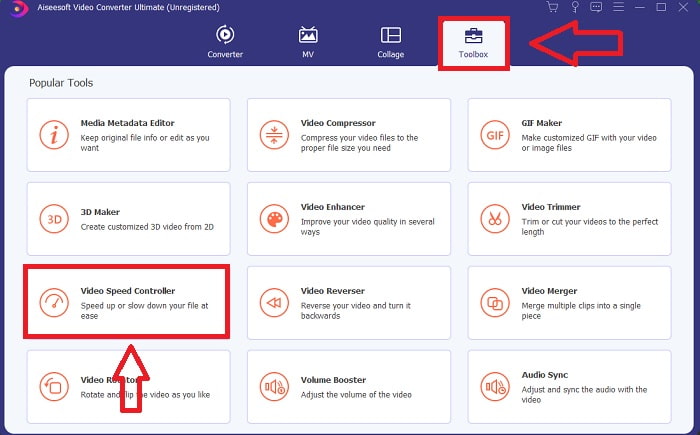
Korak 2: Kada je softver instaliran, pokrenite ga tako da odaberete opciju Toolbox u traci izbornika, a zatim s prikazanog popisa odaberete Video Speed Controller.
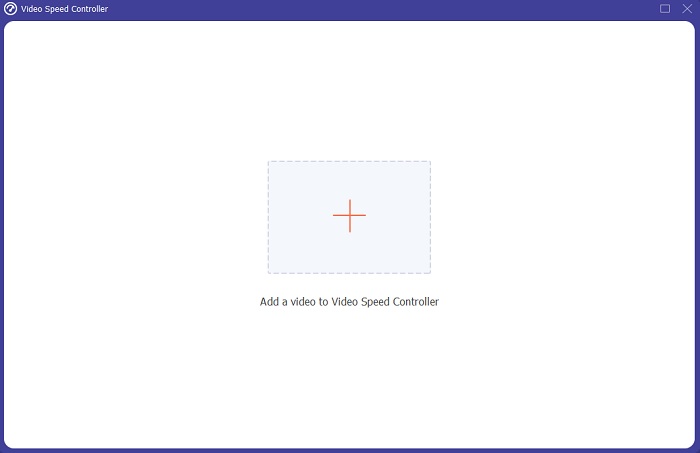
Korak 3: Dodajte bilo koju datoteku klikom na gumb + i prilagodite videoisječak.
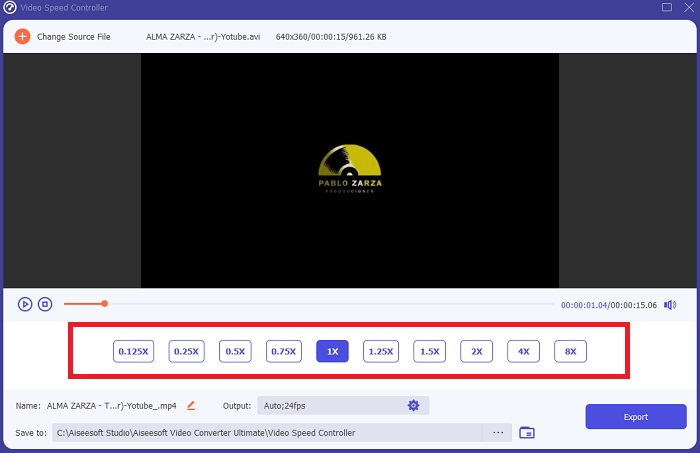
Korak 4: Prilagodite brzinu reprodukcije podešavanjem brzine videa.
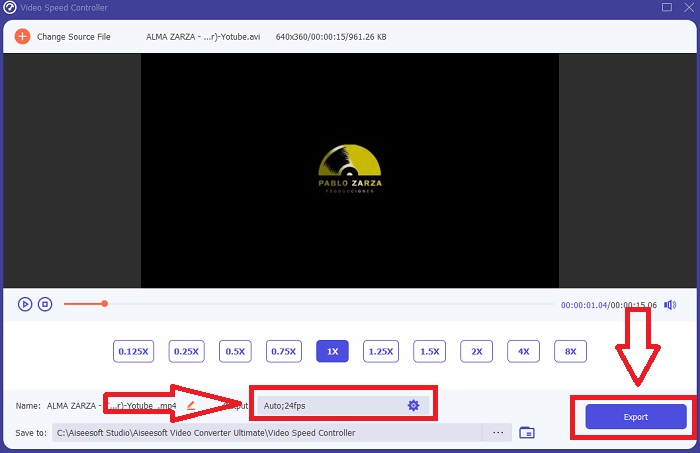
Korak 5: Nakon što promijenite brzinu reprodukcije svog videoisječka, možete odabrati izlazni format, rezoluciju, kvalitetu itd. Zatim kliknite Export (Izvoz) i odaberite mjesto na koje želite spremiti datoteku.
Metoda 2. Koristite InVideo
Kad je riječ o izradi i dijeljenju videozapisa za društvene mreže i web‑stranice, InVideo je mrežni alat za uređivanje videa, idealan za poduzeća svih veličina. Ima i biblioteku slikovnog i video sadržaja iz raznih internetskih repozitorija kao što su Storyblocks i Shutterstock, koji se mogu koristiti u aplikaciji. Da biste koristili InVideo, najprije morate unijeti svoju adresu e‑pošte, što je razlika u odnosu na prethodni web‑alat opisan u ovom članku. Ovaj mrežni alat nudi velik izbor predložaka za prilagodbu vašeg videa. Svojim impresivnim mogućnostima ova web‑aplikacija može vaše montažne vještine podići na profesionalnu razinu. Jedna od njezinih funkcija omogućuje jednostavno usporavanje MP4 videa; evo zadanih koraka:
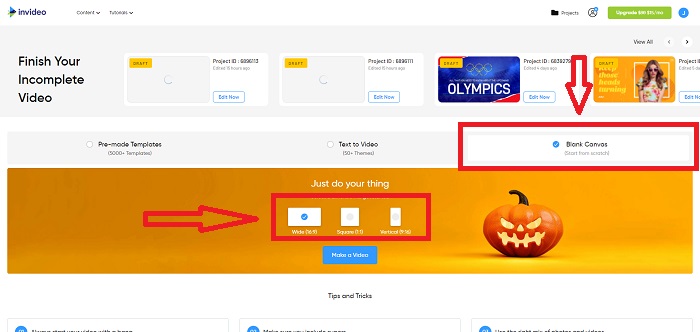
Korak 1: Napravite račun na ovom web‑alatu kako biste dobili pristup. Sljedeći je korak odabrati predložak s kojim želite raditi. Kliknite gumb Upload (Učitaj) u lijevom kutu sučelja kako biste započeli proces učitavanja.
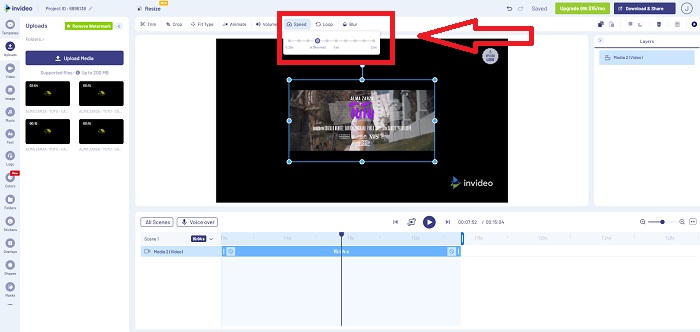
Korak 2: Da biste uredili brzinu reprodukcije svog videoisječka, kliknite karticu Speed (Brzina) u gornjem desnom kutu sučelja i povucite je na vremensku traku. Zatim povucite klizač (Slider) kako biste povećali ili smanjili brzinu reprodukcije videoisječka.
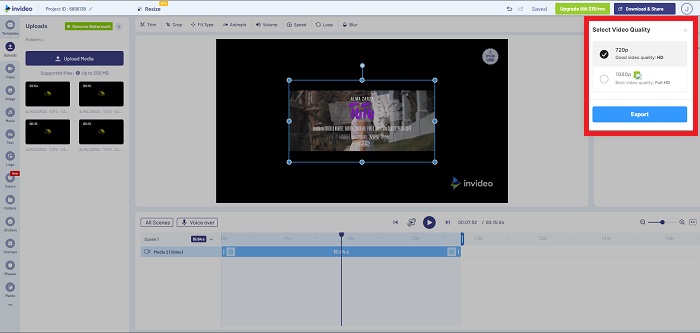
Korak 3: Kada završite s uređivanjem, kliknite Download & Share (Preuzmi i podijeli) i otključajte Premium za još bolje rezultate.
Metoda 3. VLC Media Player
Budući da je besplatan, VLC (Video Lan Client) jedan je od najraširenije korištenih medijskih reproduktora na Windowsu i Macu. Omogućuje reprodukciju različitih videozapisa, poput 360‑stupanjskih videa ili komprimiranih formata, čak i u najvišoj kvaliteti, jer je vrlo fleksibilan. No, najrašireniji medijski reproduktor ponekad može biti i problematičan. Osim toga, ovaj reproduktor može na jednostavan način usporiti MP4 datoteku. Sve pojedinosti o toj funkciji navedene su u nastavku:
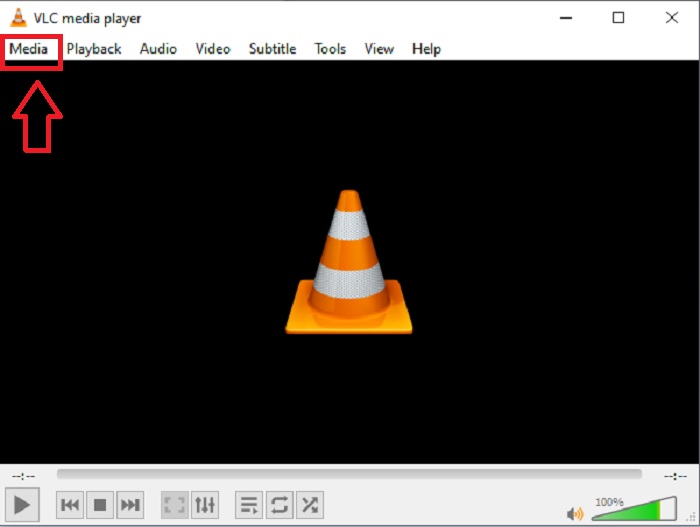
Korak 1: Najprije morate dodati svoju datoteku u kartici Media (Medij) i kliknuti Open File (Otvori datoteku).
Korak 2: Zatim odaberite karticu Playback (Reprodukcija) i kliknite odjeljak Speed (Brzina).
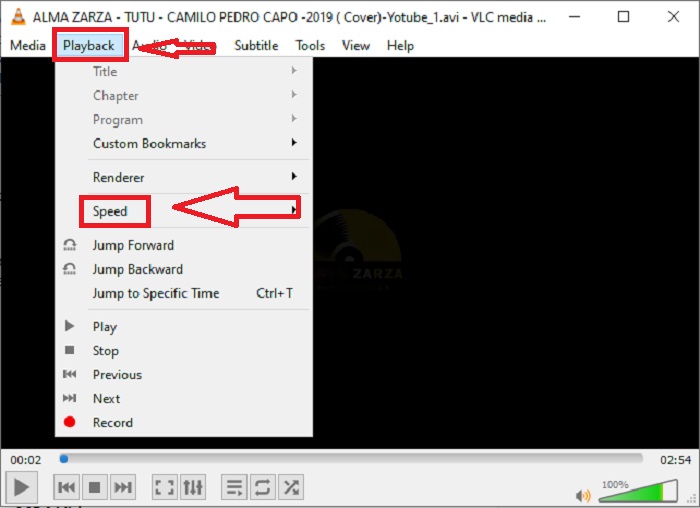
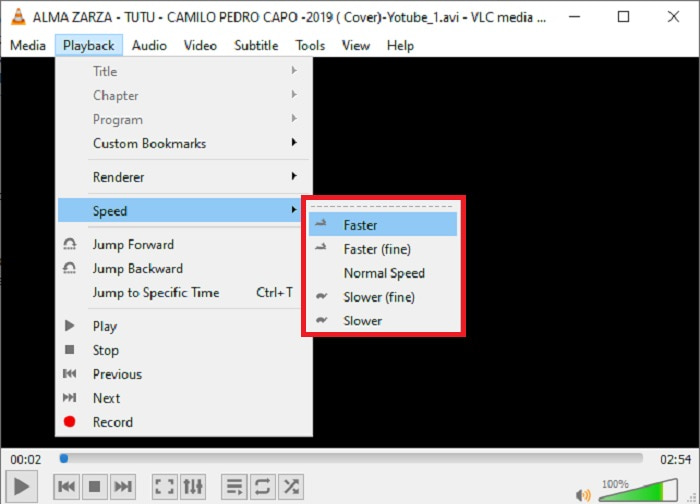
Korak 3: Tada ćete dobiti nekoliko opcija brzine reprodukcije. Ako želite usporiti svoj videozapis, kliknite Slower (fine) i Slower, a ako želite povećati brzinu, kliknite Faster (fine) i Faster.
Povezano:
Kako popraviti problem kada VLC ne reproducira DVD
Kako snimati zvuk pomoću VLC‑a
Dio 3. Često postavljana pitanja o usporavanju MP4 videozapisa
Gubim li kvalitetu videa ako usporim?
Ne, isto je s povećanjem brzine reprodukcije vašeg videa; usporavanje vašeg videa ne gubi kvalitetu vašeg videa. Iz nekog razloga zašto neki od videozapisa postaju pomalo kvarljivi nakon smanjenja brzine reprodukcije videozapisa je njihova kvaliteta videozapisa već dosadna i niska. Osim toga, ako pojačate kako biste smanjili brzinu reprodukcije videoisječka, brzina kadrova će se podijeliti na pola, uzrokujući kašnjenje i snižavanje kvalitete.
Mogu li usporiti video izvan mreže?
Postoji softver koji savršeno radi u smanjivanju brzine ili usporavanju videa. Video Converter Ultimate je softver napravljen za poboljšanje i poboljšanje videa iz različitih perspektiva. Osim toga, svojom namjenom je besplatan za preuzimanje, te je dostupan korisnicima širokog spektra publike.
Što je bolje usporiti video? Offline ili online?
Neki od koraka online za usporavanje videa moraju slijediti puno procesa koji ih čine kompliciranijim od upotrebe izvan mreže. Većina softvera je besplatna za preuzimanje, tako da je prikladno usporiti video izvan mreže.
Zaključak
Zaključno, većina današnjih medijskih reproduktora podržava MP4 format. Zato je usporavanje MP4 videa mnogo jednostavnije uz web‑alate i softver predstavljen u ovom članku. Kako biste iz svog videa izvukli puni potencijal, preuzmite Video Converter Ultimate. Ovaj program ne samo da može usporiti vaš video, nego ga može podići na sasvim novu razinu. Uz sve dostupne funkcije, koristeći ga možete s pravom sebe smatrati profesionalnim montažerom.
-
 4 najbolja pretvarača MP4 u M4V koji će s lakoćom pretvoriti MP4 video zapise u M4V
 Kada trebate promijeniti MP4 u M4V datoteke, trebali biste saznati više detalja o razlikama između dva formata, kao i najbolje pretvarače MP4 u M4V iz članka.
-
 AMV Converter - 3 najbolje metode za pretvaranje MP4 u AMV na Win / Mac
 Koji su najbolji pretvarači MP4 u AMV za pretvaranje videozapisa u Amine Music Video, iz članka možete saznati više o 3 najučinkovitije metode za lako postizanje željenih videozapisa.
-
 WebM u MP4 | Besplatno pretvori WebM u MP4 (na mreži i na radnoj površini)
 Kako gledati WebM datoteke bez web preglednika? Morate pretvoriti WebM u MP4. Evo top 10 besplatnih WebM u MP4 pretvarača za promjenu WebM u MP4 na mreži i na Mac i Windows računalu.
