


 Video Converter Ultimate
 Screen Recorder
 Videó javítás
 Biztonságos letöltés
Hogyan távolítsd el a harapható vízjelet a videóidról könnyedén
Ha olyan nagyszerű és legegyszerűbb módszereket keresel, hogy eltávolítsd a Biteable vízjeleket a videóidról, akkor nem kell tovább törnöd magad. Őszintén szólva, vízjellel ellátott videót nézni idegesítő és frusztráló. Nem tudod igazán élvezni a videót, amit nézel. Ezenfelül ezek a vízjelek zavaróak a nézők számára. Érthető, hogy a vízjelek a videó tulajdonosának védelmét szolgálják. De túl nagy vízjelet elhelyezni nem jó. Csak negatív benyomást kelt azokban, akik szeretnek kedvenc videóikat nézni. Erre egy példa a Biteable vízjel. Ezek a Biteable vízjelek a Biteable alkalmazásból származnak, amely a videó elkészítése vagy mentése után automatikusan vízjelet ad hozzá. Szerencsére használhatsz különböző alkalmazásokat, hogy eltávolítsd ezeket a vízjeleket a videóidról. Így kedvenc videóidat irritáció és frusztráció nélkül nézheted. Ha meg szeretnéd tudni, melyek a legjobb és legmegbízhatóbb alkalmazások a vízjelek eltávolítására, olvasd tovább ezt a cikket.

1. rész: A harapható vízjel eltávolításának legjobb módja a videókról
A Video Converter Ultimate a legkiválóbb alkalmazás, amellyel eltávolíthatod a Biteable vízjeleket a videóidról. Emellett ez a nagyszerű szoftver képes más, irreleváns és zavaró objektumok eltávolítására is, például logók, szövegek, aláírások stb. Ezen kívül az eltávolítási és mentési folyamat rendkívül gyors, így nem kell sok időt rászánnod. Továbbá a Video Converter Ultimate két egyszerű módszert kínál a vízjelek eltávolítására: a videóvágót (crop) és a videó vízjel-eltávolítót. Több további szerkesztőeszközzel is rendelkezik, amelyeket élvezhetsz, például videógyorsaság-szabályozó, videókonvertáló, videótömörítő, színkorrekció, kollázskészítő, GIF-készítő, videóvágó, képátalakító és még sok más. A legjobb ebben az eszközben, hogy használata nagyon egyszerű, mivel letisztult, egyértelmű felülete van, ami tökéletes a kezdők számára. Számos fájlformátumot támogat, például MP4, MOV, FLV, MKV, OGV, DIVX és egyebek. Végül a Video Converter Ultimate Windows és Mac rendszeren is elérhető, ami rendkívül kényelmes a felhasználók számára. Ha vízjelet szeretnél eltávolítani egy videóról, kövesd az alábbi egyszerű lépéseket.
A Video Watermark Remover eszköz használata
1. lépés: Látogasd meg a Video Converter Ultimate weboldalát, és töltsd le az alkalmazást. Ezután folytasd a telepítési folyamattal. A telepítés után indítsd el az alkalmazást.
Ingyenes letöltés Windows 7 vagy újabb rendszerre Biztonságos letöltés
Ingyenes letöltés macOS 10.7 vagy újabb rendszerre Biztonságos letöltés
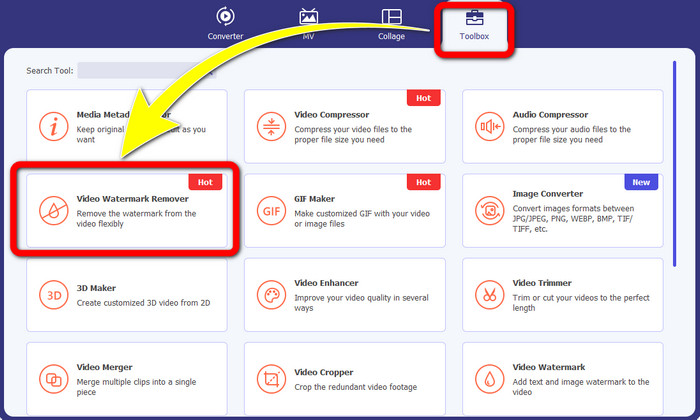
2. lépés: A Video Converter Ultimate megnyitása után kattints a Toolbox > Video Watermark Remover gombra. Ekkor egy új felület jelenik meg a képernyőn.
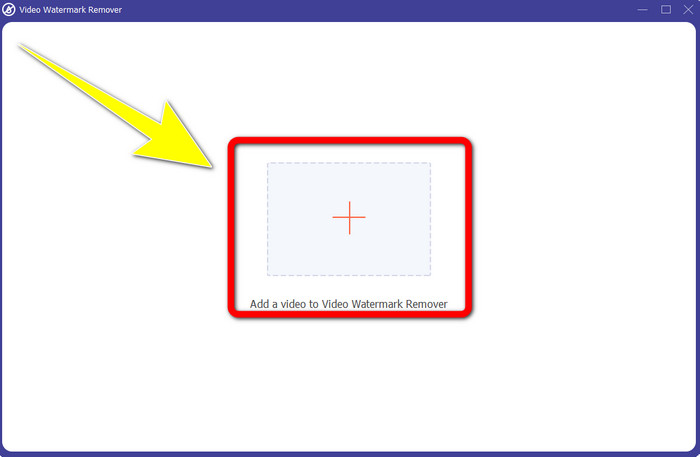
3. lépés: Amikor az új felület megjelent a képernyőn, kattints a Plusz jelre, és add hozzá a Biteable vízjeles videódat.
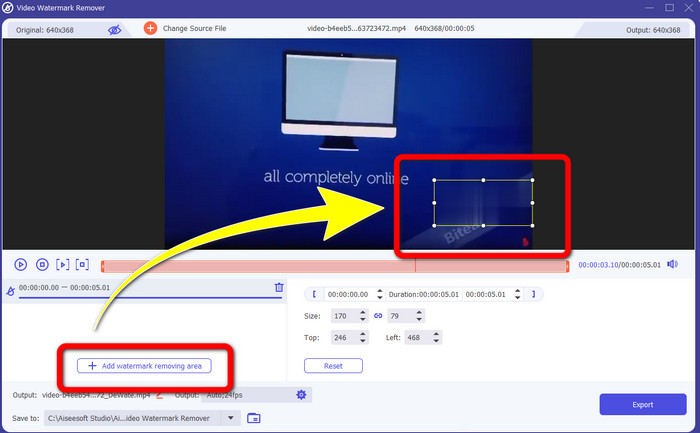
4. lépés: Miután hozzáadtad a videódat, kattints az Add Watermark Removing Area gombra. Ekkor egy kis doboz jelenik meg a videón. Húzd a dobozt úgy, hogy lefedje a vízjeleket.
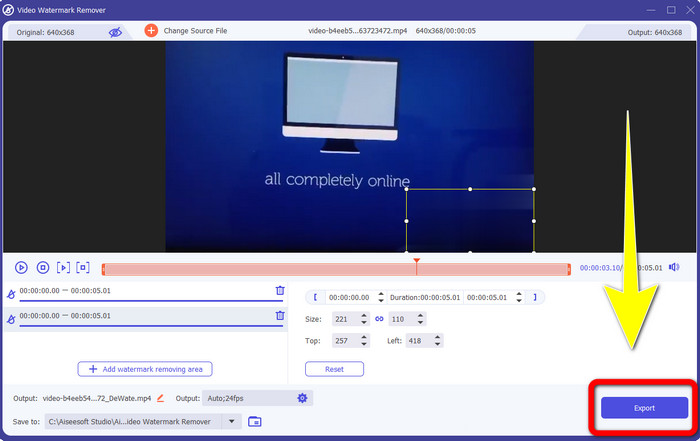
5. lépés: Ha eltávolítottad a Biteable vízjelet a videódról, kattints az Export gombra, hogy elmentsd a végső kimenetet.
A Video Cropper eszköz használata
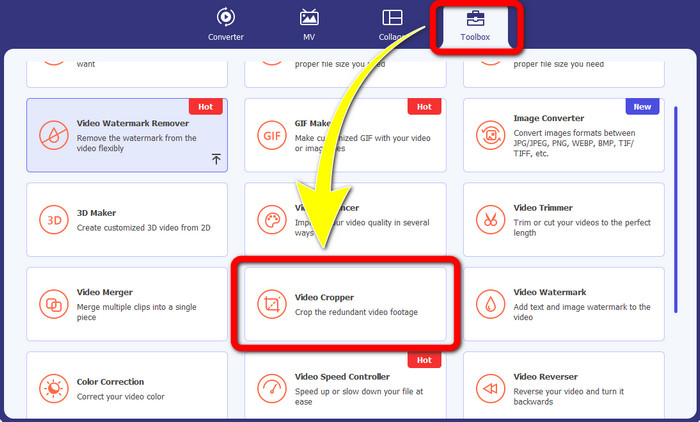
1. lépés: Indítsd el a Video Converter Ultimate programot. Kattints a Toolbox > Video Cropper gombra.
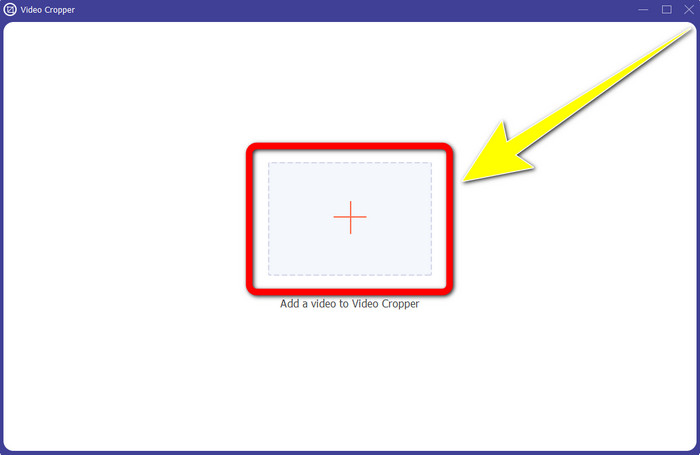
2. lépés: A Video Cropper gombra kattintás után egy új felület jelenik meg a képernyőn. Kattints a Plusz ikonra, és add hozzá a Biteable vízjeles videódat.
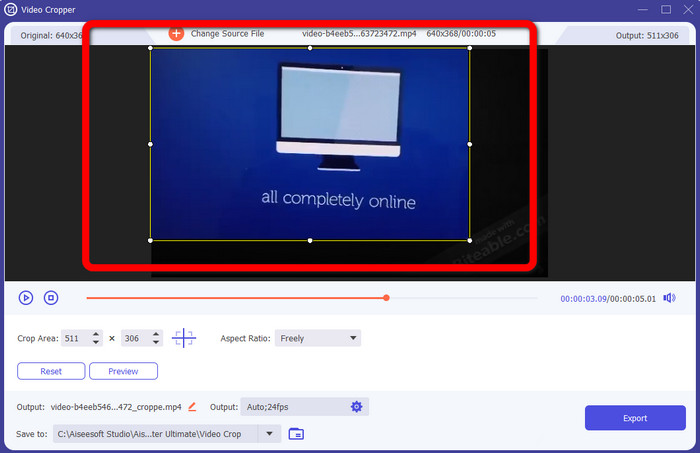
3. lépés: Miután hozzáadtad a videódat, most már Crop (kivágás) funkcióval levághatod róla a vízjeleket.
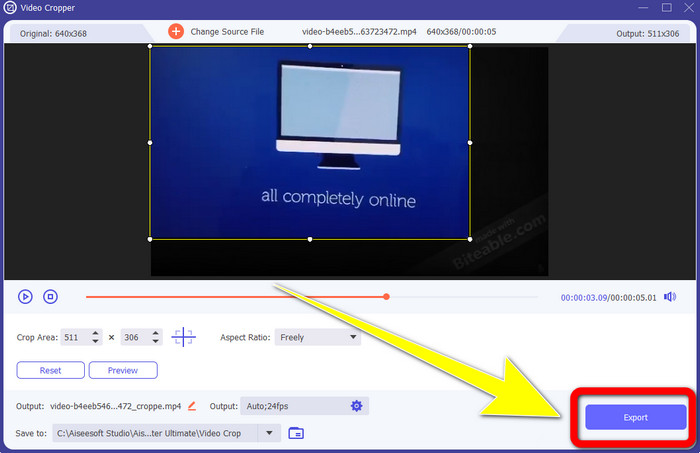
4. lépés: Ha befejezted a videó kivágását, kattints az Export gombra, és mentsd el a videót Biteable vízjel nélkül.
2. rész: Hogyan távolítsuk el a harapható vízjelet az online videókból
1. A BeeCut használata
Ha ingyenesen szeretné eltávolítani a harapható vízjelet online, a BeeCut a legjobb online alkalmazás, amelyet használhat. Képes eltávolítani a vízjeleket a videóidról. Ez egy egyszerű online eszköz, amelyet használhat, és tökéletes kezdőknek. Néhány lépésben eltávolíthatja a harapható vízjeleket négy videóról.
Ezenkívül a BeeCut számos szerkesztő eszközzel rendelkezik, mint például a videók vágása, vágása, felosztása és kombinálása. Ezen kívül, ha videót szeretne készíteni, alább feliratot is adhat a videójához, ami kényelmes a nézők számára. Az eszköz használatával azonban lassú a fájlok feltöltése és a folyamatok mentése. Ezenkívül nem használhatja ezt az eszközt, ha nincs internetkapcsolata. Ha el szeretné távolítani a harapható vízjeleket a videóból ezzel az online eszközzel, kövesse az alábbi néhány lépést.
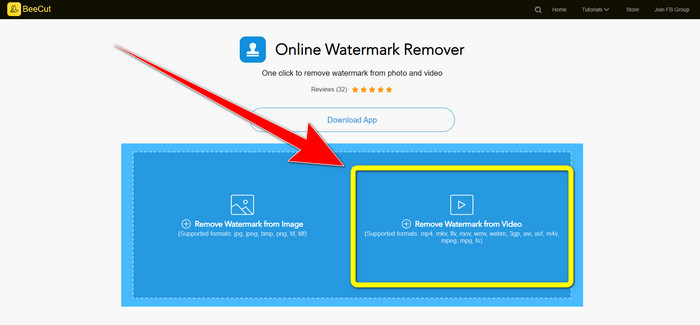
1. lépés: Látogasd meg a BeeCut weboldalát. Ezután kattints a Remove Watermark from Video gombra, és add hozzá a Biteable vízjeles videódat.
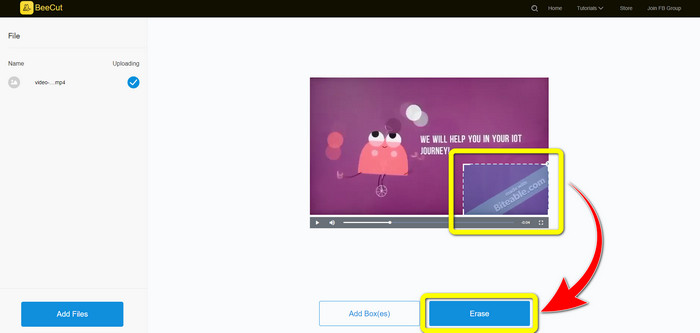
2. lépés: A fájl hozzáadása után egy kis doboz jelenik meg a videón. Húzd oda, hogy befedd a Biteable vízjelet. Ha végeztél a vízjelek lefedésével, kattints az Erase gombra.
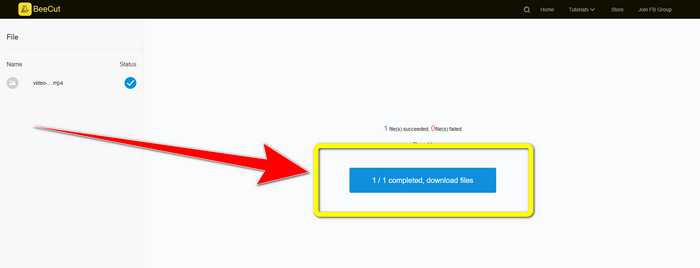
3. lépés: Miután az Erase gombra kattintottál, várj a törlési folyamat befejezéséig. Ezután letöltheted a fájlt, és élvezheted a videó nézését Biteable vízjel nélkül.
2. A Blur Video Online használata
Ha még mindig keresel egy másik alkalmazást, amellyel eltávolíthatod a harapható vízjelet a videódról online, a Blur Video Online nagyszerű eszköz az Ön számára. A Blur Video Online pedig szinte minden eszközön és böngészőben elérhető, mint például a Google Chrome, az Opera, az IE, a Mozilla Firefox stb. Ez a webfüggő alkalmazás azonban túl lassú a videofájlok importálásában, és a vízjelek eltávolításának folyamata időigényes. Ez is egy internetfüggő eszköz, ami azt jelenti, hogy csak akkor működik, ha van internetkapcsolata. Kövesse az alábbi egyszerű lépéseket a Biteable vízjel eltávolításához/elmosásához a videóból.
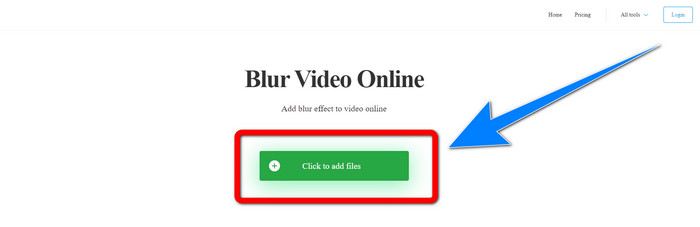
1. lépés: Lépj a Blur Video Online weboldalára. Ezután kattints a Click to Add File gombra, és add hozzá a vízjeles videódat.
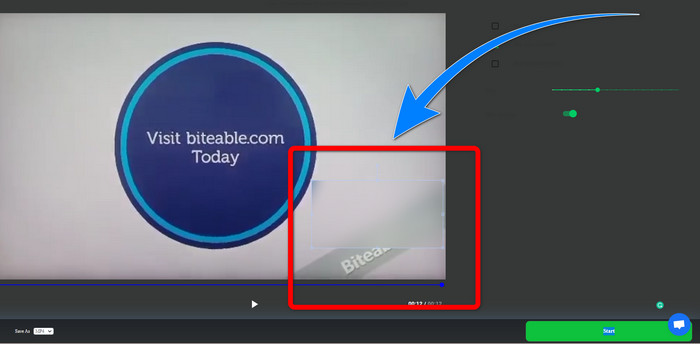
2. lépés: Ha már beillesztetted a videót, egy doboz jelenik meg rajta. Húzd úgy, hogy lefedje a vízjeleket, majd mentsd el a végső kimenetet.
Kapcsolódik:
A legjobb módszer a Camtasia 9 vízjelének eltávolítására Windows rendszeren
Hogyan távolíthatod el gyorsan a vízjelcsíkot az AVS Video Editorból
3. rész: GYIK a harapható vízjelek videókból való eltávolításával kapcsolatban
Eltávolíthatom a dátumbélyeget a Video Converter Ultimate segítségével?
Igen tudsz! A Video Converter Ultimate segíthet a zavaró objektumok, például dátumbélyegzők, vízjelek, szövegek stb. eltávolításában a videóiból.
Időigényes a vízjelek eltávolítása a videóimról?
Ez a használt alkalmazásoktól függ. Egyes alkalmazások azonnal el tudják távolítani a vízjeleket a videóidról, és bizonyos alkalmazásoknak időbe telik a vízjelek eltávolítása.
Létezik olyan vízjeleltávolító, amelyet anélkül használhatok, hogy elveszítené a videóim minőségét?
Igen, van! Használhatod a Video Converter Ultimate programot. Nemcsak a vízjelek eltávolításában és a videószerkesztésben jó. Ez az alkalmazás lehetővé teszi, hogy minőségromlás nélkül távolítsd el a vízjeleket a videóidról.
Következtetés
A vízjel eltávolítása a videóidról nagyszerű, különösen akkor, ha kedvenc videóidat szeretnéd nézni felesleges zavaró elemek nélkül. Ez a cikk gyakorlati alkalmazásokat mutatott be, amelyekkel eltávolíthatod a Biteable vízjeleket a videóidról. Végül, ha a legjobb és legkiemelkedőbb alkalmazást keresed a vízjelek eltávolítására, a Video Converter Ultimate használata a legjobb választás.
-
 A Powtoon vízjel eltávolítása 4 hatékony módszerrel
 Olvassa el ezt a cikket, hogy megtudja, hogyan távolítsa el a Powtoon vízjelet az itt található legjobb eszközök és egy oktatóanyag segítségével.
-
 Apowersoft vízjel-eltávolító áttekintése – Jellemzők, előnyök és hátrányok, valamint árak
 Az Apowersoft Watermark Remover az egyik legjobb vízjeleltávolító, amely támogatja az online és offline módot is, kattintson erre, ha többet szeretne tudni!
-
 A 3 legújabb Shutterstock vízjeleltávolító, amire valaha is szüksége lesz
 Nem tetszik az exportált videóhoz csatolt Shutterstock vízjel? Használhat Shutterstock vízjeleltávolítót a hatékony törléshez.
