


 Screen Recorder
 Videó javítás
 Biztonságos letöltés
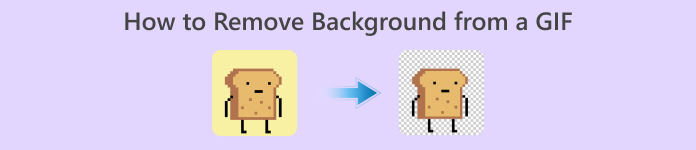
Hogyan távolítsuk el a hátteret a GIF-ekből hatékony programok segítségével
A GIF a Graphics Interchange Format rövidítése, és széles körben használják az online kommunikációban, például üzenetküldéskor vagy akár egy bejegyzéshez szóló hozzászólásként. A GIF-ek vagy képek hátterének eltávolítása nehéz lehet, hacsak nincs olyan szoftvered, amelyet kifejezetten ilyen feladatokra terveztek! Népszerűsége miatt egyre több felhasználót érdekel, hogyan szerkesztheti és készítheti el a saját GIF-jeit. Szerencsére összegyűjtöttünk megbízható és könnyen használható online programokat, amelyek segítenek a felhasználóknak eltávolítani a hátteret a GIF-ekről.
Ajánlott: FVC-mentes háttéreltávolító
A FVC Free Background Remover hasznos eszköz, ha a képeid hátterének eltávolításáról van szó. Mesterséges intelligenciát használ a fotón lévő személy körvonalazására és felismerésére. Ezenfelül az eszköz elérhető Windowsra és Macre is. Összességében kényelmes és megbízható eszköz, amelyet bármikor és bárhol használhatsz.
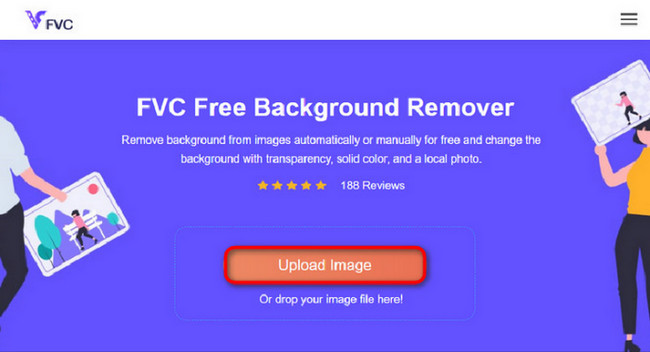
1. lépés: Kép/GIF feltöltése
Első lépésként nyisd meg a böngészőt a számítógépeden. Miután megnyitottad az online programot, megjelenik az opció a képed feltöltésére. Kattints az Upload Image gombra, és add hozzá azt a GIF-et, amelyről el akarod távolítani a hátteret.
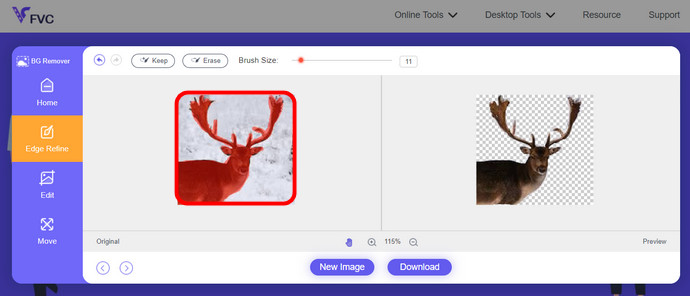
2. lépés: Kép szerkesztése
A feltöltés után mostantól eltávolíthatja a pontatlan kiemelések eltávolítását az AI felismerésből. Csak kattintson és húzza az egeret, és csinálja kedvére.
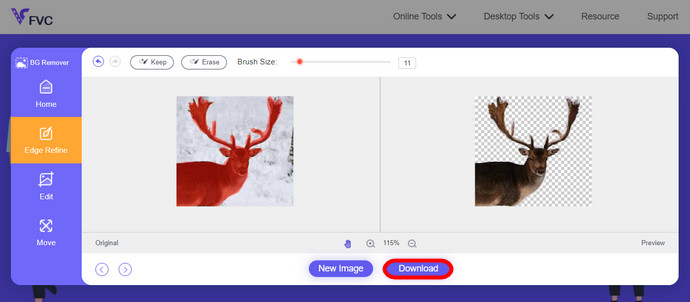
3. lépés: A szerkesztett kép letöltése
Végül kattints a Download gombra. Ezzel sikeresen eltávolítottad a hátteret a képedről.
1. rész: Távolítsa el a GIF hátteret az EZGIF.com használatával
Ez az online szoftver egy fotó/gif szerkesztő és konvertáló szoftver. Képes GIF, PNG, WEBP, IMG és még sok más formátum szerkesztésére és konvertálására. Itt szerkesztheti a GIF-et a szoftverhez mellékelt szerkesztőszoftverrel.
1. lépés: Oldal megnyitása
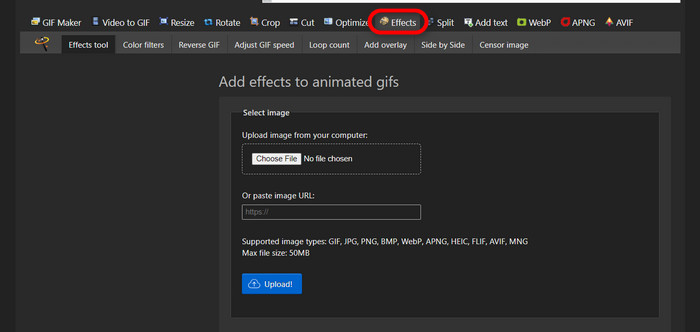
Az online eszköz használatához indítsd el a böngészőt, és írd be a linket. Azonnal több lehetőség közül választhatsz az igényeid szerint. Ez az oldal lehetővé teszi, hogy eltávolítsd a hátteret a GIF-edről. A kezdéshez kattints az Effects gombra.
2. lépés: Kép/GIF kiválasztása és feltöltése
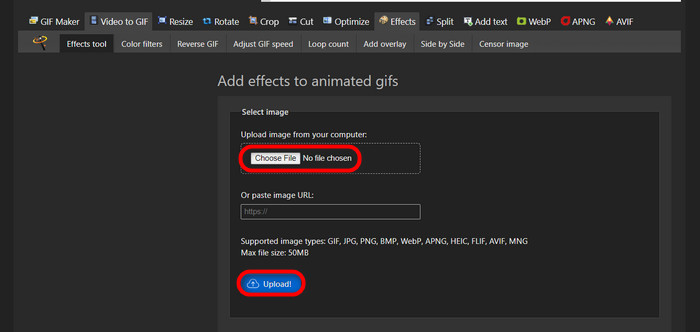
Most válaszd ki és töltsd fel a kívánt fájlt. Kattints a Choose Files gombra, keresd meg a kijelölt mappádban, majd kattints az Upload gombra a kiválasztott fájl feltöltéséhez.
3. lépés: Kép szerkesztése
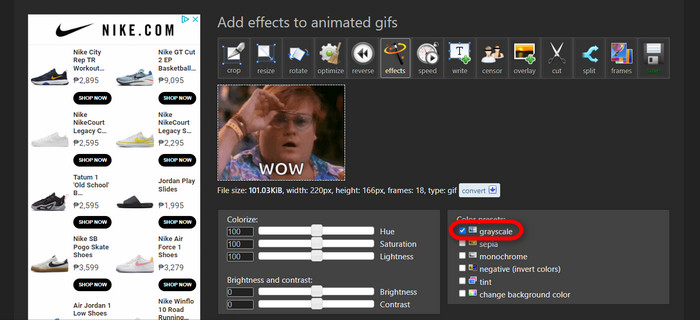
Feltöltés után már közel jársz ahhoz, hogy eltávolítsd a hátteret a GIF-edről, vagy fekete hátterű GIF-et készíts. Most kattints a grayscale lehetőségre, hogy a háttered sötét legyen.
4. lépés: Kép/GIF előnézete és konvertálása
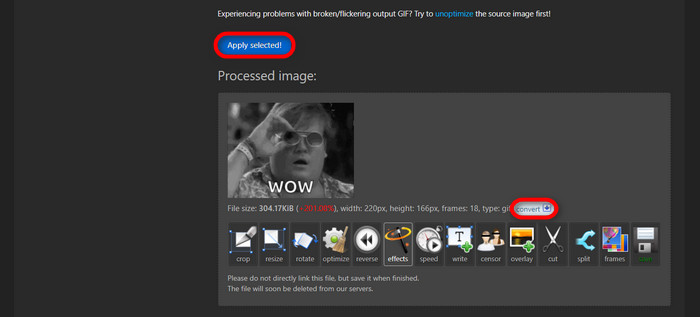
Miután alkalmaztad az effektet, átméretezted és körbevágtad az új GIF-et, kattints az Apply Selected gombra, és megjelenik az általad szerkesztett GIF előnézete. Ezután kattints a convert gombra a fájl letöltéséhez.
2. rész. Készítsen GIF-et háttér nélkül a Remove.bg-ben
Ez a webhely úgy készült, hogy eltávolítsa a hátteret minden fényképről. Itt lehetőséget ad az automatikusan eltávolított háttérkép szerkesztésére. Egy ügyes mesterséges intelligencia hajtja, amely képes felismerni a fő témát, és hibátlanul eltávolítani a hátterét.
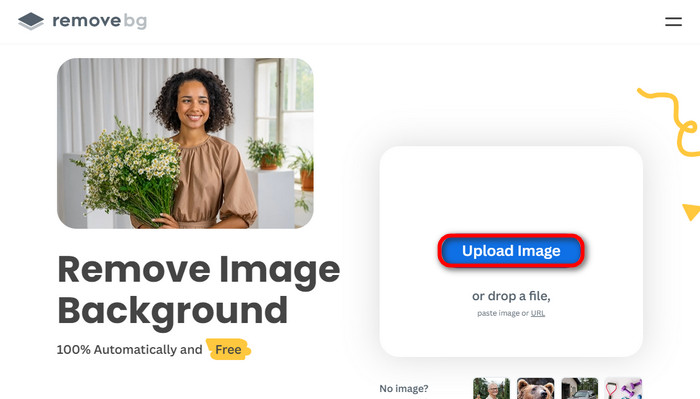
1. lépés: Kép/GIF feltöltése
Kezdjük a kép feltöltésével. Amikor az online szoftver oldalára érsz a böngésződben, kattints az Upload Image gombra.
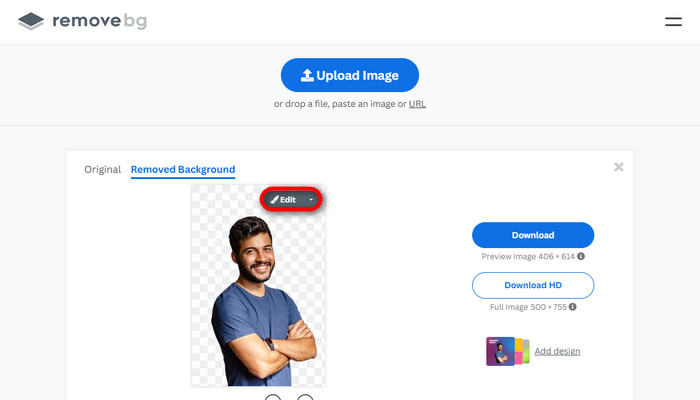
2. lépés: Kép ellenőrzése és szerkesztése
Miután a képedet feltöltötted, a fotó hátterének automatikusan el kellett tűnnie, de továbbra is szerkesztheted a képet. Az eredeti fotót az Original gombra kattintva láthatod, amely a Removed Background gomb mellett található. A felhasználók ezzel a szoftverrel könnyedén fekete hátteret tehetnek a képük mögé.
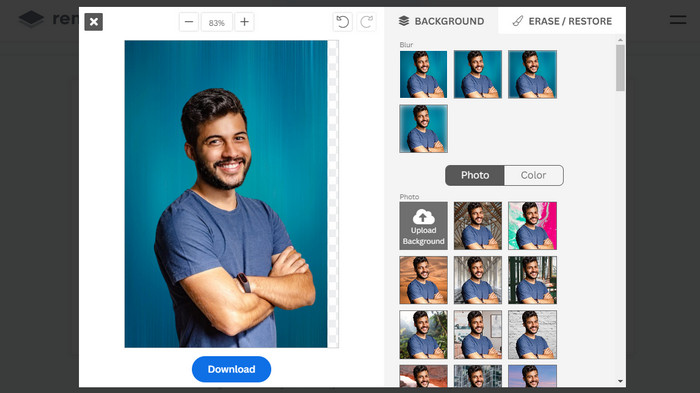
3. lépés: A szerkesztett kép letöltése
Ebben a részben már befejezted a szerkesztést, és letöltheted a képedet. Csak kattints a fotód alatt található Download gombra.
3. rész: A GIFMagic használata a GIF háttér eltávolításában
A GIFMagic alkalmazásban speciális effektusok, szöveg hozzáadása, animáció és még sok más! Mindez lehetséges ennek az online programnak a használatával. A GIF-ekkel könnyű dolgozni, ha szerkeszteni kell ebben a szoftverben!
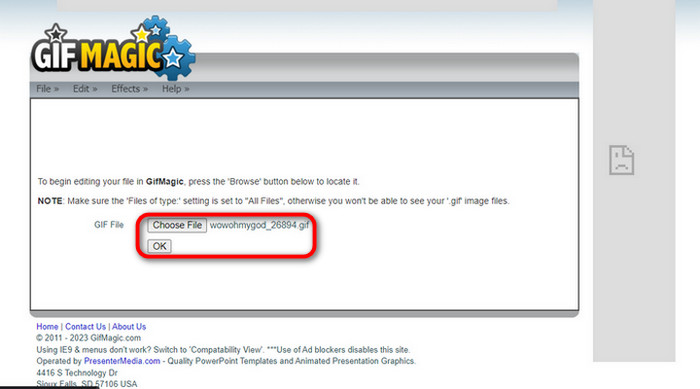
1. lépés: Kép/GIF feltöltése
Bejelentkezés után az oldal lehetővé teszi, hogy feltöltsd a kiválasztott fájlt a szoftverbe. Feltölthetsz .gif vagy .img fájlokat, amelyek más felhasználók számára is hasznosak lehetnek. A fájl kiválasztásához kattints az Upload gombra, és miután kiválasztottad a fájlt, kattints az OK gombra.
2. lépés: Kép szerkesztése
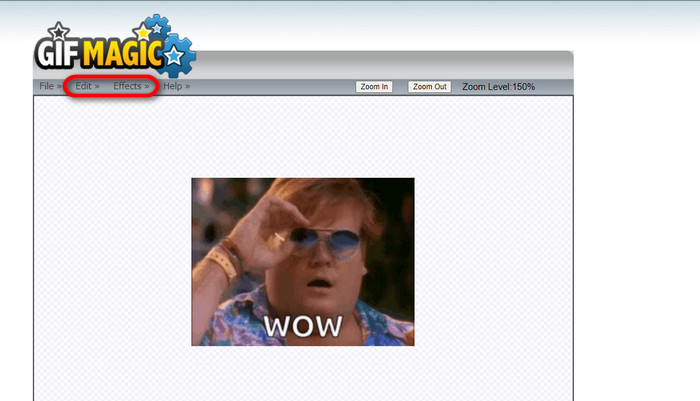
Miután az oldalra érkeztél, a File gomb mellett látni fogod az Edit és Effects gombokat. A fájlodat ezen a részen szerkesztheted, úgyhogy engedd szabadjára a kreativitásod, és élvezd a szerkesztést.
3. lépés: A szerkesztett GIF letöltése
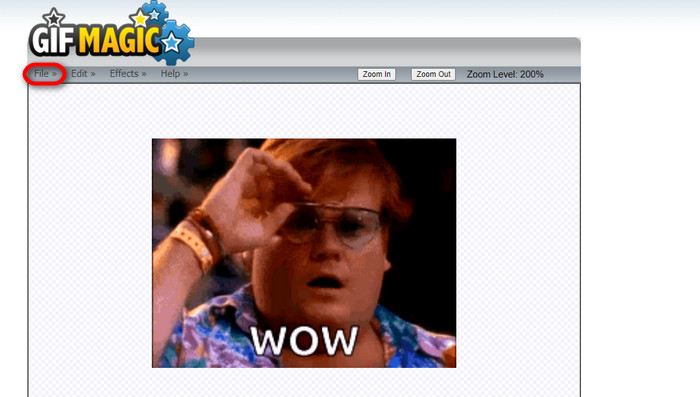
Miután a GIF-ed hátterét átlátszóvá tetted, csak kattints a File gombra, majd a Save lehetőségre. Voilá! Kész is, és le van töltve.
4. rész. Tegye átlátszóvá a GIF hátterét a LunaPic segítségével
A LunaPic egy ingyenes online eszköz, amely képes eltávolítani a háttérben lévő GIF-eket online. Képes PNG, GIF, JPG, JPEG és sok más típusú kép értékelésére és szerkesztésére. Ez egy jól megalapozott szoftver, amelyet számos platformon használnak szerkesztésre.
1. lépés: Kép/GIF feltöltése
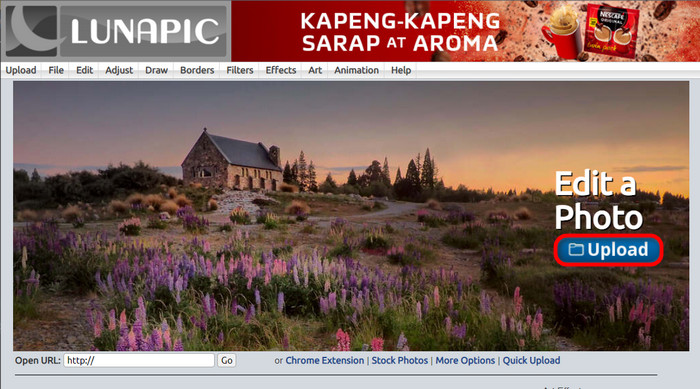
Miután a saját vagy alapértelmezett böngésződben megnyitottad az oldalt, töltsd fel a .img vagy .gif fájlt az oldalra. Egyszerűen kattints az Upload gombra.
2. lépés: Kép/GIF szerkesztése
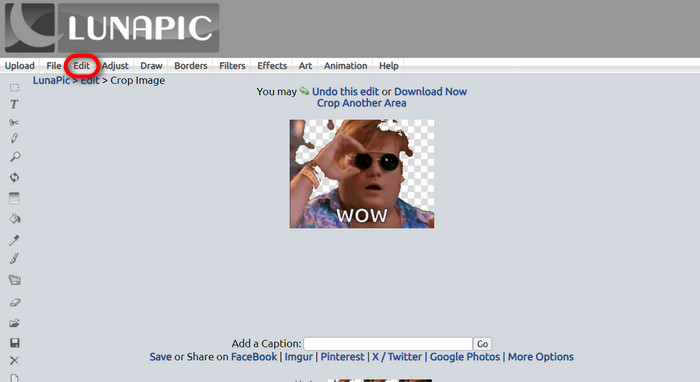
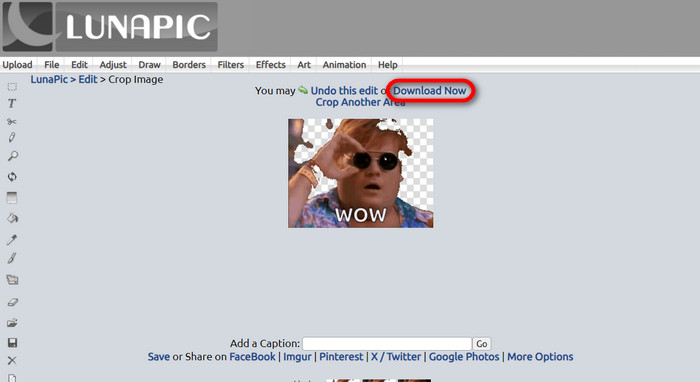
Ezután a fájlodat szerkesztheted, és a GIF hátterét átlátszóvá teheted az Edit, majd a Crop Image eszköz gomb megnyomásával. Kezdd el a háttér kivágását.
3. lépés: A szerkesztett GIF letöltése
Miután kivágtad a hátteret, vagy ha fehér hátterű GIF-et próbáltál készíteni, most a Download now! gombra kattintva mentheted az általad szerkesztett fájlt!
További olvasnivaló:
4 legjobb módszer a vízjel eltávolítására GIF-ből [online és offline]
A legjobb eszközök bemutatása asztali gépre, online és mobilra

Video Converter Ultimate
345+ letöltés- Élvezze videóit a tartalmat blokkoló, bosszantó vízjelek nélkül.
- Készítsen jó minőségű videókat nagy felbontással a jobb megtekintés érdekében.
- Lehetővé teszi a vízjel eltávolítását bármilyen típusú videóról.
- Számtalan formátumot biztosít a fájl konvertálásához.
Ingyenes letöltésWindows 7 vagy újabb rendszerreBiztonságos letöltés
Ingyenes letöltésMacOS 10.7 vagy újabb rendszerhezBiztonságos letöltés
5. rész. GYIK a háttér eltávolításával kapcsolatban
Átalakíthatok egy animált PNG-t GIF formátumba?
Igen, lehetséges a PNG konvertálása GIF formátumba. Azonban számos adattípus létezik, amelyeket több formátumba is át lehet alakítani, ha megvan a megfelelő program.
Megváltoztathatom a GIF-háttér színét az eltávolítás után?
Természetesen rengeteg program létezik, amely ilyen munkát kínál. Próbáld ki az FVC Background Remover eszközt az egyszerű háttéreltávolításhoz.
Átlátszóvá tehetem a GIF hátteret festékkel?
Nem, a festéknek nincs ilyen képessége. De kereshet más olyan programokat, amelyek ilyen munkát kínálnak.
Mi az az átlátszó animált GIF?
Az áttetsző animált GIF egy olyan kép, amely csak a kép egy bizonyos részét jeleníti meg, miután elhelyezték egy bizonyos webhelyen. Több kép is megjelenhet rajta, ha egy másik webhelyre helyezik el.
A GIF lehetővé teszi az átláthatóságot?
Igen, de nem teljesen átlátszó. Csak az 1 bites átlátszóságot támogatja.
Következtetés
Ma már nagy jelentősége és kereslete van az olyan programoknak, amelyek GIF-ek szerkesztésére képesek, mint amilyeneket fentebb említettünk. Vágás, szerkesztés, rétegezés és törlés mind elvégezhető néhány kattintással. A felhasználók ma már olyan újdonságokon törik a fejüket, amelyeket még senki sem csinált, például fehér hátterű GIF készítése. Az ilyen típusú felhasználók miatt jönnek létre az ilyen erőteljes programok, mint az FVC Background Remover.
-
 Válassza ki a legjobb online és offline GIF-vágót a GIF-ek vágásához [2023]
 A legjobb vágóeszköz kiválasztása kötelező, amíg ez a funkció elérhető a GIF-készítőkön. Tehát mi a legjobb választás a fájlok körbevágásához, és hogyan kell használni?
-
 Tanuljon meg 4 módszert GIF-ek létrehozására képekből [online és offline]
 Szeretné tudni, hogyan hozhat létre GIF-eket a képek összeállításából? Ezután kattintson erre a hivatkozásra, és olvassa el a következő példákat
-
 Loop GIF-et a legjobb animált GIF Looper segítségével Windows és Mac rendszeren
 Szeretné tudni a legjobb loop GIF titkát, és elkészíteni egyet? Ha igen, akkor jó helyen jár. Ismerje meg, hogyan hozhat létre hurkot az elérhető legjobb hurkolóval.
