


 Video Converter Ultimate
 Screen Recorder
 Videó javítás
 Biztonságos letöltés
Alakítsa át PPT-jét MP4-re 3 hatékony módszerrel
A PPT nagyszerű eszköz prezentációk prezentációjához, akár az iskolában, akár a munkahelyen, stb. Előfordulhat, hogy egy előadás után egyesek kérhetnek egy másolatot a PPT-anyagból referenciaként.
Fontos azonban tudomásul venni, hogy néhány ember nem fér hozzá a fájlhoz, mert nincs telepítve az alkalmazás vagy a szoftver eszköze az eszközére. Ezzel a legtöbb előadó rendelkezik a prezentáció konvertált MP4-es verziójával, hogy könnyen megoszthassa az anyagot mindenki számára.
Tehát ha olyan megoldást keresel, amellyel a PPT fájlodat MP4-be alakíthatod a gyors megosztás és az anyag könnyű elérése érdekében, akkor jó helyen jársz. Olvass tovább, és ismerd meg azt a 3 különböző módszert, amellyel a PPT-fájlodat videóvá alakíthatod.

1. rész: A PowerPoint konvertálása MP4-re PPT-n belül
A PowerPoint prezentáció segítségével a felhasználók könnyedén konvertálhatják PPT-jüket MP4-re. Ez egy nagyszerű beépített funkció a kényelem és a rugalmasság érdekében.
1. lépés. Nyisd meg a prezentációdat az eszközödön található PowerPoint prezentációkészítő programmal.
2. lépés. Lépj a Fájl fülre, keresd meg az Exportálás gombot, és kattints rá.
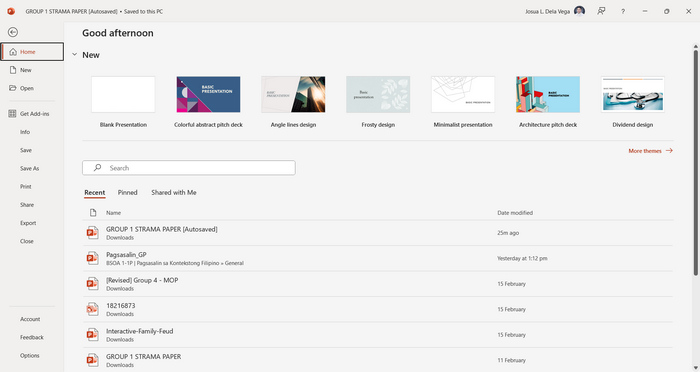
3. lépés. Miután az Exportálás fülön vagy, kattints a Videó létrehozása lehetőségre.
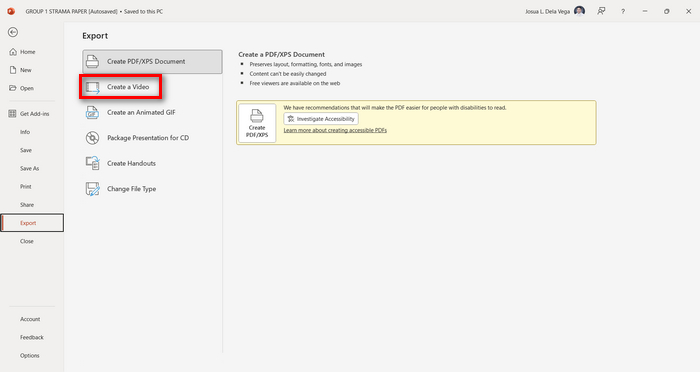
4. lépés. Most állítsd be a kívánt videófelbontást. 480p és 4K között választhatsz. A Felvett időzítések és narrációk használata beállításnál manuálisan megadhatod a diák időzítését. Ezután kattints a Videó létrehozása gombra.
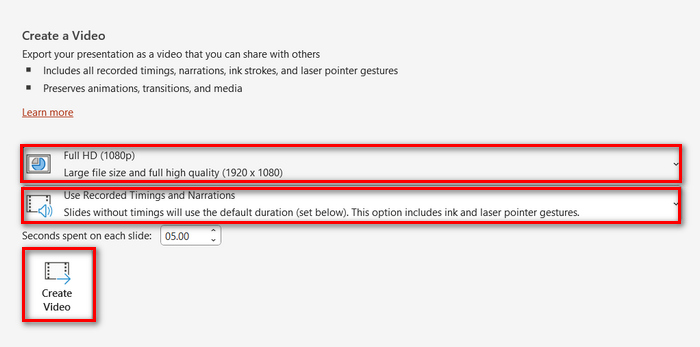
5. lépés. A Videó létrehozása gomb megnyomása után megjelenik egy új ablak, ahol ellenőrizheted a fájl kimeneti formátumát, és beállíthatod, hová szeretnéd menteni. Ha minden kész, kattints az Exportálás gombra, és várd meg, amíg a folyamat befejeződik.
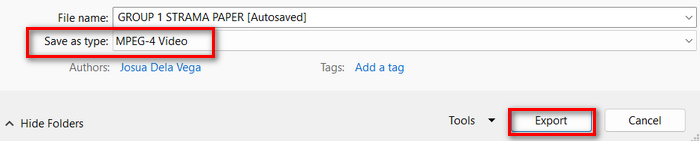
Valóban nagyon kényelmes a PowerPoint beépített funkciójával MP4-formátumba konvertálni. Ugyanakkor hiányzik belőle a testreszabási lehetőség, ha például háttérzenét szeretnél hozzáadni. Ha azonban a célod pusztán a megosztás, akkor ez számodra nem jelent problémát.
2. rész: Konvertálja a PPT-t MP4-re az Online Audio segítségével
Ha rendelkezik a PPT fájllal, és online szeretné konvertálni, mivel nincs PowerPoint prezentációs szoftveralkalmazása vagy eszköze az eszközön, használhatja a MagicSlides alkalmazást. Ez az online konvertáló eszköz lehetővé teszi a PowerPoint egyszerű konvertálását MP4-re, egyszerűen csak importálja a fájlt a rendszerükbe.
1. lépés. Töltsd fel azt a PPT-fájlt, amelyet MP4-be szeretnél konvertálni, az Upload your source file (Forrásfájl feltöltése) gombra kattintva.
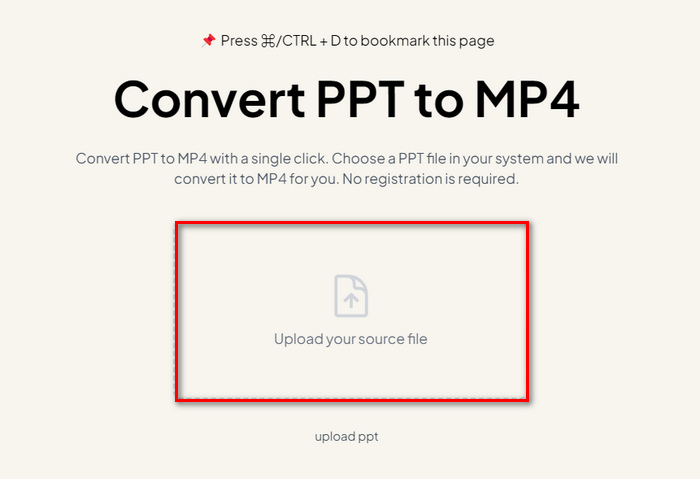
2. lépés. Miután a fájl importálása megtörtént, kattints a Create MP4 gombra a konvertálási folyamat elindításához.
3. lépés. Ha elkészült, először megtekintheted az átkonvertált PPT-fájlt, és ha elégedett vagy az eredménnyel, kattints a Download gombra, hogy közvetlenül az eszközödre mentsd.
Noha ez az eszköz nagyon egyszerű lépéseket kínál a PPT MP4-re konvertálásához, a PPT-fájlok importálása sok időt vesz igénybe, ami nyugtalanító lehet, különösen akkor, ha rohan. Ezenkívül nincs testreszabási lehetőség. Csak szó szerint átalakította a PPT fájlokat videóvá.
3. rész: PPT konvertálása MP4-re effektekkel és hanggal
Ha PPT-fájlt szeretnél MP4-be konvertálni, de ezúttal effektekkel és hanggal együtt, akkor ez a megoldás neked való. A FVC Screen Recorder segítségével szerkesztési funkciói révén a PowerPoint-prezentációdat kreatív és interaktív MP4-fájllá alakíthatod. Emellett a kimeneti minőség miatt sem kell aggódnod, mivel akár 4K videófelbontást is támogat. Az alábbi útmutató alapján használhatod:
1. lépés. Először töltse le a szoftvert, majd telepítse a számítógépére.
Ingyenes letöltésWindows 7 vagy újabb rendszerhezBiztonságos letöltés
Ingyenes letöltésmacOS 10.7 vagy újabb rendszerhezBiztonságos letöltés
2. lépés. Nyisd meg a PowerPoint-prezentációdat, és győződj meg róla, hogy teljes képernyős módban fut.
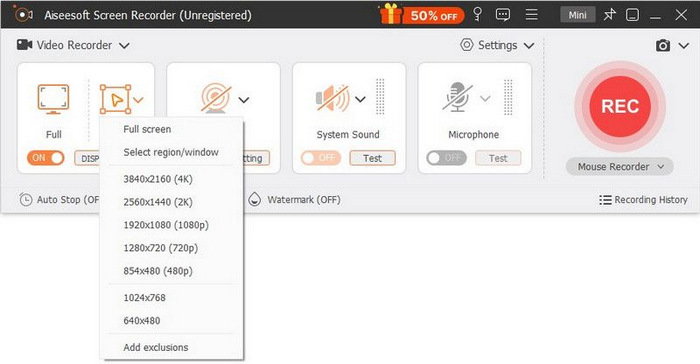
3. lépés. Ezután a képernyőrögzítő eszközön válaszd a Video Recorder (Videófelvevő) funkciót, és állítsd be a rögzítési területet Full (Teljes) módra.
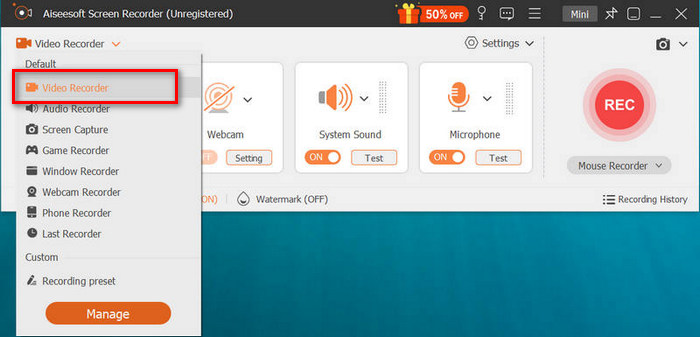
4. lépés. Ezután indítsd el a PowerPoint diavetítést. Ezzel egy időben kattints a REC gombra, hogy elkezdd a prezentáció felvételét.
5. lépés. Ha elkészültél, kattints a Stop gombra; ekkor megjelenik az előnézeti felület. Itt, a képernyő alsó sarkában találod azokat a szerkesztési funkciókat, amelyekkel a hangot és az effekteket módosíthatod, miközben PPT-fájlodat MP4-be konvertálod.

6. lépés. Végül a fájlodat az Open Folder (Mappa megnyitása) gombra kattintva érheted el.
Az FVC Screen Recorder használatában a PowerPoint MP4-re váltásában az a jó, hogy kézbe veheti a diák időzítését és ütemezését. Ezen túlmenően, ellentétben más eszközökkel, amelyek csak alapvető konverziót kínálnak, ez az eszköz olyan szerkesztési funkciókkal rendelkezik, amelyek segítségével tovább javíthatja a konvertált MP4 fájlt.
4. rész: GYIK a PPT MP4-re konvertálásával kapcsolatban
Mennyi ideig tart a PPT konvertálása MP4-re?
Az átalakítási folyamat ideje a konvertálandó fájl méretétől függ. De általában az egyszerű prezentációk nem igényelnek sok időt az átalakítás során.
Megtarthatok animációkat és átmeneteket, amikor PPT-t MP4-re konvertálok PPT-ben?
Igen. A beépített funkció lehetővé teszi a felhasználók számára, hogy az átalakítási folyamat során megtartsák az animációkat és az átmeneteket. Ezzel biztosítható, hogy a prezentáció vizuális elemei, például az átmenetek és animációk megmaradjanak az MP4 formátumba konvertálás közben. Fontos azonban megjegyezni, hogy az animációk és átmenetek kompatibilitása a PowerPoint használt verziójától és az alkalmazott effektusok összetettségétől függően változhat.
Megőrzi a PowerPoint prezentációm minőségét MP4 formátumba konvertálásakor?
Igen. A PowerPoint prezentáció akár 4K videófelbontást is támogat. Ezért a nagyobb felbontás kiválasztása segít megőrizni a prezentáció minőségét. Ezenkívül, ha úgy dönt, hogy PPT-jét MP4-re konvertálja valamilyen fejlett konvertáló eszközzel, amely lehetőséget kínál a bitsebesség és a tömörítés beállítására a videó minőségének további optimalizálása érdekében, garantálhatja a minőségi kimenetet.
Következtetés
A PPT MP4-formátumba konvertálása valóban nagyfokú kényelmet és hozzáférhetőséget biztosít a fájl megosztásához különböző platformokon és eszközökön. Most, hogy már tudod, hogyan alakíthatod át őket, itt az ideje, hogy a gyakorlatban is alkalmazd ezt a tudást. Kezdd el a konvertálást még ma, és növeld prezentációid elérését és hatását!
-
 Kép átméretezése a PowerPointban [A méretváltoztatás leggyorsabb módja]
 A képek PowerPointban való átméretezésének megtanulása elengedhetetlen, különösen akkor, ha használni szeretné a bemutatóban. Olvassa el ezt a cikket, hogy megtudja, hogyan kell csinálni.
-
 Apowersoft vízjel-eltávolító áttekintése – Funkciók, előnyök és hátrányok, valamint ár
 Az Apowersoft Watermark Remover az egyik legjobb vízjeleltávolító, amely támogatja az online és offline módot is, kattintson erre, ha többet szeretne tudni!
-
 Hogyan lehet javítani, hogy a videó nem játszik le a PowerPointban | Gyors útmutató
 Nem játszik le a PowerPoint videód? Győzd le a most nem játszható beágyazott videók miatti frusztrációt öt legjobb megoldásunkkal, amelyek könnyedén megoldják ezeket.
