


 Video Converter Ultimate
 Screen Recorder
 Videó javítás
 Biztonságos letöltés
Részletes útmutató a hang visszafordításához az Audacityben [2024]
A hangsávok megfordítása egyedi dimenziót és színt adhat zenei produkcióihoz, lenyűgöző hanghatásokat generálva a kreatív történetmeséléshez. Ezt a stílust széles körben használják, és egyre népszerűbb, amikor az audioprojekteket mélységgel és eredetiséggel gazdagítják. Tehát, ha hangot szerkeszt az Audacityben, és megfordítással szeretne egy csavart hozzáadni, akkor jó helyen jár!
Ebben a cikkben végigvezetjük Önt a hang visszafordításának lépésein az Audacityben, és megosztunk olyan értékes tippeket, amelyek segítségével a legtöbbet hozhatja ki ebből a funkcióból. Az útmutató végére készen állsz a hangsávok megfordítására, és könnyedén felfedezhetsz új kreatív távlatokat. Készüljön fel tehát hangprojektje átalakítására, és fedezze fel a fordított hangzásban rejlő izgalmas lehetőségeket!

1. rész: A hang visszafordítása az Audacityben
Az Audacity egy olyan program, amely lehetővé teszi a felhasználók számára, hogy drága prémium eszközök nélkül szerkeszthessék a hangfájlokat, és költségmentesen biztosítsák a kiváló minőségű kimenetet. Nyílt forráskódú eszközként mindenki számára szabadon elérhető, és a fizetős szoftverekben jellemzően megtalálható funkciók hosszú listáját kínálja. Az Audacity képességei közül kiemelkedik azzal, hogy képes megfordítani a hangsávokat. Ez a funkció lehetővé teszi a felhasználók számára, hogy kreatívak legyenek azzal kapcsolatban, ahogyan a hangjukat szeretnék. A szerkesztők általában megfordítják a hangot, mert ez egyedi hatást ad a projektjeikhez.
Here’s how you can reverse audio in Audacity.
Step 1. Download and install Audacity on your computer.
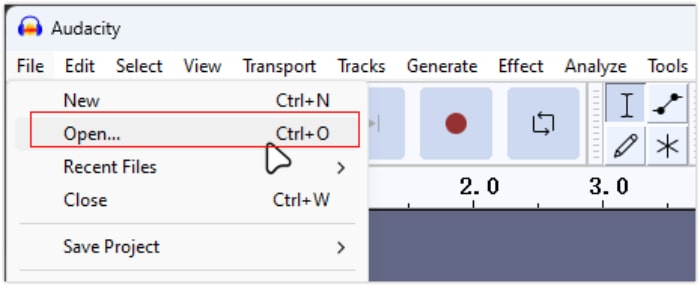
Step 2. Launch the tool, go to the File menu in the top-left corner, and select Open. From there, browse your computer to locate and select the audio file or drag and drop the audio file that you want to reverse into the program.
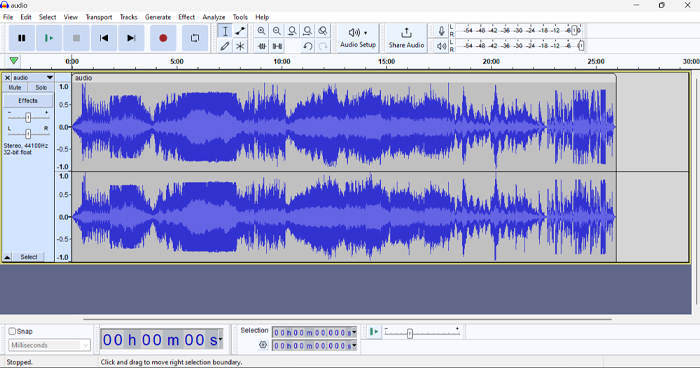
Step 3. Now, click on the audio track, go to the Select tab, and choose All to select the entire audio file.
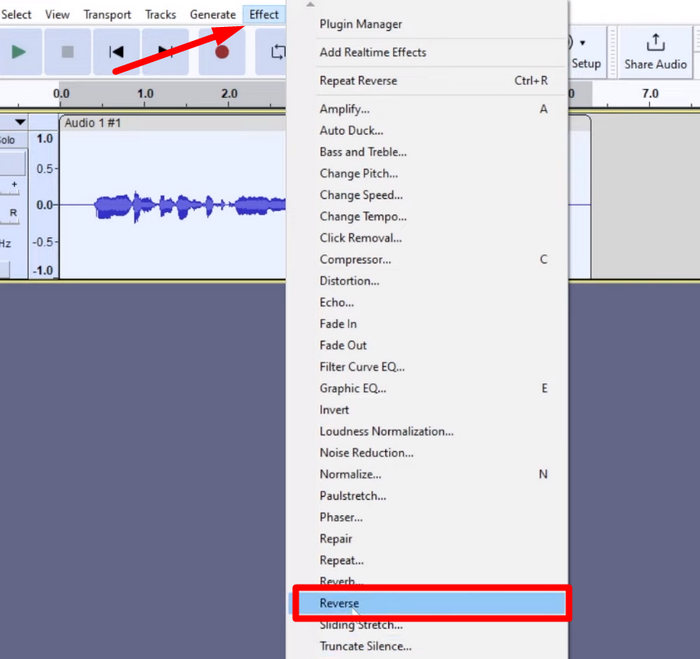
Step 4. To reverse the Audio, go to the Effect tab and select Reverse from the drop-down menu. Audacity will process and reverse the selected audio clip.
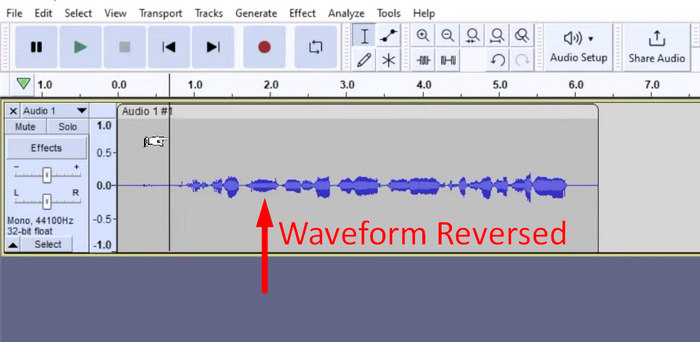
Step 5. You can preview the reversed audio by pressing the Spacebar on your keyboard. Alternatively, use the playback controls at the top left of the Audacity window and click the Play button.
Step 6. Lastly, to export the reversed audio file, go back to the File menu, under it choose Export. That way, your audio will be saved as a new file. Meanwhile, don’t forget to choose your preferred audio file format before exporting them.
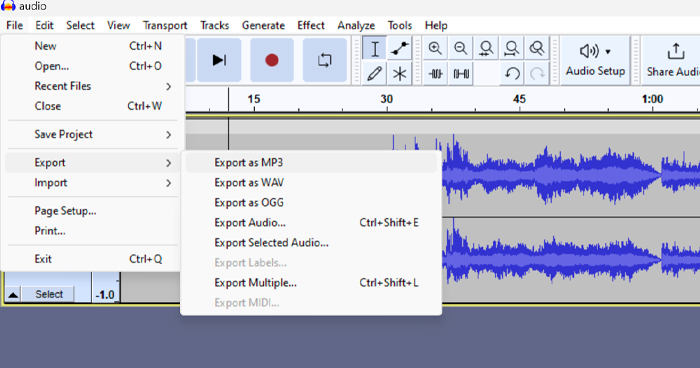
A munka váratlan elvesztésével kapcsolatos egyes problémák miatt szerkesztés közben rendszeresen mentse a projektet, hogy elkerülje a haladás elvesztését. Gyorsan mentheti munkáját a Ctrl + S billentyűkombinációval Windows rendszeren vagy a Cmd + S billentyűkombinációval Mac rendszeren. Ezenkívül fontolja meg a leíró fájlnevek használatát, és a fájlok egy dedikált mappába rendezését, hogy projektjei jól szervezett és könnyen hozzáférhetők legyenek.
2. rész: A hang egy részének megfordítása az Audacityben
Vannak olyan esetek, amikor a felhasználók csak a hang egy részét akarták megfordítani az Audacityben, talán azért, mert csak bizonyos szakaszokat akarnak hangsúlyozni vagy külön hatást létrehozni. Az alábbi lépések majdnem ugyanazok, mint a teljes sáv visszafordítása. A hang egy részének kiválasztása azonban kissé körülményes, és a lépésekben hangsúlyt kell fektetni a félreértések elkerülése érdekében, különösen a kezdők számára.
Here’s how to reverse a part of audio in Audacity.
Step 1. When you’re on the main interface of the tool, go to the File menu in the top-left corner and select Open. From there, browse your computer to locate and select the audio file or drag and drop the audio file that you want to reverse into the program.
Step 2. Now, to select a part of audio that you want to reverse, utilize the Zoom feature to zoom in on the wave track and drag your mouse to select the section or part of the audio that you only want to reverse.
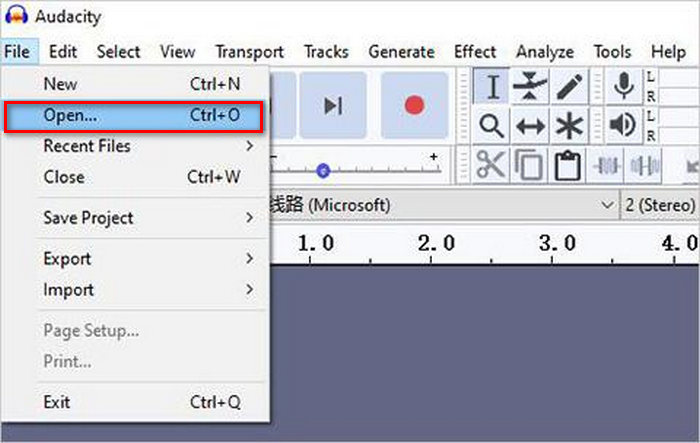
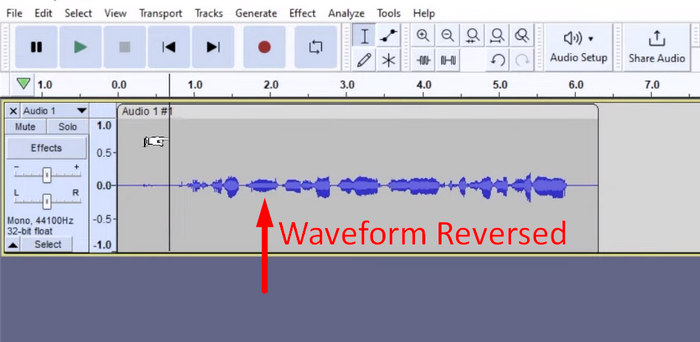
Step 3. To reverse the Audio, go to the Effect tab and select Reverse from the drop-down menu. Audacity will process and reverse the selected audio clip.
Step 4. You can preview the reversed audio by pressing the Spacebar on your keyboard. Alternatively, use the playback controls at the top left of the Audacity window and click the Play button.
Step 5. Lastly, to export the reversed audio file, select Export under the File menu. Choose Export as and select your preferred audio file format before finally exporting them.
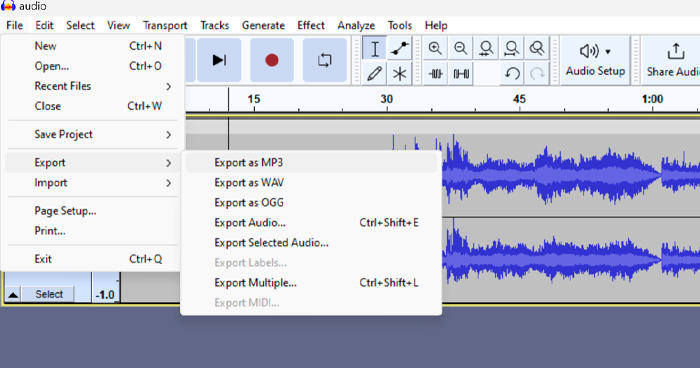
When selecting a specific part of the audio to reverse in Audacity, ensure that you accurately zoom in on the waveform to see where the section begins and ends clearly. This helps in making precise selections and avoids including unintended parts of the audio. Additionally, before reversing, use the Clip Split tool if needed to divide the audio into chunk segments, for example, cutting an MP3 audio, making it easier to manipulate and edit specific sections independently. This approach enhances control over your edits and ensures that the reversed audio achieves the desired effect seamlessly.
3. rész. Fordított audio/videó az Audacity alternatívával
Meanwhile, if you prefer a simpler and easier way to reverse audio or video, you can use this Audacity alternative, which is the FVC-picked Video Converter Ultimate. This total package video and audio tool may be known for its powerful conversion capabilities, but beyond that, this tool is also great for users who need a convenient way of reversing audio or video.
Step 1. On your computer, download and install the FVC-picked Video Converter Ultimate.
Ingyenes letöltés Windows 7 vagy újabb rendszerre Biztonságos letöltés
Ingyenes letöltés macOS 10.7 vagy újabb rendszerre Biztonságos letöltés
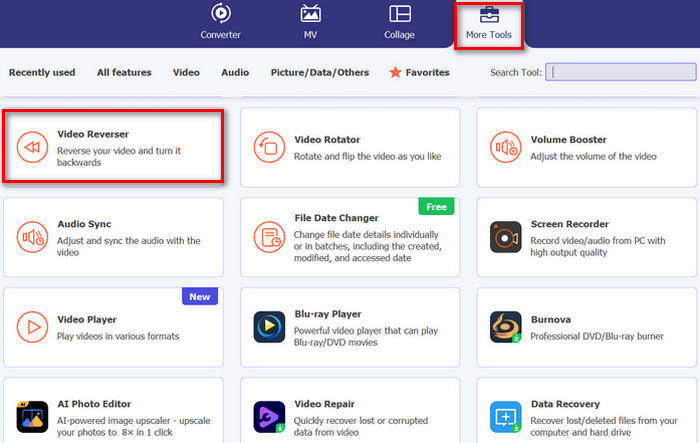
Step 2. Launch the tool and go to the Moretools tab. From there, select Video Reverser.
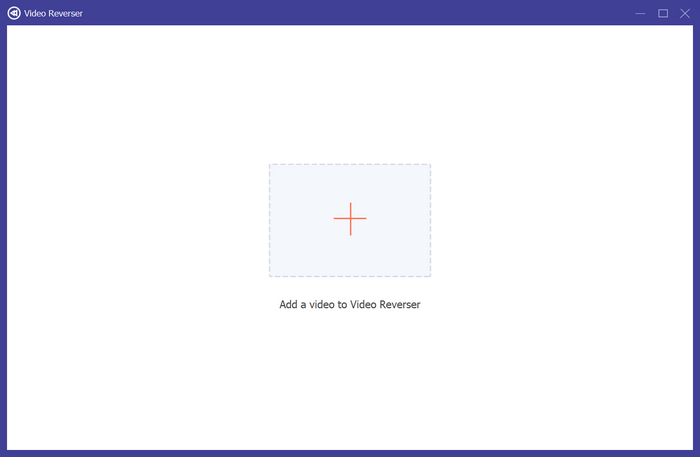
Step 3. Now, import the audio or video that you want to reverse by clicking the Add a Video to Video Reverser button.
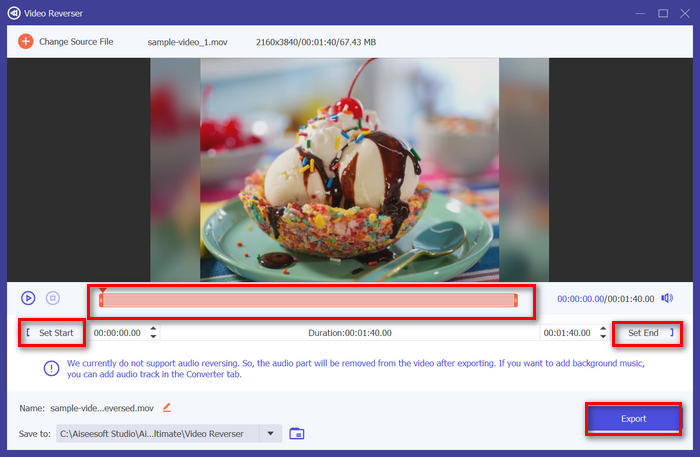
Step 4. Once you’re in the Video Reverser interface, if you wish to reverse the entire track, you can simply head over to the Export button to automatically reverse your file. But if you wish to reverse only a part, you can slide the bar and carefully choose the part of the audio or video that you want to reverse. Alternatively, you can simply encode the start time and time of the file part that you want to reverse. Once done, just click the Export button.
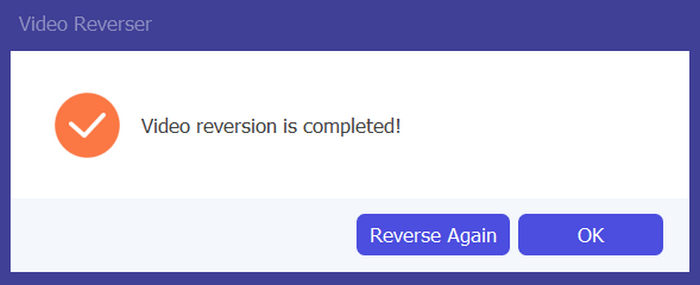
Step 5. When the exploring is complete, you’ll get this message, and you can access your reversed video in the folder on your computer.
Megvan! Könnyű peasy, igaz? Nem kell összetévesztenie egy összetett felülettel. Az FVC által kiválasztott Video Converter Ultimate segítségével minden, amire szüksége van, kéznél van.
4. rész. GYIK az Audacity hangvisszafordításáról
Hogyan lehet visszavonni a fordított hangeffektust az Audacityben?
Ha megfordítottad az Audacityben egy hangot, és szeretnéd visszavonni, könnyen visszaállíthatod az eredeti hangot. Egyszerűen lépjen az Audacity felület bal felső sarkában található Szerkesztés menübe, és válassza a Visszavonás visszavonása lehetőséget. Ezenkívül használhatja a Ctrl + Z billentyűparancsot Windows vagy a Cmd + Z billentyűkombinációt Mac esetén az utolsó művelet visszavonásához. Ezzel visszaállítja a hangot az eredeti állapotába, mielőtt a fordított effektust alkalmazná.
Milyen hangformátumokat támogat az Audacity a hang visszafordításához?
Az Audacity számos népszerű hangformátumot támogat, mint például a WAV, MP3, FLAC, AIFF és OGG.
Lehet torzítani a hangot az Audacityben?
Igen. Az Audacityben torzíthatja a hangot. Az Audacity számos effektust és eszközt kínál, amelyek lehetővé teszik a hangsávok torzítását. Ennek hozzáadásához lépjen az Effektus elemre, kattintson a Torzítás és moduláció elemre, és válassza a Torzítás lehetőséget.
Átalakítható a hang az Audacityben?
Yes, you can. Audacity supports plenty of audio formats. If you find any of your audio file is not compatible with your device, for example, you can use Audacity to convert AIFF to MP3 easily.
Következtetés
In conclusion, learning how to reverse audio in Audacity is simple and adds unique effects to your audio or video projects. Follow the detailed steps to start reversing your audio tracks today. For an easier alternative, try the FVC-picked Video Converter Ultimate. Ready to get creative? Try any of these methods now!
-
 Csatlakozzon a MOV-hoz ingyen - Hogyan egyesítsen két MOV-fájlt egybe
 A kezdők számára nehéz lehet több MOV videoklipet összekapcsolni. Tehát van egy egyszerű és gyors módszer a MOV fájlok kombinálására? Ha van, akkor hogyan kell használni? Ez a bejegyzés segít megkapni ezeket a válaszokat.
-
 4 módszer a videók ingyen egyesítésére Windows / Mac / Online rendszeren
 Itt van 4 gyors módszer a videók egyesítéséhez egy új videóvá. Nincs videofájl méret vagy formátum korlátozás. Sikeresen csatlakozhat 2, 3, 4 és még több különböző formátumú és felbontású videokliphez.
-
 Konkrét útmutató az M4V fájlok ingyenes csatlakoztatásához Windows és Mac rendszeren
 Ha megoldást keres az M4V videofájlok egyesítésére, soha ne hagyja ki ezt a részt. Itt az M4V videofájlok kombinálásának két legjobb módszeréről fogunk beszélni.
