Használati útmutató

Video / Audio átalakítási megoldások

Fogj neki

Az FVC Free FLV to Audio Converter a legjobb ingyenes video-audio átalakító. Hangsávokat tud kibontani az FLV videofájlból. Sőt, támogatja az audio fájlok konvertálását különböző hangformátumok között.
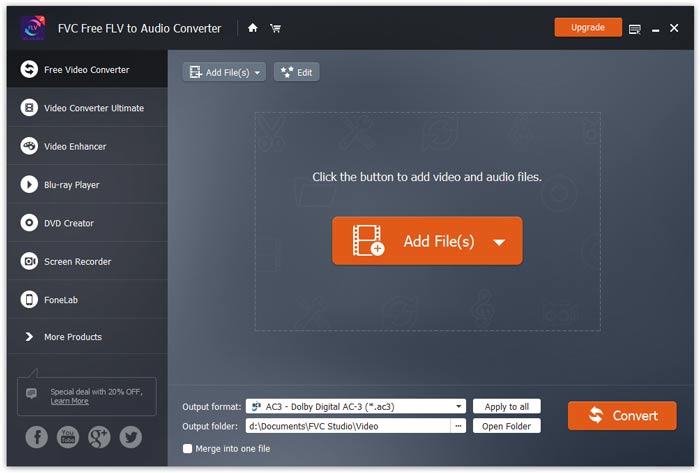
Fő interfész

Letöltés és telepítés

Töltse le a telepítőcsomagot a számítógép operációs rendszere alapján. Ezután kattintson duplán a telepítőfájlra, és kövesse a képernyőn megjelenő utasításokat a program telepítéséhez.

preferenciák

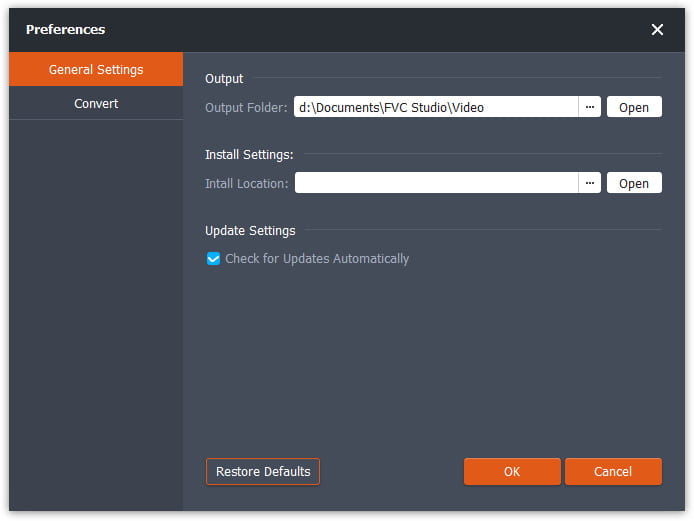
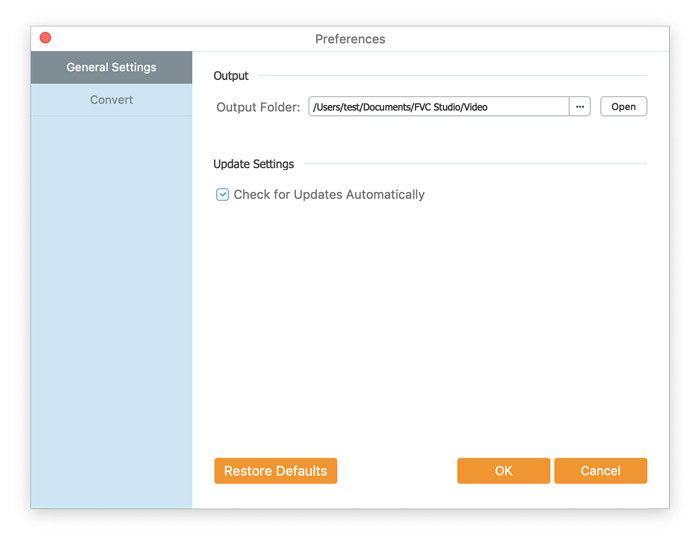
Before you start the conversion, it’s recommended to tweak the default settings. You can click the Menu icon and click on Preferences… to configure the specific settings. For example, you are free to choose the output folder to store your converted files.

preferenciák

Konvertálja az FLV-t audio-ba

Most követheti ezeket a lépéseket az FLV fájlok audio formátumokká konvertálásához.

Step 1. Launch FVC Free FLV to Audio Converter

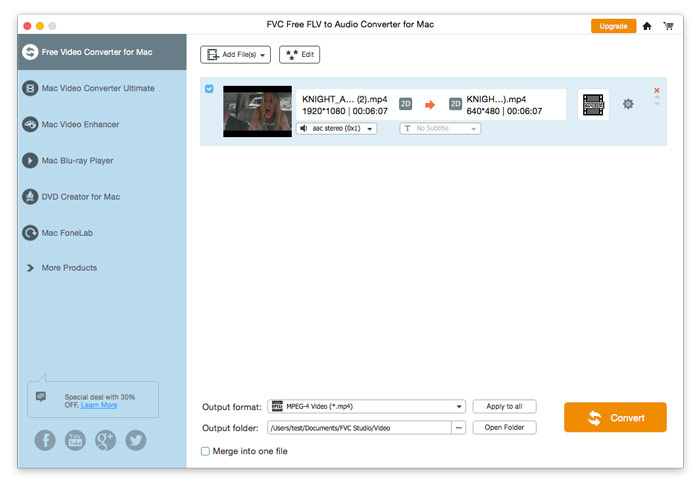
Indítsa el az FVC Free FLV to Audio Converter alkalmazást, és meglátja annak tiszta felületét.

Fő interfész

Step 2. Add an FLV file into the program

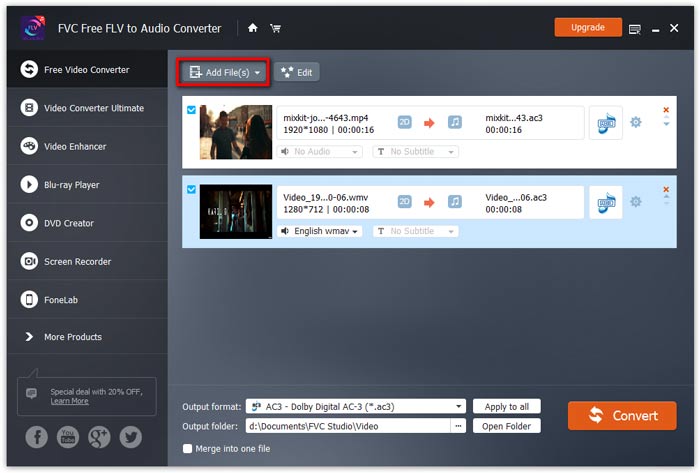
Click the Add File(s) button and choose FLV files you want to process in the dialogue opening subsequently. After the files are added to the program, they will be displayed on the file list.

Add hozzá az FLV fájlokat

Step 3. Select the output format

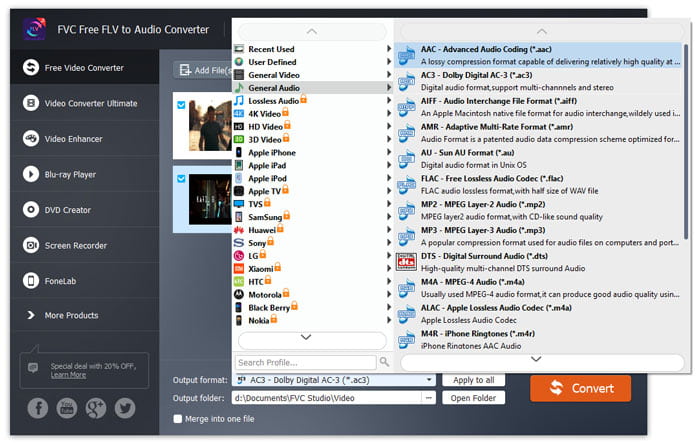
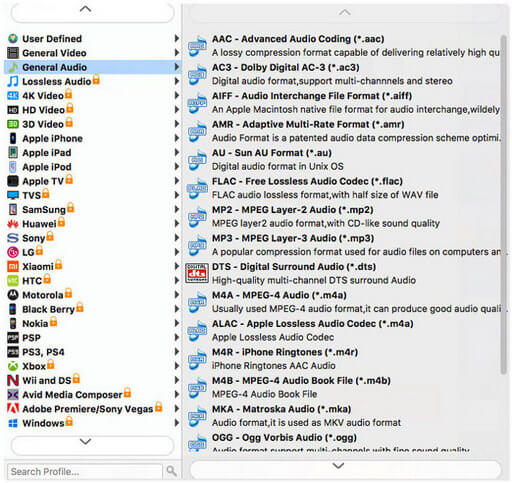
Click to open Output format drop-down list, then choose the audio format from the General Audio profile list. It can convert your FLV files to MP3, WMA, AAC, M4A, and so on.

Válassza a Hang formátum lehetőséget

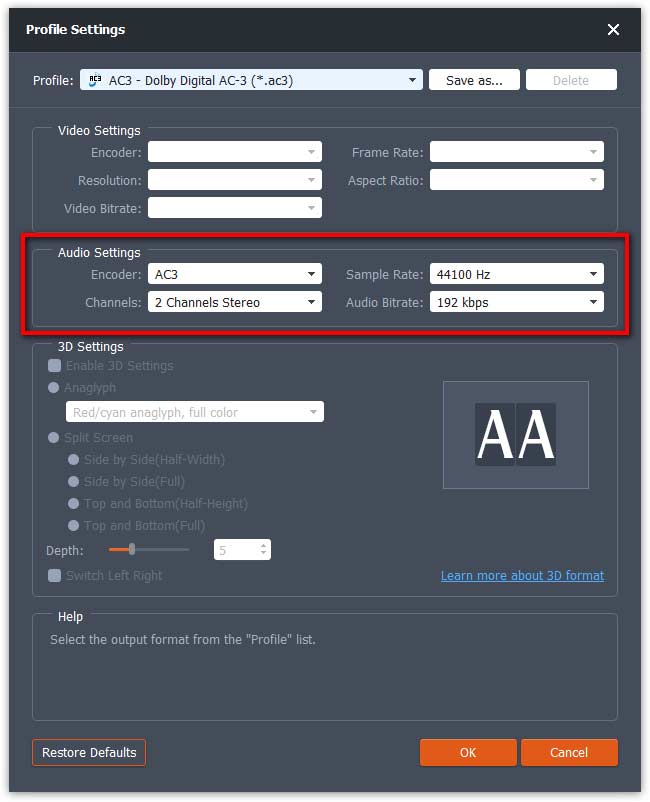
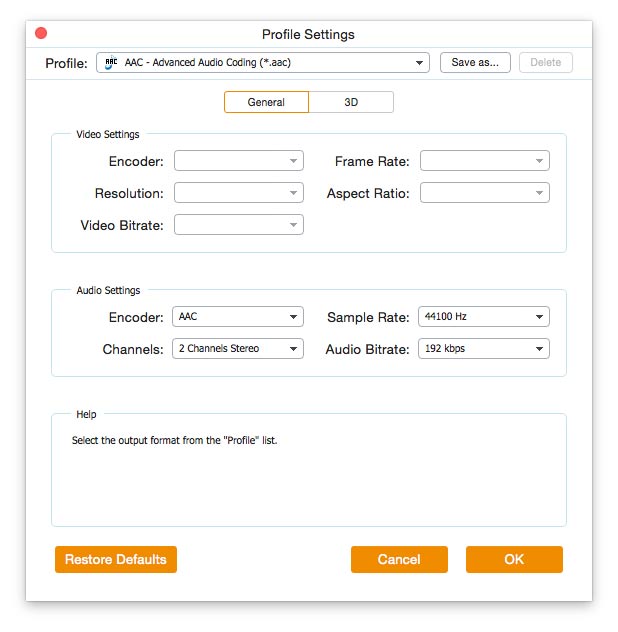
If you’re not satisfied with the original profile parameter settings, you can click the Cogwheel icon and adjust the encoder, channel, sample rate, and audio bitrate in the Profile settings window.

Profilbeállítások

Step 4. Start converting FLV to Audio

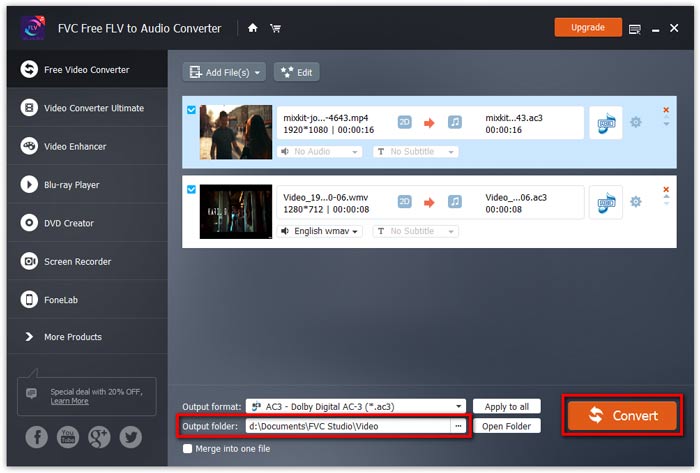
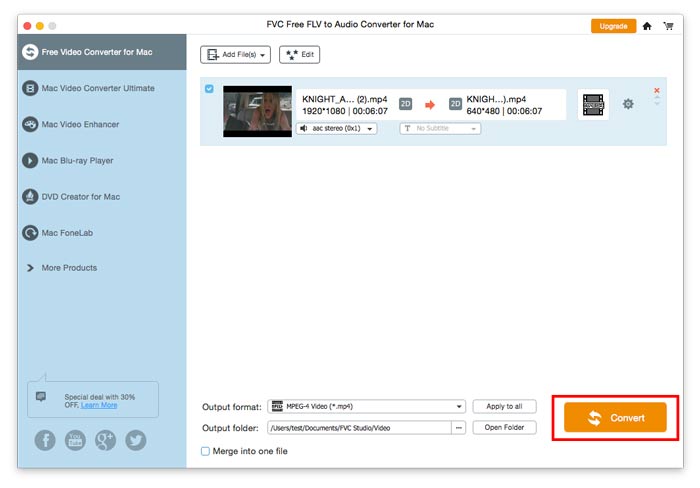
Go to Output folder to choose the destination folder for saving output files, and then click OK button to return to the main window. Finally, click the Convert button to start the conversion.

Indítsa el az átalakítást

Használati útmutató

Video / Audio átalakítási megoldások

Fogj neki

Az FVC Free FLV to Audio Converter a legjobb ingyenes video-audio átalakító. Hangsávokat tud kibontani az FLV videofájlból. Sőt, támogatja az audio fájlok konvertálását különböző hangformátumok között.
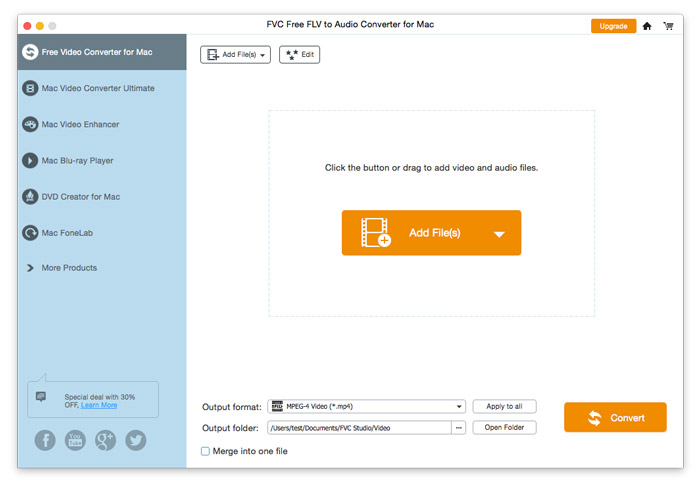
Fő interfész

Letöltés és telepítés

Töltse le a telepítőcsomagot a számítógép operációs rendszere alapján. Ezután kattintson duplán a telepítőfájlra, és kövesse a képernyőn megjelenő utasításokat a program telepítéséhez.

preferenciák

Before you start the conversion, it’s recommended to tweak the default settings. You can click the Menu icon and click on Preferences… to configure the specific settings. For example, you are free to choose the output folder to store your converted files.

preferenciák

Konvertálja az FLV-t audio-ba

Most követheti ezeket a lépéseket az FLV fájlok audio formátumokká konvertálásához.

Step 1. Launch FVC Free FLV to Audio Converter

Indítsa el az FVC Free FLV to Audio Converter alkalmazást, és meglátja annak tiszta felületét.

Fő interfész

Step 2. Add an FLV file into the program

Click the Add File(s) button and choose FLV files you want to process in the dialogue opening subsequently. After the files are added to the program, they will be displayed on the file list.

Add hozzá az FLV fájlokat

Step 3. Select the output format

Click to open Output format drop-down list, then choose the audio format from the General Audio profile list. It can convert your FLV files to MP3, WMA, AAC, M4A, and so on.

Válassza az Audio Output lehetőséget

If you’re not satisfied with the original profile parameter settings, you can click the Cogwheel icon and adjust the encoder, channel, sample rate, and audio bitrate in the Profile settings window.

Profilbeállítások

Step 4. Start converting FLV to Audio

Go to Output folder to choose the destination folder for saving output files, and then click OK button to return to the main window. Finally, click the Convert button to start the conversion.

Indítsa el az átalakítást