


 Video Converter Ultimate
 Screen Recorder
 Videó javítás
Hogyan vágjunk GIF-et a legjobb GIF-vágók segítségével
A megfelelő GIF-ek kiválasztása az üzenethez elengedhetetlen, hogy a mondanivalódhoz illő hangnemet tudd átadni. Előfordul azonban, hogy egyes GIF-eket meg kell vágni, hogy a valódi szándékuk egyértelműen látható legyen. Ha a GIF-jeidet vágni szeretnéd, a minőségük nem romolhat, és meg kell őrizniük az eredeti képkockasebességet (fps) is. A megfelelő vágóeszköz kiválasztása ehhez néha nehéz lehet, mert nem minden eszköz kínál vágási funkciót. Ráadásul azok közül is, amelyek tudnak vágni, van, amelyik lerontja a GIF minőségét és fps-ét. Ebben a cikkben kiválaszthatod a számodra legjobb GIF-vágó programot; az összes felsorolt eszközt már leteszteltük, hogy megbízható tapasztalatokat adjunk át. Emellett bemutatjuk a legjobb GIF-vágókat minden fontos platformra, és azt is, hogyan kell őket használni. Olvass tovább, hogy mindent megtudj.

1. rész. A legjobb GIF-vágó, amely támogatja a Windows és Mac operációs rendszereket
1. FVC Free Video GIF Maker
Ez az eszköz minden fontos platformon – Windows és Mac – is elérhető. Ez a legjobb animált GIF-vágó, amelyet a FVC fejlesztett, a neve: FVC Free Video to GIF Maker. A szoftver lehetővé teszi a felhasználók számára, hogy meglévő GIF-jeiket tovább alakítsák és javítsák, vagy akár teljesen új GIF-eket hozzanak létre. Ha GIF-et szeretnél vágni, ez az eszköz internetkapcsolat nélkül is segít ebben. Így a GIF-jeidet könnyedén, hatékonyan és jól láthatóan megkülönböztethetőre vághatod. Ha meg szeretnéd tudni, hogyan kell GIF-et vágni, kövesd az alábbi lépéseket.
1. lépés. Telepítsd az eszközt a meghajtóra, és állítsd be a preferenciákat az igényeidnek megfelelően.
Ingyenes letöltésWindows 7 vagy újabb rendszerhezBiztonságos letöltés
Ingyenes letöltésMacOS 10.7 vagy újabb rendszerhezBiztonságos letöltés
2. lépés. Miután elindítottad az eszközt, egy ehhez hasonló mini-felület fog megjelenni a képernyőn.
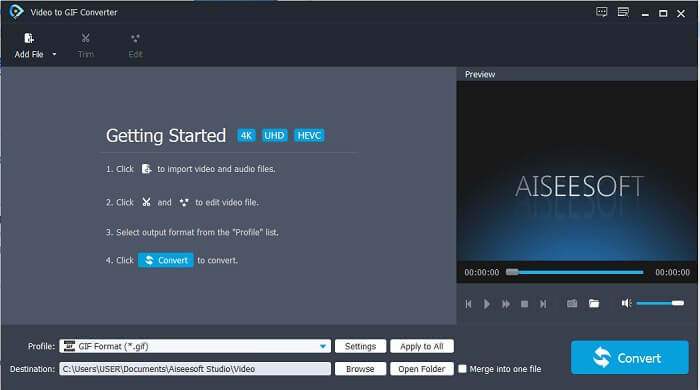
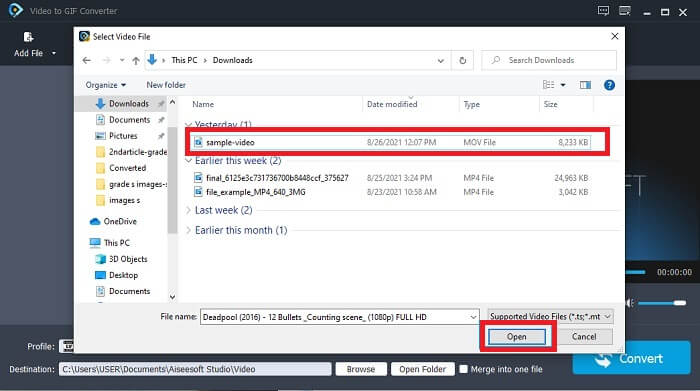
3. lépés. Kattints az Add File (Fájl hozzáadása) gombra, vagy egyszerűen húzd és dobd a videófájlt az eszköz felületére.
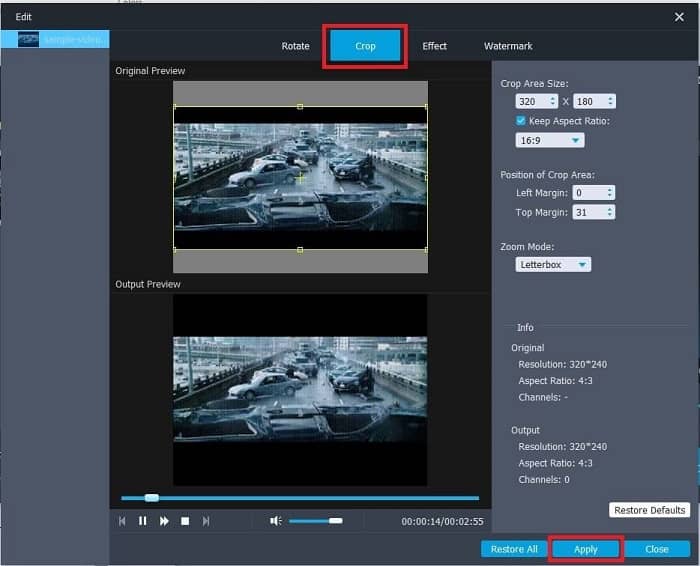
4. lépés. Kattints az Edit (Szerkesztés) gombra a GIF továbbjavításához. Lépj a Crop (Vágás) részhez, és állítsd be a GIF méretét. Megváltoztathatod az Aspect Ratio (Képarány) és a Zoom Mode (Nagyítási mód) beállításokat is. Kattints az Apply (Alkalmaz) gombra, hogy elmentsd az elvégzett módosításokat.
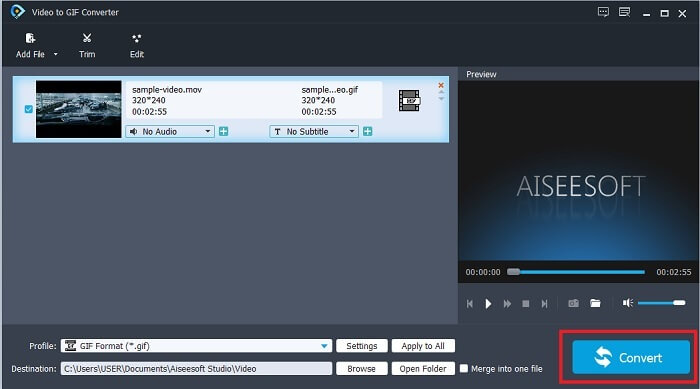
5. lépés. Kattints a Convert (Konvertálás) gombra a videó GIF-fé alakításának megkezdéséhez. Ha az átalakítás befejeződött, a végső kimenetet a fájlkezelőben ellenőrizheted a videó nevének beírásával.
Előnyök
- Az összes kisebb funkció elérhető itt.
- Sokkal jobb, mint az online eszköz és néhány letölthető eszköz is.
- Ezzel az eszközzel könnyedén létrehozhatja GIF-jeit.
Hátrányok
- Az Ultimate verzió által biztosított főbb funkciókat nem használhatja.
- A prémium verzió helyett a kisebb formátumú videókat támogatja.
2. Video Converter Ultimate
Az eszköz ingyenes verziója elvégezheti az egyszerű munkát, de prémium verziója a legjobb GIF-vágó. A Video Converter Ultimate nem csak a névben rejlik, hanem abban is, hogy ez az eszköz a legjobban alkalmas bármilyen videó GIF-fájllá konvertálására. Az ingyenes verziótól és az alábbi eszköztől eltérően ez az eszköz az egyszerű GIF-et még pompásabbá teheti. Alakítsa át GIF-jét kiemelkedővé azáltal, hogy olyan effektusokat ad hozzá, amelyeket ez az eszköz csak biztosít. Ezenkívül lehetővé teszi a videók GIF formátumúvá alakítását, például MP4-ből GIF-be, videók egyesítését, 3D készítőt és még sok mást. Tehát használja ezt az eszközt személyes vágógépként, és soha nem fog cserbenhagyni. Ezenkívül olvassa tovább az alábbi lépéseket, hogy megtudja, hogyan vághatja le a GIF-et, hogy konkrétabb üzenetet küldjön a vevőnek.
1. lépés. Mielőtt használni tudnád ezt az eszközt, le kell töltened. Telepítsd a meghajtóra, módosítsd a beállításokat az igényeidnek megfelelően, majd kattints a Finish (Befejezés) gombra, hogy az eszköz elinduljon a képernyődön.
Ingyenes letöltés Windows 7 vagy újabb rendszerre Biztonságos letöltés
Ingyenes letöltés macOS 10.7 vagy újabb rendszerre Biztonságos letöltés
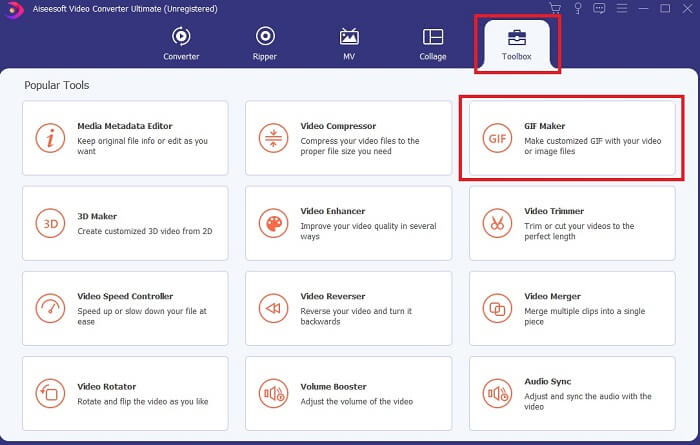
2. lépés. Ha az eszköz teljesen letöltődött a meghajtóra, egy könnyen kezelhető felület jelenik meg a képernyőn. Kattints a menüsorra (Toolbar), majd a toolbar menüben válaszd a GIF Maker (GIF-készítő) opciót.
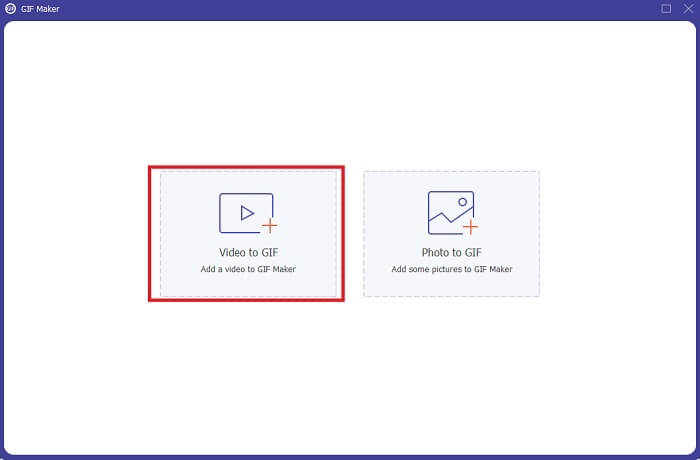
3. lépés. A videó hozzáadásához kattints a Video to GIF (Videóból GIF) lehetőségre, és keresd meg azt a GIF-et (vagy videót), amelyet vágni vagy szerkeszteni szeretnél. A videó kijelölése után kattints az Open (Megnyitás) gombra a GIF Maker elindításához.
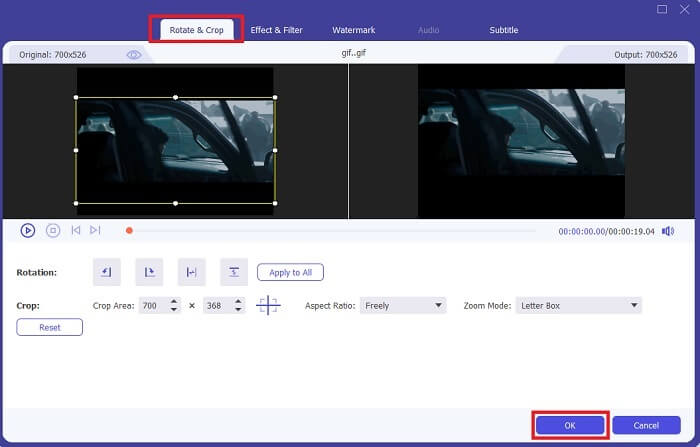
4. lépés. Kattints a csillag ikonnal jelölt gombra a szerkesztés elindításához. Válaszd a Rotate & Crop (Forgatás és vágás) lehetőséget a GIF vágásához. Ezen felül effekteket és szűrőket, vízjelet és feliratokat is hozzáadhatsz. Ha minden beállítással elkészültél, kattints az OK gombra a módosítások mentéséhez.
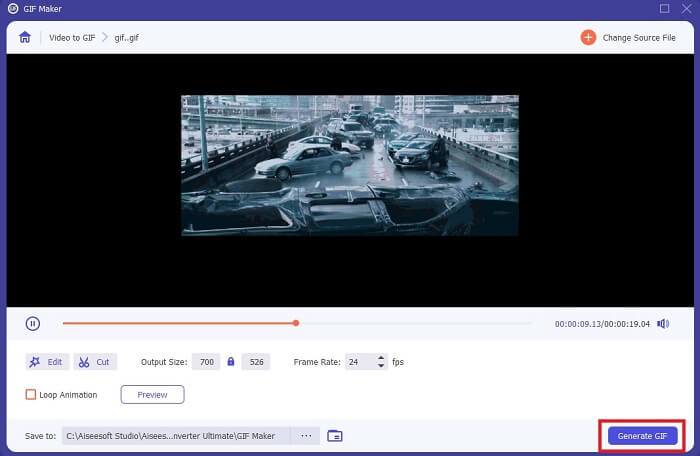
5. lépés. Állítsd be azt a helyet, ahová a végső kimenetet menteni szeretnéd, hogy később könnyebben megtaláld. Kattints a Generate GIF (GIF létrehozása) gombra az átalakítás elindításához. Amint a konvertálás 100% kész, keresd meg a végső fájlt azon a helyen, ahová menteni szeretted volna, vagy a fájlkezelőben.
Előnyök
- Az Ön által használt eszköz, ha a GIF-et sokkal interaktívabbá szeretné javítani. Használd a fantáziádat, hogy fűszerezd a dolgokat a GIF-ekbe.
- Lenyűgöző kimenetté teheti a GIF-et azáltal, hogy felhasználja azokat a főbb funkciókat, amelyeket a másik prémium verzió nem tud biztosítani.
- Több mint egymillió felhasználó választja ezt az eszközt első számú prémium verziójú eszközként.
Hátrányok
- Az eszköz használatához először fizetni kell, de az biztos, hogy nem olyan drága. Tehát nem kell kevesebbre számítania, ha megvásárolta ezt az eszközt.
- Töltse le az eszközt, mielőtt elindítja. Még ha nincs interneted, akkor is használhatod ezt az eszközt, mert nem internetfüggő.
2. rész. Az 5 legjobb GIF-vágó, amelyhez az interneten keresztül hozzáférhet
1. iLoveIMG
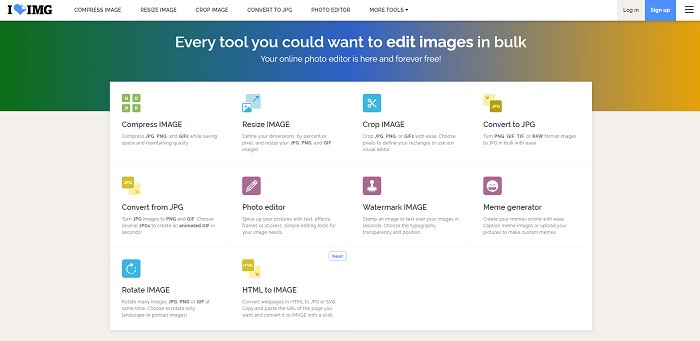
Vágd meg a GIF-jeidet ezzel az online GIF-vágóval. Az iLoveIMG az egyik legjobb online GIF-, JPG- és PNG-vágó. Bár a videókat nem tudja GIF-formátumba konvertálni, mert kizárólag a GIF-, JPG- és PNG-képek továbbfejlesztésére koncentrál, a weboldal felülete a vártnál is jobb: nemcsak egyszerű, hanem kifejezetten interaktív is. Így nem fogsz unatkozni használat közben. Értékelésünk szerint 10-ből 7 pontot érdemel, ami egy online, böngészőalapú alkalmazásnál kifejezetten jónak számít.
Előnyök
- A legjobb a GIF, JPG és PNG javításához.
- A weboldal felülete elképesztően szép.
- Nem kell letölteni.
Hátrányok
- Fennáll az adatvesztés lehetősége, ha a kapcsolat megszakadt.
- A videó formátumot nem konvertálhatja GIF formátummá.
2. RedKetchup
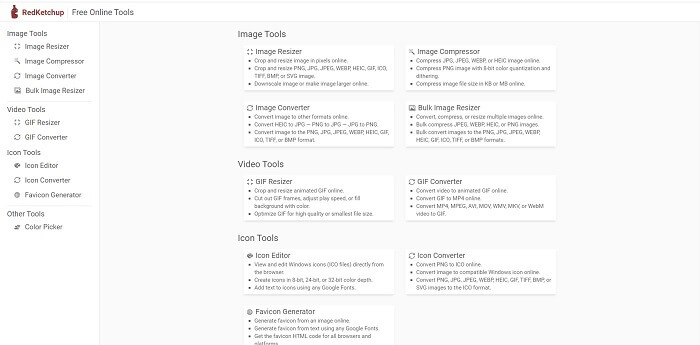
Ha az iLoveIMG mégsem válik be, érdemes kipróbálnod ezt az online GIF-vágót. A RedKetchup nagyon informatív, mert minden szerkesztőeszközéhez részletes leírást ad. Így akkor is könnyen megérted, hogyan működik egy-egy funkció, ha korábban még nem találkoztál vele. Emellett a képeidet GIF-, PNG-, JPG-, WEBP- és egyéb formátumokra is konvertálhatod. Több formátumot támogat, mint az iLoveIMG, viszont a hátránya, hogy a weboldal felülete meglehetősen unalmas: a teljes háttér fehér, és gyakorlatilag csak a RedKetchup név és ikon színes rajta.
Előnyök
- Több képformátumot támogat, mint az iLoveIMG.
- Minden eszközfunkcióhoz tartozik egy rövid leírás, így a felhasználó megértheti a funkcióit.
- Ez egy ingyenes online eszköz.
Hátrányok
- Ennek az eszköznek a weboldala nagyon unalmas a monoton színe miatt.
- Ha az internet instabil, előfordulhat, hogy a fájl nem kerül megfelelően mentésre.
3. Kapwing
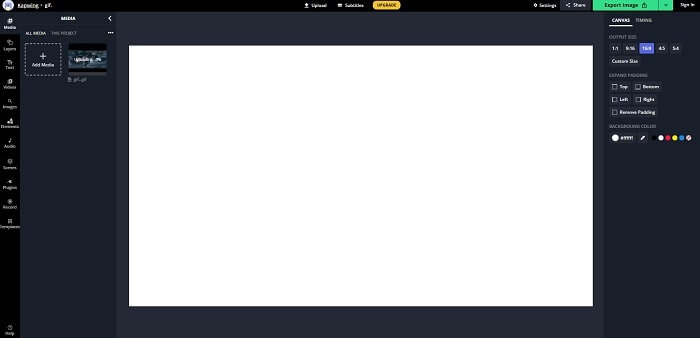
Ennek az eszköznek szinte ugyanazok a funkciói vannak, mint a Photoshopnak, csak online érhető el. Ez a legjobb online GIF frame cropper, vagyis képkocka-alapú GIF-vágó. A Kapwing arról ismert, hogy segít tökéletes GIF-eket készíteni, amelyeket aztán megoszthatsz a barátaiddal. Az első két eszköztől eltérően ez néhány videóformátumot is támogat, amelyeket GIF-formátumba alakíthatsz. Bár az eszköz használatának elsajátítása valamennyi időt igényel, a befektetett idő bőven megtérül. Ha viszont csak egyszerű GIF-et szeretnél készíteni, arra is kiváló. Ennek az eszköznek szinte ugyanazok a funkciói vannak, mint a Photoshopnak, csak online érhető el. Ez a legjobb GIF frame cropper online. A Kapwing arról ismert, hogy segít tökéletes GIF-eket készíteni, amelyeket aztán megoszthatsz a barátaiddal. Az első két eszköztől eltérően ez néhány videóformátumot is támogat, amelyeket GIF-formátumba alakíthatsz. Bár az eszköz használatának elsajátítása valamennyi időt igényel, a befektetett idő bőven megtérül. Ha viszont csak egyszerű GIF-et szeretnél készíteni, arra is kiváló.
Előnyök
- Az eszköz webhelyének felülete szinte ugyanazt a hangulatot kölcsönzi Önnek, mint a Photoshop.
- Alakítsa át videóját GIF formátumba.
- Alapvető szerkesztési funkciók állnak rendelkezésre.
Hátrányok
- A videó végső kimenetének feldolgozása mindig az internet sebességétől függ. Tehát sok türelemre van szükség a végső eredmény elkészítéséhez.
- Regisztrálnia kell a vízjel eltávolításához a kimenetről. Tehát minden frissítésről e-mailt és néhány bosszantó bejelentést várjon. Mert engedélyezted, hogy hozzáférjenek a fiókodhoz.
4. GIFGIF-ek
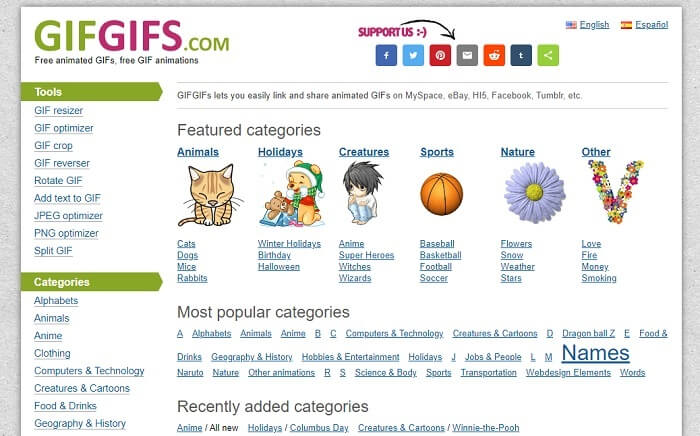
Ezzel a minőségromlás nélküli GIF-vágóval vághatod meg a GIF-jeidet. A GIFGIFs online a legjobb, előre elkészített GIF-eket kínálja. Kategóriák szerint választhatsz – például ábécé, sport, anime, ruházat stb. – és a legjobb eszközöket kapod a GIF-jeid javításához. Emellett JPG- és PNG-képek optimalizálására is használhatod.
Előnyök
- Ez egy jó választás, hogy javítsa a GIF-et jobbá.
- Támogatja a JPEG, PNG és GIF optimalizálását.
- Válasszon már kész GIF-eket a kategória szakaszaiban.
Hátrányok
- Nem biztosít keresősávot, így nehéz megtalálni a használni kívánt tökéletes GIF-et.
- A felület rendben van. Semmi különös, vagy mondjuk azt, hogy nem jó, de nem is rossz.
5. VEED.IO
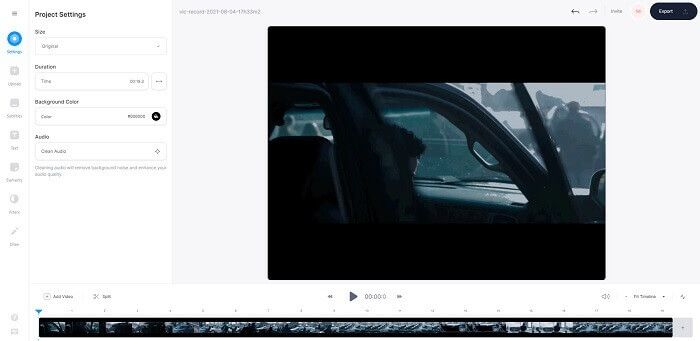
Válassza ezt az első számú ingyenes online GIF-vágóként, de ha akarja, prémium verzióra is frissíthető. A VEED.IO az egyik legjobb online eszköz a GIF-ek jobbá tételére. De az eszköz ingyenes verziója csak 50 MB GIF fájlméretet támogat, és további fájlméret hozzáadásához meg kell vásárolnia az eszköz prémium verzióját.
Előnyök
- Kiváló szerkesztési funkciót biztosít a GIF jobbá tételéhez.
- Egyszerű felhasználói felület.
- Feliratokat is hozzáadhat, ha akar.
Hátrányok
- Nem biztosít 3D készítőt a 2D képek javításához.
- Egyes esetekben a szoftver összeomlik, amikor megpróbálja nagyítani az idővonalat.
3. rész. GYIK a GIF Cropperről
Van valami jobb formátum a GIF-nél?
Bár köztudott, hogy a GIF a legjobb mozgóképformátum a weben. De tudtad, hogy van jobb formátum a GIF helyett? Ez az APNG. Ez a formátum színesebb palettát biztosít, mint a GIF, és jobb a tömörítésben is. De használhat WEBP-t, MNG-t, FLIF-et és AVIF-et is.
Mi az oka annak, hogy GIF-eket készítenek?
1987 végén egy Steve Wilhite nevű szakember feltette magának a kérdést, vajon létrehozható-e olyan képformátum számítógépes megjelenítésre, amely kis fájlméretet kínál – így született meg a GIF. Ha többet szeretnél megtudni a GIF-ekről, kattints ide.
Melyik a jobb? JPG vagy GIF?
A JPG formátum részletesebb képet biztosít, mivel széles színskálát támogat, így a legjobb a fényképek készítésében. A GIF kis mennyiségű színpalettát biztosít, de jó statikus kép készítésére.
Következtetés
Összefoglalásként: olyan GIF-vágó eszközt kell választanod, amely pontosan azt a vágási szabadságot nyújtja, amire szükséged van, anélkül, hogy a GIF minősége romlana, még akkor is, ha erősebben belenyúlsz a képkivágásba. Ugyanakkor egyre világosabb, hogy érdemes a FVC által fejlesztett csúcseszközt választanod, mert ez kínálja a legtöbb GIF-funkciót, amelyeket hozzáadhatsz az animációidhoz, hogy azok látványosabbak legyenek a többi GIF-nél. A Video Converter Ultimate használatával a GIF-ek vágása minden eddiginél egyszerűbbé válik.
-
 Bemutató a GIF tömörítésére és a fájlméret kiváló minőségű csökkentésére
 Itt van két egyszerű módszer a GIF tömörítésére a számítógépen vagy a mobiltelefonon. Használhatja az FVC Free Online Video Compressor és a Photoshop alkalmazásokat, amelyek különböző aspektusokban csökkentik a GIF fájlméretet.
-
 GIF Player - 5 legjobb GIF lejátszó Windows PC-re, Mac-re, Android-ra és iPhone-ra
 Milyen program nyitja meg a GIF fájlokat? Hogyan tekinthetem meg a GIF-eket Androidon? Van-e az iPhone-nak GIF-lejátszója a GIF-ek megnyitásához? Ez a bejegyzés 5 legjobb GIF-lejátszót oszt meg az Ön számára.
-
 Az AVI videók konvertálása animált GIF fájlokká Windows / Mac rendszeren
 Szeretné kiválasztani az érdekes AVI szegmenseket a GIF mémek létrehozásához? Ez a cikk megmondja a 2 legjobb módszert az AVI videók klipelésére és az AVI animált GIF fájlokká történő ingyenes konvertálására.
