


 Video Converter Ultimate
 Screen Recorder
 Videó javítás
Top 9: A legjobb animált GIF -szerkesztő szoftver kezdőknek [Online és offline]
A legjobb módja annak, hogy kifejezze érzéseit, ha GIF -eket illeszt be üzenetébe. Fő célja animált és statikus képek tárolása és támogatása. Ismeretes, hogy a GIF -ek jobban betölthetők, mint a weben elérhető más formátumok, és ez sokkal kisebb. Izgalmasabb GIF -et látni, nem csak képet. De nem minden az interneten keresett GIF nyújtja azt az érzést, amelyet el szeretne juttatni.
Tehát ahelyett, hogy GIF-eket keresnének az interneten, egy GIF‑szerkesztő szoftvert használnak, hogy saját GIF-eket készítsenek. Talán azon gondolkodsz, milyen eszközt kellene használnod ahhoz, hogy olyan pazar GIF-et készíts, amely lenyűgözi a címzettet. Íme néhány lista a legjobb GIF‑készítő eszközökről. Az alábbi összes eszközzel lehet konvertálni, szerkeszteni, készíteni és még sok minden mást is GIF formátumban. Ha tehát a megfelelő feladathoz keresed a megfelelő eszközt, olvass tovább, hogy többet tudj meg ezekről a programokról.

1. rész. A legjobb offline GIF -szerkesztő, amely hatékonyan működik PC -n és Mac -en
1. FVC Free Video GIF Maker
Konvertáld a kedvenc videódat GIF formátumba, hogy könnyedén elküldhesd a barátaidnak, a családodnak vagy bárkinek. Ez az FVC Ingyenes Video–GIF Készítő lehetőséget ad arra, hogy saját GIF-eket hozz létre. Fő feladata bármilyen videófájl‑formátum – legyen az MP4, MOV, AVI stb. – átalakítása GIF formátummá. Emellett vágási és szerkesztési funkciókat is biztosít. Ez a GIF‑szerkesztő minden operációs rendszeren elérhető. Hogy tudd, hogyan kell használni ezt az eszközt, íme néhány lépésről lépésre követhető útmutató.
1. lépés. Töltsd le az eszközt a meghajtódra, telepítsd, majd állítsd be.
Ingyenes letöltésWindows 7 vagy újabb rendszerhezBiztonságos letöltés
Ingyenes letöltésMacOS 10.7 vagy újabb rendszerhezBiztonságos letöltés
2. lépés. Egy ehhez hasonló felület fog megjelenni a képernyőn. Kattints az Fájl hozzáadása gombra, vagy húzd és ejtsd a fájlt az átalakító ablakába.
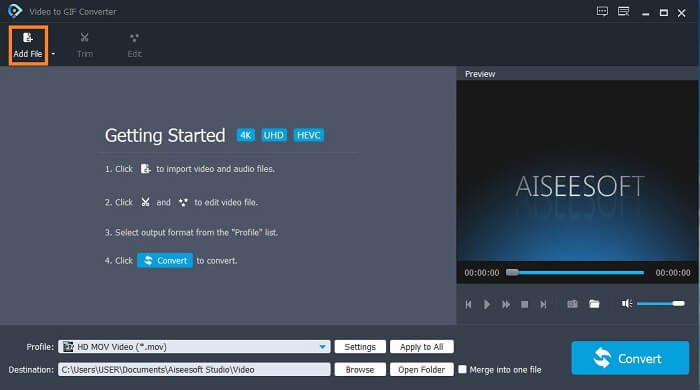
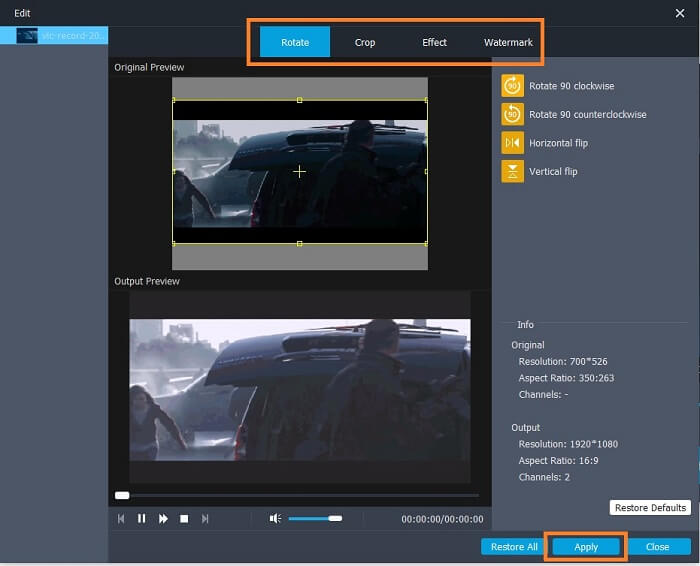
3. lépés. Miután hozzáadtad a GIF-et, vághatod (Trim) is, hogy rövidebb legyen, majd kattints az OK gombra a módosítások mentéséhez. Emellett forgathatod, vághatod (crop), effekteket adhatsz hozzá, illetve vízjelet is tehetsz a GIF-re a Szerkesztés menüben, és a Alkalmaz (Apply) gombra kattintva mentheted a módosításokat.
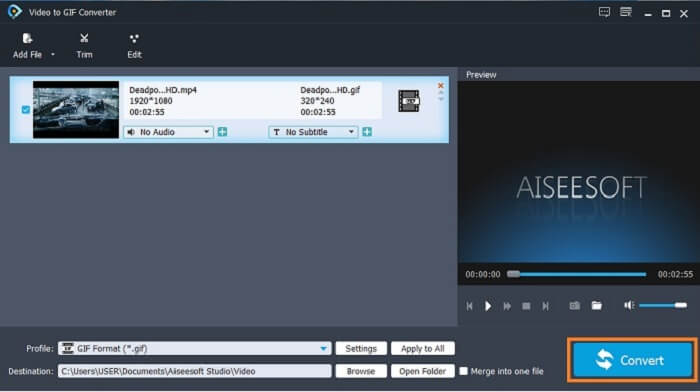
4. lépés. Válaszd ki a célmappát, ahová a végső fájl kerül. A konvertálás elindításához kattints a Konvertálás (Convert) gombra.
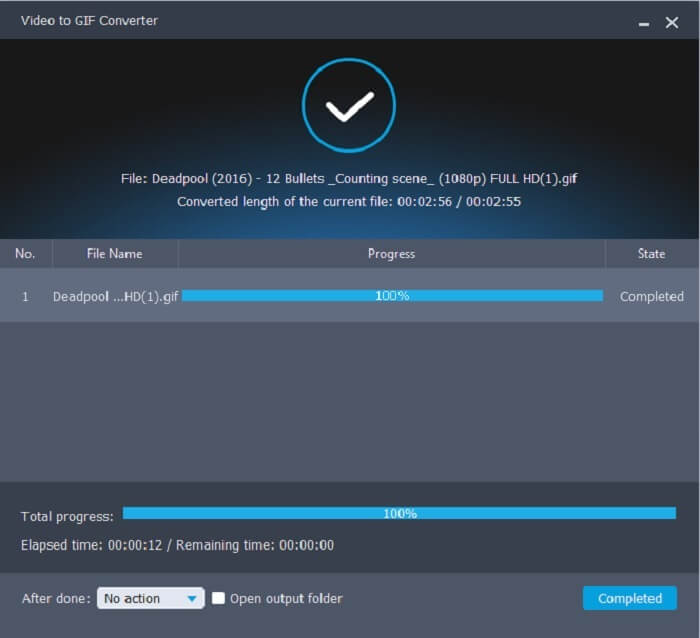
5. lépés. Ha minden elkészült, egy ilyen üzenetet látsz a kijelzőn; ez azt jelenti, hogy az átalakítás befejeződött.
Előnyök
- A legjobb ingyenes eszköz a videó formátum GIF -re konvertálására.
- Minden ismert platformon elérhető, és mindig hihetetlen teljesítményt produkál.
- Akkor is működik, ha nincs internet.
Hátrányok
- Nem minden végső tulajdonságot mutatunk be itt.
- Ez egy letölthető eszköz is, mint a prémium verzió.
2. Video Converter Ultimate
Ismert, hogy a fenti GIF‑szerkesztő első osztályú megoldást nyújt GIF‑készítéshez. De tudtad, hogy létezik egy másik eszköz, amely még ennél is jobb – és a többinél is? A Video Converter Ultimate méltón viseli a nevét, mivel az egyik legjobb GIF‑készítő, és minden főbb szoftverplatformon elérhető. Nemcsak GIF‑készítésben a legjobb, hanem konvertálóként és sok más funkcióban is jeleskedik. Adj effekteket a GIF-edhez, hogy kitűnjön a többi közül. Ha a barátaiddal versenyzitek, ki készíti a legjobb GIF-et, és nyerni szeretnél, ez az eszköz adhatja meg számodra a „wow” hatást. Hogy megtudd, hogyan kell használni, pontosan kövesd az alábbi lépéseket a sikeres GIF érdekében.
1. lépés. Kattints a letöltés gombra, és telepítsd a programot a számítógép meghajtójára. Állítsd be a beállításokat, majd kattints a Befejezés gombra a mentéshez és az eszköz indításához.
Ingyenes letöltés Windows 7 vagy újabb rendszerre Biztonságos letöltés
Ingyenes letöltés macOS 10.7 vagy újabb rendszerre Biztonságos letöltés
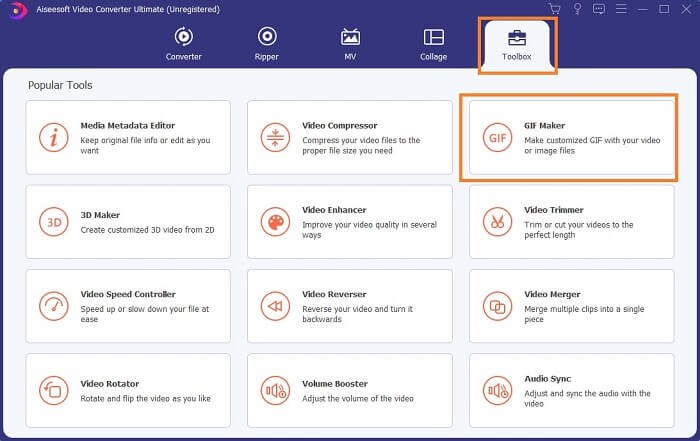
2. lépés. Ha az eszköz már fut a rendszereden, egy ehhez hasonló felület ugrik fel a képernyőn. Menj a Eszköztár (Toolbox) menüpontra, majd válaszd a GIF Maker opciót a GIF‑készítés indításához.
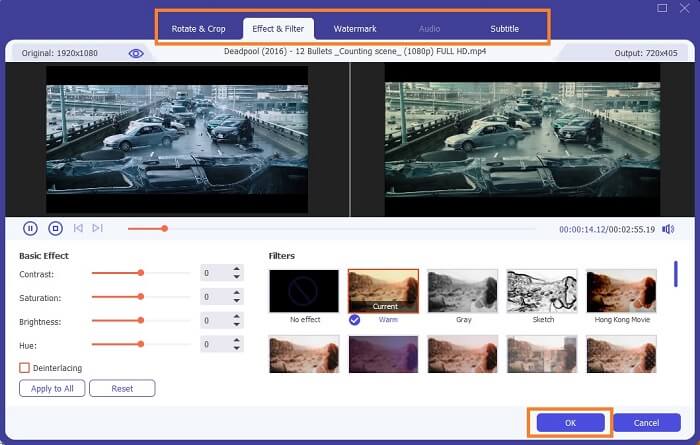
3. lépés. Kattints a Video to GIF lehetőségre, és válaszd ki, melyik videót szeretnéd konvertálni. A videófájl kiválasztása után szerkesztheted is a videót, például forgathatod és vághatod, effektszűrőt, vízjelet és feliratot adhatsz hozzá. A módosítások mentéséhez kattints az OK gombra.
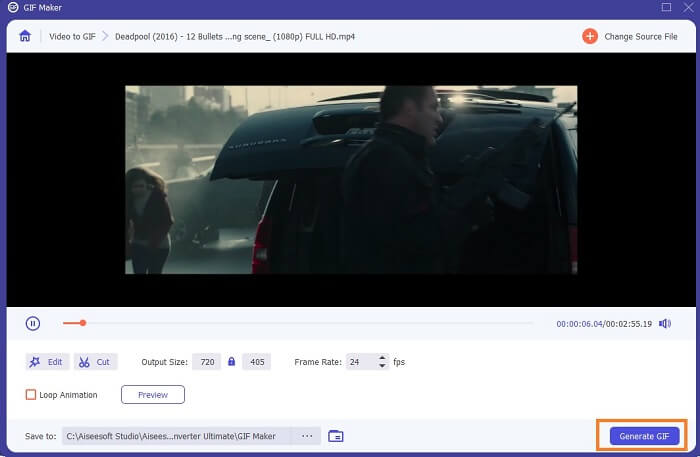
4. lépés. Kattints az Előnézet (Preview) gombra, hogy megnézd a létrehozott videó első 10 másodpercét. Nyomd meg a Generate GIF gombot a konvertálás elindításához.
5. lépés. Ha minden elkészült, keresd meg a fájlt a fájlkezelődben, és nézd meg vagy küldd el a végső eredményt.
Előnyök
- A legjobb Video Converter GIF -hez a GIF javítására szolgáló végső eszközzel.
- Támogatja az összes ismert és ismeretlen video-audio formátumot a weben.
- Többcélú szerszám kiváló végkimenettel.
Hátrányok
- Ez egy fizetős eszköz, de olcsóbb.
- Használat előtt le kell tölteni a tárhelyre.
2. rész: A legjobb online GIF -szerkesztők
1. Ezgif
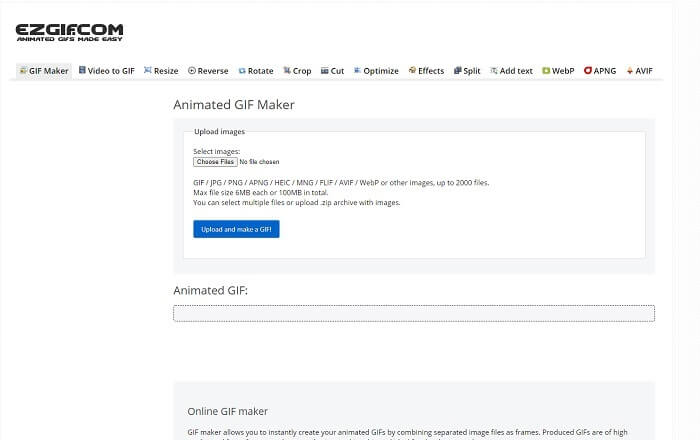
Az egyik online GIF‑szerkesztő, amellyel valószínűleg már találkoztál az interneten. Az Ezgif az egyik legismertebb GIF‑készítő. Bár ez az eszköz számos funkciót kínál, mint például a videó forgatása, vágása, visszafelé játszása stb., ezek mind különálló modulokban érhetők el. Így ahelyett, hogy egyetlen helyen készítenéd és szerkesztenéd a GIF-et, folyton át kell helyezned a fájlt a különböző szerkesztőeszközökbe, ami elég körülményes. Emellett a felület fehér hátterű, ami ugyan egyszerű, de unalmas látványt nyújt. Úgy tűnik, az online eszköz felülete régóta nem kapott frissítést.
Előnyök
- Helyszíni eszköz különböző lehetőségekkel.
- A weboldal eszköz egyszerű.
- Hatékony a GIF -ek készítésében.
Hátrányok
- Mindegyik 6 MB -ra és összesen 100 MB -ra korlátozódik.
- Nem felhasználóbarát, mert az eszköz összes funkciója megtalálható a webhelyen. És kissé unalmas nézni a sima fehér háttere miatt.
2. VEED.IO
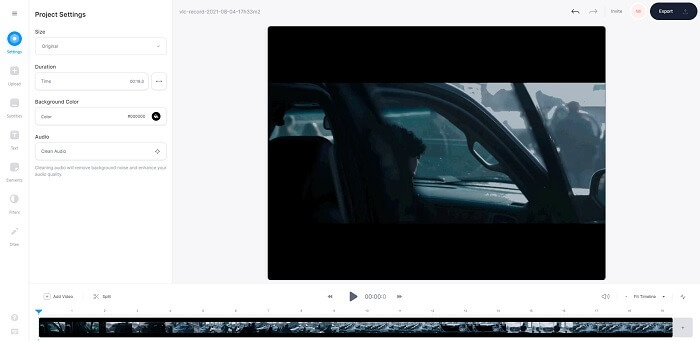
Egy másik online GIF‑szerkesztő eszköz GIF‑készítéshez a VEED.IO. Ezzel az eszközzel létrehozhatod, szerkesztheted és konvertálhatod a saját videódat GIF formátumba. A fő weboldal kinézete valamivel tetszetősebb, mint az Ezgif-é. Viszont amikor elkezdesz GIF‑eket készíteni online, az oldal gyakran nem reagál megfelelően, és biztonság szempontjából is kérdéses. Ne add meg a jelszavadat vagy a bankkártyaadataidat, mert előfordulhat, hogy egy támadó ellophatja őket.
Előnyök
- Jobb ügyfélszolgálat.
- Az eszköz profi verzióját biztosítja.
- Könnyű hozzáférés az interneten keresztül.
Hátrányok
- A webes eszköz védtelen. Szóval, látogasson el saját felelősségére.
- Nincs 3D szerkesztési funkció.
3. Giphy
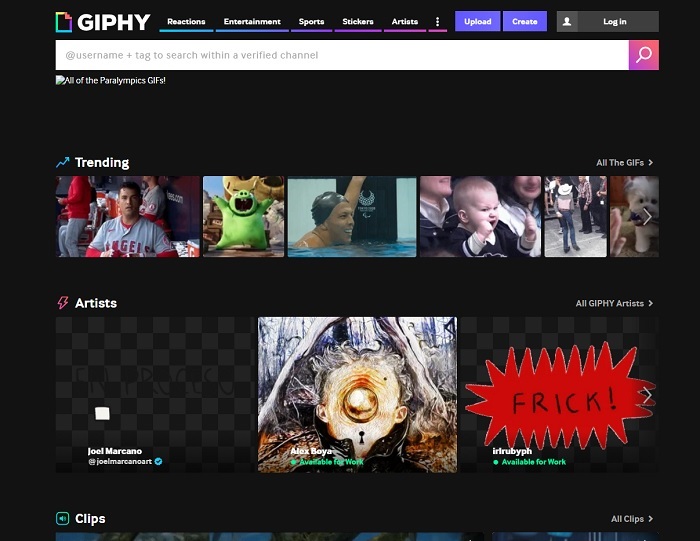
A Giphy egy online animált GIF‑szerkesztő. Ez az eszköz mintagifeket kínál, például reakciókat, szórakoztató tartalmat, sportot és matricákat. Bár az egyik legjobb GIF‑készítőnek számít, használata előtt fiókot kell regisztrálnod. Ez lényegében azt jelenti, hogy a weboldal hozzáférést szerez a fiókodhoz. Ne feledd, hogy a frissítésekről, új funkciókról vagy új GIF-ekről szóló értesítések rendszeresen meg fognak jelenni az e‑mailjeid között.
Előnyök
- Töltsön fel és hozzon létre GIF -eket online.
- A legnagyobb könyvtár ingyenes GIF -ekhez, klipekhez és matricákhoz az interneten.
- A kezelőfelület naprakész és fantasztikusan néz ki.
Hátrányok
- Az eszköz használata előtt regisztrálnia kell. Tehát, ha nem regisztrál vagy nem jelentkezik be, akkor az eszköz nem érhető el.
- A GIF maximális hossza csak 30 másodperc.
3. rész: GIF -szerkesztő alkalmazások Androidon és iOS -en
1. GIPHY: GIF és matrica billentyűzet és készítő
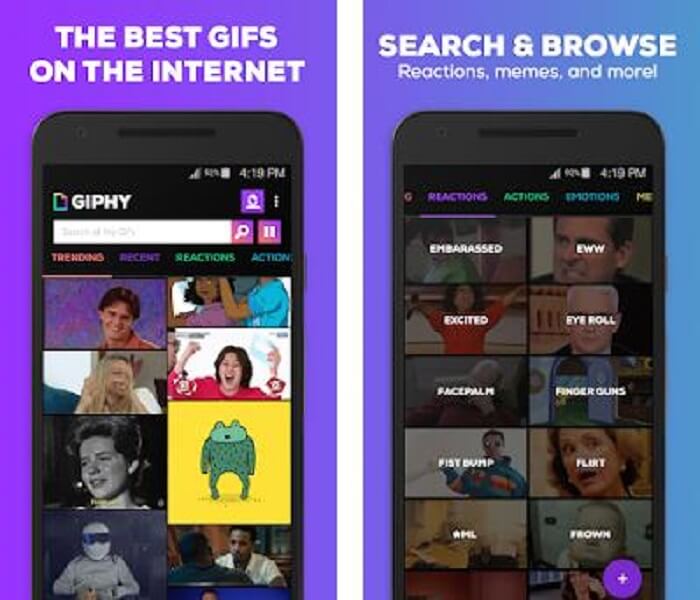
Egy másik GIF‑szerkesztő alkalmazás Androidra és iOS-re a GIPHY: GIF & Sticker Keyboard & Maker. Ez az egyik legnagyobb GIF‑gyűjtemény az egész Play Áruházban és App Store‑ban. De nemcsak kész GIF-eket kínál, hanem saját GIF-et is létrehozhatsz vele. A saját GIF-jeidet is megoszthatod az alkalmazásban. Előfordul azonban, hogy amikor feltöltesz egy GIF-et, amely készítés közben vagy a telefonodon még tökéletesen működött, az app kissé hibásan jeleníti meg: a GIF egyes részei felgyorsulnak, más részek pedig lelassulnak.
Előnyök
- Csodálatos GIF -ek, matricák és videoklipek.
- Kevés hirdetés nincs az alkalmazásban.
- Szerkessze GIF -jeit, és adjon hozzá további esztétikai animációt a GIF -ekhez.
Hátrányok
- Bizonyos esetekben, amikor GIF -eket tölt le ebből az alkalmazásból, állóképeket kap. Ahelyett, hogy letöltötte volna .gif formátumba, egy .jpeg formátumú lett.
- Az alkalmazásba való bejelentkezés kissé bosszantó, mert bizonyos esetekben nem tud megfelelően bejelentkezni, és többet kell tennie.
2. ImgPlay – GIF készítő
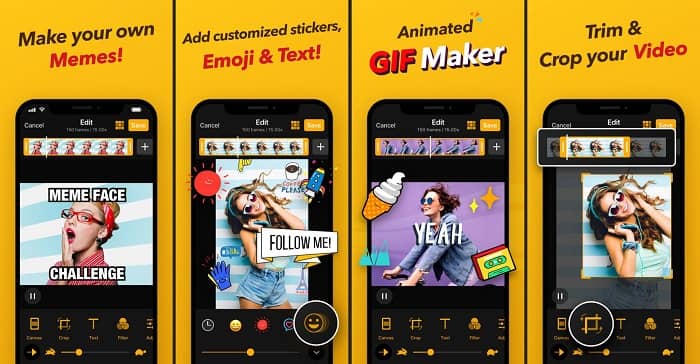
A legjobb és legegyszerűbb módja GIF készítésének, akár videóból, akár képekből. Az Imgplay képeidet vagy videóidat teljesen működő GIF-fé tudja alakítani. Ez az app kiváló funkciókat ad ahhoz, hogy a GIF-ed a lehető legjobban kitűnjön. Ha elmented a végső GIF-et, egy vízjel jelenik meg a GIF jobb alsó sarkában. A vízjel eltávolításához a program prémium verzióját kell megvásárolnod.
Előnyök
- Támogatja az Android és iOS eszközöket.
- Ha az eszköz prémium verzióját vásárolja, alkalmazzon több mint 30 szűrőt a GIF -en, hogy jobb legyen.
- Hozzon létre egyszerűen GIF -fájlokat videóiból és képeiből.
Hátrányok
- Jobban működik iOS -en, mint Androidon. Alapvetően nem állíthatja be a fényerőt, a kontrasztot, a telítettséget és a képkockasebességet, valamint az Android többi fő funkcióját.
- Továbbá ezeken az alkalmazásokon is várjon hirdetéseket. Ezek eltávolításához meg kell vásárolnia a prémium verziót. Az fps is szuper alacsony.
3. GIFX
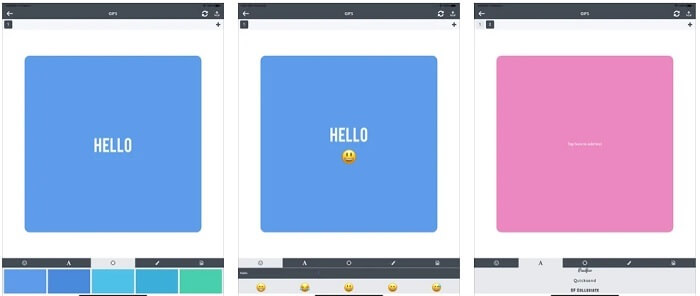
Ez a GIF‑szerkesztő kizárólag iOS‑en érhető el. A GIFX képes elkészíteni azt a GIF-et, amelyet szeretnél. Képeket és videókat is támogat, amelyeket GIF formátummá alakíthatsz. MMS-ben és e‑mailben is megoszthatod. Ezenkívül emojikat is adhatsz a saját GIF-edhez, hogy az érzelmeidet a szöveggel együtt jobban kifejezd.
Előnyök
- Hozzon létre saját animált GIF -et ezzel az alkalmazással iOS rendszeren.
- Támogatja a különböző Apple termékeket, mint például az iPad, az iPhone, az iPod touch és a Mac is.
- Állítsa be a GIF sebességét ezzel az eszközzel.
Hátrányok
- Az eszköz azt mondja, hogy támogatja a videókat, de nem teszi lehetővé, hogy videókat adjon hozzá a GIF -hez.
- Az alkalmazás értékelése csak 1 csillag, és csak 2 értékelést kap, ami szuper alacsony egy alkalmazáshoz.
4. GIF Stúdió
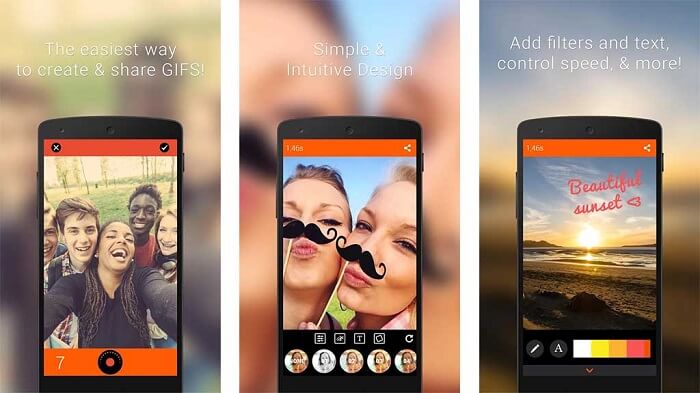
Ha a legjobb GIF‑szerkesztő alkalmazást keresed, akkor a GIF Studio lehet számodra a megfelelő. Lehetőséget ad arra, hogy szabadjára engedd a fantáziádat a GIF‑jeidben. Készíts, szerkessz és játszd le az animált GIF-eket ezzel az appal. Ha azok közé tartozol, akiknek a GIF‑készítés kicsit nehézséget okoz, ez az eszköz megkönnyíti a folyamatot. Emellett számos extra funkciót is kínál, hogy a GIF még látványosabb legyen.
Előnyök
- Több GIF egyesítése egybe.
- Adjon szöveget a GIF -ekhez üdvözlőlap készítéséhez.
- Ossza meg GIF -jeit, és könnyedén mentse el.
Hátrányok
- Mert a fejlesztők egyszerűvé teszik. A felhasználói felület ijesztő. Az alkalmazás használatának megtanulása kissé merev lesz.
- Nem támogatja a GIF -eket, amelyeket egy másik GIF -gyártótól készítettek.
4. rész GYIK a GIF szerkesztővel kapcsolatban
Vannak más formátumok, amelyek képesek tárolni mozgóképeket, mint például a GIF?
30 év után az egyik híres kép-videó formátum. Már versenytársa lett: APNG, AVIF, MNG, WebP és FLIF.
Milyen adattömörítés a GIF?
Veszteségmentes tömörítést használ, így az adatok tömörítésekor nincs minőségveszteség, és a formátum könnyen továbbítható az interneten. Ha a GIF‑ed túl nagy, nézd meg ezt az útmutatót: Hogyan tömörítsünk animált GIF-et kis fájlméretre
Milyen GIF -felvevővel tudok GIF formátumot rögzíteni?
Használhatja az FVC Screen Recorder -t, egy letölthető GIF -felvevőt, amely minden platformon elérhető, és GIF formátumot biztosít. Szuper jó minőséggel és sok más lehetőséggel is. Letöltés FVC Free Screen Recorder for Windows Letöltés FVC Free Screen Recorder for Mac
Következtetés
És most, hogy nagyon világos, hogy a nagyszerű üzenetek továbbításának legjobb módja a GIF -ek használata. Bár a nyers üzenet használata jó, GIF hozzáadása sokkal jobb. Tehát a legjobb GIF -szerkesztő kiválasztása elengedhetetlen ahhoz, hogy a megosztani kívánt üzenet megfelelő hangvételét és egyértelmű nyilatkozatot adjon, vagy vidám hangot adjon hozzá. Válassza ki a végső eszközt a végső GIF létrehozásához, hogy a legjobb benyomást keltse, amelyet megosztani szeretne.
-
 Az AVI videók konvertálása animált GIF fájlokká Windows / Mac rendszeren
 Szeretné kiválasztani az érdekes AVI szegmenseket a GIF mémek létrehozásához? Ez a cikk megmondja a 2 legjobb módszert az AVI videók klipelésére és az AVI animált GIF fájlokká történő ingyenes konvertálására.
-
 [Megoldva] Az FLV -videók ingyenes konvertálása animált GIF -fájlokká
 Ha GIF-eket szeretne létrehozni az FLV videó szegmensekből a jobb küldés érdekében, erről a cikkről többet megtudhat arról, hogyan konvertálhatja könnyen az FLV videókat GIF fájlokká.
-
 [2 Megoldások] Az SWF egyszerű konvertálása GIF -fájlokká ingyenesen
 Ha nem sikerül exportálni a GIF formátumot a Flash szoftveren keresztül, először megpróbálhatja SWF formátumban menteni a fájlokat. Ezután 2 egyszerű módszert tanulhat meg az SWF átalakításáról GIF fájlokká ebben a cikkben.
