


 Video Converter Ultimate
 Screen Recorder
 Videó javítás
Vízjel eltávolítása GIF-ből online [lépésről lépésre]
A GIF-re helyezett vízjel az egyik módja lett a GIF védelmének, de mi van akkor, ha el szeretné távolítani a saját GIF-jére tett vízjelet? Mit kell tennie? A GIF‑készítője tud ilyet? Nincs benne vízjel‑eltávolító? Tudjuk, hogy ez a probléma elég kellemetlen, igaz? De nem kell aggódni, mert ezekre a kérdésekre mind választ kap később, ugyanis találtunk négy, online és offline is használható vízjel‑eltávolítót. Ezeket az eszközöket a piac kínálatából válogattuk ki, hogy a lehető legjobb megoldást kínáljuk arra, hogyan tudja eltávolítani a vízjelet a GIF-ről.

Ezeknek az alkalmazásoknak az áttekintése
| Video Converter Ultimate | Online GIF eszközök | WatermarkRemover.io | Pixlr | PhotoShop | |
| Felbontás | 8K | 1080P | 5K | 8K | 300 ezer |
| Folyamatsebesség | Gyors | Közepes | Közepes | Gyors | A hardvertől függ |
| Hardverkövetelmények | Alacsony | N/A | Közepes | Magas | Nagyon magas |
1. rész: A vízjel gyors eltávolításának legegyszerűbb módja a GIF-ből Windows és Mac rendszeren
A Video Converter Ultimate hatékonyan segít eltávolítani a vízjelet a GIF-ről, akár szeretné, akár nem. Ez az eszköz segíthet vízjel hozzáadásában és eltávolításában is; lényegében egy mindent egyben eszköz, amelyre szüksége lehet Windows vagy Mac rendszeren. Ráadásul ezzel az eszközzel saját GIF‑et is készíthet, és tetszőleges vízjelet adhat hozzá, hogy megvédje az elkészült GIF‑et. Hogy kipróbálja, kövesse az általunk megadott egyszerű lépéseket, és kész is. Így kevesebb mint egy perc alatt vízjel nélküli GIF‑et használhat.
A Video Converter Ultimate előnyei:
◆ A legjobb választás vízjel eltávolítása és vízjel hozzáadása a GIF-hez.
◆ A felhasználóbarát grafikus felület gyorsan segít megérteni, mi történik az eszköz felületével.
◆ A beépített ultragyors konverziós folyamat és a hardveres gyorsítás segíthet a villámgyors importálásban és exportálásban.
◆ Minden platformon, például Windowson és Macen letölthető.
◆ A legjobb GIF-készítő speciális funkcióival rendelkezik, amelyek segítségével az asztalon személyre szabott GIF-eket hozhat létre.
Lépések a vízjel eltávolításához GIF-ről az Ultimate Watermark Remover segítségével
1. lépés. Töltse le a szoftvert a számítógépére az alábbi gombra kattintva. Ezután indítsa el, és töltsön fel egy GIF‑et vagy videót.
Ingyenes letöltés Windows 7 vagy újabb rendszerre Biztonságos letöltés
Ingyenes letöltés macOS 10.7 vagy újabb rendszerre Biztonságos letöltés
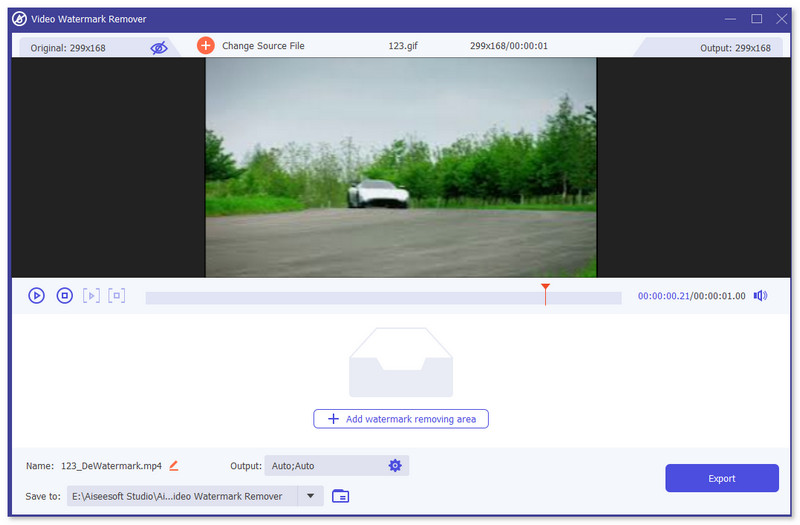
2. lépés. Nyissa meg a vízjel‑eltávolítót, menjen az Eszköztárhoz (Toolbox), és keresse meg a Video Watermark Remover funkciót.

3. lépés. Töltsön fel egy GIF‑et vagy videót, majd kattintson az Export gombra.
Összefüggő:
Vízjel eltávolítása GIF-ből az Adobe Photoshop segítségével
Ha telepítve van az Adobe PhotoShop a számítógépeden, akkor a vízjelek vagy árnyékok eltávolítására is használhatod a képeket. A PhotoShop az egyik legnépszerűbb és leghatékonyabb képszerkesztő eszközként ismert, amely lehetővé teszi effektek hozzáadását, szűrést, objektumok törlését stb. Bár nem egy ingyenes képszerkesztő, 30 napos ingyenes próbaidőszakot kínál. Mostantól követheted az alábbi útmutatót a nem kívánt objektumok eltávolításához a fotóról.
1. lépés. Indítsa el a PhotoShopot a számítógépén. Az Adobe hivatalos weboldaláról ingyen letöltheti a PhotoShopot, és igénybe veheti az ingyenes próbaverziót.
2. lépés. Közvetlenül ráhúzhatja (drag and drop) a szerkeszteni kívánt képfájlt a programra. Emellett a felső menüsorban a Fájl (File) menüpontra kattintva, majd a Megnyitás (Open) lehetőséget választva is kiválaszthat egy helyi fotót a számítógépéről.
3. lépés. Használhatja a Select and Mask eszközt a nem kívánt objektumok kijelöléséhez. Ennél a lépésnél szabadon választhat megfelelő eszközt az eltávolítani kívánt terület kijelöléséhez.
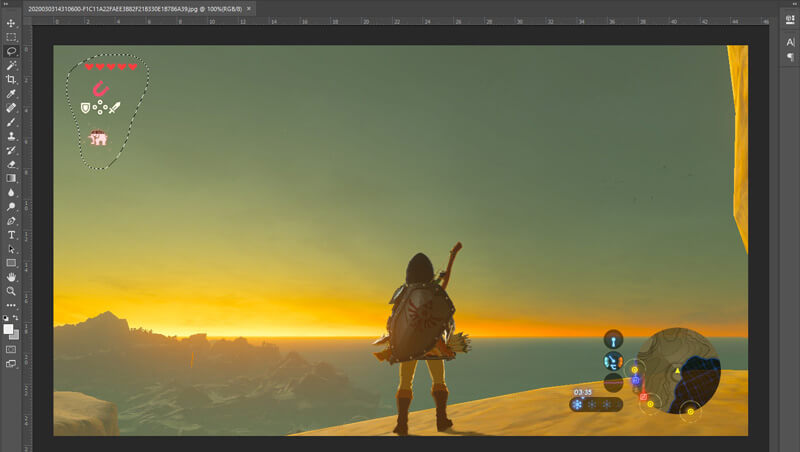
4. lépés. Most a Photoshop Content-Aware Fill eszközére támaszkodva eltávolíthatja az objektumot a fotóról, és a kérdéses részt megfelelő tartalommal helyettesítheti. Viszonylag nézve, ha nem csak egyszerűen le akar törölni bizonyos elemeket a képről, a Content-Aware Fill funkció jobb eredményt adhat.
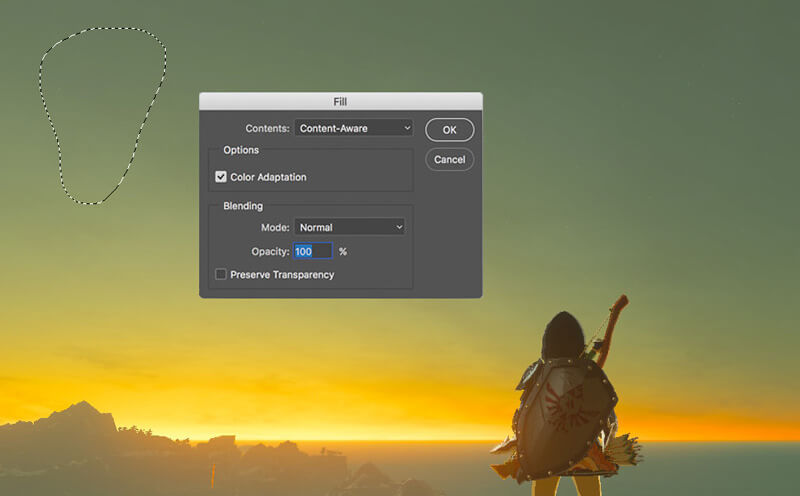
5. lépés. Miután a PhotoShop eltávolította az objektumot, kattintson a Fájl menüpontra, majd a Mentésre (Save), hogy elmentse a szerkesztett képet a számítógépére. A kimeneti formátumként bármely népszerű formátumot választhatja, például JPG, PNG, GIF stb. Itt a Ctrl + S billentyűkombinációval is elmentheti és exportálhatja a képfájlt a PhotoShopból.
2. rész. Hogyan távolítsuk el a vízjelet a GIF Online-ból
Ezekkel az ingyenes online eszközökkel eltávolíthatja a vízjeleket a GIF-ekről. De emlékeznie kell arra, hogy ezek az eszközök nem működnek, ha nincs internetkapcsolata, mivel mindegyik eszköz hálózatfüggő. Ezenkívül használatuk időbe telhet, mert pufferelődik, amikor ezeket a webes eszközöket használja. Tehát, ha meg szeretné tudni az ingyenes GIF-eltávolítót online, olvassa el az alábbi részleteket.
Vízjel eltávolítása GIF-ből online GIF eszközökkel
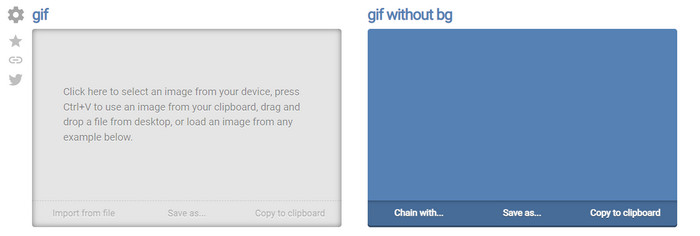
Az Online GIF Tools egy ingyenes eszköz, amellyel vízjeleket távolíthat el GIF-ekről. A program fejlett eltávolítási funkciókat kínál, például a GIF háttérben lévő vízjelének eltávolítását. Bár az eszköz lenyűgöző, a vízjel eltávolítása bonyolult lehet, mert a képkockák színpixeleit színenként törli.
1. lépés. Nyissa meg az Online GIF Tools weboldalt a böngészőjében.
2. lépés. Kattintson az Import File gombra a GIF feltöltéséhez. A háttérszín (background color) alatt kattintson az options color coder lehetőségre a vízjel színének beazonosításához.
3. lépés. Kattintson a Save As és a Download gombokra, hogy elmentse a GIF‑et a meghajtójára.
Vízjel eltávolítása GIF-ből a Watermark Remover Online segítségével
A WatermarkRemover.io segítségével a vízjele automatikusan eltávolításra kerül a GIF-ről. Ez az eszköz kiváló a vízjelek ingyenes eltávolítására. Lehetővé teszi, hogy a felhasználóknak kevesebb gondjuk legyen a vízjel eltávolításával, mivel mindent az eszköz végez el helyettük. Azonban vannak olyan régiók, ahol a szolgáltatás nem érhető el; gyakorlatilag nem tudja letölteni a vízjelmentes GIF‑et.
1. lépés. Nyissa meg a WatermarkRemover.io oldalt, és adja hozzá a GIF‑fájlt a logó alatti részre kattintva.
2. lépés. A fájl hozzáadása után a folyamat automatikusan elindul, csak várnia kell.
3. lépés. Kattintson a letöltés (download) gombra, hogy elmentse a fájlt a számítógépére.
Vízjel eltávolítása GIF-ből Pixlr segítségével

Ha a lehető legjobb webes eszközt szeretné használni a GIF‑jén lévő vízjel eltüntetésére, akkor válassza a Pixlr szolgáltatást. A két említett online eszközhöz képest ez jóval sokoldalúbb, rengeteg olyan funkcióval, amely hasznos lehet a vízjel eltávolításához. Noha a program hasonlít a Photoshopra, bizonyos részeken nem annyira hatékony, mint a Photoshop, különösen a GIF‑ek vízjelének eltávolításánál, ráadásul az export végén saját vízjelet is elhelyez.
1. lépés. Keresse meg a Pixlr oldalt, és nyissa meg.
2. lépés. Kattintson az Advance Editor lehetőségre, adja hozzá a GIF‑et, majd kattintson az Open Image gombra. A GIF hozzáadása után kattintson a csepp (droplet) ikonra a vízjel elmosásához, majd ismételten kattintson a vízjelre, amíg el nem tünteti.
3. lépés. Kattintson a File majd Save menüpontra.
3. rész. GYIK a vízjel GIF-ből való eltávolításával kapcsolatban
A vízjel eltávolítása csökkenti a fájl méretét?
A fájl mérete megváltozik, de ennek nem lesz jelentős hatása, mert csak egy kis vízjelet távolít el a videóról. Tehát, ha az eredeti fájl mérete és a kibontott vízjel nem egyezik meg, akkor a probléma abban van, amit használt.
Miért van elmosódott a videóm a vízjel eltávolítása után?
A vízjel eltávolítása után elmosódott a videó, mert az eszköz így távolítja el a vízjelet. Ez az egyik olyan módszer, amelyet az eszközök biztosítanak a vízjel eltávolítására bármely videóról vagy képről az elmosódással.
Megváltozik a GIF minősége a vízjel eltávolítása után?
A GIF vízjelének eltávolítása után nem fog észrevenni a minőség változását. Néhány eszköz azonban rontja a GIF minőségét, mert nem támogatják a jó minőségű GIF-eket. Ezért ne felejtse el kiválasztani a megfelelő eszközt, amely támogatja a kiváló minőségű kimenet exportálását, még akkor is, ha eltávolította róla a vízjelet.
Következtetés
Összességében ez a blog lehetőséget ad arra, hogy hatékonyan eltávolítsuk a vízjelet a használatban lévő GIF-ről vagy videóról. Az általunk bemutatott eszközök hatékonyak és tökéletesek a GIF‑ek vízjelének eltávolítására. Ennek ellenére a Video Converter Ultimate továbbra is kiemelkedő teljesítményt nyújt a GIF‑ek vízjelének eltávolításában és hozzáadásában is. Ha egyetért velünk az eszközzel kapcsolatban, akkor mindenképp használja, ha pedig még nem, érdemes letölteni, és kipróbálni a vízjel eltávolítását a saját GIF‑jén. Ezután az eszköz gyorsan elvégzi a feladatot, és meg fog változni a véleménye a program képességeiről.
-
 A legjobb módja Vízjel hozzáadásának egy videóhoz a Photoshop alkalmazásban Windows és Mac rendszeren
 Szeretné tudni, hogyan lehet vízjelet hozzáadni egy videóhoz a Photoshopban? Ebben az esetben ez a cikk megadja azt a dolgot, amit tudnod kell.
-
 3 legjobb megoldás a vízjel egyszerű eltávolítására a videókról
 Szeretné eltávolítani a bosszantó vízjelet a videóról? Ebből a blogból megismerheti a különböző ötleteket a vízjel eltávolításával kapcsolatban a videókon.
-
 5 legjobb módszer a kép animált GIF-re cseréjére [Frissítve 2022]
 GIF formátumú konvertáló képre van szüksége? Ez a cikk bemutatja az öt legjobb konvertert, amelyet a piacon találhatunk. Tehát e cikk elolvasásával megtudhatja ezeket az eszközöket.
