


 Video Converter Ultimate
 Screen Recorder
 Videó javítás
3 módja annak, hogy hátteret adjon a Photo Online-hoz iPhone-on, Androidon és számítógépen
Kép szerkesztésekor gyakran el kell távolítanod az eredeti hátteret, és egy másikat kell hozzáadnod. Ha a kép háttere átlátszó, egy képszerkesztővel könnyen megváltoztathatod a hátteret. A legtöbb esetben azonban először el kell távolítani az aktuális hátteret, és csak utána lehet újat hozzáadni a fotóhoz. Jó képszerkesztő alkalmazást keresel, amellyel hátteret adhatsz egy fotóhoz?
Ez a bejegyzés 3 hatékony módszert mutat be a fénykép hátterének hozzáadására. Függetlenül attól, hogy fehér hátteret szeretne hozzáadni egy fényképhez közvetlenül az interneten, hátteret szeretne hozzáadni egy fényképhez iPhone-on, vagy módosítani szeretné a kép hátterét Android-eszközön, ehhez kövesse az adott módszert.

1. rész: Háttér hozzáadása ingyenes online fényképhez
Ha gyorsan szeretnél hátteret adni egy fotóhoz, először kipróbálhatsz néhány online képszerkesztőt. Erősen ajánljuk az egyszerűen használható Free Background Remover Online eszközt, amellyel eltávolíthatod a képed eredeti hátterét, és másik hátteret adhatsz hozzá. Ez az ingyenes háttércsere‑eszköz minden gyakran használt képformátumot támogat, például a JPG, PNG, GIF és továbbiakat. Egyszerű módot kínál arra, hogy fehér hátteret adj egy fotóhoz, vagy a jelenlegi hátteret egy másik képpel helyettesítsd.
1. lépés. Nyisd meg a böngésződet, például a Chrome‑ot, Safarit, Yahoot, IE‑t vagy Firefoxot, és látogasd meg ezt az ingyenes fotóháttér‑cserélő oldalt. Amikor megjelenik az oldal, egyszerűen kattints az Upload Portrait gombra, hogy kiválaszd és hozzáadd a fotódat a későbbi szerkesztéshez.

2. lépés. A fejlett MI‑technológiának köszönhetően az oldal automatikusan kijelöli a feltöltött képed fő témáját. Ezután a Keep vagy Erase funkcióval további finomításokat végezhetsz.
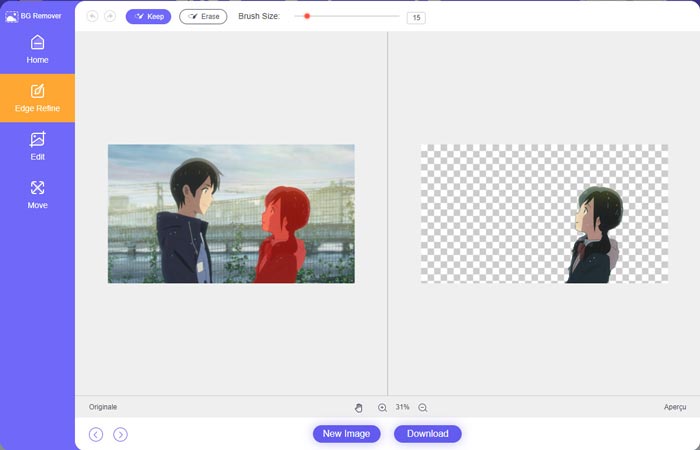
3. lépés. Kattints a bal oldalon lévő Edit opcióra, majd választhatsz, hogy megváltoztatod a háttér színét, vagy új hátteret adsz a fotóhoz. Ennél a lépésnél a Crop funkcióra is támaszkodhatsz, hogy az igényeid szerint testre szabd a kép méretét.
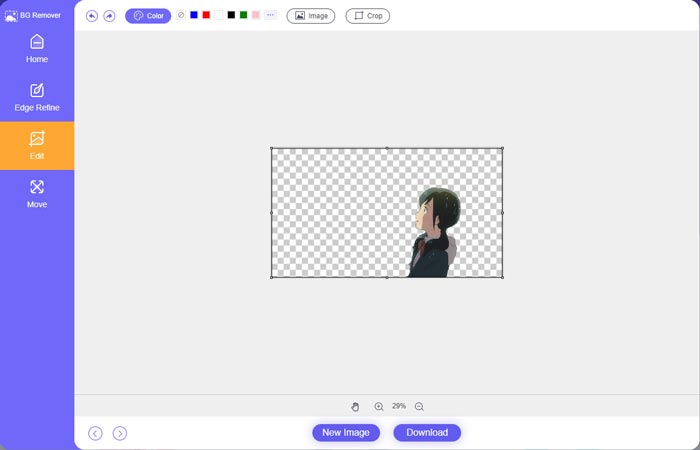
4. lépés. Miután megfelelő hátteret adtál a fotóhoz, kattints a Download gombra, hogy elmentsd a számítógépedre. A szerkesztett képfájl alapértelmezetten PNG formátumban kerül mentésre.
2. rész: Háttér hozzáadása egy fényképhez Adobe Photoshop segítségével
Az Adobe Photoshop az egyik leghíresebb képszerkesztő, amely számos funkciót tartalmaz a képek, egyéni effektusok és egyéb műveletek szerkesztéséhez. Ha a Photoshop telepítve van a számítógépén, dönthet úgy, hogy hátteret ad a fényképhez a Photoshopban.
1. lépés. Nyisd meg a Photoshop szoftvert a számítógépeden, és add hozzá a fotódat. A legújabb Photoshop‑verziót ingyenesen letöltheted az Adobe hivatalos weboldaláról. Vedd figyelembe, hogy az Adobe csak 7 napos ingyenes próbaverziót kínál a Photoshop használatához.
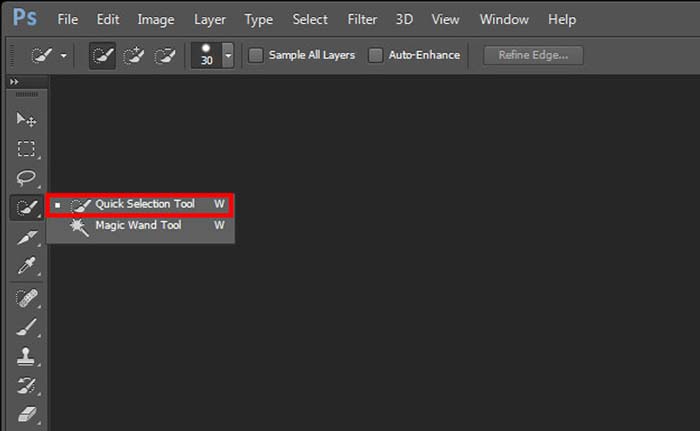
2. lépés. Miután a fotó betöltődött a Photoshopba, kattints a bal oldali eszköztáron a Quick Selection Tool vagy Magic Wand Tool ikonjára, hogy kijelöld a megváltoztatni kívánt hátteret.
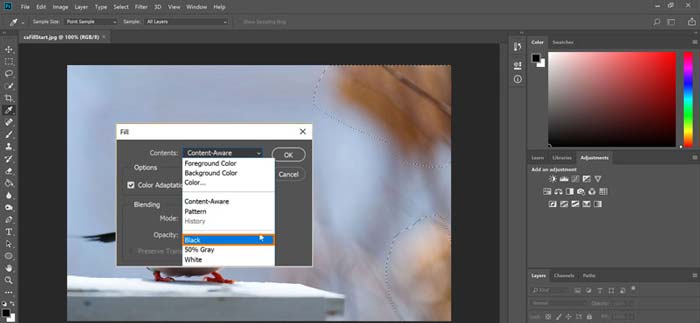
3. lépés. A fotó hátterének kijelölése után kattints rá a jobb egérgombbal, és válaszd a Fill opciót. Itt egyszerűen fehér hátteret adhatsz a fotóhoz, vagy megváltoztathatod a hátteret egy másik színre, például feketére, kékre, szürkére vagy bármely más kívánt színre.
4. lépés. Ha új képet szeretnél háttérként használni, először el kell távolítanod a kijelölt hátteret. Nyomd meg a Delete billentyűt a billentyűzeteden, hogy megszabadulj a jelenlegi háttértől. Ezután add hozzá az új képfájlt a Photoshophoz, és húzd a rétegét a háttérréteg alá. Így könnyedén kicserélheted az eredeti hátteret egy új képre.
5. lépés. Miután hátteret adtál a fotóhoz a Photoshopban, kattints felül a File menüre, majd válaszd a Save As opciót a legördülő listából. Válaszd ki a megfelelő képformátumot ehhez a fotóhoz, és mentsd el a számítógépedre.
3. rész: Háttér hozzáadása egy fényképhez iPhone és Android telefonokon
Ha hátteret szeretne hozzáadni egy fényképhez iPhone, iPad vagy Android telefonon, keresnie kell egy jó képháttérszerkesztő alkalmazást.
A LightX egy teljes funkcionalitású fotószerkesztő alkalmazás iOS‑ és Android‑felhasználók számára egyaránt. Kényelmes módot kínál a nem kívánt háttér eltávolítására, új háttér hozzáadására a fotóhoz, különböző effektek alkalmazására, minőségi szelfik készítésére és még sok egyéb műveletre közvetlenül a telefonodon. Számos fejlett képszerkesztő eszközt tartalmaz a LightX alkalmazás, például színkeverés, testreszabott színtelítettség, kontraszt, árnyalat (hue), görbék és egyebek. Letölthető az App Store‑ból vagy a Google Play Áruházból.
1. lépés. Telepítsd és nyisd meg a LightX alkalmazást iPhone‑on, iPaden vagy Android‑telefonon. Add meg az alkalmazásnak az engedélyt, hogy hozzáférjen az eszközödön lévő fotókhoz. Add hozzá a fotódat a további háttérszerkesztéshez.
2. lépés. A jelenlegi fotóháttér eltávolításához és egy másikra cseréléséhez húzd balra az ujjad, hogy megjelenjen sok különböző lehetőség. A Creative menüpont alatt válaszd a Cutout funkciót, hogy hátteret adj a fotóhoz. Most kézzel kell kijelölnöd a fő témát, és el kell távolítanod az eredeti hátteret.
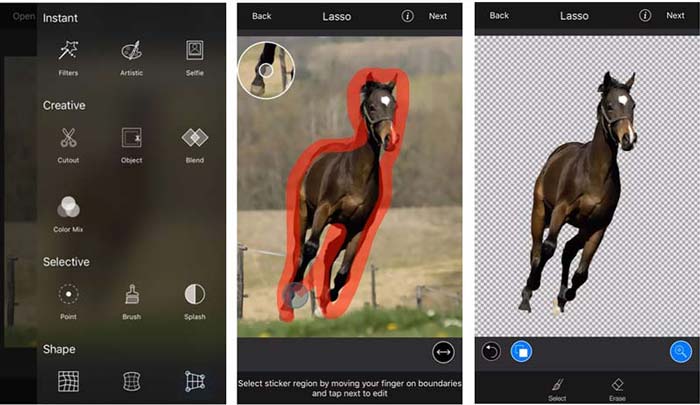
3. lépés. A háttér eltávolítása után koppints a Next gombra a jobb felső sarokban a folytatáshoz. Ezután a Crop funkcióval átméretezheted a képet. Koppints a Done gombra a művelet megerősítéséhez. Ezt követően koppints az alsó képernyőn a BG Image lehetőségre, hogy másik hátteret adj a fotóhoz. Szabadon módosíthatod az új háttér hatásait az igényeid szerint.
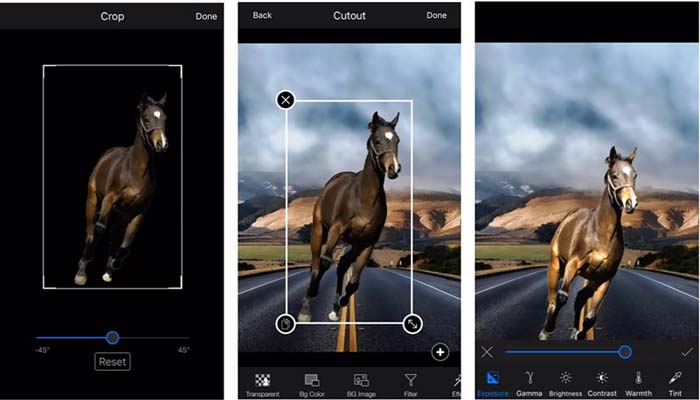
Akár iOS-, akár Android-eszközt használ, hasonló lépéseket követve adhat hátteret a fényképhez a LightX alkalmazás segítségével. Ne feledje, hogy iOS-felhasználóként $3.99-et kell fizetnie ezért a háttérben hozzáadott alkalmazásért. Ha Ön Android-felhasználó, telepítheti a Google Play Áruházból. A prémium verzióra való frissítésért ugyanazt az árat kell fizetnie.
Összefüggő:
Mi az a videófelbontás: részletes betekintés a felbontásba és még sok más
6 kedvenc animált Snapchat‑szűrő a Snapchaten
4. rész. GYIK a Háttér hozzáadása fényképhez című témakörben
Hogyan adhatok más hátteret egy fényképhez a Mac gépemen?
A Macen az első két módszerrel egyszerűen megváltoztathatod a fotód hátterét. A javasolt Free Background Remover Online eszköz és az Adobe Photoshop mellett más képszerkesztőkre is támaszkodhatsz, hogy új hátteret adj a fotódhoz.
Hogyan változtassuk meg a háttérképet iPhone-on?
Az iOS egy egyszerű módot kínál a háttérkép megváltoztatására iPhone vagy iPad készüléken. Lépjen a Beállítások alkalmazásba, koppintson a Háttérkép lehetőségre, majd koppintson a Válasszon új háttérképet.
Hozzáadhatok hátteret élő fényképhez az iPhone-omon?
Nem. Az iPhone nem kínál közvetlen módot az élő fénykép hátterének megváltoztatására. Csak levághatja, szűrőket alkalmazhat, effektusokat állíthat be, és állóképpé változtathatja.
Következtetés
Ez a bejegyzés 3 hasznos módszert oszt meg a háttér hozzáadására egy fényképhez. Ha el kell távolítania az eredeti fénykép hátterét, és újat kell hozzáadnia hozzá, kiválaszthatja a kívánt képszerkesztőt.
-
 A 3 legjobb módszer GIF-szűrők hozzáadására a legjobb GIF-szerkesztőkkel [Kedvenc]
 Szeretné tudni, hogyan lehet szűrőt hozzáadni a GIF-hez, hogy jobb legyen? Ebben a blogban könnyen megtanulhatja a GIF-ek szűrők hozzáadásának különböző technikáit.
-
 3 legegyszerűbb módja annak, hogy vízjelet adjon GIF-hez online és offline
 Vízjel hozzáadása egy GIF-hez olyan egyszerű, mint 1-2-3, ha megfelelően használja a megfelelő eszközt. A piacon lévő eszközök túl szélesek, de bemutatjuk azt a három eszközt, amelyekre számíthat.
-
 5 legjobb módszer a kép animált GIF-re cseréjére [Frissítve 2022]
 GIF formátumú konvertáló képre van szüksége? Ez a cikk bemutatja az öt legjobb konvertert, amelyet a piacon találhatunk. Tehát e cikk elolvasásával megtudhatja ezeket az eszközöket.
