


 Video Converter Ultimate
 Screen Recorder
 Videó javítás
 Biztonságos letöltés
A vízjel egyszerű eltávolítása a PDF-ből az Amazing Tools segítségével
Olvastál már valaha olyan PDF‑fájlt, amelyben minden oldalon ott volt egy vízjel, ami teljesen elvonta a figyelmed az olvasástól? A PDF‑fájlokon lévő vízjelek a dokumentumok másolás elleni védelmét szolgálják. Ugyanakkor komoly zavaró tényezőt jelentenek azoknak, akik így szeretnék elolvasni a cikkeket. Ez a cikk bemutatja, hogyan tudod eltávolítani a vízjeleket a PDF‑fájlokból. Ha te is olyan valaki vagy, aki azt keresi, hogyan lehet eltávolítani a vízjeleket a PDF‑ekből, olvasd el ezt a cikket.

1. rész: A vízjel eltávolítása a PDF-ből [Easy Ways]
Hogyan lehet eltávolítani a vízjelet a PDF-ből? Ebben a részben megtudhatja azt az öt egyszerű módszert, amellyel eltávolíthatja a zavaró vízjeleket a PDF-fájl minden oldaláról.
Microsoft Word
A Microsoft Word egy alkalmazás professzionális dokumentumok készítéséhez. Beépített vízjel‑eltávolító funkcióval is rendelkezik. A Microsoft Word használata a vízjel eltávolításához nagyon egyszerű. Néhány lépésben el tudod távolítani a PDF‑fájlodban lévő zavaró vízjelet. Ha már telepítve van a Microsoft Word a számítógépeden, ez valószínűleg a legjobb választás számodra.
1. lépés. Keresd meg a PDF‑fájlt a számítógépeden, majd kattints rá a jobb egérgombbal. Ezután válaszd a Megnyitás ezzel > Microsoft Word > OK lehetőséget.
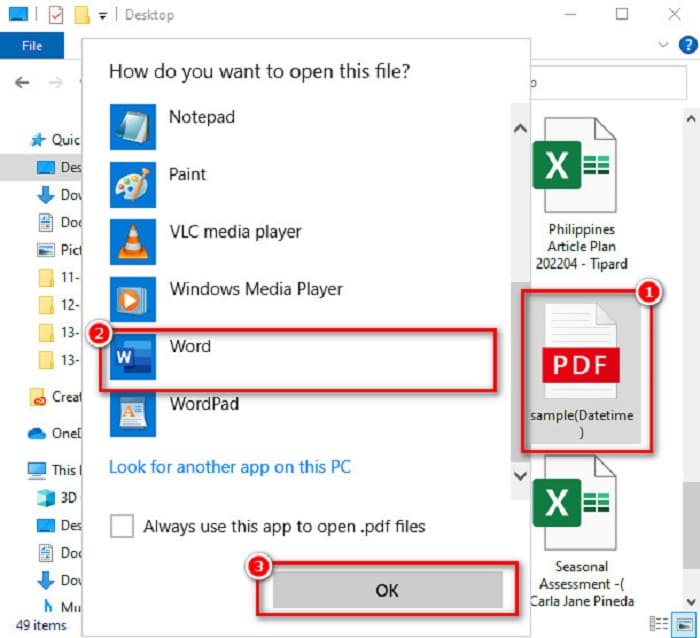
2. lépés. Meg fog jelenni egy figyelmeztető üzenet, amely jelzi, hogy a létrejövő Word‑dokumentum optimalizálva lesz a szöveg szerkeszthetősége érdekében, és hogy a PDF‑fájl nem feltétlenül fog pontosan úgy kinézni, mint az eredeti. Kattints az OK gombra.

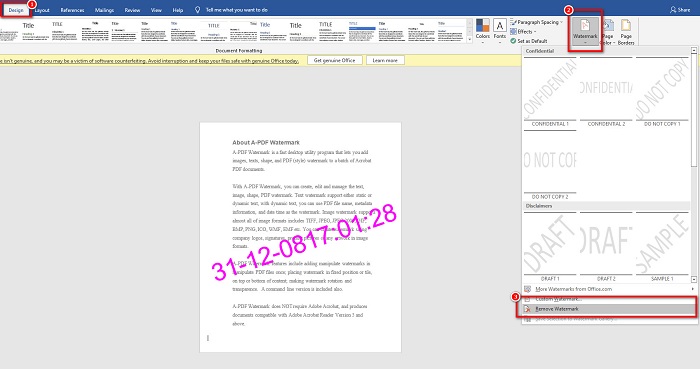
3. lépés. A PDF‑fájl most már megjelenik Wordben, és eltávolíthatod a vízjelet, ha a Tervezés > Vízjel > Vízjel eltávolítása menüpontra kattintasz. Így törölheted a PDF‑fájlodba ágyazott vízjelet.
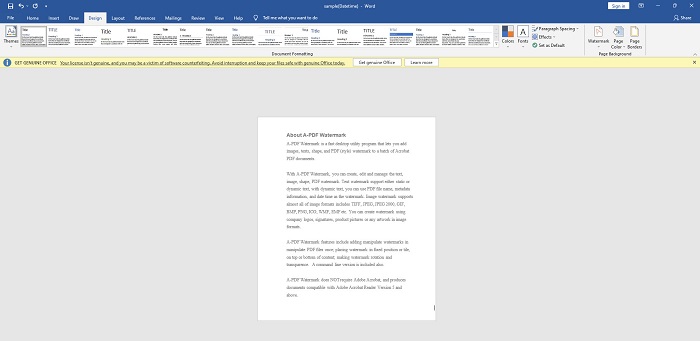
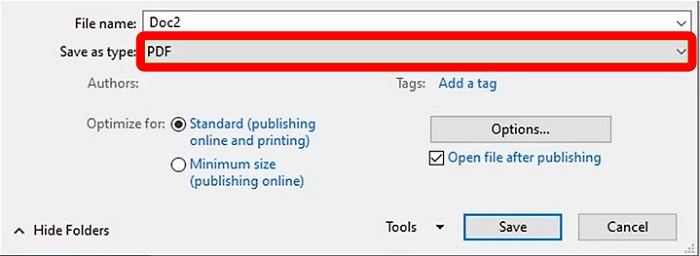
4. lépés. Végül kattints a Fájl > Mentés másként menüpontra. Ezután válaszd ki mentési formátumként a PDF‑et, majd kattints a Mentés gombra.
Adobe Acrobat Pro
Ha Ön olyan felhasználó, aki azt kérdezi, hogyan távolíthatom el ingyenesen a vízjelet a PDF-ből, akkor ezt az eszközt kell használnia.
Az Adobe Acrobat Pro egy szoftver, amelyet PDF‑dokumentumok és üzenetek bármely eszközön történő konvertálására, aláírására és elküldésére használnak. Emellett lehetővé teszi a PDF‑fájlok olvasását, szerkesztését, és ami a legfontosabb: a vízjel eltávolítását is. Az Adobe Acrobat Pro segítségével néhány egyszerű lépésben el tudod távolítani a vízjelet a PDF‑fájlodból.
Íme egy útmutató a vízjel eltávolításához az Adobe Acrobat Pro segítségével:
1. lépés. Telepítsd az Adobe Acrobat Pro programot az eszközödre, majd indítsd el az alkalmazást.
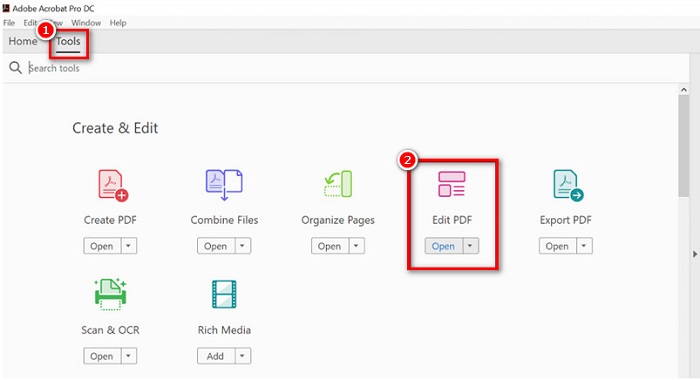
2. lépés. Ezután menj az Eszközök menüpontra, és kattints a PDF szerkesztése lehetőségre.
3. lépés. Azután az eszköztáron kattints a Vízjel opcióra, majd a Eltávolítás gombra.
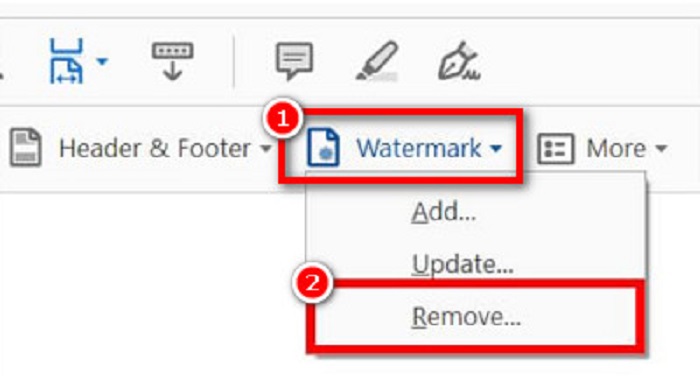
Megjelenik egy figyelmeztető ablak a következő kérdéssel: 'Biztosan véglegesen el akarod távolítani a vízjelet?' Egyszerűen kattints az Igen gombra, és az összes vízjel el fog tűnni a PDF‑fájlodból. Kattints ide, ha meg szeretnéd tudni, hogyan lehet eltávolítani a vízjelet GIF‑ről.
pdfFiller
Megvan a megoldás, ha megkérdezi, hogyan lehet eltávolítani a vízjelet a PDF-ből online. A pdfFiller egy online alkalmazás, amellyel ingyenesen szerkeszthet, kitölthet és aláírhat PDF dokumentumokat. Egyszerű felhasználói felülettel is rendelkezik, így felhasználóbarát eszköz. Ezenkívül ez az eszköz a vízjelet is eltávolíthatja a PDF-fájlból. Ha lenyűgözi ez a professzionális szerkesztő alkalmazás, olvassa el az alábbi lépéseket.
1. lépés. Először töltsd le a pdfFiller programot az alkalmazás‑letöltőből. Kövesd a telepítési folyamatot, majd indítsd el az alkalmazást.
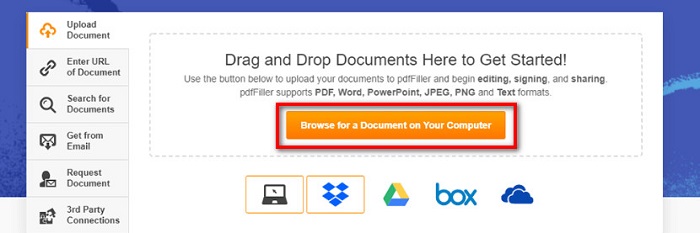
2. lépés. Ezután a szoftver fő felületén kattints a Browse for a Document on Your Computer gombra, hogy feltöltsd a PDF‑fájlt. Fájlokat választhatsz a Dropboxból, a Google Drive‑ból vagy a felhőből is.
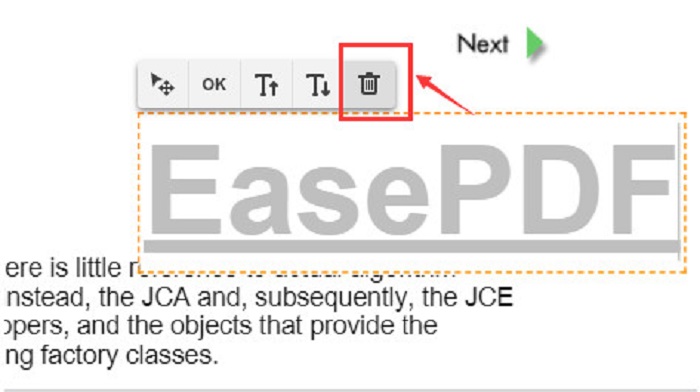
3. lépés. A PDF‑fájl vízjelének eltávolításához kattints a jobb oldalon lévő Watermark fülre. Ezután kattints duplán a vízjelre, majd kattints a Delete ikonra.
PDF2Minden
A PDF2Everything egy felhasználóbarát online PDF‑vízjel‑eltávolító eszköz, mivel nagyon egyszerű a kezelőfelülete. Ez az online vízjel‑eltávolító nemcsak a vízjeleket távolítja el: képes PDF‑eket egyesíteni, szétválasztani, titkosítani, jelszót módosítani és feloldani is. Továbbá különböző dokumentumformátumokat is támogat. A PDF2Everything ingyenes és biztonságosan használható. Ugyanakkor lassú működést tapasztalhatsz, ha az internetkapcsolatod gyenge. Mindazonáltal sokan használják online PDF‑vízjel eltávolítására.
1. lépés. Keresd meg a PDF2Everything oldalt a böngésződben. Ezután kattints a szoftver fő felületén a Click to Select File gombra.
2. lépés. Ezután kattints a Start Deleting gombra, hogy a rendszer automatikusan eltávolítsa a vízjelet a PDF‑fájlodból.
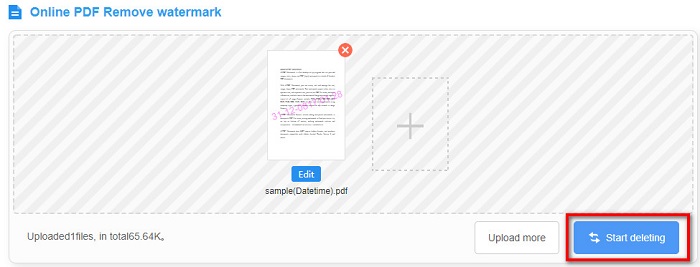
3. lépés. Végül várd meg, amíg a fájl feldolgozása befejeződik, és látni fogod, hogy a PDF‑fájlodban már nincs beágyazott vízjel.
Heroku
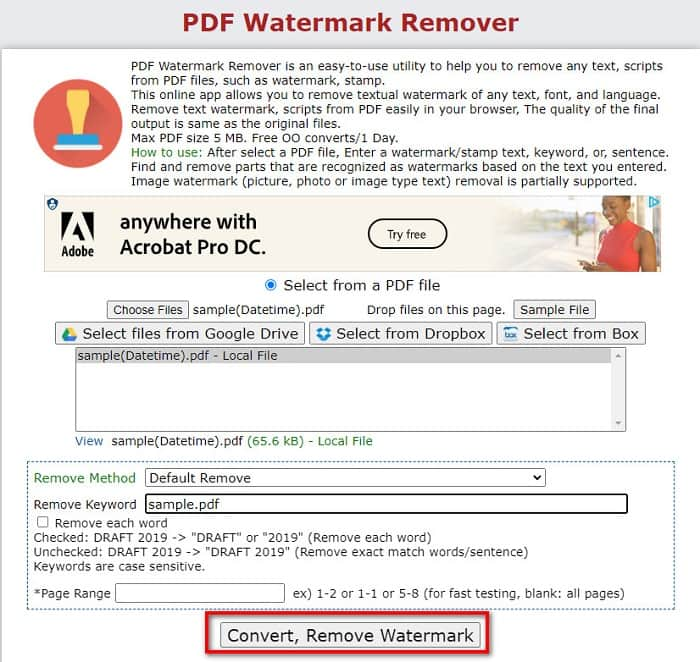
A Heroku egy másik online PDF‑vízjel‑eltávolító, amely népszerű az interneten. Az előző online konverterhez hasonlóan ez is biztonságos és ingyenes. Ez az online eszköz lehetővé teszi bármilyen vízjel, szöveg, felirat és bélyegző eltávolítását PDF‑fájlból. Emellett akár 5 MB méretű fájlokat is támogat. Hátránya, hogy ezzel az eszközzel naponta csak egyszer távolíthatsz el vízjelet, és reklámokat is tartalmaz, amelyek zavaróak lehetnek. Ennek ellenére továbbra is egy jó eszköz a PDF‑fájlok vízjelezésének eltávolítására. Így távolíthatod el a vízjeleket PDF‑fájlodból a Heroku segítségével.
1. lépés. A böngészőben keresd meg a Heroku vízjel‑eltávolítót. Ezután a szoftver fő felületén kattints a Choose Files gombra a PDF‑fájl feltöltéséhez.
2. lépés. Ezután írd be a PDF‑fájl vízjelének kulcsszavát a Remove Keyword mezőbe.
3. lépés. Kattints a Convert, Remove Watermark gombra a folyamat befejezéséhez. Ezután csak várj néhány percet.
2. rész. Ajánlás: Ultimate Watermark Remover for Images
A cikknek ebben a részében megtudhatja, hogyan távolíthatja el a vízjeleket a képekről, és megismerheti a legjobb eszközt.
FVC ingyenes vízjel eltávolító
Az FVC Free Watermark Remover egy online eszköz, amely bármilyen vízjelet, szöveget, képet, logót és egyebet képes eltávolítani a képeidről. Támogatja a legelterjedtebb képformátumokat, például a JPEG, JPG, PNG, BMP stb. Ezenfelül ez az online eszköz biztonságosan használható, és rendkívül egyszerű a felülete, így kezdők számára is ideális. Más online eszközökkel ellentétben ez a vízjel‑eltávolító nem tartalmaz zavaró hirdetéseket. Még lenyűgözőbb, hogy az exportált fájlok megőrzik eredeti minőségüket. Az FVC Free Watermark Remover minden böngészőből elérhető, például a Google Chrome‑ból, a Mozilla Firefoxból, a Safariból stb. Ha tehát ezt a végső vízjel‑eltávolítót szeretnéd használni, kövesd az alábbi egyszerű lépéseket.
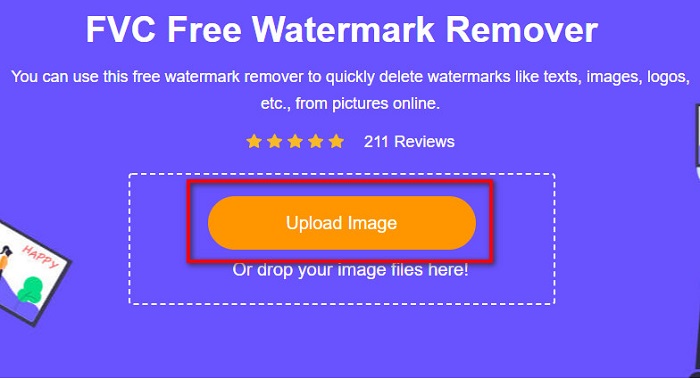
1. lépés. Keresd meg az FVC Free Watermark Remover oldalt a böngésződben, vagy kattints a megadott linkre, hogy közvetlenül a főoldalra juss.
2. lépés. A szoftver fő felületén kattints az Upload Image gombra, hogy feltöltsd azt a képet, amelyről el szeretnéd távolítani a vízjelet.
3. lépés. Ezután válaszd ki a használni kívánt eszközt (sokszög, szabadkézi kijelölés, ecset), hogy kijelöld az eltávolítandó vízjel területét. Ezután jelöld ki a vízjel területét.
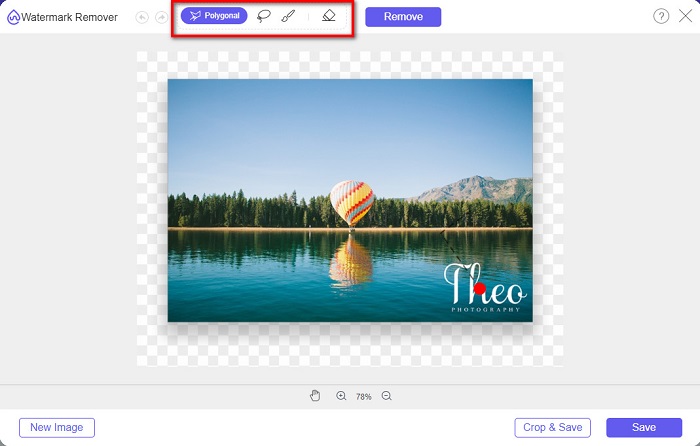
4. lépés. Miután kijelölted a vízjel területét, kattints a Remove gombra, majd a save gombra.
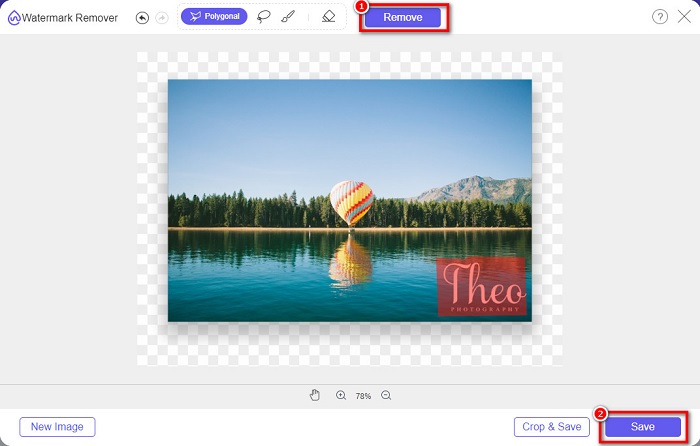
5. lépés. Végül a fájl automatikusan mentésre kerül a számítógépedre. Ennyi az egész! A képedről eltűnt a vízjel az egyszerű fenti lépések követésével. Ezzel a módszerrel a TikTok‑vízjelet is el tudod távolítani.
3. rész. GYIK a vízjel eltávolításával kapcsolatban PDF-ből
El lehet távolítani a vízjelet a PDF-ből Mac-en?
Ha az a kérdésed, hogyan lehet vízjelet eltávolítani PDF‑ből Macen, akkor használhatsz egy, a Safari böngészőből elérhető online vízjel‑eltávolítót, például az FVC Free Watermark Remover eszközt.
El tudod távolítani a logókat a képedről?
Igen. Eltávolíthatja a logókat, vízjeleket és szövegeket a képről.
Befolyásolja a minőséget, ha eltávolítom a vízjelet a képemről?
Nem. A vízjel eltávolítása a képekről nem feltétlenül befolyásolja a képfájl minőségét. Egyes eszközök azonban ronthatják a fájl minőségét. Tehát ki kell választania a megfelelő eszközt.
Következtetés
Összefoglalva, rengeteg eszköz áll rendelkezésedre, amellyel eltávolíthatod a vízjeleket PDF‑fájlokból. Nem mindegyik nyújt azonban azonos minőségű kimenetet, illetve ugyanannyi funkciót. A fent bemutatott vízjel‑eltávolítók mindegyike hatékonyan segít a PDF‑fájlok vízjeleinek egyszerű eltávolításában. Ha viszont olyan eszközt keresel, amellyel képfájlokról távolíthatod el a vízjeleket, akkor használd a legkiválóbb képes vízjel‑eltávolítót, az FVC Free Watermark Remover eszközt.
-
 3 legjobb megoldás a vízjel egyszerű eltávolítására a videókról
 Szeretné eltávolítani a bosszantó vízjelet a videóról? Ebből a blogból megismerheti a különböző ötleteket a vízjel eltávolításával kapcsolatban a videókon.
-
 4 legjobb módszer a vízjel gyors hozzáadására bármilyen videóhoz
 Ha elolvassa ezt a cikket, tanuljuk meg, hogyan adhatunk vízjelet bármilyen videóhoz Windows, Mac, Online, iOS és Android rendszeren.
-
 3 legegyszerűbb módja annak, hogy vízjelet adjon GIF-hez online és offline
 Vízjel hozzáadása egy GIF-hez olyan egyszerű, mint 1-2-3, ha megfelelően használja a megfelelő eszközt. A piacon lévő eszközök túl szélesek, de bemutatjuk azt a három eszközt, amelyekre számíthat.
