


 Video Converter Ultimate
 Screen Recorder
 Videó javítás
 Biztonságos letöltés
A képek elmosódásának megszüntetése a leghatékonyabb alkalmazásokkal
Elég frusztráló érzés, amikor kiderül, hogy az elkészített képed elmosódott. A fotó azért lett homályos, mert a lefotózott téma mozog, a kamera bemozdul, vagy a helyszínen nem megfelelő a megvilágítás. Ráadásul a pillanatot, amikor a fotó készült, már nem tudod visszahozni, ami különösen lehangoló. Úgy tűnhet, hogy a kép kijavítása lehetetlen, de ez nem így van. Szerencsére léteznek kifejezetten olyan módszerek, amelyekkel elmosódott képet élesíthetsz. A legjobb képkijavító alkalmazásokkal helyrehozhatod a homályos fotóidat. Ez az útmutató megmutatja, hogyan lehet egy képet kiélesíteni erőfeszítés nélkül.

1. rész: Kép elmosódásának megszüntetése online
Az emberek inkább egy online alkalmazást használnak a képek elmosódásának megszüntetésére, mert így helyet takaríthatnak meg eszközeiken. Ezenkívül, ha online eszközt használ, csak el kell érnie azt a böngészőjében. Kényelmes igaz? Ezért megkeressük a legjobb online képfeljavítót a fotó elmosódottságának kijavításához.
A FVC Free Image Upscaler a legjobb választás, ha online szeretnél képet élesíteni. Ezenfelül ingyenes és biztonságosan használható. Minden böngészőben elérhető, például Google Chrome-ban, Firefoxban és Safariban. Továbbá a képed minőségét 2x, 4x, 6x vagy 8x nagyítással javíthatod. Emellett mesterséges intelligencia (AI) technológiát használ, amely automatikusan felismeri a kép elmosódott részeit, majd feljavítja azokat.
Ezenkívül az FVC Free Image Upscaler lehetővé teszi az elveszett képpontok, színtextúrák és további részletek pontos javítását. És annak ellenére, hogy online alkalmazás, gyors felskálázási folyamattal rendelkezik, és nem tartalmaz olyan hirdetéseket, amelyek elvonnák a figyelmét. Tehát, ha érdekli az ingyenes képfeljavító használata, kövesse az alábbi egyszerű útmutatót.
A képek elmosódásának megszüntetése az FVC Free Image Upscaler használatával:
1. lépés. Először nyisd meg a böngésződet, és írd be a keresőmezőbe: FVC Free Image Upscaler. A főoldalra mutató linkre is közvetlenül rákattinthatsz. Ezután a Upload Photo (Fotó feltöltése) gombra kattintva indítsd el az alkalmazást. Miután elindítottad, lépj a következő lépésre.
2. lépés. A kezdőfelületen kattints az Upload Photo gombra, hogy betöltsd az élesíteni kívánt képet. Megnyílnak a számítógéped mappái, ahol megkeresheted a fotót. A feltöltéshez kattints az Open (Megnyitás) gombra.

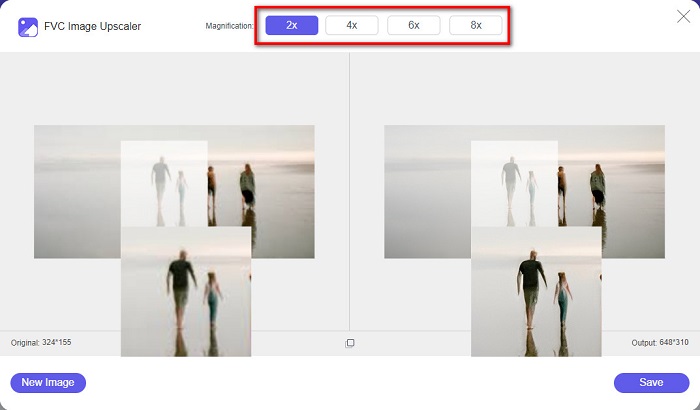
3. lépés. A kép feltöltése után válaszd ki a kívánt nagyítási előbeállítást. 2x, 4x, 6x vagy 8x nagyítás közül választhatsz. A jobb oldalon megjelenő előnézeten láthatod a kimenetet, és összehasonlíthatod az eredeti fájloddal.
4. lépés. Végül mentsd el az eredményt az Save (Mentés) gombra kattintva a felület jobb alsó sarkában.
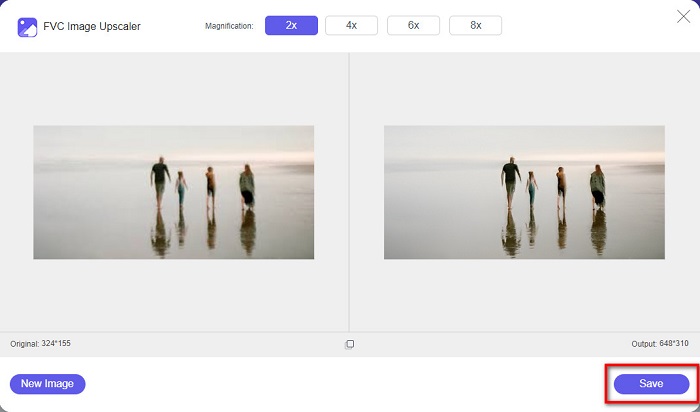
És ezek a lépések a kép elmosódásának megszüntetéséhez az interneten. Az eredményből látni fogja, hogyan segíthet ez az ingyenes képfeljavító a kép minőségének javításában.
2. rész: A kép elmosódásának megszüntetése offline módban asztali számítógépen
Sok szakember használ számítógépet képek vagy videók szerkesztéséhez. Ezenkívül sok képszerkesztő alkalmazás csak asztali számítógépeken érhető el. Ebben a részben pedig megtanítjuk a legjobb módszereket a kép elmosódásának megszüntetésére offline az asztalon.
A kép elmosódásának megszüntetése Photoshop segítségével
A Adobe Photoshop valószínűleg a legjobb képszerkesztő alkalmazás, amellyel kiélesítheted a homályos képeidet. Ez az offline program számos szerkesztőfunkcióval és eszközzel rendelkezik, amelyekkel javíthatod a fotók minőségét. Növelheted például a kép élességét, ha a minőség gyenge vagy homályos. Fejlett szerkesztőeszközeivel biztosan kiváló eredményeket érhetsz el. Ezenkívül eltávolíthatsz embereket vagy tárgyakat a képről, rajzolhatsz képet vagy objektumot ceruza- vagy tolleszközzel, módosíthatod a fotó színeit, és még sok minden mást is megtehetsz. Az Adobe Photoshop segítségével fantasztikus, saját magad által szerkesztett képeket hozhatsz létre. Ugyanakkor az Adobe Photoshop nem kifejezetten felhasználóbarát eszköz: alapos ismeretekre van szükség a funkciók használatához, ha élesíteni vagy szerkeszteni szeretnéd a képet. Ennek ellenére bemutatjuk a lépéseket, hogyan használhatod a Photoshopot a képek kiélesítésére. Két módot is megmutatunk arra, miként csökkentheted a fotóid elmosódottságát Photoshopban.
Képelmosási folyamat az Adobe Photoshop segítségével:
1. lépés. Töltsd le a Adobe Photoshop programot az asztali gépedre, majd telepítsd. A letöltés és telepítés után indítsd el az alkalmazást az eszközödön.
2. lépés. Ezután nyisd meg a kiélesíteni kívánt képet a főfelületen. A könnyebb megnyitás érdekében a billentyűzeten megnyomhatod a CTRL + O kombinációt is.
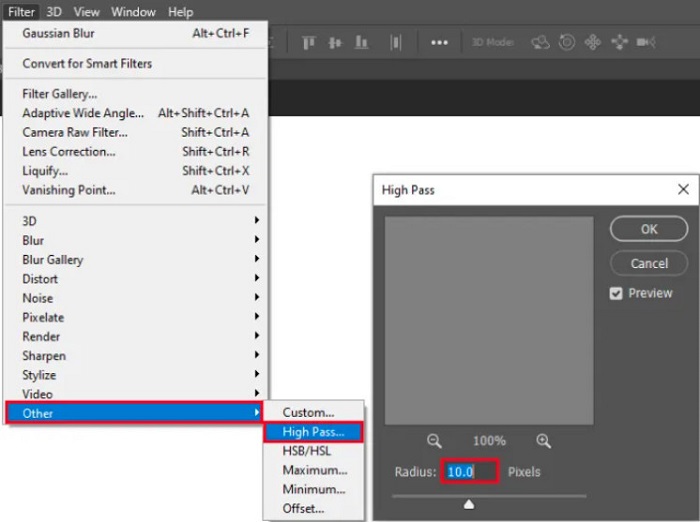
3. lépés. Ezután készíts másolatot a háttérrétegről, és válaszd ki azt. Majd kattints: Filter > Other > High Pass. Állítsd a High Pass értékét 10%-re.
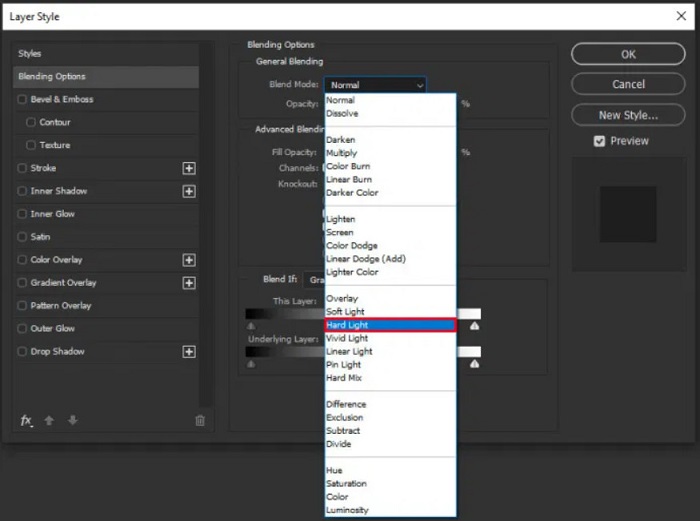
4. lépés. A Layer Style (Rétegstílus) ablakban állítsd a keverési módot Normálról Hard Light-ra (Erős fény), majd módosítsd az opacity (átlátszatlanság) értékét addig, amíg a fotó kellően tiszta vagy javított lesz.
Ha a Photoshop újabb verzióját használod, igénybe veheted a kamera bemozdulását korrigáló (Shake Reduction) opciót, hogy élesíts egy képet Photoshopban.
1. lépés. Importáld a kiélesíteni kívánt képet a Photoshopba.
2. lépés. Ezután menj a Filter > Sharpen > Shake Reduction menüpontra.
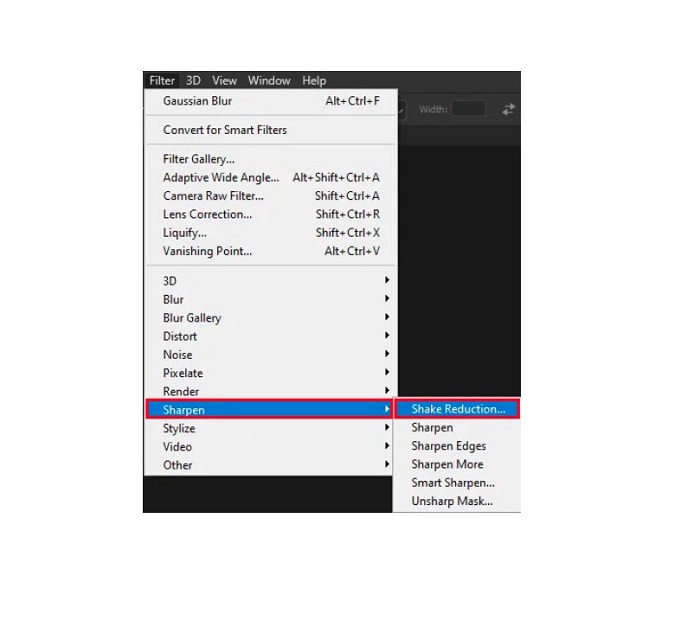
3. lépés. Ezt követően a Photoshop feldolgozza a képedet, majd megtekintheted az eredményt.
Oldja fel a kép elmosódását a Paint.net segítségével
Egy másik ingyenes, offline képszerkesztő szoftver, amelyet használhatsz, a Paint.net. Az egyik legütősebb funkciója a kép élesítése. A csúszka mozgatásával beállíthatod a kép élességének mértékét, így a fotó élesebb, kontrasztosabb lesz, és eltűnik a homályosság. Emellett könnyebben kezelhető, mint az Adobe Photoshop. Más szerkesztőfunkciókkal is rendelkezik, amelyekkel alakíthatod a képeidet. Ha nem tudod, hogyan kell használni ezt az alkalmazást, elérheted az online tanácsadást és az útmutatókat. Továbbá a Windows-felhasználók egyik legnépszerűbb képszerkesztője, mivel rengeteg korrekciós eszközt kínál a fotók javításához. Egy kisebb hátránya, hogy a szöveget, amelyet a képre írtál, az effektusok alkalmazása után már nem tudod módosítani. Ennek ellenére a program lehetővé teszi többszintű képszerkesztési munkák létrehozását.
A kép elmosódásának megszüntetése a Paint.net segítségével:
1. lépés. Először nyisd meg a képed Paint.netben a billentyűzeten a CTRL + O megnyomásával. Vagy menj a File menüpontra, és válaszd az Open lehetőséget. Ezután megjelennek az asztali fájlok, ahol kiválaszthatod és megnyithatod a képet.
2. lépés. Ezután kattints: Effects > Picture, majd válaszd a Sharpen (Élesítés) opciót.
3. lépés. A Sharpen panelen láthatod a csúszkát, amellyel beállíthatod a kép élességét, hogy eltüntesd a homályosságot. Az up/down arrow (fel/le nyíl) gombokra kattintva szintén módosíthatod az élesség mértékét.
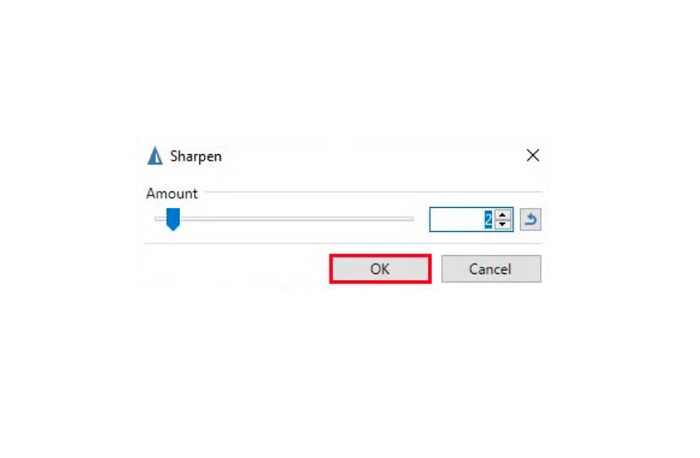
4. lépés. Nyomd meg az OK gombot, majd mentsd el az eredményt.
3. rész: Kép elmosódásának megszüntetése iPhone készüléken
Ha Ön iPhone készüléket használ, néhány alkalmazást is letölthet a kép elmosására. Választhat az App Store-ból származó alkalmazások közül a kép elmosódásának megszüntetéséhez. Egyes alkalmazások azonban megvásárolhatók, ezért használatuk előtt meg kell vásárolni őket. De ebben a részben megtanítjuk, hogyan szüntesse meg a kép elmosódását iPhone-ján egy ingyenes és figyelemre méltó alkalmazás segítségével.
A Foton az egyik leggyakrabban használt képélesítő alkalmazás iPhone-on. Ingyenesen letölthető az App Store-ból. Emellett számos más szerkesztőfunkciója is van, például kollázs készítése, vágás, sablonok hozzáadása, felosztás és egyebek. Kezelőfelülete egyszerű, így kifejezetten felhasználóbarát alkalmazás. Ezzel az appal a kép élességének állításával szüntetheted meg a homályosságot. Ha még kontrasztosabb, hatásosabb fotót szeretnél, módosíthatod a kép kontrasztját, tisztaságát, telítettségét és a „dehaze” (ködeltávolítás) beállítást is. Emellett biztonságosan használható, így nem kell aggódnod a képfájljaid védelme miatt. Hátránya viszont, hogy a további funkciók használatához meg kell vásárolni a Pro verziót.
A kép elmosódásának megszüntetése iPhone-on:
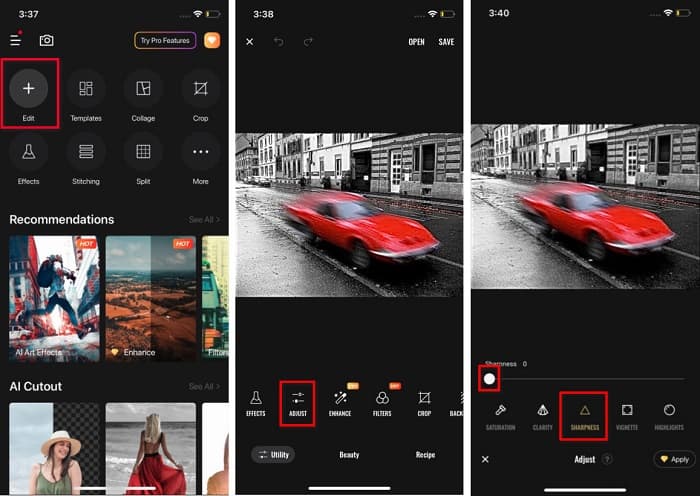
1. lépés. Nyisd meg az App Store-t az iPhone-odon, majd keresd meg a Foton alkalmazást. Telepítsd a telefonodra, és indítsd el, miután feltelepült. Az alkalmazás főfelületén koppints az Edit (Szerkesztés) opcióra.
2. lépés. Válaszd ki a kiélesíteni kívánt képet; ezután egy másik felületre kerülsz. Koppints az Adjust (Beállítás) opcióra a kép alatt, majd húzd balra a menüt, amíg meg nem találod a Sharpness (Élesség) funkciót.
3. lépés. A Sharpness panelen húzd a csúszkát a kívánt élességig, amíg a kép elmosódottsága csökken.
4. lépés. Végül koppints a Save (Mentés) gombra a felület jobb felső sarkában, hogy elmentsd az eredményt az iPhone-odra. Kattints ide, ha meg szeretnéd tudni, hogyan lehet átméretezni egy képet iPhone-on.
4. rész: Kép elmosódásának megszüntetése Android telefonon
Sok embernek van Android-eszköze is, és ha Ön is használ ilyet, ezt a részt elolvasva megtudhatja, hogyan szüntesse meg a kép elmosódását Android rendszeren. Megkerestük a legnépszerűbb fotó-elmosó alkalmazásokat Androidra, és egyenként kipróbáltuk őket. Szerencsére találtunk egy alkalmazást, amelyet a legjobban ajánlunk.
A Snapseed a legjobb alkalmazás, ha Android készüléken szeretnél elmosódott képet élesíteni. A Sharpen (Élesítés) és Structure (Struktúra) funkcióival növelheted a kép élességét, és eltávolíthatod a homályos részeket. Emellett számos egyéb szerkesztőeszközt kínál, amelyekkel javíthatod a képed minőségét. Az előzőkben említett eszközökhöz hasonlóan egyszerű felhasználói felülettel rendelkezik. Ha még kezdő vagy, ezt az alkalmazást bátran használhatod a képek kiélesítésére. Hátránya viszont, hogy használat előtt be kell kapcsolnod a Wi-Fi-t.
Kép elhomályosítása Androidon a Snapseed használatával:
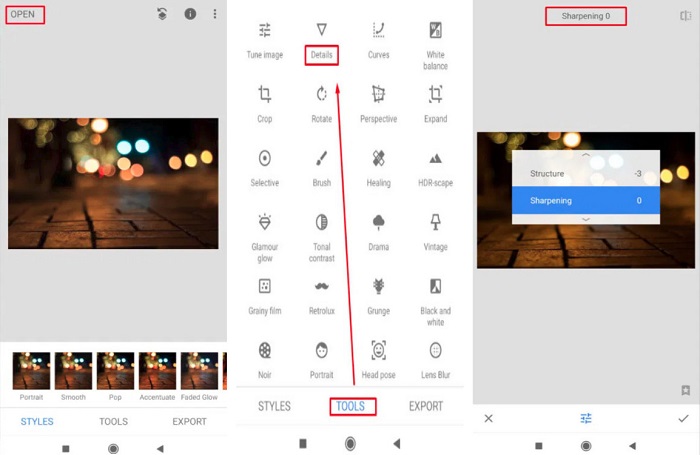
1. lépés. Töltsd le az alkalmazást az Android készülékedre, majd nyisd meg. A megnyitás után töltsd be a képed az appba.
2. lépés. Ezután a Tools (Eszközök) panelen válaszd a Details (Részletek) opciót.
3. lépés. Ezután válaszd a Sharpen (Élesítés) vagy a Structure (Struktúra) beállítást, hogy változtass a homályos képen. E két opció módosításával eltüntetheted a kép elmosódottságát.
5. rész. GYIK a kép homályosításáról
Növekszik a fájl mérete, ha megszünteti a kép elmosódását?
Igen. Amikor megszünteti a kép elmosódását, a kép PPI-je megnő, így a fájl mérete nagyobb lesz, mint az eredeti.
Miért lesz elmosódott a képem, ha nagyobbra teszem?
Valószínűleg tömörítési probléma okozza. Amikor megpróbál átméretezni egy képet, azzal a kép pixeleit is kinagyítja. Tehát a kép tömörítése befolyásolhatja a kép minőségét.
Fel lehet szüntetni a JPG kép homályosságát az Adobe-ban?
Egyértelműen! Használhatja az Adobe Photoshopot, ha el szeretné szüntetni a JPG kép elmosódását. Az Adobe Photoshop támogatja a szabványos képformátumokat, mint például a PNG, JPG és JPEG
Következtetés
Most, hogy már tudod, hogyan lehet kiélesíteni egy képet a legegyszerűbb módszerekkel, bátran nekiláthatsz a homályos fotóid javításának. Az összes fent bemutatott eljárás segíteni fog abban, hogy elérd a kívánt célt. Ha azonban tárhelyet szeretnél spórolni az eszközödön, javasoljuk a FVC Free Image Upscaler használatát, amelyet ingyenesen és online érhetsz el.
-
 Kép átméretezése a PowerPointban [A méretváltoztatás leggyorsabb módja]
 A képek PowerPointban való átméretezésének megtanulása elengedhetetlen, különösen akkor, ha használni szeretné a bemutatóban. Olvassa el ezt a cikket, hogy megtudja, hogyan kell csinálni.
-
 1440p kép – Mindent magában foglaló információ, amire szüksége lesz [2022-ben frissítve]
 Szeretne tudni az 1440p-s képekről? Vagy hol lehet kapni? 1440p-re állítod a képet? Olvassa el ezt, hogy mindegyiket megismerje.
-
 Oktatóanyag a kép képpontozásának megszüntetéséhez a 3 legjobb fotófelvevő segítségével
 Problémái vannak a pixeles képek kezelésével? Mára megoldottuk a problémát, és használhatja az itt hozzáadott eszközöket.
