


 Video Converter Ultimate
 Screen Recorder
 Videó javítás
Tanulja meg, hogyan lehet F4V-t MOV-vé konvertálni a lehető legegyszerűbb lépésekkel
A Flash MP4 videófájl, más néven MPEG‑4 videófájl, az Apple QuickTime tárolóformátumán alapuló videófájl. Az F4V fájlkiterjesztésű fájlok az Apple QuickTime tárolóformátumán alapuló videófájlok. Megjelenésében összehasonlítható az MP4 formátummal. Az F4V rövid ismertetése ellenére még mindig bizonytalan lehet abban, hogyan alakítsa át ezt a videoformátumot egy másikra. Ennek a cikknek köszönhetően meg fogja tudni, hogyan kell F4V‑t MOV‑vá konvertálni.

1. rész. A részletek megbeszélése: F4V és MOV
A Flash videófájlok .f4v fájlkiterjesztést használnak. A .f4v kiterjesztést azokra az MPEG‑4 fájlokra alkalmazzák, amelyek korábban .mp4 kiterjesztésűek voltak. Dinamikus média terjesztésekor az F4V általánosan elfogadott szabványos formátum. Fontos megjegyezni, hogy az F4V fájlok lényegében tárolófájlok, amelyeket bizonyos médiafájlok lejátszására használnak. Az Adobe Flash Playerben az F4V fájlok online továbbított médiatartalmat tartalmaznak, és megtekinthetők. Becslések szerint a mai online videók akár 80%‑a is megjeleníthető az Adobe Flash technológiával. Az Adobe Air alkalmazás szintén támogatja az F4V fájlformátumot.
Ugyanakkor a MOV mint QuickTime formátum a Mac OS X QuickTime keretrendszerében használatos. Mint multimédiás tároló, a Windows platformon is képes több sávot tartalmazni, amelyek mindegyike különböző típusú adatokat (hang, videó, feliratok) tartalmazhat. A médiaadatok média‑eltolásoktól való elválasztása, az adat‑hivatkozások absztrahálása és a vágólisták nyomon követése mind olyan módok, amelyekkel a videoszerkesztő eszközök javíthatják a munkafolyamatot. A MOV tárolóformátumot széles körben használják filmek és videók internetes terjesztésére is.
2. rész. A leghasznosabb tippek az F4V MOV-vé alakításához
A Video Converter Ultimate segítségével konvertálhat olyan formátumokat, mint például az F4V MOV-ba, és összehasonlítva más alkalmazásokkal és webkonverterekkel, ez a szoftver az elképzelhető leggyorsabb konverterrel rendelkezik, mivel fel van szerelve a hardveres gyorsítási technológiával, amely 8-szor gyorsabban gyorsítja az F4V-ből MOV-ba konvertálást. . Ezenkívül a formátumok széles skáláját képes konvertálni, még a leghomályosabb videóformátumokat is, mint például az RMVB, MXF, OGV, F4V stb. Mindenkinek meg kell fontolnia ennek a szoftvernek a használatát a kiváló minőségű kimenet és a lehetőségek széles skálája miatt. amely ingyenesen javíthatja videóját. Minden további nélkül a következő lépéseket kell megtennie:
1. lépés. A letöltés elindításához egyszerűen kattintson a szöveg jobb oldalán található Ingyenes letöltés ikonra a letöltési folyamat megkezdéséhez. Amint a letöltés befejeződött, lehetőséget kap arra, hogy a szoftvert Windows vagy Macintosh számítógépre töltse le. A szoftver használatának megkezdéséhez először telepítse azt a számítógépére, majd válassza a Start Now lehetőséget a Start menüből.
Ingyenes letöltés Windows 7 vagy újabb rendszerre Biztonságos letöltés
Ingyenes letöltés macOS 10.7 vagy újabb rendszerre Biztonságos letöltés
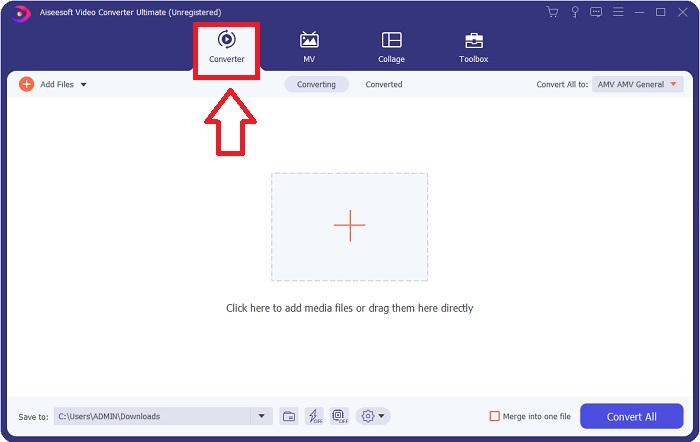
2. lépés. Indítsa el az imént letöltött szoftvert. A szoftver első indításakor egy ablak jelenik meg a képernyőn, amely a Converter felületét mutatja.
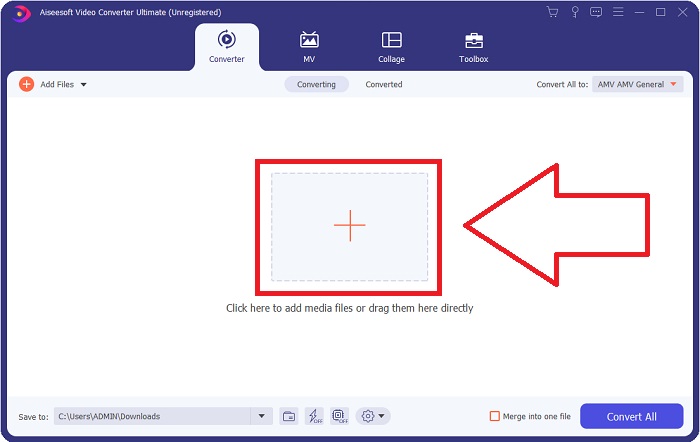
3. lépés. Importálja a fájlokat az átalakítóba a konvertálási folyamat megkezdéséhez. Húzza rá és ejtse a konvertálni kívánt videófájlt a + ikonra.
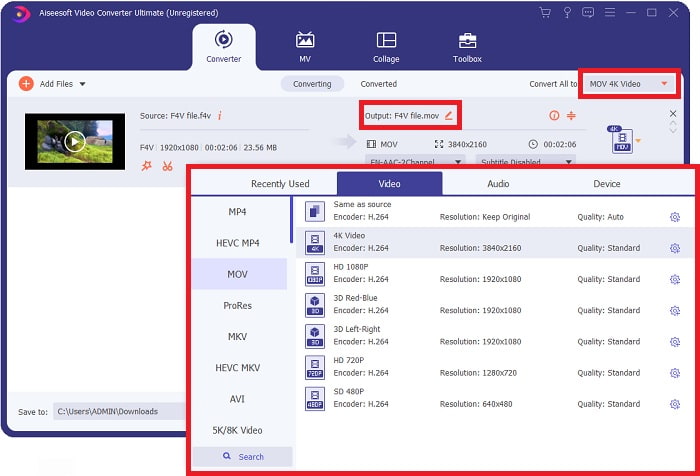
4. lépés. A videóformátum kiválasztásához kattintson a képernyő jobb felső sarkában található legördülő menüre. A legördülő menüből válassza a MOV formátumot videóformátumként. Miután kiválasztotta a MOV fájlt, beállíthatja a videó minőségét. Ha azonban az Ön által preferált kimeneti formátum nincs megadva, a minőségi beállításokat saját igényeire szabhatja. A fogaskerék ikonra kattintva módosíthatja a kijelző képkockasebességét és a hangminőséget. A módosítások mentéséhez kattintson az Új létrehozása gombra.
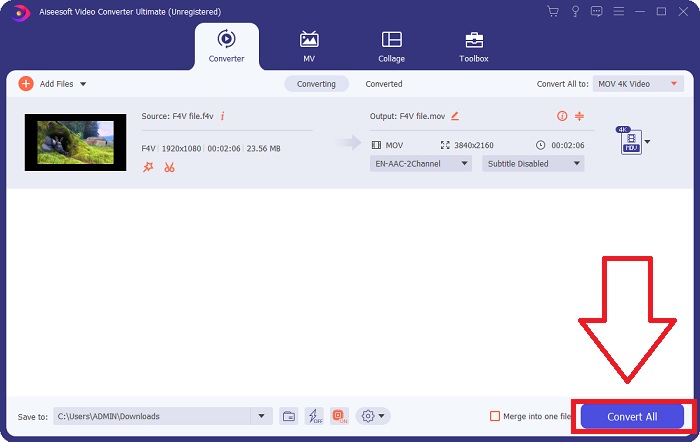
5. lépés. Miután befejezte a videó szerkesztését, és az készen áll az átalakításra, válassza az Összes konvertálása lehetőséget az átalakítás elindításához.
3. rész Bónusz tippek! Konvertálja az F4V-t MOV Online-ba
Ha nincs ideje letölteni a Video Converter Ultimate teljes verzióját, használja inkább az online változatot. A Free Video Converter Online a legjobb online eszköz, amellyel gyorsan és egyszerűen konvertálhat rengeteg különféle videoformátum között. A Free Video Converter esetében nincsenek korlátozások a támogatott fájltípusokra vonatkozóan, ezért – ellentétben más internetes konverterekkel – különösen ajánlott első használók számára. Hogy többet tudjon meg erről a webalapú alkalmazásról, kövesse az alábbi utasításokat.
1. lépés. A konverter hivatalos weboldalát ezen a linken keresztül érheti el.
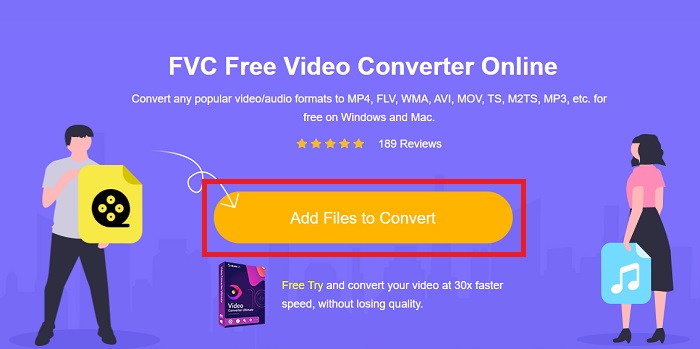
2. lépés. Ha először használja a programot, kattintson az Fájlok hozzáadása gombra a képernyő közepén, hogy feltöltsön egy fájlt a számítógépéről, és egyúttal letöltse a gépéhez szükséges indítóprogramot. A második letöltés befejeződése után az automatikusan elindul. Miután a fájl másodszor is letöltődött, keresse meg a mappájában, és kattintson a Megnyitás gombra a munka megkezdéséhez.
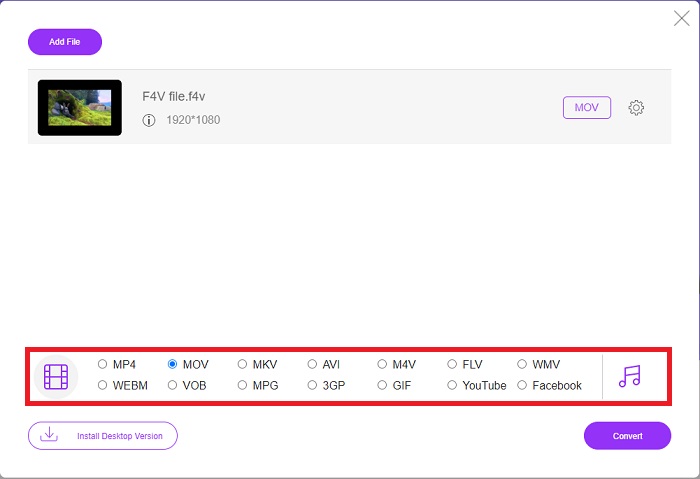
3. lépés. A konvertálási folyamat megkezdéséhez válassza ki a MOV formátumot az ablak alsó részén található formátumlistából, majd kattintson rá.
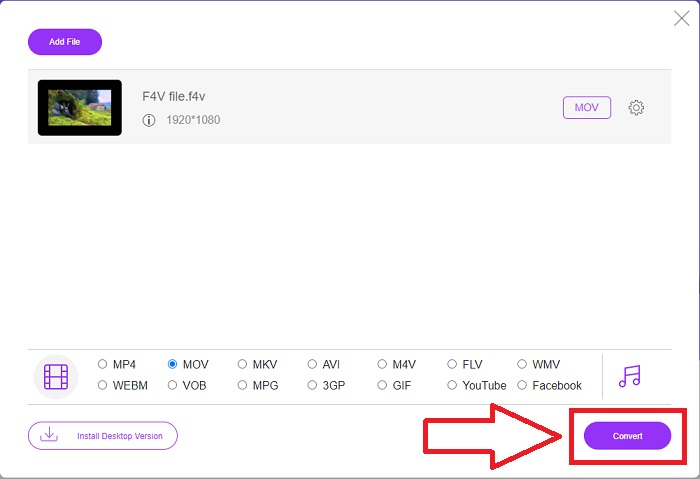
4. lépés. Miután eldöntötte, milyen formátumra szeretne konvertálni, kattintson a Konvertálás gombra az átalakítási folyamat elindításához.
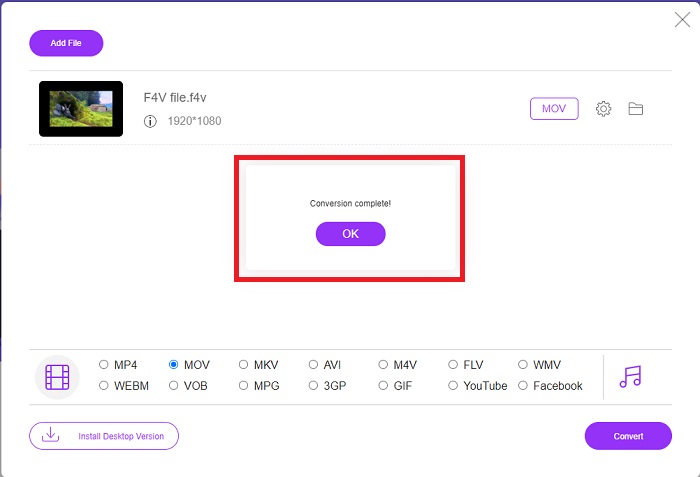
5. lépés. Néhány percen belül megjelenik az átalakított fájl egy mappában, amelyet megnyitva azonnal elkezdheti a lejátszást.
4. rész. GYIK az F4V-ből MOV-ba konvertálással kapcsolatban
Hogyan játszhatok le F4V fájlokat VLC-n?
Egyszerűen húzással importálhat és lejátszhat F4V videót a VLC Playerben. Ennek eléréséhez először meg kell nyitnia azt a mappát, amelyben az F4V fájl található. A VLC Playernek el kell indítania az F4V fájlt be kell húzni a lejátszó felületére, majd el kell dobni. A videofájl lejátszása azonnal megkezdődik, amint bedobja a lejátszóba.
Hogyan játszhatok le F4V fájlokat Macen?
Az Eltima szerint az Elmedia Playert először le kell tölteni a hivatalos webhelyről. Az Elmedia ezután a következő módszerekkel importálhat F4V fájlokat: Egyszerűen húzza át az F4V fájlokat a lejátszó ablakába vagy a dokkoló ikonjára. A Finder helyi menüjéből válassza ki a Megnyitás a következővel menüpontot. Használja az Elmedia Playert. Az Elmedia Player főmenüjében válassza a Fájl, majd a Megnyitás menüpontot. Végül jó szórakozást.
A MOV fájl ugyanaz, mint az MP4?
A MOV egy Apple‑tulajdonú fájlformátum a QuickTime számára, míg az MP4 egy szabvány a világ többi része számára. Mivel a MOV fájlok nem működnek minden streaming‑protokollal, a legtöbb streaming szolgáltató inkább az MP4 fájlokat részesíti előnyben. A MOV fájlok ezzel szemben általában jobb minőségűek és nagyobb méretűek, mint az MP4 fájlok. Macen történő videoszerkesztéshez a MOV fájlok jobbak, mivel kifejezetten a QuickTime‑hoz készültek, ami megkönnyíti a használatukat. Olvasson tovább, hogy többet tudjon meg a MOV és MP4 közötti különbségekről.
Következtetés
Fontos megjegyezni, hogy a fenti számos online megoldás ellenére a kapcsolódási problémák a videókonverziók megszakadásának egyik leggyakoribb okai. Ezért ajánlott letölthető, ingyenes szoftvert használni, például a Video Converter Ultimate programot. Amellett, hogy a videoklipet elfogadhatóan nagy sebességgel konvertálja, ez az átalakító számos hasznos funkciót kínál. Emellett rendkívül sokféle videoformátumot támogat, így nem kell aggódnia az ismeretlen fájlok átalakítása miatt, ha a lehető legjobb eredményt szeretné kihozni a videóból.
-
 4 legújabb online és offline konverter az F4V AVI formátumba konvertálásához
 Nincs ötlete, hogy milyen konverterrel konvertálja az F4V-t AVI-ba vagy bármilyen más videoformátumba? Ezután olvassa el ezt a cikket, miközben megtanulja, hogyan konvertálhat a rendelkezésre álló eszközzel.
-
 Az M2TS ingyenes konvertálása MOV-ba [Online és offline]
 Konvertálni kell az M2TS-t MOV-ba, hogy videofájlokat játsszon le számos lejátszón és platformon? Ez a cikk segít megtalálni a legjobb online / offline módszert az M2TS MOV konvertálására Windows / Mac rendszeren.
-
 Az MP4 konvertálása MOV-ba Mac / PC / Online rendszeren
 Hogyan lehet átalakítani MP4-et MOV-ra Mac-en? Van-e szabad módszer az MP4 átalakítására MOV-ra minőségromlás nélkül? Ez a bejegyzés 4 egyszerű módszert mutat be, amelyek segítségével MP4-ről MOV-ra konvertálhatja a videókat Mac, Windows PC és online.
